

Gemini Spark Tips: 16 Ways to Automate Real Work in 2026
Once you know what Gemini Spark is, the real question becomes what to delegate to it. This tips guide distills sixteen patterns from three hands-on walkthroughs - a lead-capture pipeline, Monday and Friday schedules, an expense bot and a writing-style skill - each with the screenshot, the prompt idea behind it, and the safety rail that keeps you in charge. If you have not set Spark up yet, start with our beginner walkthrough first; every tip below assumes your apps are already connected.
Source & credits
Screenshots in this guide are captured from soypacoia's public walkthrough video. Every step links back to the exact moment it shows, so you can follow along.
soypacoia ↗Describe the whole pipeline, not the next click
- 1
Paste one numbered prompt that builds the whole pipeline
Skip the Gmail settings maze: describe the finished infrastructure in one message - create a Leads/Inbound label, filter every Jotform form email into it, spin up a Control_Leads_2026 sheet with the columns you name, add a client folder in Drive. In the walkthrough Spark built label, filter, sheet and folder back to back while the presenter never opened Gmail's settings once. Numbered steps in the prompt keep the build order explicit.
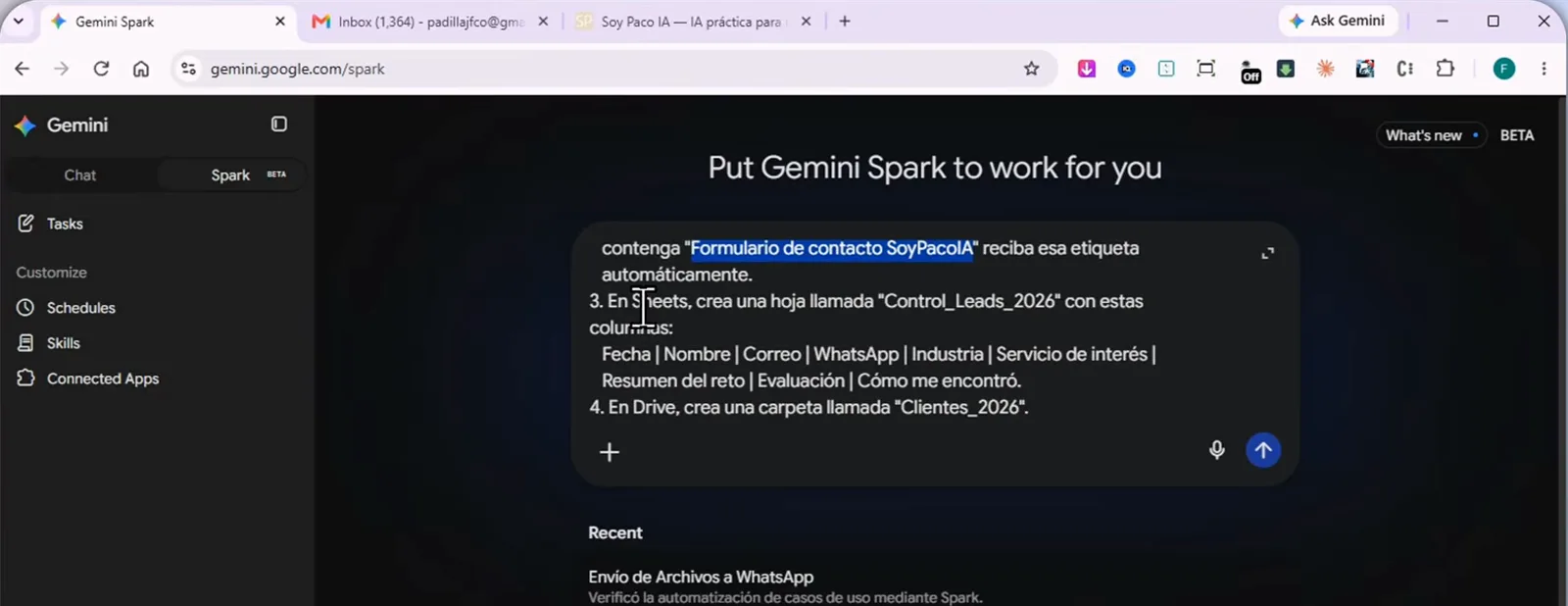
One submission, four artifacts - and zero clicks in Gmail settings.Watch at 2:20 - 2
Make it confirm what it created, then click every link
End the build prompt by asking for an itemized confirmation. Spark answers with a checklist - the Leads/Inbound label, the Control_Leads_2026 file with columns from Fecha to Cómo me encontró, the Clientes_2026 Drive folder - and every name is a link you can open. Thirty seconds of checking beats discovering a typo'd filter when the first real lead arrives.
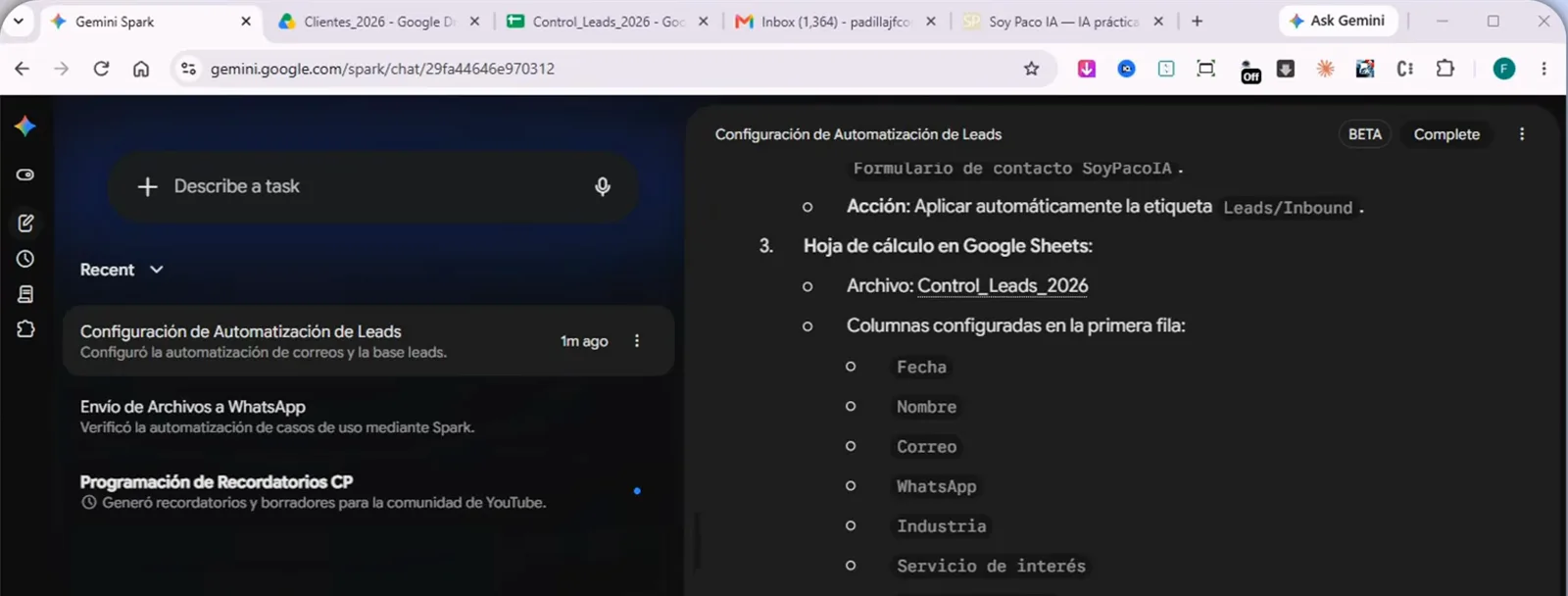
The receipt is clickable - verify it before real leads land.Watch at 4:42 - 3
Run a live test before you trust the automation
Submit a test entry through your own form and watch Gmail: in the walkthrough the Jotform email arrived, was labeled Leads/Inbound automatically, and the label tree on the left caught it instantly. That one row proves the filter, the label and the trigger chain work end to end. Only then paste the processing prompt that reacts to new arrivals.
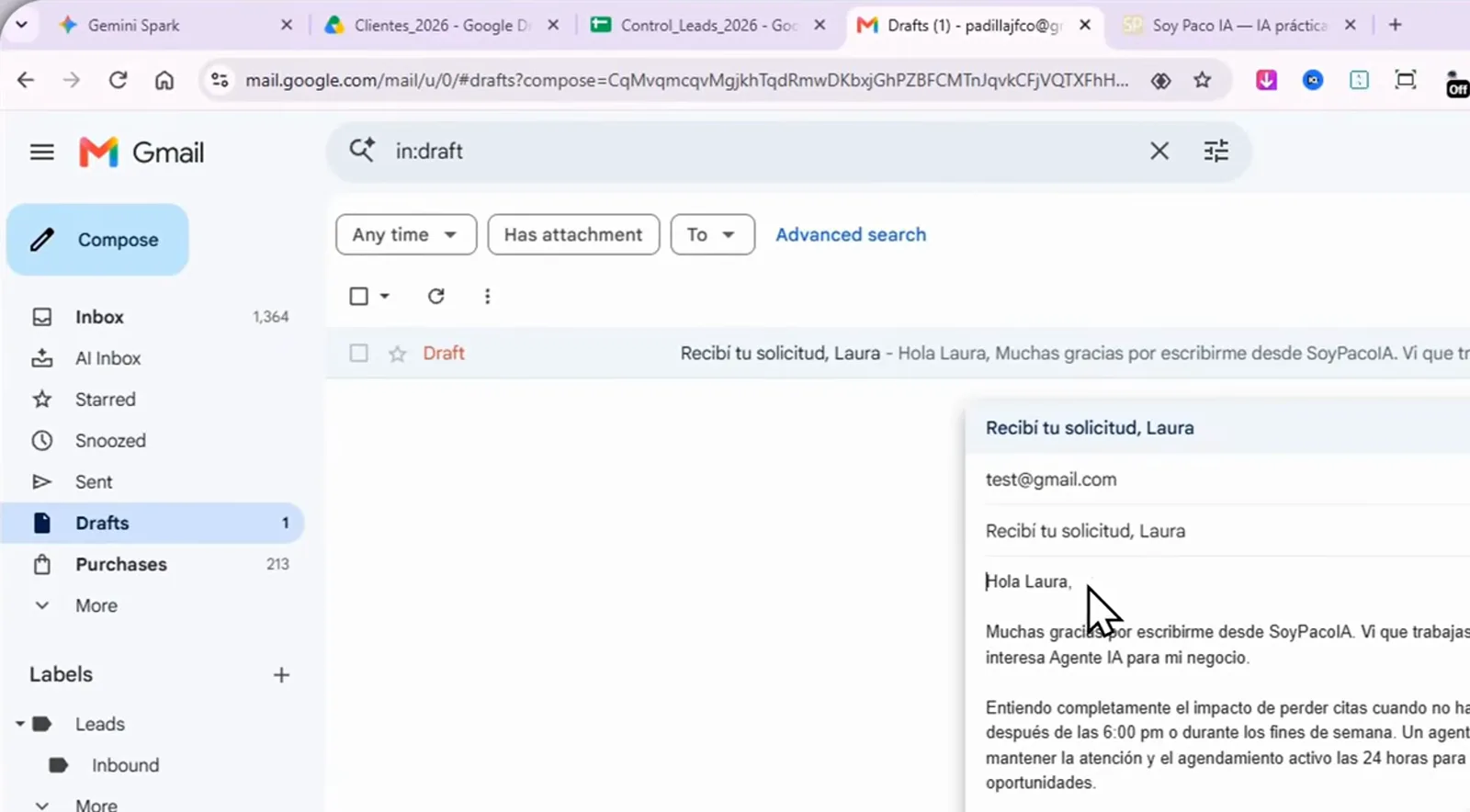
A fake lead named Laura Mendoza proves the chain works end to end.Watch at 9:20
Keep every send behind a draft gate
- 4
Write a strict policy line into your workflow profile
When Spark interviews you to profile a recurring job, add one sentence: always create drafts for manual review and approval; never send messages automatically. The profile in the walkthrough goes further - it batches a morning digest of wholesale activity and flags supplier deadlines - so every risky action parks behind a queue instead of firing on its own.
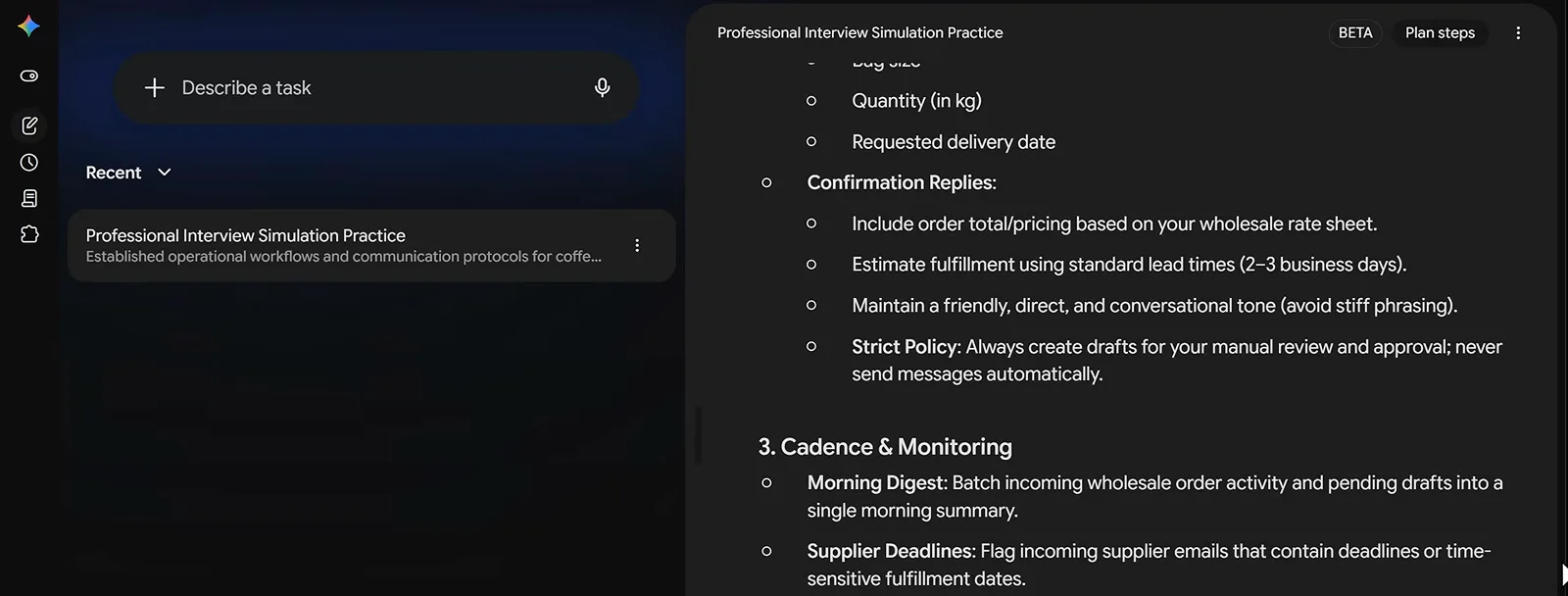
One strict-policy sentence turns sending into an approval queue.Watch at 4:06 - 5
Expect drafts, not sent mail - and set a word count
A wholesale inquiry came in, Spark read the thread and produced a 96-word reply for Priya Raman with a View Draft link at the top. Nothing left the account: the draft sat in Gmail until a human read it. Ask for a word limit in the same prompt and the drafts come back the right length every time.
96 words, parked and linked - sending stays a human decision.Watch at 12:40
Four schedule recipes worth stealing
- 6
Pair the Monday digest with a calendar action
A Monday brief is only useful if it changes your calendar. The walkthrough's prompt makes Spark review unread mail, pending Google Tasks and the week's calendar at 6 a.m., write the three to five priorities into a Priorities - week of [date] doc, and block two 90-minute focus sessions in the quietest gaps. You arrive to a week that is already booked, not just summarized.
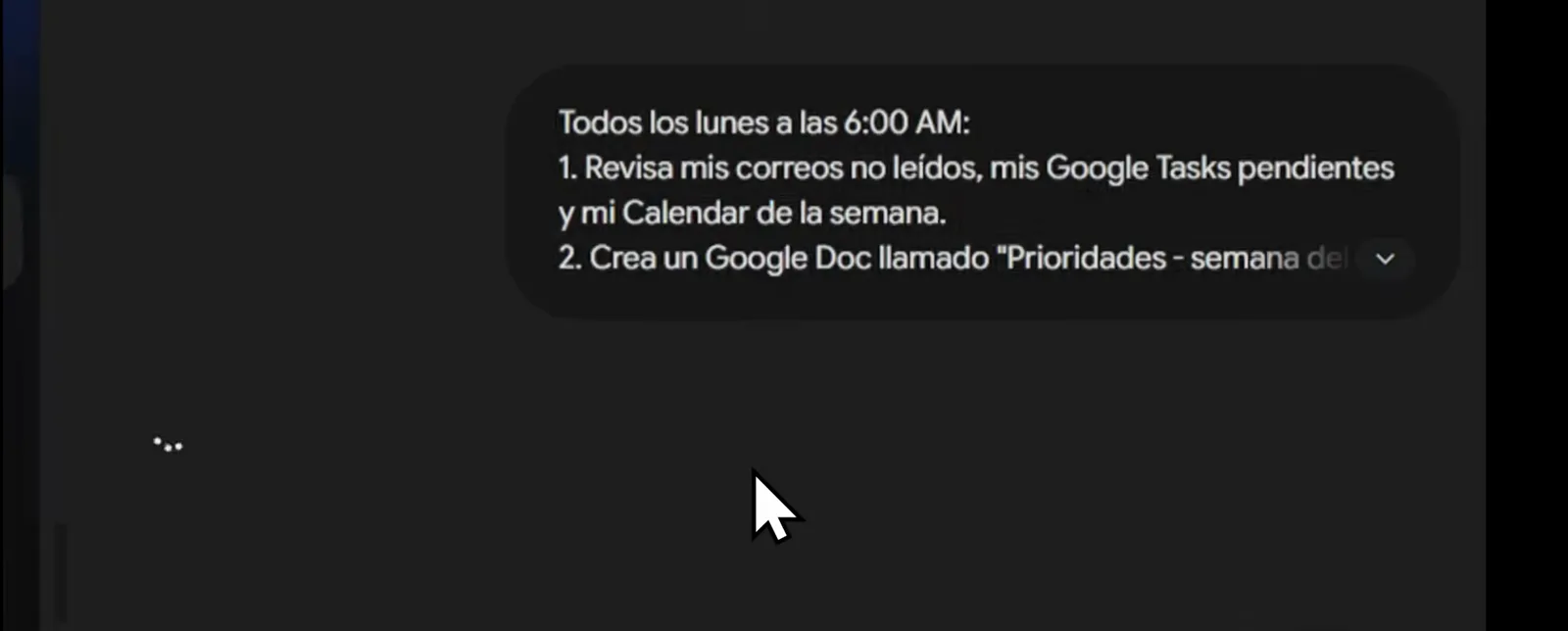
Coffee optional: the week is prioritized and time-blocked.Watch at 13:40 - 7
Ask for recommendations, not just monitoring
Every Friday around 8:00 Spark checks the sources you name and files a one-page Weekly Radar doc structured as what changed, why it matters, and what it recommends doing. That last part is the trick: raw release notes are noise, but a recommended next action is the gold. Name the exact sites - competitor blogs, pricing pages, changelogs - so the radar reads what matters to you.
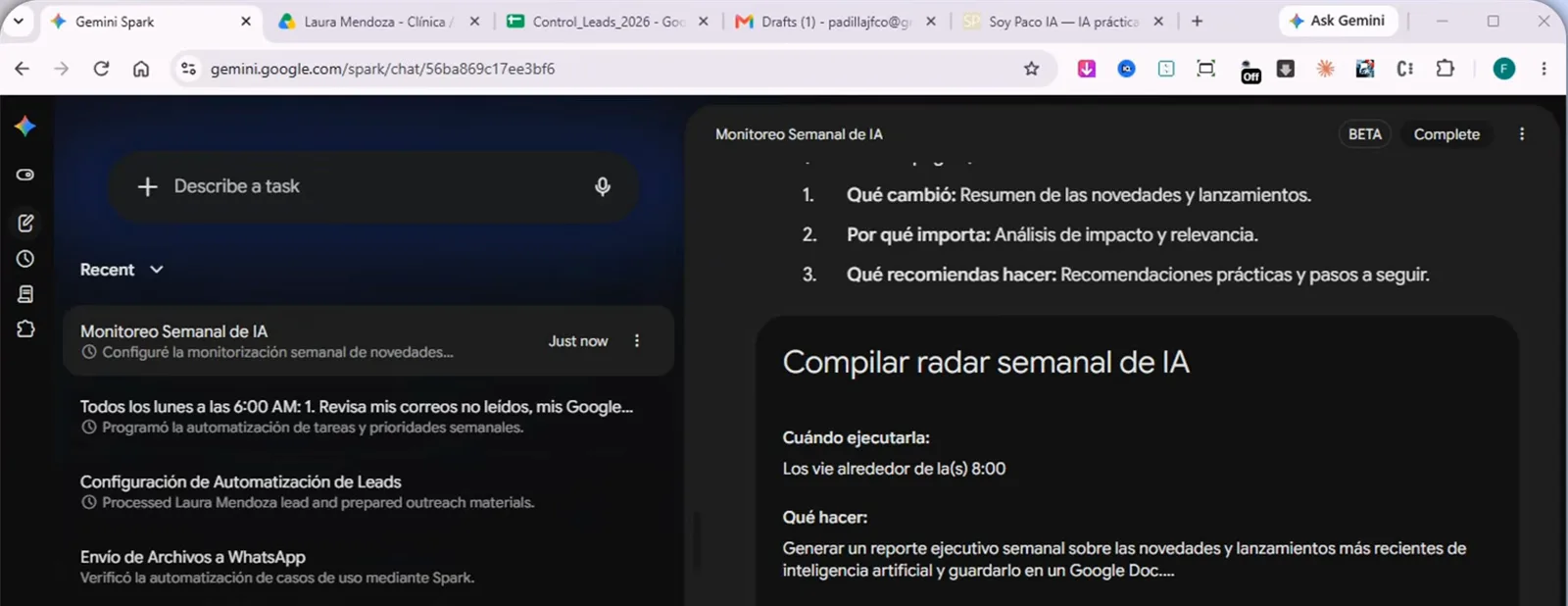
Competitor watch that ends in a to-do, not a link dump.Watch at 16:12 - 8
Let arriving email be the trigger, not the clock
Schedules can watch your inbox instead of the clock. This one fires whenever an email from stripe.com with a receipt or recibo subject arrives, checks that it really is an outgoing expense, and files the amount into a Gastos 2026 sheet plus a monthly invoice folder in Drive. The walkthrough processed 21 receipts totalling $321.23 without a Sunday spent on bookkeeping.
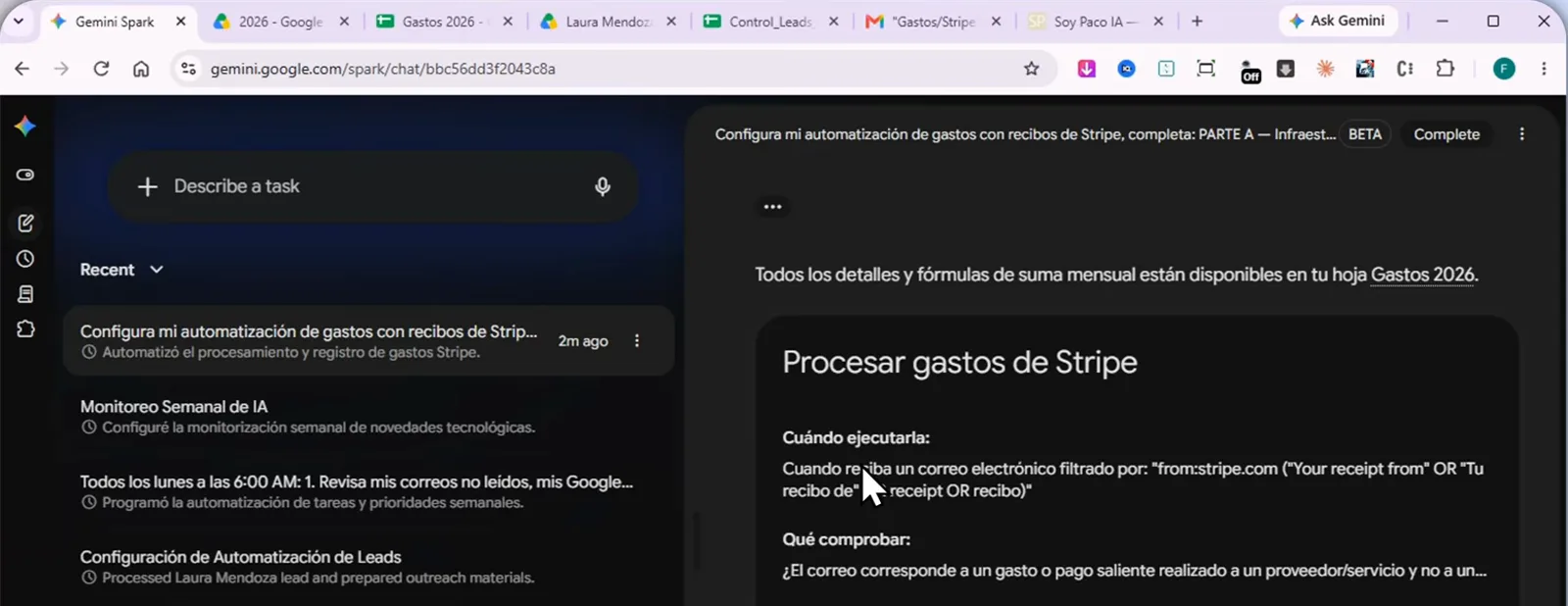
Receipts file themselves the moment they land - even in December.Watch at 19:20 - 9
Point schedules at the sheet you already keep
You do not have to accept a new tracker file. This daily noon briefing was told to check the past 24 hours of work email and append new deadlines to an existing sheet, reusing its columns and skipping anything already there - the run report even lists the four items it verified against existing rows first. Your sheet stays canonical; Spark just feeds it.
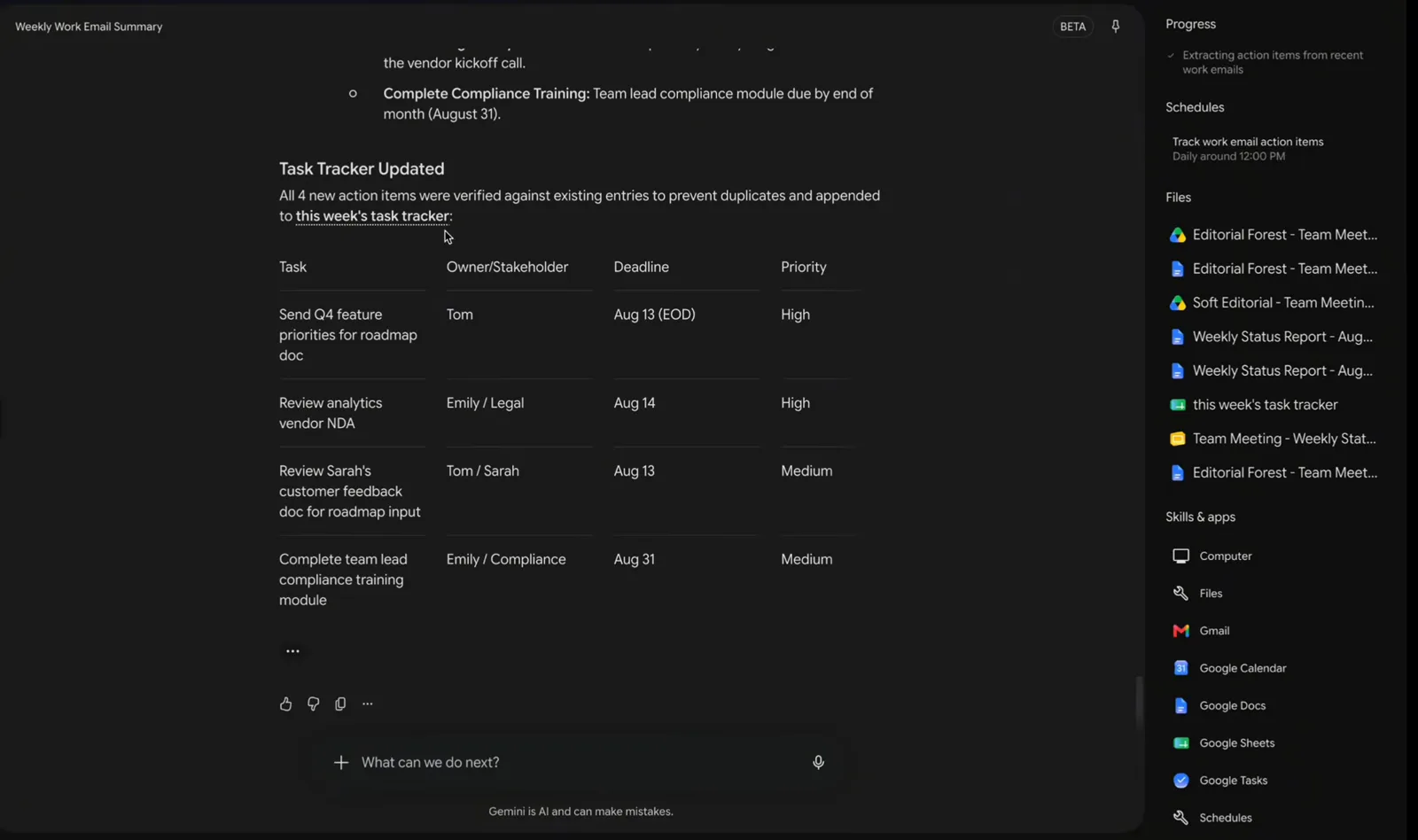
Append, don't duplicate - the tracker you trust stays canonical.Watch at 5:54
Bottle your voice into a reusable skill
- 10
Build a style skill from artifacts, not adjectives
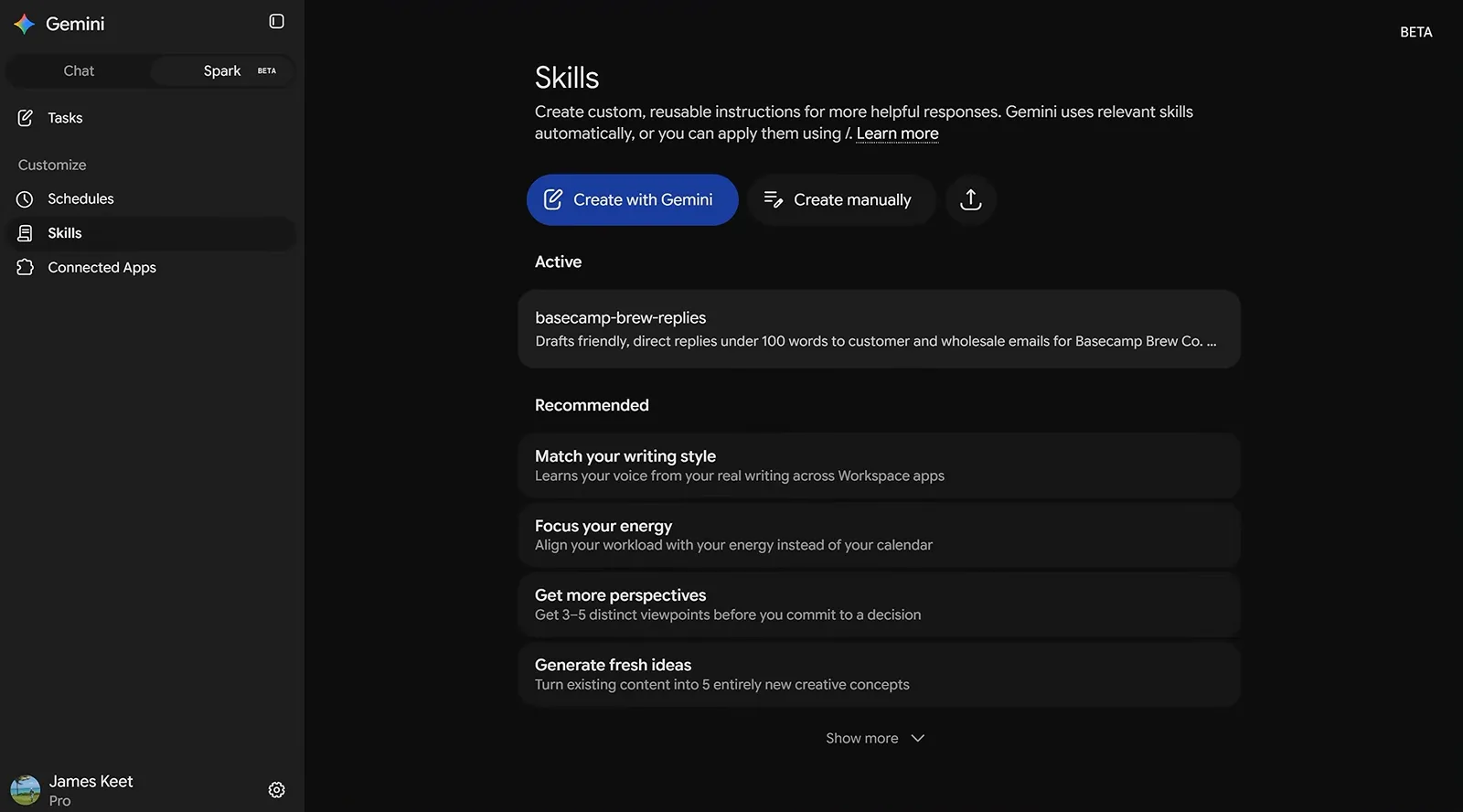
Write like me fails; learn from these files works. The prompt points Spark at recent sent emails plus a Drive doc called REFERENCIA-Estilo and asks for a skill that copies the tone, vocabulary, typical structure, and the exact way you greet and sign off. Real samples give the skill something to imitate - one setup, done once, reused everywhere.
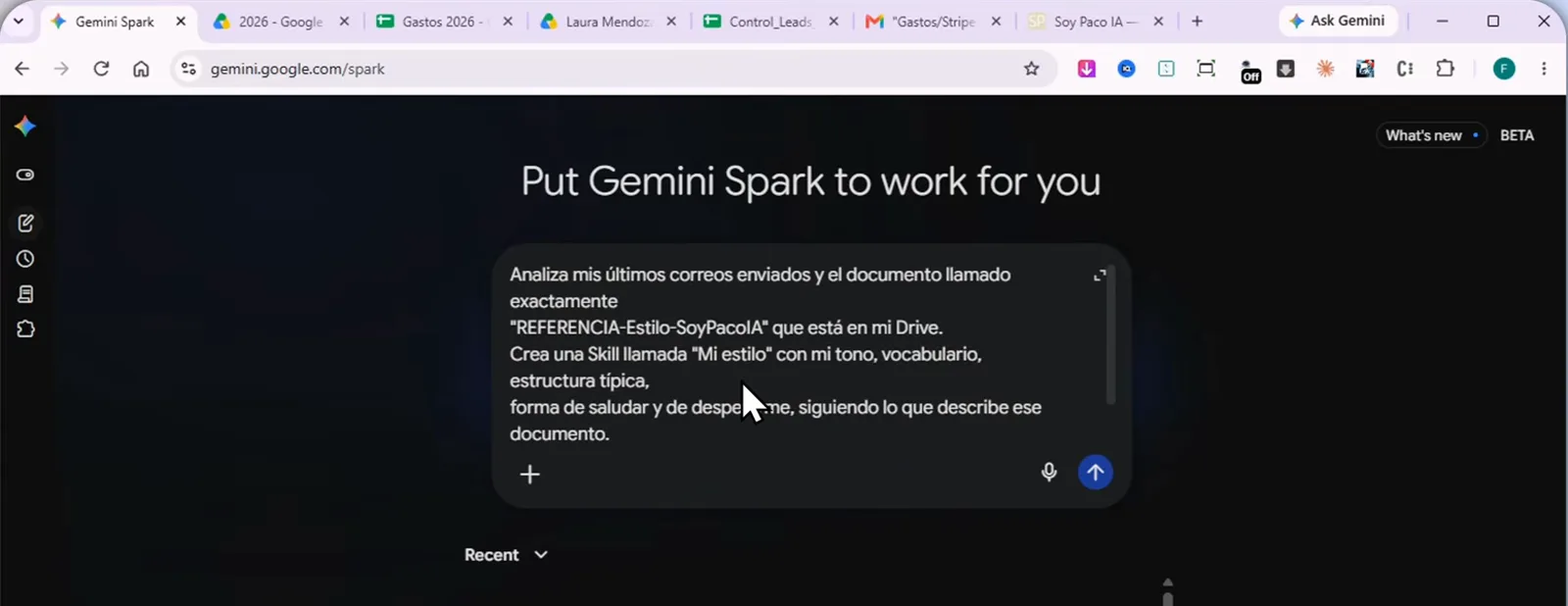
Your sent folder is the style guide; Spark just compiles it.Watch at 20:40 - 11
Treat the finished skill card as a building block
When the task completes, the mi-estilo skill exists as a card with a description and an instructions block - vocabulary to keep, structure to follow, greetings and closings included. That card is what Spark matches against future tasks, and the same pattern works for client replies, proposals, or any voice you repeat. Make as many skills as you have registers.
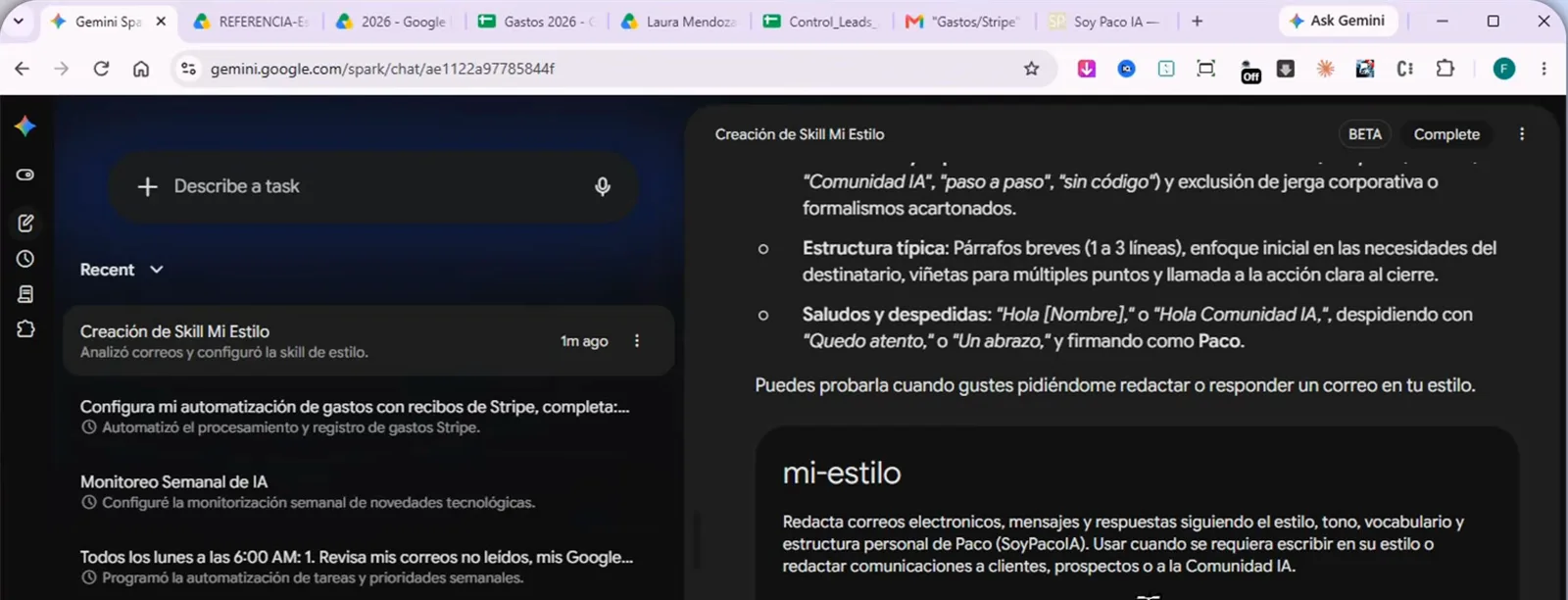
A skill is packaging, not magic: instructions you would have retyped.Watch at 21:40 - 12
Chain a skill into a task and land the output in Docs
Skills are pieces that combine. The follow-up prompt invokes the Mi estilo skill by name, asks for a reply to the clinic lead, and drops the result straight into a Google Doc named Seguimiento - Laura Mendoza. One line of prompting connects the memory of your voice with a deliverable you can edit or forward.
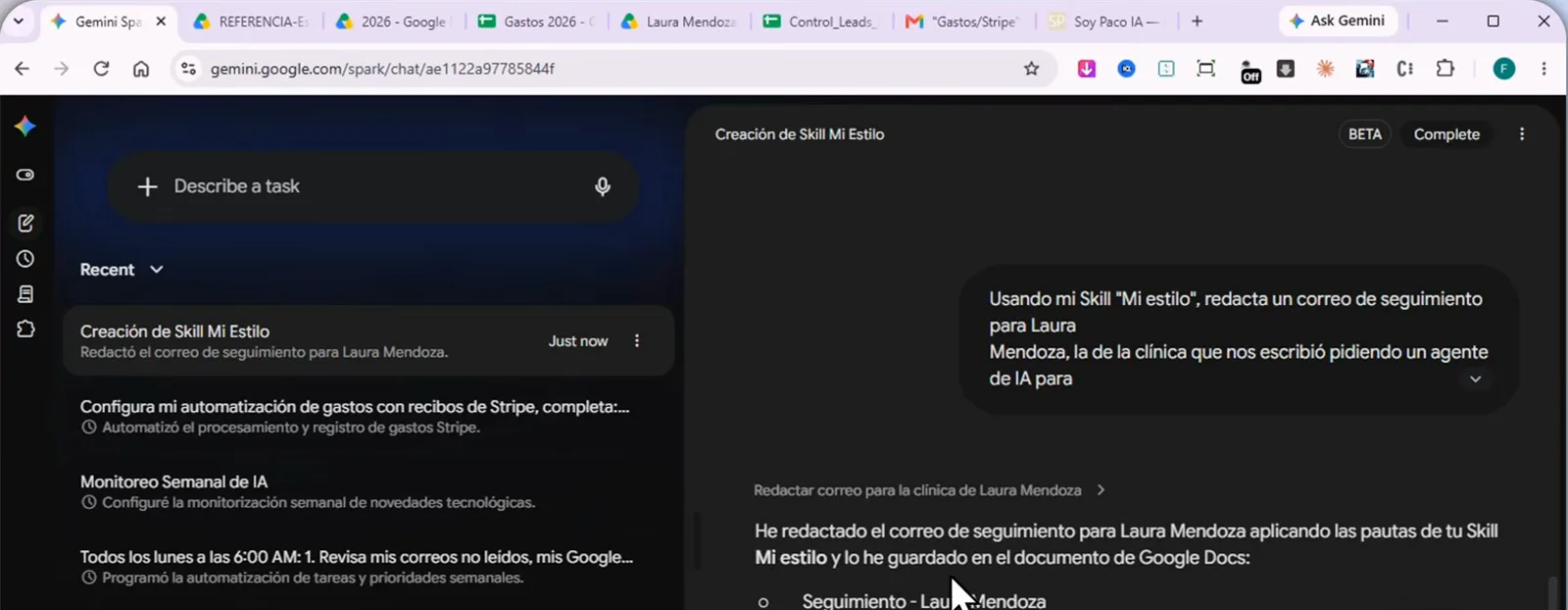
Skill + task + doc: three pieces snapped into one chain.Watch at 22:12 - 13
Read the output and check it sounds like you
The generated follow-up opens with Hola Laura, thanks her, references the WhatsApp agent for her clinic, and signs off Quedo atento, Paco - the exact register the skill was built from. Scan the first output of any new skill closely; if a phrase is off, refine the skill instructions once and every future draft inherits the fix.
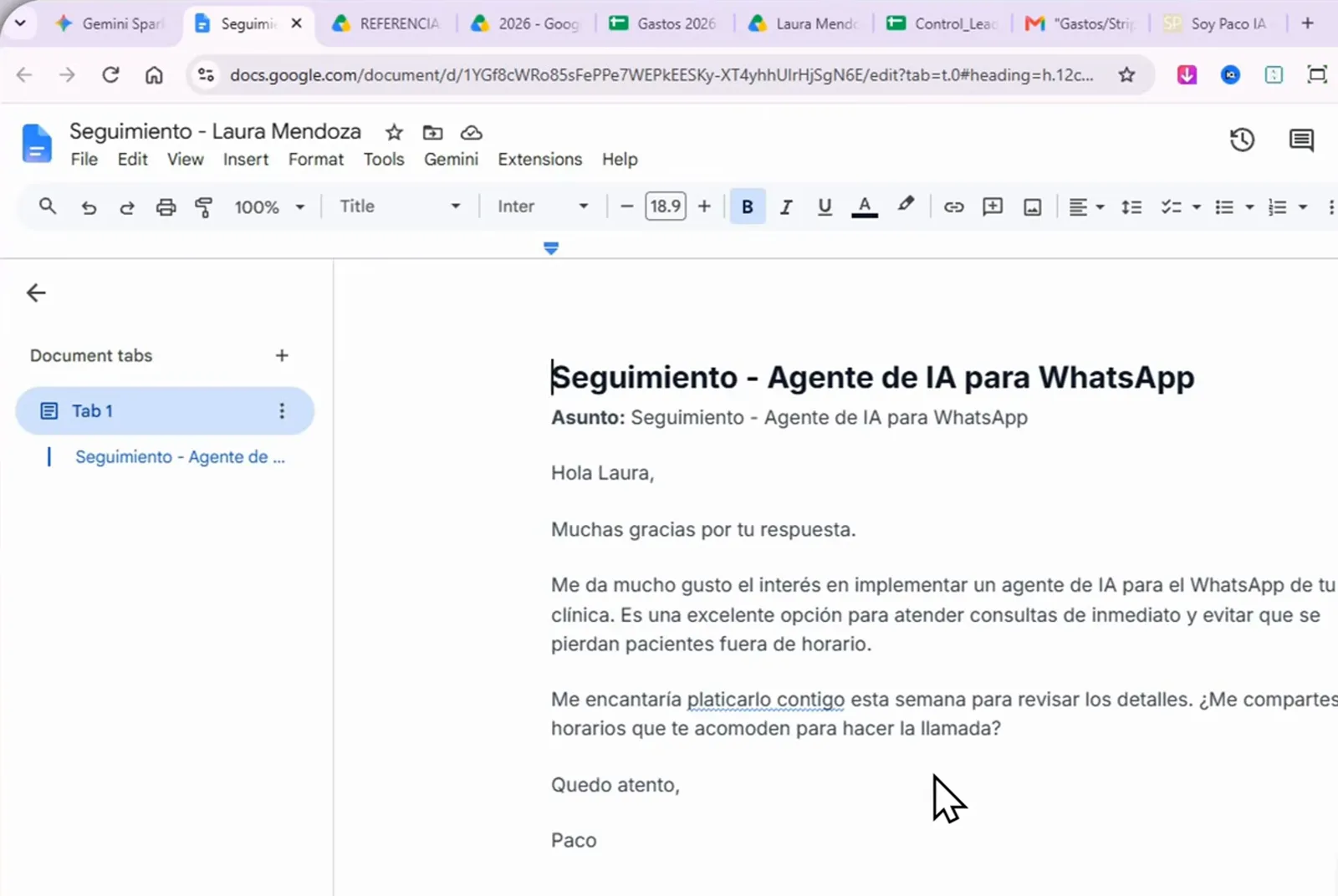
The test it has to pass: no rewrite needed before forwarding.Watch at 22:40
Steer, stop and shut down safely
- 14
Read the plan before you press Allow
When a task needs the cloud browser, Spark stops and asks: let Gemini Spark use a remote browser to interact with websites for you? The dialog names the exact unsubscribe URL it plans to visit, and the task sits with a Needs input badge until you decide. Approval lasts for that task only, so read the plan, not just the buttons.
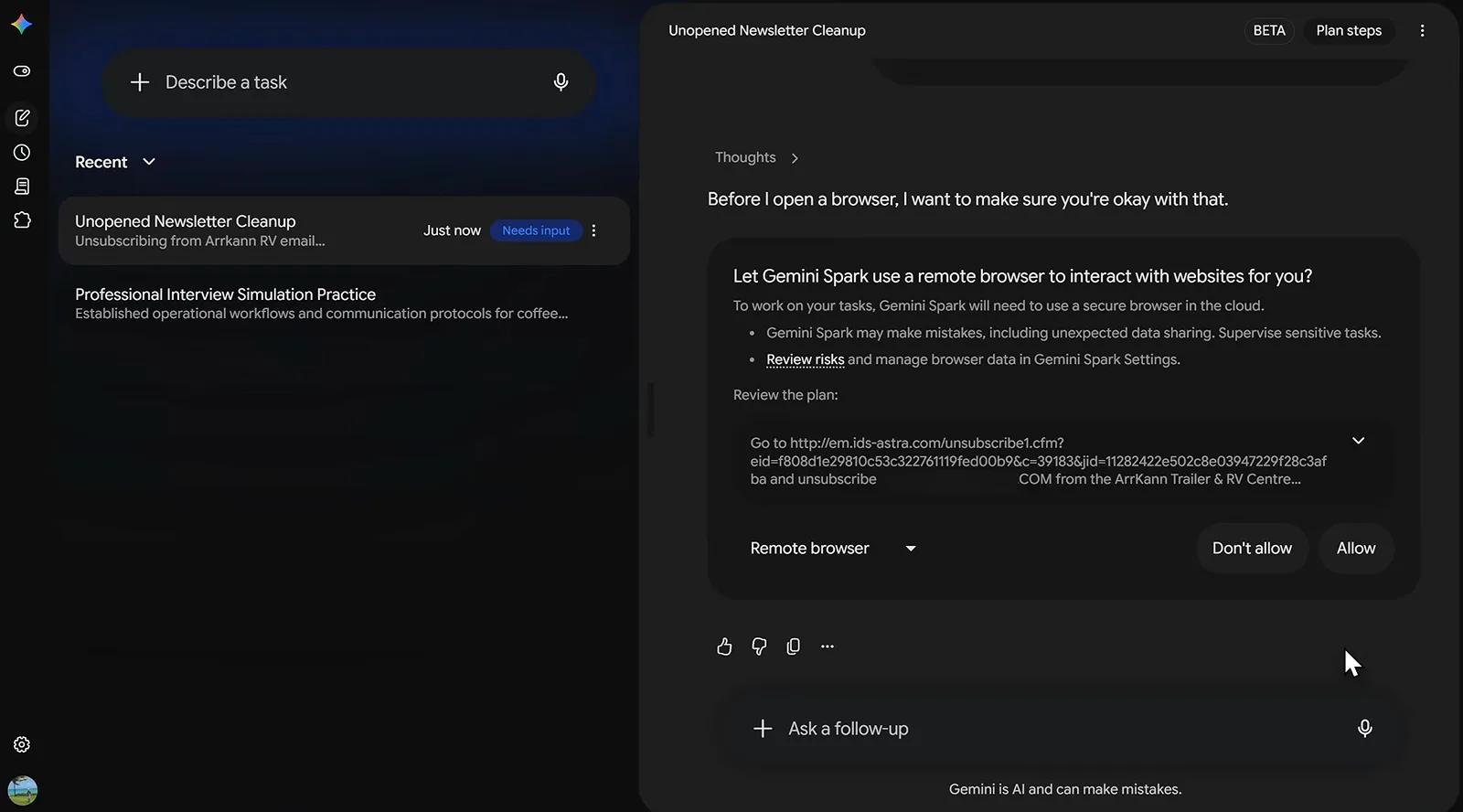
The dialog names the page before the agent ever opens it.Watch at 6:00 - 15
Watch plan steps and stop a wrong run early
The Plan steps panel shows each move as it happens - check the workspace folder exists, search Gmail for the inquiries, parse the thread details. If a step goes sideways, press the stop square instead of waiting out a doomed run, add the missing line to your prompt, and re-run. Ninety seconds of watching saves a full redo.
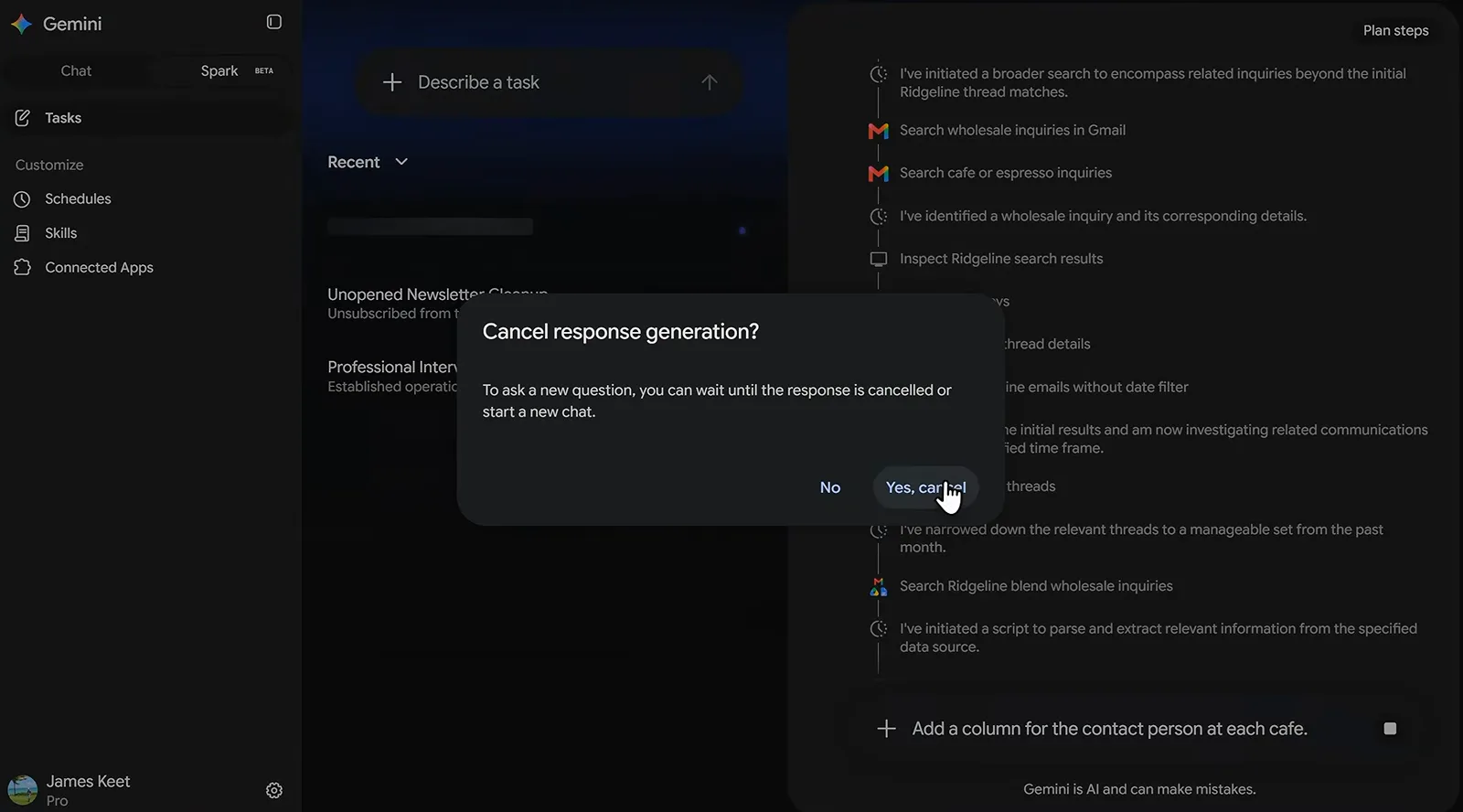
Stop is cheap; a finished-but-wrong run is not.Watch at 7:20 - 16
Know where the off switch and the broom are
Gemini Spark Settings holds three controls worth visiting once a month: Turn off Gemini Spark stops your schedules and deletes browsing and code-execution files, Delete remote browser data clears the cookies Spark collected, and Delete remote code execution data wipes its sandbox. Turning Spark off pauses tasks and schedules without deleting them, so it doubles as a vacation switch.
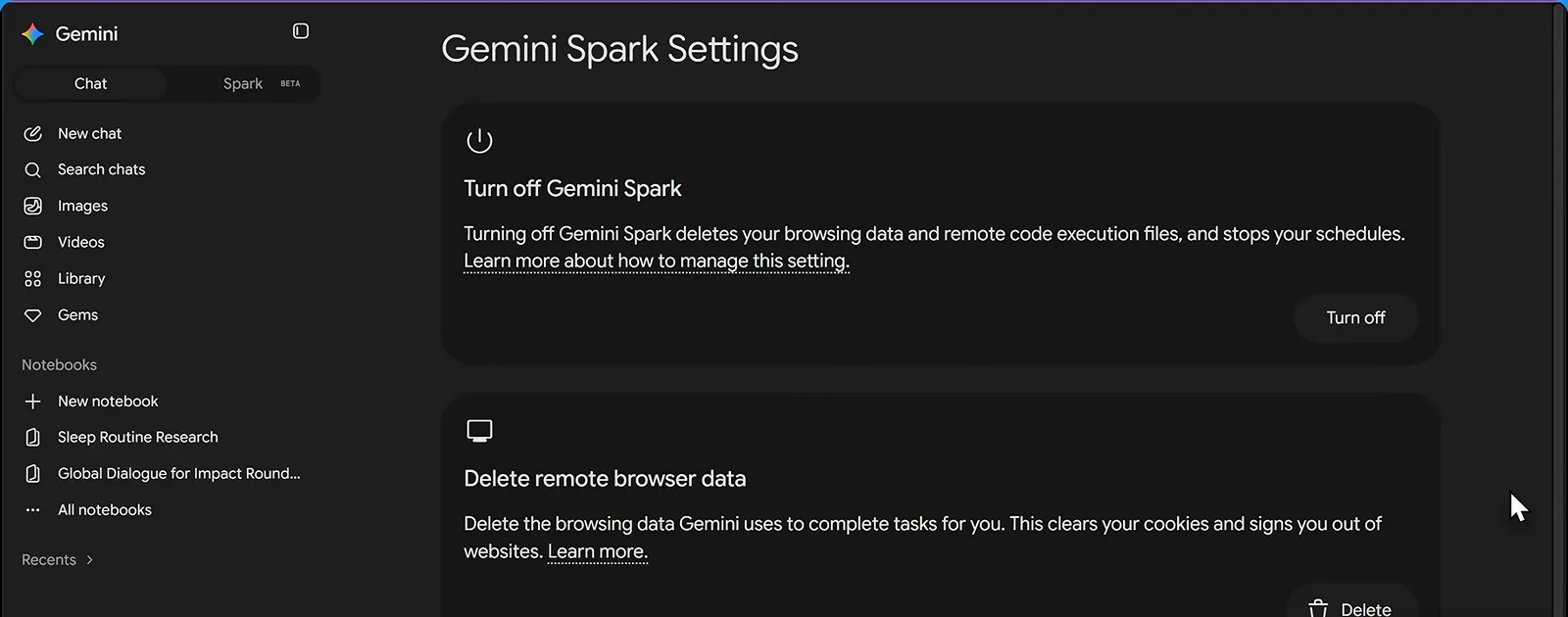
Monthly hygiene: wipe the cookies, know the pause button.Watch at 15:11