

Gemini Spark vs Grok Bot: Which Cloud Agent Matches Your Work in 2026?
Google and xAI now sell the same promise: an agent with its own computer in the cloud that keeps working after you close the laptop. Gemini Spark started reaching paid Gemini plans in early October 2026, while Grok Bot opened up through Cursor Pro and SuperGrok subscriptions the same month. This guide walks both setups step by step - the Grok Bot walkthrough is recorded from Sharbel's two-week test, the Gemini Spark screens from The Tech Girl's hands-on - then lines up prices, hosting, limits and ecosystems. The trade-offs sit side by side, and the choice stays yours.
Source & credits
Screenshots in this guide are captured from Sharbel Ayyoub's public walkthrough video. Every step links back to the exact moment it shows, so you can follow along.
Sharbel Ayyoub ↗Getting started with Grok Bot
- 1
Install the app and meet your chief of staff
Grok Bot ships as a native app for macOS, Windows and iOS - there is nothing to host and no terminal step. On first launch the app hands you one default bot: a chief of staff. Type a hello like "hi, you are my chief of staff" into the composer and it introduces itself, ready to spawn and manage the rest of your team.
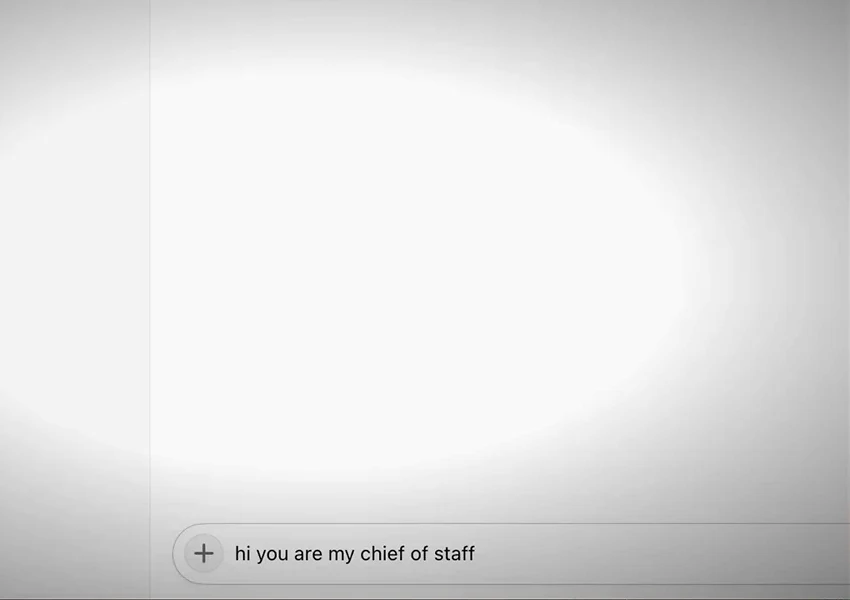
Setup is one install and one hello - the first bot manages all the others.Watch at 1:10 - 2
Describe yourself once and get a team of bots
The fastest way to populate the workspace is a master configuration: one message telling the bot everything about you - name, job, interests, what matters. The chief of staff turns that into named specialists, each with its own screen on the shared cloud computer. In this demo it created Pulse for clients, Nova for YouTube, Sage for X, Ledger for email and Atlas for investments, then kept the chief-of-staff role for itself.
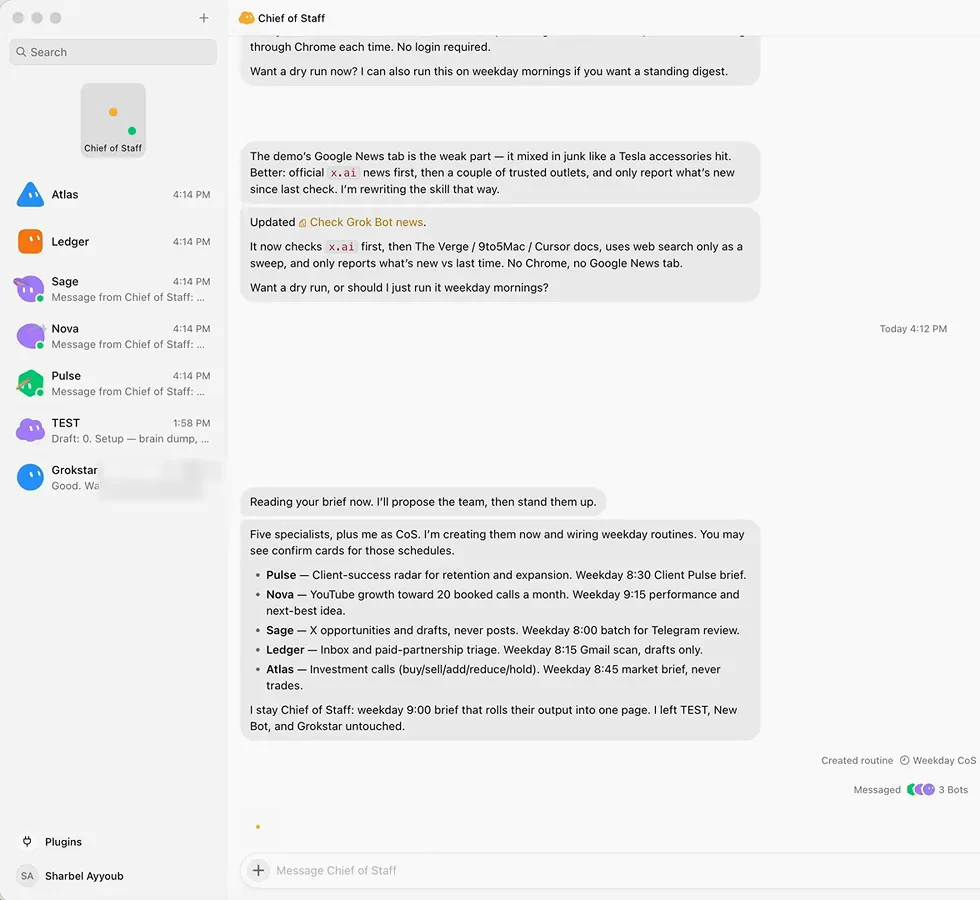
One paragraph about you becomes five bots with names, jobs and schedules.Watch at 10:00 - 3
Authorize connectors and watch them spread
Connections are managed from one place: add Gmail, Google Drive or Google Calendar under Plugins and any bot that needs it can use the access. Services without a connector are not a dead end - the bot opens a real login page on its cloud screen so you can sign in yourself. In the demo, Ledger could use Gmail immediately while Nova was queued for YouTube access on request.
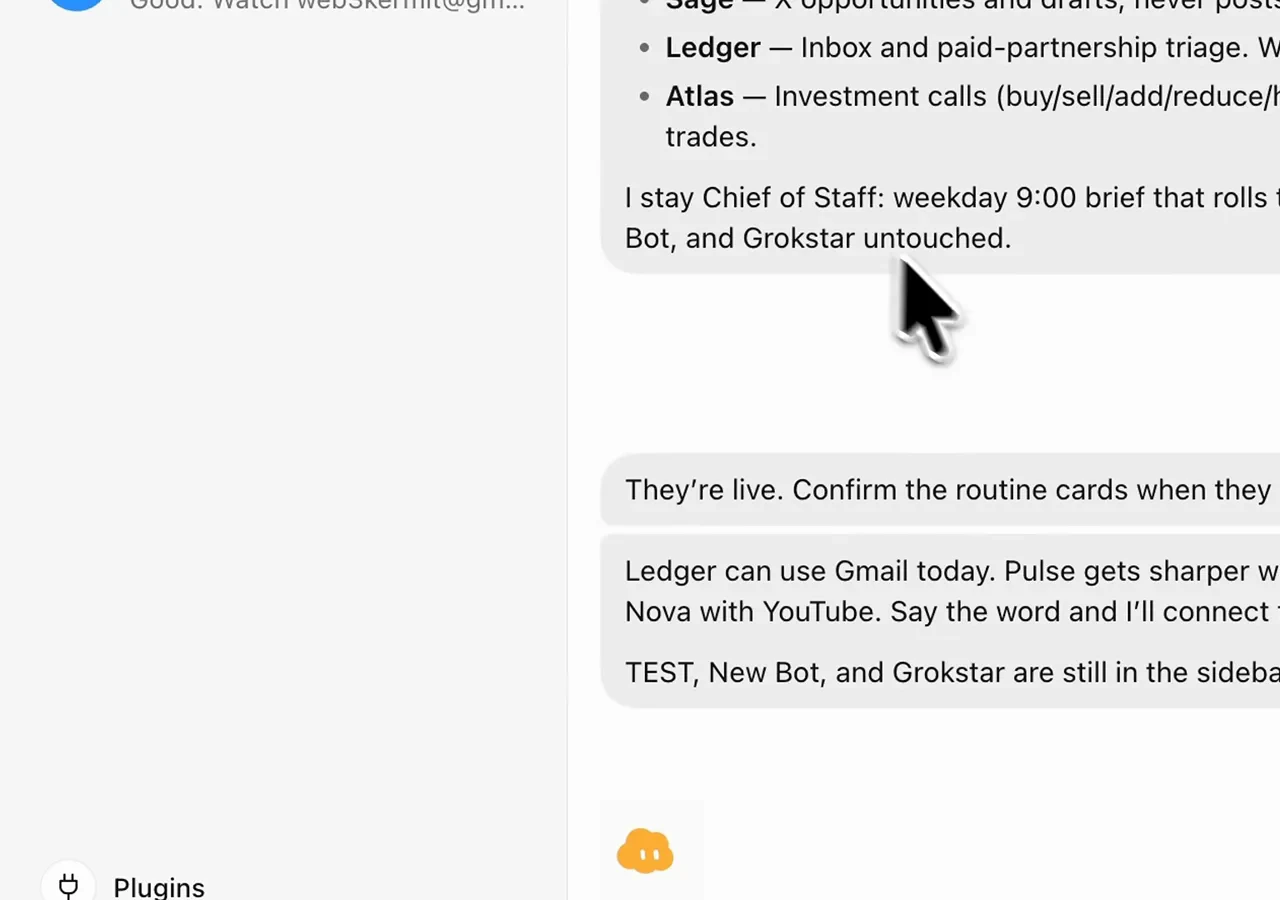
Authorize once, or log in yourself on the bot's screen - both paths are built in.Watch at 10:20
Getting started with Gemini Spark
- 4
Open the Spark tab inside Gemini
Spark is not a separate product - it is a tab inside the Gemini apps on the web, on mobile and on Mac. Open gemini.google.com, look at the sidebar and switch from Chat to Spark. If the tab is missing, your account, region or plan may not be eligible yet: the rollout only started reaching all paid accounts in early October 2026.
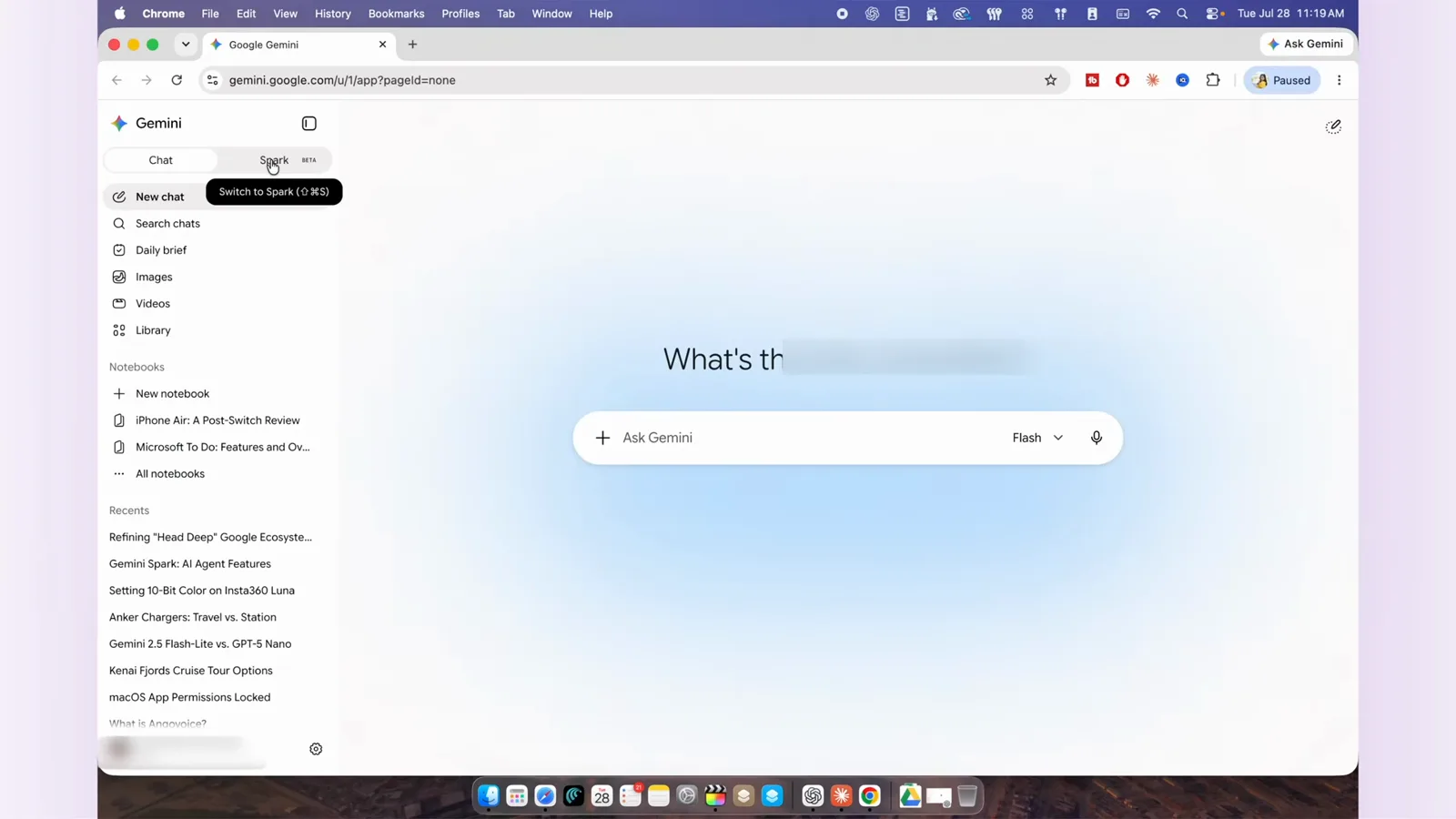
Same Gemini app, new tab - Chat answers, Spark works.Watch at 0:45 - 5
Check the requirements before your first task
Spark has gate checks: you need a personal Google account, since work and school accounts are blocked, you must be 18 or older, and the Keep activity setting has to be on. The Gemini Apps Activity page in your Google Account is where you flip it. The feature is also still labeled experimental, so expect the interface to keep moving.
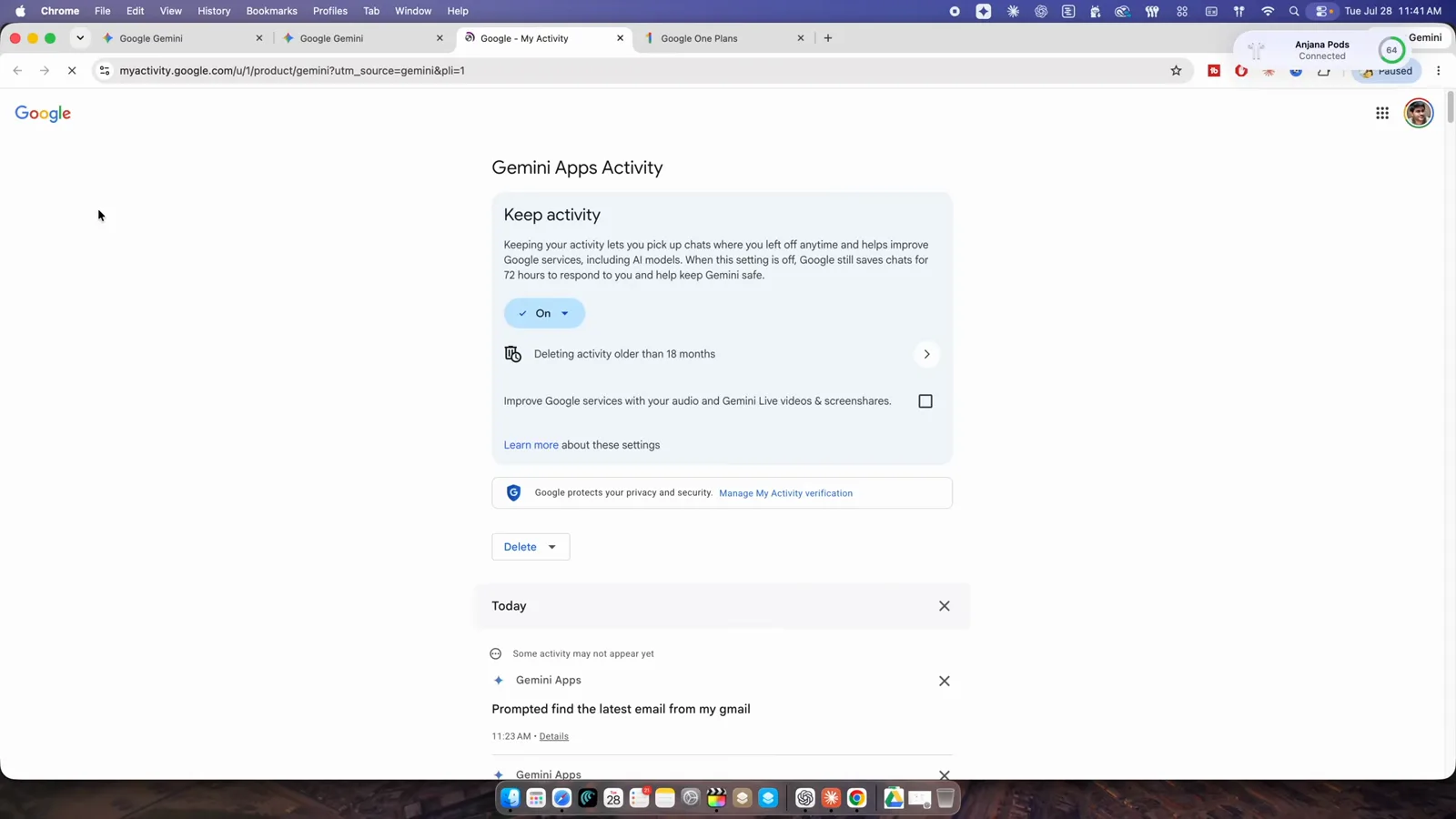
One toggle in your Google Account unlocks task history for Spark.Watch at 2:04 - 6
Give it a goal, not a checklist
You do not hand Spark a sequence of steps - you state the goal, like "prepare my customer briefing". Google spins up a cloud computer for the session, breaks the goal into steps such as gather context, review inbox, build the brief and deliver result, and runs them on its own machine. You can step away; the session continues without your laptop.
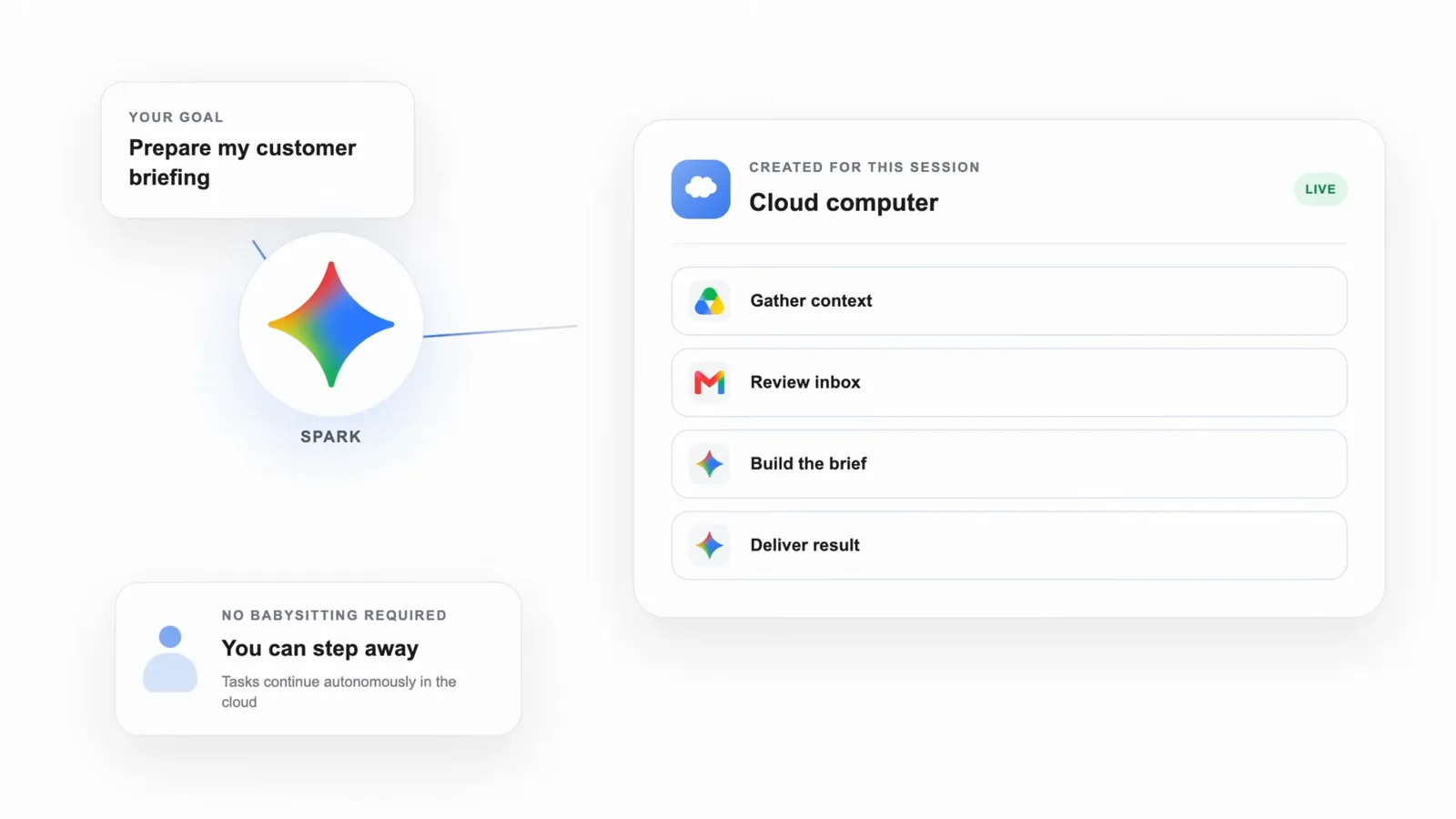
State the outcome - Google's cloud session figures out the how.Watch at 1:15 - 7
Wire an inbox into a working action system
The demo system turns a cluttered Gmail into an assistant: when a relevant email arrives, Spark labels it, creates a Google Task for anything due, adds calendar events for confirmed appointments, logs bills and renewals in a Sheet, and prepares reply drafts it will never send without approval. Gmail monitors can trigger the flow when an incoming email matches a filter, and an end-of-day summary rolls everything up.
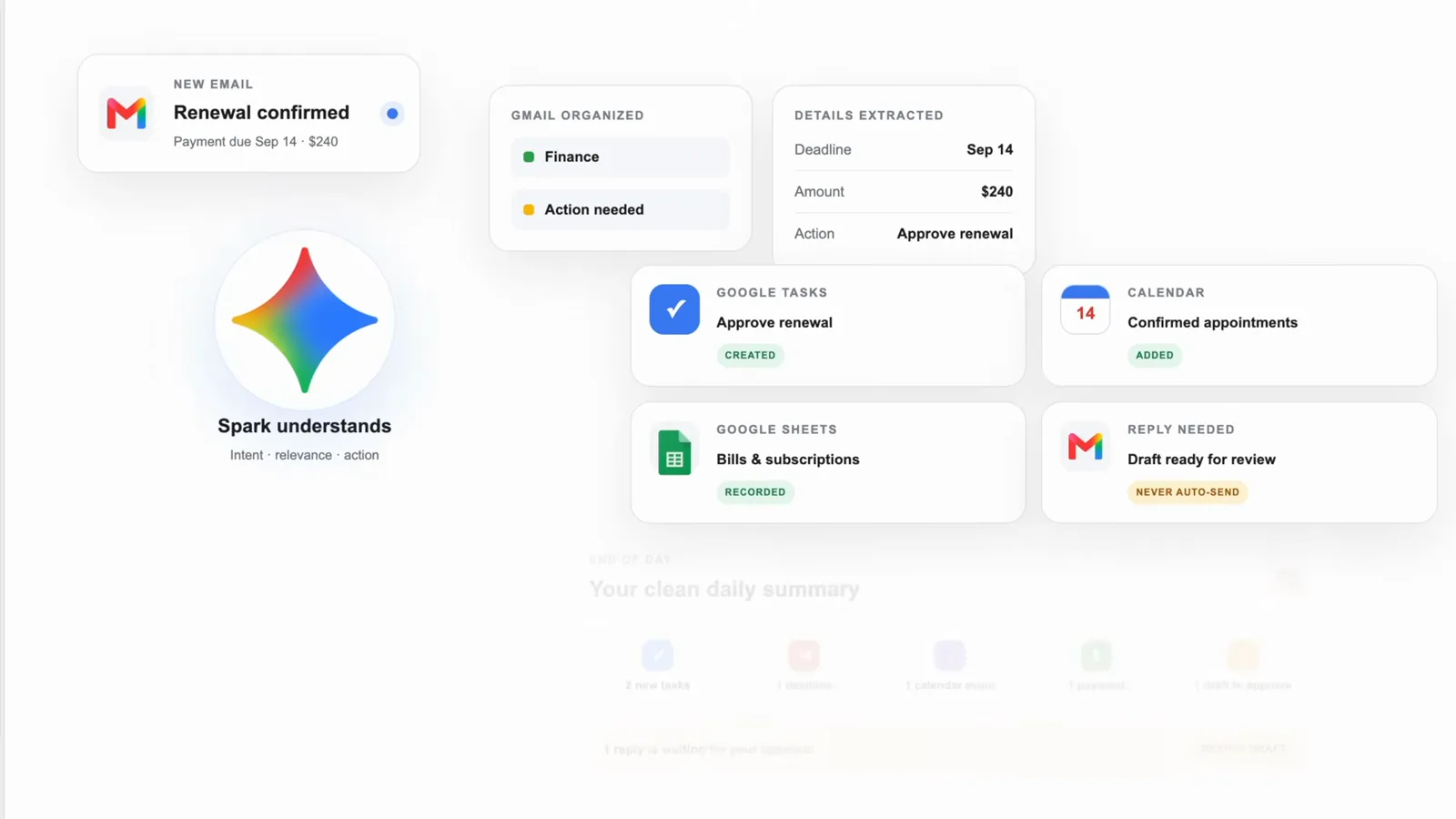
Label, task, event, sheet row, draft - then one clean end-of-day summary.Watch at 3:45
What each one costs to try
- 8
Grok Bot: start free, then Cursor Pro or SuperGrok
There is a free trial with limited usage - enough for one real test if you do not waste it on trivia. Paid entry runs through subscriptions: Cursor Pro at $20 a month or SuperGrok at $30 a month, and every higher Cursor or SuperGrok tier also includes access (prices as of October 2026, checked on x.ai). Usage is capped weekly and extra usage is billed by tokens, so intensive bots can burn through a week fast.
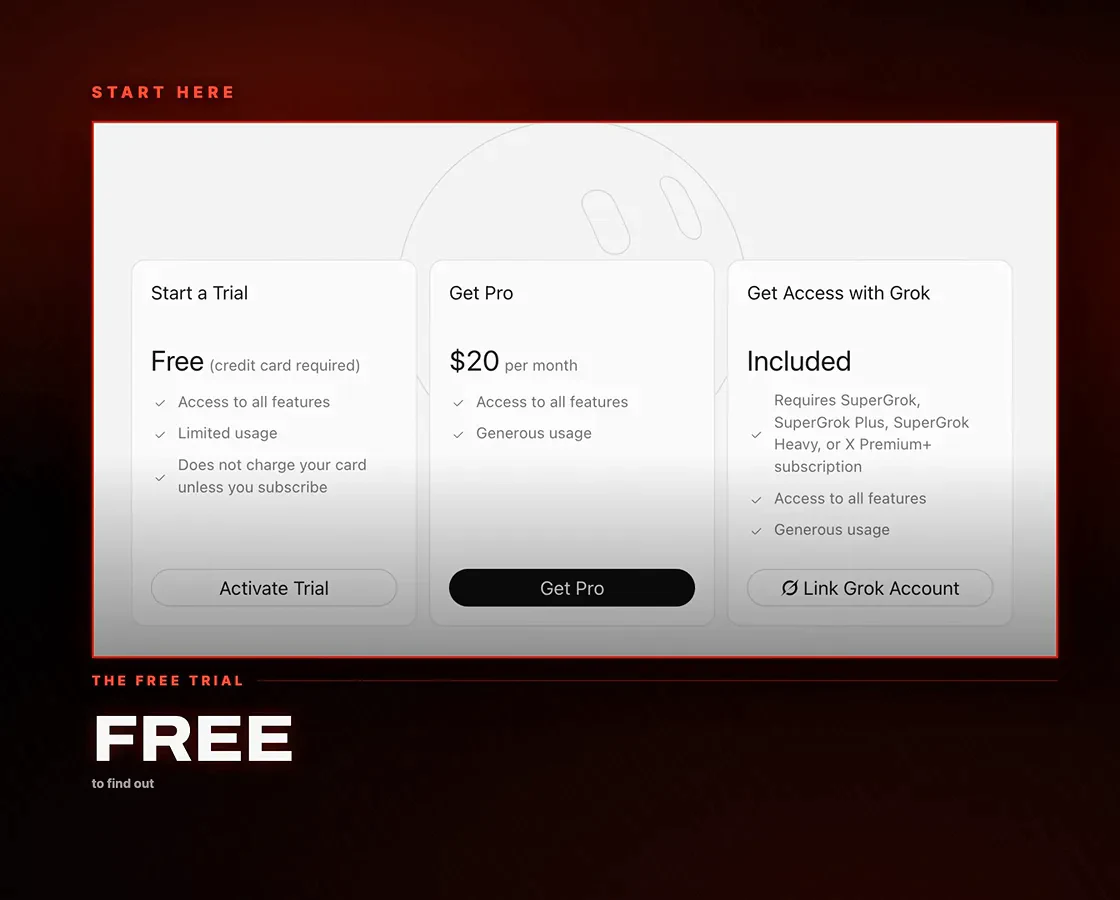
The trial is free but small - spend it on one task that matters to you.Watch at 9:00 - 9
Gemini Spark: a Google AI Pro or Ultra plan
Spark requires a paid Google AI subscription - Pro or Ultra; the cheaper Plus tier does not unlock it. Skills stay available even without a subscription, but the agent itself, its tasks and its schedules disappear if you downgrade. Availability also skips some regions - the EEA, UK, Switzerland and Nigeria were excluded as of October 2026 - so check Google's support page for your country.
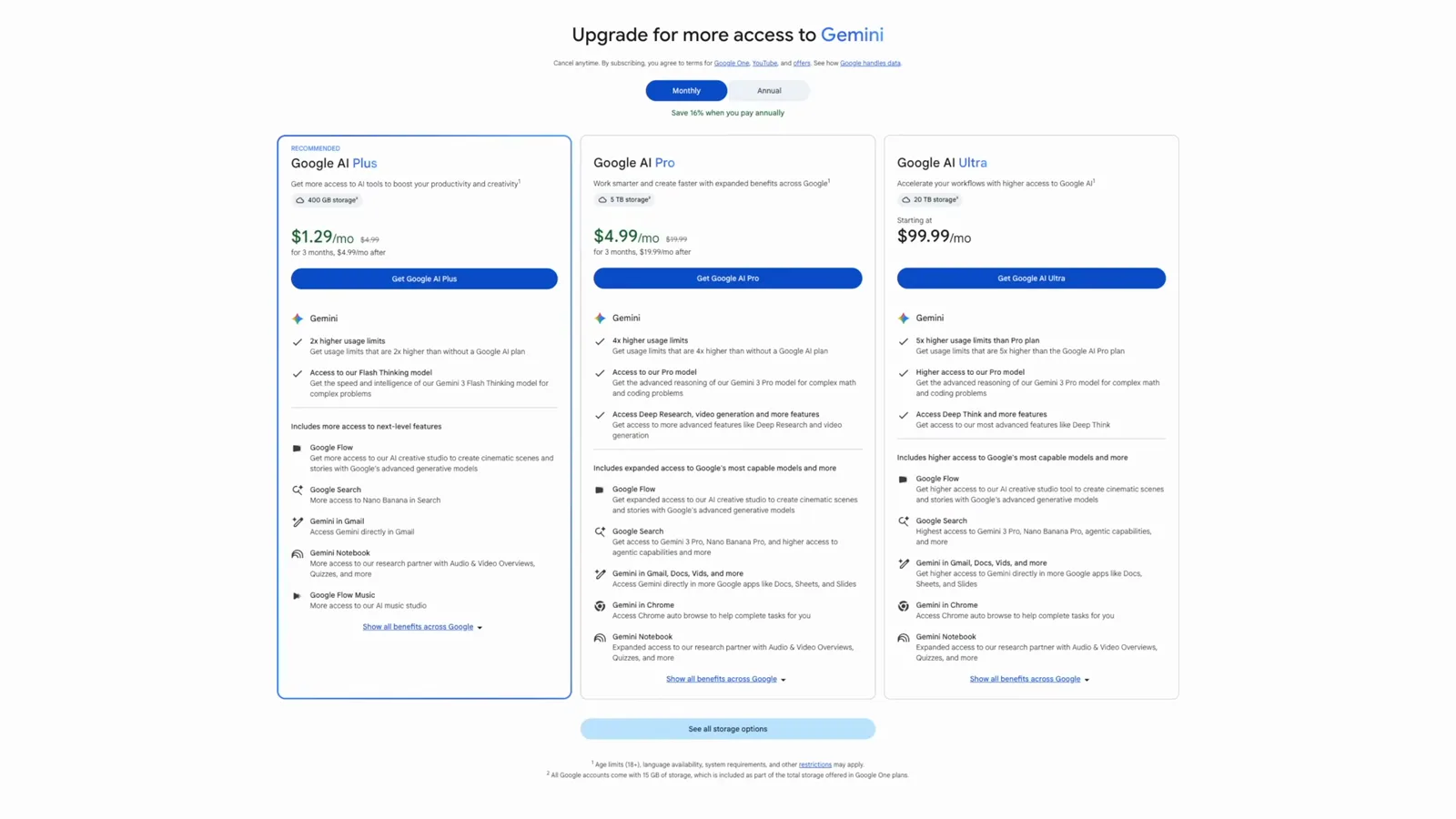
No Spark on the cheap tier - Pro or Ultra only, and not everywhere yet.Watch at 1:45
Automation depth, limits and shared machines
- 10
Know the shared-machine trade before you connect
Grok Bot rents you a whole always-on computer per account - that is why bots keep working with your laptop shut and why the price sits above per-task quotas. The flip side is concentration: xAI's own documentation states that the bots are not a security boundary, so your email, calendar and files all live on one machine under one company. It is also beta software - connectors time out and a stuck machine can stall every bot at once.
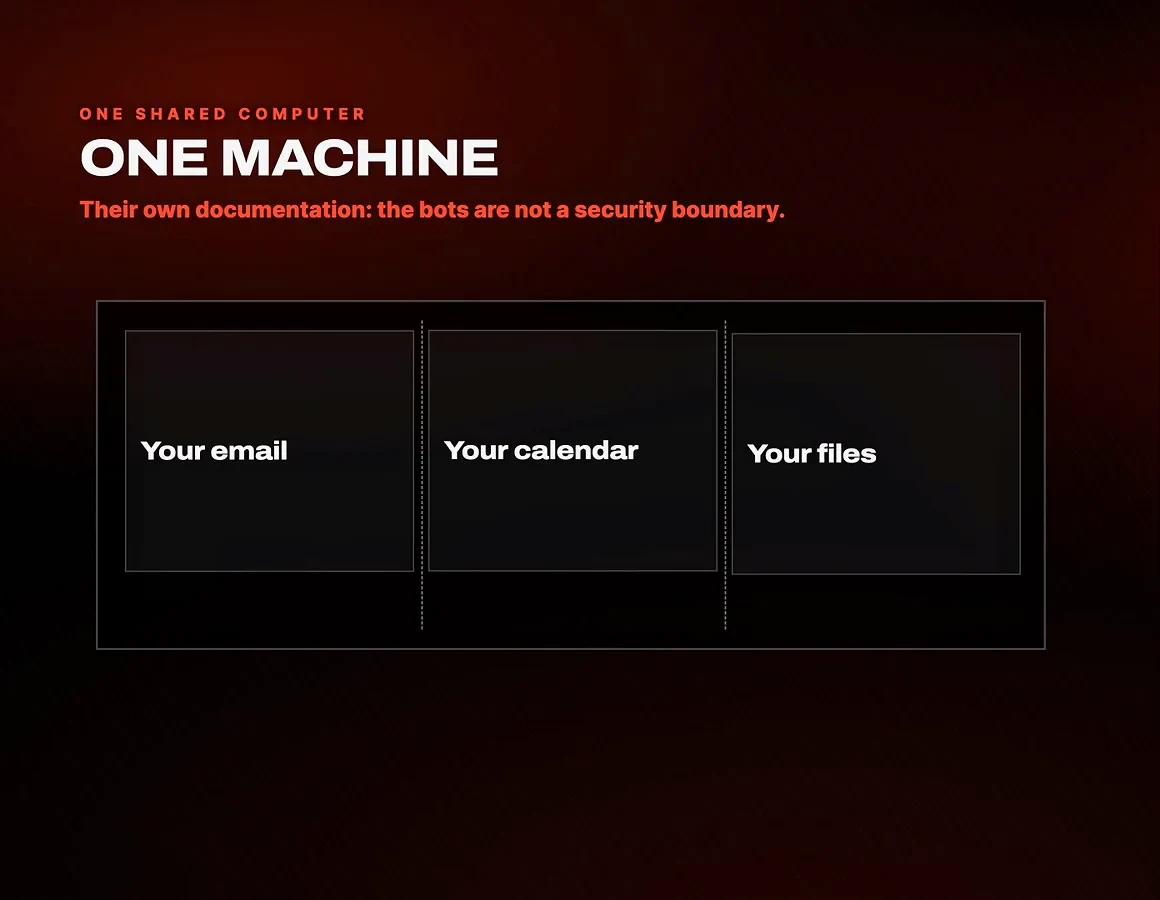
One machine is the feature and the risk - xAI's docs say so themselves.Watch at 4:35 - 11
Set a morning monitor that only pings what matters
Give a bot a watchlist instruction - in the demo: check AI news from named sites and sources every weekday morning, report the headline, why it matters and the link, ignore the noise, and start with a test now. The bot confirms the schedule and then delivers its first digest with dated items and source links. Quiet is part of the deal: it only pings when something clears the bar.
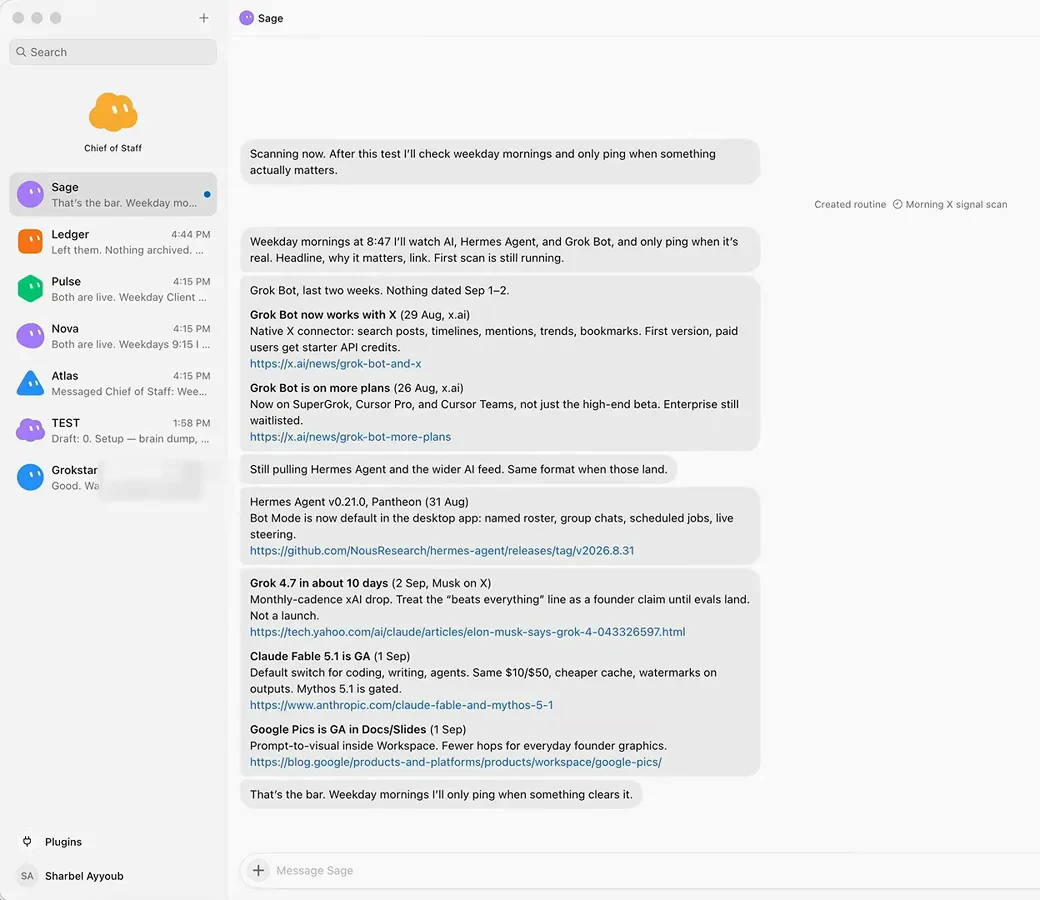
The first test run proves the format before you trust it overnight.Watch at 13:18 - 12
Schedule Spark against a Drive folder
Spark's schedules run a prompt on a trigger you define. The demo prompt: when a new receipt lands in a Drive folder, read it and insert a transaction row into a Personal Finance Tracker sheet, with a run scheduled every morning. Spark runs up to 15 tasks at once on Google's remote browser, which keeps going even when your device is off - though tasks pause at sign-in pages until you take over.
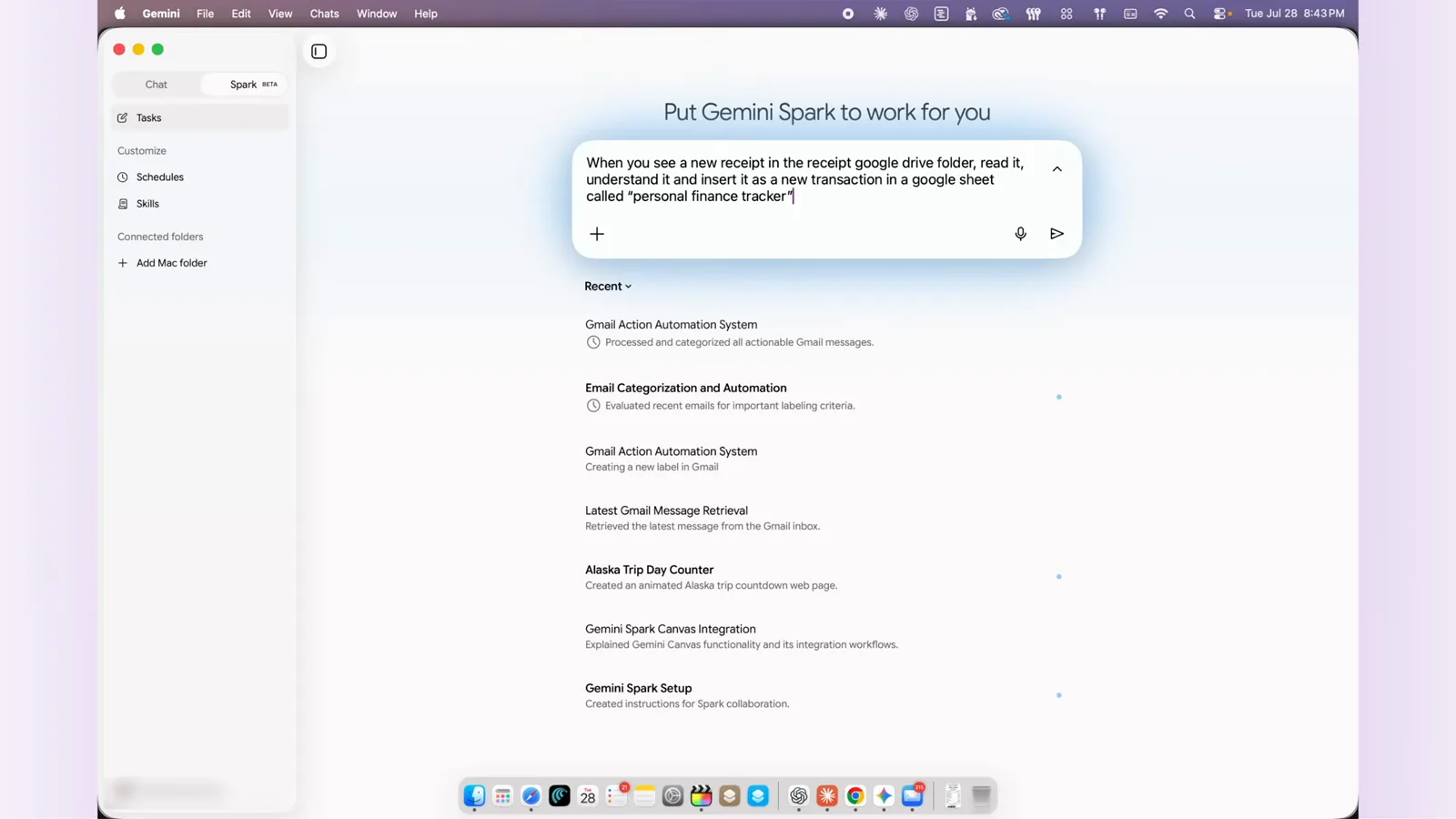
Trigger, destination, schedule - one prompt turns a folder into a pipeline.Watch at 7:30
Teaching skills and handing off work
- 13
Hand a whole project to a spawned builder bot
Bots in Grok Bot can manage other bots. Ask your chief of staff to create a landing page, spawn a builder bot and manage it until it is done, contacting you only for decisions - it writes the brief, opens Cursor and hands over objectives, success criteria and fallbacks. The demo build finished in a couple of minutes, with the result served at a live URL.
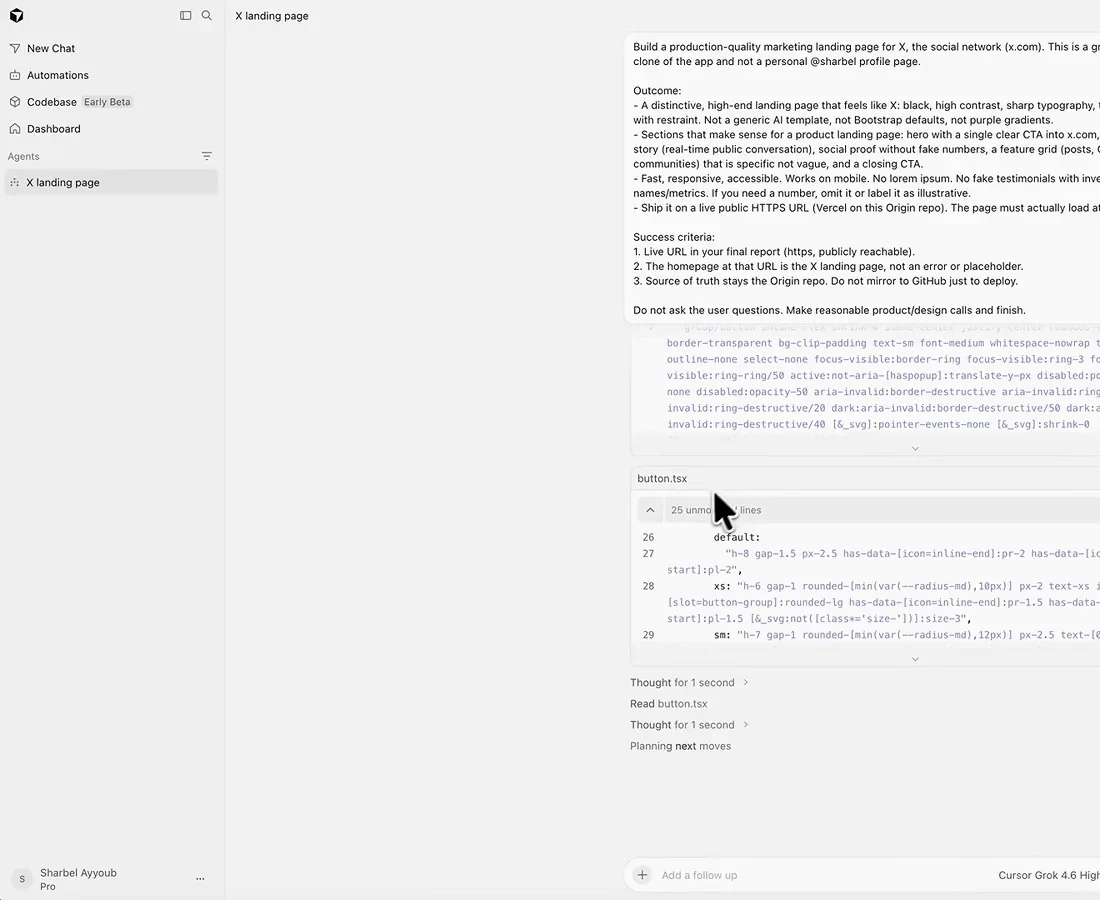
You manage one bot; it manages the specialist it hired.Watch at 14:00 - 14
Teach Spark your habits as a reusable skill
Skills are Spark's memory of how you work. The demo asks it to read the last 50 sent emails, extract a style guide and save the result as a "Ghost Writer" skill that triggers on every drafting request. The finished report lists what it captured - concise tone, "Hi [Name]" salutations, specific sign-offs - and from then on drafts come out in your voice, pending your review.
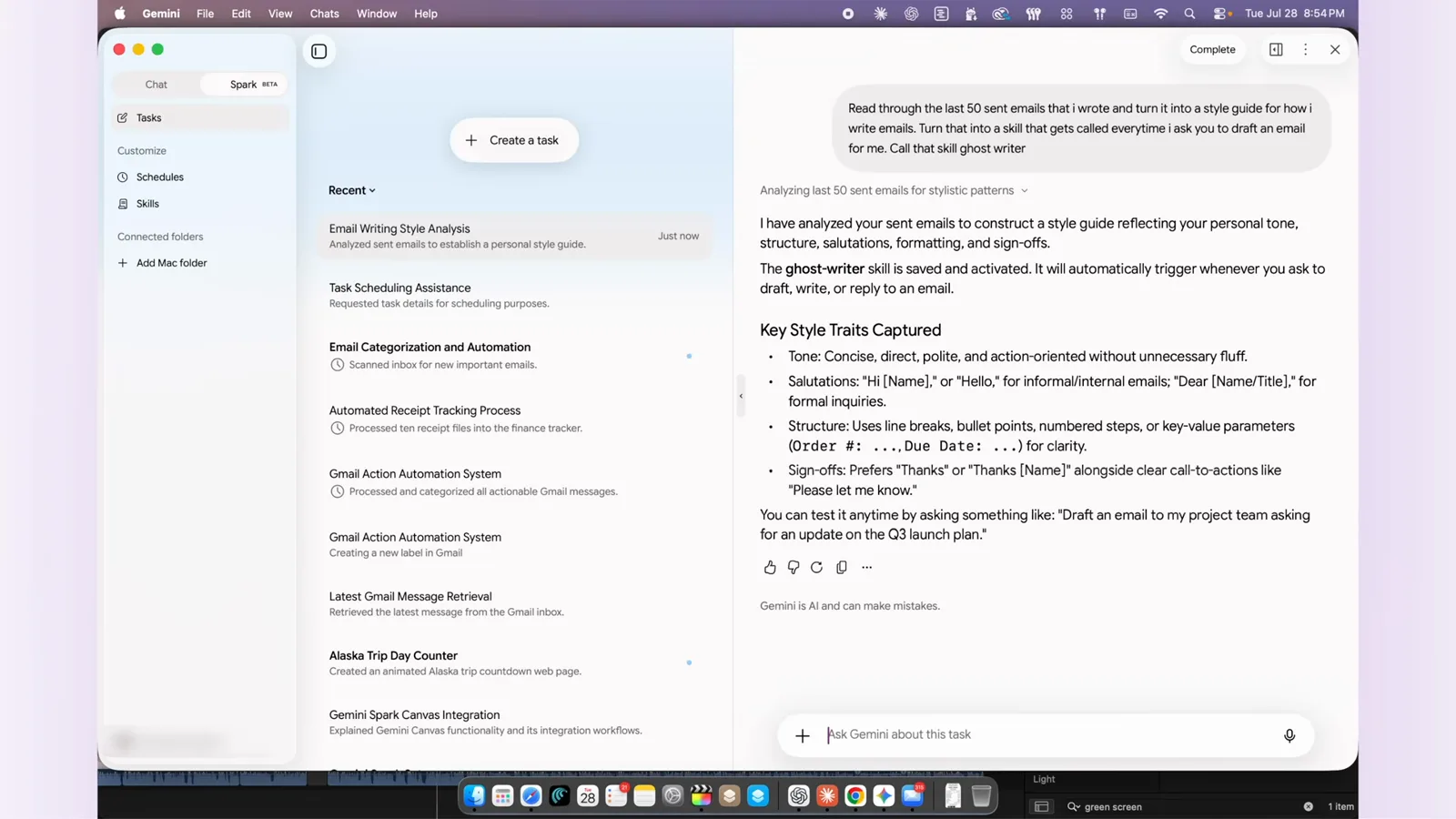
Show it your sent mail once; every later draft starts from your style.Watch at 8:28
Matching each agent to your work
- 15
Where Grok Bot tends to fit
Grok Bot suits people who want a rented, always-on machine and never want to see a terminal: recurring chores, monitoring, inbox triage, small delegated projects. The setup cost is trust - you are parking logins on xAI's shared computer inside a beta that only runs Grok models. If a two-week trial of one real workflow feels valuable, that is the test to run.
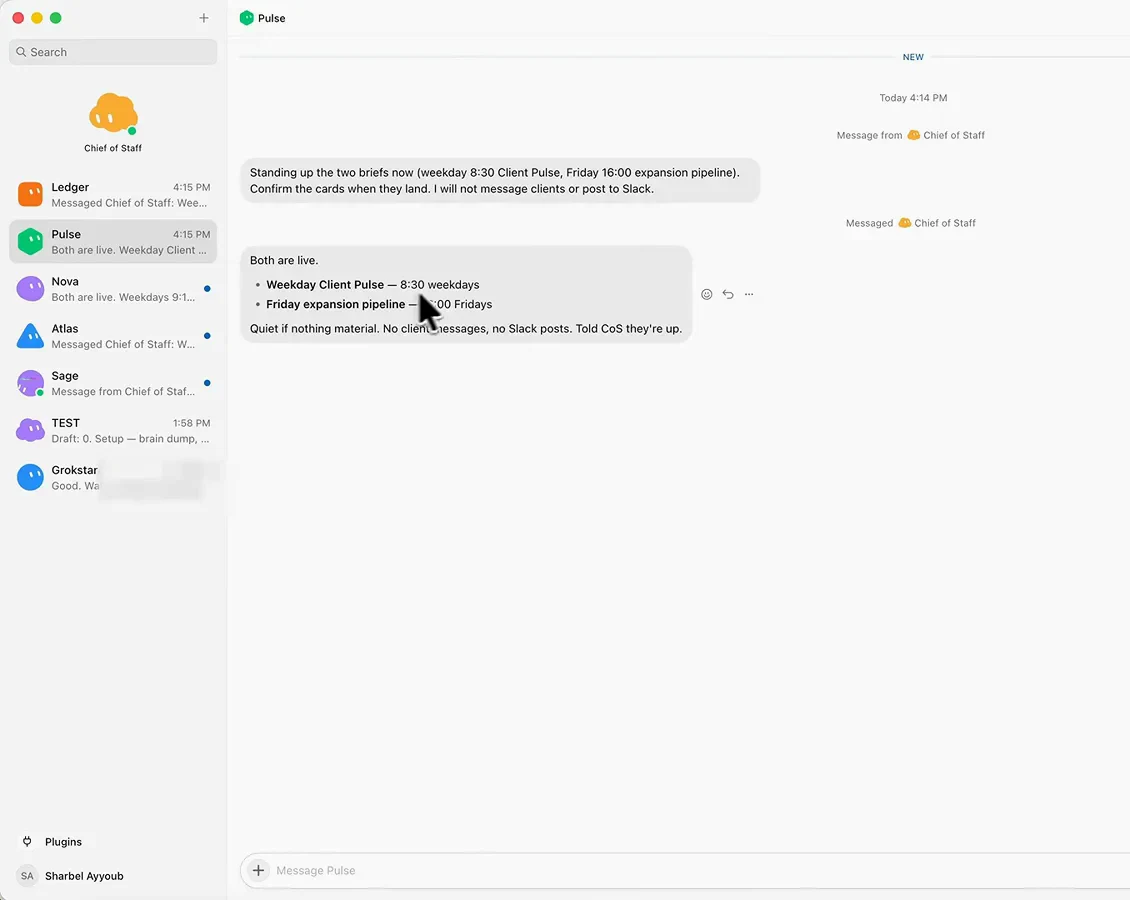
Convenience is the product - decide if the rent is worth it for your chores.Watch at 10:30 - 16
Where Gemini Spark tends to fit
Spark shines when your work already lives in Google's house: Gmail triggers flowing into Calendar, Drive, Sheets, Keep and Tasks without exports or glue code. The tracker in the frame above is the pattern - a Drive folder in, a clean sheet out, on a schedule. If your files and mail sit elsewhere that advantage shrinks, and either agent deserves a trial on the same real task before you commit.
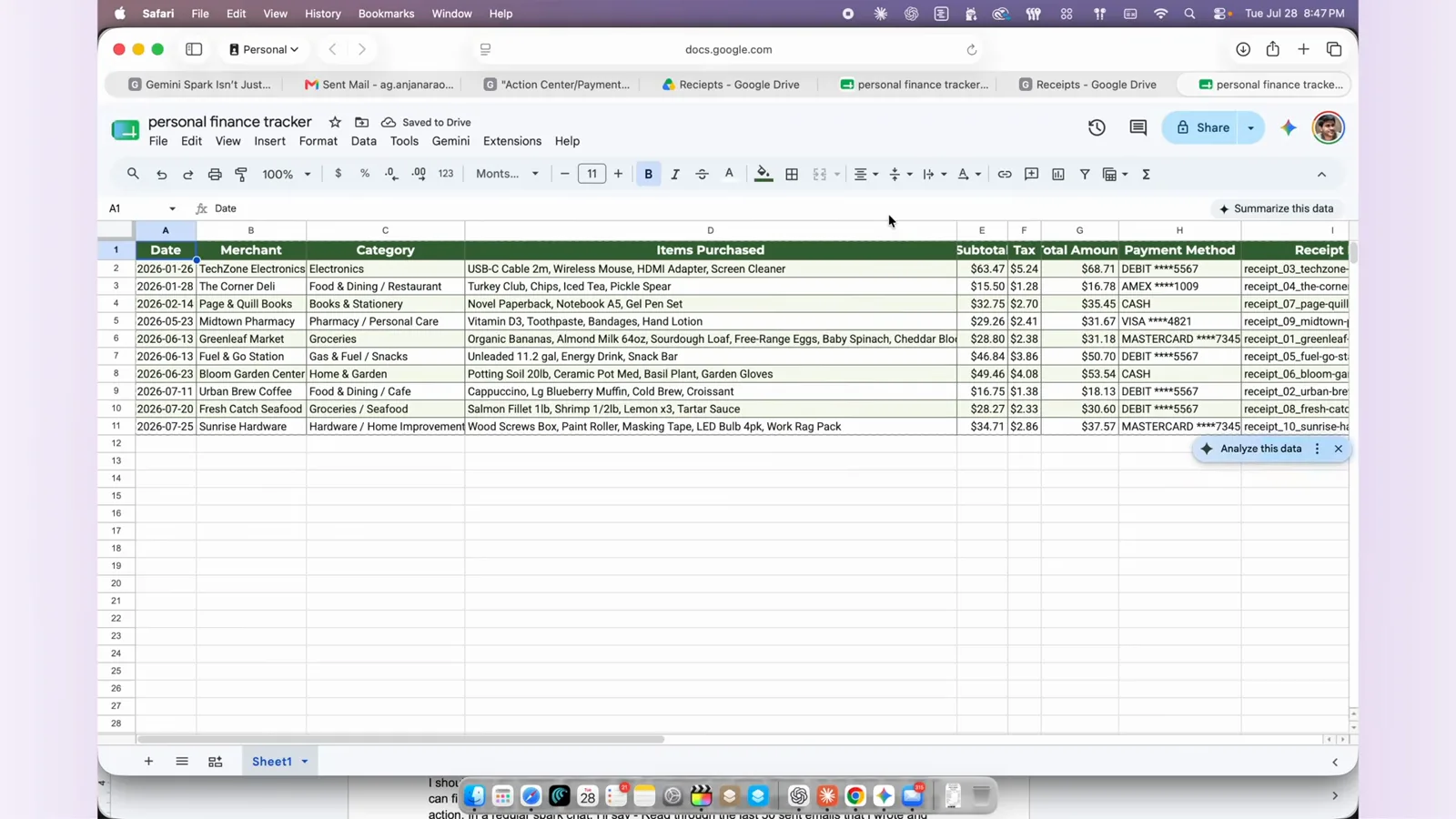
Same test for both: one real task, two weeks, judge the artifact.Watch at 7:52