

How to Use Gemini Spark: A Beginner-Friendly Walkthrough for 2026
Gemini Spark is Google's always-on personal agent: instead of answering questions like the Gemini chatbot, it completes multi-step tasks across Gmail, Calendar, Drive and Docs on its own. This tutorial walks the whole workflow with screenshots - from turning on memory and connecting your apps, to saving your first skill, putting reports on a schedule, and bending Spark to your preferences with a rules file. Every step deep-links to the exact moment in the source videos.
Source & credits
Screenshots in this guide are captured from Jeff Su's public walkthrough video. Every step links back to the exact moment it shows, so you can follow along.
Jeff Su ↗Set Gemini Spark up in five minutes
- 1
Switch from Chat to Spark in the Gemini sidebar
Spark is not a separate app - it is a mode inside Gemini. Open gemini.google.com and use the Chat / Spark toggle at the top of the left sidebar; Spark carries its own beta tag while the rollout continues. The sidebar changes with it: Tasks, Schedules and Skills replace your chat history, because from here you are delegating work instead of chatting.
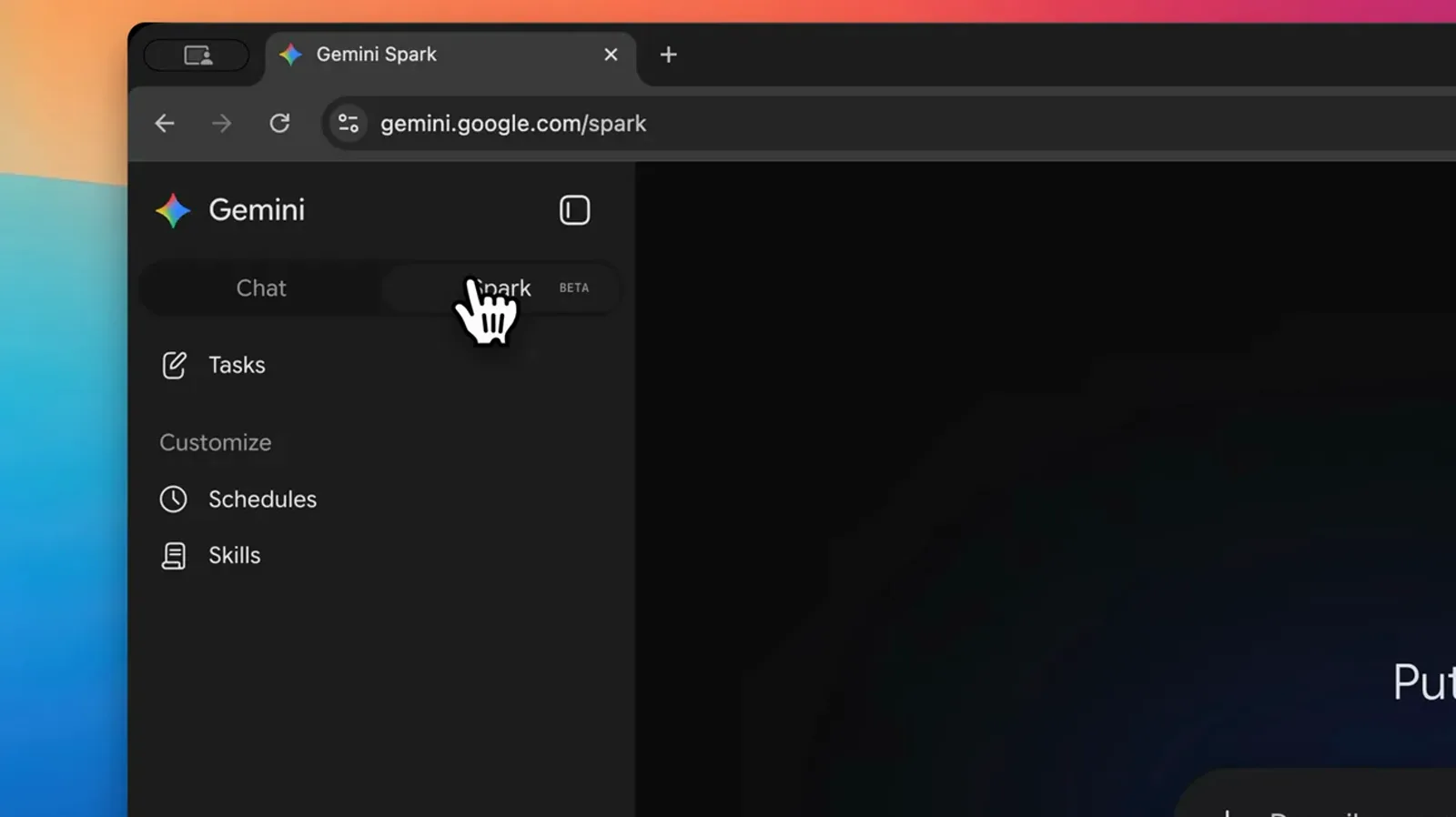
Same Gemini app, new mode: chats give way to tasks.Watch at 0:40 - 2
Turn on memory in Personal Intelligence settings
Click the settings gear at the bottom left and open Personal Intelligence. Make sure Memory is toggled on - that is what lets Spark learn your preferences from past chats, reuse your usual meeting slots and draft in your voice. This settings page only exists on personal Google accounts: work and school profiles only see the connected apps tab.
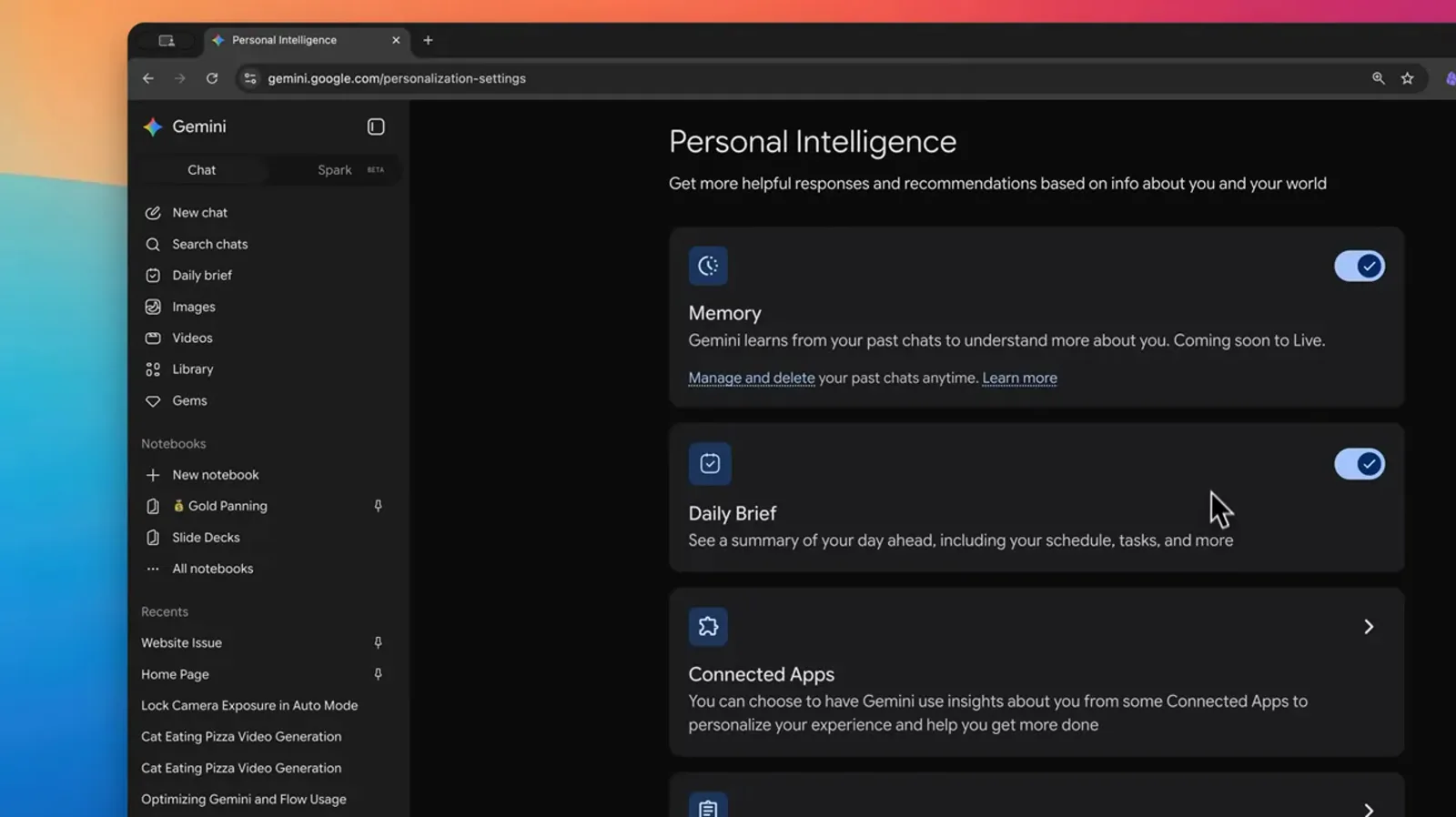
Memory is the setting that makes Spark feel personal.Watch at 1:28 - 3
Connect Gmail, Calendar and Drive in Connected Apps
In the same settings, open Connected Apps and stay on the From Google tab. The Google Workspace master toggle gives Spark direct access to Gmail, Google Calendar, Docs, Drive, Keep and Tasks - the apps it needs to actually do things rather than just advise. Keep the Search services toggle on too, so Spark can pull web research when a task calls for it.
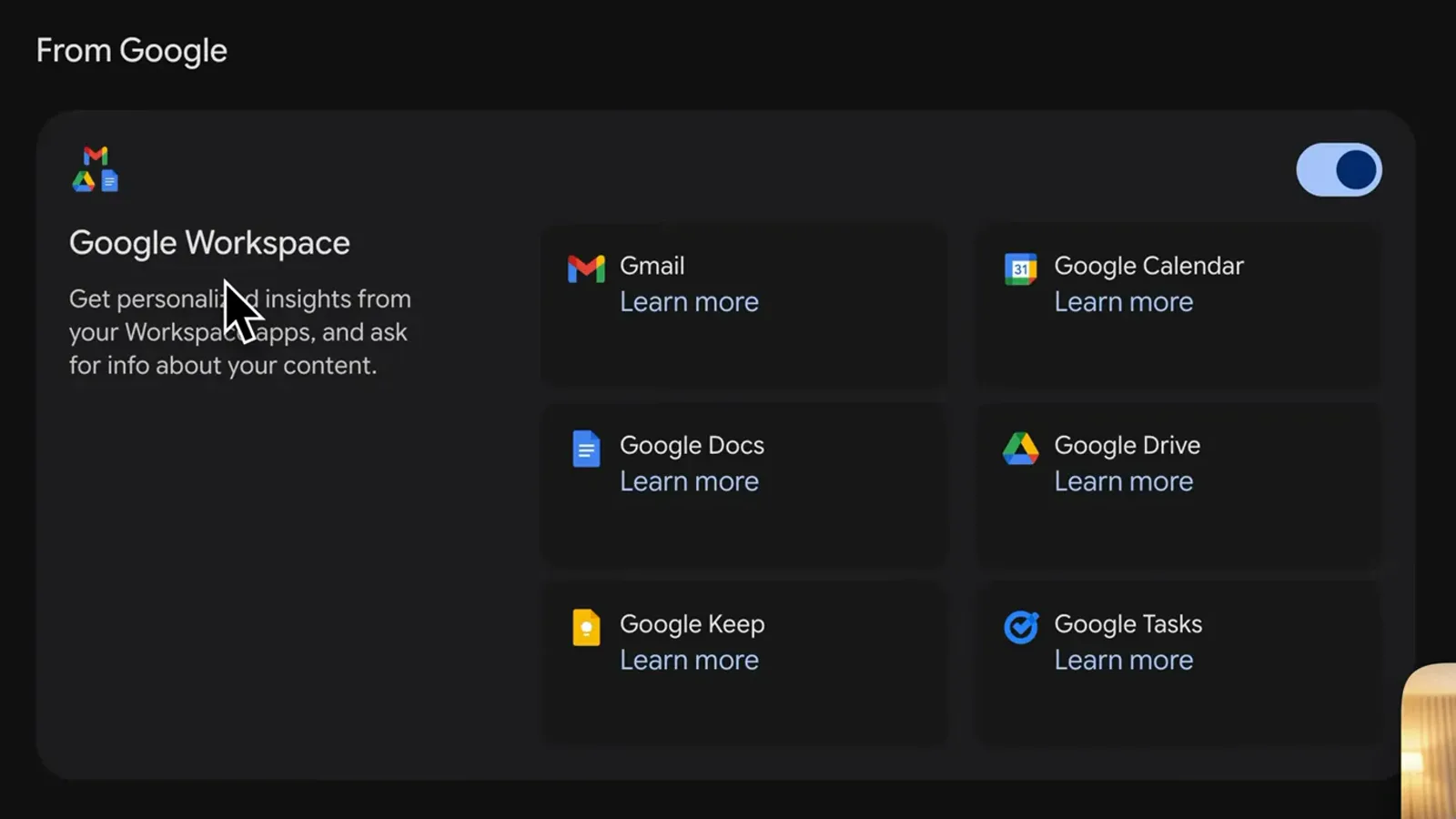
One toggle wires Spark into the six apps it uses most.Watch at 1:50 - 4
Create a Spark OS folder in Google Drive
Spark gets easier to steer once it has a home. In Google Drive, create a folder at the root of My Drive - Jeff Su numbers his 01 SparkOS - and add a Spark templates subfolder inside. Intake docs, templates and everything Spark produces will land here, in one predictable place, instead of scattering across your Drive.
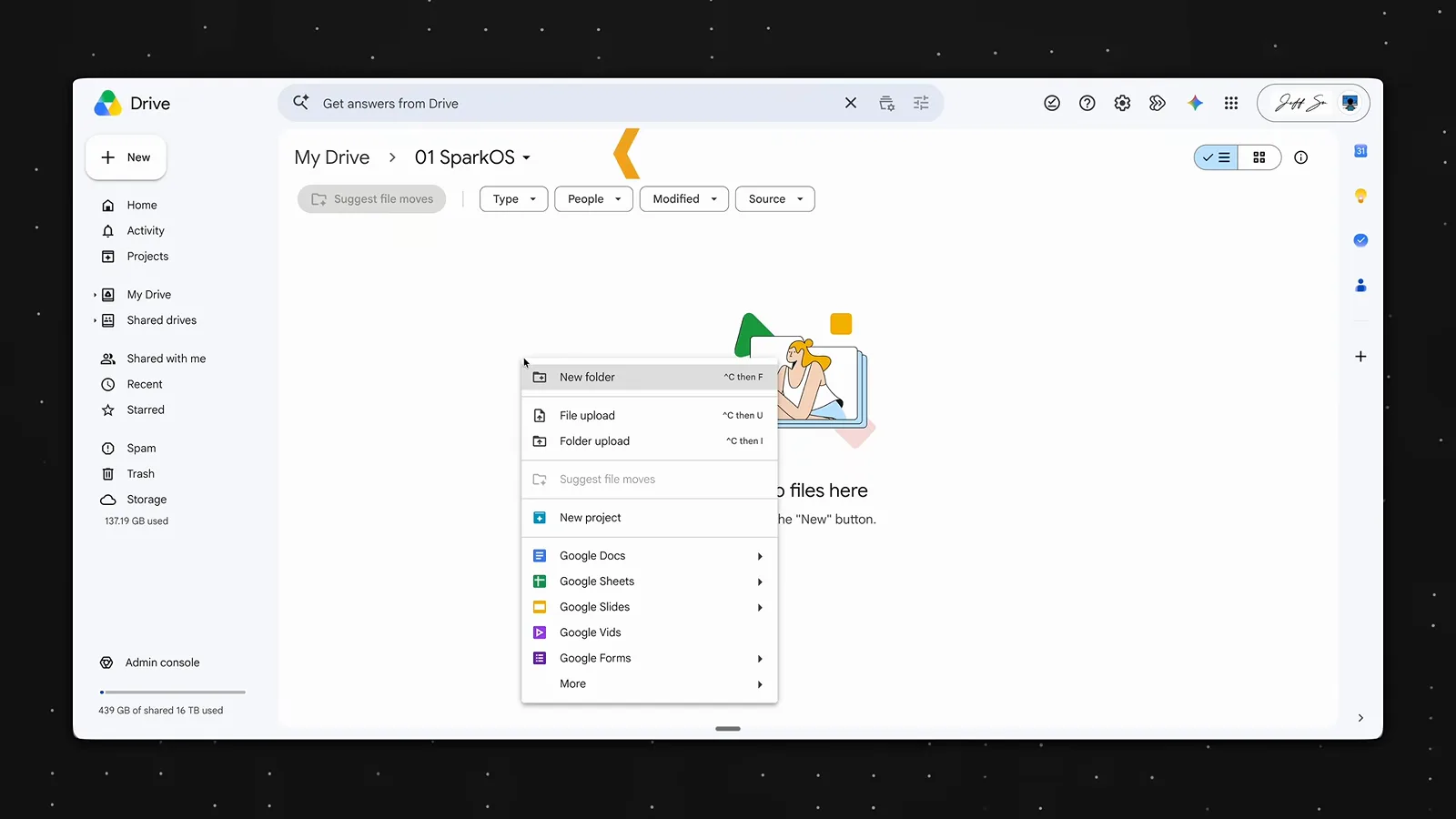
A dedicated folder keeps Spark's output in one place.Watch at 5:30
Run your first Spark task
- 5
Describe the outcome, not the steps
Flip the toggle to Spark and brief the task like you would brief an intern: state the goal, name the sources, define what done looks like. Tasia's example finds trip emails, checks which need a reply, adds reservations to the calendar and saves a summary Doc - four deliverables from one prompt. Type it or dictate it with the microphone button.
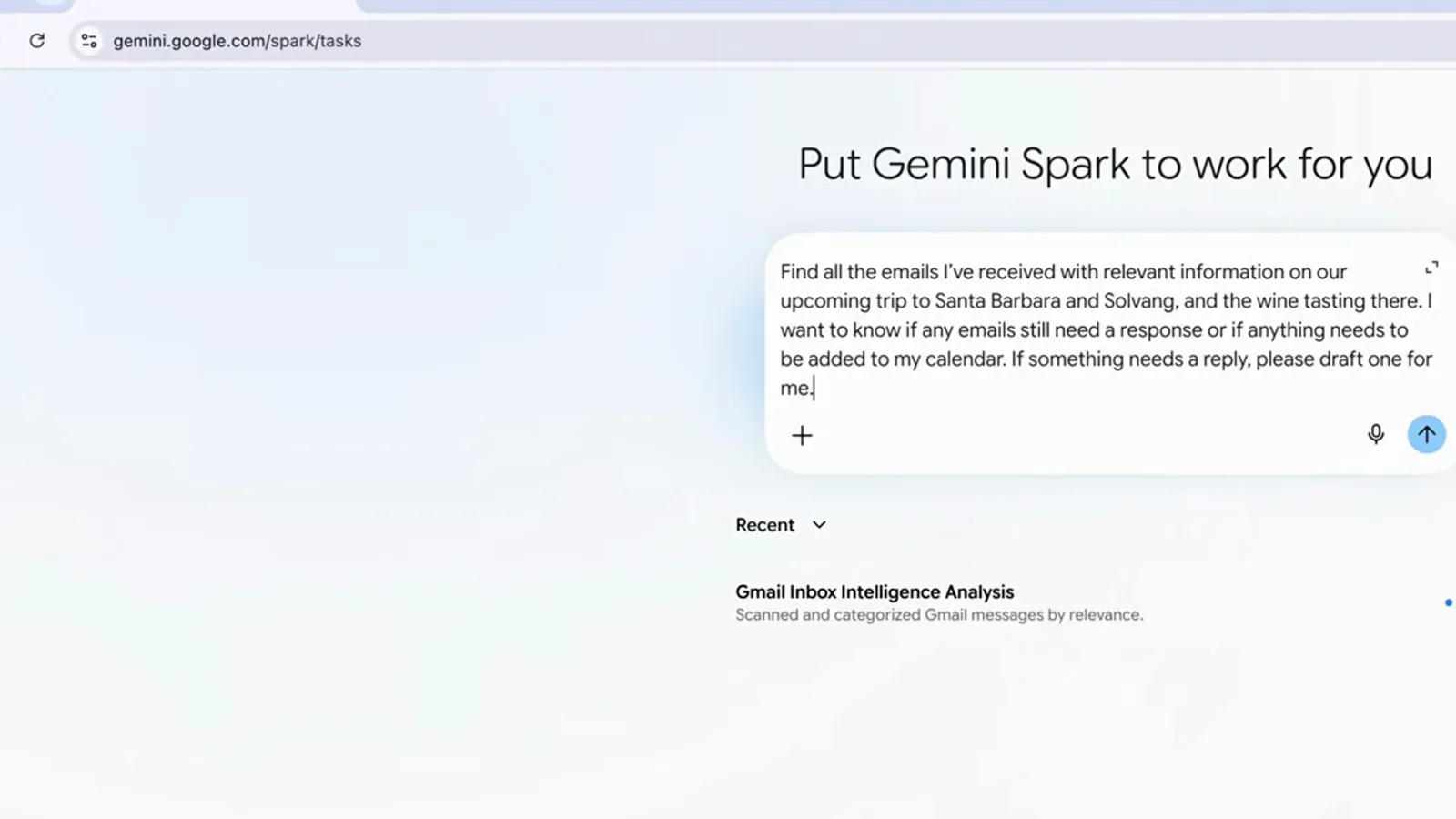
One prompt here replaces four separate chat requests.Watch at 3:02 - 6
Watch Spark work across your apps
As soon as you submit, Spark narrates its plan: it pins down the time window, searches Gmail, checks Google Calendar, consults Google Search and drafts in between. You can leave the page - long tasks keep running in the cloud and notify you when they finish - but watch the trace once, because it shows exactly which apps an agent can reach into.
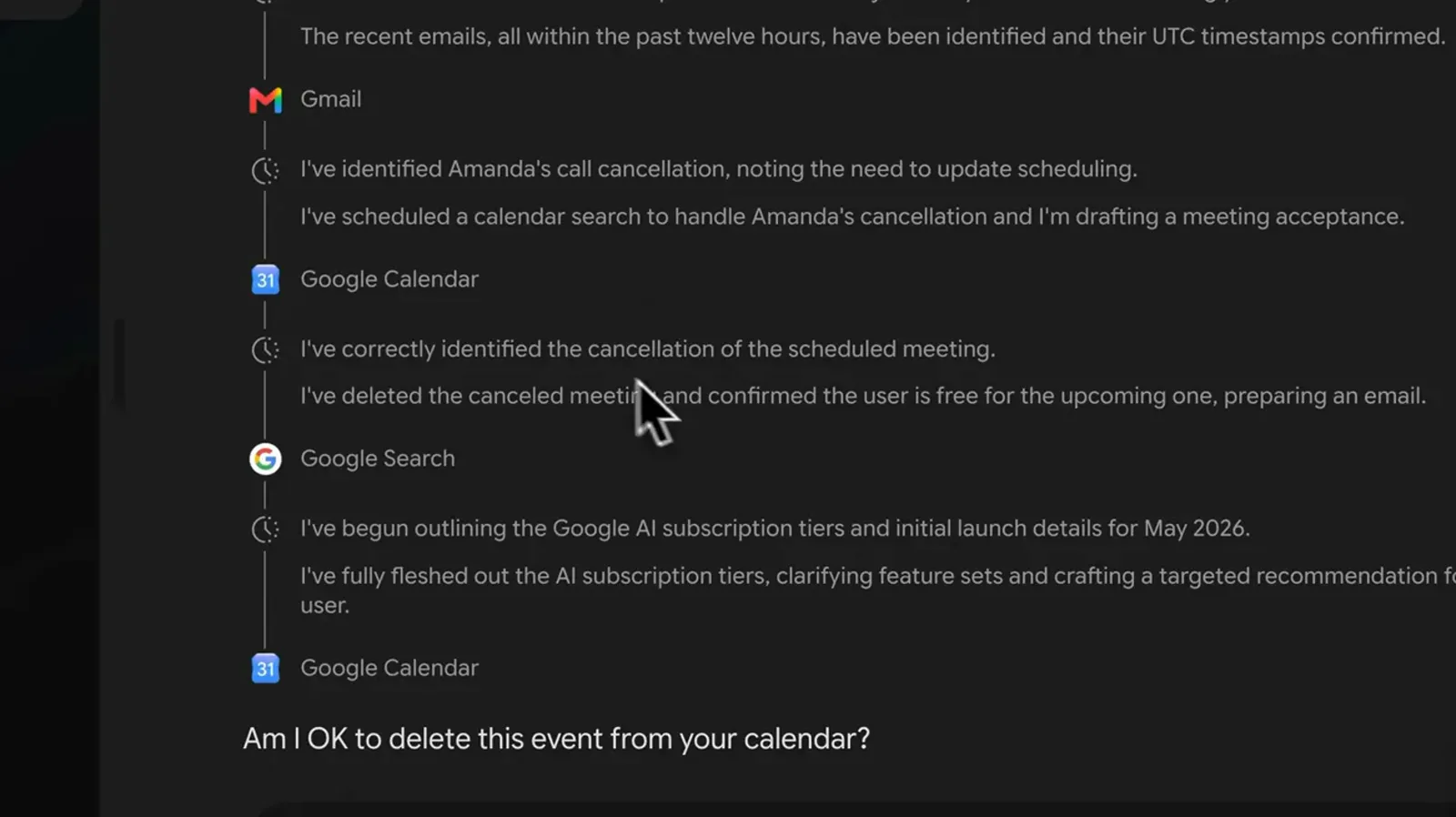
The live trace shows every app Spark touches.Watch at 3:05 - 7
Approve each action before it happens
Spark never acts silently on your accounts. Whenever a task would change something - delete a canceled meeting, add an event, send a draft - it raises a Confirmation Required card with the details plus Cancel and Send buttons. Read them like a colleague's draft: approve the right ones, correct the rest, and Spark resumes with your decision applied.
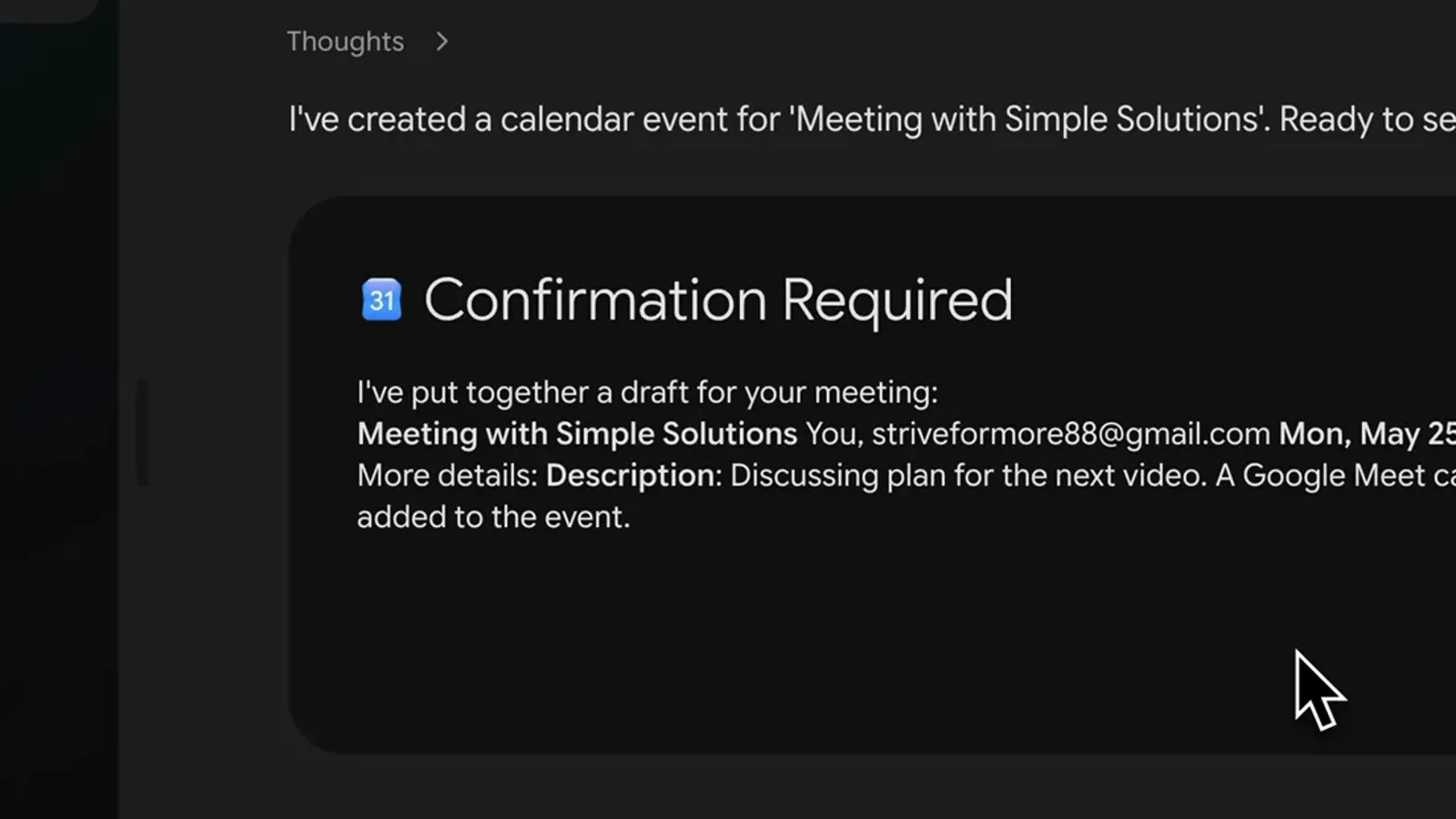
Every consequential step stops for your sign-off first.Watch at 3:40 - 8
Review the prioritized results
When a task completes, Spark returns a structured digest instead of a wall of text: emails ranked by priority, replies already drafted, calendar changes itemized, research summarized. Send the drafts you like, edit the rest, and treat anything marked action taken as a record of what already happened on your behalf.
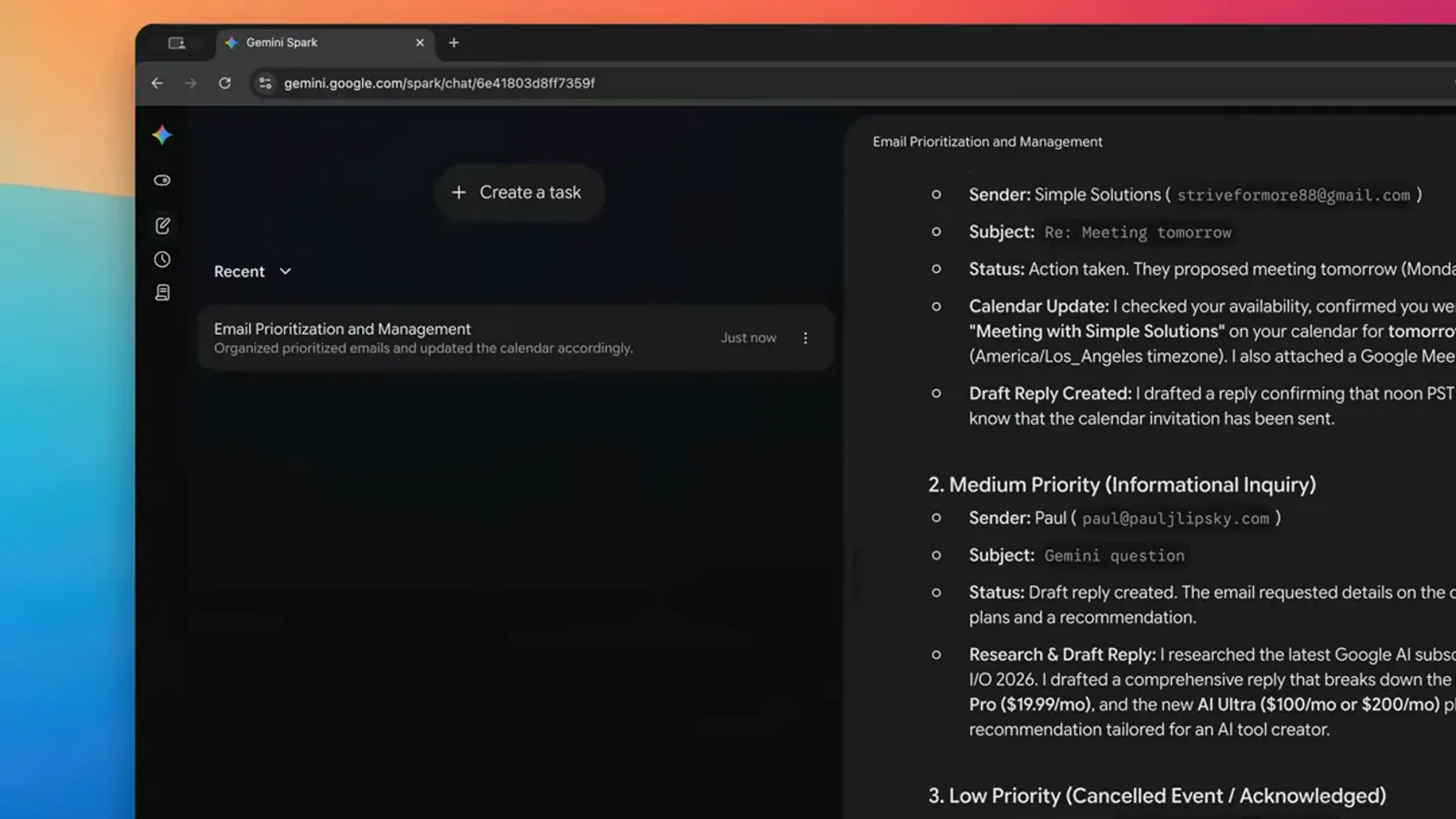
Results arrive as a digest, not a chat log.Watch at 4:10
Turn repeated work into skills
- 9
Say: turn this into a skill
A skill is a saved workflow you can rerun without re-explaining. The easiest way to make one is to finish a task you are happy with, then tell Spark: turn this into a skill that runs every time I ask for this. Seconds later a named skill card appears - santa-barbara-trip-info in Tasia’s case - with its trigger and instructions written out, ready to edit.
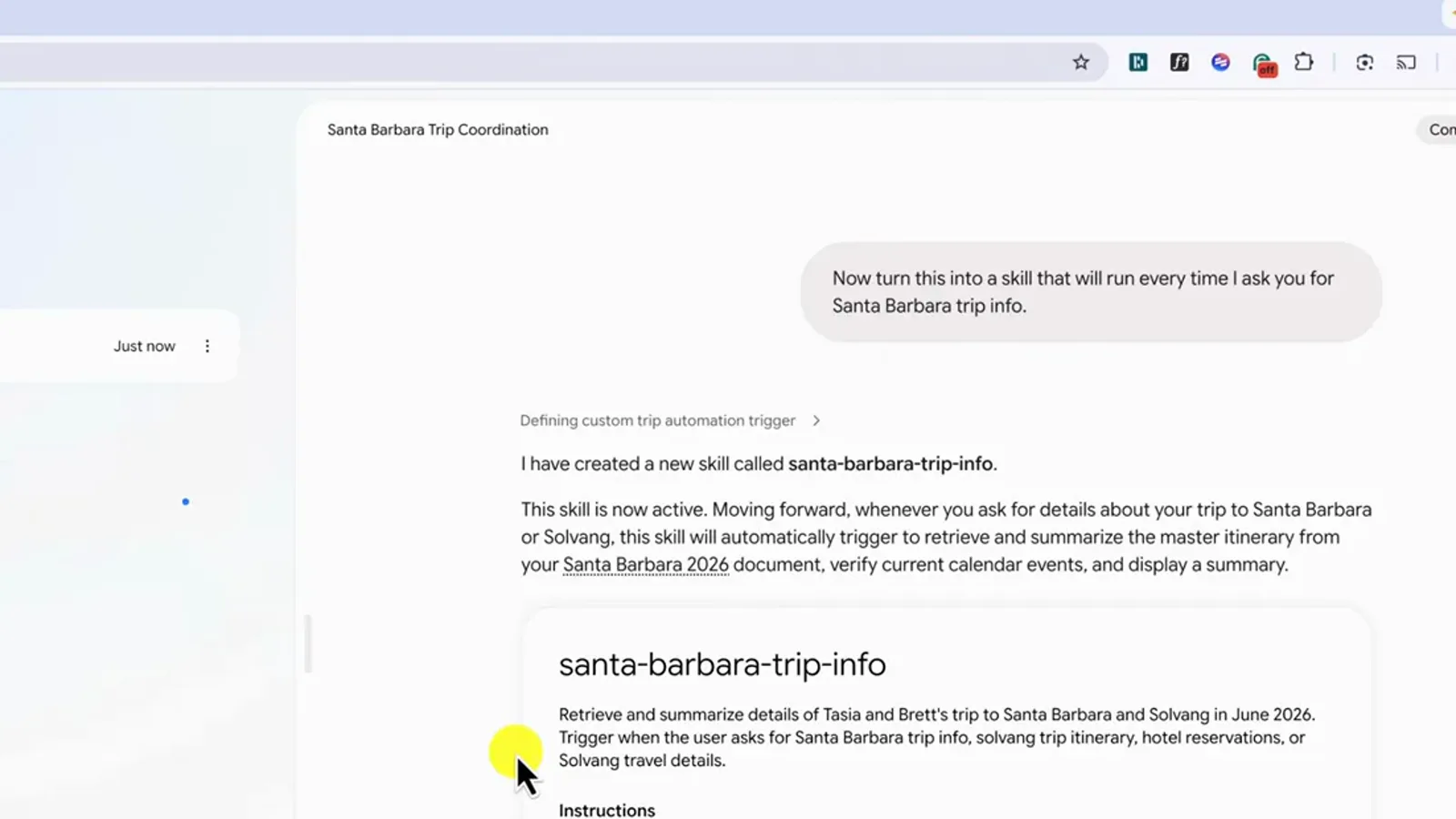
The skill card is editable - treat it as a first draft.Watch at 6:10 - 10
Manage everything from the Skills tab
The Skills entry in the left sidebar is your skill library. Create with Gemini prompts a new skill from a description, Create manually opens a form with title and instructions, and the upload icon imports a shared skill file. Jeff Su's library here holds inbox-zero and weekly-report-generator, plus Google's recommended starting points.
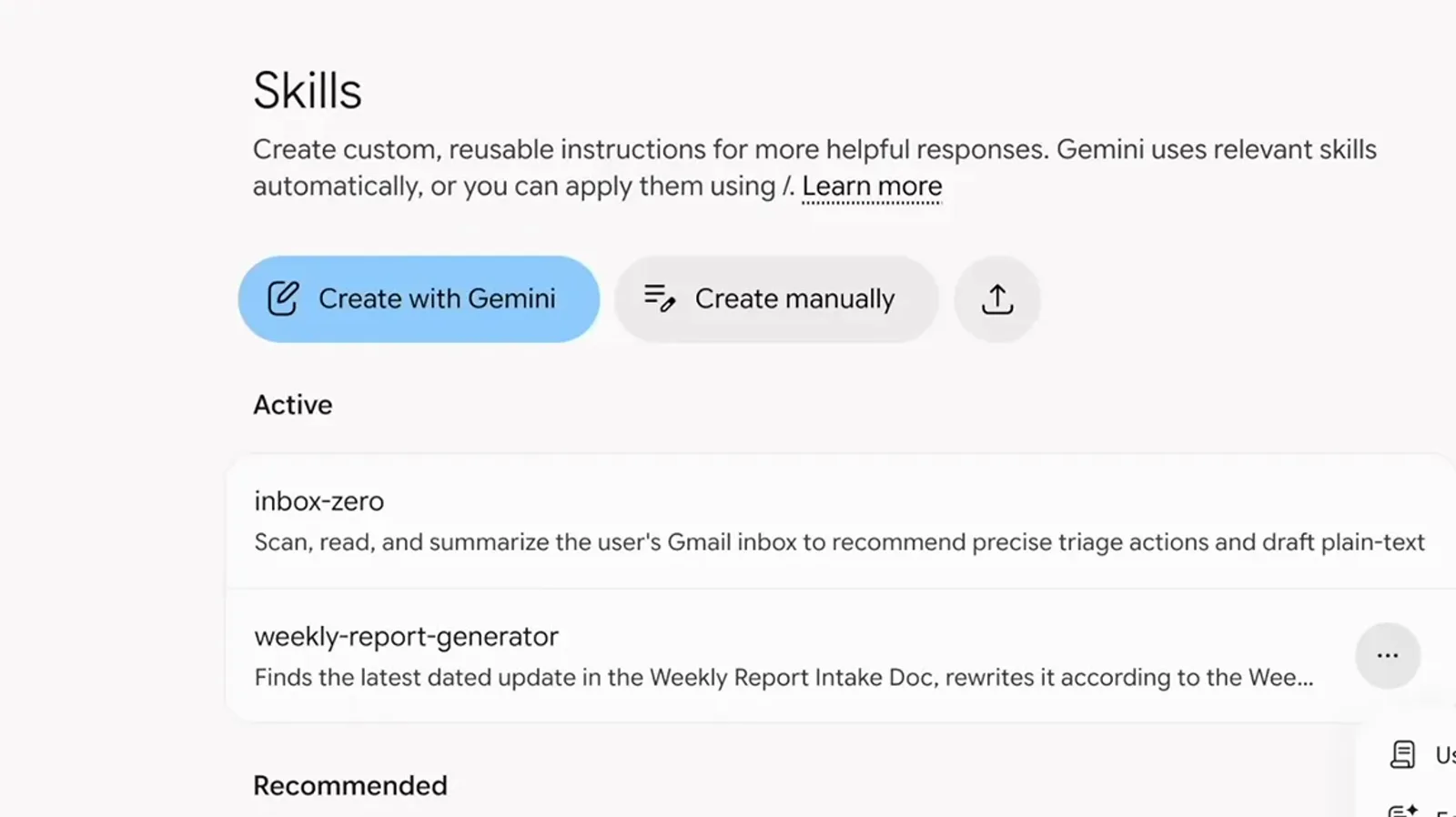
Build a skill once, reuse it like a button forever.Watch at 9:26 - 11
Rerun a skill with / or @
To use a skill, start a new task and type a forward slash or the @ symbol in the prompt bar - your skills appear as a picker list. Select one and submit; Spark reruns the whole workflow. Once a skill exists you can even skip its name: plain requests like check my trip email updates route to the right skill on their own.
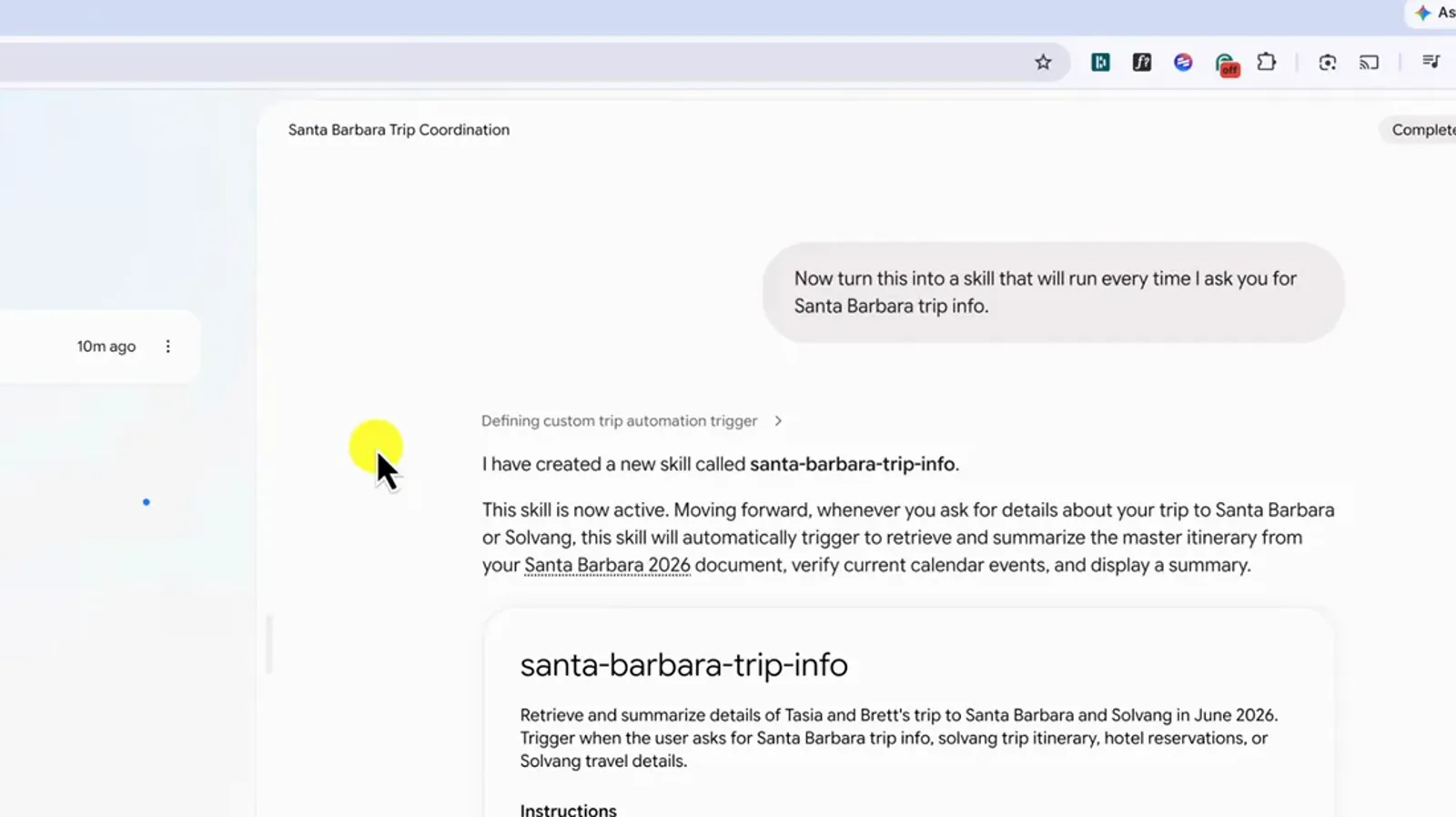
Slash to invoke it, or just ask in plain words.Watch at 6:43 - 12
Import a shared skill.md file
Skills travel as files. Download one from its three-dot menu, unzip it, and use the upload button on the Skills tab: the dialog wants a markdown file or zip with the skill name in a SKILL.md file, and warns you to only upload files from trusted sources. Jeff Su ships his inbox-zero skill this way so readers can install it, then adapt it.
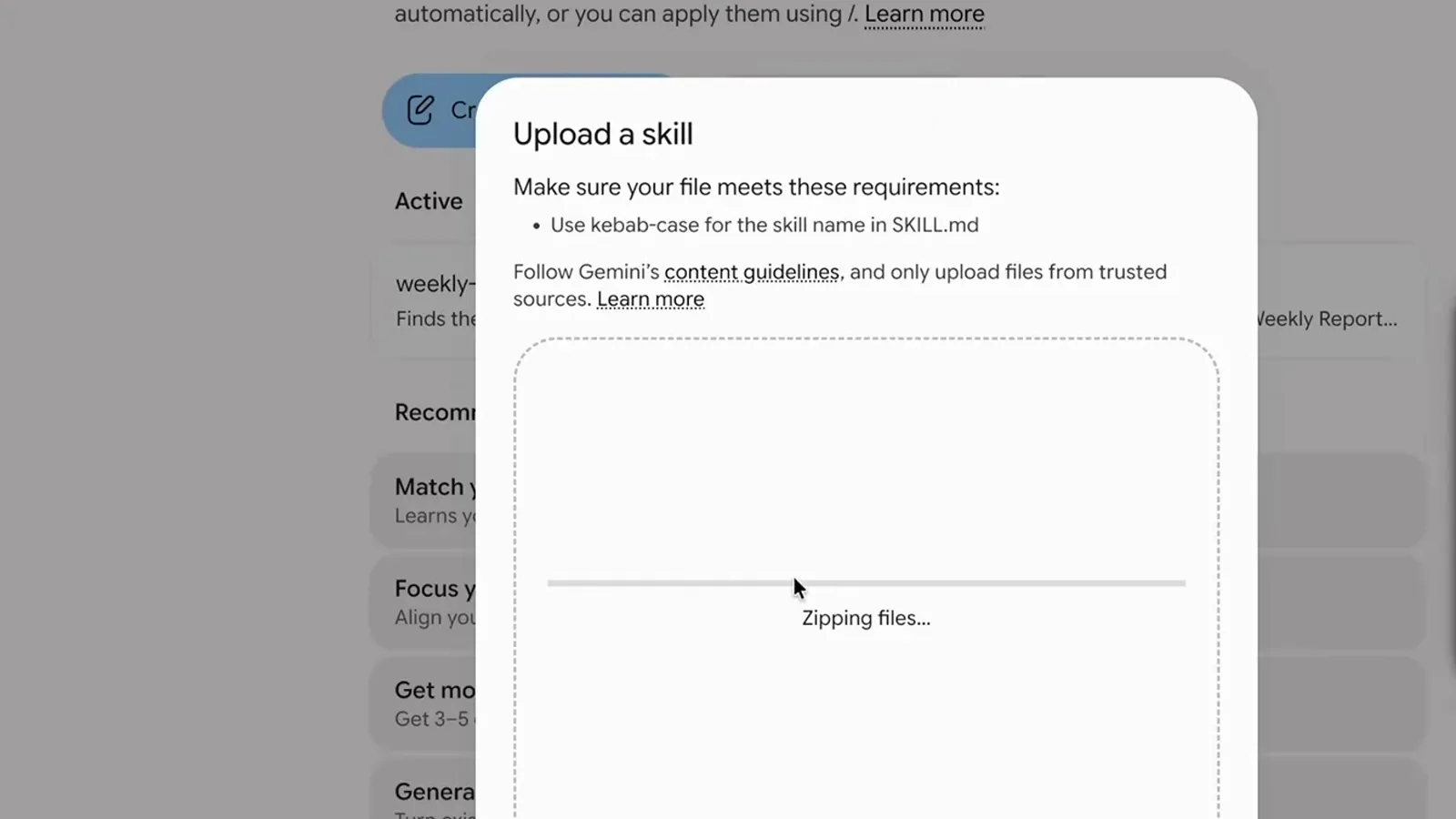
Install a shared skill, then tune it to your workflow.Watch at 8:59
Put tasks on autopilot with schedules
- 13
Schedule a skill at a fixed time
A skill still waits for you to run it; a schedule runs itself. Tell Spark: create a scheduled task that runs the weekly report skill every Monday at 9:30 a.m. The editor card that appears lets you adjust the cadence - weekly on Monday around 9:30 am - and the exact steps, before you save it and find it under the Schedules tab.
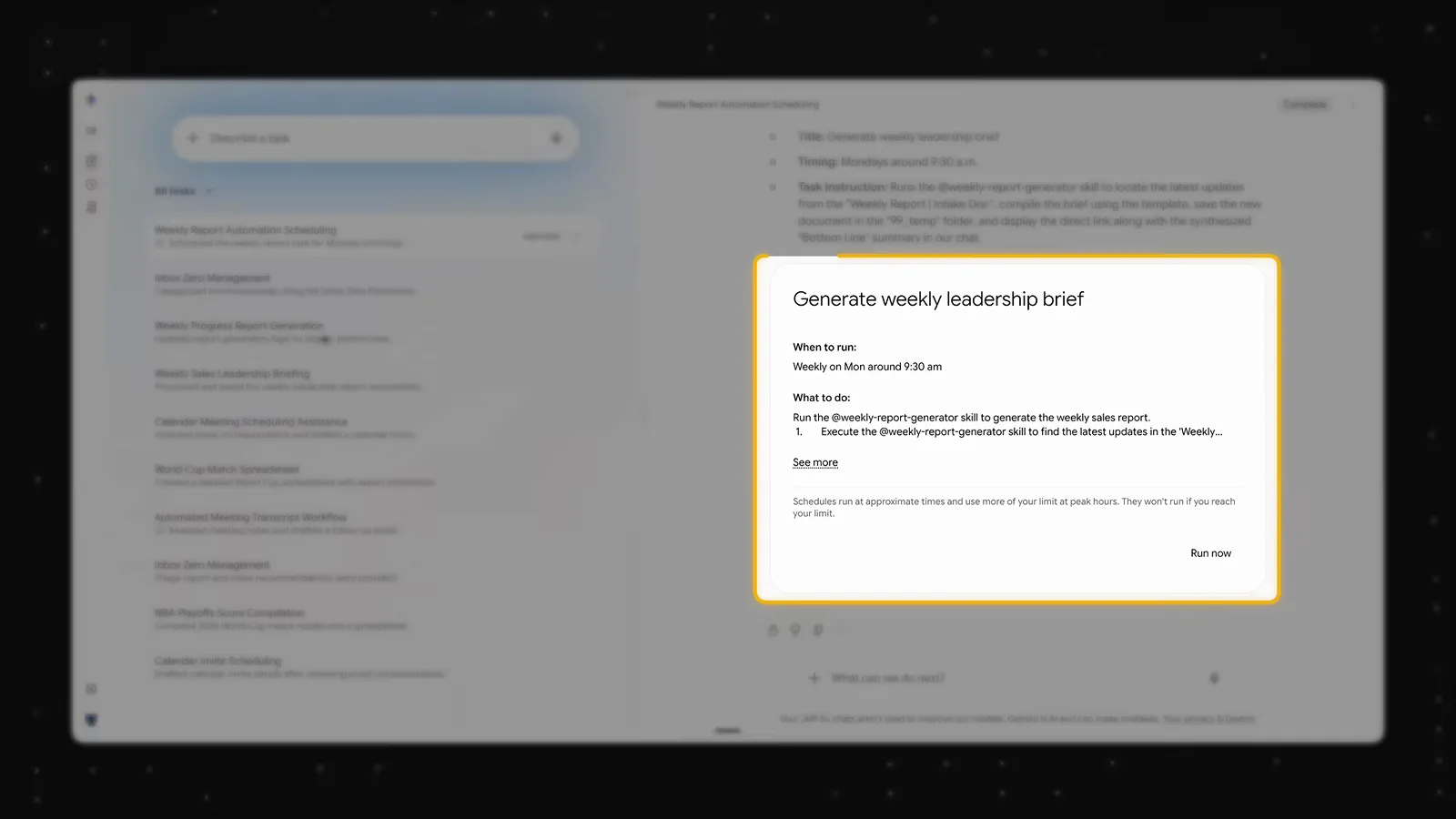
Set the cadence once; the report writes itself weekly.Watch at 10:20 - 14
Trigger tasks with events, not clocks
Schedules can also watch for something to happen. Jeff Su's event-based example: whenever I receive an email from gemini-notes@google.com, analyze the meeting transcript, brief me bottom line up front, and draft a recap if one's warranted. Write event triggers as a normal chat prompt - the manual schedule builder only handles fixed times for now.
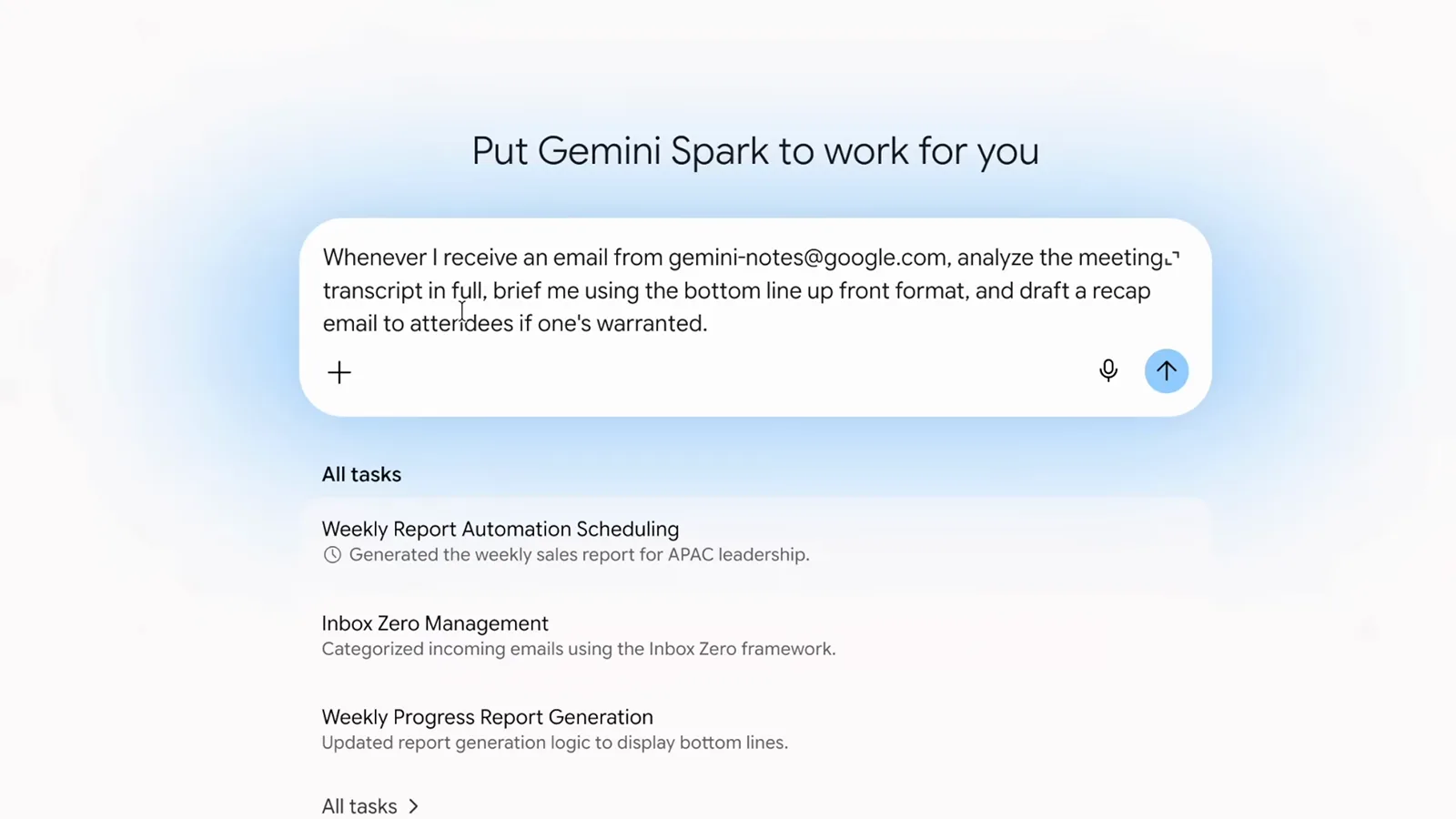
The trigger is an email arriving, not a time of day.Watch at 11:03 - 15
Check the Schedules tab for what runs when
Everything automated lives under Schedules in the sidebar. Each entry shows its trigger - on email from gemini-notes@google.com for the watcher, weekly on Monday around 9:30 AM for the report - plus the instruction steps Spark will follow. Open any schedule to tune the objective, or pause it when the project ends.
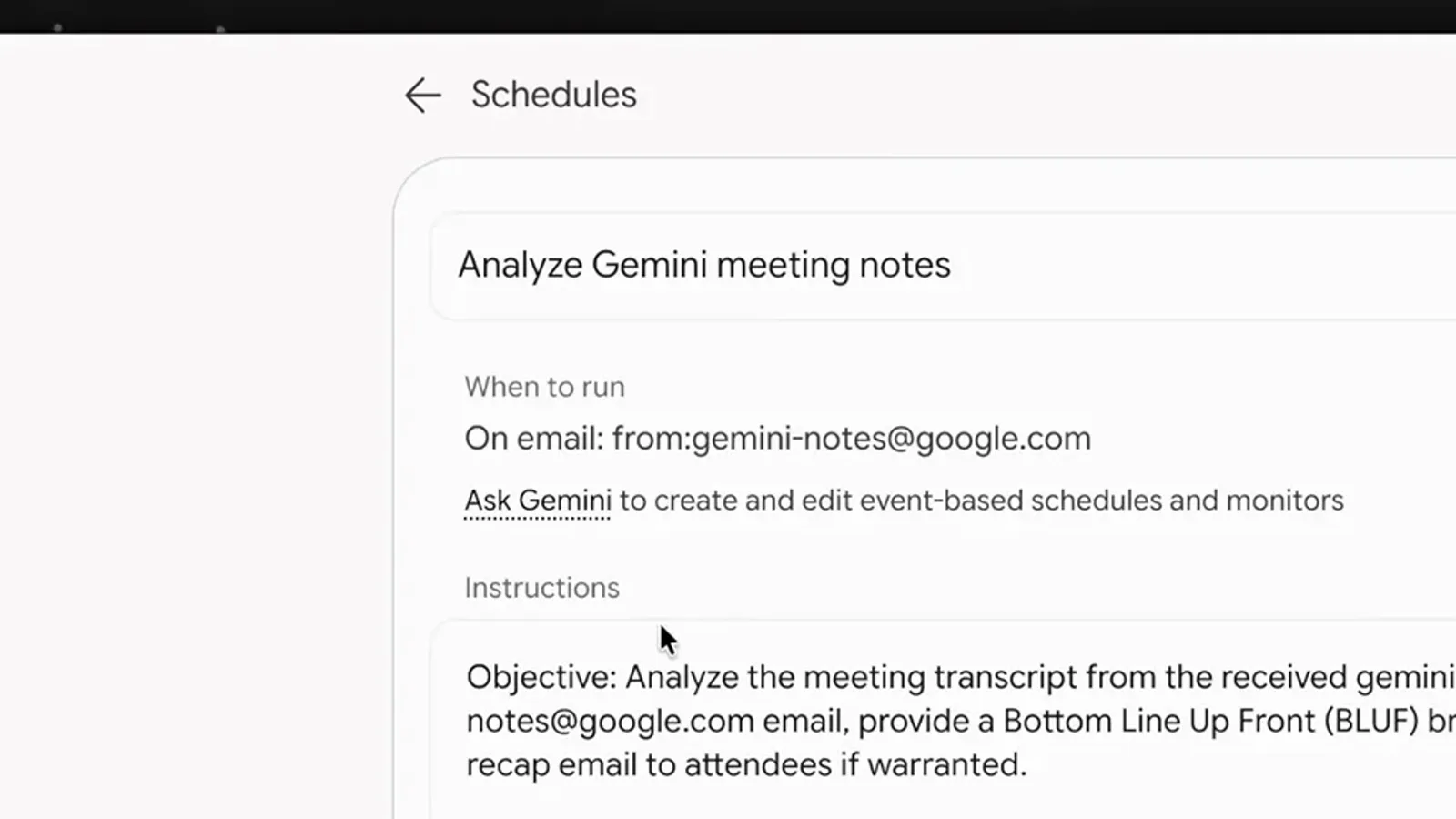
Every automation shows its trigger and playbook.Watch at 11:23
Know the limits, then bend them
- 16
Track running tasks from the tasks list
As tasks pile up, the Tasks view becomes your control room. A solid dot means a finished result you have not opened yet, Needs input means Spark is waiting for permission on a step, and no marker means seen and done. Scheduled work reaches you the same way: the run happens in the cloud, and the badge waits for your review.
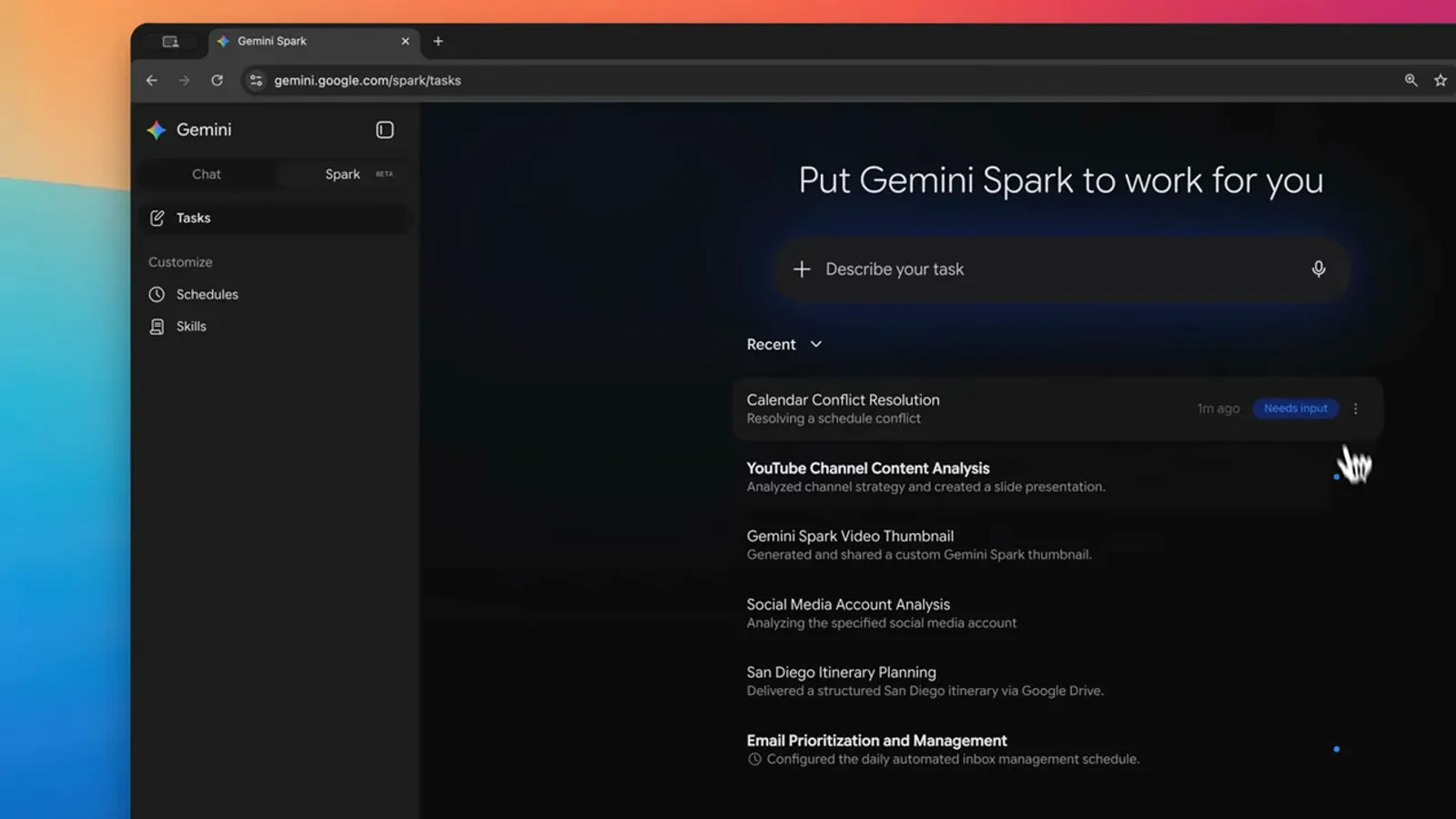
Badges separate what needs a decision from what is done.Watch at 13:00 - 17
Know the weak spot: few outside connections
An honest limits check. Spark's Connected Apps list is still short - GitHub, Asana and Mailchimp sit under Other, and the catalog is thin next to what Claude or Codex plug into. Spark also hides the model selector, so output quality can wobble between runs, and its memory is a black box you cannot inspect directly.
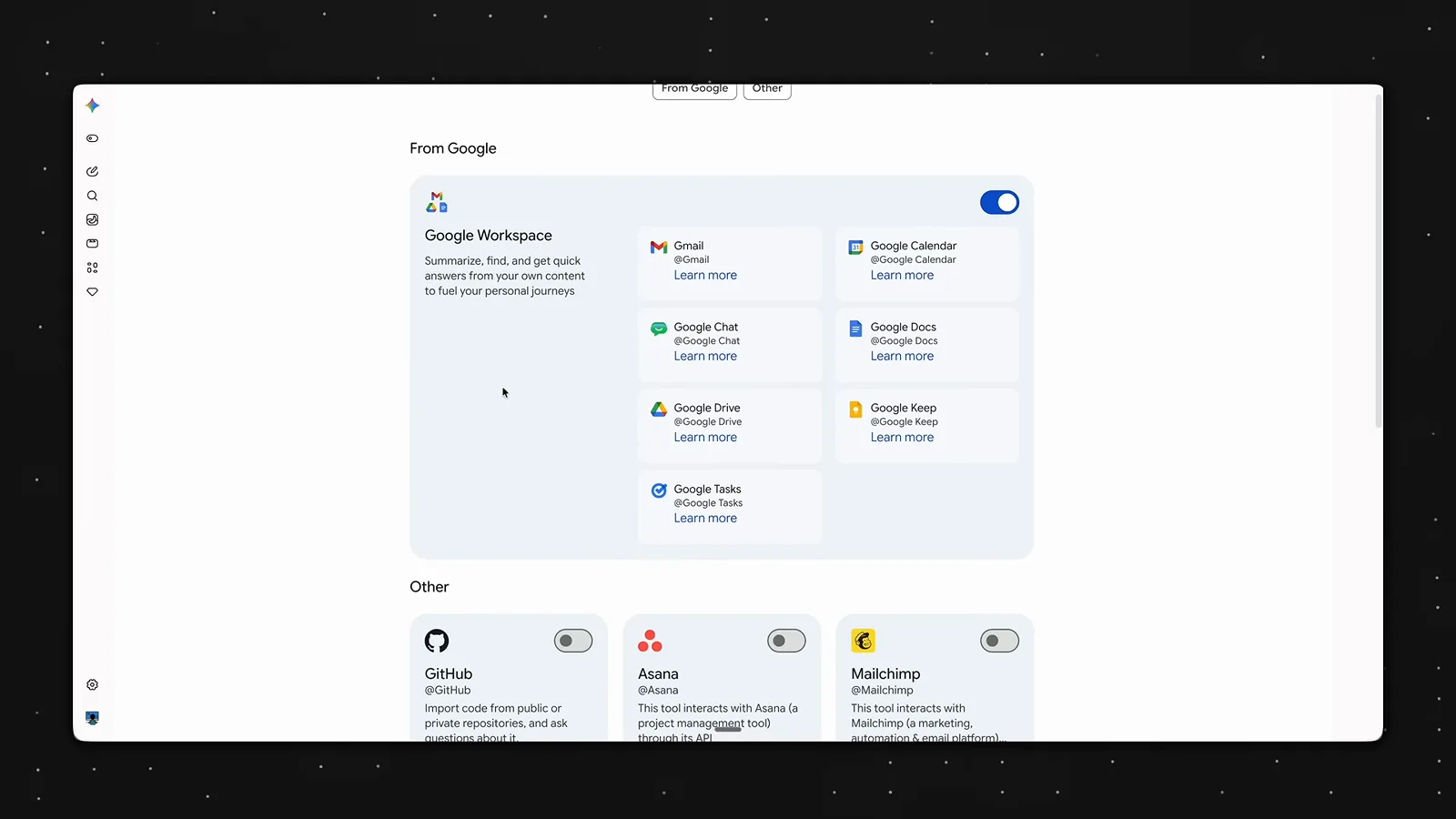
Great inside Google apps; limited everywhere else.Watch at 12:10 - 18
Bend the black box with a spark.md rules file
You can force consistency instead of trusting memory. Ask Spark to create a Google Doc called spark.md in your Spark OS folder holding your working rules - Jeff’s two: always lead with the bottom line up front, and save every generated file to the 99 temp folder. Then append read spark.md before responding to important prompts; the answer in this frame followed the rule exactly.
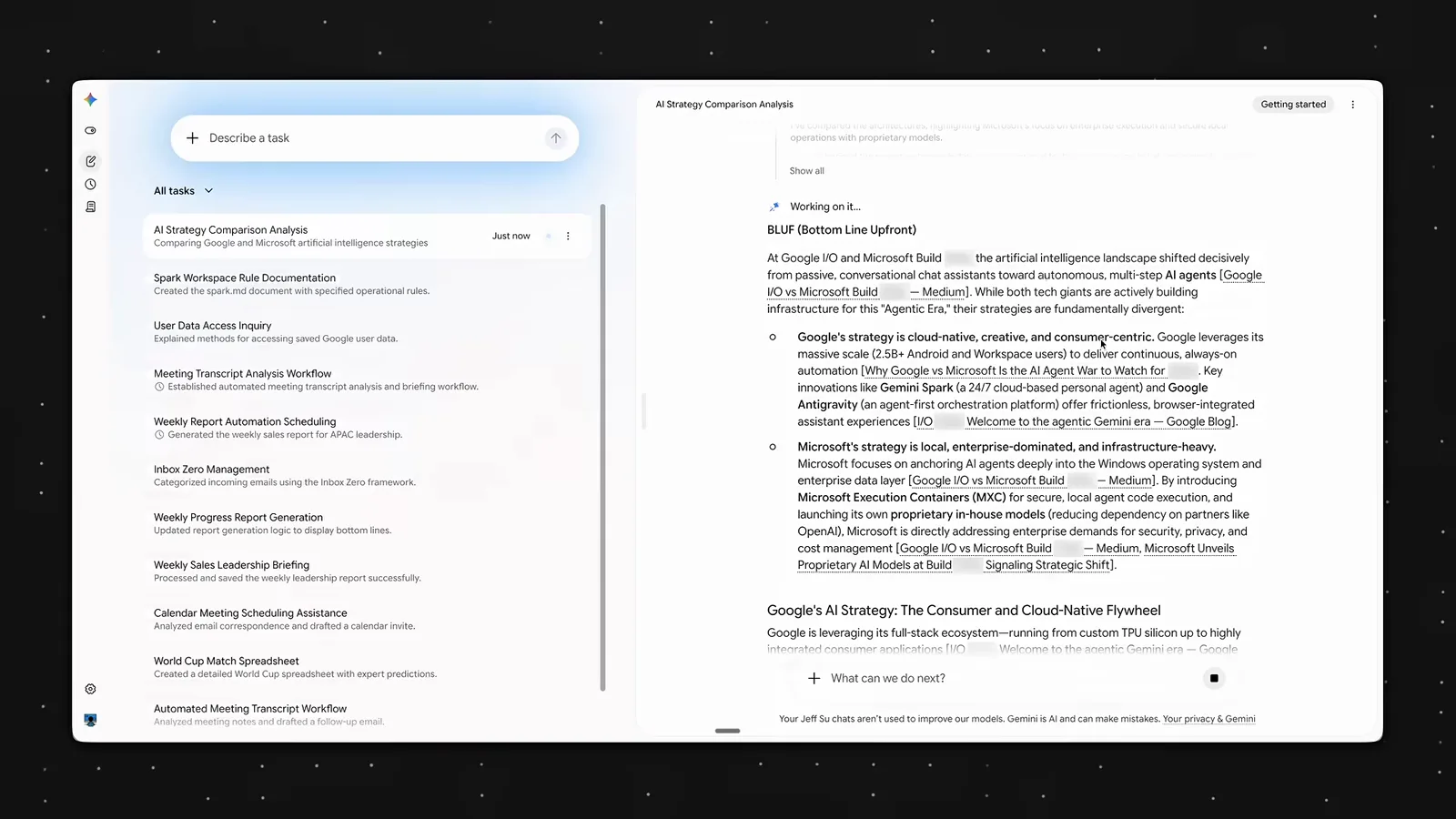
A rules file you control beats memory you cannot see.Watch at 14:36