

Gemini 3 Tips: 16 Ways to Get More Out of Every Chat
Gemini 3 rewards people who steer it — pick the right model, put real numbers in the prompt, and use the features sitting in plain sight. The sixteen tips below rebuild the workflows demonstrated in two recent Gemini 3 walkthroughs, with the exact prompts and the screens you should expect to see. They apply across Gemini 3 models; one caveat as you start: as of October 2026, Google's free tier has shrunk to Gemini 3.5 Flash-Lite, so the limits you hit depend on your plan. Work through them in order, or jump straight to the section that matches what you are doing today.
Source & credits
Screenshots in this guide are captured from Parker Prompts's public walkthrough video. Every step links back to the exact moment it shows, so you can follow along.
Parker Prompts ↗Make it think before it answers
- 1
Switch the model picker to Thinking
Open Gemini and click the model name next to the prompt box, then choose "Thinking with 3 Pro" in the dropdown. The menu describes it as the option that thinks through complex topics, sitting next to "Fast" for quick answers. Thinking takes a few extra seconds per reply, which is the trade for noticeably better output on anything multi-step.
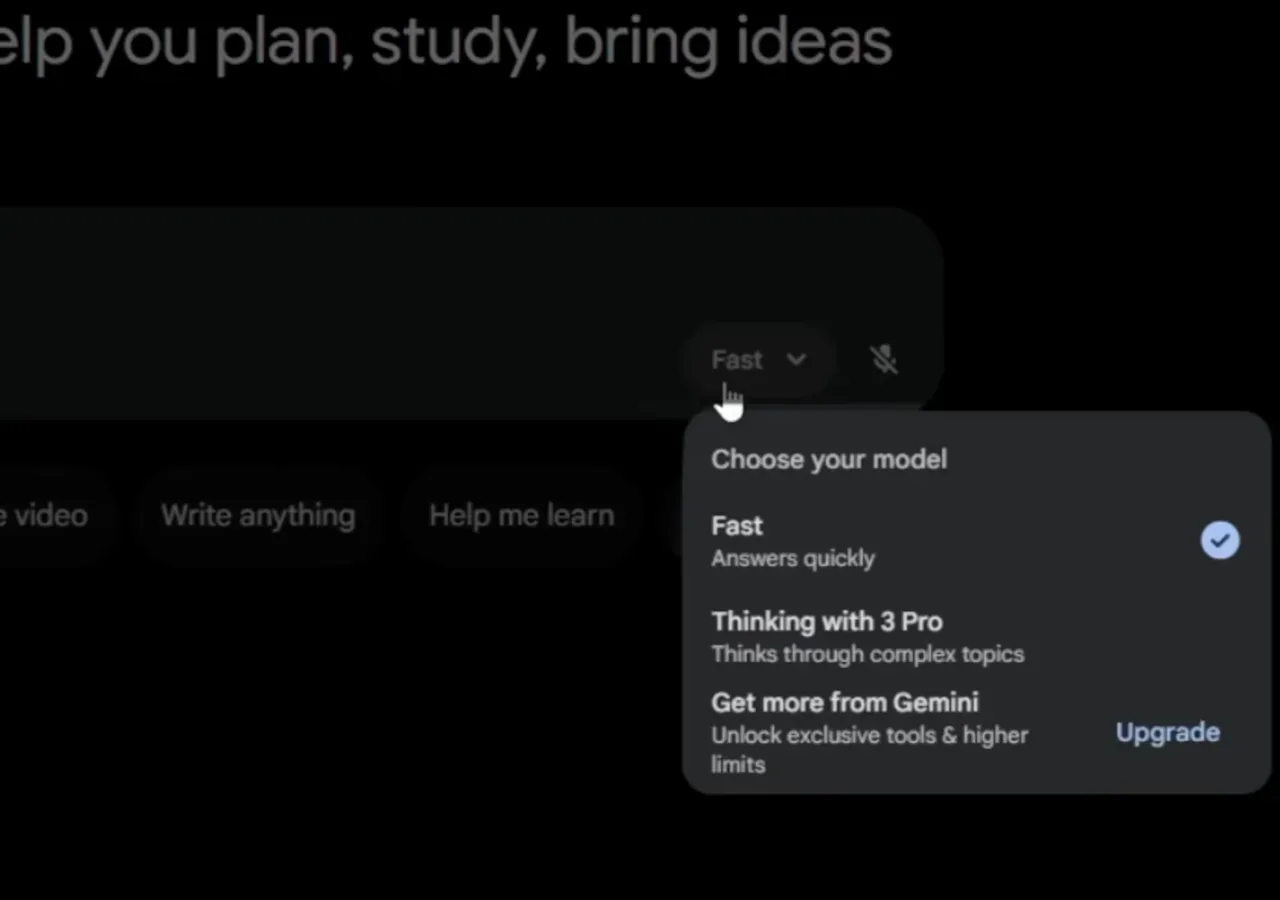
The model menu is where every Gemini 3 tip starts — Thinking trades a few seconds for much stronger reasoning.Watch at 1:53 - 2
Pose a decision with real numbers
Thinking needs something to chew on. The walkthrough uses: "I'm launching a new productivity app. I have three marketing strategies to choose from..." with a price attached to each option, ending with "Which one should I pick and why?". Costs, timelines, and a direct question turn a vague chat into an analysis you can act on.
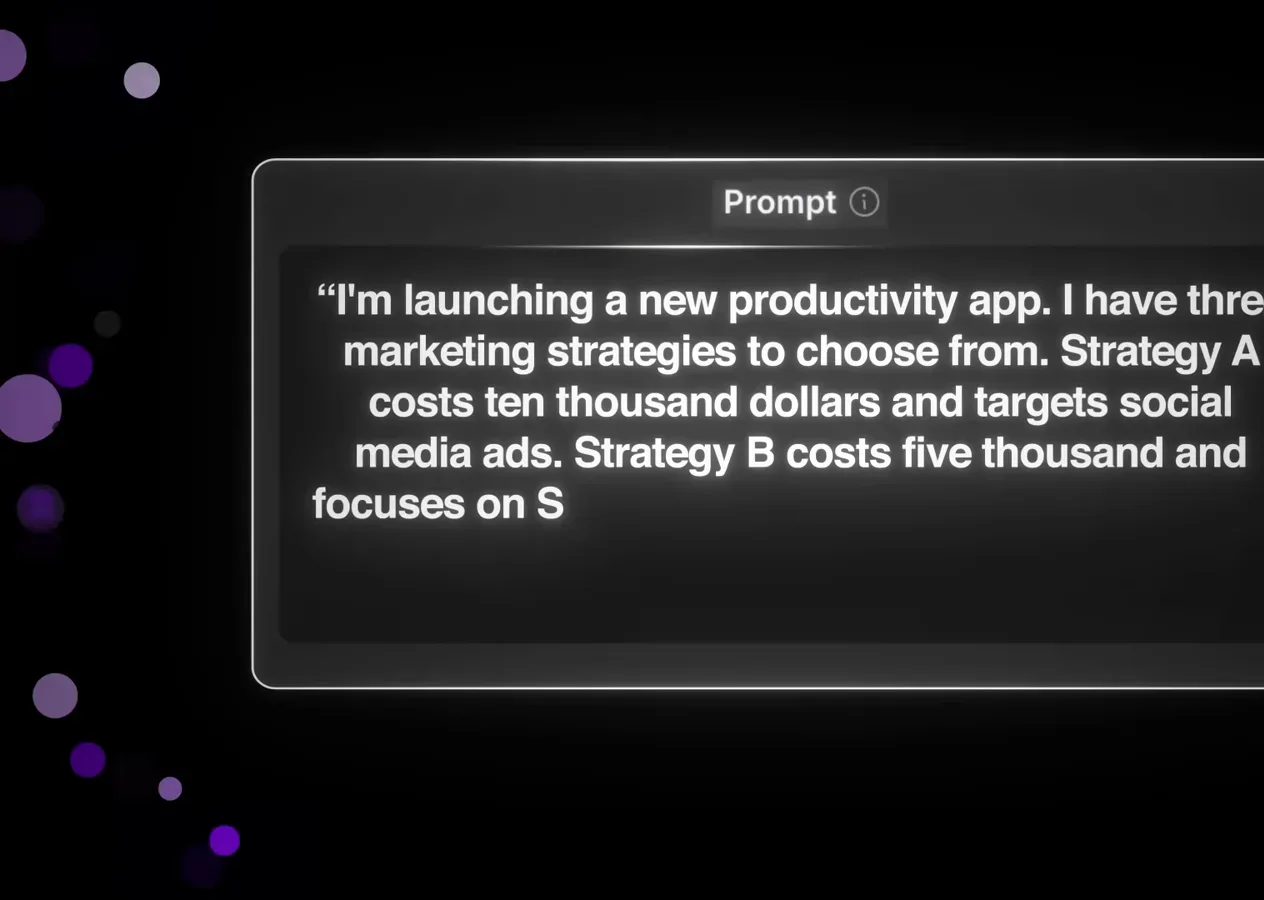
Prices, trade-offs, and a direct question — the prompt formula behind the strongest Gemini 3 answers.Watch at 2:11 - 3
Ask for the tradeoffs in a table
Gemini 3 breaks the problem into "Examining the options", prices each strategy, then lays out a Comparative Overview covering cost, speed, asset lifespan, and targeting. Use "Export to Sheets" under the table to keep the analysis, and read the scenarios below it — the demo ends with a "Safe Bet" recommendation for most situations.
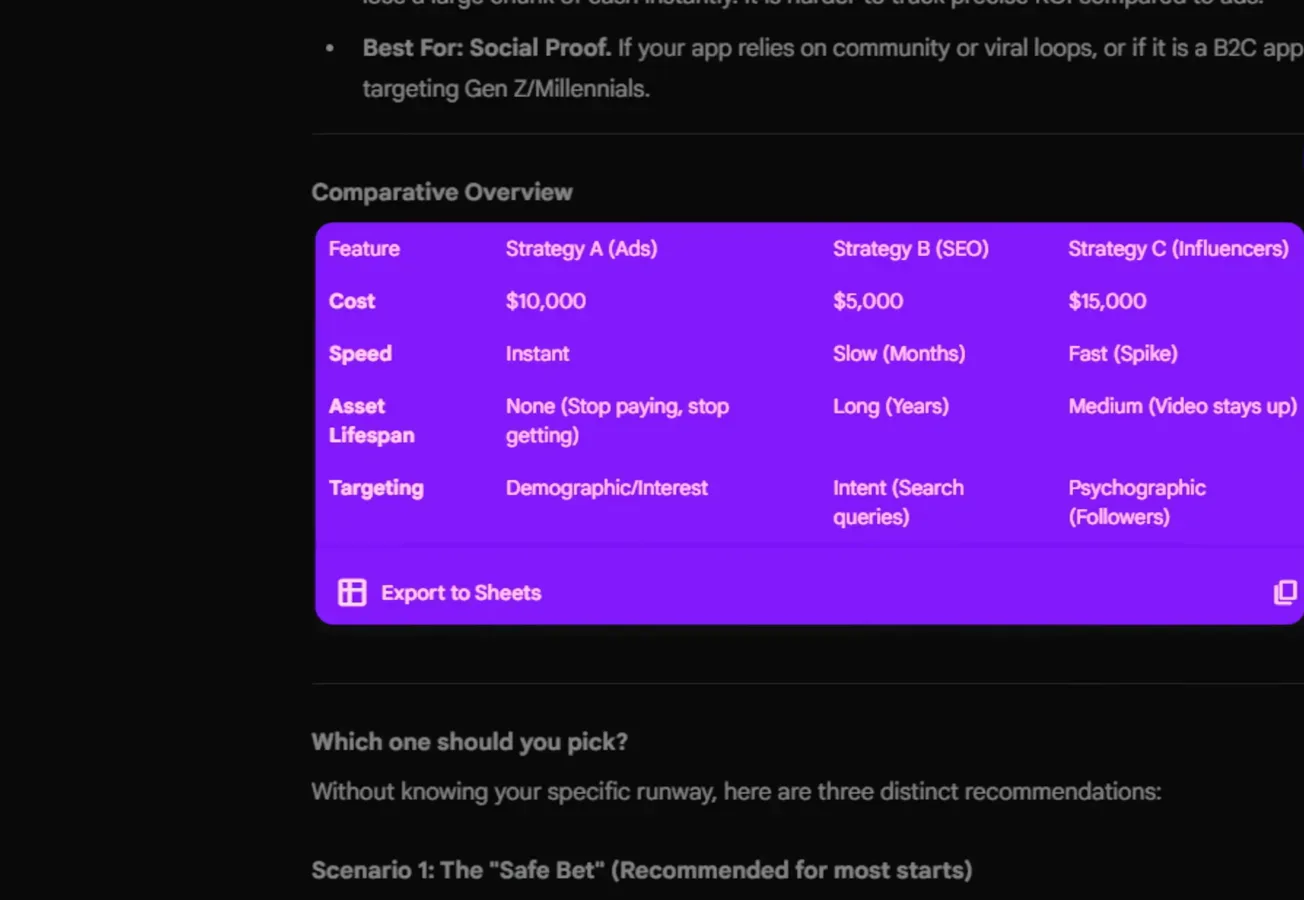
The Comparative Overview table is your answer at a glance — export it to Sheets before you close the chat.Watch at 2:26
Point it at receipts, screenshots, and video
- 4
Turn a crumpled receipt into a table
Photograph any receipt — crumpled and blurry is fine — upload it to Gemini, and ask it to pull out the merchant, date, items, prices, and total as a table. The demo reads every line including the small print and flags what the receipt does not show, like individual prices. Invoices, business cards, contracts, and forms all work the same way.
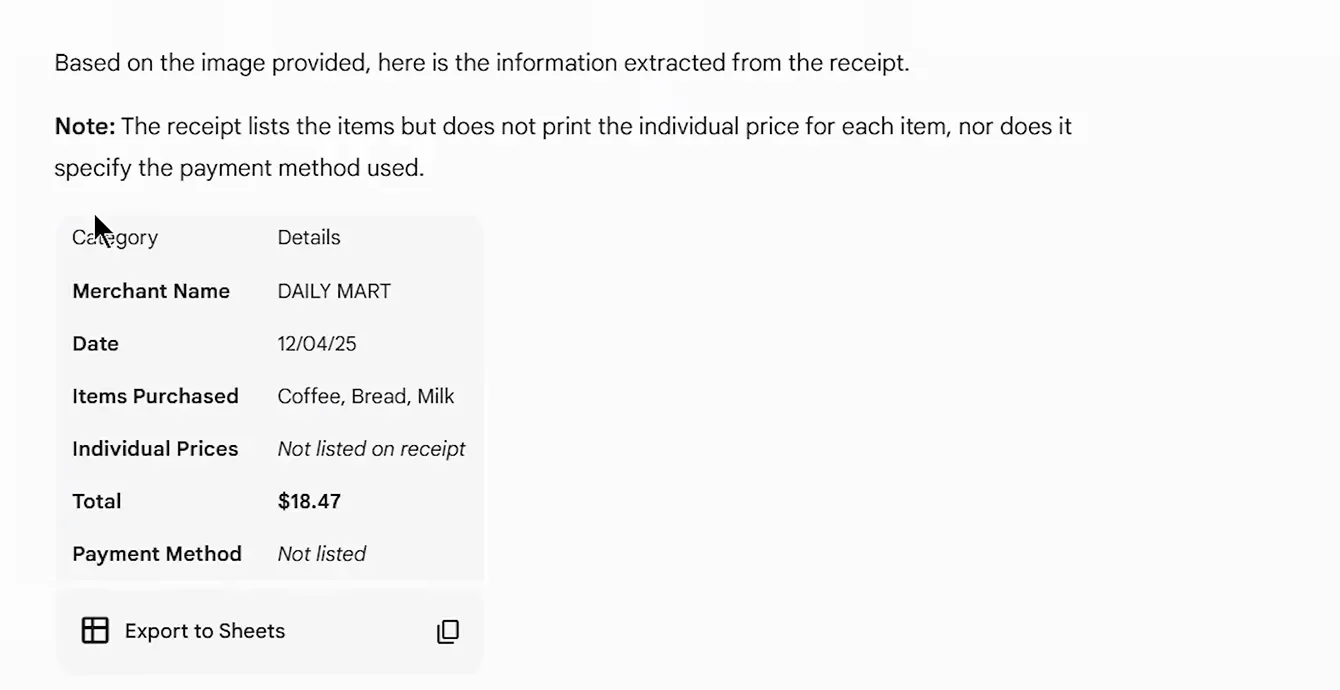
One photo plus one prompt replaces manual data entry — the note above the table tells you what the receipt was missing.Watch at 15:41 - 5
Get design feedback on a screenshot
Upload a screenshot of a page or app and try: "Analyze this layout and tell me what's working and what's not." The demo response calls out repetitive social sharing buttons, a text-heavy intro pushing content down, and a buried start-here link, then closes with a summary. It reads like notes from a designer, not a generic compliment.
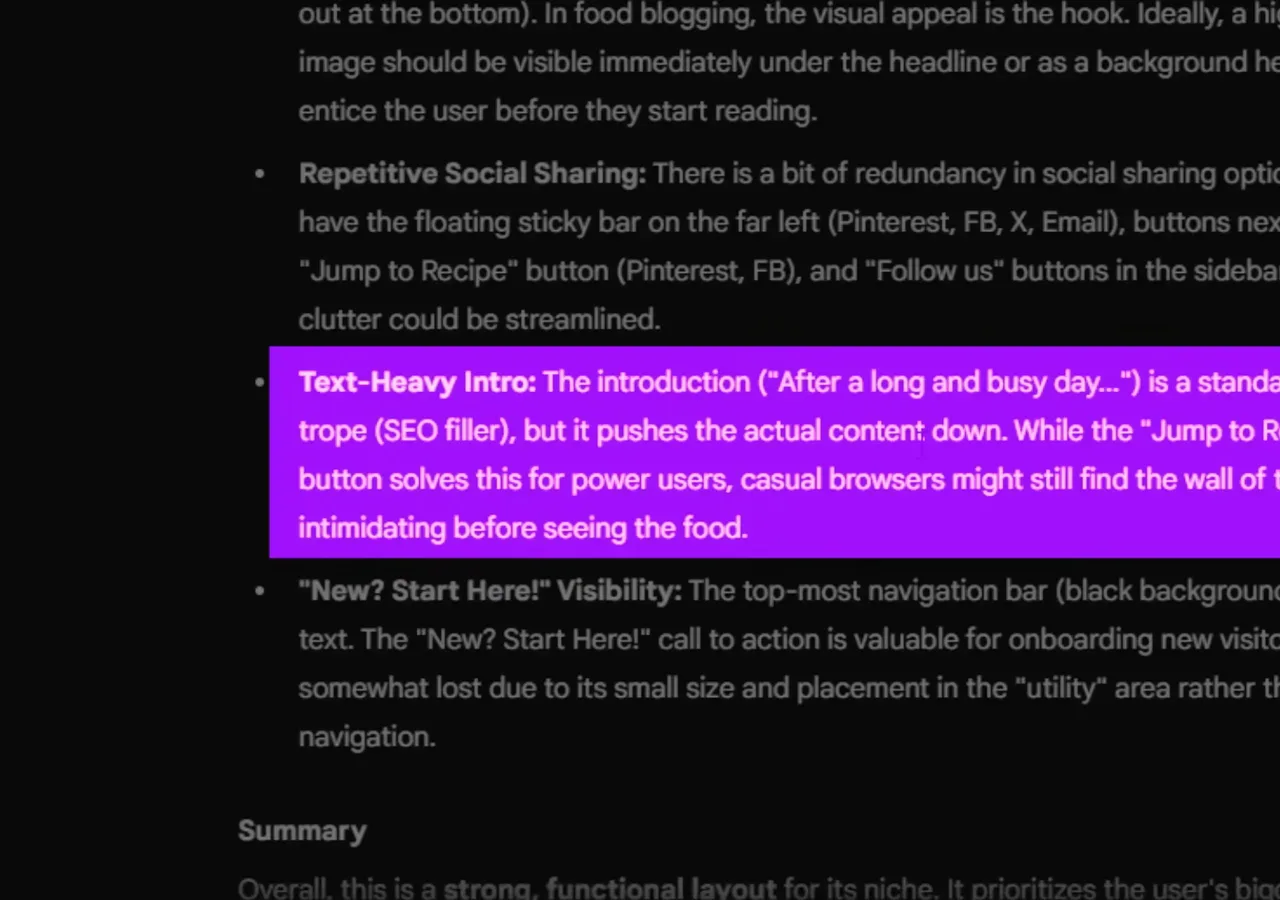
Screenshot in, specific critique out — the purple highlights mark the fixes it would prioritize.Watch at 3:48 - 6
Summarize a YouTube video by timestamp
Paste a YouTube link into Gemini and add: "watch this demo and extract every feature mentioned, organize them by category, include timestamps." The response groups features under headings with the moment each appears, like generation speed at 00:42, and links the source video below. Use it for competitor demos, tutorials, and webinars you will not have time to watch.
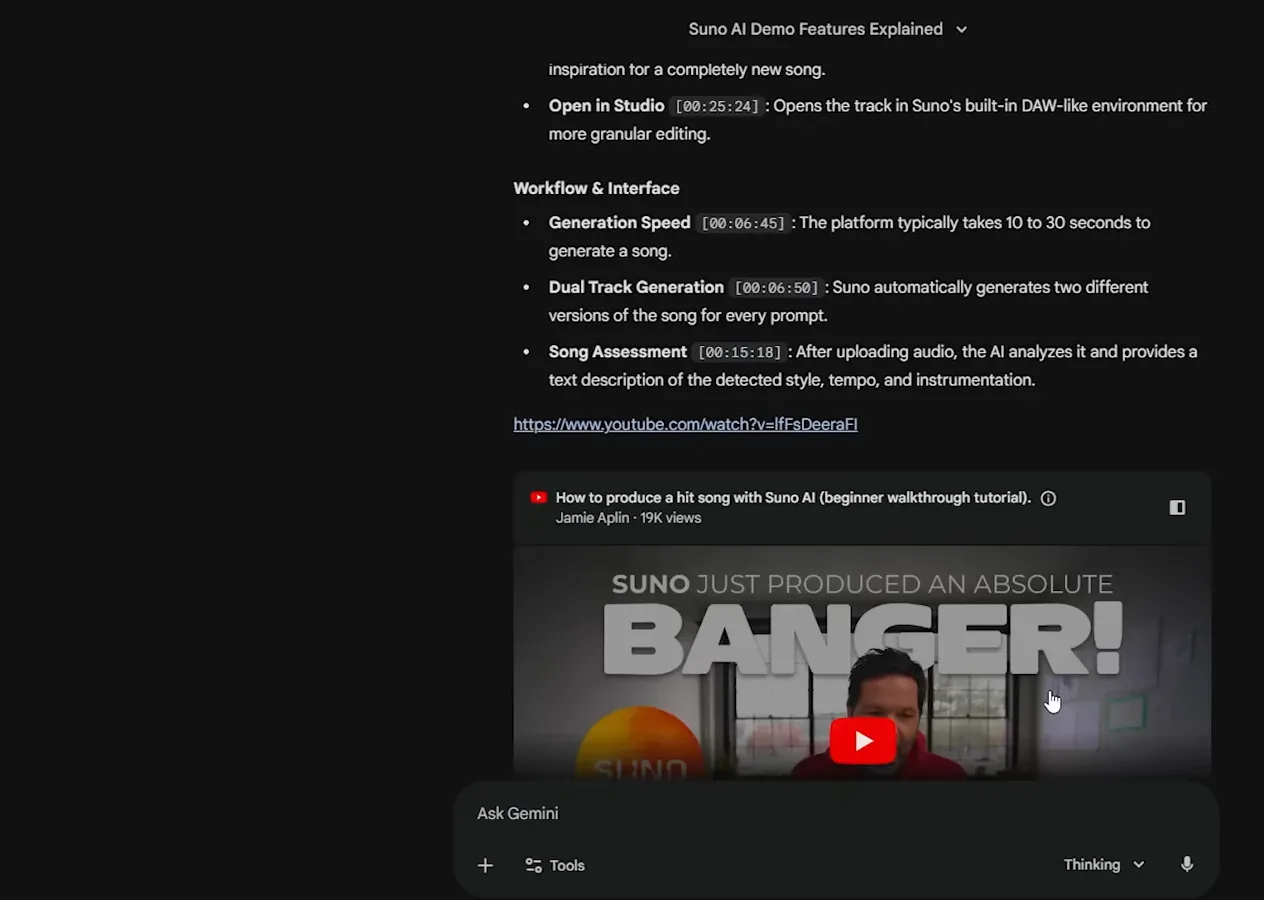
Skip the 30-minute watch — the timestamped breakdown tells you exactly which minute matters.Watch at 6:12
Run research you can verify
- 7
Brief Deep Research like a briefing writer
For big questions, open Deep Research and write a brief with a scope and a deliverable: "Research the five most discussed AI breakthroughs from the last ninety days. Focus on practical applications for marketers. Include source links." A time window, an audience, and a required output shape the report you actually get. The free plan includes five reports a month; paid plans are unlimited.
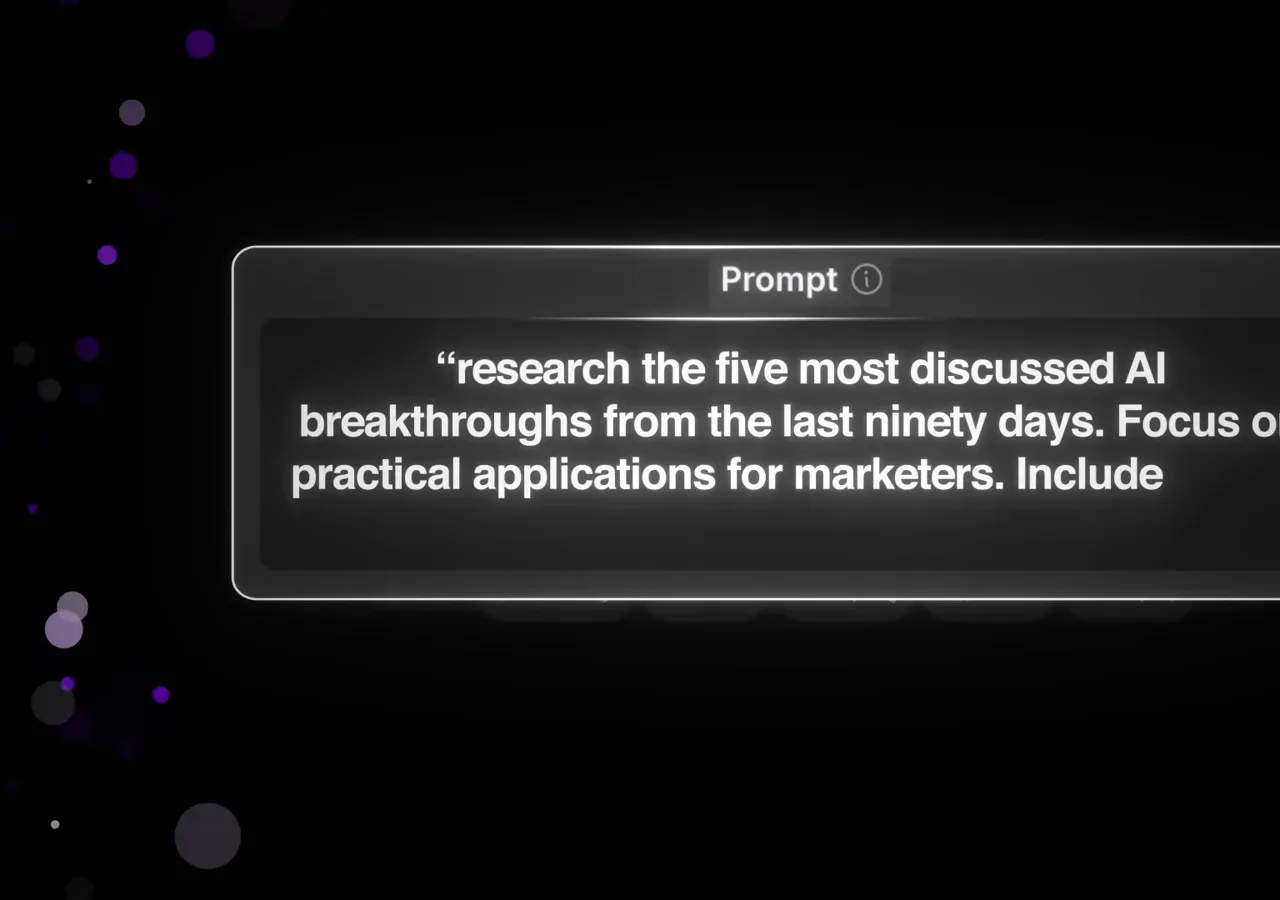
Scope, audience, sources — three phrases that turn Deep Research from a search into a deliverable.Watch at 5:12 - 8
Read the report, then check its sources
Deep Research takes a few minutes, then returns a multi-page report — the demo covers marketing shifts with linked citations, including a Time magazine article under one claim. Every source stays one click away, and you can ask follow-up questions to reshape the report around your project.
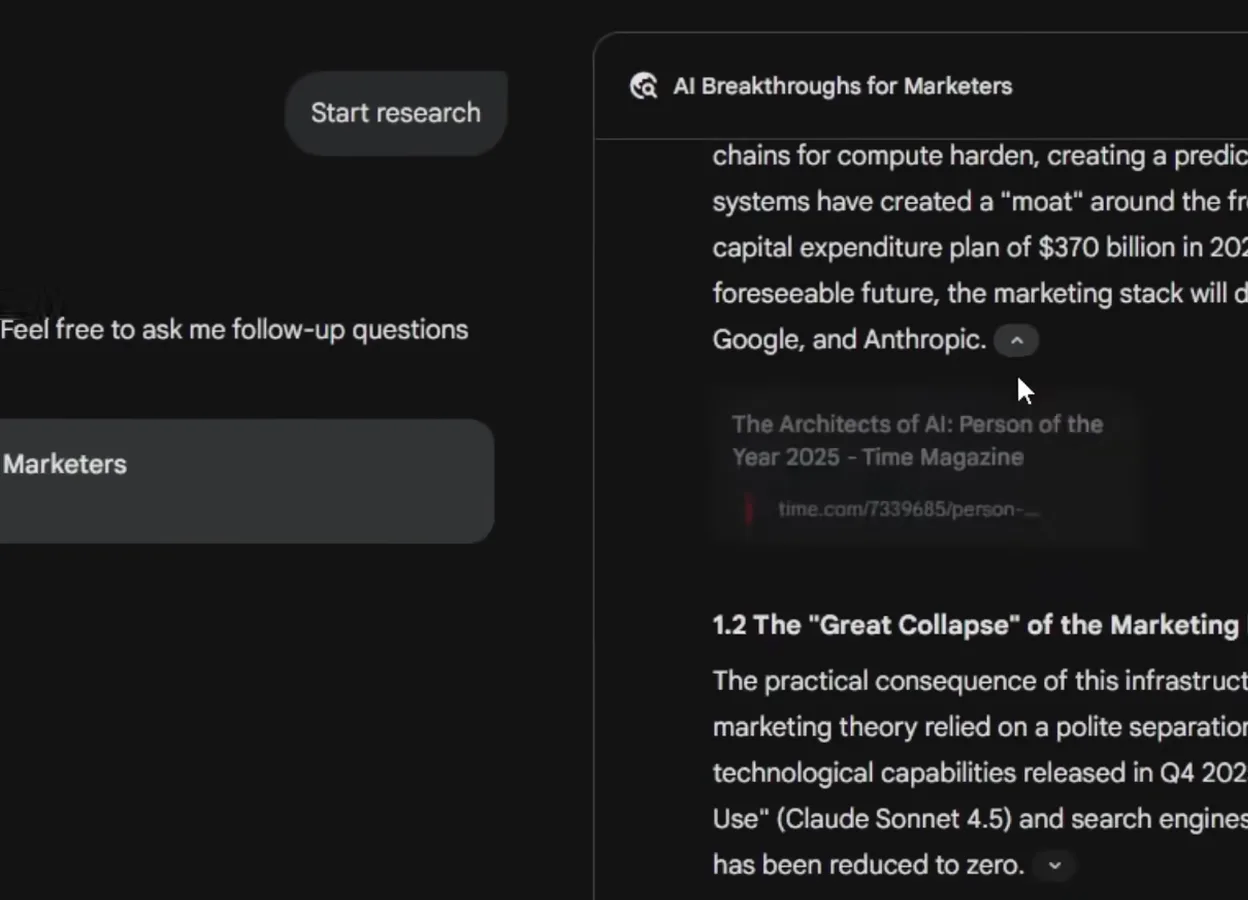
Grey citation cards under each claim are your fact-check trail — click one before you forward the report.Watch at 5:24 - 9
Interrogate a whole stack of documents
Gemini 3's context window swallows about 1,500 pages, so upload the whole stack. The demo drops in ten meeting notes and asks Gemini to find every mention of budget concerns, list them by date, and summarize the main issues. It returns dated findings and offers to track how specific teams resolved them over the following weeks.
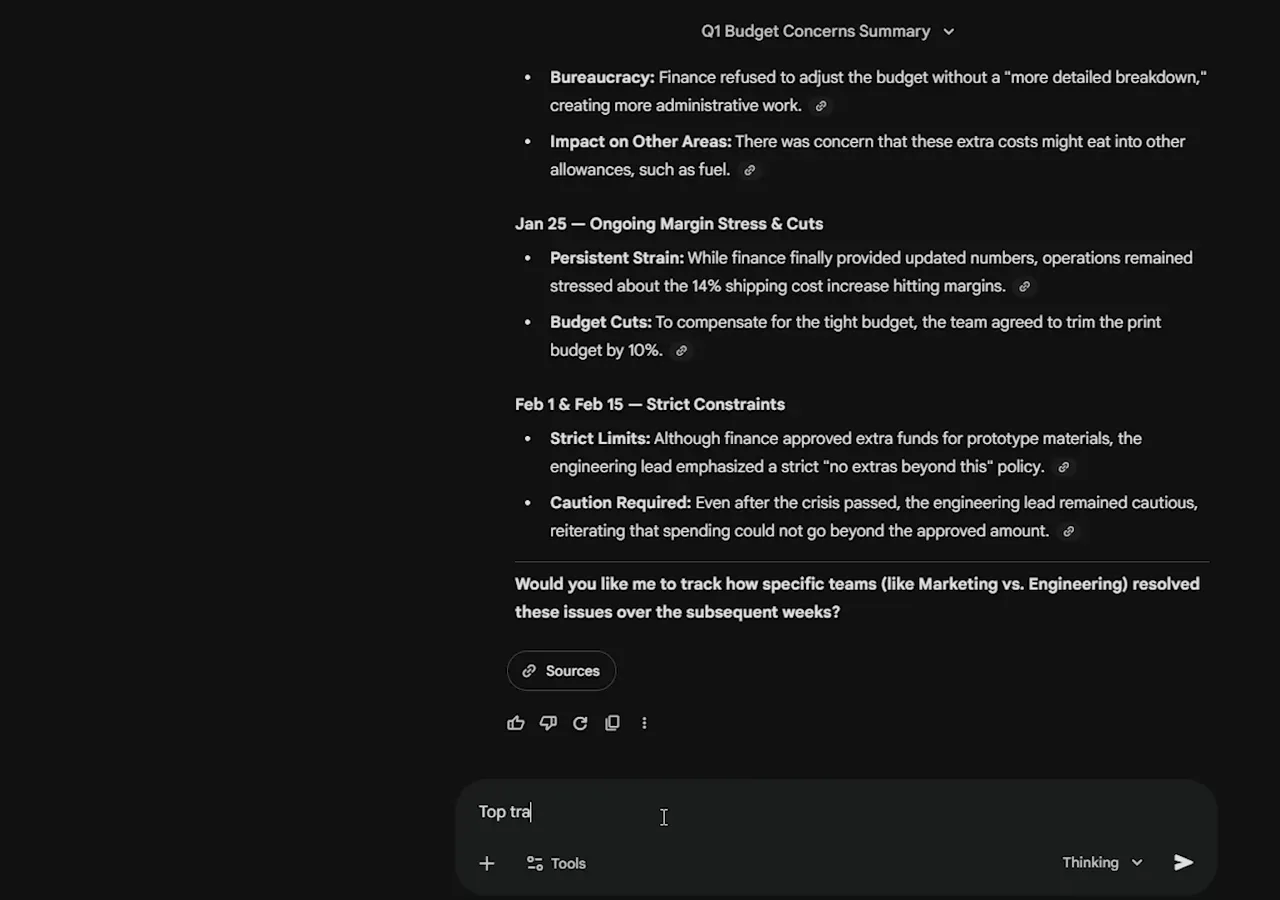
Ask for a list by date and Gemini 3 turns a quarter of notes into a timeline you can act on.Watch at 7:42
Create images and narration without leaving chat
- 10
Describe the shot like a scene
Image generation rewards specifics. The demo prompts: "Generate a realistic image of a modern home office setup with a standing desk, dual monitors, and natural lighting" — subject, layout, and light in one sentence. Gemini routes the request to Nano Banana Pro, and the free plan allows two image generations per day.
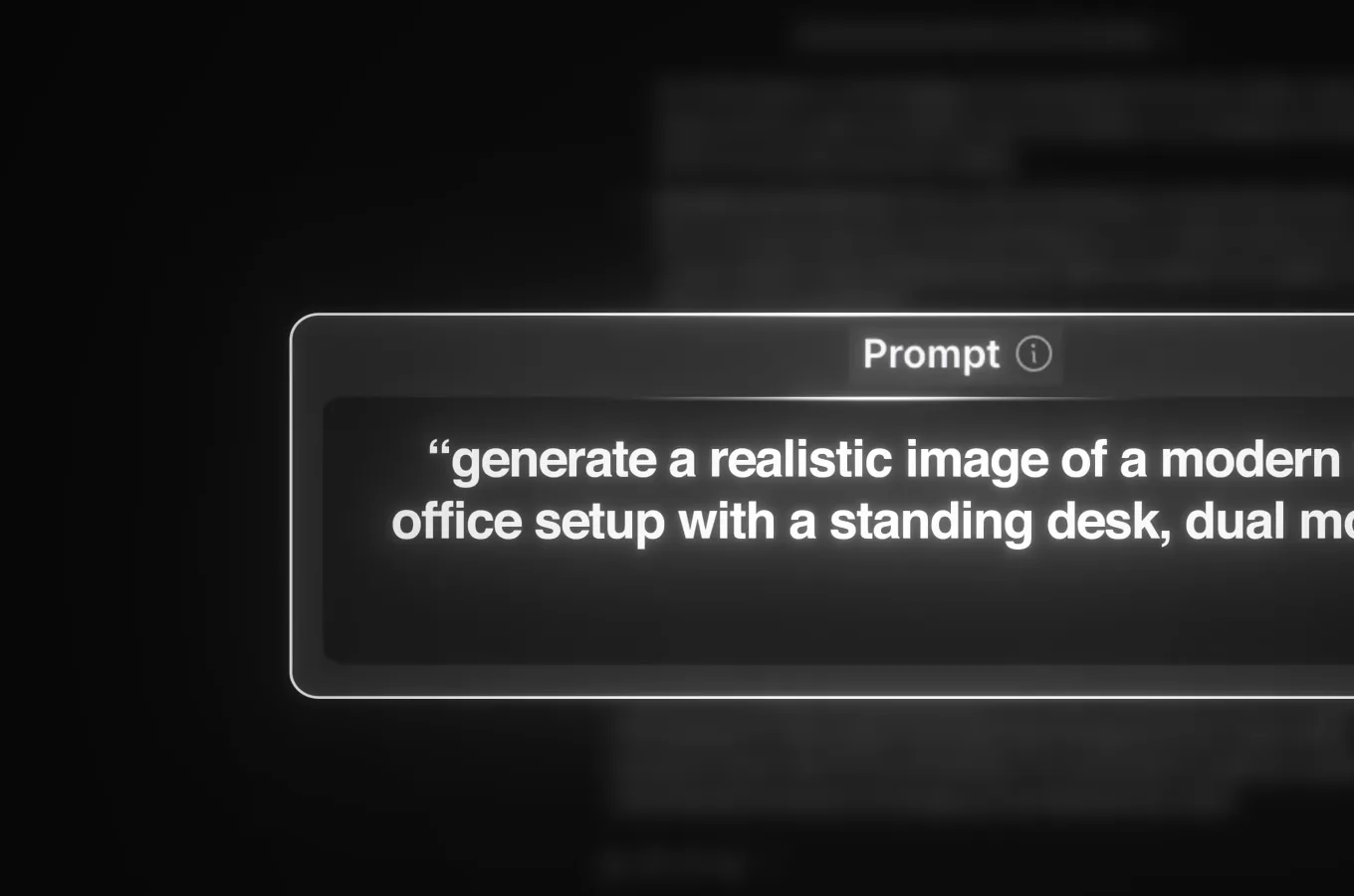
Subject, layout, lighting — the three-part scene prompt that gets a usable image on the first try.Watch at 4:11 - 11
Refine the image with follow-ups
When the first render lands, keep the chat going instead of starting over. The demo follows up with "make the lighting warmer" and Gemini adjusts the image while keeping the scene intact. Each refinement builds on the last, which is how a generic result becomes your result.
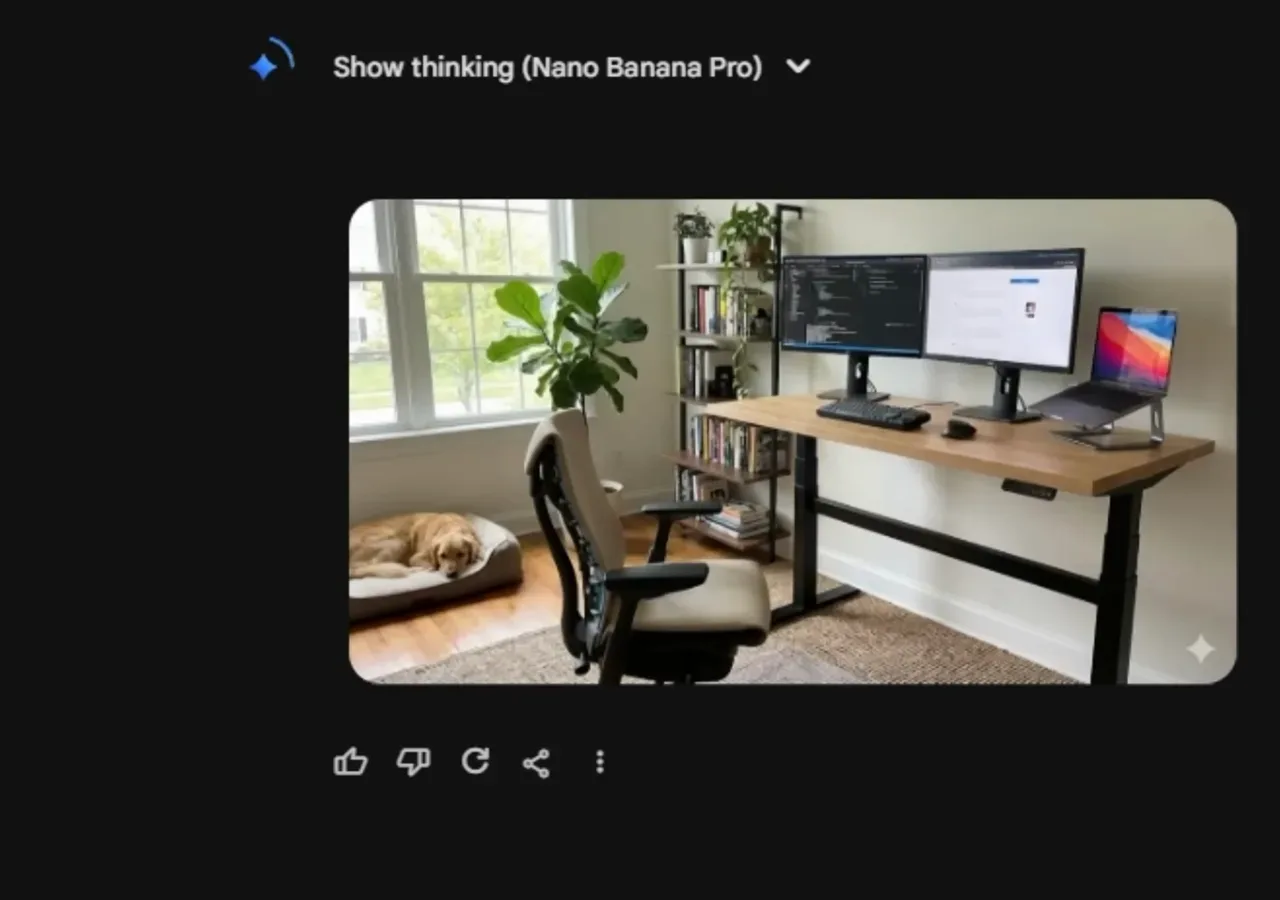
"Show thinking" reveals how Nano Banana Pro read your prompt — the refinement loop is where images get good.Watch at 4:16 - 12
Turn scripts into narration in AI Studio
For voiceover, open Google AI Studio, pick the text-to-speech model, and choose single-speaker audio. Paste your script, set the speaker, and generate — the demo turns a keyword-research guide into natural narration in seconds. It sounds closer to a podcast host than a classic text-to-speech robot.
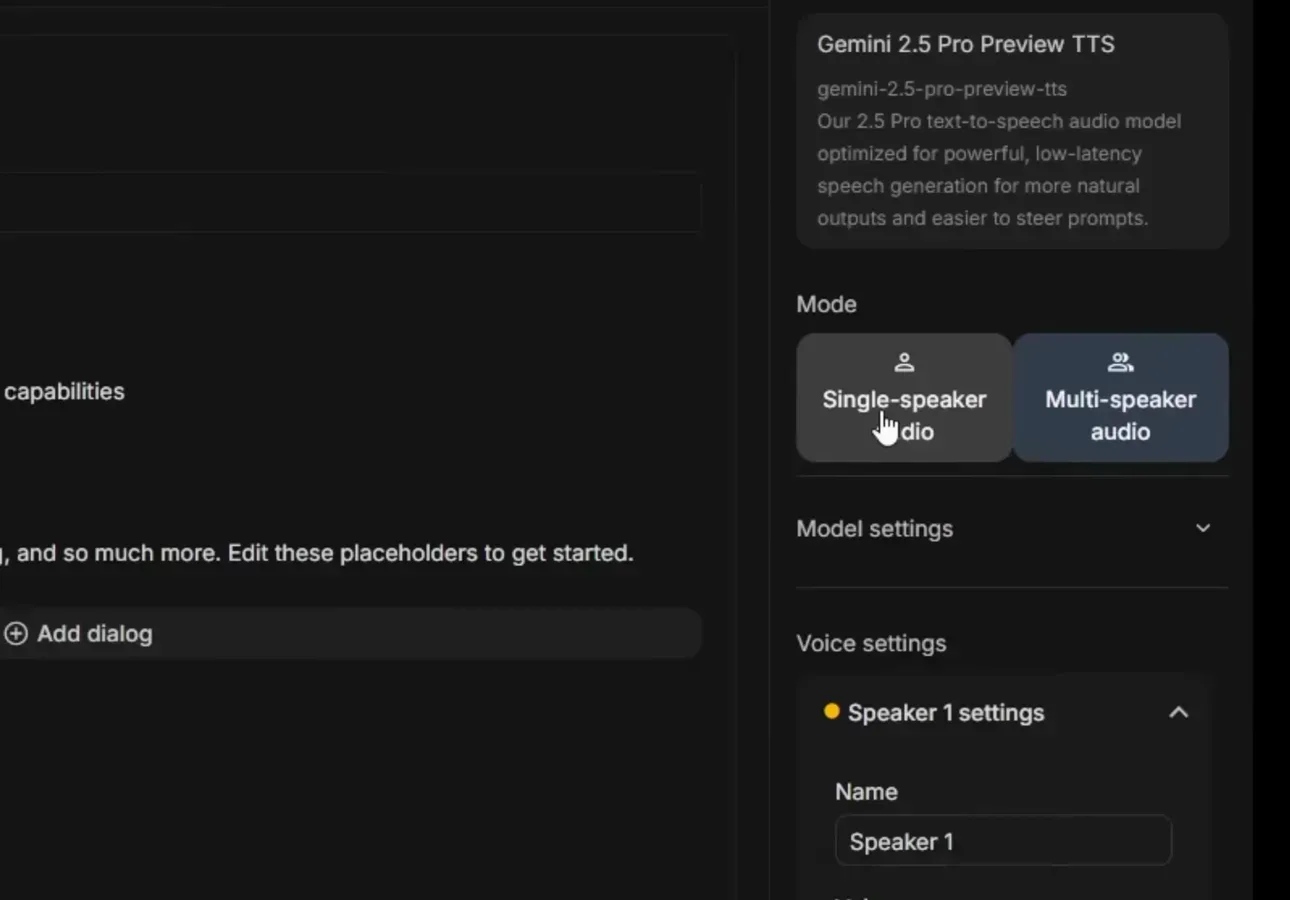
AI Studio lives outside the Gemini app — paste a script, pick a speaker, and generate narrated audio.Watch at 7:22
Wire Gemini into your workspace and phone
- 13
Connect Gmail, Calendar, and Drive
In settings, enable the Google Workspace extensions and Gemini can search your Gmail, check Google Calendar, and read files from Google Drive when you ask. The panel lists Docs, Drive, Keep, and Tasks as well. It works on the free plan, and it is what turns "find that email" prompts into answers instead of tab-switching.
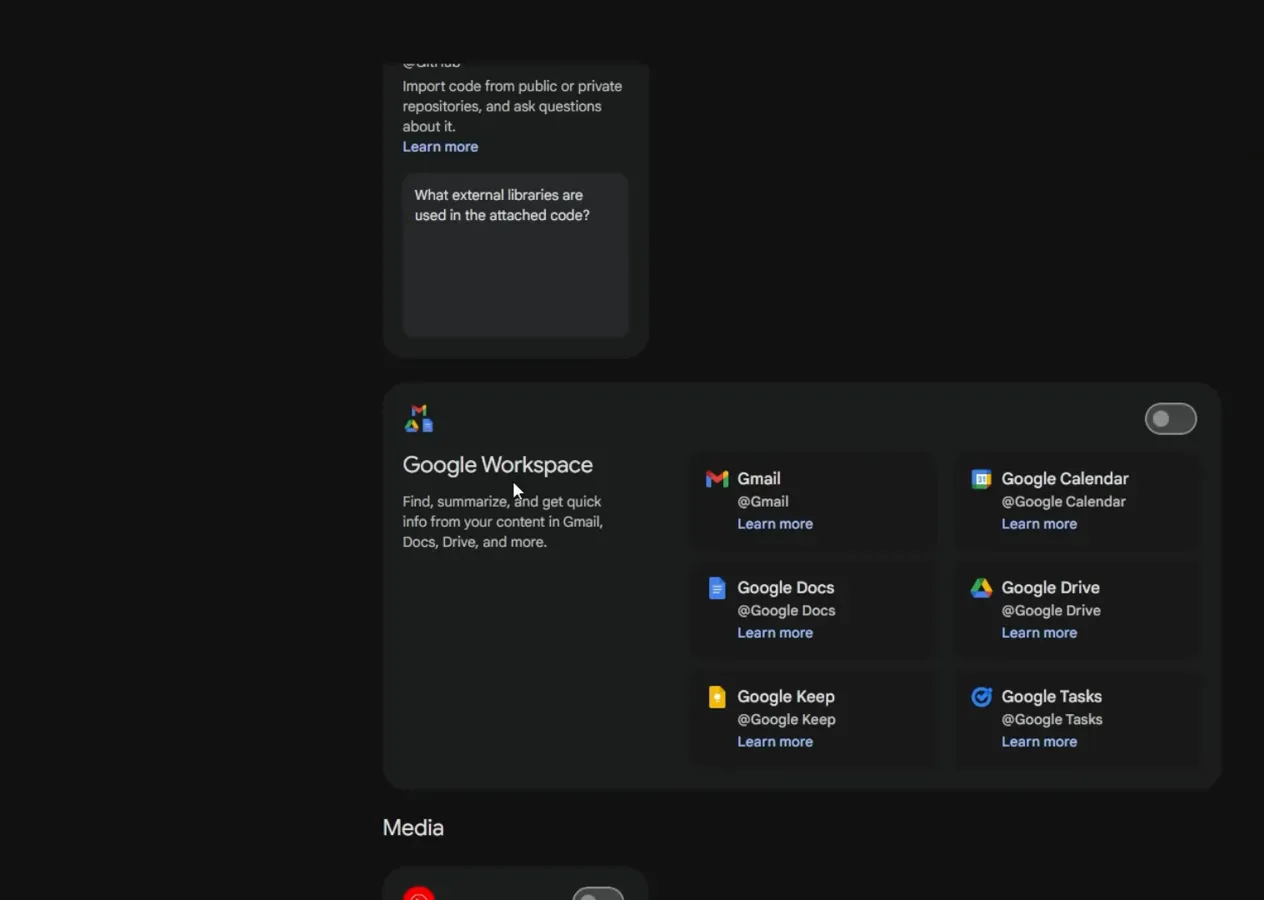
One toggle links Gemini 3 to six Google apps — the panel shows exactly which services will answer.Watch at 6:28 - 14
Use AI Mode for questions beyond chat
Inside Google Search, switch to AI Mode and ask detailed questions — the demo types "How to improve YouTube CTR for tech tutorials" and gets a structured answer with linked guides rather than a list of blue links. It runs on Gemini 3, so the same prompting habits from this page apply.
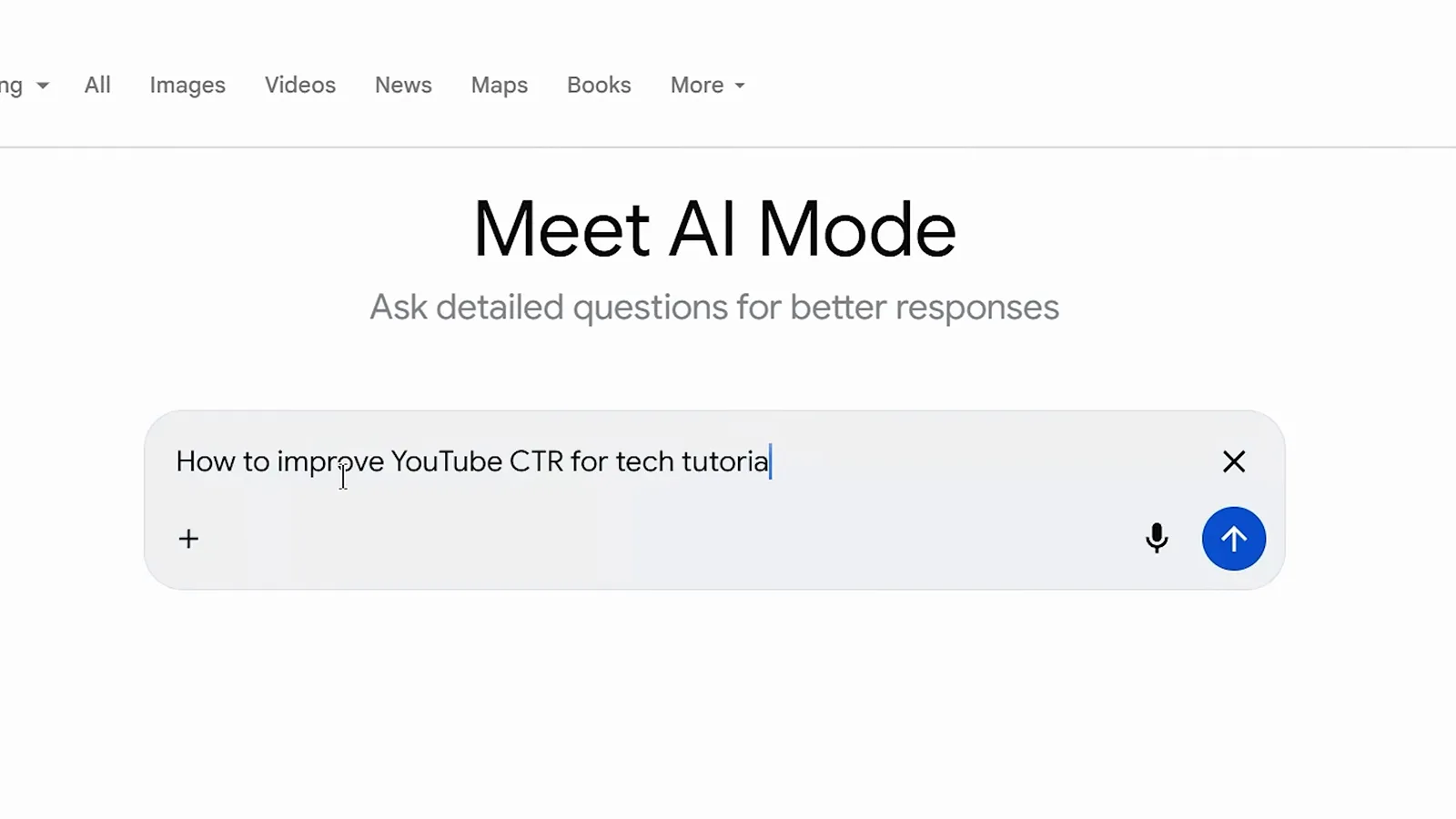
AI Mode is Gemini 3 where you already search — detailed questions get structured answers with links.Watch at 5:28 - 15
Talk it out with voice mode
Tap the microphone in the Gemini phone app and just talk. The demo asks for five title options, a hook for the first ten seconds, and a structure for a fifteen-minute video — and gets a complete plan without touching the keyboard. Voice mode is the fastest way to brainstorm when you are away from a desk.
Say the whole brief in one breath — voice mode handles the titles, hooks, and structure hands-free.Watch at 10:56 - 16
Let Live mode read the real world
Start Live mode and point your camera at anything. The demo holds up a hand-drawn workflow flowchart, and Gemini reads each box, walks the logic, spots the missing step after the credit check, and suggests where error handling belongs. Screens, documents, and whiteboards all work in real time.
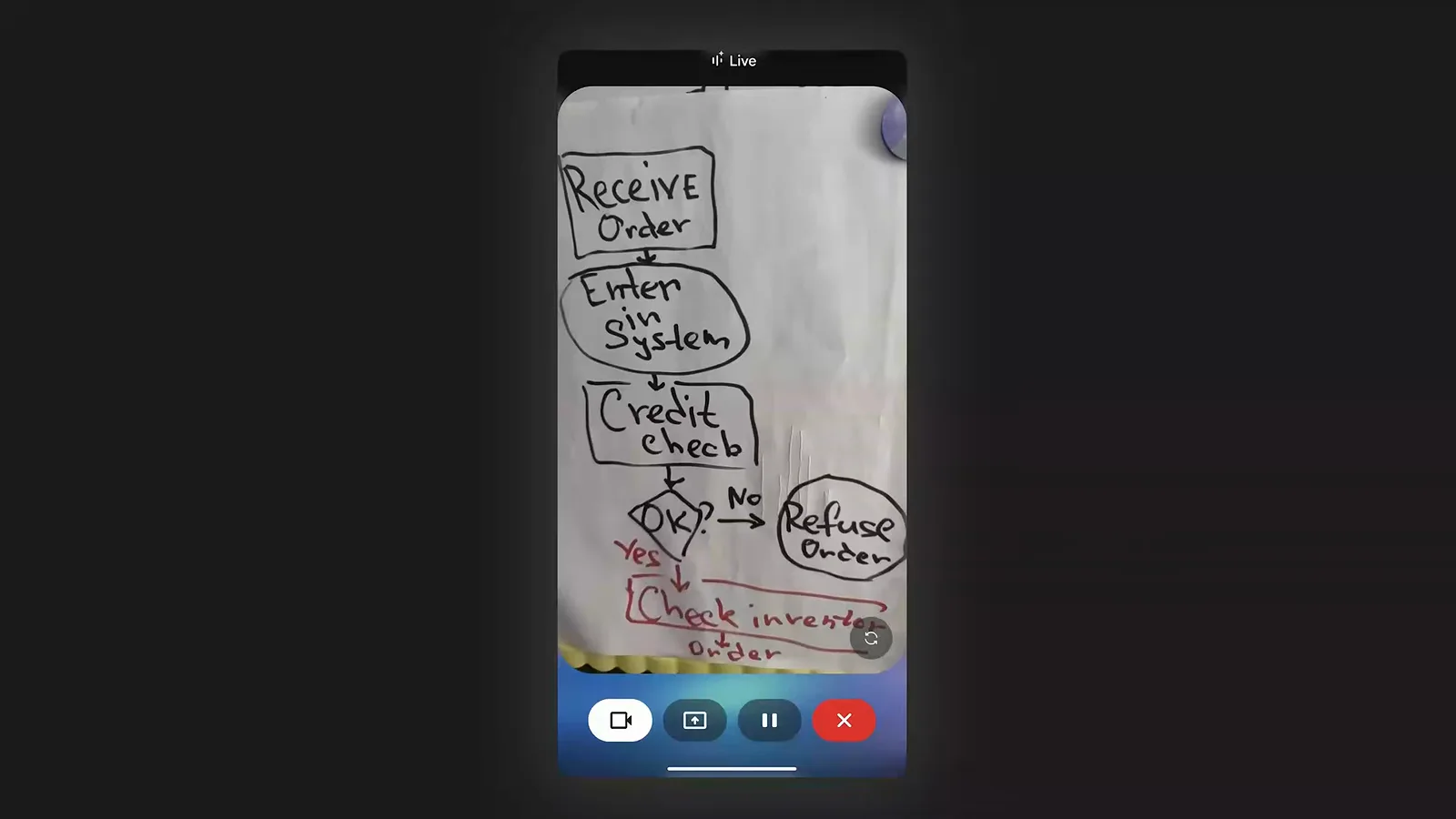
The red marks are Gemini annotating your drawing — ask it what is missing before you build the flow.Watch at 11:54