

Suno v6 prompts, step by step: what to type in the models that replaced everything
Short version: on September 9, 2026 Suno replaced every older model with three new ones — flagship v6, exploratory v6 Wild, and v6 Mini for free accounts. Everything on this page comes from Suno's own two launch walkthroughs, and every screenshot is a frame from those demos. Who can use it: paid plans get v6 and v6 Wild, free accounts start on v6 Mini; Use as Inspiration and Voice are Pro-gated. What changed for prompt writers: one request can now carry several jobs at once — attach reference songs, images or video, name the element you want from each, and describe the result in plain language. Fastest path: open Create, keep Simple mode, attach your material, write the prompt, then refine the result with more words instead of starting over. The slider drawer (Variety, Max Mode) is covered at the end, along with how to carry old favorites and custom models into v6.
Source & credits
Screenshots in this guide are captured from Suno Music's public walkthrough video. Every step links back to the exact moment it shows, so you can follow along.
Suno Music ↗Pick the right v6 model before you write a word
- 1
Open Create and confirm the model chip before typing
The Create page opens in Simple mode with three attach buttons — Audio, Voice and Image — above the prompt box. Check the model chip in the top bar before you write: it should read v6, v6 Wild or v6 Mini (the demo switches it to v6-mini for a quick job). In this frame the demonstrator has already attached three kinds of material — the song Chorus Idea 7, a photo as Shuttle.jpg, and a Video — and asks for exactly one change: "Rework this as folk-pop". That is the v6 style of prompting: plain language plus attached material, and the model interprets the pieces together.
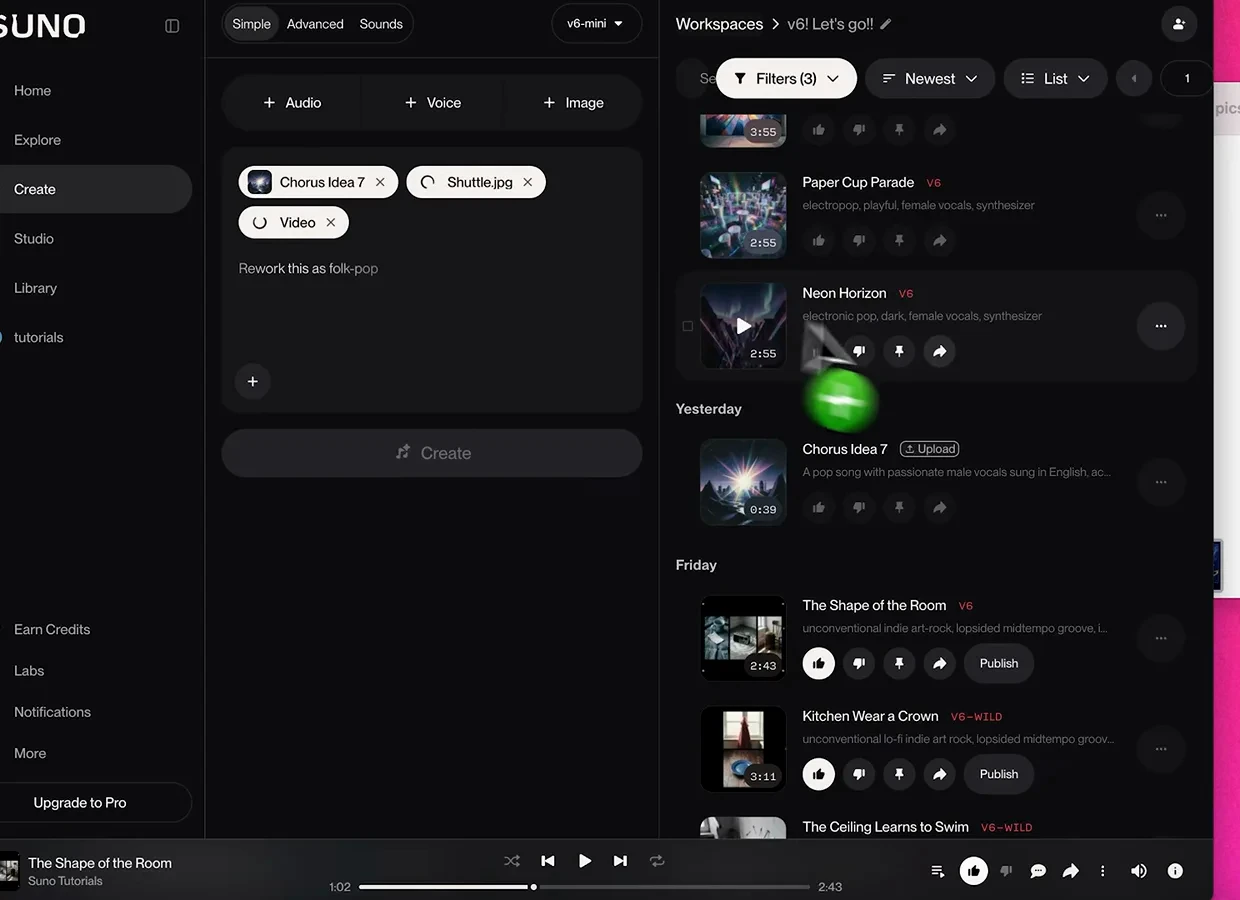
Three kinds of material attached, one plain-language instruction — that is a v6 prompt.Watch at 1:46 - 2
Know what the v6 badge tells you
Open any song from your workspace and look next to the date: the small badge names the generation that made it. Neon Horizon here carries the v6 badge, and after September 9, 2026 every new generation you run will too, because all older models are retired. Your existing library keeps playing, and the tools built on top of songs — covers, voices, inspo and custom models — still work; Suno swapped the engines underneath them to the new generation. For prompt writers this matters in one way: any guide telling you to pick v4.5 or v5 in the model list is out of date.
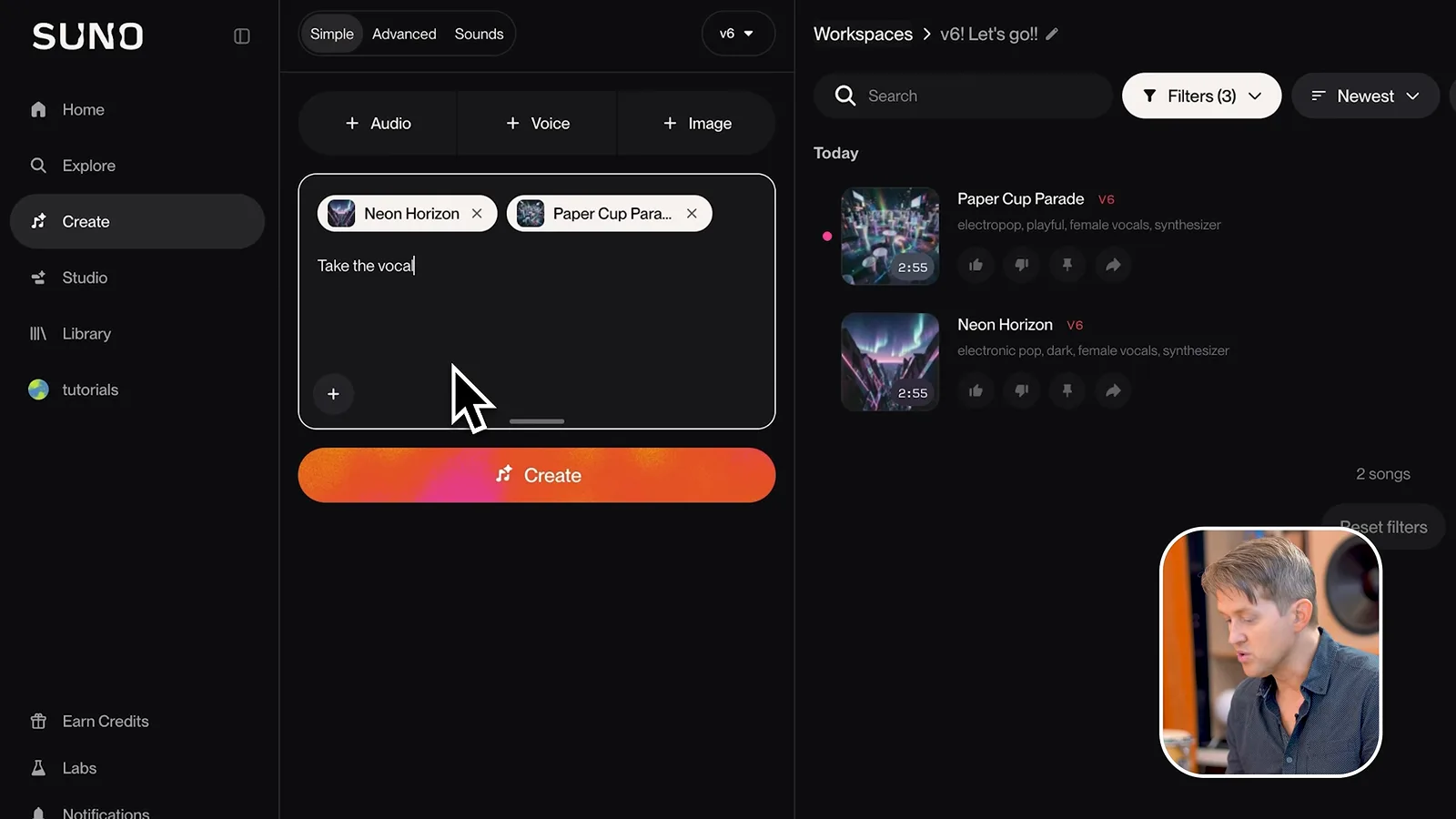
The badge next to the date is the quickest way to confirm which generation made a track.Watch at 2:14 - 3
Miss the old grit? Write it into the prompt
The personality people miss from the retired models does not come back automatically — you ask for it. This frame shows the demo prompt verbatim: "Make an unconventional indie track with imperfect vocals, distorted textures, unusual instrumentation, and an unexpected melodic hook". Rule of thumb from Suno's transition video: if you want imperfect vocals, write imperfect vocals; if you want rougher production or a specific old-school sound, describe the instrumentation, the recording quality and the performance. Then choose the model on purpose — flagship v6 for a reliable interpretation of what you typed, v6 Wild when you want the idea pushed into stranger territory.
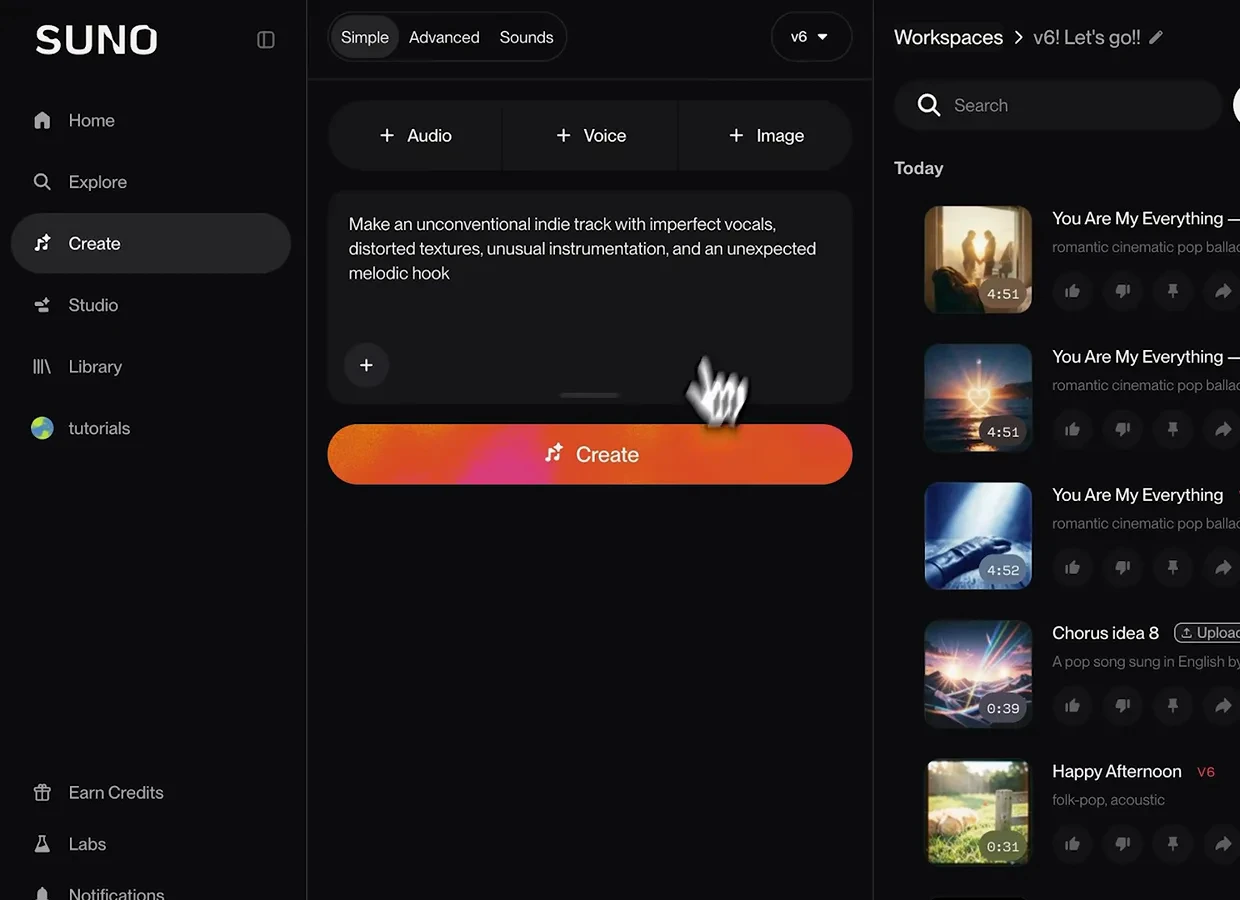
The exact demo prompt: the old grit, requested explicitly.Watch at 12:39
Stack several jobs into one prompt
- 4
Attach two songs and split the roles
Attach two existing tracks as chips — here Neon Horizon and Paper Cup Parade — and address them by position: "Take the vocals from the first song and the drums from the second". The full demo request kept going: add new lyrics about starting over, and turn the result into an 80s synthwave song. Under the older models that would have been separate cover, blend and remix workflows; v6 reads all of it as one brief. Look at the chips above the text — each one is a song the model will actually pull material from, not just a title.
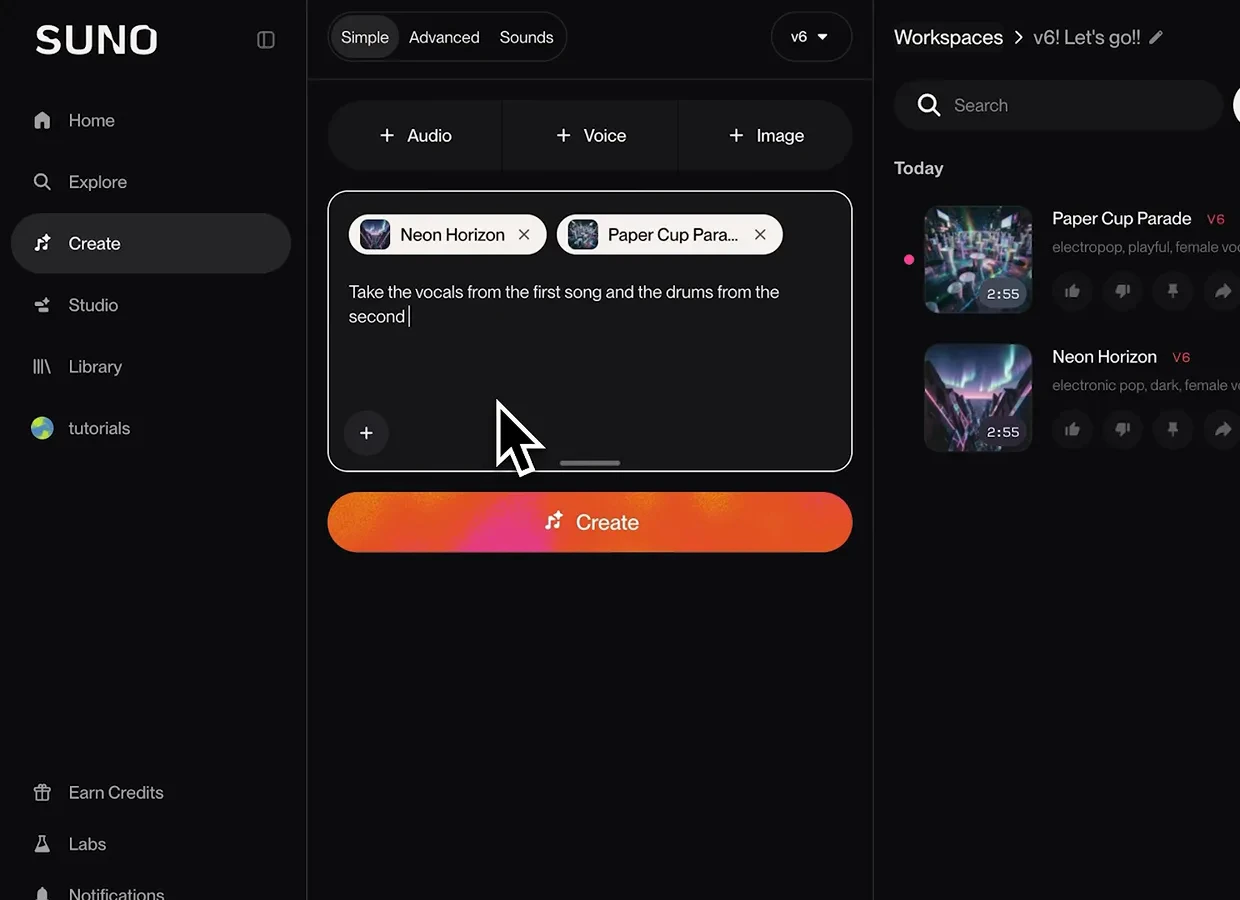
First song gives vocals, second gives drums — named by position, not by title.Watch at 2:26 - 5
Read the result page like a receipt
This is what the stacked request came back with: Start Again, listed as a Remix of both source songs, with its style line — "electronic pop, uplifting, female vocals, synthesizer" — and the new lyrics about starting over written out under Verse tags. Every request produces a pair of songs, so generate once and judge twice. The remix credit matters for iteration: it is the trail of what went into this version, and clicking through it re-opens the exact sources if you want to re-run the brief differently.
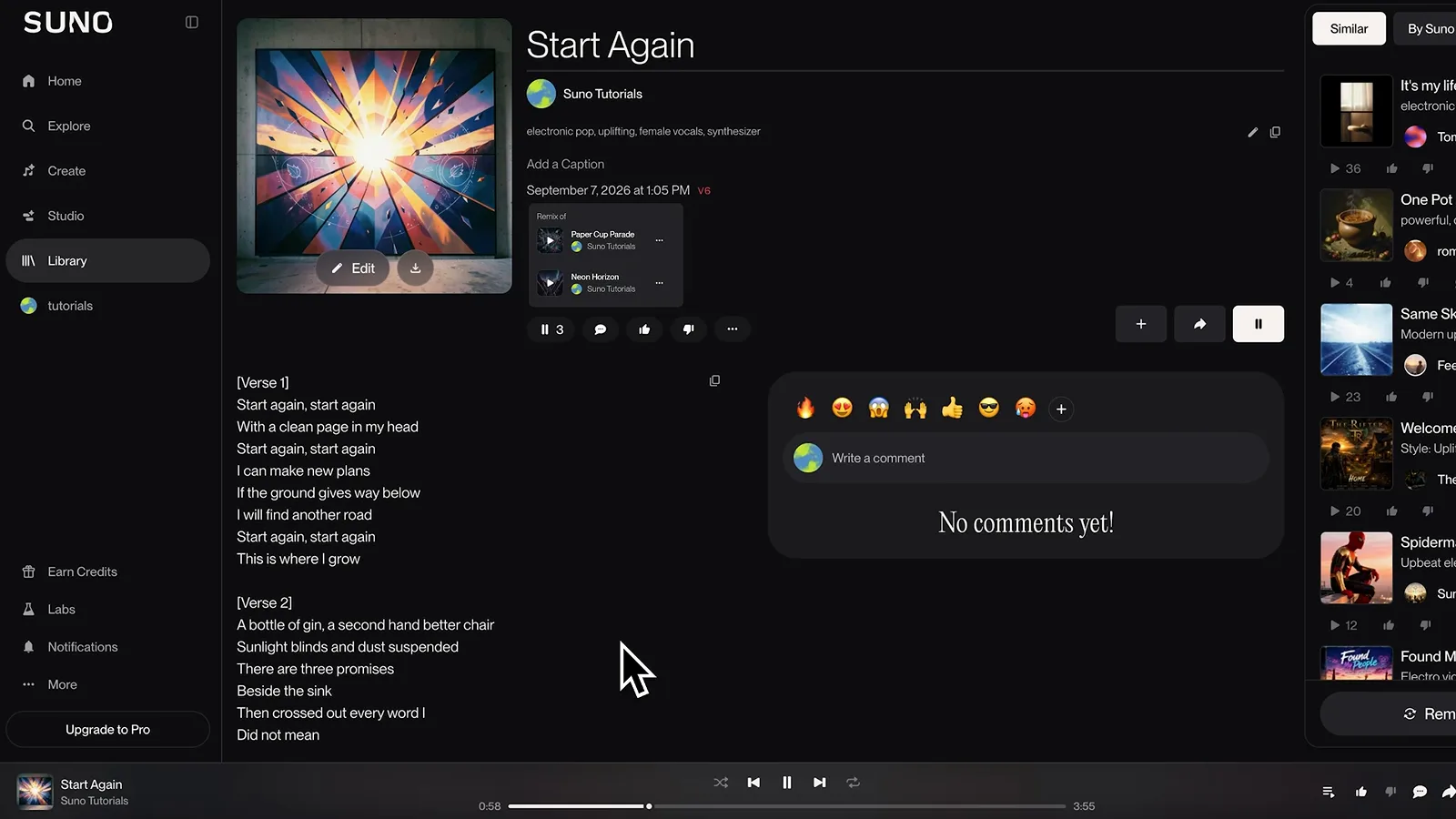
Remix of two sources, new lyrics, new style — one request, one page.Watch at 2:46 - 6
Go element-by-element across three references
The same trick scales to three chips: Paper Cup Parade, Start Again and Neon Horizon, with the prompt "Use the driving rhythm from the first song, the atmosphere from the second song, and the vocal energy from the third song to create a new track". The more specific you are about what you want from each reference — rhythm, atmosphere, vocal energy — the more the model has to work with. Notice the chips stack in order: first, second, third is literally the order they are attached.
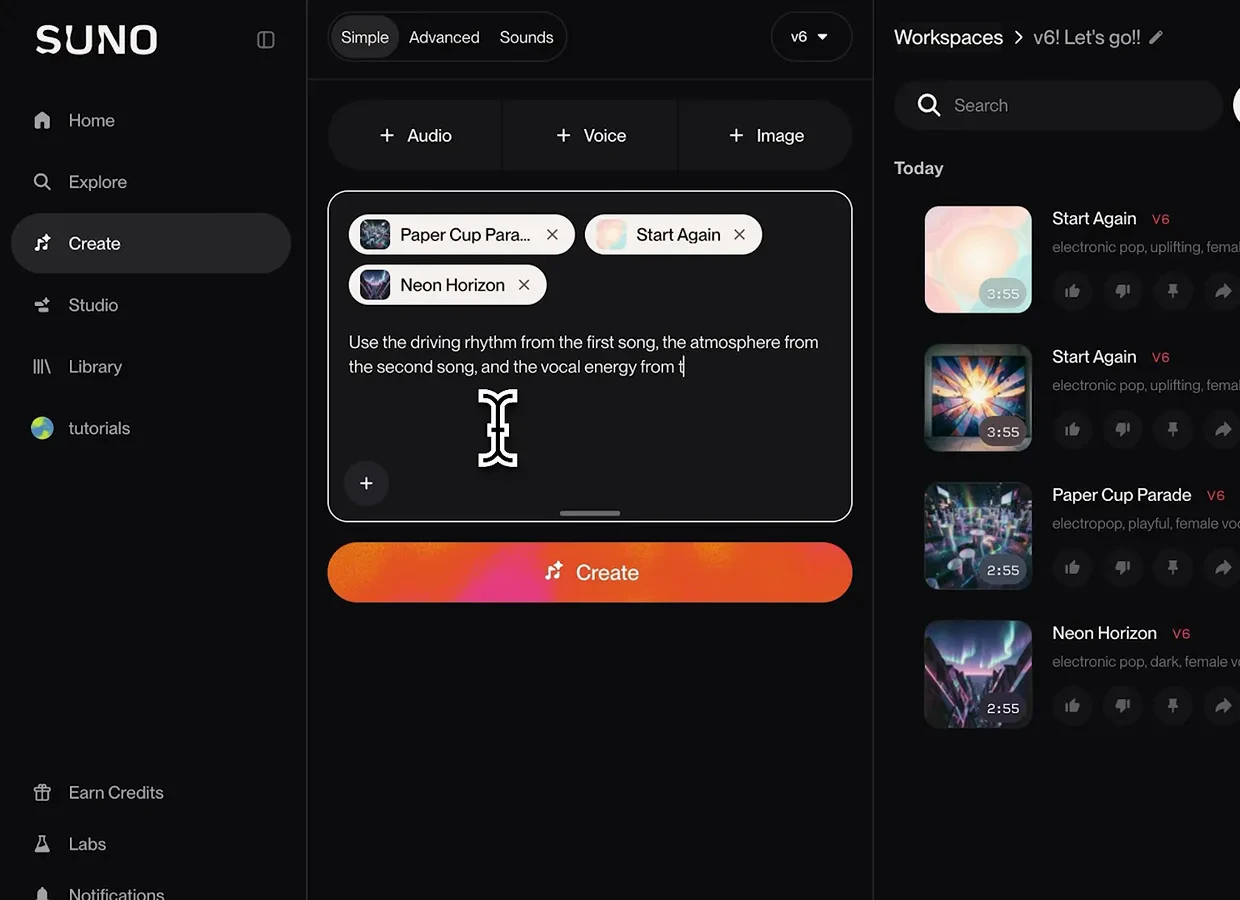
One element requested per chip — order of attachment becomes first, second, third.Watch at 3:24 - 7
Point at the exact second you want sampled
You can reach inside a track by timestamp. Here a single chip, Autumn River Bends, is attached and the prompt reads: "Sample the guitar riff at 0:45, isolate the guitar, and build a new beat around it". Under the old generation this was find-the-part, isolate-the-instrument, then rebuild — three separate jobs. The frame was taken mid-generation: the two loading cards on the right are the pair of results being built from this one line.
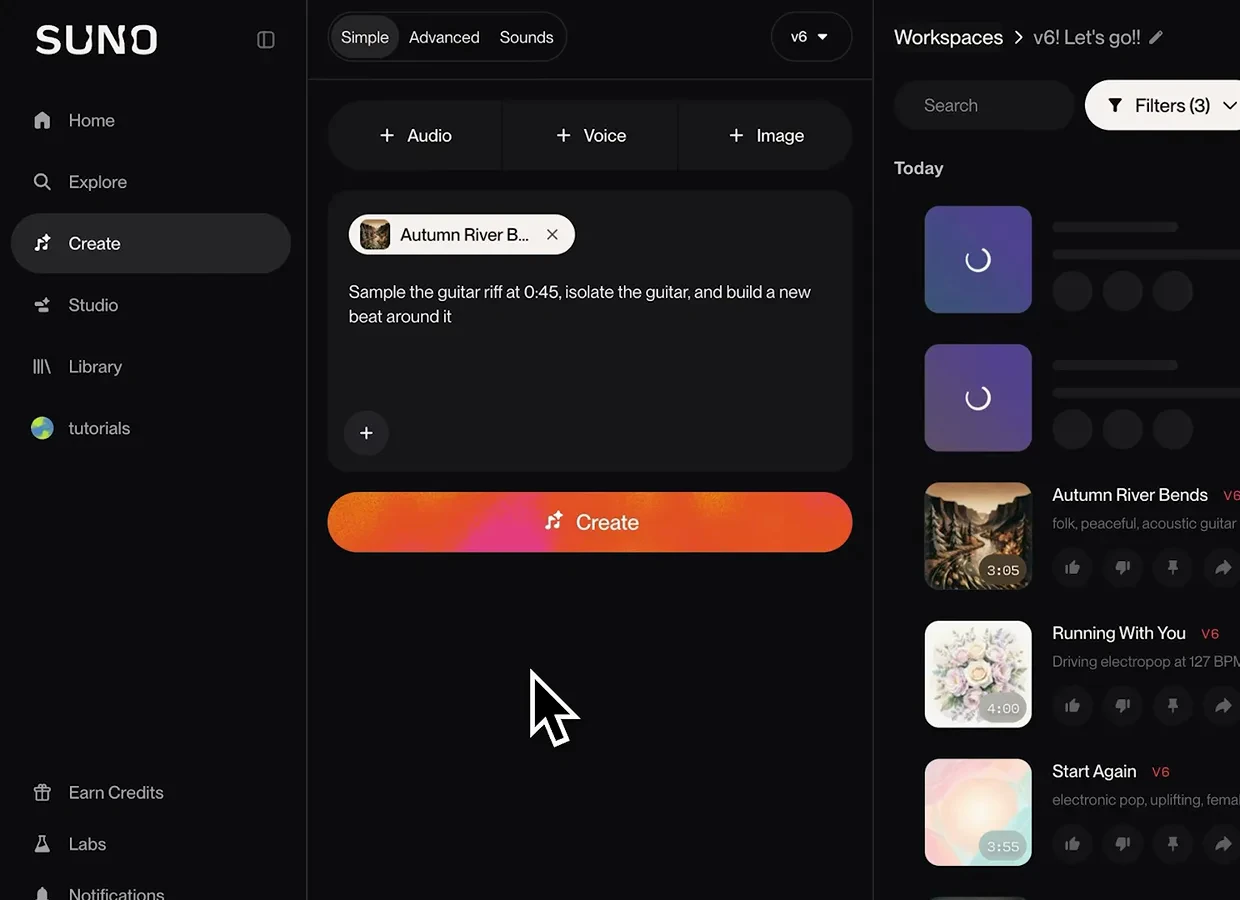
A timestamp in the prompt replaces a whole sampling workflow.Watch at 4:48 - 8
Check how the sampled idea came back
The riff request returned Dusty Fingerpicking, an instrumental marked with the [Instrumental] tag and credited as a Remix of Autumn River Bends — the sampled acoustic fingerpicking preserved as the central melodic hook over a new beat. The auto-written style description is worth reading before you regenerate: "sample-based folk hip-hop, dusty boom-bap drums at a relaxed mid-tempo… preserve the sampled acoustic fingerpicking as the central melodic hook". If a regeneration drifts, that line is what v6 thinks you asked for — fix the prompt, not the result.
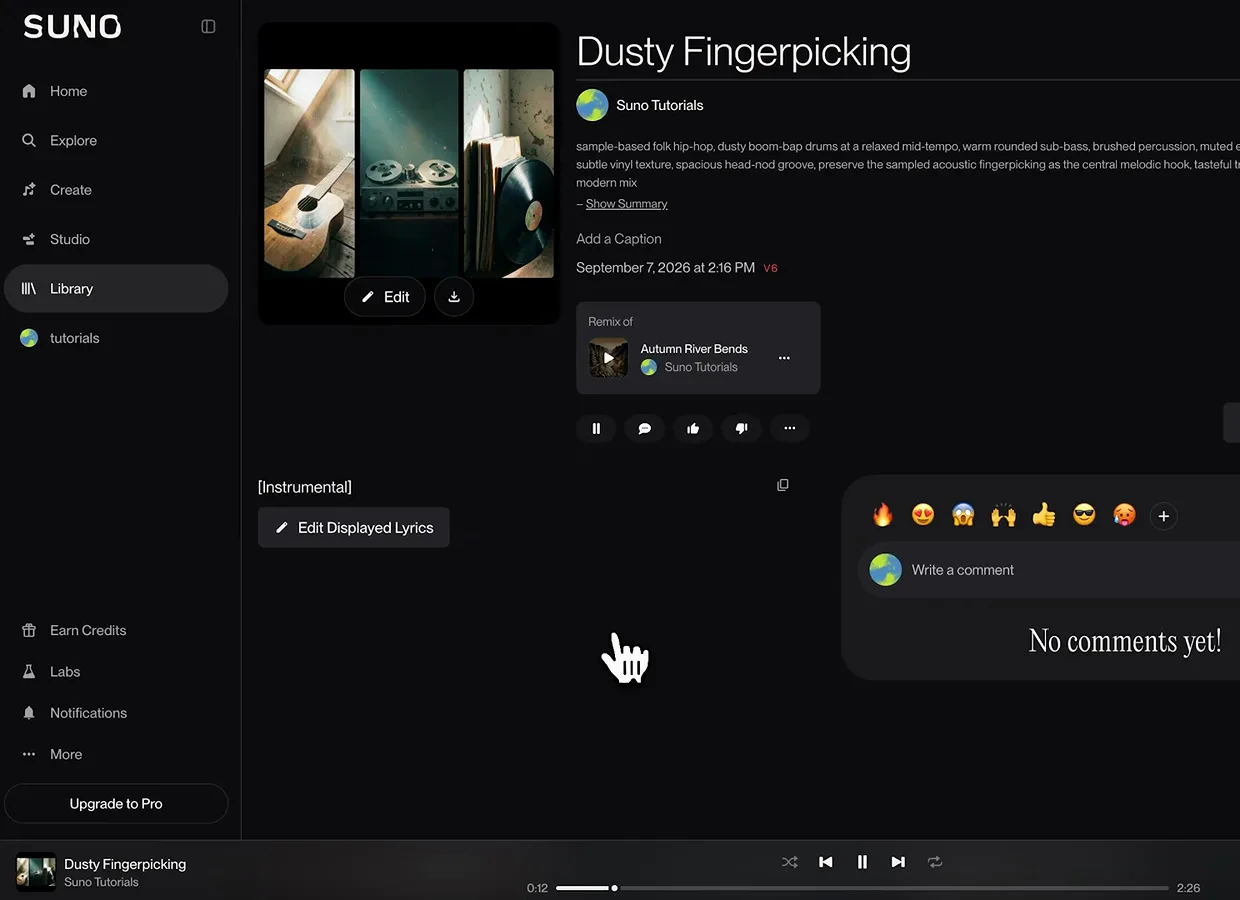
Instrumental tag, remix credit, and a style line that mirrors the prompt back at you.Watch at 4:56 - 9
Start from a photo, video or voice memo
Your starting material does not have to be music. Here a photo — Shuttle.jpg — is attached with the instruction: "Make a full produced song based on this image. Give it an atmospheric, cinematic sound with warm electric piano, restrained drums, and a slow build into a bigger chorus." The image becomes part of the creative direction alongside everything you typed. The same slot accepts video (follow the energy of the edit, swell at the biggest moment) and voice memos (build a full produced song around this, keep the melody as the main idea).
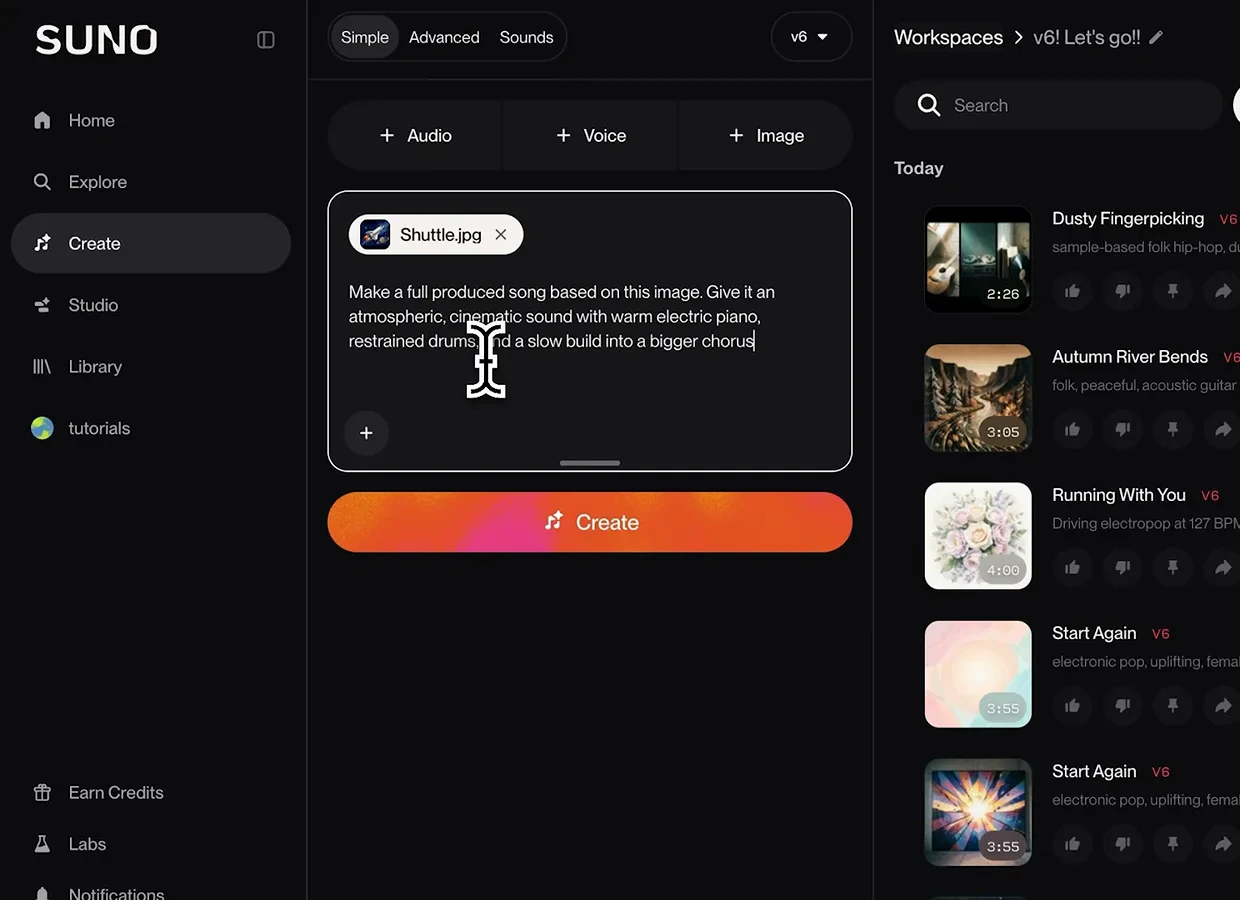
A photo in the attach slot plus a mood brief — the image counts as direction.Watch at 5:26
Edit an existing song with words only
- 10
Say where the change should land
To rework a finished song, attach it and describe the change plus its location: "Make the chorus more energetic. Add bigger layered vocals and heavier drums, but keep the verses the same." The location clause is doing the heavy lifting — without it you get a louder song, not a bigger chorus. This is the pattern for every targeted edit: what to change, how, and what must not move.
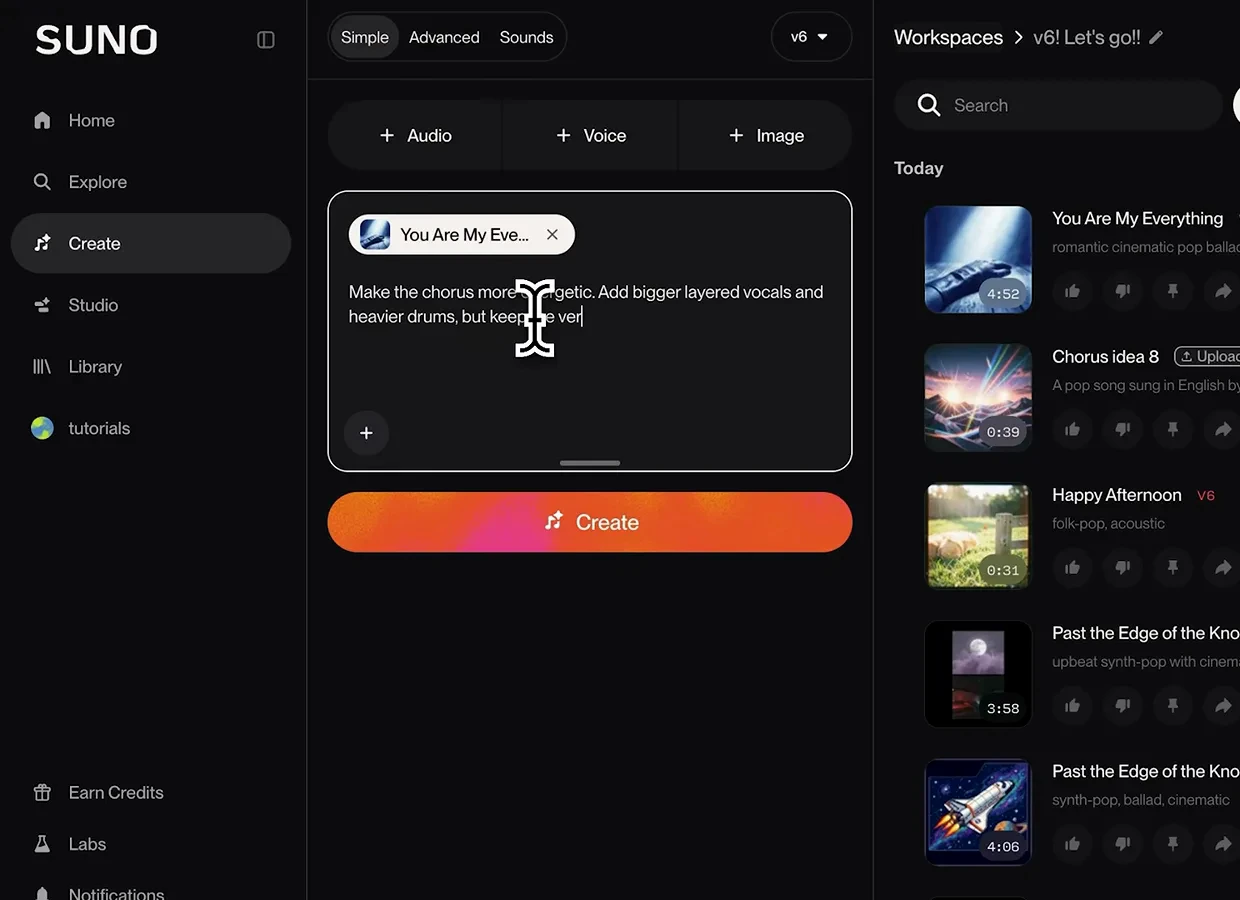
Change request with a fence around it: chorus bigger, verses untouched.Watch at 10:00 - 11
Verify the edit kept the structure
The edit came back as You Are My Everything — Energetic Choruses, credited as a remix of Chorus Idea 8, and the brief survived contact: "warm passionate male lead, preserve original melody and phrasing, biggest layered backing vocals, wide stacked octave…". Scroll the lyrics and you will find the same verses with the rebuilt chorus slotted in — the song and its structure stayed intact while only the chorus grew. That is the check to run on every edit-by-prompt: verses identical, chorus new.
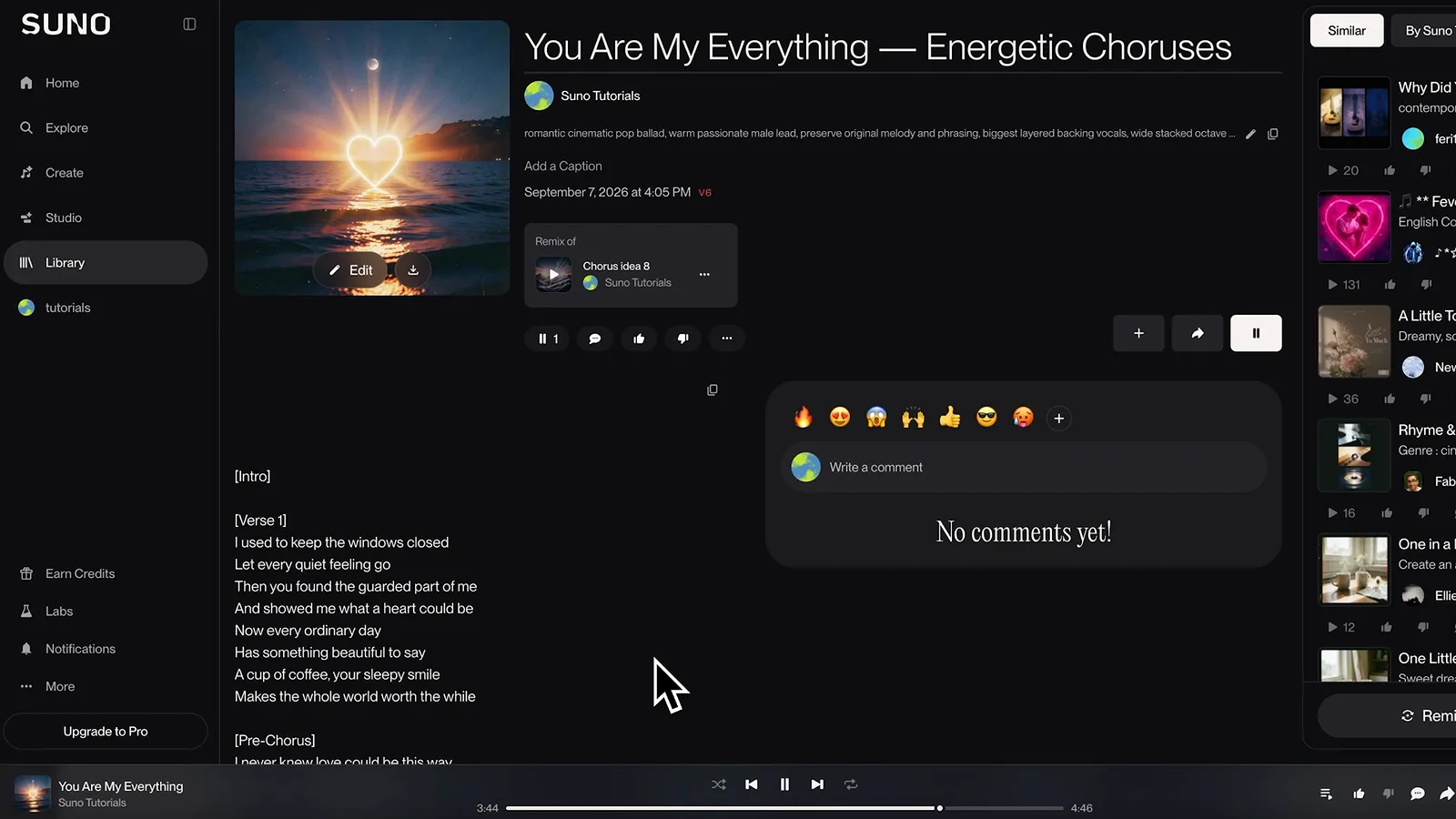
Same song, bigger chorus — the verses confirm nothing else moved.Watch at 10:06 - 12
Swap a single word without a rebuild
The smallest useful prompt in v6: attach the song and write "Change the word 'love' to 'light' throughout". The new version replaces the word everywhere it appears while keeping the melody, structure and performance around it untouched. If you have ever had a track you loved except for one line, this is the move — a tiny edit no longer means regenerating everything around it.
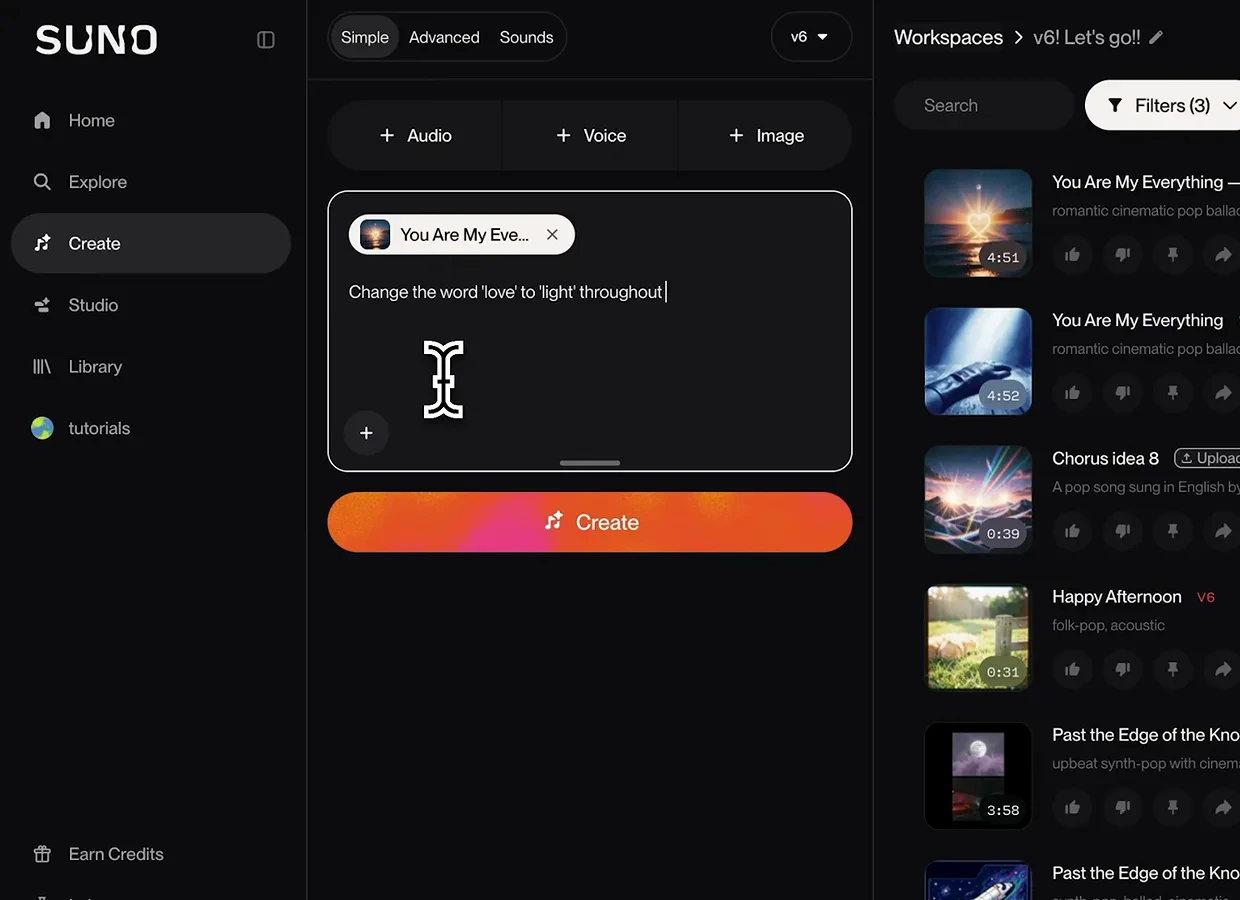
One word in, one word out — everything else stays as recorded.Watch at 10:42
Tune the output and migrate old favorites
- 13
Migrate old favorites with Remaster or Cover
Open the three-dot menu on any song and v6's carry-over tools are all there: Cover, Reuse Prompt, Mashup, Sample this song, Use as Inspiration and Voice (the last two are Pro). For a track made on a retired model, two exits matter. Remaster keeps the song you have and pushes only the audio quality and acoustic detail up to the new generation. Cover lets the new model reinterpret the song while following the original melody. Liked the song, not the fidelity? Remaster. Want to hear v6's take on it? Cover.
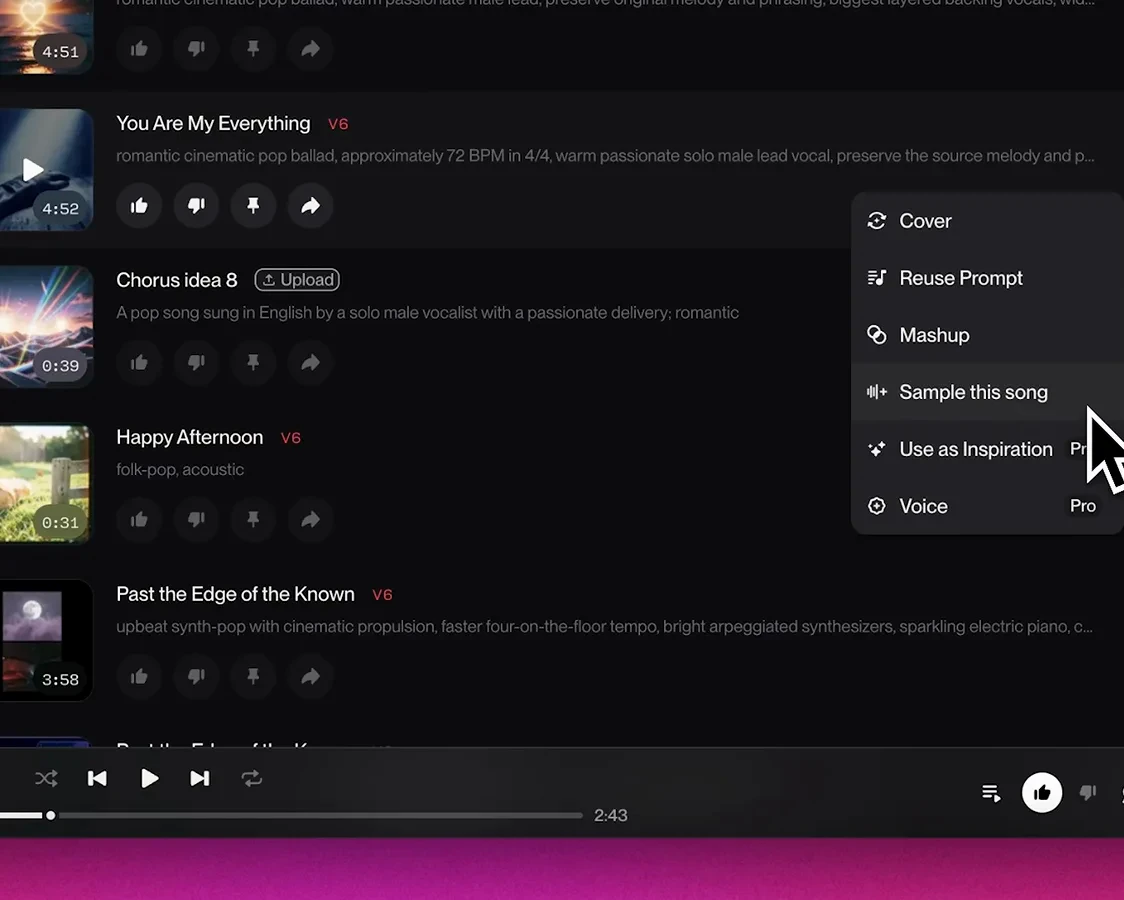
Old-model songs have two doors into v6: Remaster for fidelity, Cover for a reinterpretation.Watch at 1:36 - 14
Use Variety to get two genuinely different takes
Under More Options, Variety controls how far the pair of songs per request may wander from your style input. Normal is the default for v6 and v6 Mini, tuned to give strong results out of the gate. Drag it higher — the tooltip walks through the labels, ending at Max, "Unreasonably varied" — and the two results branch into more distinct stylistic directions. If what you miss from the retired models is getting surprised, this slider plus v6 Wild is the combination to experiment with.
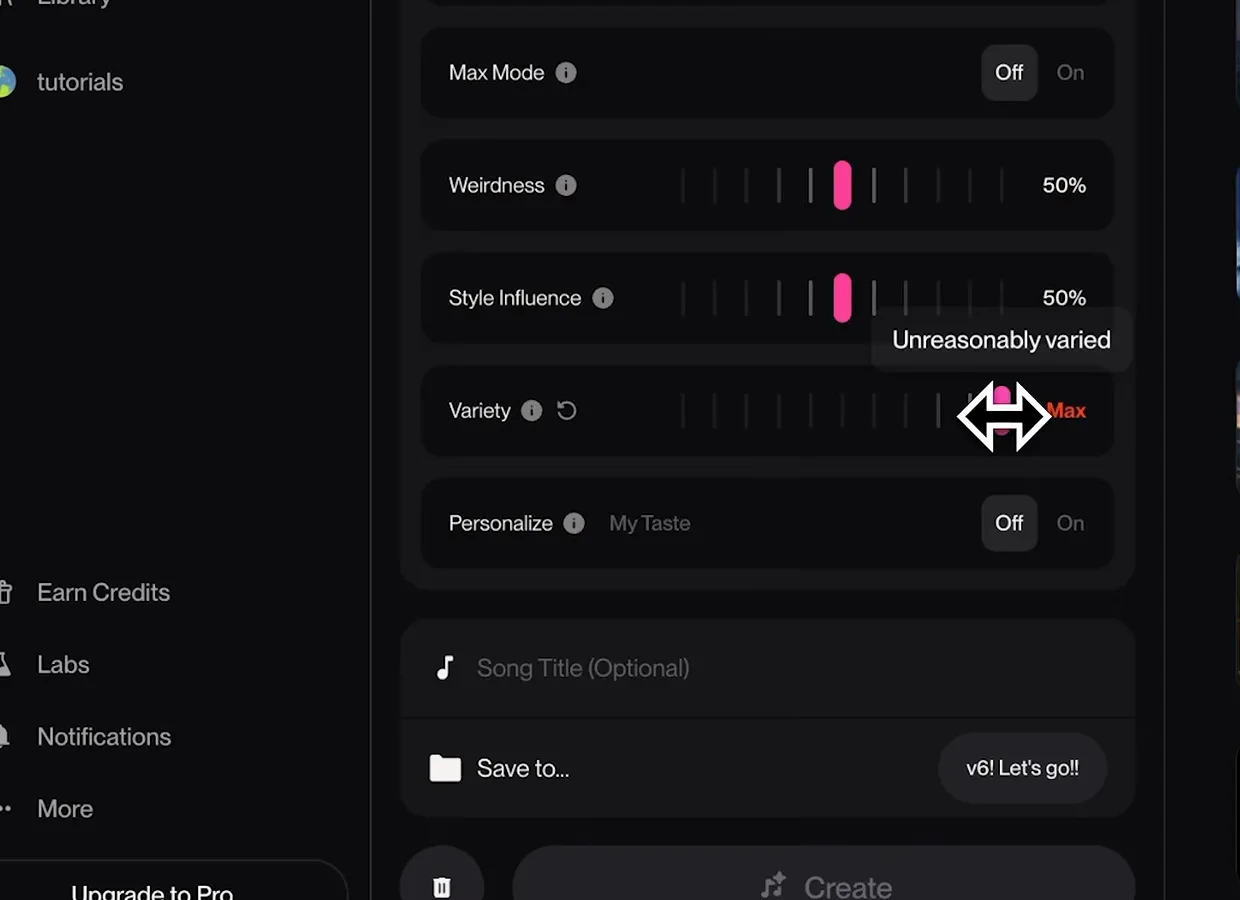
Variety at Max: the two results are allowed to stop resembling each other.Watch at 2:58 - 15
Turn Variety off when the style must not drift
The opposite end matters just as much for prompt writers: with Variety off, Suno sticks closely to exactly the style you entered — the tooltip says "Exact style". If your prompt is a carefully built style paragraph and you want both results inside it, this is the setting. Flip on Personalize / My Taste next to it and the directions it explores lean toward your taste profile instead of random.
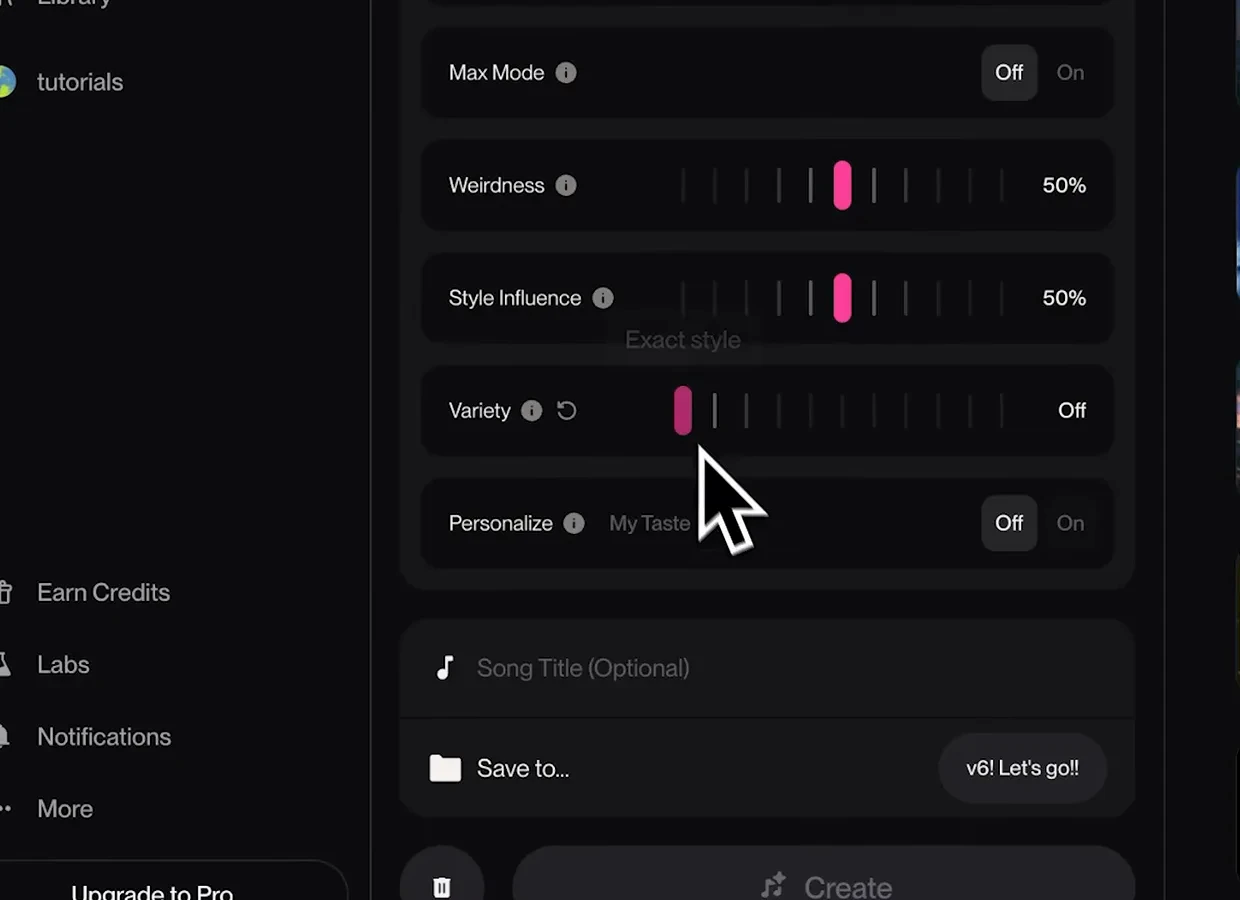
Variety Off, Exact style: both results stay inside the style you typed.Watch at 3:12 - 16
Switch on Max Mode for long or reference-heavy songs
The same drawer holds Max Mode, which gives the model more compute before it writes the song. You do not need it every time — but for songs longer than two minutes, or anything carrying an audio influence like a cover or a voice, it measurably reduces drift: the reference stays the reference and the overall style holds as the song develops. The drawer is also where Vocal Gender, Duration, and the Weirdness and Style Influence sliders live, so it is worth one deliberate look before a demanding generation.
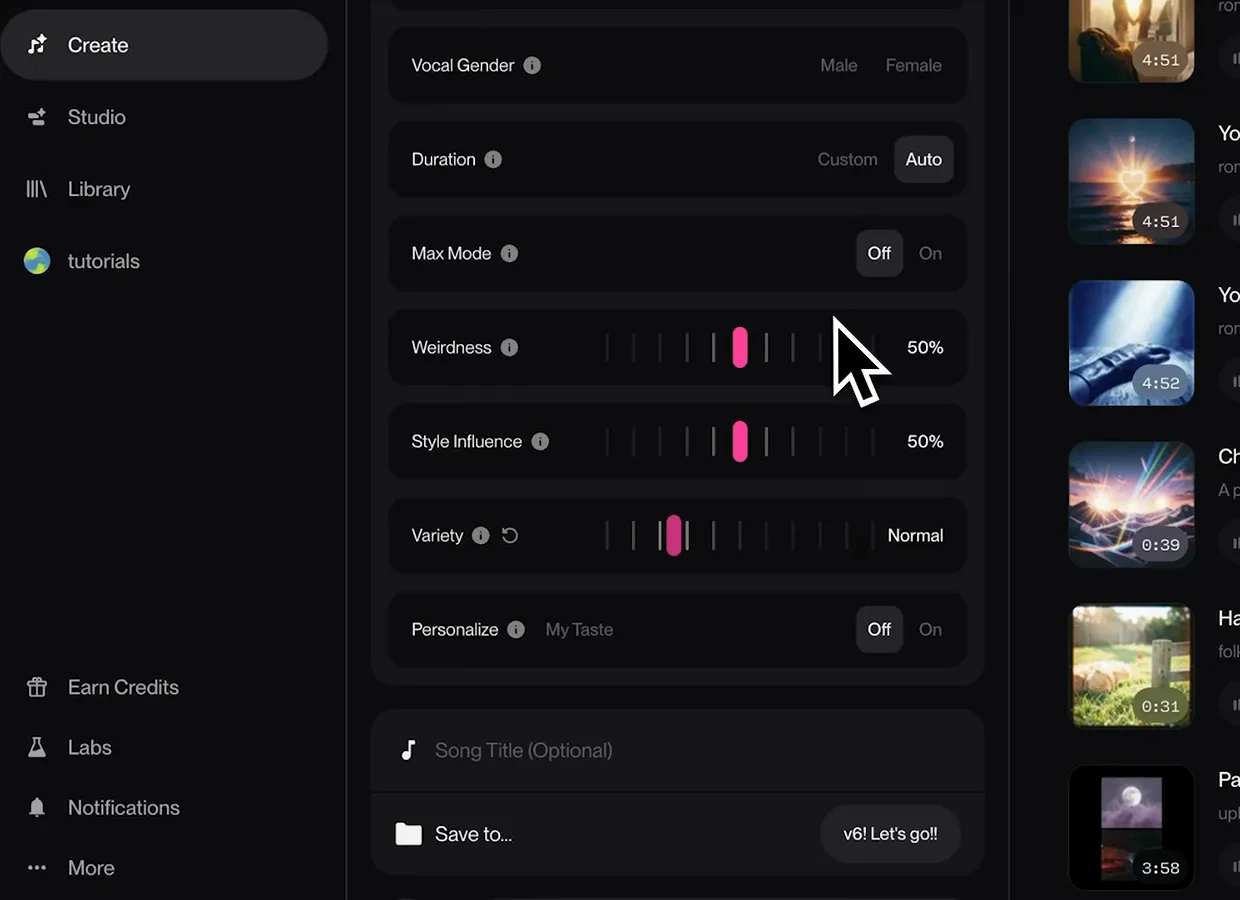
Max Mode is compute spent on staying on target — for covers, voices and long tracks.Watch at 15:26