

How to Make a Song with Suno (2026 Custom Mode Walkthrough)
Suno turns a text prompt into a fully produced song — vocals, instruments, and structure included — and its Advanced (custom) mode is where the real control lives: your own lyrics marked up with structure tags, a style line built from keywords, vocal gender, and Pro sliders like weirdness and style influence. This walkthrough follows a real song, “All Night Long”, from an empty Lyrics box to a downloaded MP3 in 14 screenshot steps on the free plan, adapted from Emma's Productivity Lab's beginner tutorial on the custom mode workflow.
Source & credits
Screenshots in this guide are captured from Emma's Productivity Lab's public walkthrough video. Every step links back to the exact moment it shows, so you can follow along.
Emma's Productivity Lab ↗Get started: from sign-up to the Create tab
- 1
Open the Create tab — not the home prompt box
Sign up free at suno.com, then go to the Create tab in the left sidebar instead of generating from the home page. The Create tab is where everything lives: the Simple/Advanced mode toggle at the top, the model picker (v4.5-all in this walkthrough), the Audio / Voice / Inspo buttons, and your workspace on the right listing every track you have generated. The demo account here starts with 50 free credits.

Everything happens in the Create tab — the home prompt box is just the quick start.Watch at 1:45 - 2
Try Simple mode first: one description is a whole song
In Simple mode you type one sentence describing the song — the demo uses “funny shoegaze song about bitterness” — and Suno writes the lyrics, the style, and the production for you. Below the box you can attach your own lyrics with the + Lyrics button, flip on Instrumental to skip vocals entirely, and the suggestion chips like aggressive female vocals or future funk show which details Suno reacts to. Click Create and you get two versions to compare.
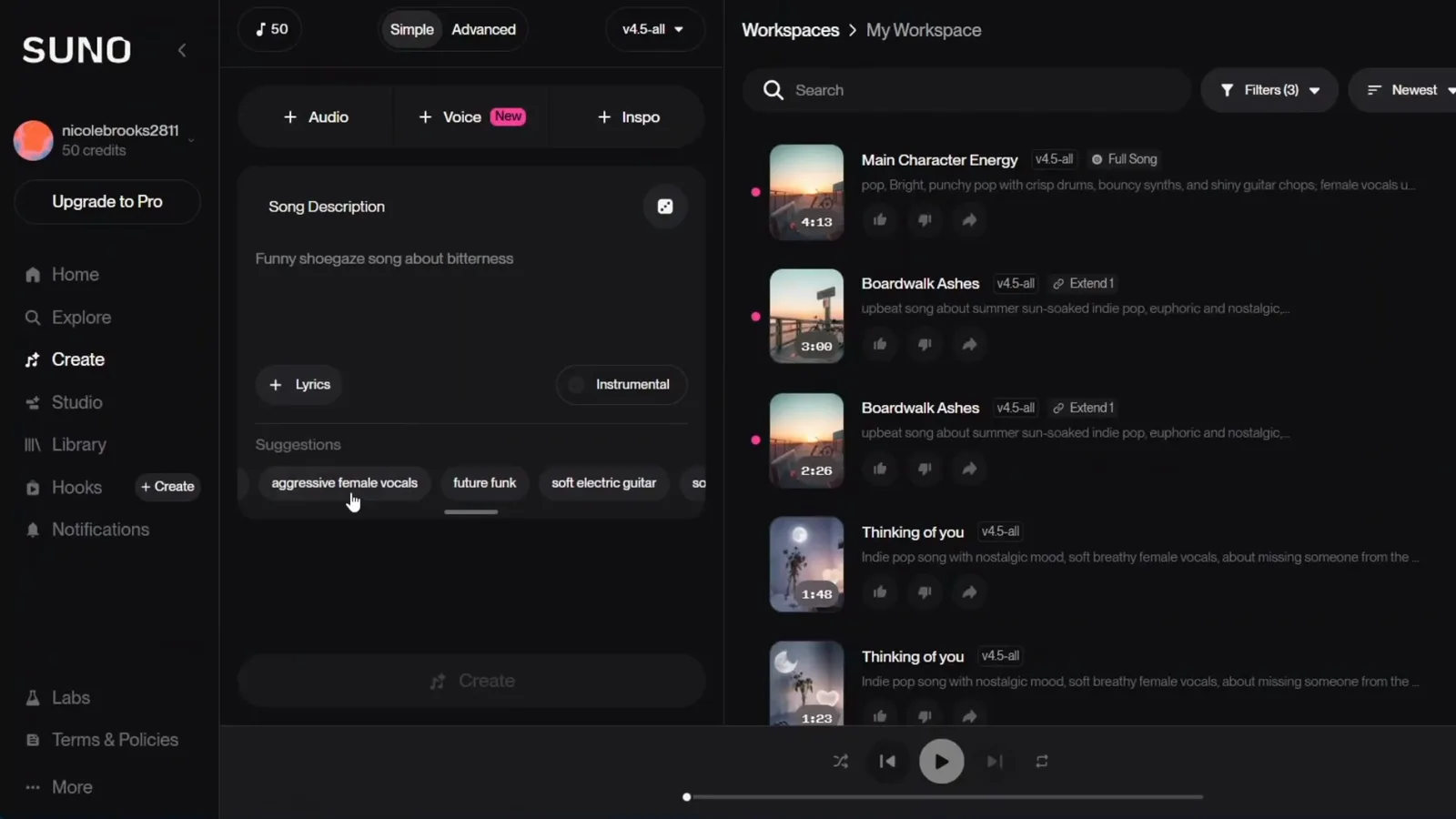
Simple mode is a one-box workflow: describe it, optionally add lyrics, Create.Watch at 2:08 - 3
Switch the toggle to Advanced for custom mode
Simple mode is fine for quick results, but custom mode is where the control is: your own lyrics, an exact style line, vocal gender, and sliders for weirdness and style influence. Flip the toggle from Simple to Advanced and the single description box is replaced by separate Lyrics and Styles fields plus a More Options section. It is the difference between ordering off a menu and cooking the meal yourself — the original video’s own comparison.
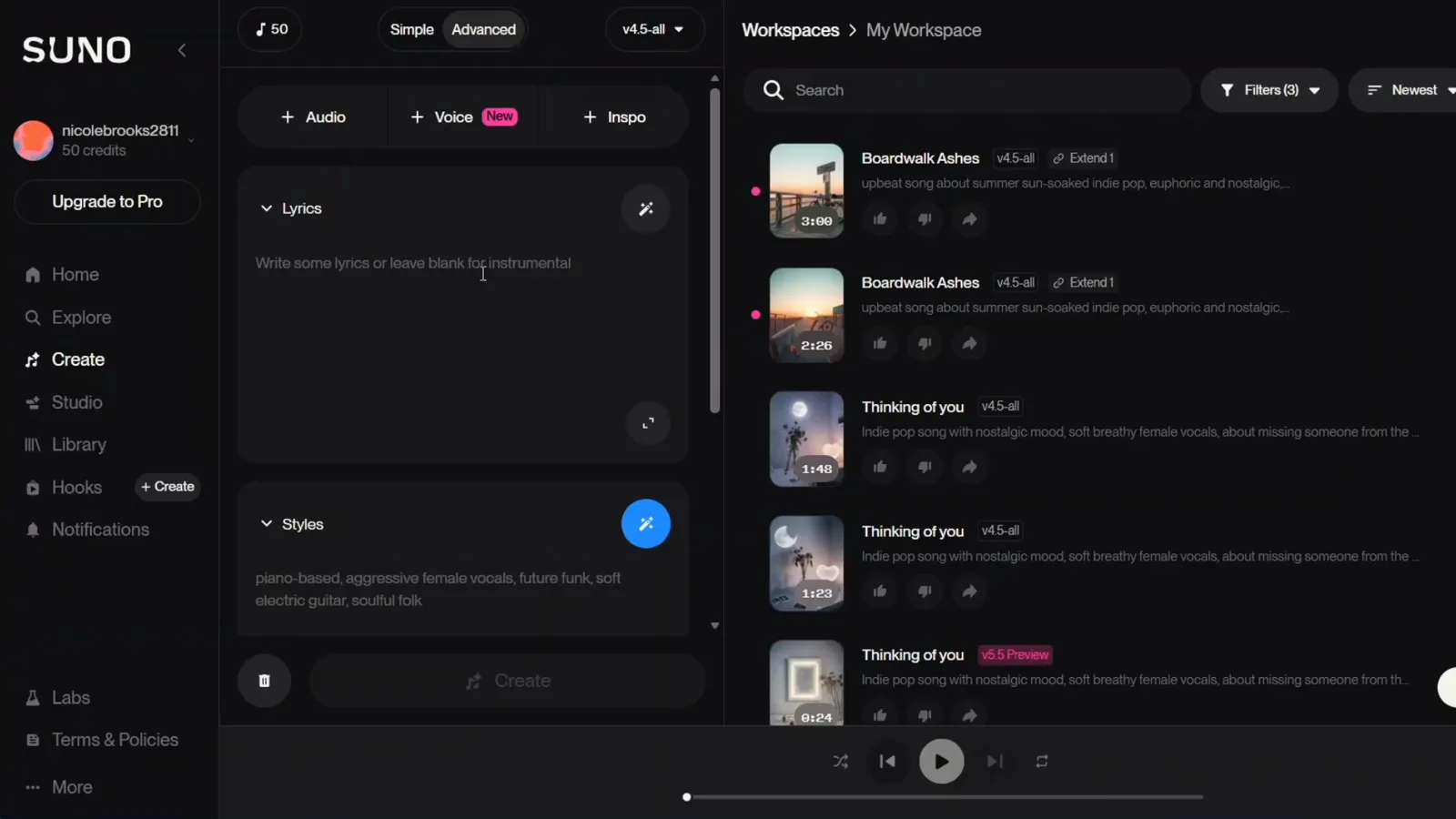
Advanced mode replaces the one description box with Lyrics, Styles, and More Options.Watch at 3:15
Write and structure your lyrics
- 4
No lyrics yet? Let Suno write or edit them
The sparkles button beside the Lyrics field opens two AI helpers: Edit Lyrics reworks text you already have, and Write Full Song generates complete lyrics from scratch. If you already wrote lyrics in another tool — the demo pasted lyrics drafted with Claude — you can ignore both and paste straight in. Keep Lyrics Mode on Manual so Suno uses your text exactly.
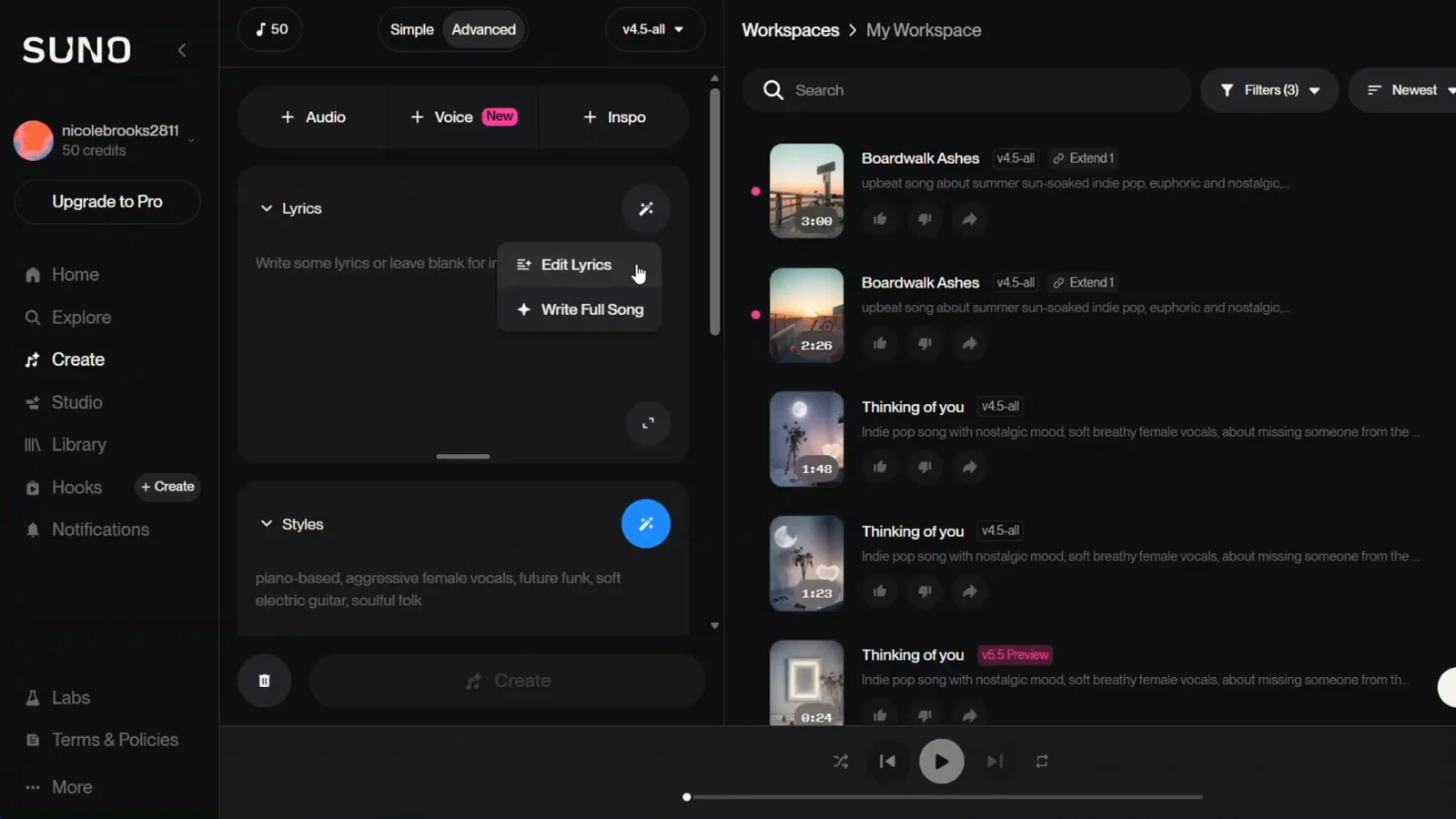
The AI menu: Edit Lyrics for rewrites, Write Full Song when starting from zero.Watch at 4:40 - 5
Paste your lyrics into the Lyrics field
Paste the full song into the Lyrics box — the demo song “All Night Long” runs from verse one down to the outro. The small toolbar above the field gives you undo, save, and delete, and the box scrolls, so check the whole song made it in. Writing your own lyrics is optional, but pasting finished lyrics is the fastest way to get exactly the words you want.
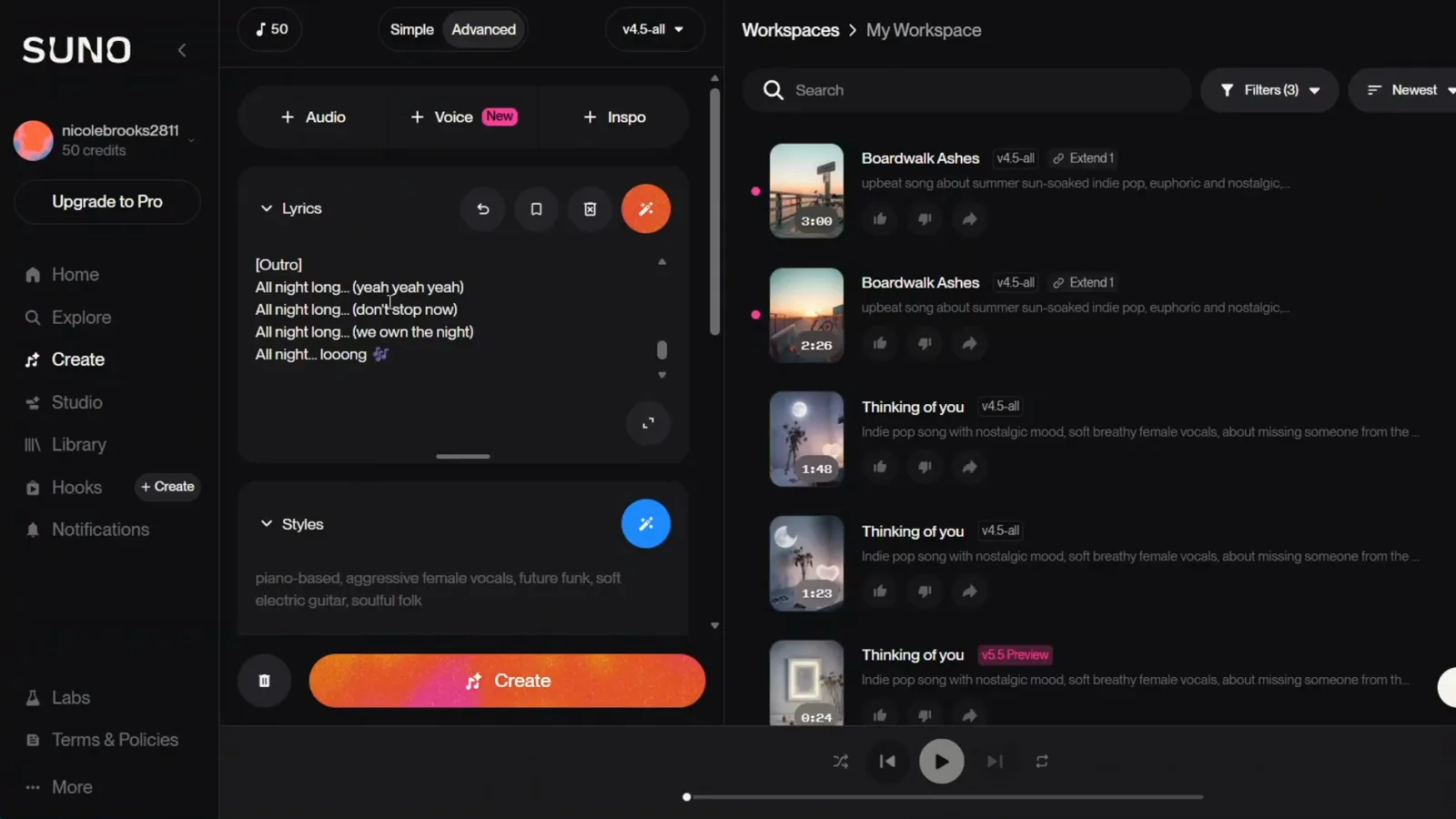
Paste from the top: the demo song’s outro sits at the bottom of the field.Watch at 5:10 - 6
Mark sections with bracket tags — [Verse], [Pre-Chorus], [Chorus]
Wrap every section name in brackets: [Verse], [Pre-Chorus], [Chorus], [Bridge], [Outro]. The tags tell Suno where the hook repeats and where the bridge contrasts, so the generated song follows your structure instead of guessing it. The demo lyrics carry the full skeleton — verse one, pre-chorus, chorus, verse two, bridge, a final chorus, and the outro — and the video calls these tags really important: they are the difference between a song and a wall of text.
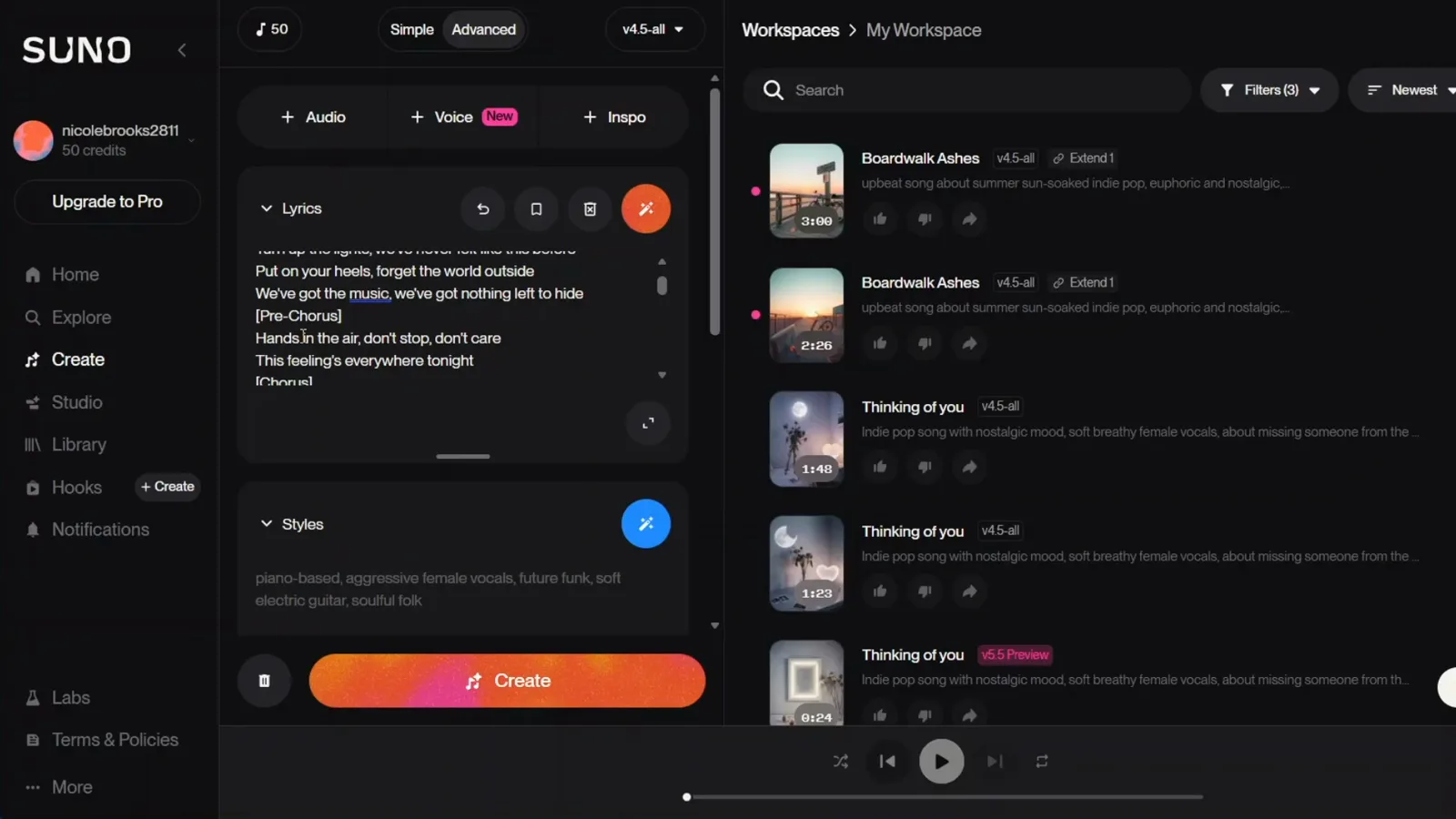
Brackets are the format — no brackets, no structure.Watch at 5:45
Dial in the style and options
- 7
Fill Styles with comma-separated keywords, not sentences
The Styles field decides what the song sounds like, and keywords beat sentences: genre (pop, hip hop, lo-fi, R&B), mood (uplifting, melancholic, energetic), instrument (synth, acoustic guitar, drums), tempo (fast, slow, mid-tempo), and vocal type (female vocals, choir, rap). The demo line is “upbeat pop, dance, synth, energetic, female vocal”. Avoid contradictory combinations like calm and heavy metal — Suno follows the genre you listed first and lets the rest slide.
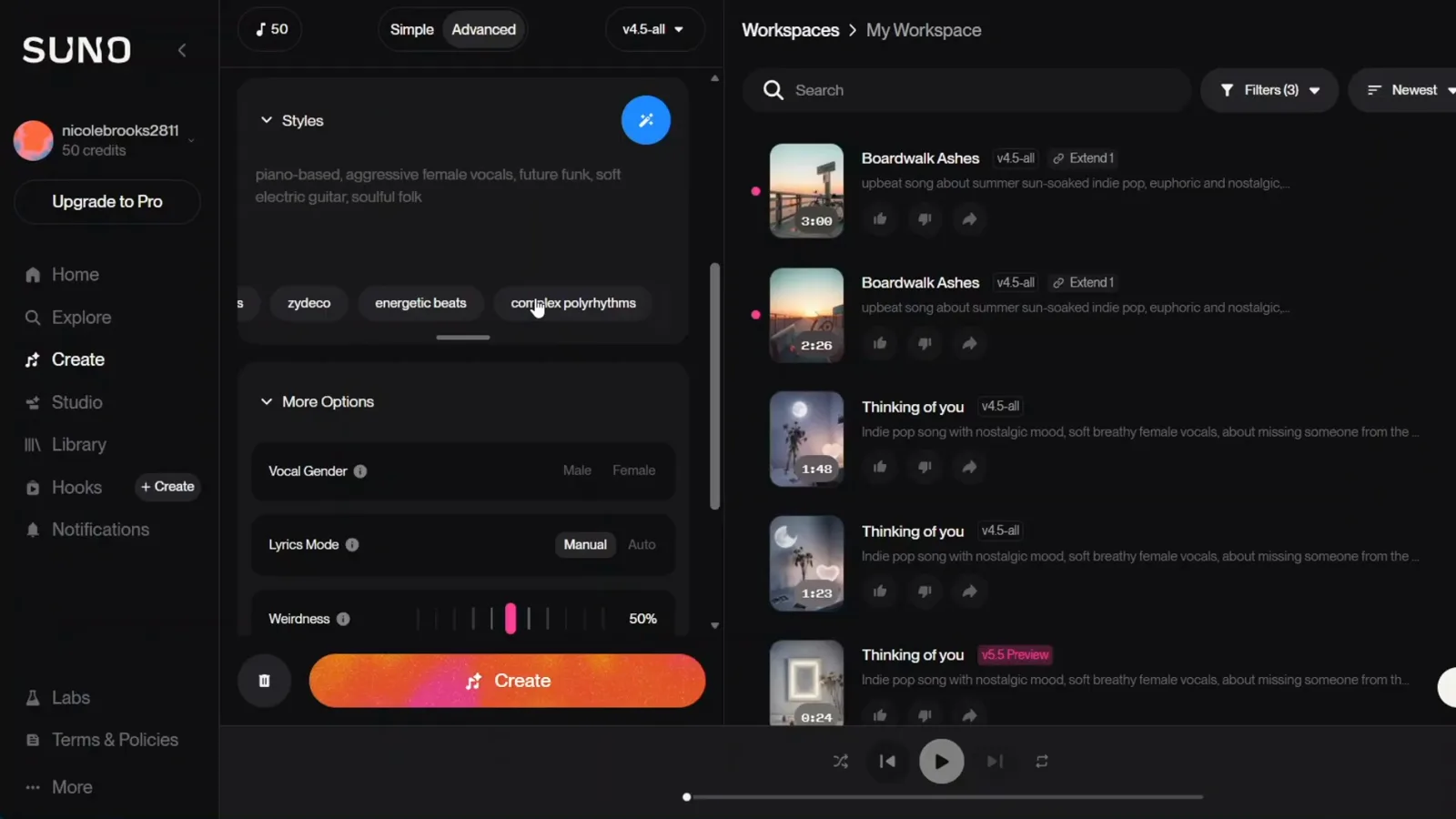
Keywords separated by commas — the suggestion chips below are good reminders of what to cover.Watch at 8:00 - 8
More Options: vocal gender, weirdness, and style influence
Under More Options, Vocal Gender picks male or female, Lyrics Mode switches between your manual lyrics and auto-generated ones, and two sliders fine-tune the generation: Weirdness at 50% gives expected results, and pushing it toward the maximum trades predictability for surprises. Style Influence makes the output hew closer to your style description the higher you set it. Both sliders are Pro features — the plan starts at $8 a month — so free accounts generate at the 50% defaults.
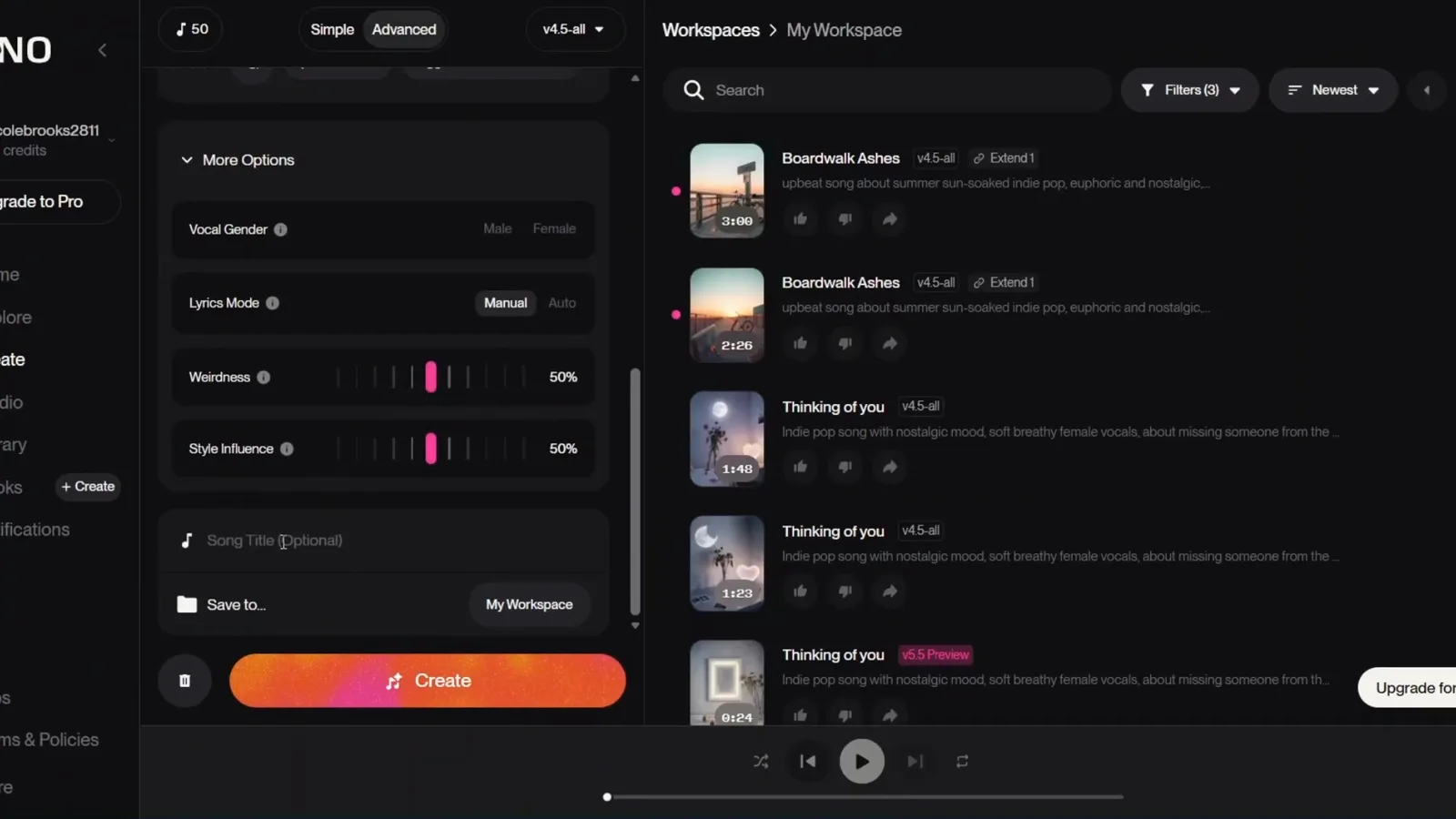
Weirdness and Style Influence sit side by side — both unlock with Pro.Watch at 9:45 - 9
Add a song title and pick the workspace
The Song Title (Optional) field labels the track in your library — the demo names its song “All Night Long”. The title has no effect on the music; it just makes the song findable later, which matters once you have dozens of generations. Below it, Save to picks the workspace the finished song lands in. And if you want a track with no vocals at all, the Instrumental toggle above the Lyrics field makes Suno skip vocals entirely — good for background music and beats.
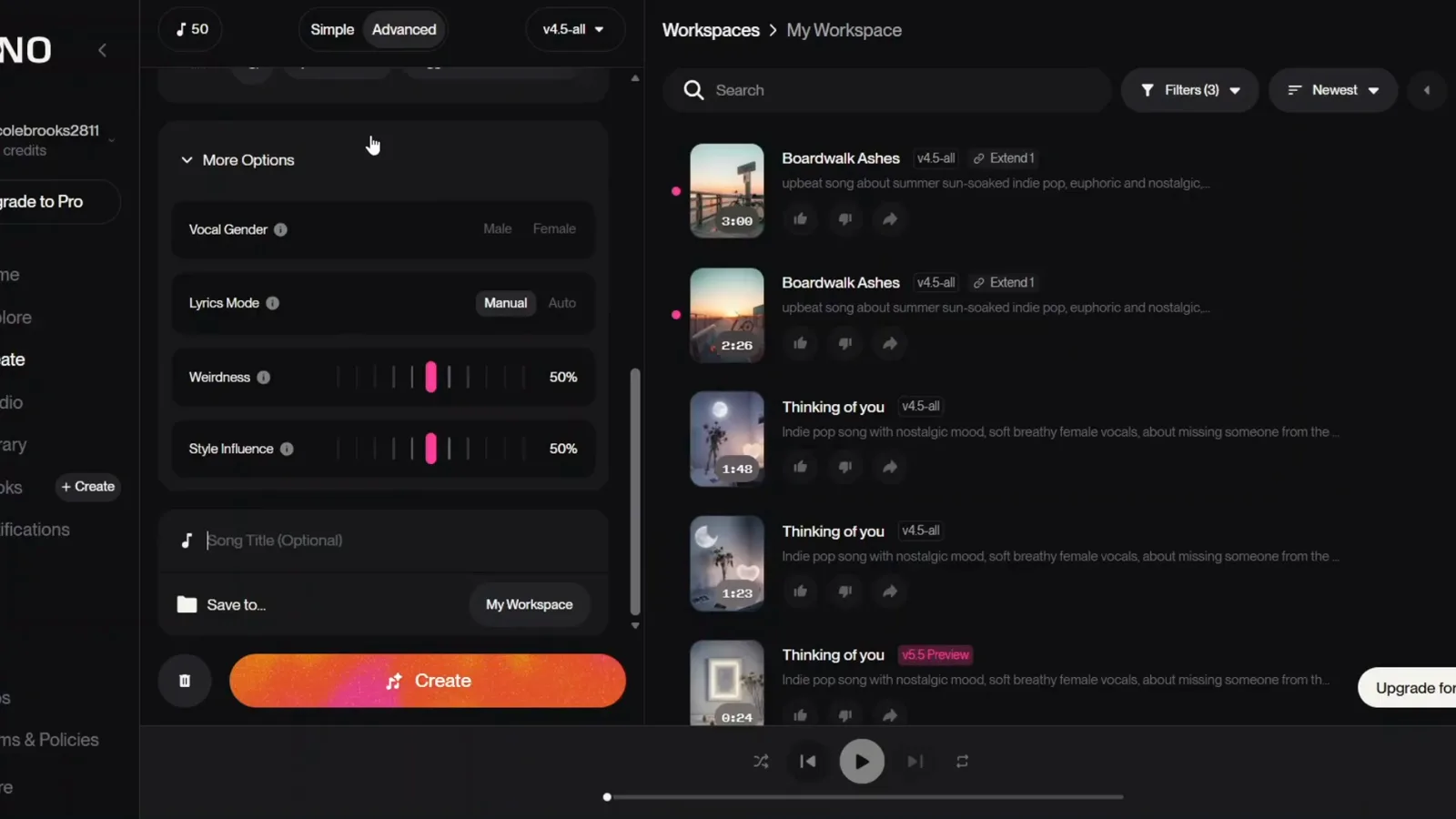
Titles are for your library only — the music ignores them.Watch at 10:18
Generate, compare, and judge
- 10
Hit Create and Suno produces the song
With lyrics in, styles set, and the title saved, click the Create button. Generation takes well under a minute and returns a fully produced four-minute track with vocals, instruments, and structure following your tags. The demo runs on the v4.5 model, which the video calls the best free model; the model picker at the top can also target newer previews like v5.5.
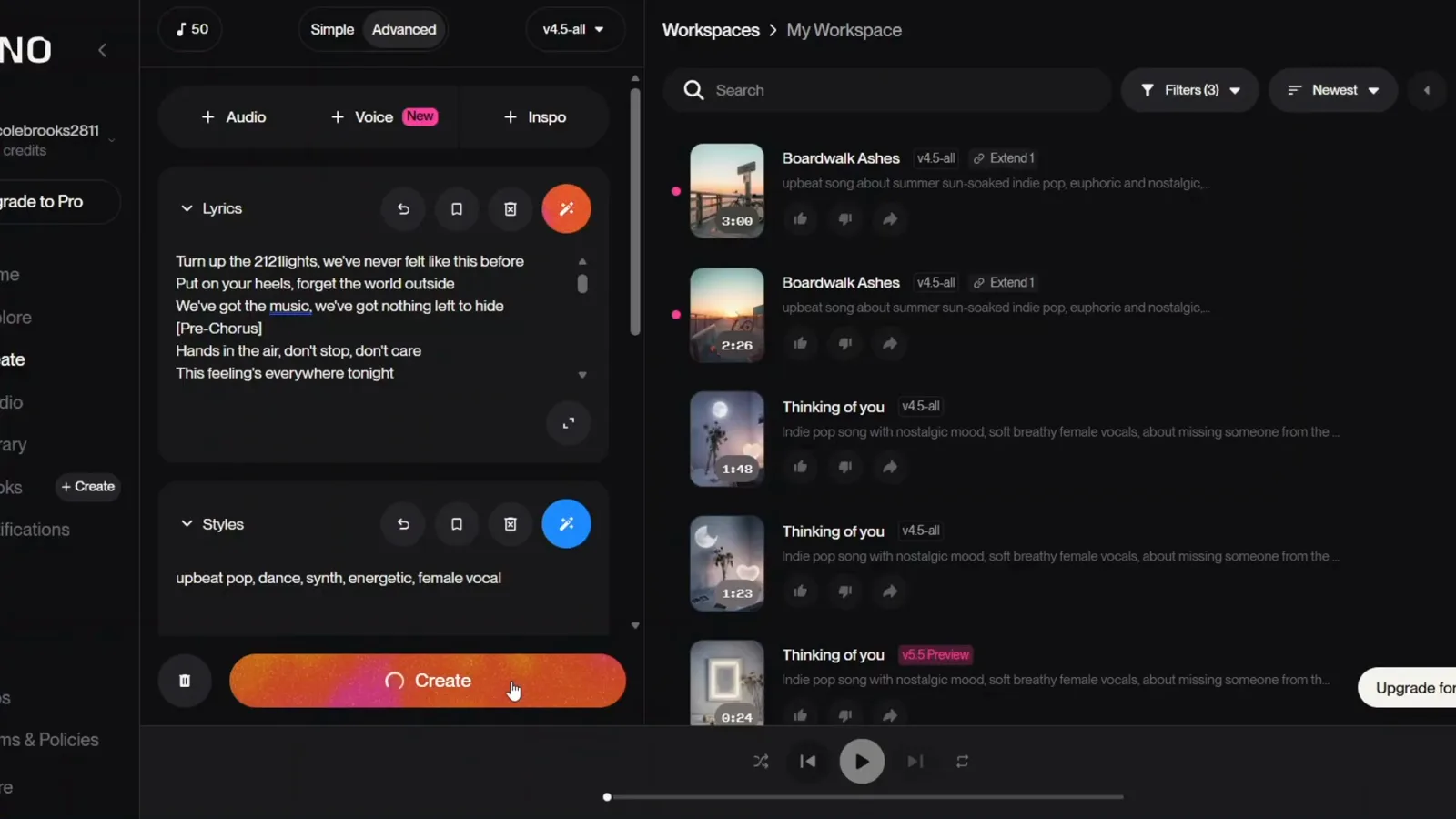
One click — lyrics, styles, title, Create.Watch at 10:30 - 11
Every prompt returns two versions (sometimes four)
Suno always generates two variations of the same song so you can pick the better one — sometimes one nails the vibe, sometimes the other, and sometimes you take elements from both. In the demo the workspace shows four tracks: two full v4.5 versions around four minutes long, plus two v5.5 Preview experiments that only render a one-minute snippet unless you upgrade.
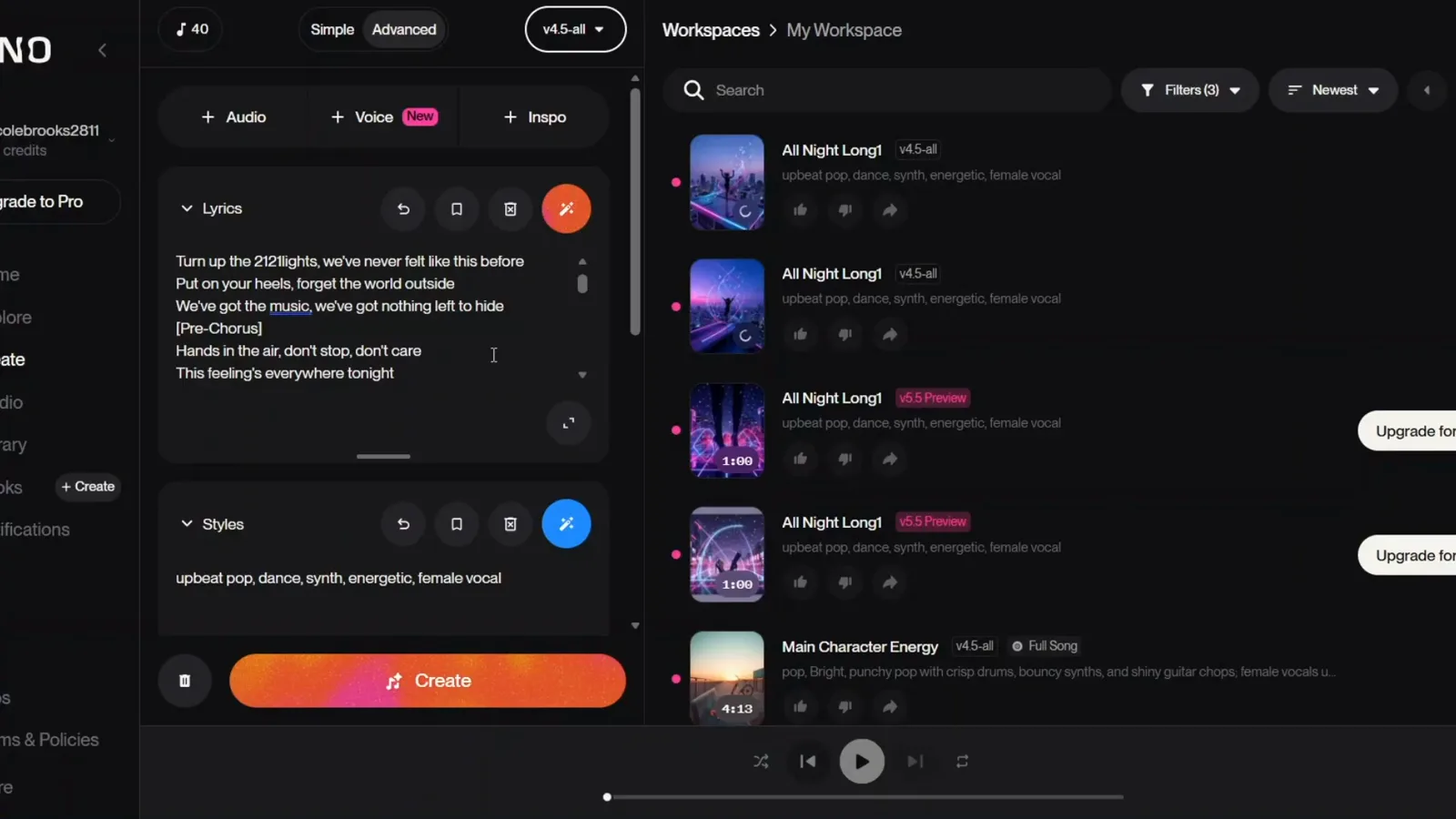
Two full versions by default — the preview-model extras are one-minute teasers.Watch at 10:55 - 12
Play both versions and judge them properly
Listen all the way through before deciding — the video’s checklist: does the melody match the mood you wanted, are the vocals clear and on beat, and does the structure feel right where the verse, chorus, and bridge should be? The player bar at the bottom keeps both versions a click away while you scrub through the four minutes. A fully produced song in under a minute is the normal result, so it is worth being picky.
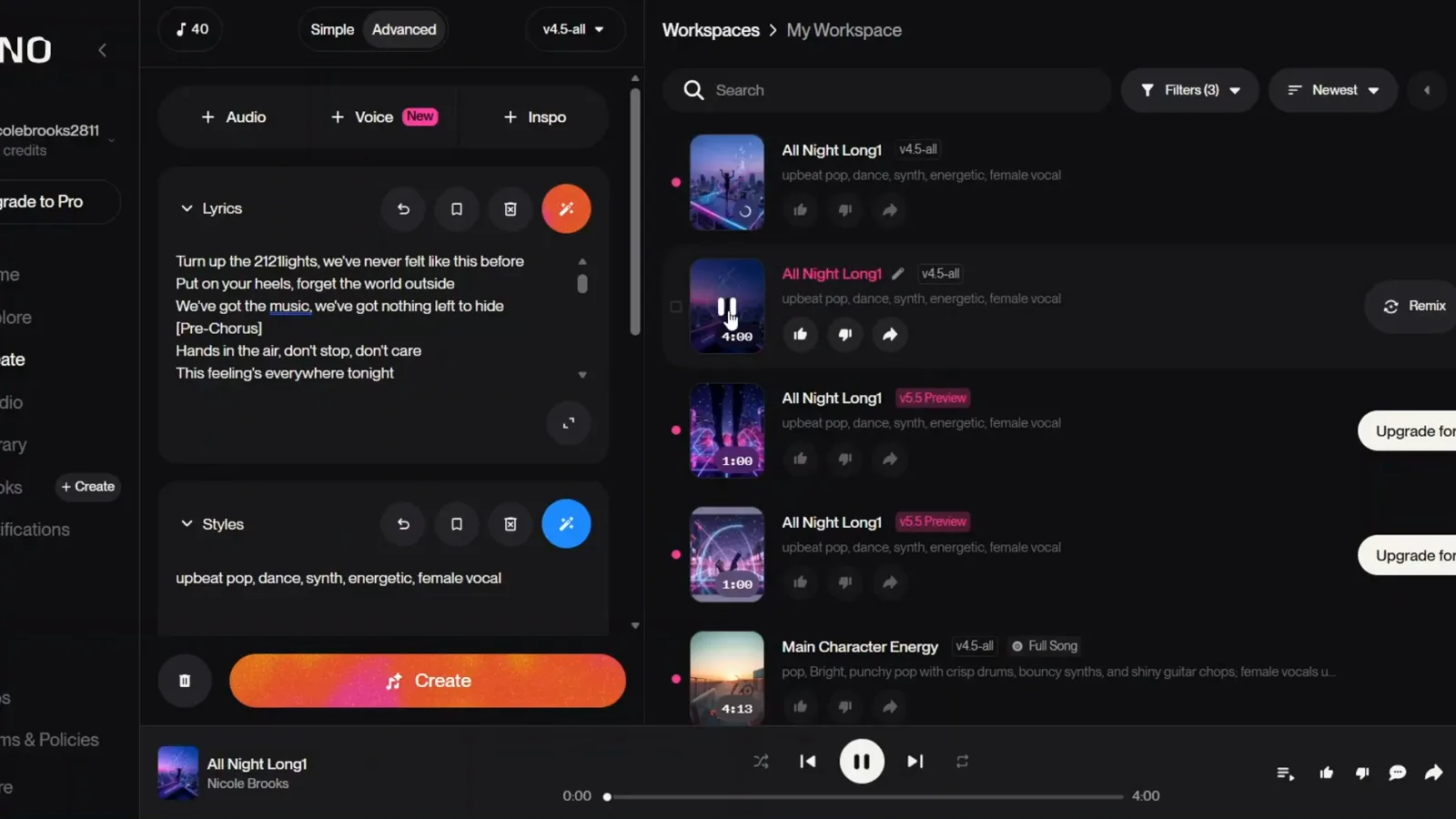
The whole four minutes, both versions — then pick.Watch at 12:55
Download and fix what you don't like
- 13
Download the winner as MP3
Open the three-dot menu on the track and choose Download, then MP3 Audio. WAV Audio, Get Stems, and Video sit in the same submenu behind the Pro badge. That is the entire loop — description to downloadable song in one sitting.
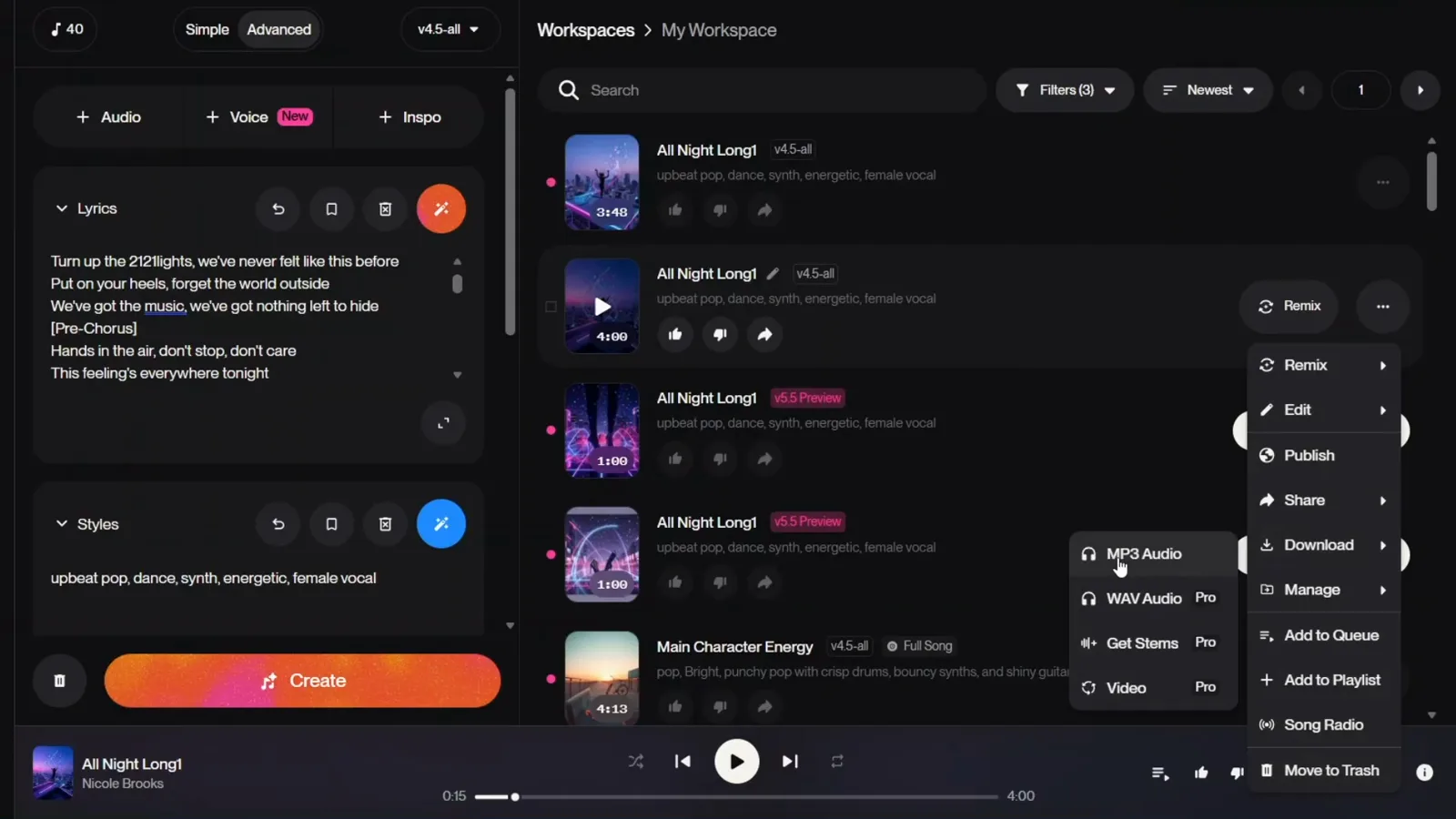
MP3 is free; WAV, stems, and video need Pro.Watch at 13:25 - 14
Not happy with a section? Extend instead of starting over
If one part of the song is off, go back to the three-dot menu, choose Edit, and open Extend at the top. The editor shows the waveform split into a KEEP range and a RECREATE range: keep the part you like, mark the part you want regenerated, adjust the lyrics or style tags below, and Suno rebuilds only the marked section. It is the fastest fix for a weak chorus or an outro that trails off.
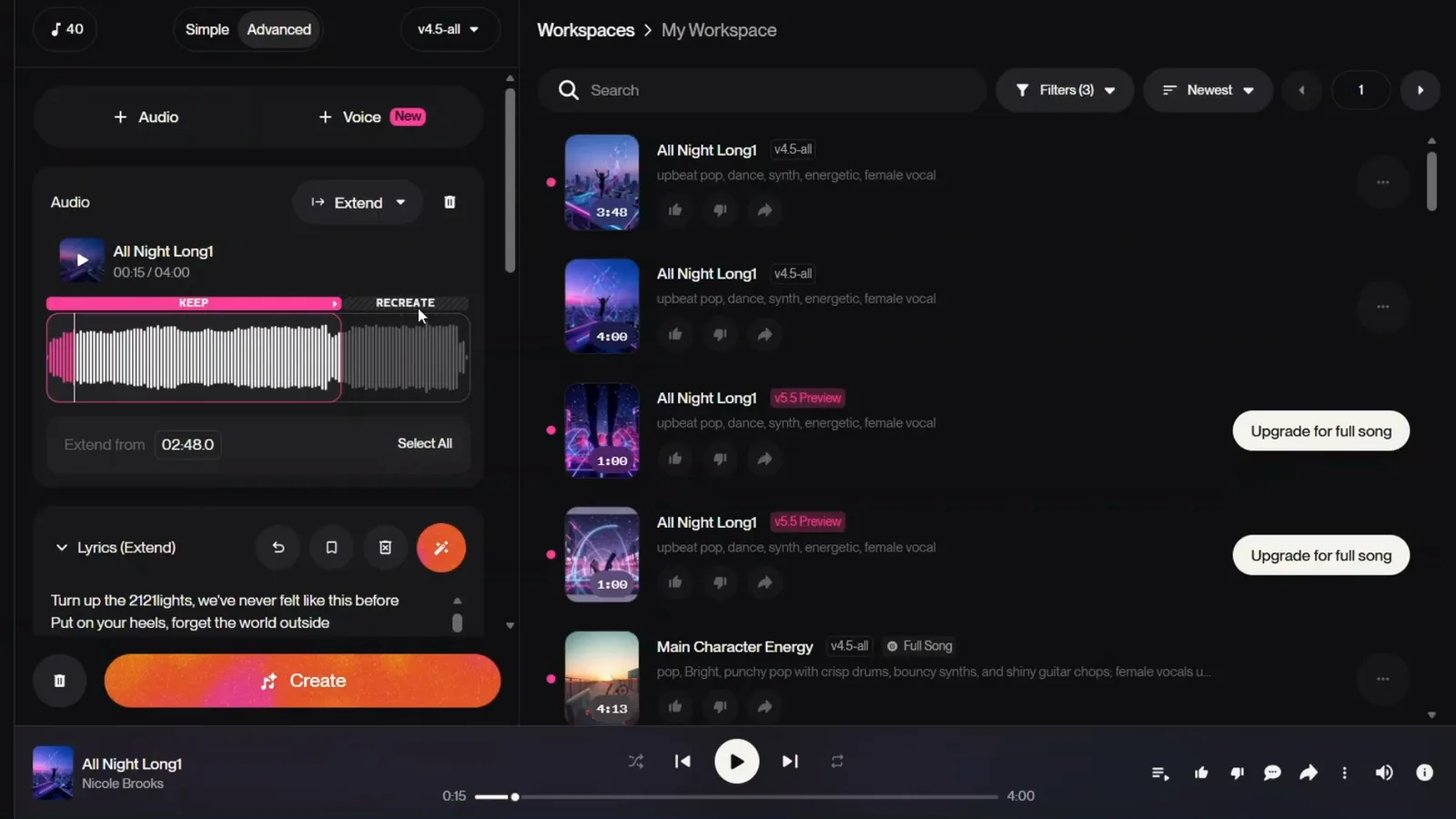
Keep the good part, recreate the rest — no full redo.Watch at 14:05