

Runway Gen-4.5 Prompts (2026): How to Write Prompts That Actually Work
Runway Gen-4.5 responds best to prompts written like camera directions: plain, direct language about motion and timing, layered on top of a strong source image. This guide walks through the exact prompts, presets, and settings visible in real Gen-4.5 sessions — from Runway's official sweeping-arc example to sequential prompting and the 10-credit 4K upscale. Screenshots and workflow notes come from AI. Now Y'Know's hands-on test, with additional steps from Runway's official Academy channel.
Source & credits
Screenshots in this guide are captured from AI. Now Y'Know's public walkthrough video. Every step links back to the exact moment it shows, so you can follow along.
AI. Now Y'Know ↗Get a Gen-4.5 Session Ready
- 1
Open the Video Tool
From the Runway dashboard, open the Video tool, then switch to the Video tab at the top of the workspace — it sits next to Image and Audio. The prompt box here reads "Describe your shot, or drop an image to animate," and finished Gen-4.5 clips stack up on the right with their own 4K download button. This is the exact tab Runway's official Academy walkthrough uses to animate stills with Gen-4.5.
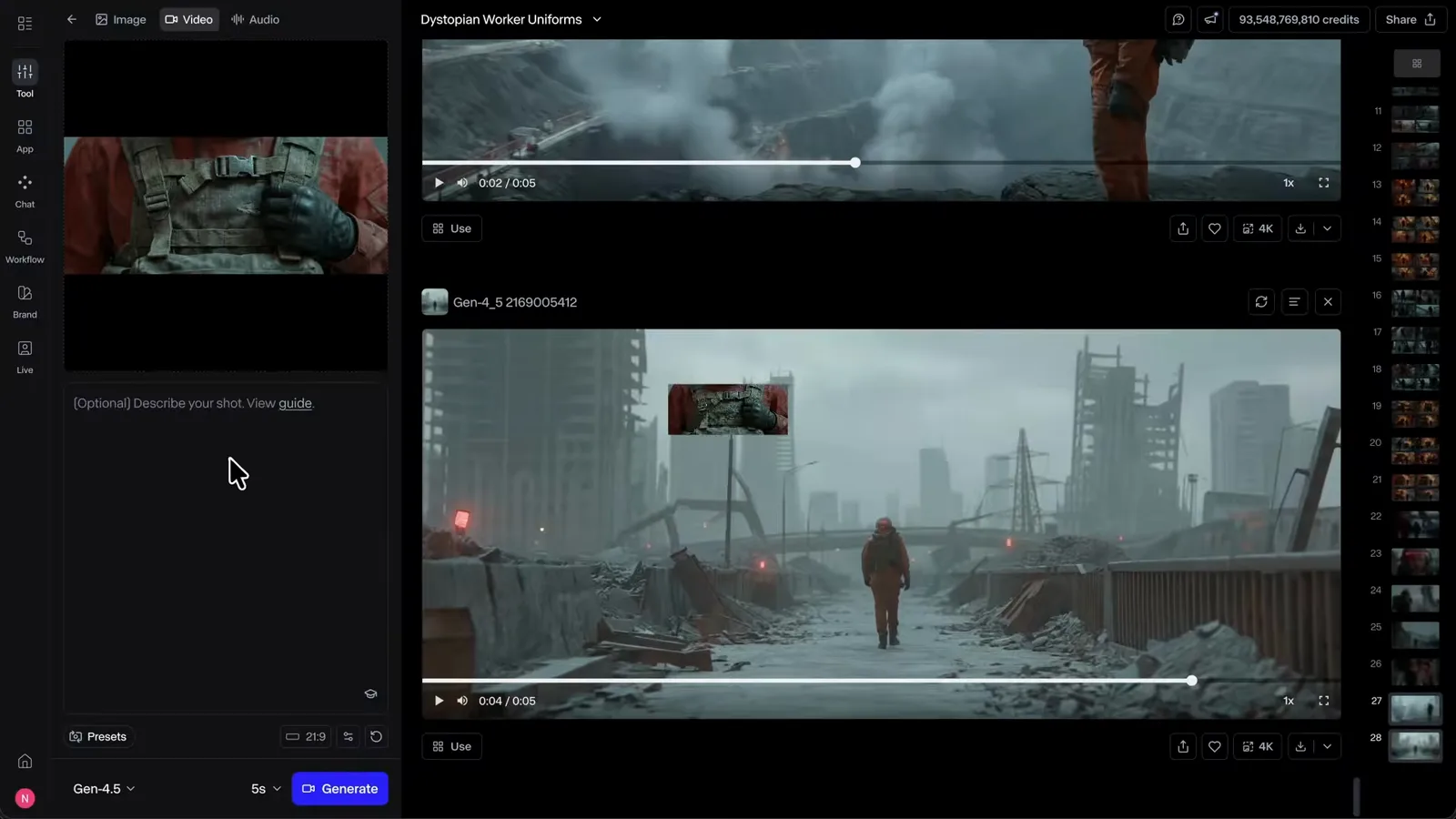
Every Gen-4.5 generation starts in this workspace.Watch at 2:06 - 2
Start from a Strong Source Image
Image-to-video is only as good as the still you feed it. In the Image tab, open the Image Model dropdown and pick Nano Banana Pro — labeled "Gemini 3 Pro Image" — with Gen-4 Turbo and Gen-4 below it. Runway's Academy video generates every shot this way at a cinematic 21:9 and 2K resolution, because the image defines the composition, lighting, and style that Gen-4.5 will animate.
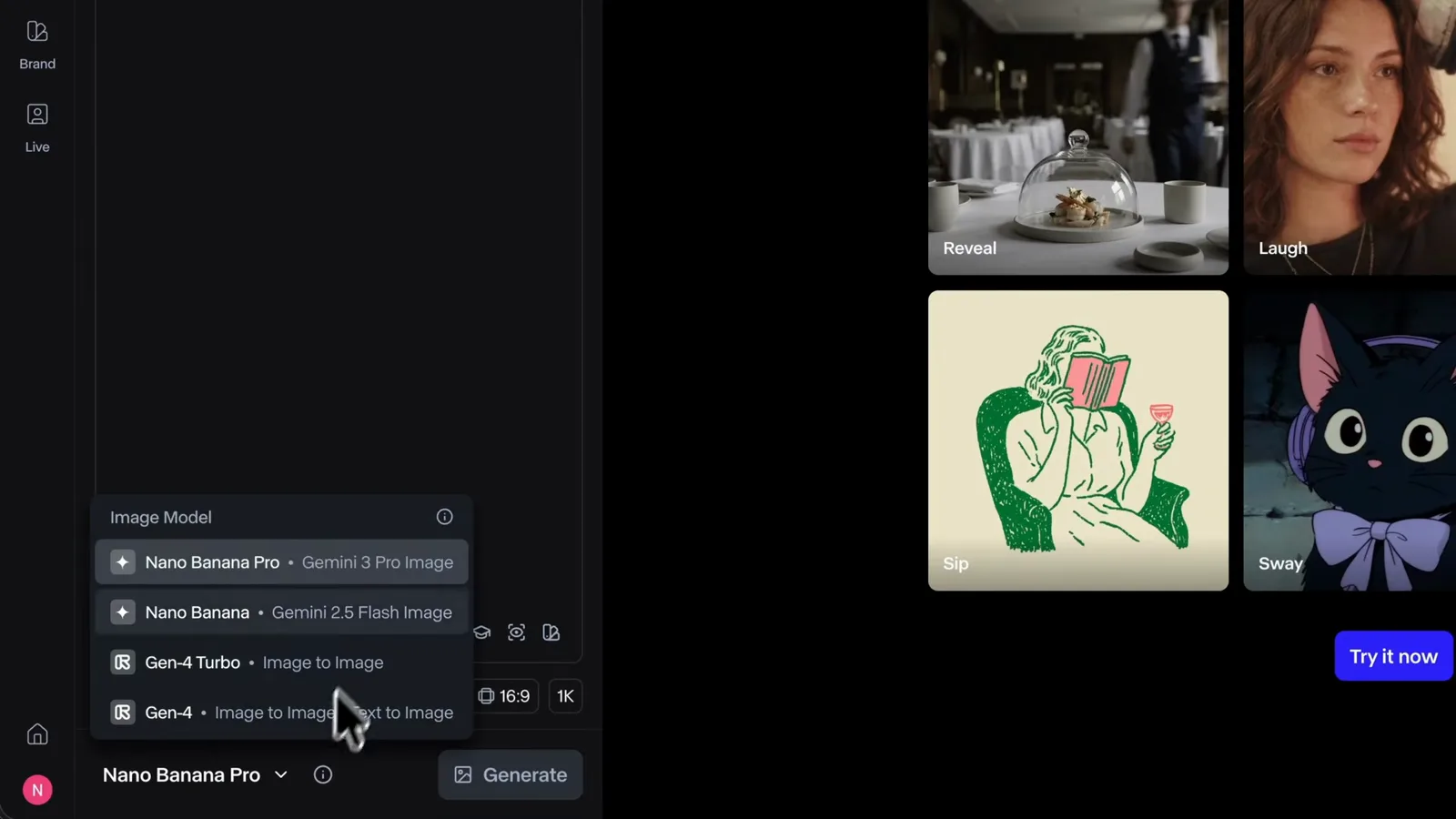
Nano Banana Pro sits right next to Runway's own models in the dropdown.Watch at 0:34 - 3
Prompt Each Shot with Image References
Load your hero shot into the reference slot, then type short shot-level prompts — the input reads "Describe your shot, add image references, or sketch a scene." The Academy demo prompts a close-up of the outfit, a wide shot next to a mining truck, and walking shots on the factory grounds, and notes there is "no need for fancy prompting here" because the reference image already locks in the details.
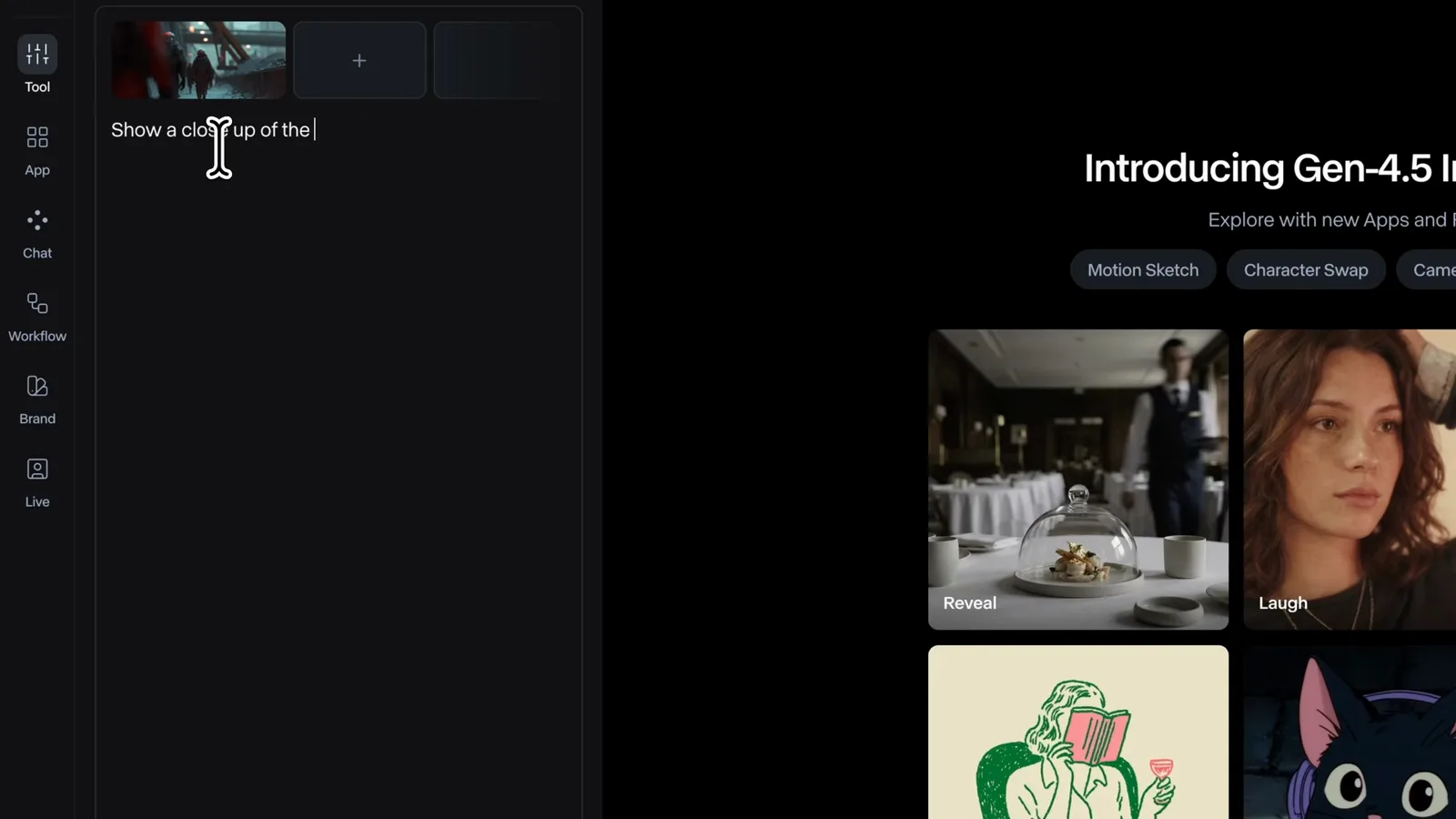
Short shot prompts plus one reference keep the character consistent.Watch at 1:04
Write the Prompt: Formula, Presets, and Examples
- 4
Follow Runway's Own Prompting Formula
Runway's Help Center article "Image to Video Prompting Guide," optimized for Gen-4.5, says your image already defines composition, subject matter, lighting, and style — so the prompt's role is to describe what should happen: the motion, camera work, and temporal progression, in clear, direct language. Its example prompt: "The camera executes an aggressive, sweeping horizontal arc around the subject, followed by an extremely rapid, aggressive crash zoom that concludes with a sharp focus on the subject's eyes."
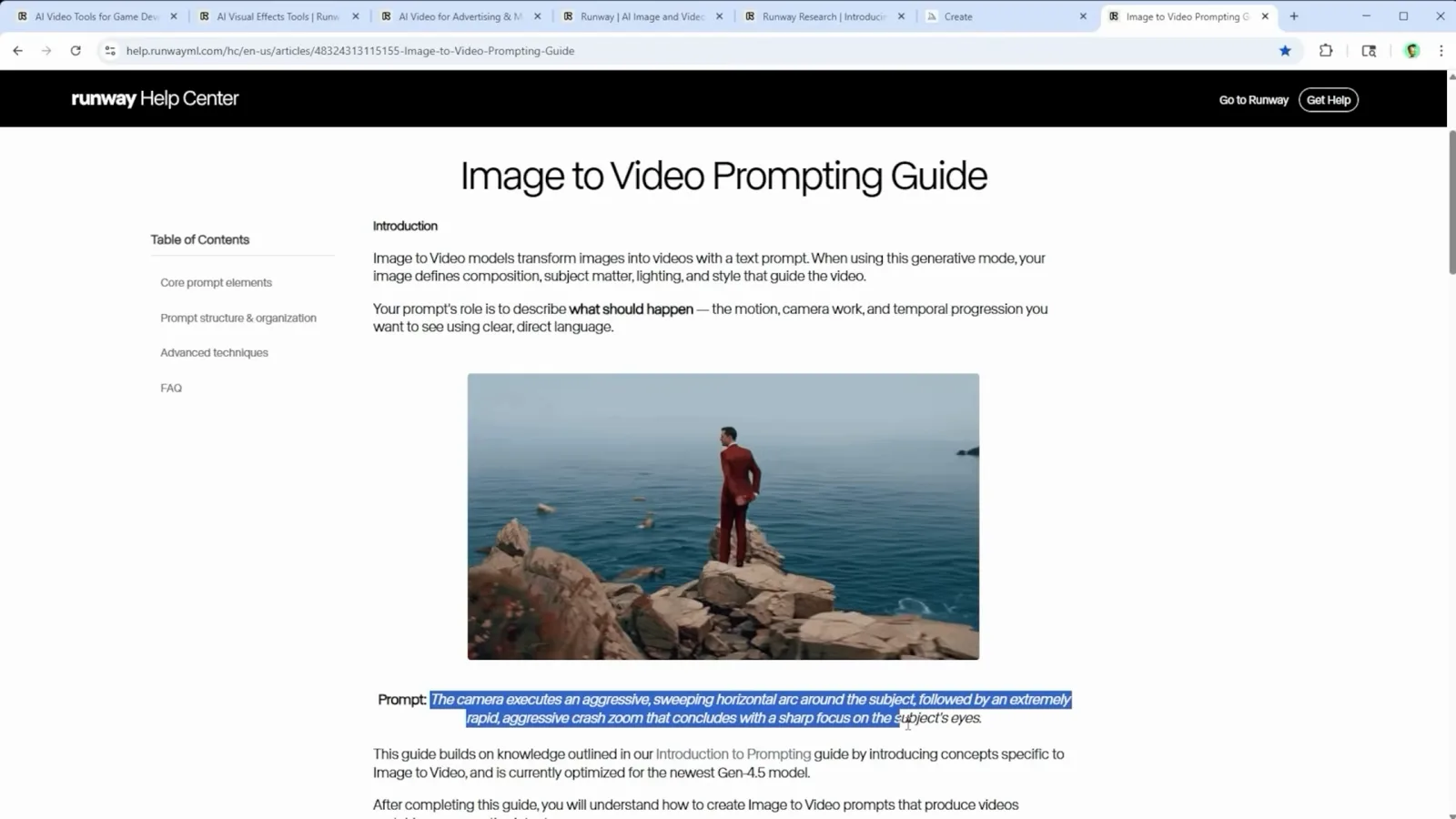
Describe the motion, not the look — the image already did that job.Watch at 1:18 - 5
Borrow Wording from the Camera Presets
A fresh session greets you with "Introducing Gen-4.5 Image to Video" and preset cards grouped under Camera, Movement, and Action tabs — Handheld shake, Tracking, Push In, Minimal camera, Product orbit, and Arc. Choosing one loads a matching prompt, so the gallery doubles as a phrasebook for camera language. The reviewer behind this test calls these presets the fastest way to learn what Gen-4.5 responds to.
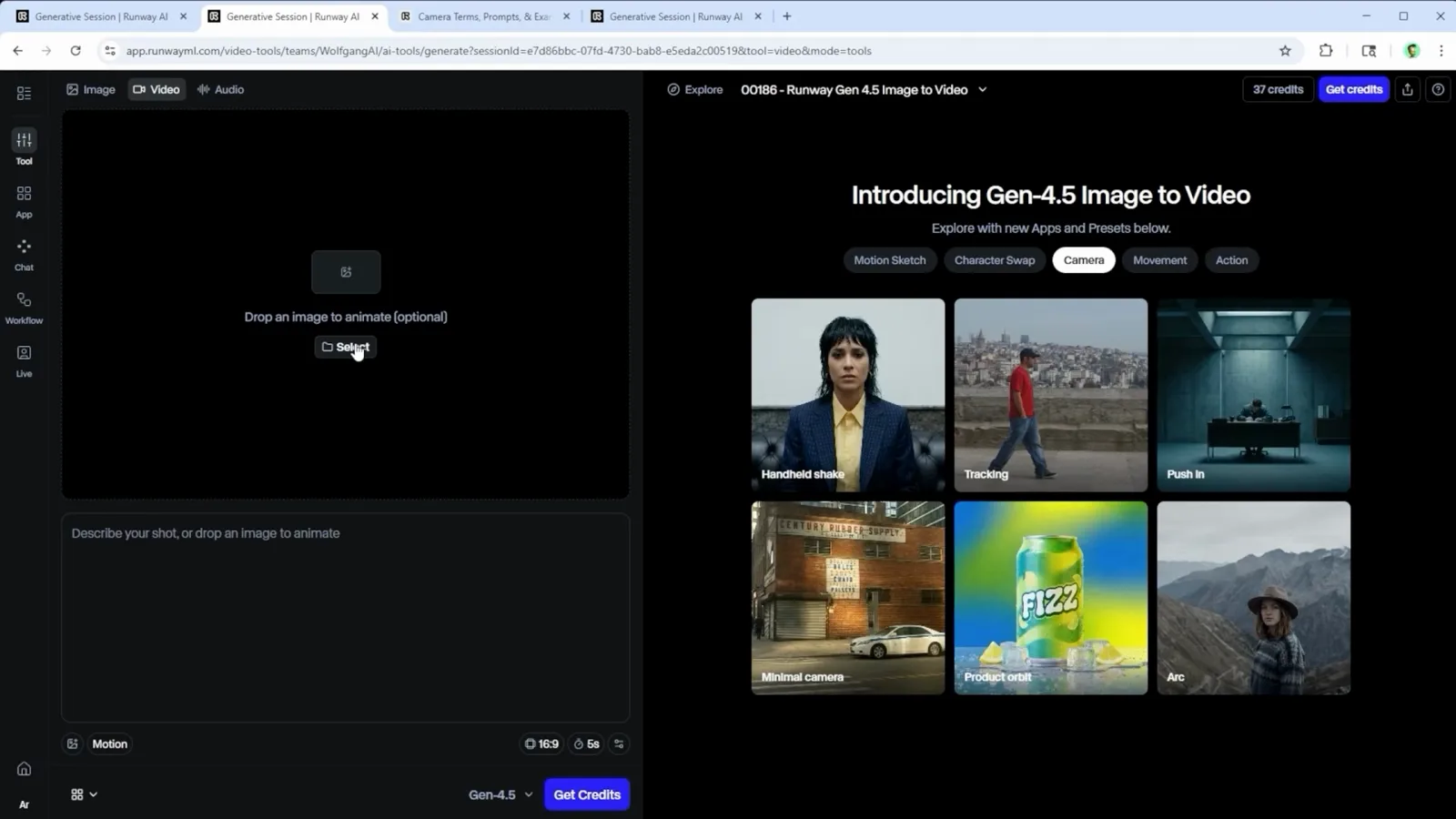
Every preset card hides a ready-made prompt you can copy and bend.Watch at 1:30 - 6
Try the Official Sweeping Arc Prompt
This mountaineer clip was generated with "The camera executes an aggressive, sweeping horizontal arc around the subject" — the 4K filename above the player shows the prompt verbatim, and the settings panel lists Gen-4.5, a seed, and 1280x720 dimensions. The reviewer notes the model executed the move almost perfectly, right down to the motion blur. Swap the subject noun and keep the camera verb phrase to reuse it on your own stills.
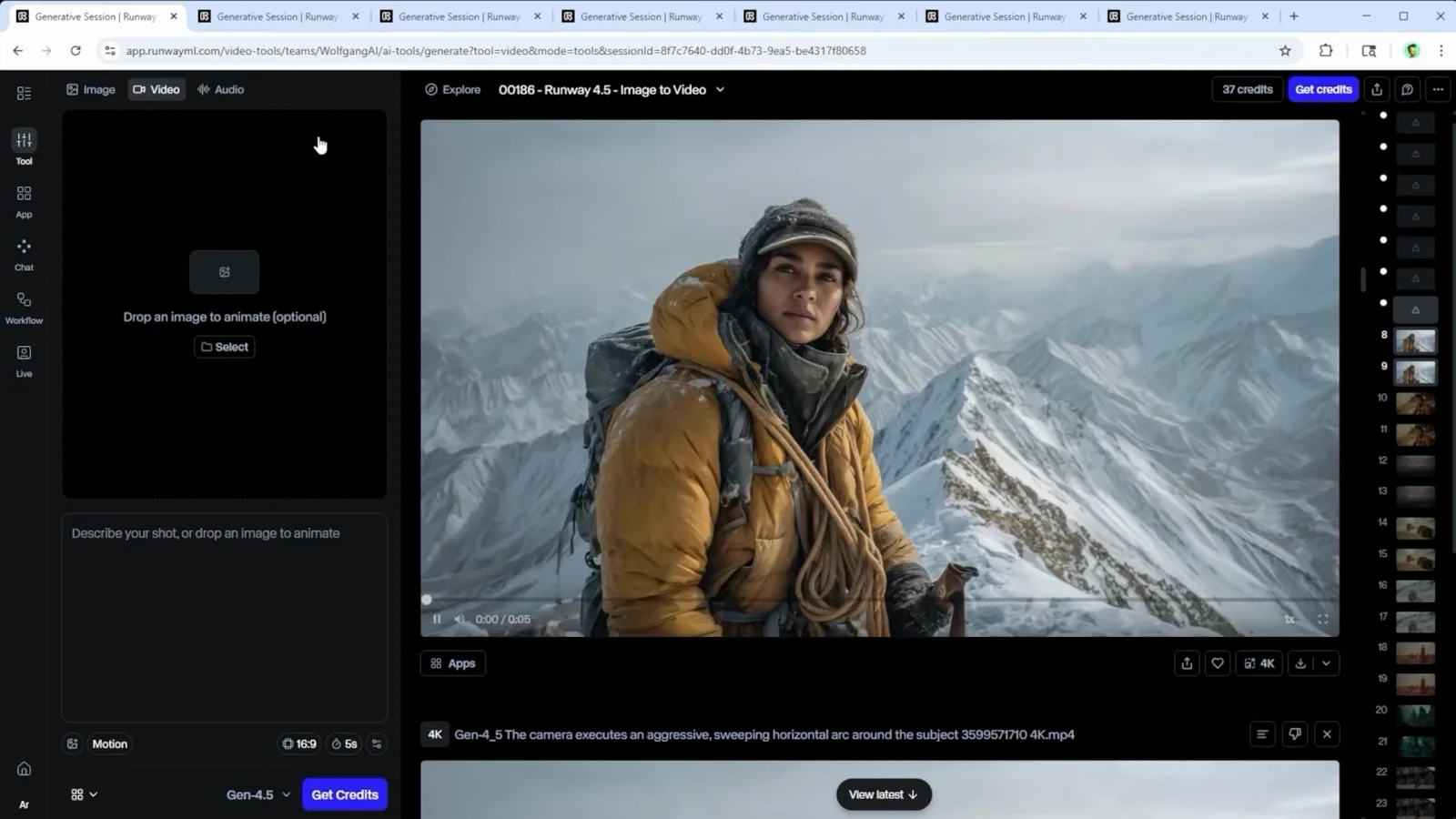
One camera verb plus one subject is a complete Gen-4.5 prompt.Watch at 2:30 - 7
Go Minimal for Fly-Through Shots
Runway's fly-through preset ships a deliberately minimal prompt, and this abandoned mega-city at dusk came from little more than "the camera flies through an abandoned futuristic mega city at high speed." The reviewer found Gen-4.5 freely interprets fine detail here and spends its effort on motion, dynamics, and speed instead. The queued prompt below shows the next experiment: "Gen-4.5, Handheld documentary film style. Natural camera shake. Raw indie aesthetic..."
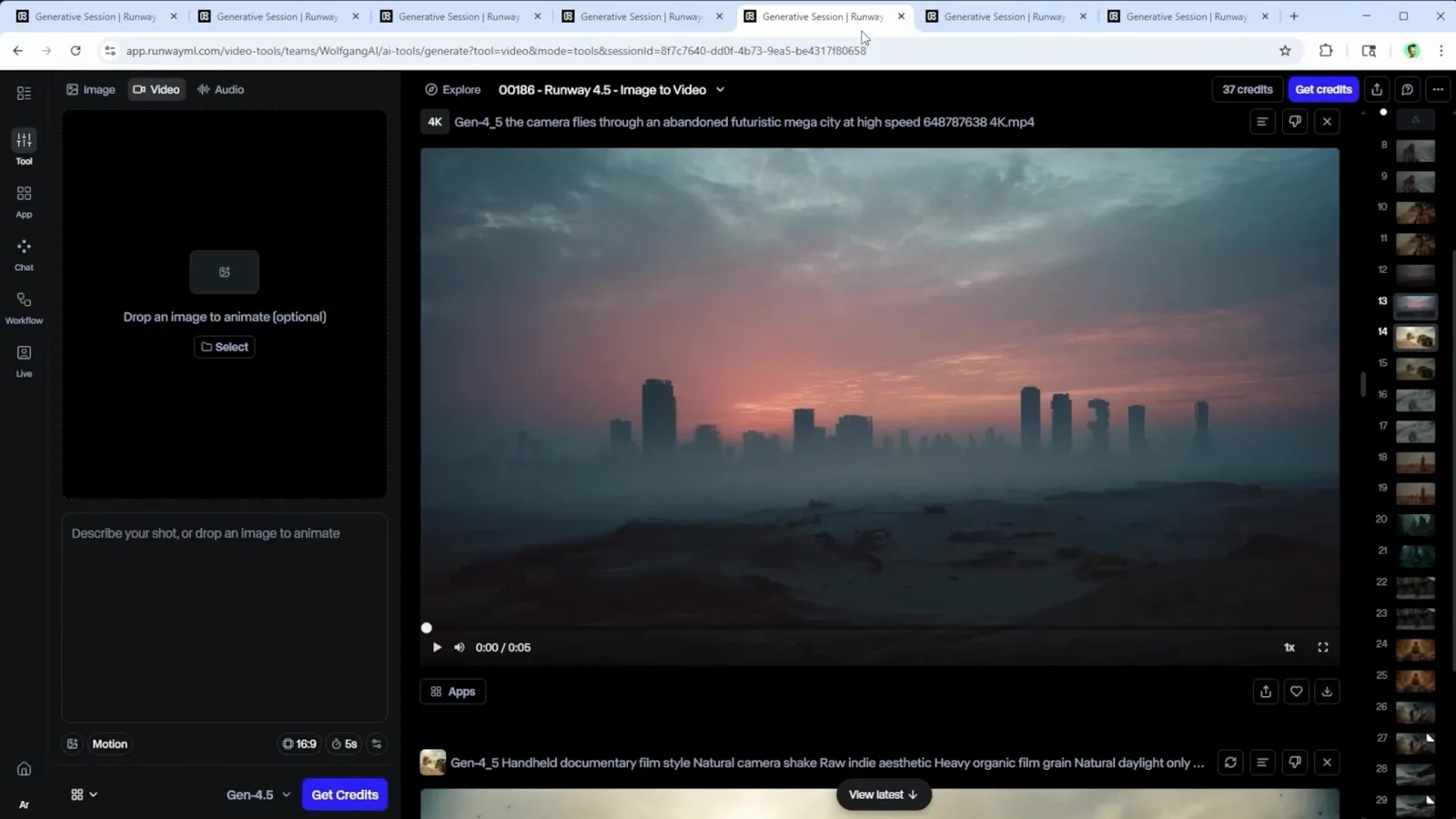
For pure camera motion, a one-line prompt is enough.Watch at 4:07
Direct the Camera and the Action
- 8
Track a Subject with Organic Camera Motion
For this fashion shot — a red dress crossing the outback with five greyhounds — the prompt was simply that "the camera moves with organic yet steady motion to track the subject." The reviewer points to the small cues that sell it: her eyes flick toward camera before she walks, and the dogs drift chaotically but believably. The details panel confirms the clip was upscaled to 4096x2304 at 5 seconds.
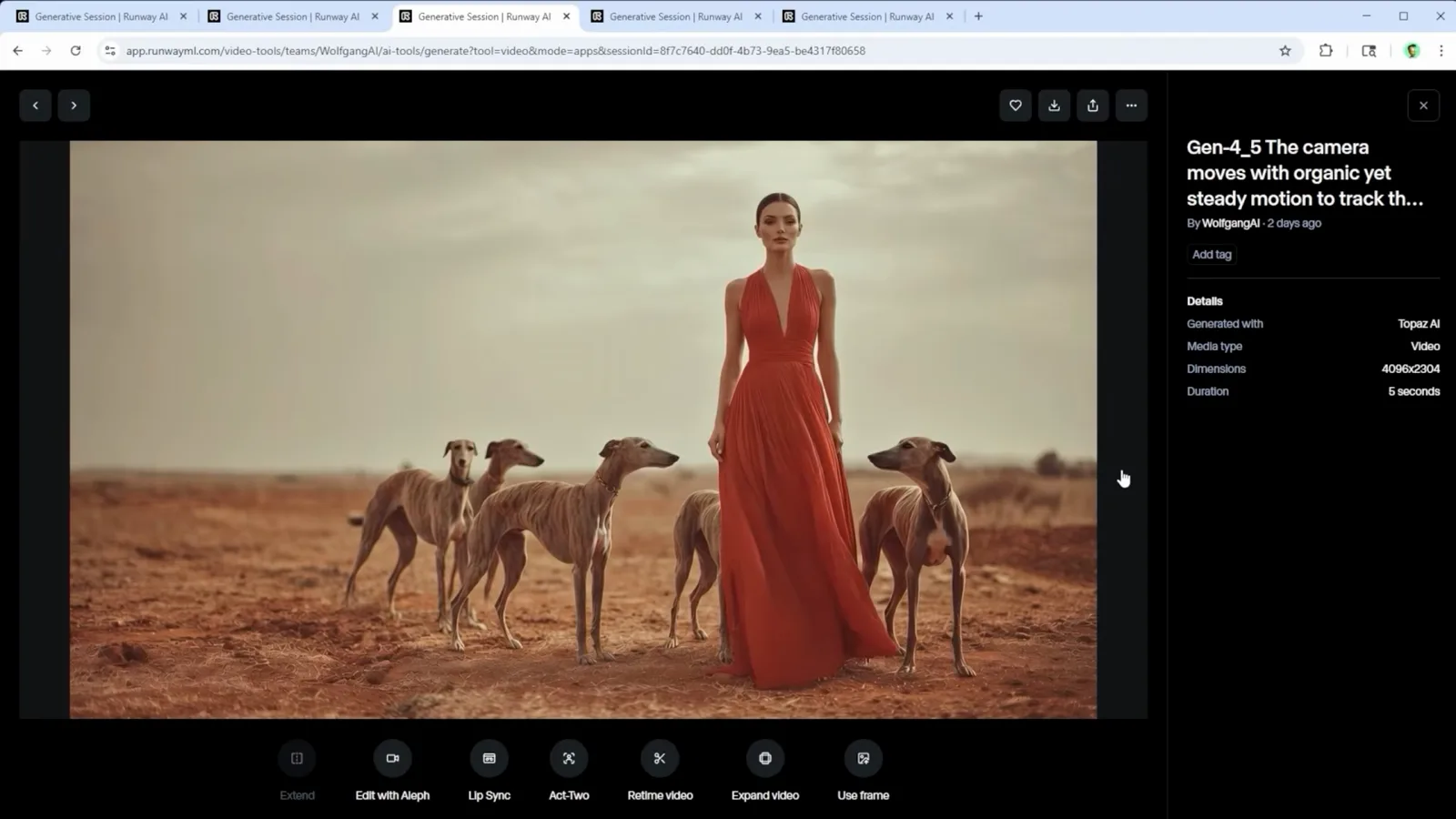
"Organic yet steady" is the phrase that makes follow shots work.Watch at 6:00 - 9
Hand the Camera Over with Style Keywords
To give Gen-4.5 free rein, the reviewer prompts "Handheld documentary film style. Natural camera shake. Raw indie aesthetic. Heavy organic film grain. Natural daylight only" — this armored-truck close-up with an explosion blooming behind it is the result, and the same recipe drove his polar-bear-in-an-avalanche clip. Style keywords, not a shot list, are doing all the work here.
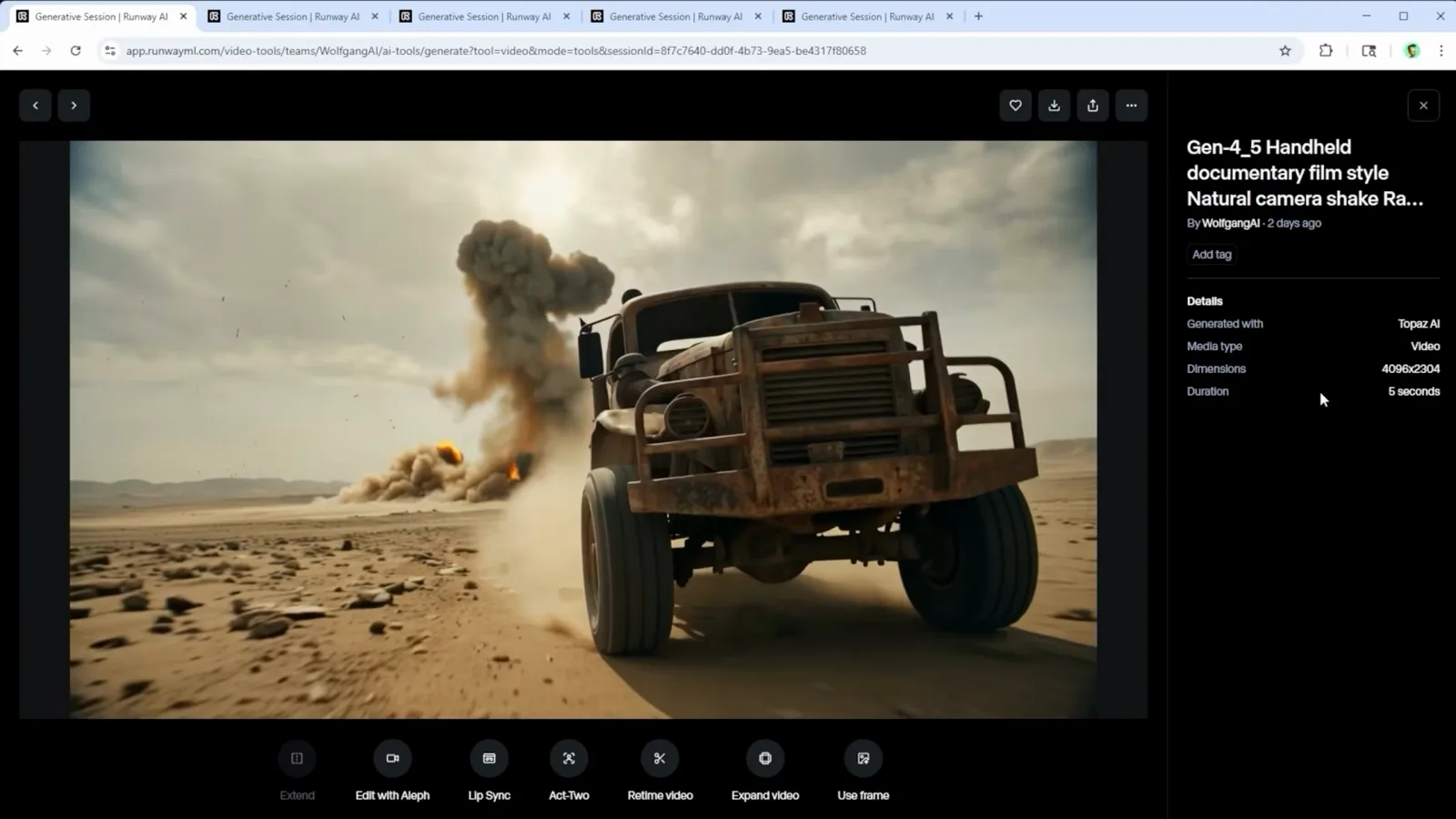
Stack style keywords and let Gen-4.5 improvise the camera.Watch at 5:00 - 10
Crash Zoom In, but Watch the Head Size
The prompt "The camera performs an extremely rapid, aggressive crash zoom" drives straight into this close-up, and the model even animated the background banners unprompted. The catch: faces are where Gen-4.5 morphs most, and the reviewer found the artifacts largely disappear once the head fills about one third of the frame height. Keep that framing rule in mind and aggressive zooms become usable.
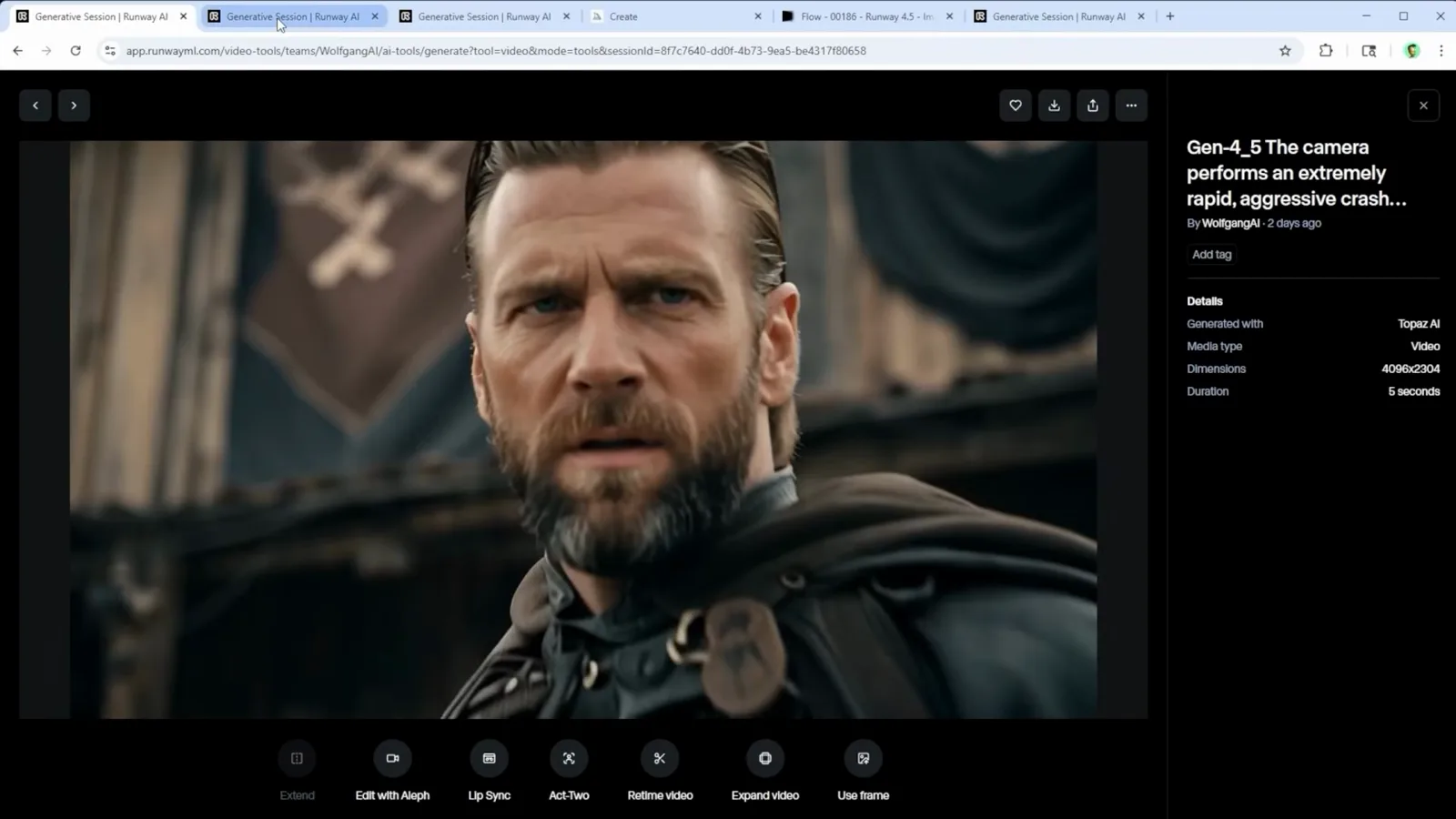
Hard zooms work — as long as the head stays near a third of the frame.Watch at 7:38 - 11
Add Weight with One Small Action
For a close-up of a mining harness, Runway's walkthrough added the one-line prompt "the man checks and tightens his vest" — and the finished clip gained a visible sense of weight, as if the character were checking his gear fits. The prompt box sits under the reference image with Gen-4.5 and a 5-second duration set below. Small action beats like this make an animated still feel inhabited.
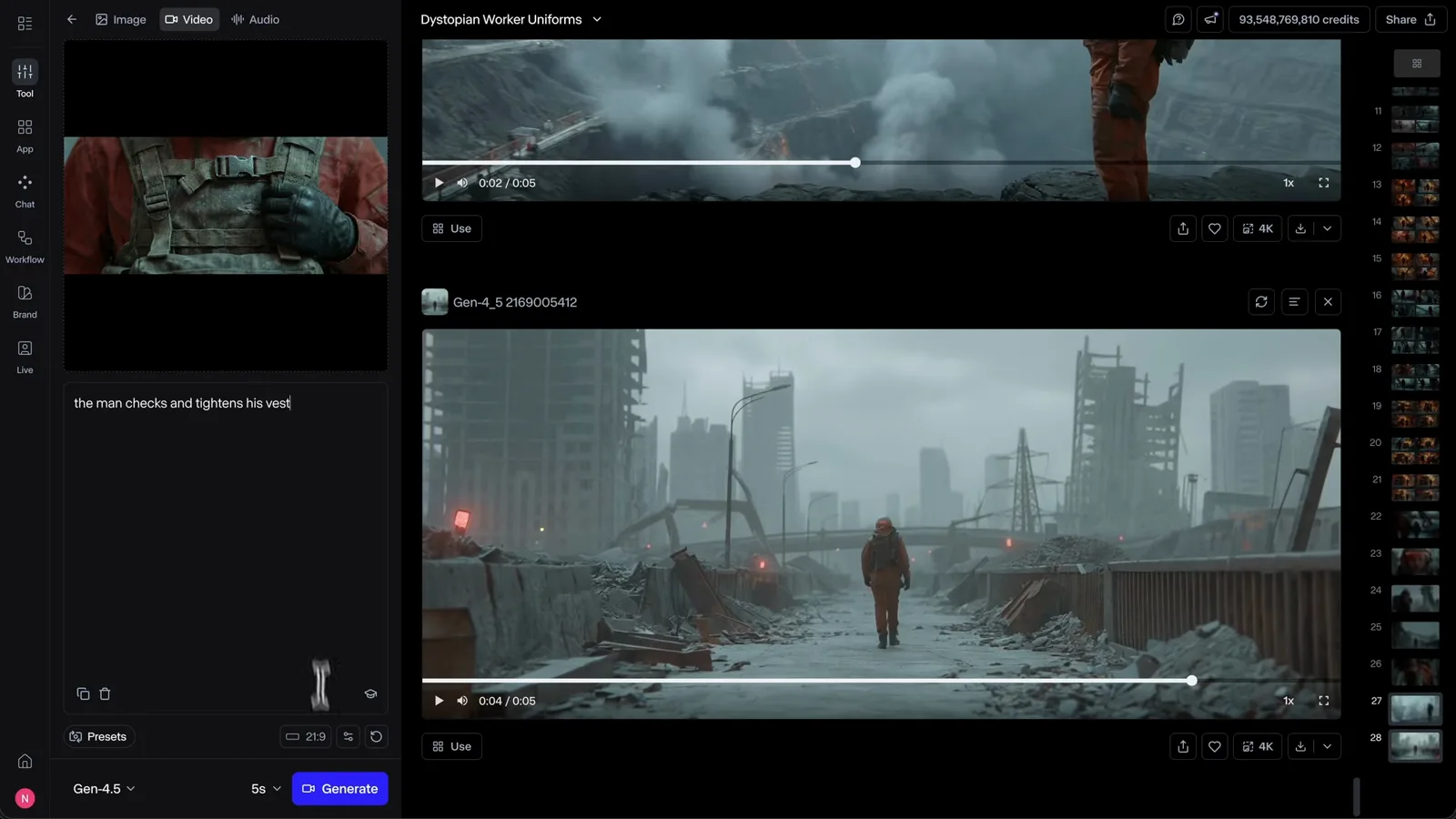
A five-word action beat beats a paragraph of adjectives.Watch at 2:18 - 12
Chain Events with Sequential Prompting
Gen-4.5's signature trick is to write the timeline as plain sentences: "the character walks forward, after a delay the truck explodes, the explosion startles the character and makes them run." Runway's Academy video shows the model rendering those events in exactly that order — no timestamps or special syntax needed. It is the technique Runway recommends to directors staging a beat-by-beat shot.
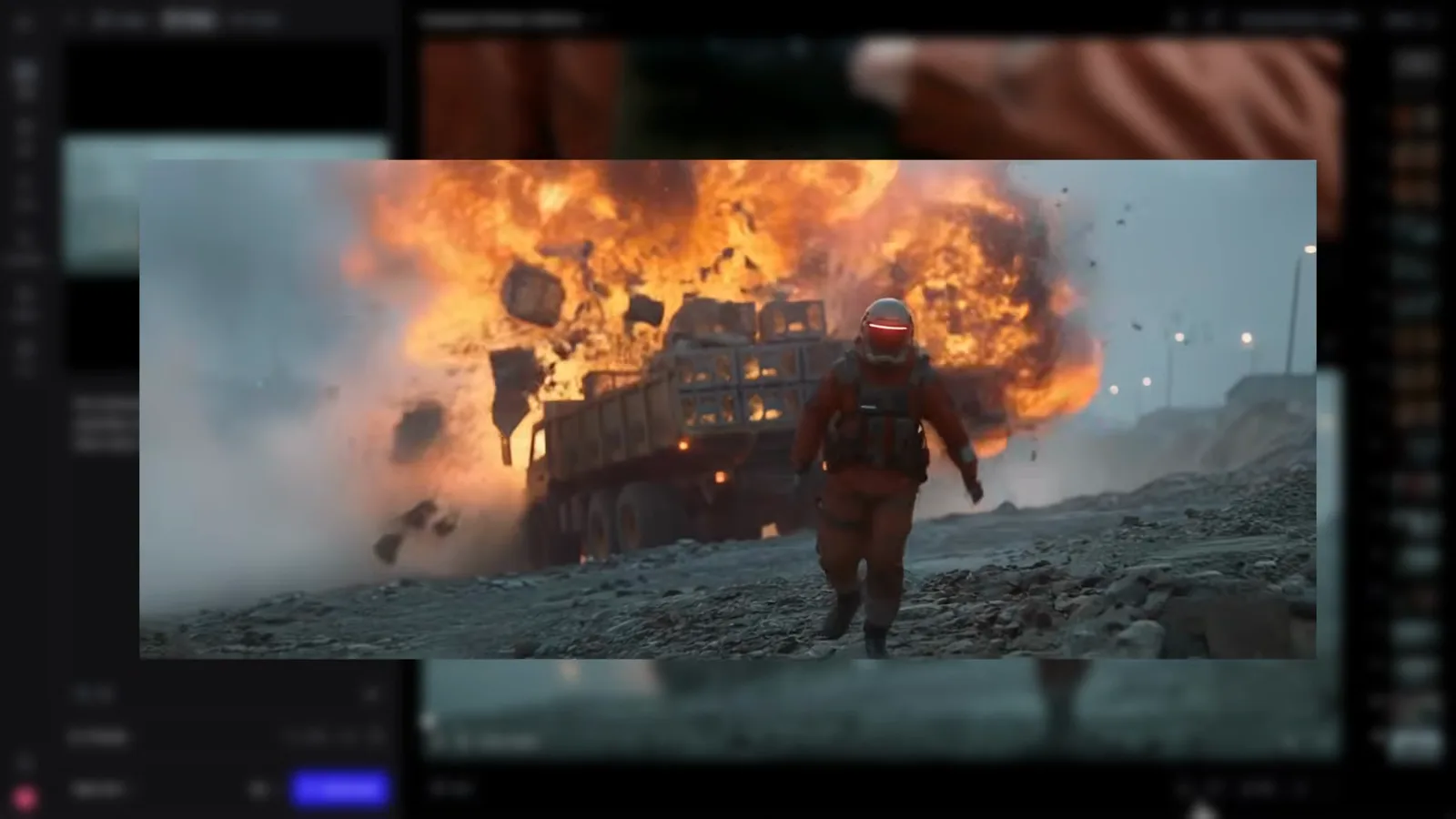
Write the shot like a script and Gen-4.5 follows the order.Watch at 2:58
Set Duration, Generate, and Upscale
- 13
Confirm Gen-4.5 and Pick 5, 8, or 10 Seconds
Before generating, check the bottom bar: the model dropdown must read Gen-4.5, the clock chip sets duration — 5, 8, or 10 seconds — and the ratio chip (16:9 here) sits beside it. This gorilla session also shows how two moves fit in one prompt: "The camera moves forward with organic motion to push in closer to the scene. The camera moves backward with organic motion to pull back from the scene."
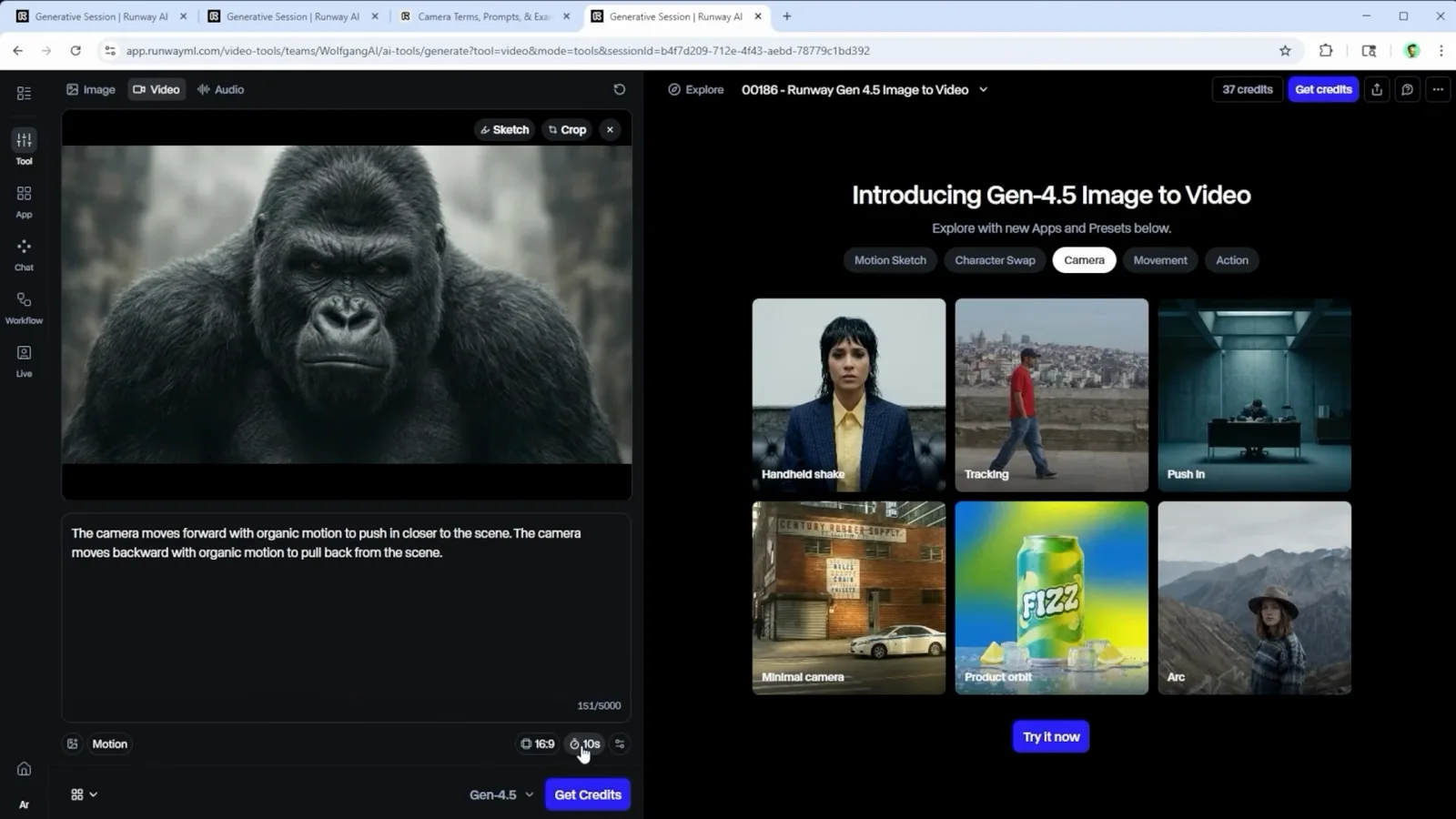
Model, duration, ratio — three chips to check before Generate.Watch at 2:10 - 14
Preview, Then Extend, Lip-Sync, or Retime
Every finished clip gets a toolbar underneath: Extend, Edit with Aleph, Lip Sync, Act-Two, Retime video, Expand video, Use frame, and Upscale. This surfer clip — prompted so the handheld camera follows him as he smiles, stands up, and leaves the surfboard — was upscaled, so its details panel reads Generated with Topaz AI at 4096x2304. Use frame pulls any moment back into the workflow as a still.
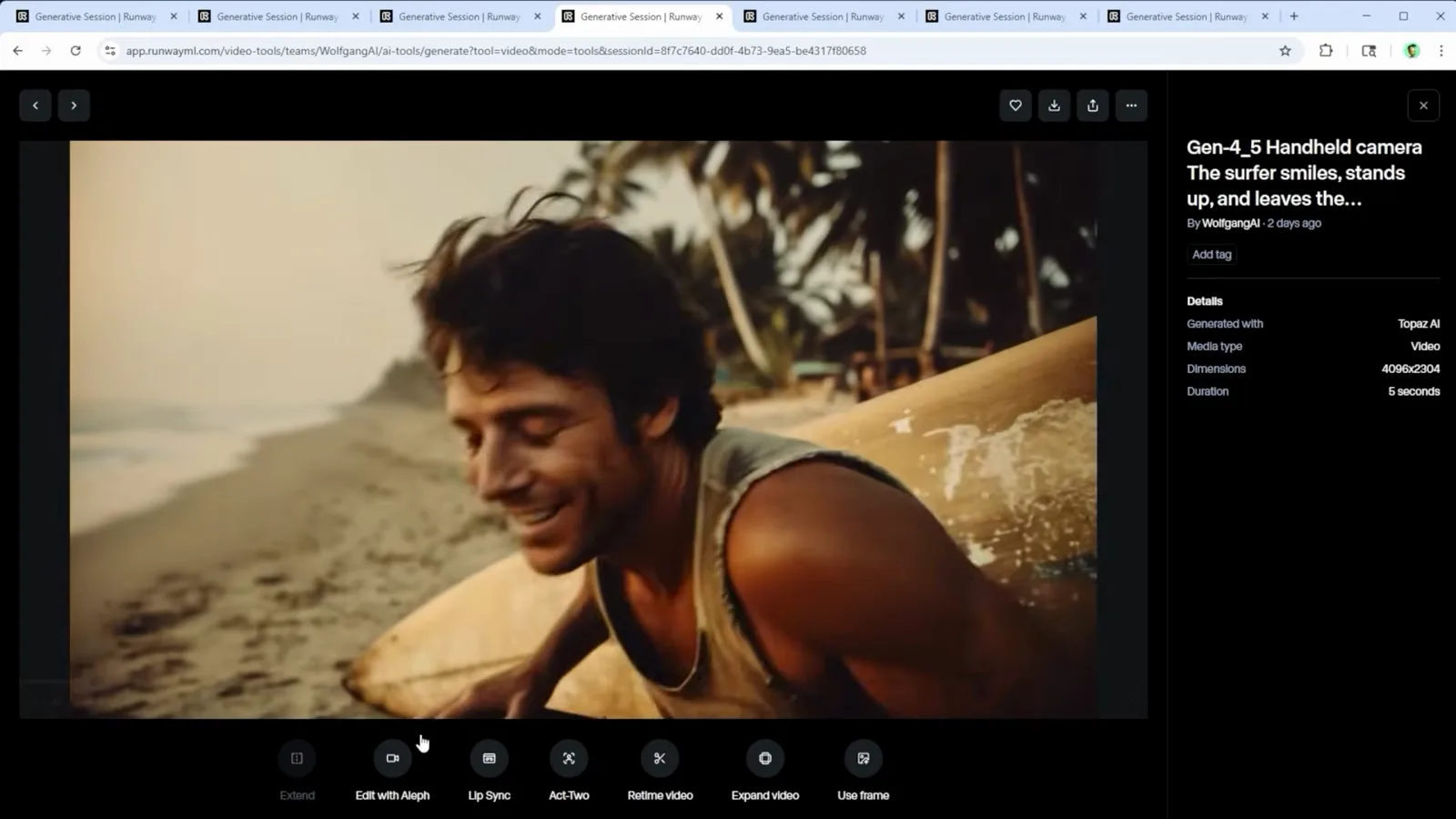
The toolbar under each clip turns a good take into a usable shot.Watch at 3:28 - 15
Upscale to 4K with Topaz for 10 Credits
Clips generate at 1280x720 — the settings panel lists it under Dimensions next to the seed. Hover the Upscale button and Runway shows the tooltip "Upscale to 4K with Topaz AI (10 credits)"; the reviewer confirms that is 10 credits for a 5-second clip and calls the upgraded result clearer and sharper. The same panel offers "Reuse prompt and settings" to rerun a look you like.
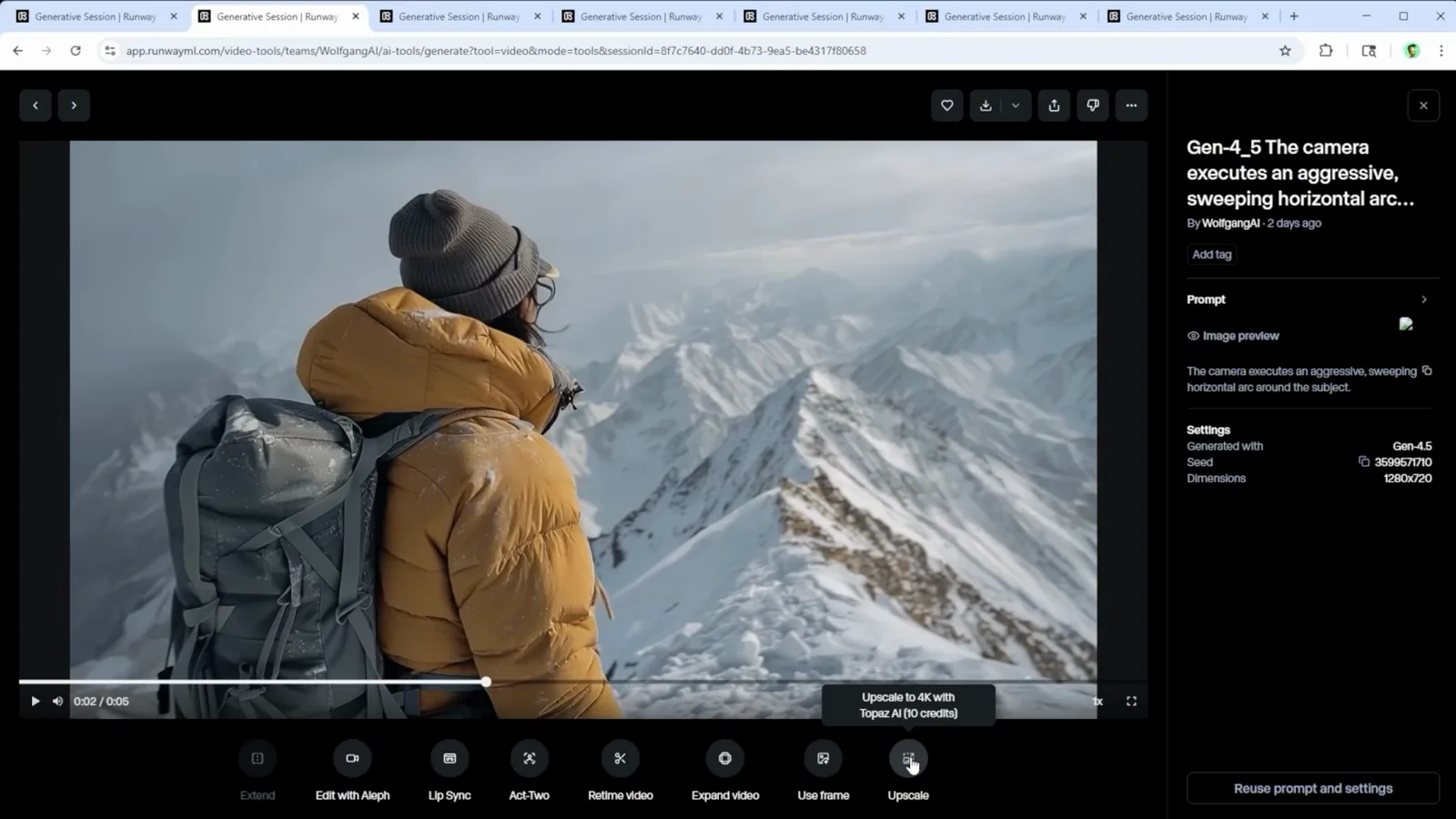
Ten credits turns a 720p draft into a 4K deliverable.Watch at 3:00