

Lyria 3.5 Prompts (2026): How to Generate Music in Gemini
Lyria 3.5, Google's best-sounding music generation model, now sits directly inside the Gemini app, and this guide follows the exact click path with real screenshots. You will learn how to describe a track, steer genre, vocals, and length, remix templates, and even turn a photo into a song. The walkthrough is based on Code with Chathu's hands-on Lyria 3.5 test, with extra steps verified against Think Tutorial's Create music tutorial, Yevgeniy Kovalenko's Gemini chat breakdown, and Tasia Custode's Gemini music walkthrough.
Source & credits
Screenshots in this guide are captured from Code with Chathu's public walkthrough video. Every step links back to the exact moment it shows, so you can follow along.
Code with Chathu ↗Open Create Music in Gemini
- 1
See what Lyria 3.5 adds
On September 4, 2026, Google announced that Lyria 3.5 — its best-sounding music generation model — is now available in the Gemini app and the Gemini API. The update promises more expressive vocals, richer arrangements, new templates for everything from background music to birthday tracks, and the flexibility to choose short or longer tracks. Everything in this guide happens inside the Gemini app, so there is no separate tool to install.
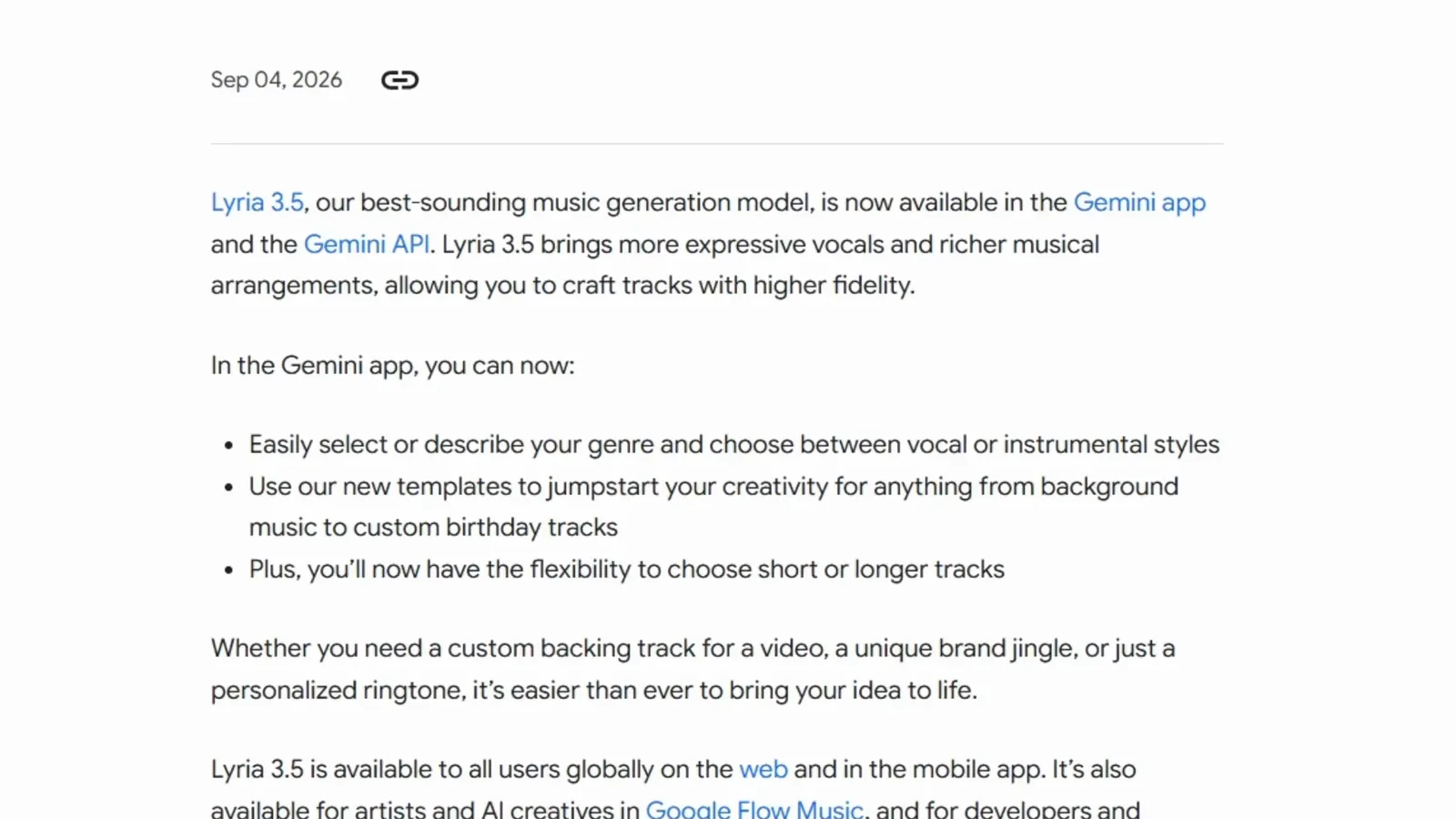
The update note the video opens with — Lyria 3.5 lands in the Gemini app.Watch at 0:08 - 2
Open Gemini and find Create music
Go to gemini.google.com and sign in with your Google account — the free plan works fine. Click Tools under the prompt bar and choose Create music, or use the Create music shortcut chip that sits below the prompt bar on the home screen.
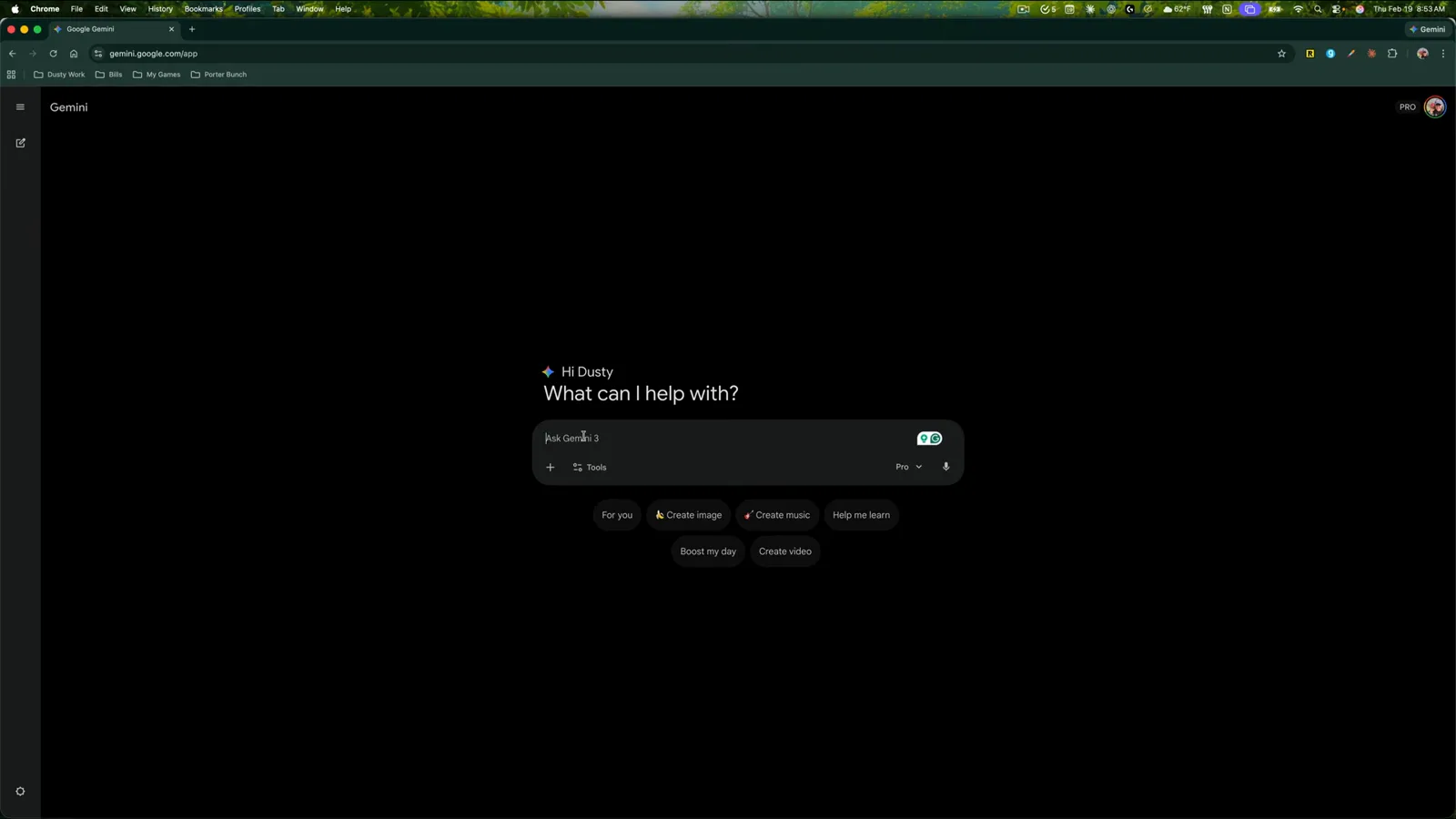
Tools is the reliable way in; the shortcut chip appears right on the home screen.Watch at 0:20 - 3
Open the Create music panel
Selecting Create music opens a panel headed "Try a template or describe a track in chat. Create with Lyria 3.5." You get a wall of template covers plus a Describe your track box with Music attachment, Length, Vocals, and Genre controls. This single panel is where the whole workflow happens.
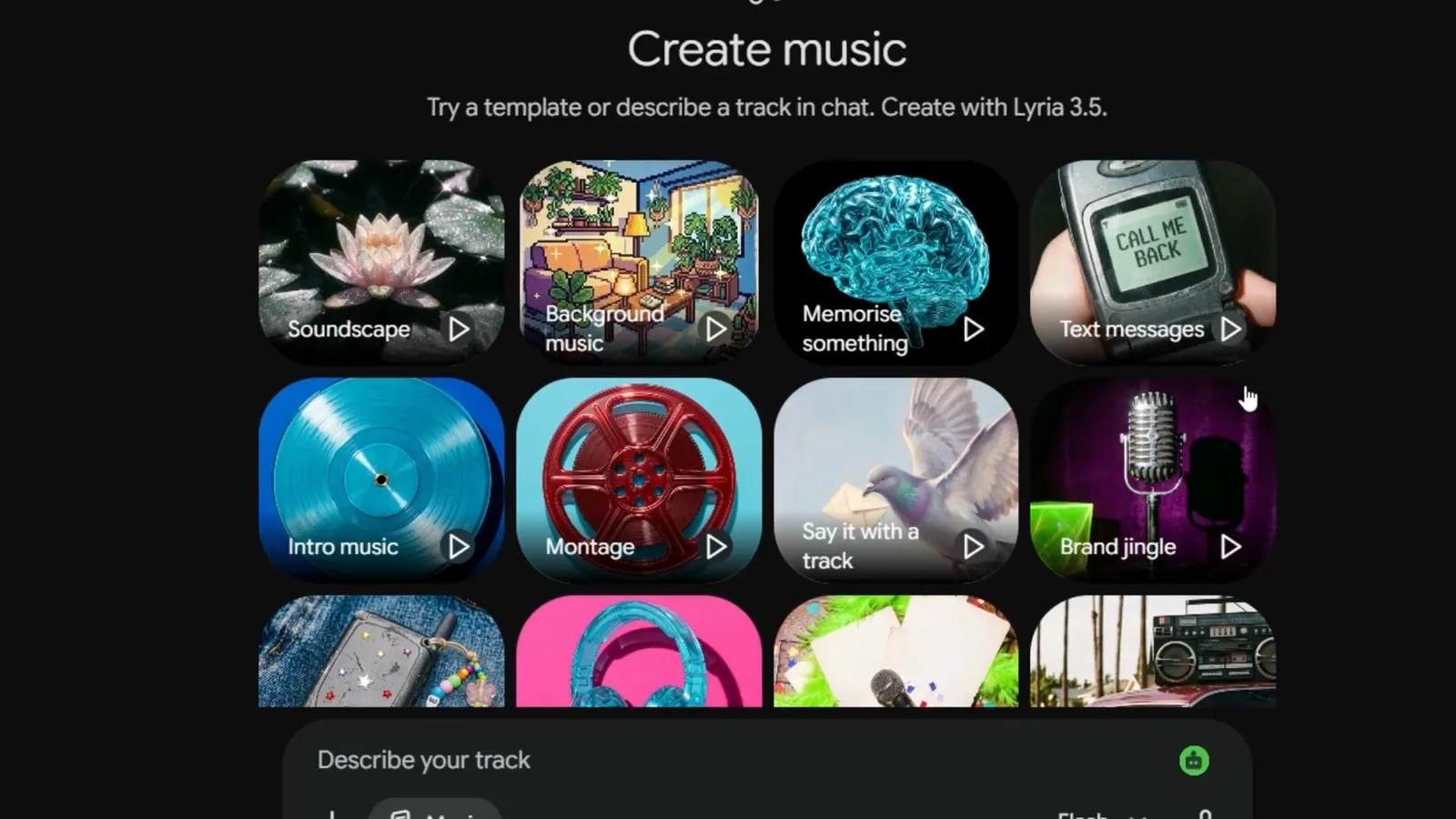
Lyria 3.5 is called out right in the panel header.Watch at 0:17
Write Your Track Prompt
- 4
Browse templates for ideas
Scroll the template grid for ready-made ideas like Background music, Intro music, Brand jingle, Team anthem, Happy birthday, or Ode to your pet. Hovering a cover surfaces a Preview track option so you can listen before committing. Templates are optional — they mostly teach you what a finished track description sounds like.
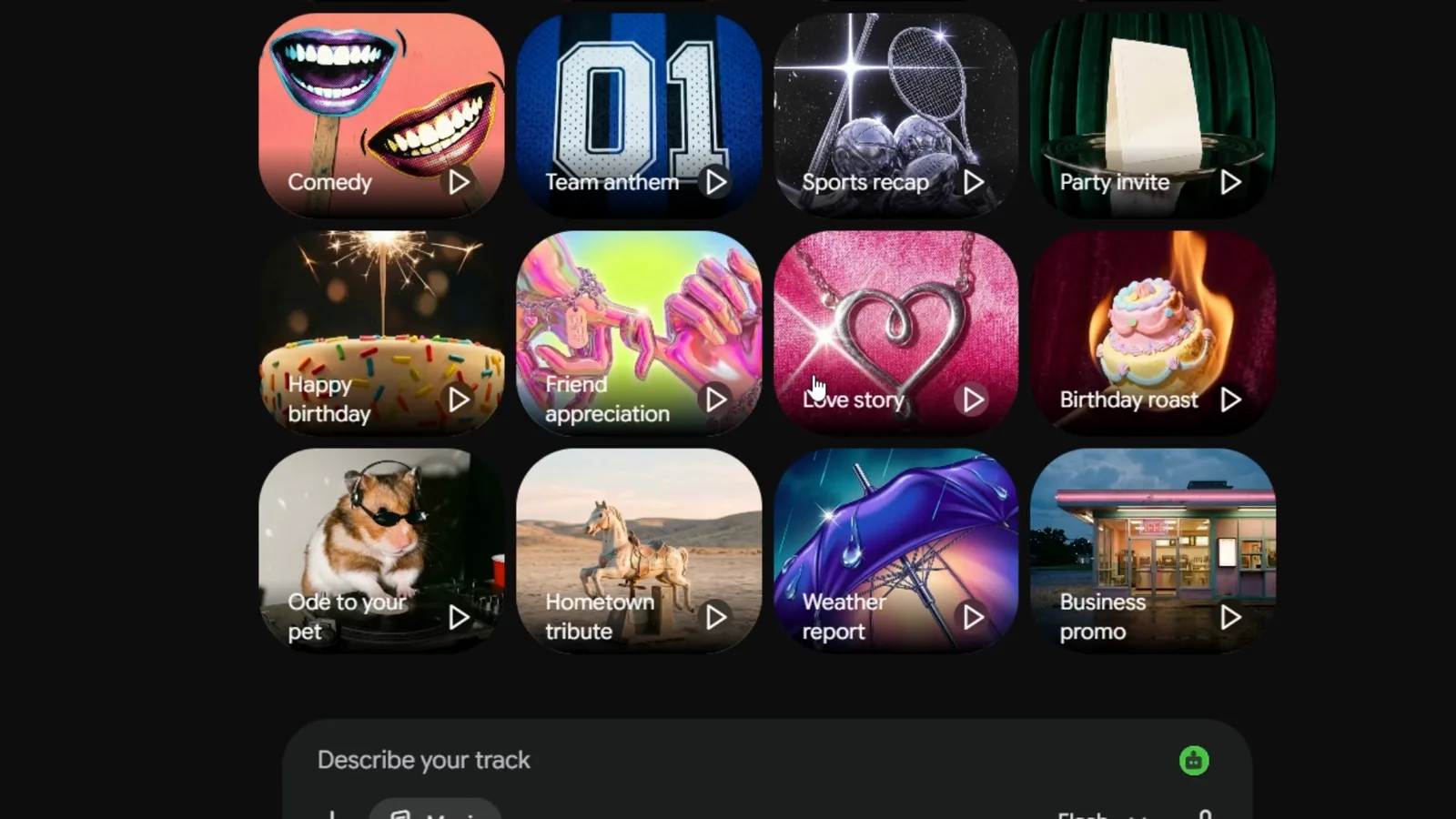
Every cover doubles as a one-click starting point.Watch at 0:30 - 5
Describe the track you want
Type what you want into the Describe your track box. In the demo the author typed: "Upbeat Lo-Fi chill beat with smooth piano chords, warm bassline, and subtle vinyl crackle for YouTube coding background music." Name the genre, the instruments, and the use case — the prompt works best when it covers all three.
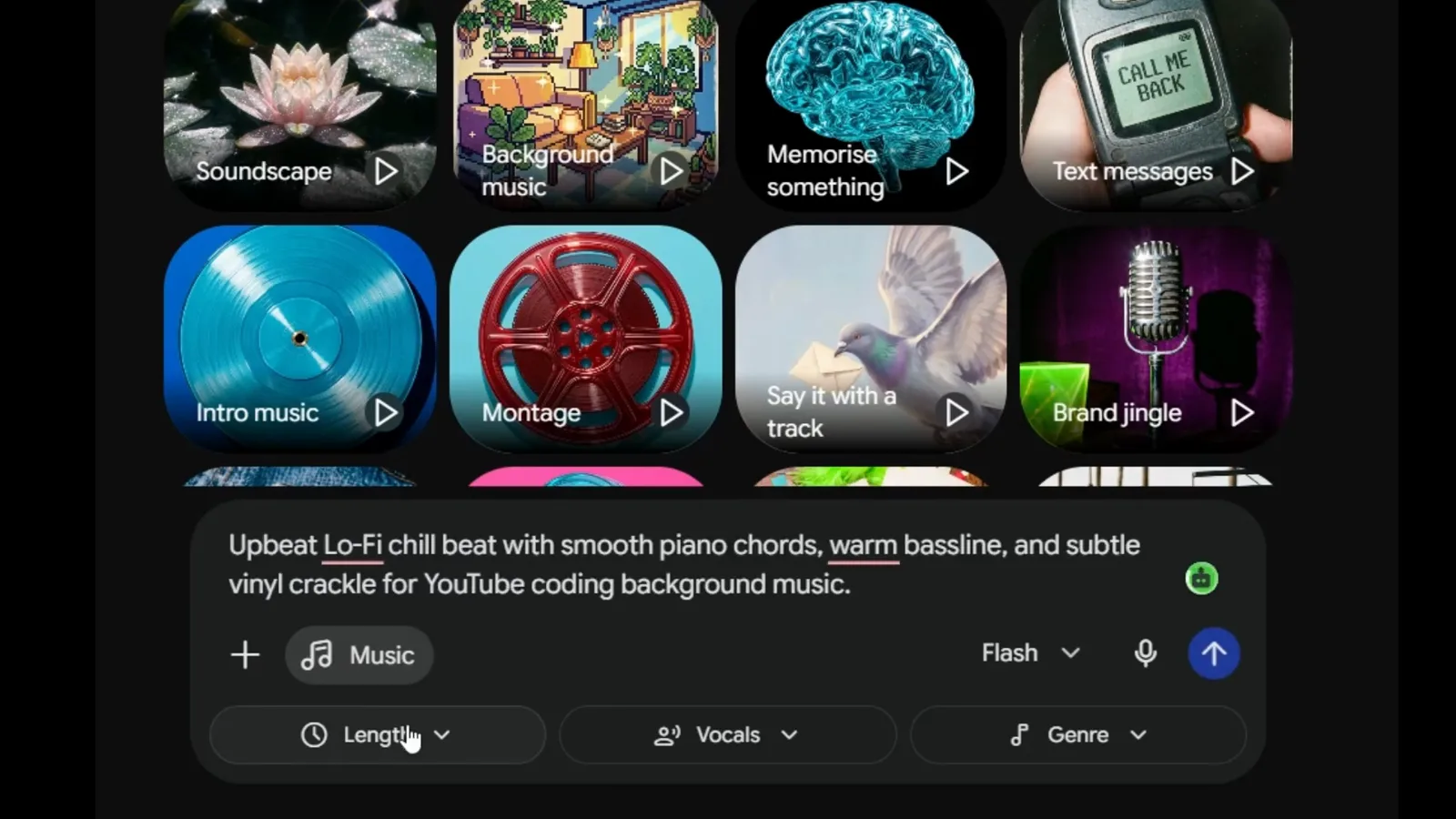
The exact prompt used in the video, ready to copy.Watch at 1:26 - 6
Lock in a genre
Open the Genre menu under the prompt box and pick from K-pop, Latin, Electronic, R&B, Country, Afrobeats, Reggae, Jazz and blues, Classical, Folk, Lo-fi, Acoustic, Cinematic, and more. In the demo, Lo-fi is selected to match the typed prompt. Keeping genre inside your prompt text works too — the menu just makes it one click.
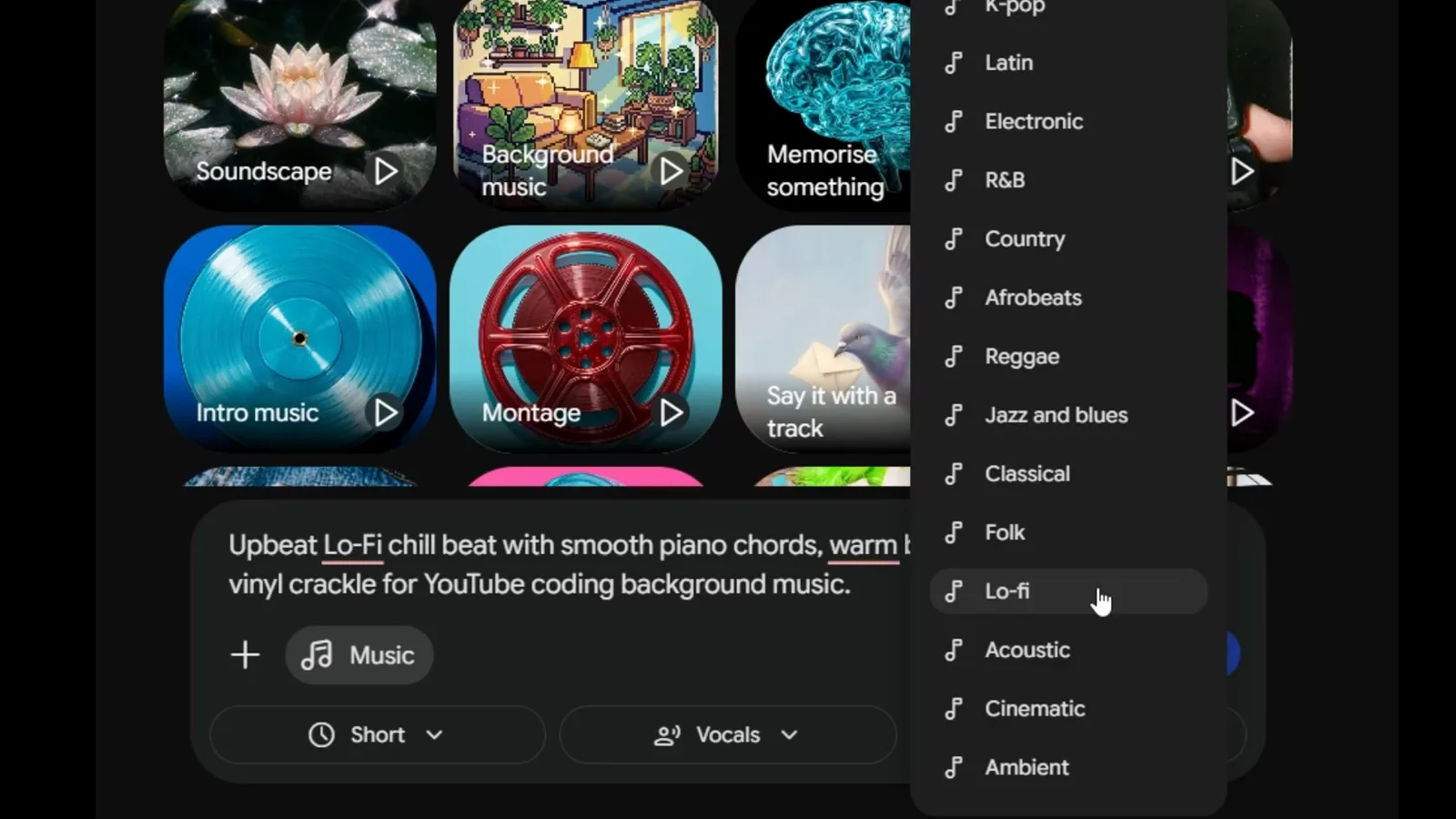
Lo-fi gets picked to match the coding-music prompt.Watch at 1:35 - 7
Choose vocals and length
The Vocals menu offers three modes: Custom (Based on your prompt), Vocals on for songs with lyrics plus instrumentals, and Instrumental for music only. Under Length, Short generates a track of up to 30 seconds, while Standard stretches to a few minutes — usually around two and a half to three. For background music leave vocals off; Vocals on lets Gemini improvise its own lyrics.
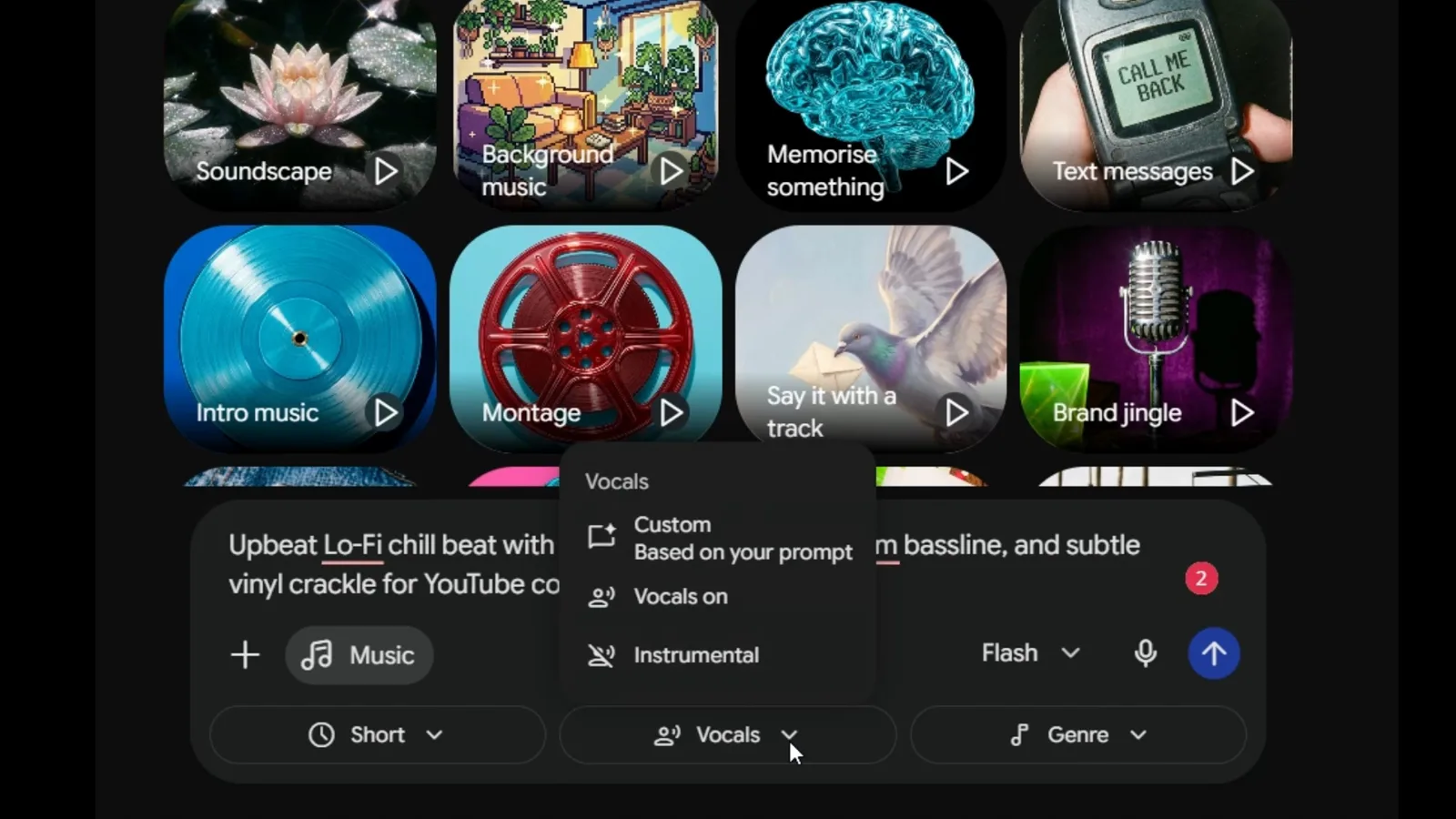
Custom mode defers to whatever your prompt describes.Watch at 1:30 - 8
Send the prompt and generate
Press the send arrow and Gemini shows a "Generating your track" status while Lyria 3.5 works. In the demo the Short track was ready in a few seconds. Standard-length tracks take a little longer, but the finished audio lands right in the chat either way.
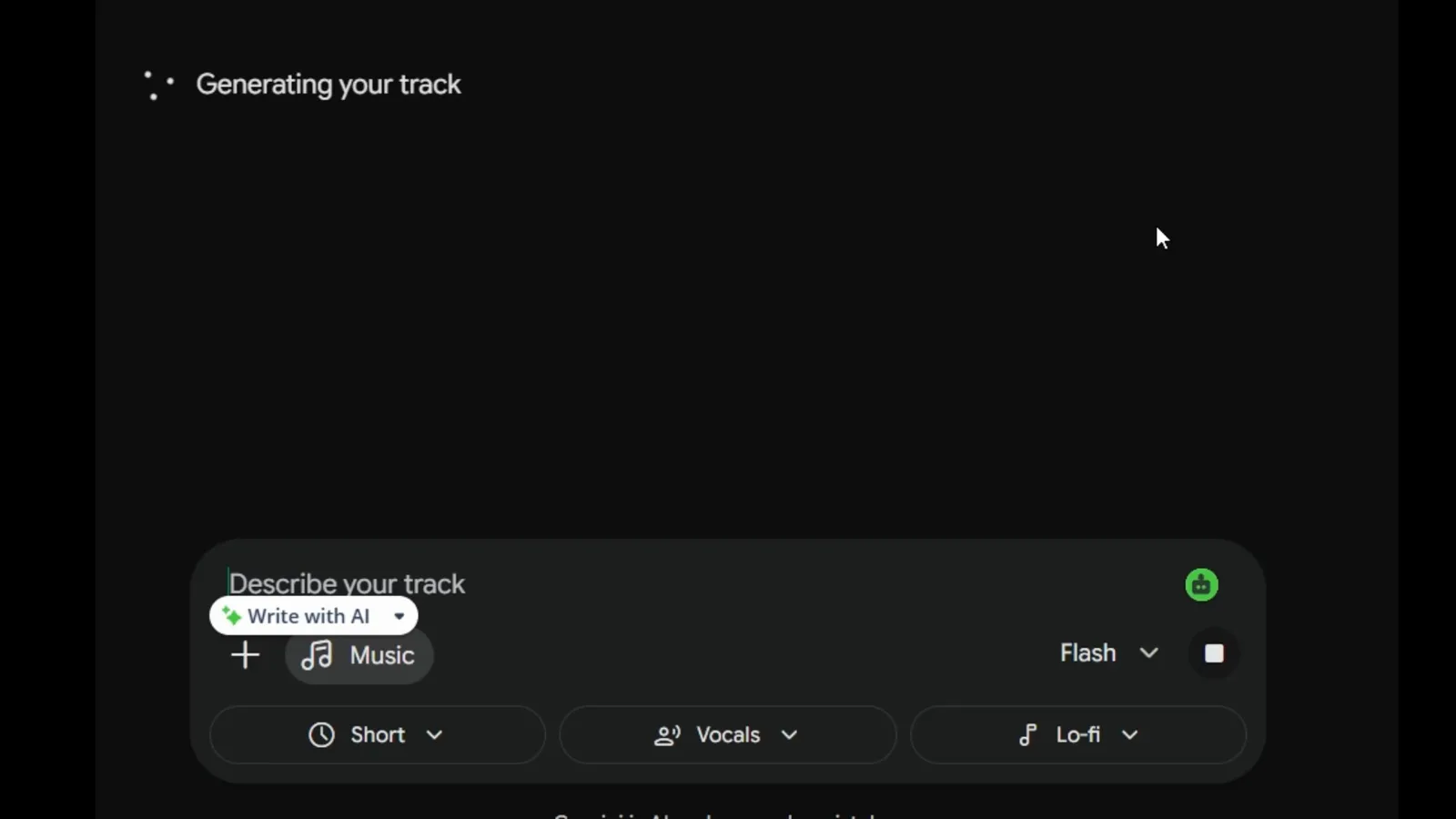
Generation happens inline — no separate editor to learn.Watch at 1:45
Remix Templates and Turn Photos into Songs
- 9
Remix a template track
Create music may first ask you to "Pick a track to remix" — a grid of genre covers you can build on. Choosing one, like the 8-bit style shown in the video, applies that sound's theming to whatever prompt you type next. You can ignore the grid entirely and simply describe your own track instead.
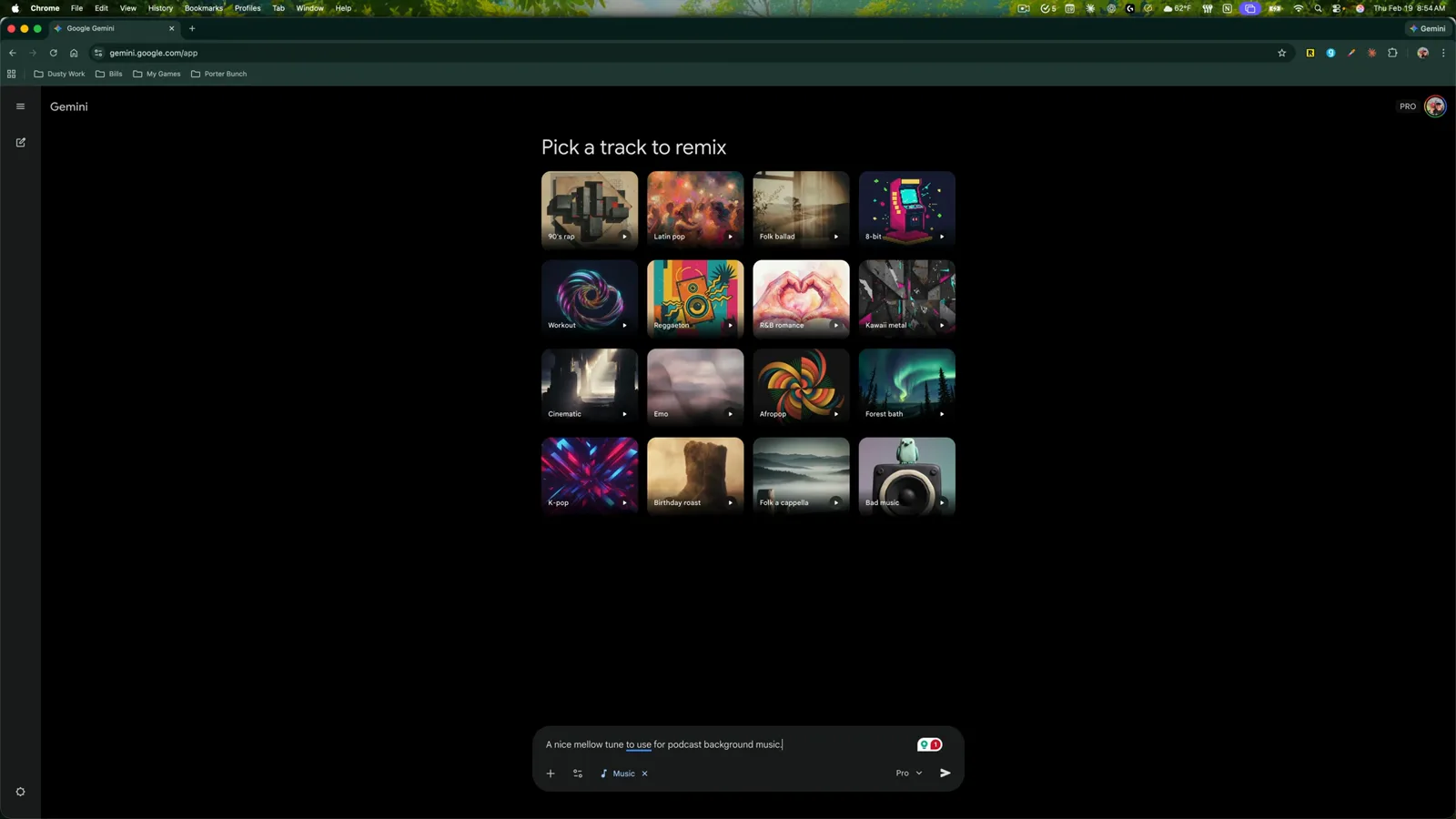
Template theming plus your words equals a guided prompt.Watch at 0:35 - 10
Turn a photo into a song
Lyria also works image-to-music. Attach a picture via the add files button — Google Photos or a simple drag-and-drop both work — and add a text prompt alongside it. The video pairs a family photo with the prompt: "a nice kids tune that will help them fall asleep."
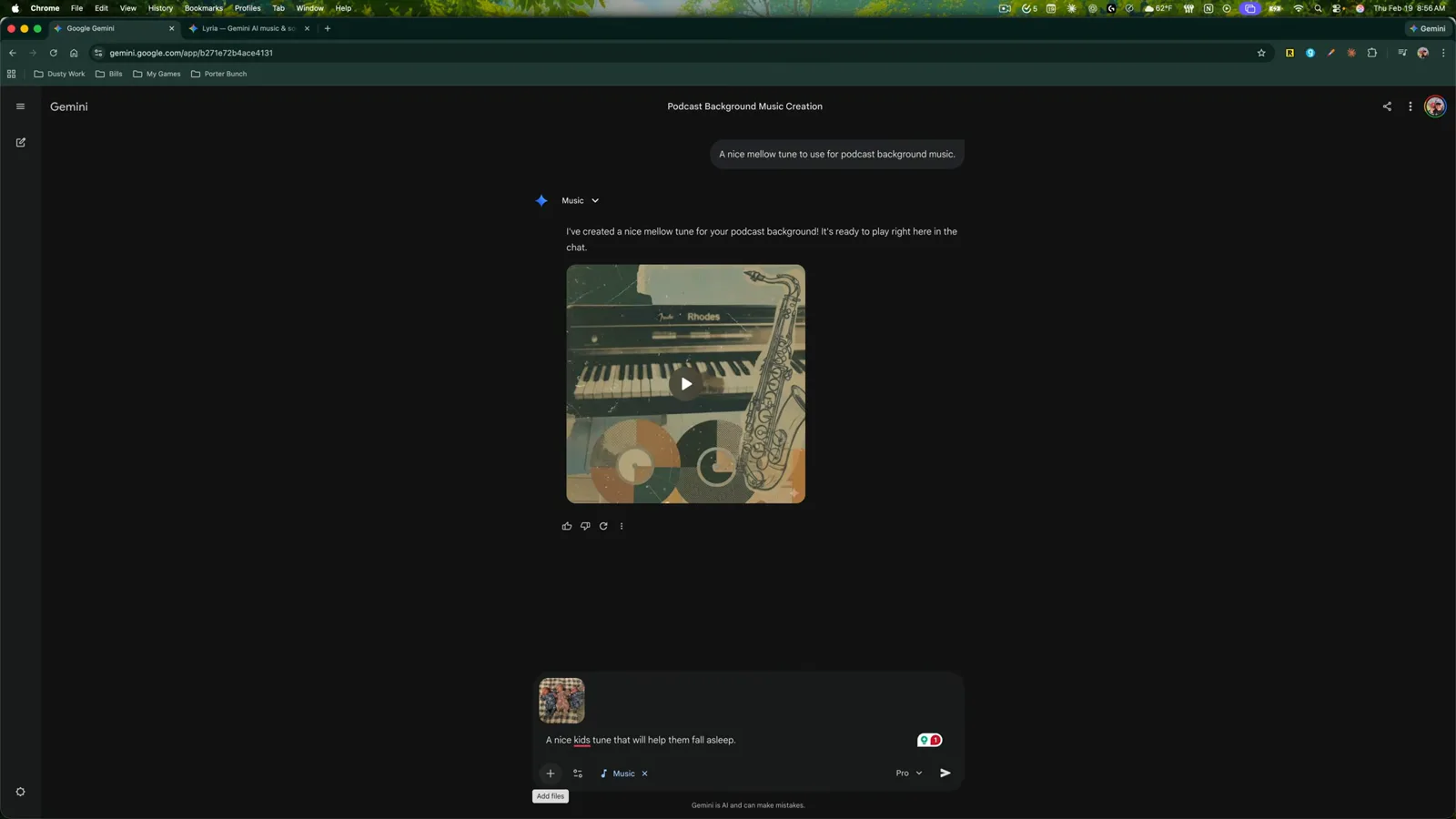
One photo plus one sentence is enough of a brief.Watch at 1:39 - 11
Hear what image-to-music makes
Gemini answers: "I've created a soothing lullaby to help the little ones fall asleep," and the track pulls details from both the photo and the text. The demo's result even includes vocals, and Show subtitles reveals the generated lyrics while it plays. Tracks from this flow run about 30 seconds.
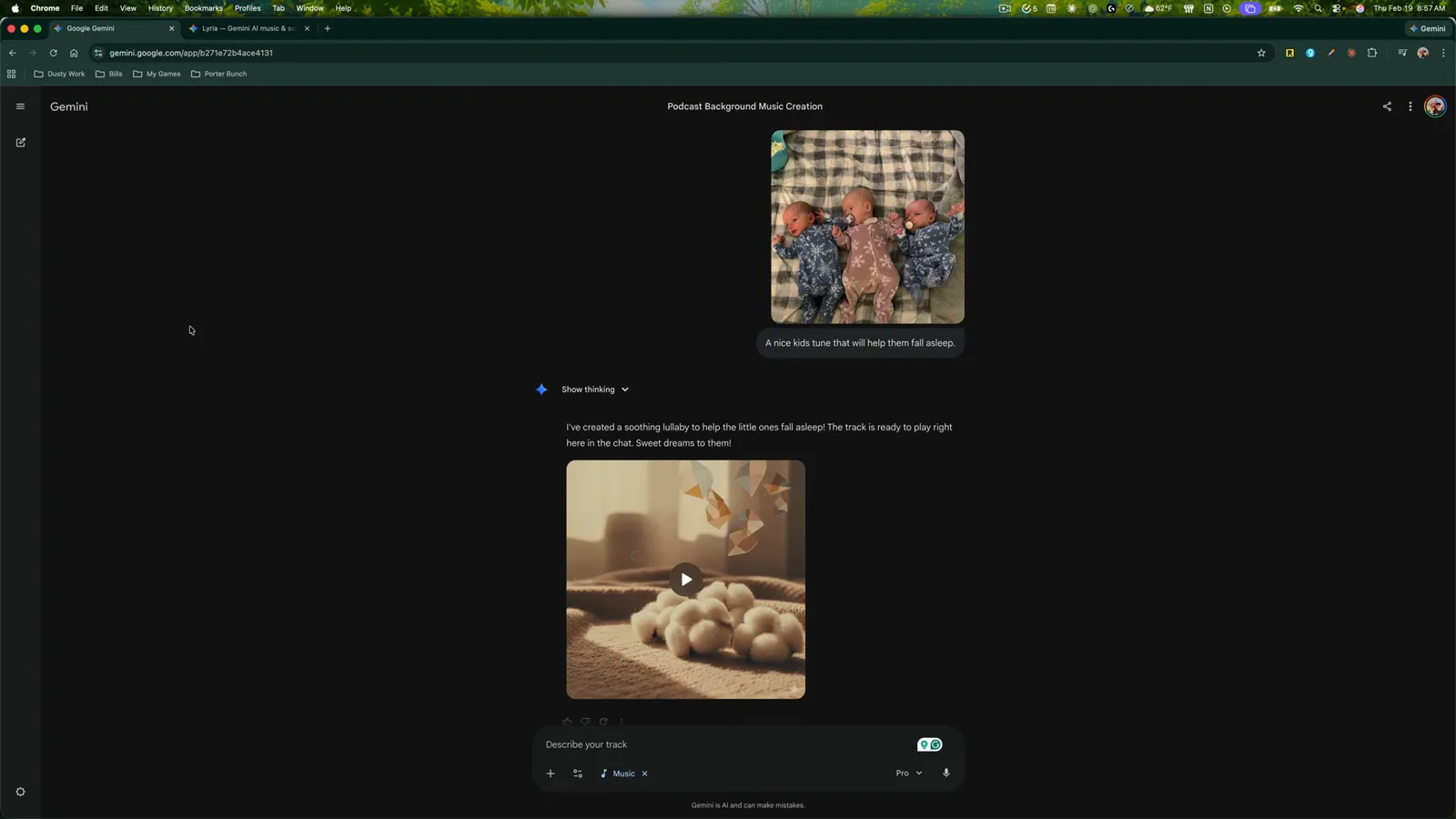
The lullaby takes its cues from the picture, not just the words.Watch at 1:50
Play, Download, and Refine
- 12
Read the track card
Every generation returns a card with cover art, a generated title like "Window Desk," and a response explaining the vibe Gemini aimed for. The demo's reply reads: "I have created your upbeat lo-fi chill track featuring smooth piano chords, a warm bassline, and subtle vinyl crackle." Press play right on the cover to audition it in the chat.
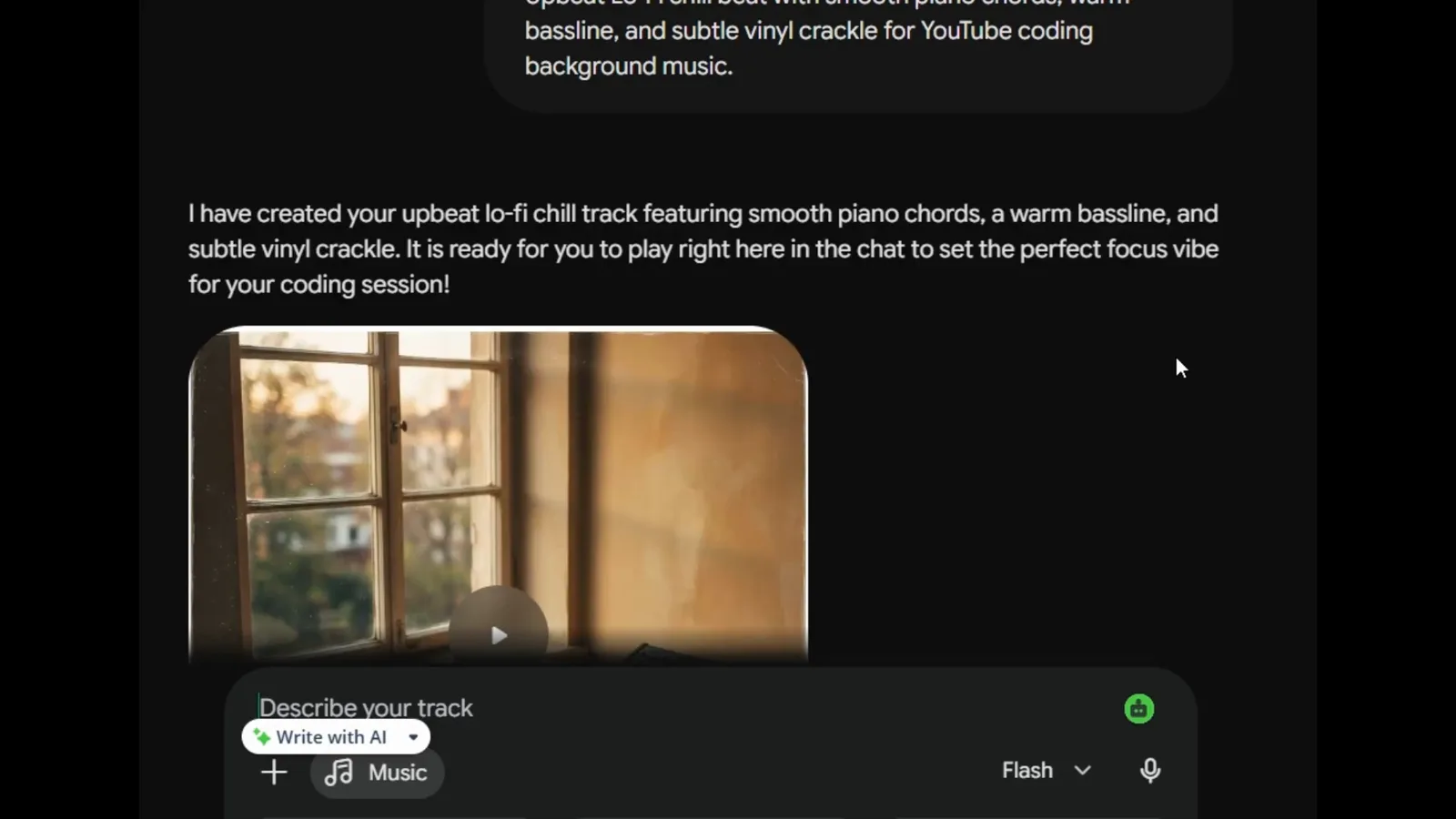
Cover art ships with every track automatically.Watch at 2:05 - 13
Rate, redo, or share
Under each track sit thumbs-up and thumbs-down buttons, a redo button, and a share option. Redo asks Lyria for a fresh take — but it replaces the current version, so download a keeper first. Asking for changes in a follow-up chat message is the safer way to iterate, because earlier versions stay in the thread.
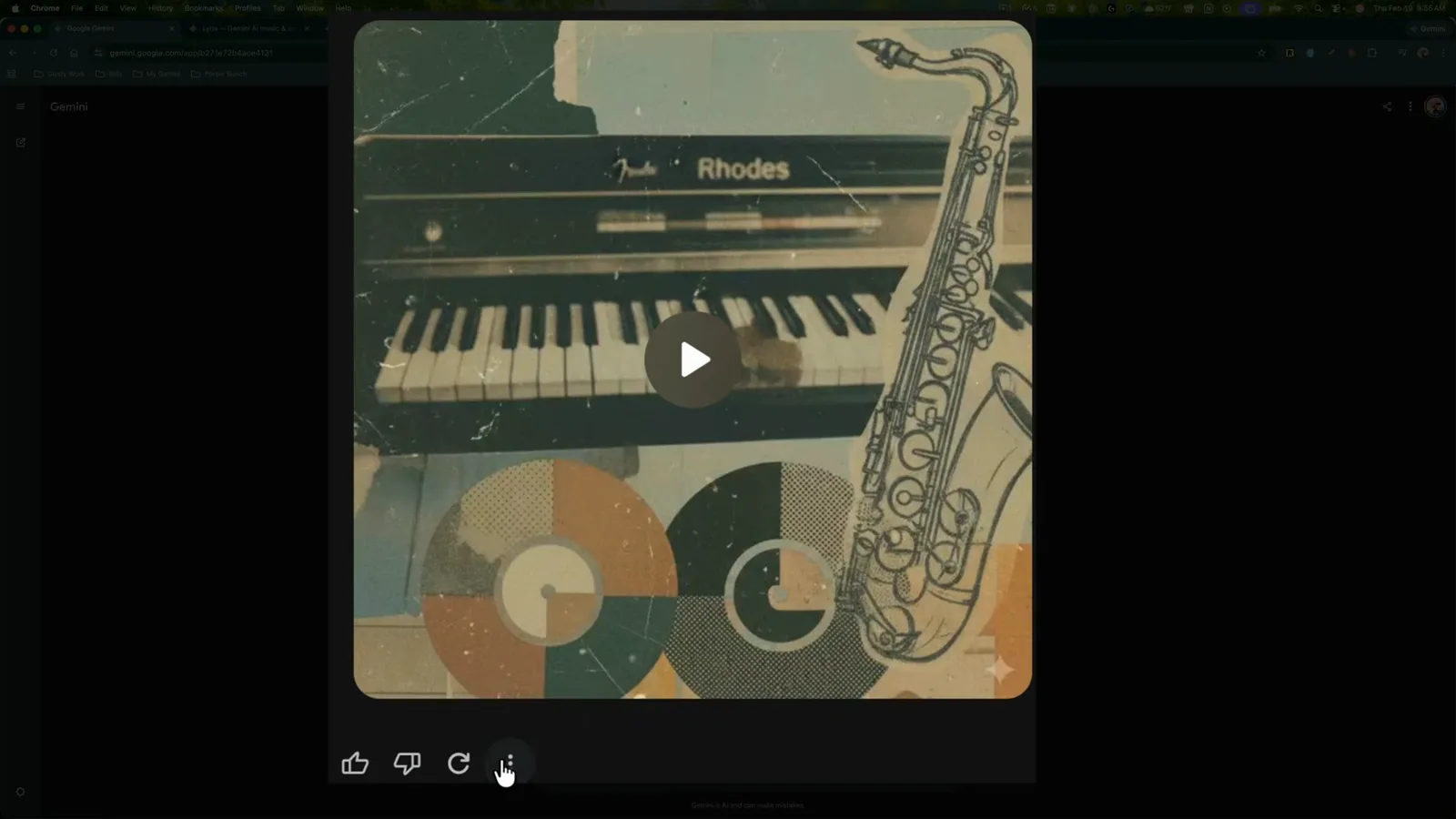
Redo is powerful and destructive — save the original first.Watch at 1:05 - 14
Download or keep iterating
The icons on the track card cover download, share, and mute, and the audio is yours to keep afterward. If the vibe is close but not right, keep prompting in the same chat — asking Gemini to redo a track in a different style or as an instrumental-only version works especially well. Every file also carries a SynthID watermark, Google's tag for AI-generated content.
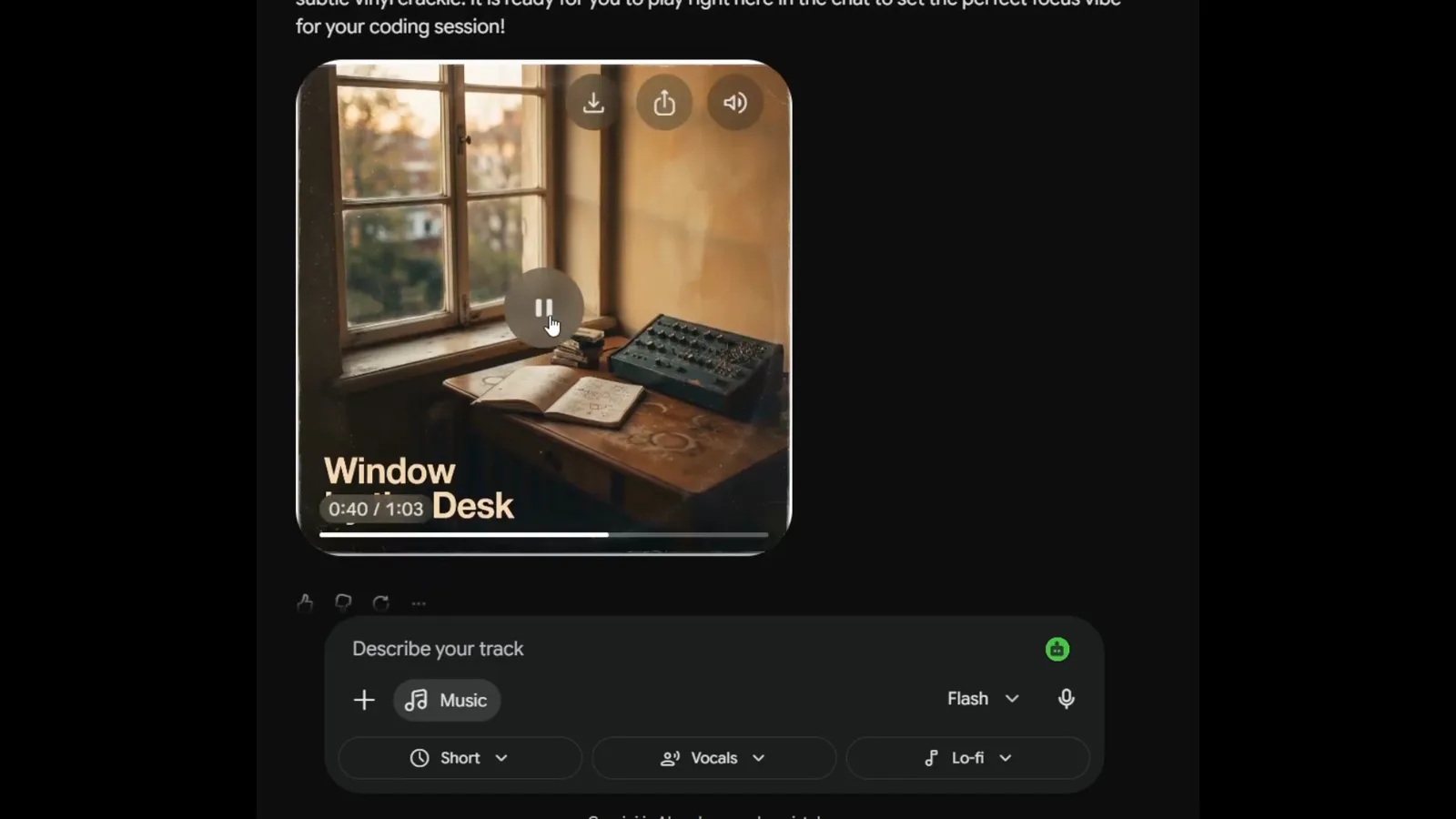
Iterate in chat; download the file once you're happy.Watch at 2:48