

Nano Banana Prompts: How to Prompt Gemini's Image Model (2026)
Nano Banana — the community nickname Google embraced for its Gemini image model — has become the most practical AI image tool for everyday work, because it lives inside the Gemini chat you may already use. This walkthrough distills two hands-on tutorials: Taylor Bay Studios' prompt-formula deep dive (the primary recording) and Kevin Stratvert's beginner hands-on, whose cleaner screen captures fill in a few steps. You will learn the six-part generation formula, the five action words that drive edits, and the blending patterns that keep faces consistent — every prompt shown exactly as it was typed.
Source & credits
Screenshots in this guide are captured from Taylor Bay Studios's public walkthrough video. Every step links back to the exact moment it shows, so you can follow along.
Taylor Bay Studios ↗Get Access: Nano Banana Lives Inside Gemini
- 1
Open Gemini and pick Create images from Tools
Sign in at gemini.google.com and start from the prompt bar. Open the Tools menu and choose Create images — the option with the small banana icon. The chat switches into Nano Banana mode (the Gemini 2.5 Flash image model), and every message you send from then on is an image prompt.
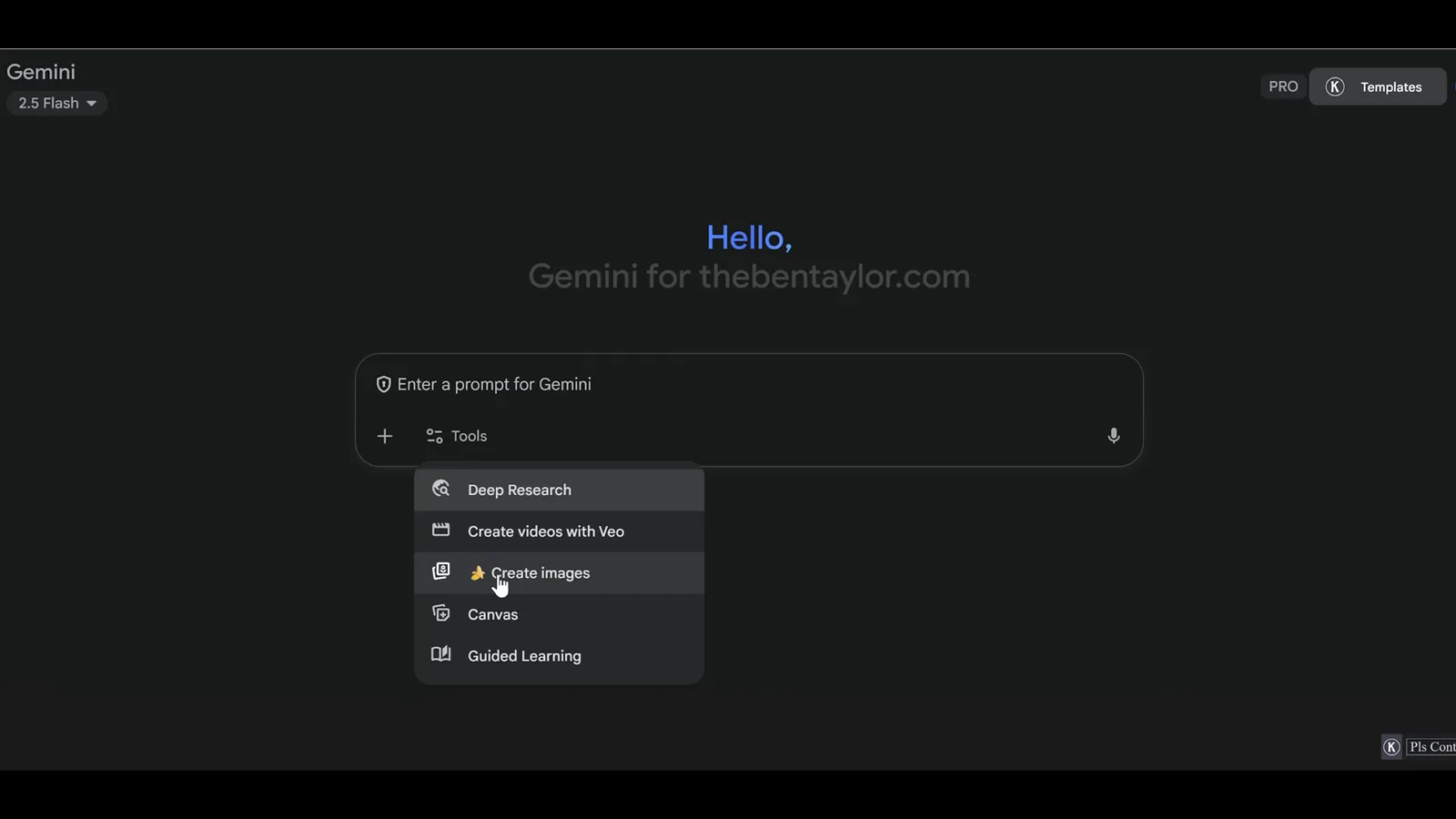
Nano Banana is not a separate app — it is a mode inside your normal Gemini chat.Watch at 2:11 - 2
Send a plain first prompt — no formula needed yet
For a first render, one plain sentence is enough. Kevin types "Make an image of a cookie store on a city street." into the box and submits. Notice the Image chip active in the composer — that is what keeps the model generating pictures instead of answering in text.
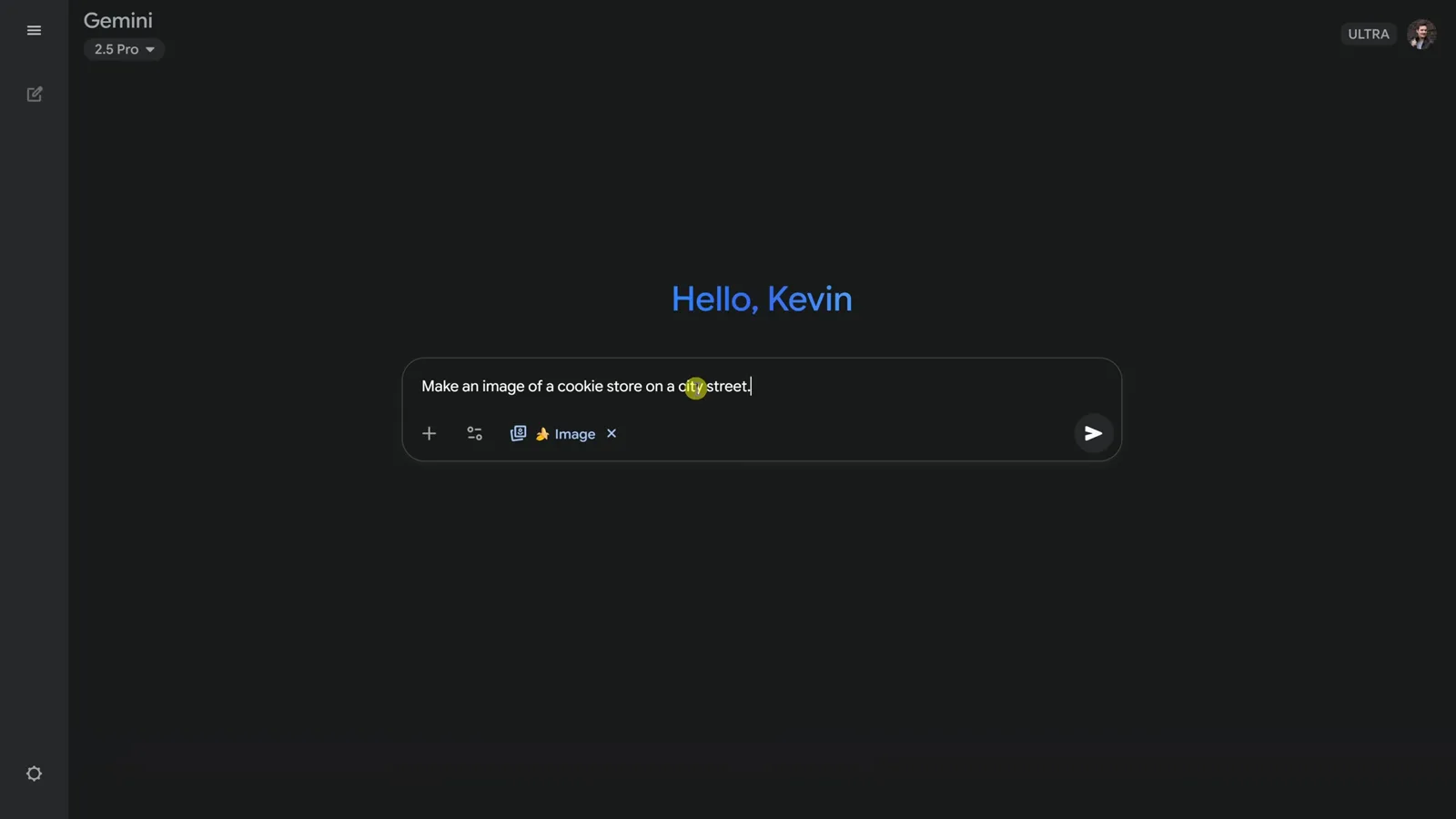
Start simple, then spend your words where they matter.Watch at 1:50 - 3
Read the result like a checklist
The first render lands in seconds: a brick storefront, striped awning, warm window light — and the sign actually reads Sweet Bites. Nano Banana renders legible text, which is exactly why the rename trick later in this guide works. The prompt chip above the image stays in the thread, so you can build on it.
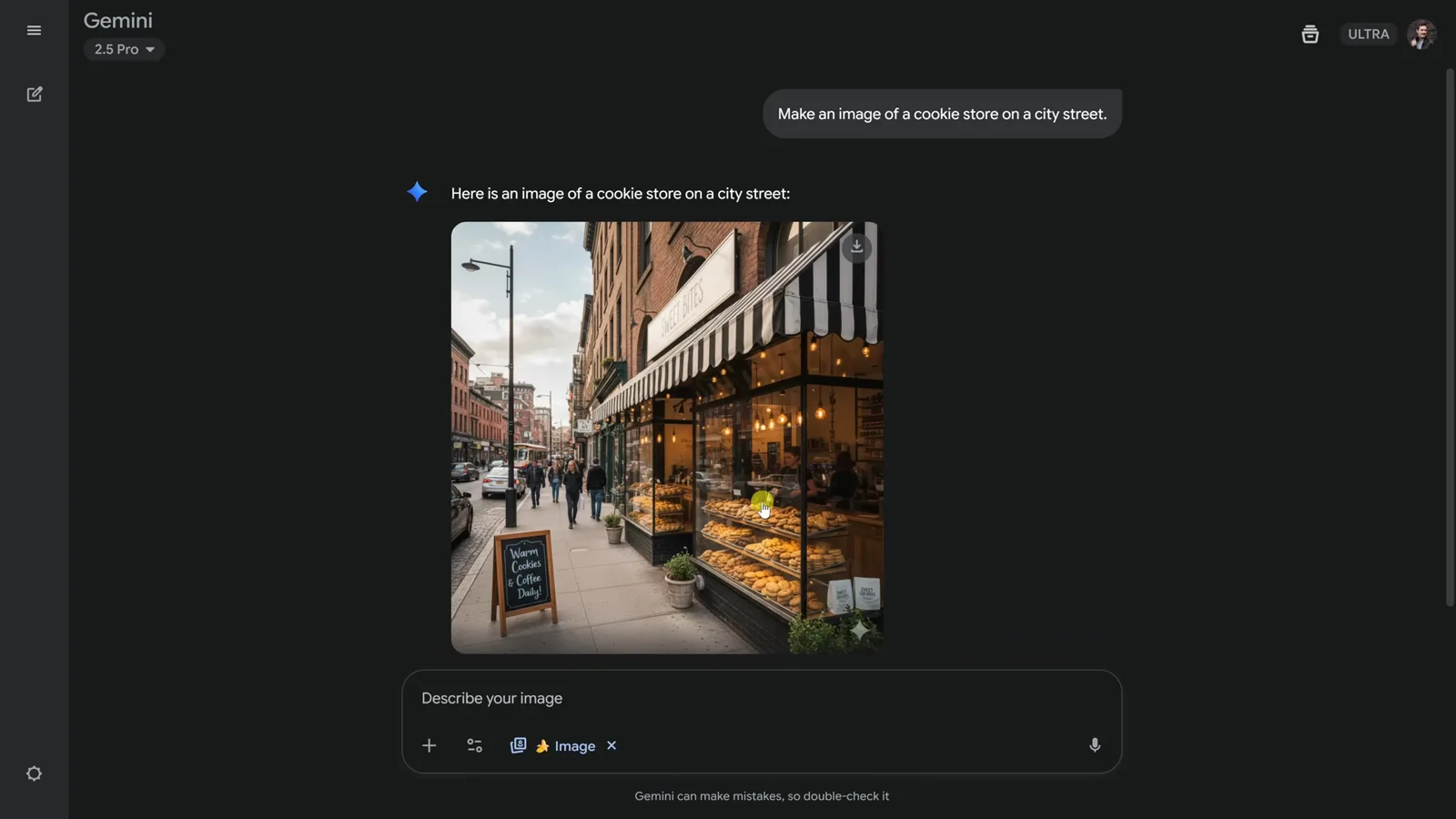
Readable sign text on the first try — that is the model's text rendering at work.Watch at 2:00
The Prompt Formula: Six Slots, One Sentence
- 4
Learn the six-part formula
Taylor Bay's tutorial boils generation prompts down to six slots: Subject + Action + Environment + Art Style + Lighting + Details. You will not fill all six every time, but walking them in order forces you to specify what beginners leave out — what the subject is doing, where, shot how, lit how.
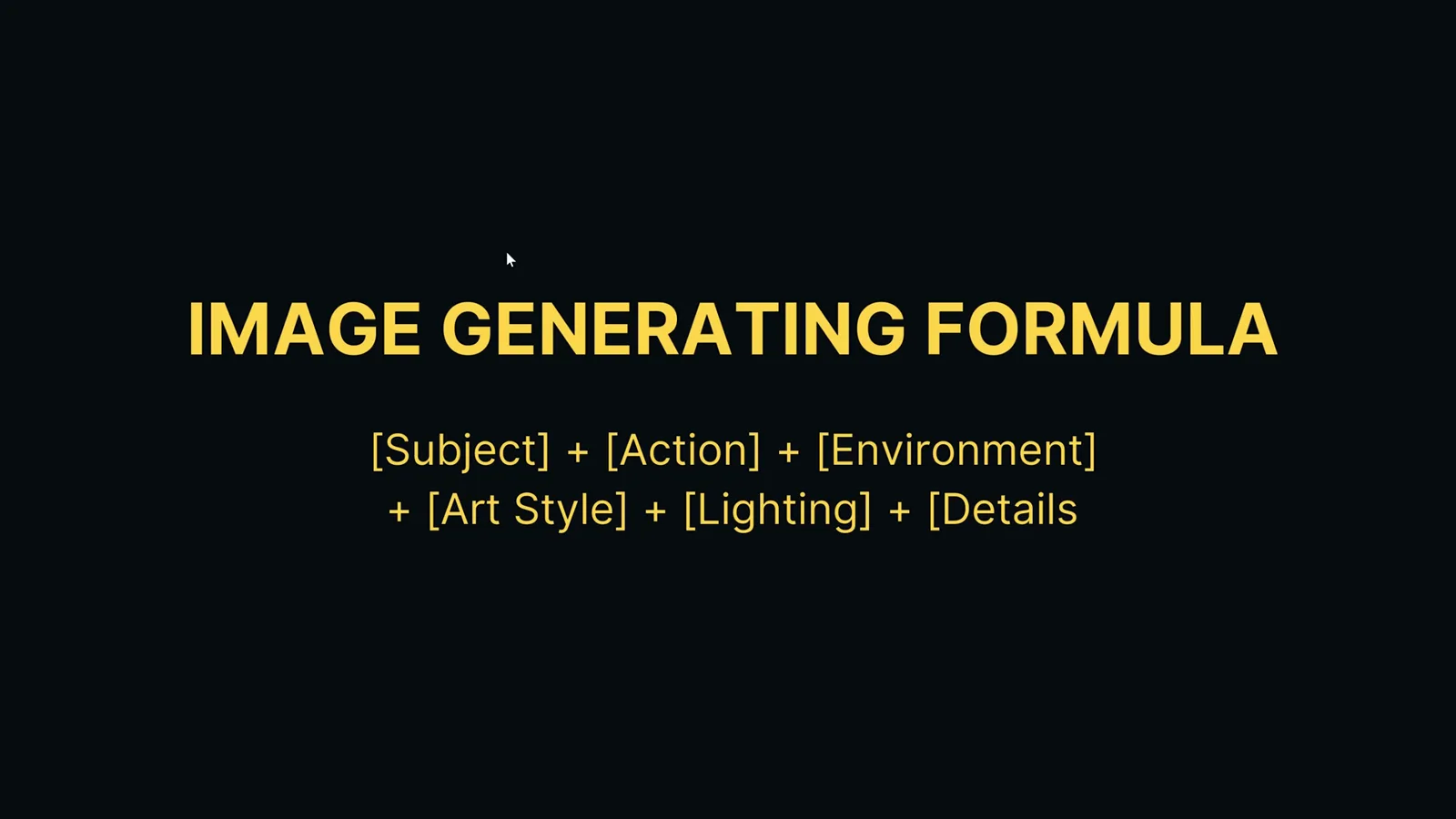
A checklist, not a cage — drop the slots you do not care about.Watch at 1:34 - 5
See the formula filled in, slot by slot
The tutorial's worked example fills every slot in one flowing sentence: "A young woman with freckles, smiling thoughtfully, sitting on a sunlit window seat in a cozy cafe, shot on a Canon 5D Mark IV, soft natural light, warm and inviting." Subject (the woman with freckles), action (smiling, sitting), environment (window-seat cafe), art style (Canon 5D Mark IV), lighting (soft natural light), details (warm and inviting).
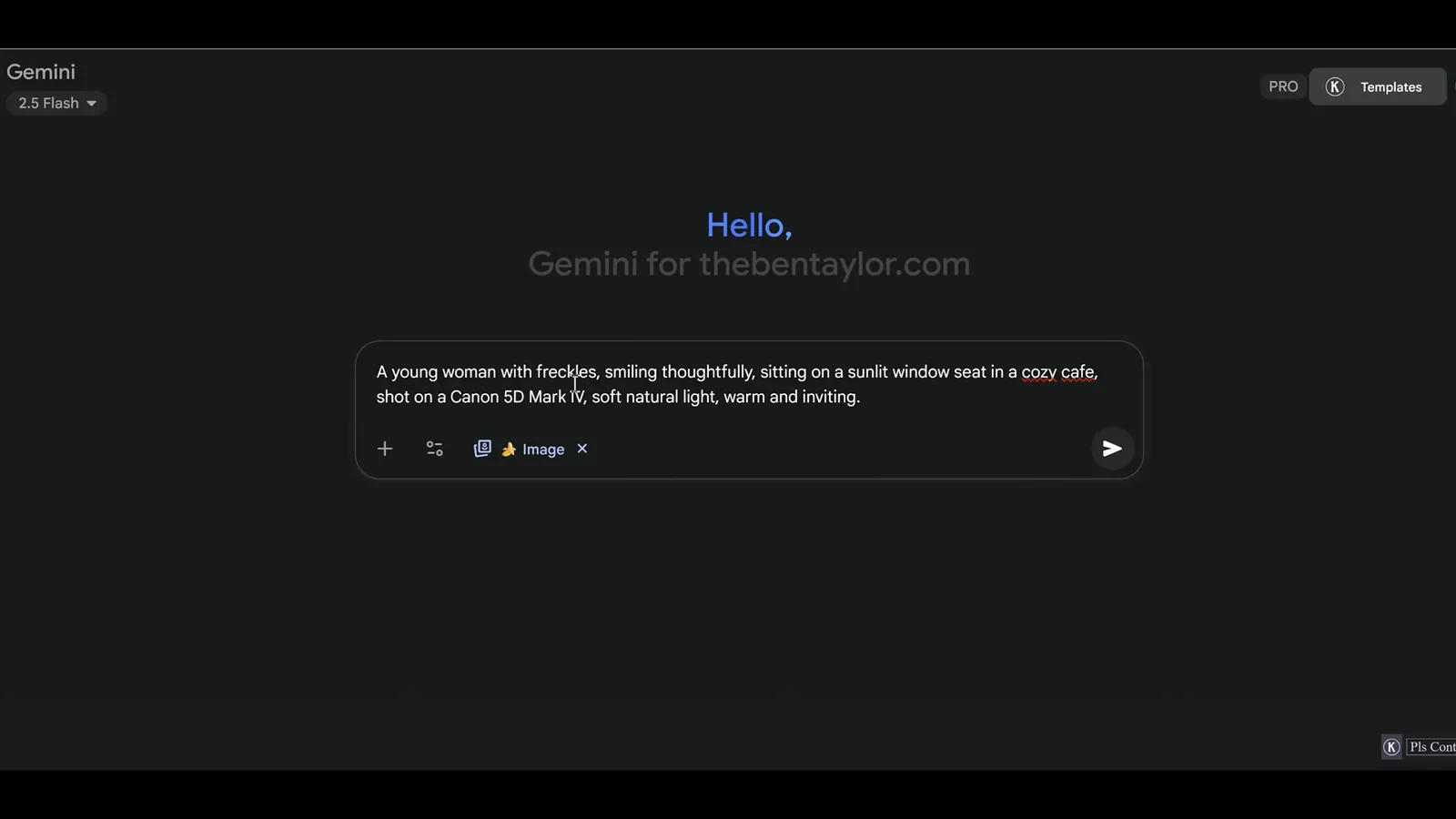
The camera body does double duty as the art-style slot.Watch at 2:20 - 6
Every clause lands in the render
The result matches each ingredient: freckles, a thoughtful smile, a window seat, a coffee cup, natural window light. Because the prompt named a camera and a lighting setup instead of a vague mood, the frame reads as lifestyle photography rather than a generic render. The formula reference stays pasted below the prompt box as a checklist.
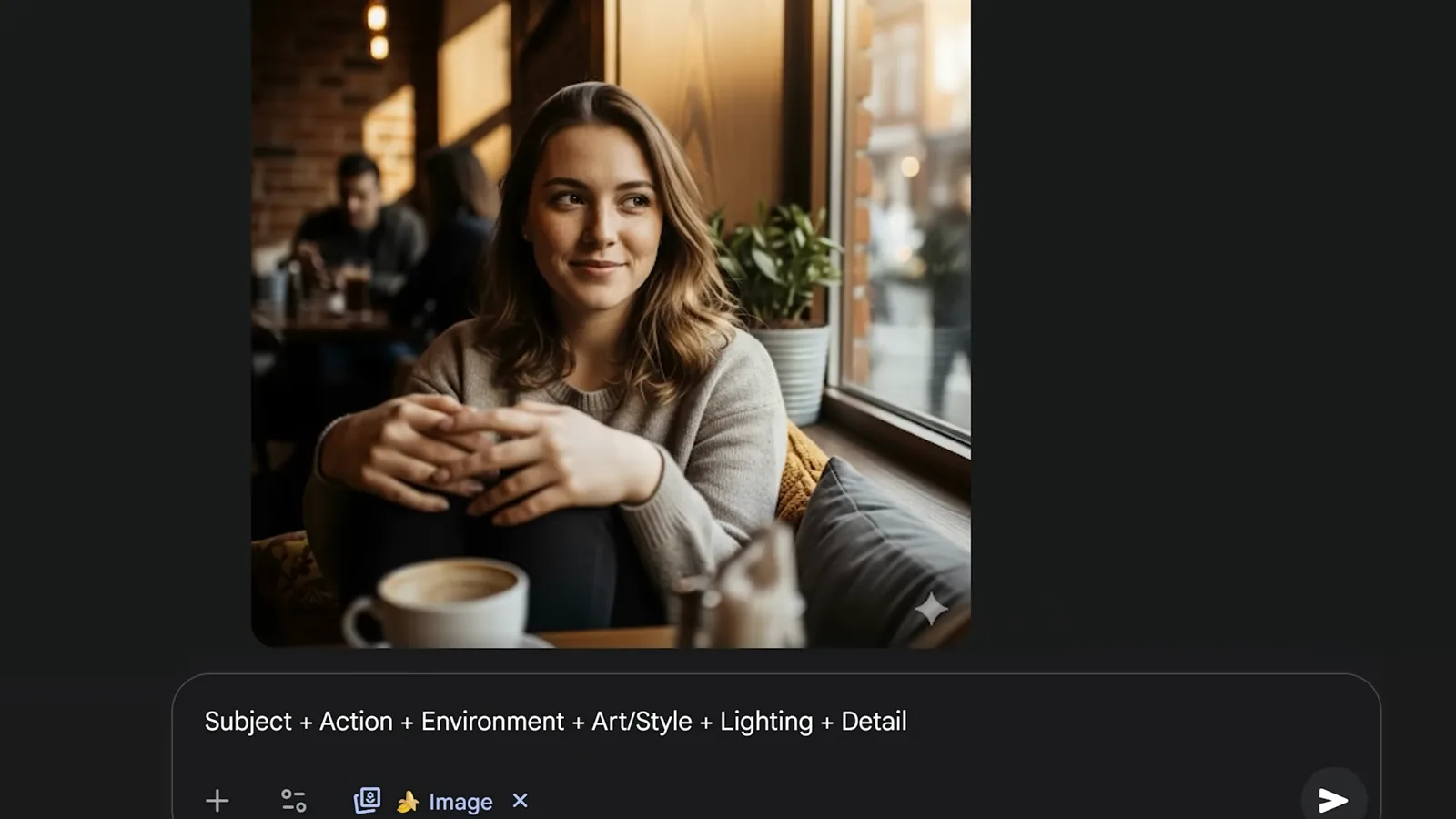
A specific prompt gives the model nothing to guess about.Watch at 3:50 - 7
Steal the official Gemini team tips
Kevin closes with a tips table straight from the Nano Banana team: be detailed about the outcome; to keep a character consistent, say what to retain and what to change ("keep face, change hair"); for partial edits give location and size; describe the repair you want; if an edit goes wrong, start a new session from the last good image; aspect ratio is inconsistent, so specify it; and ask for photorealistic when you want realism.
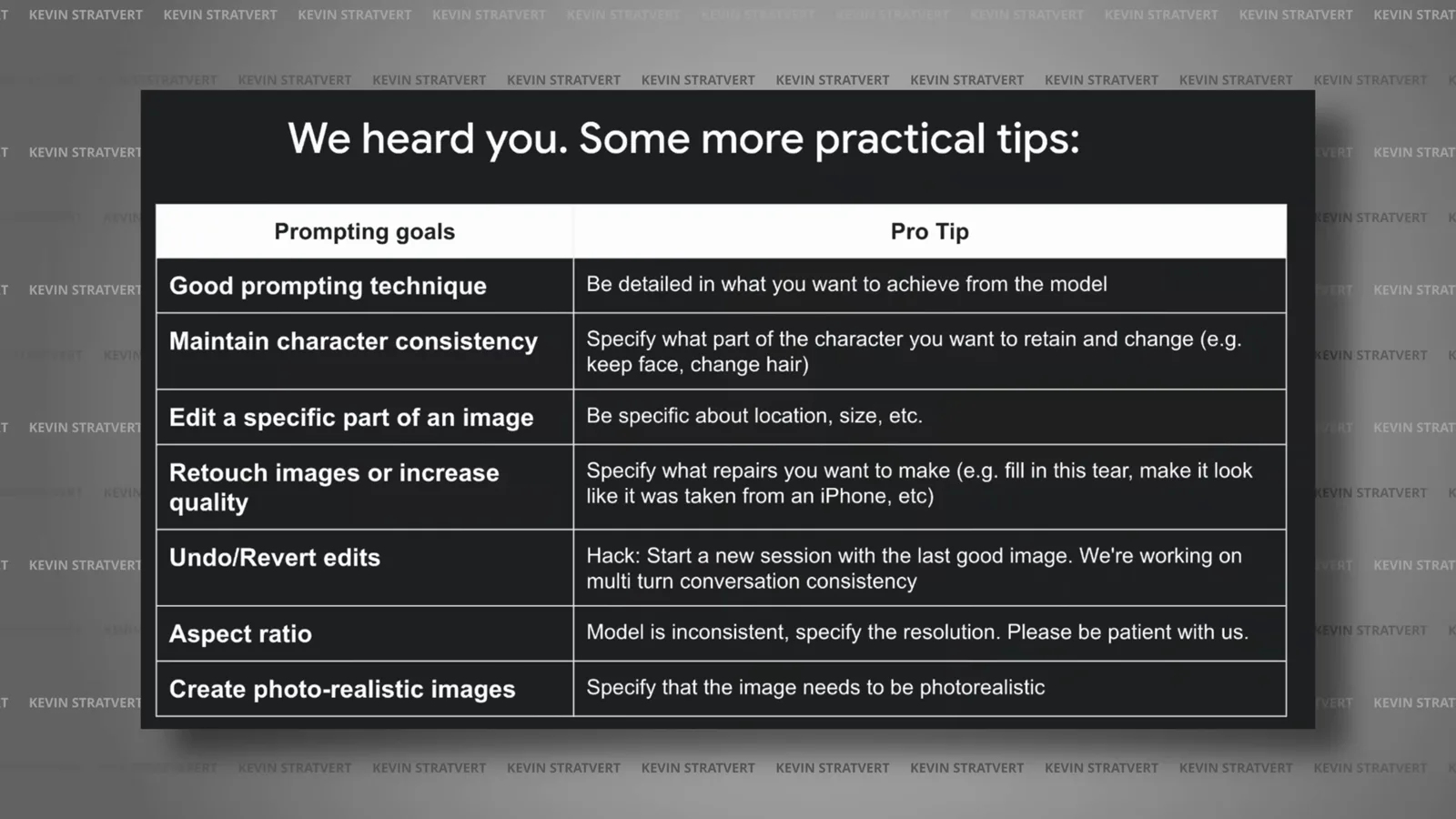
The "start a new session with the last good image" undo trick is the one most people miss.Watch at 6:50
Conversational Editing: Five Action Words
- 8
Editing prompts start with an action word
For edits, the tutorial swaps the generation formula for something leaner: open with Add, Change, Make, Remove or Replace, then name the element and the desired result. The verb does the heavy lifting — it tells the model to preserve the rest of the image instead of reimagining it.
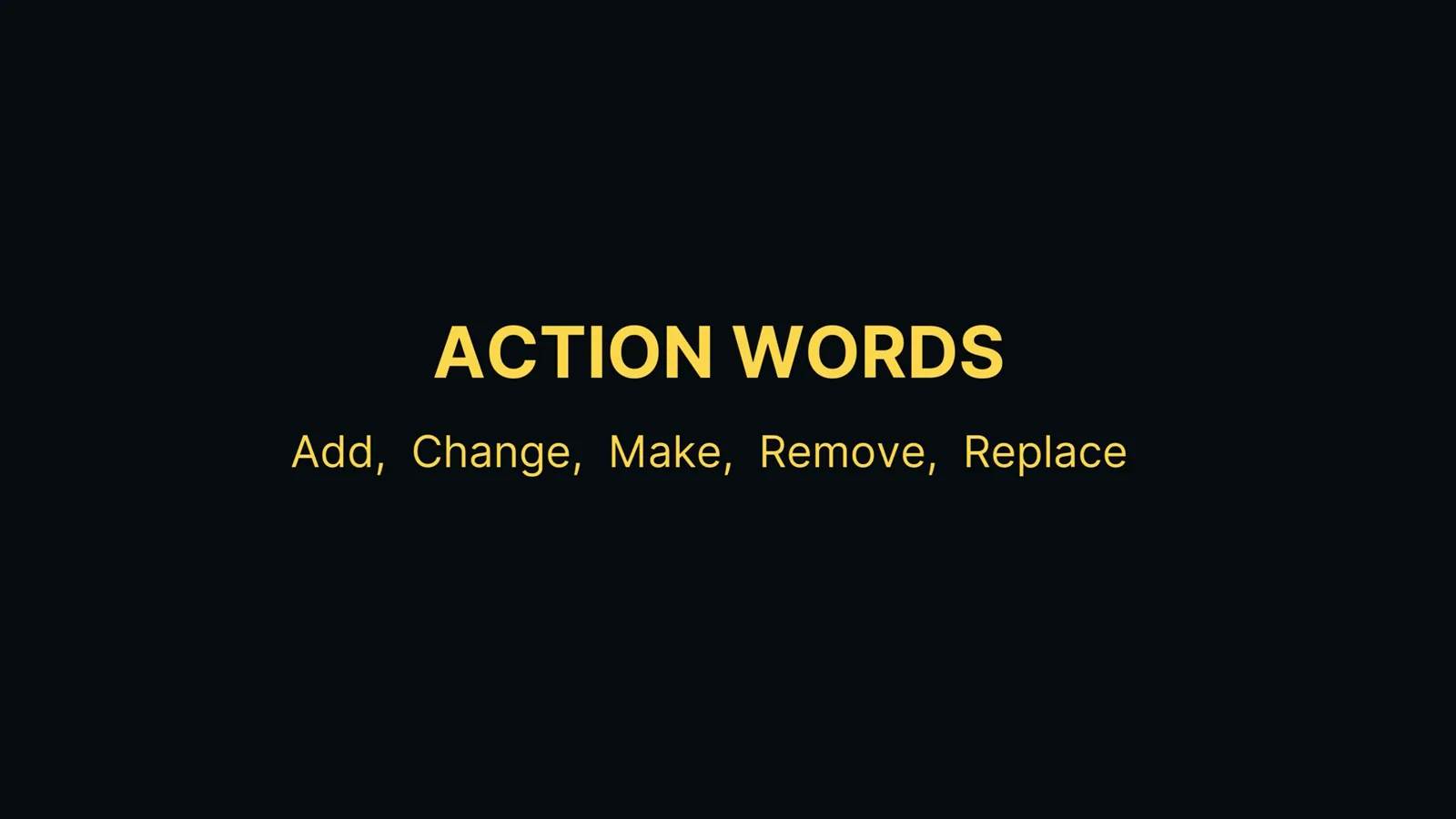
Five verbs cover almost every edit you will ever ask for.Watch at 6:06 - 9
Replace one element, keep the rest
The house photo gets the treatment: "Replace the sky in the image with a light blue sky and fluffy white clouds, photo realistic." One action word, one target, one description of the replacement — and the walls, roof and lawn are untouched in the result that streams in below.
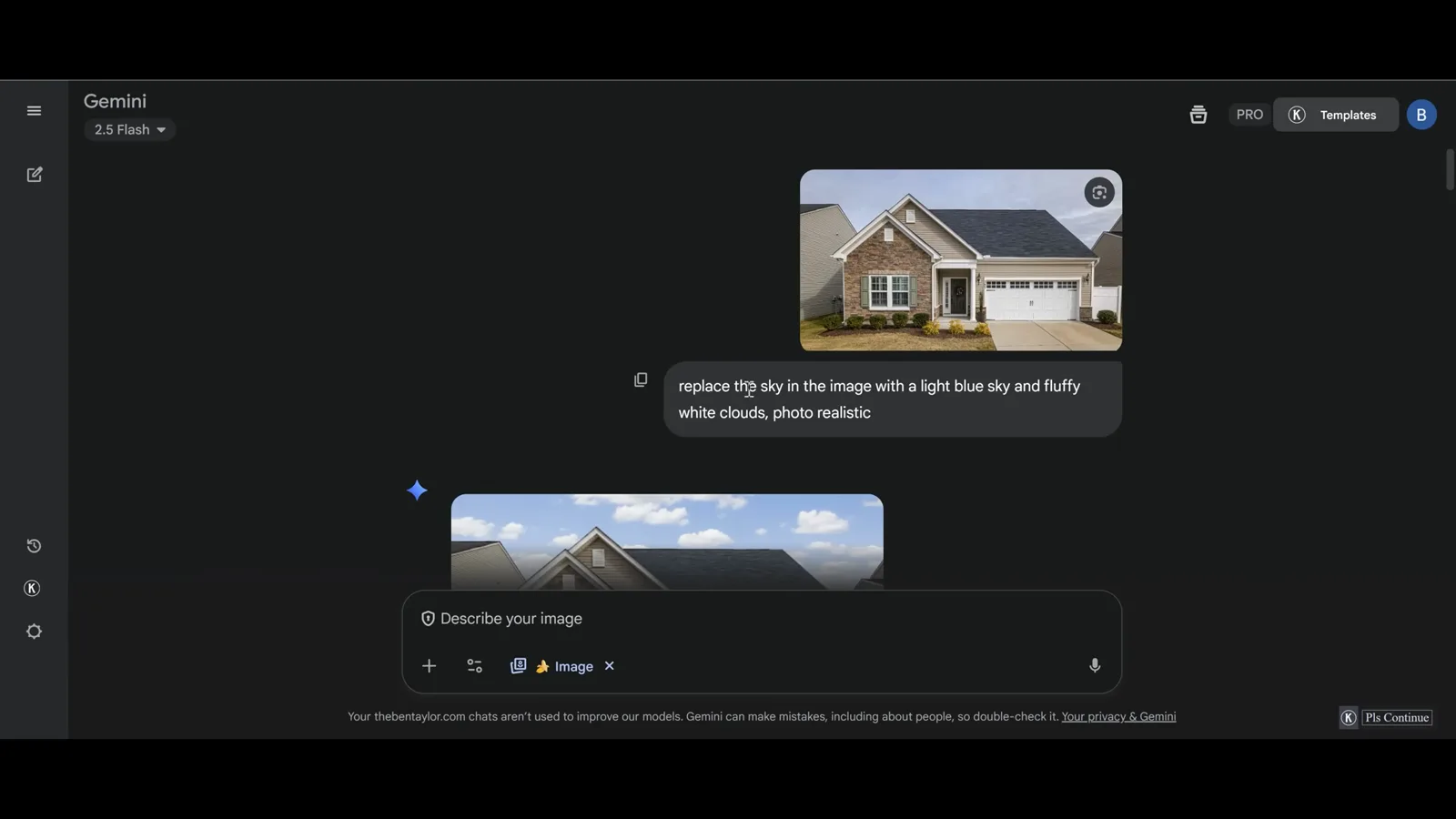
"Photo realistic" at the end sets the texture bar for the swap.Watch at 7:00 - 10
Iterate on the result without re-uploading
The sky comes back bluer than wanted, so the next message is one line: "change the colour of the sky to a lighter blue." Because the thread remembers the last image, there is nothing to re-upload — Nano Banana re-edits its own output and the improved version replaces it in the viewer.
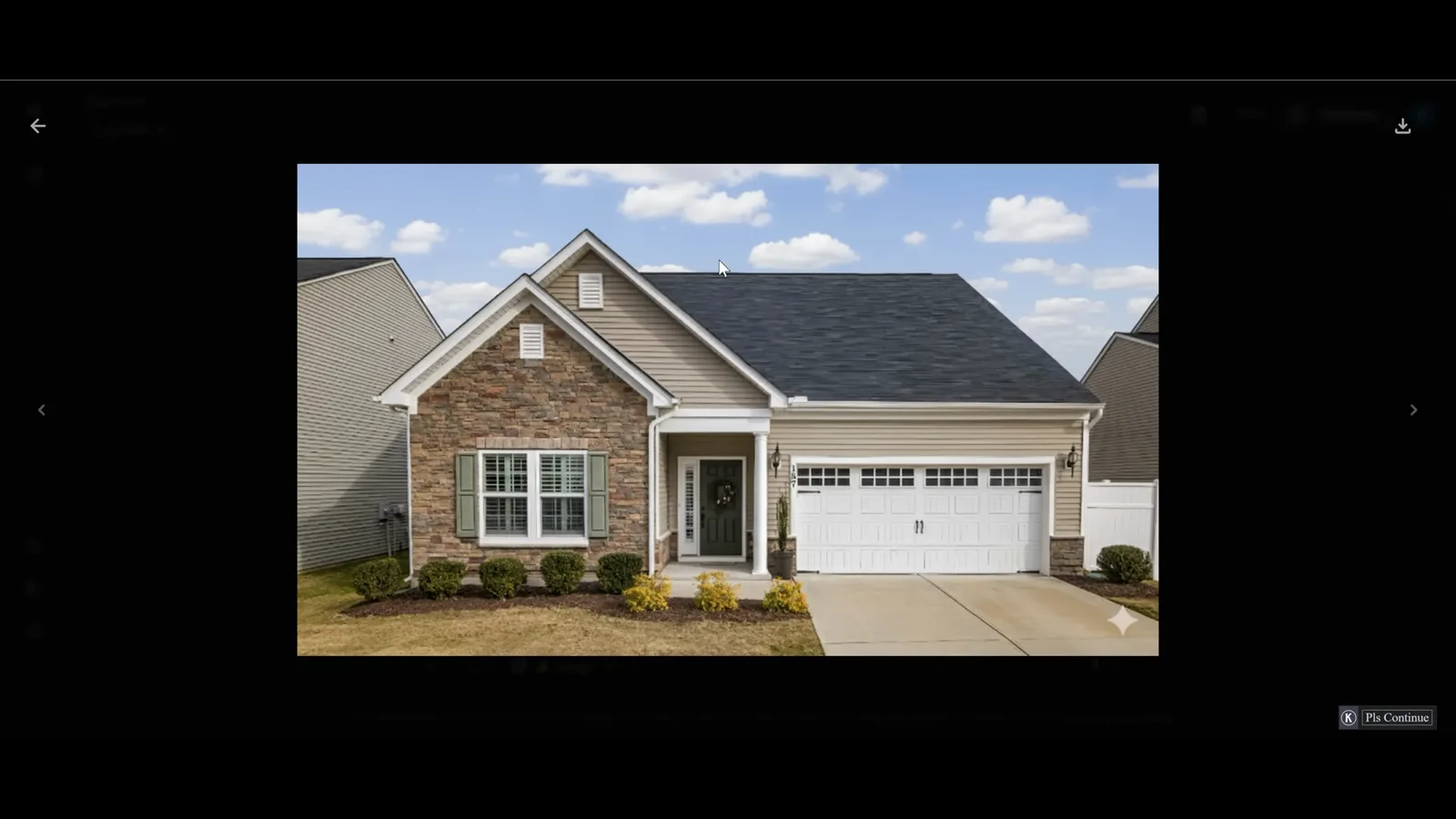
Multi-turn refinement is the whole point of doing image work inside a chat.Watch at 7:25 - 11
Change the text on a sign with one sentence
Back in Kevin's thread the storefront sign says Sweet Bites, and he wants his own brand: "Name the cookie store Kevin Cookie Company." The sign re-renders with the new name while the street, awning, window display and pedestrians stay exactly as they were — a text edit that would take real Photoshop skill, done in one line.
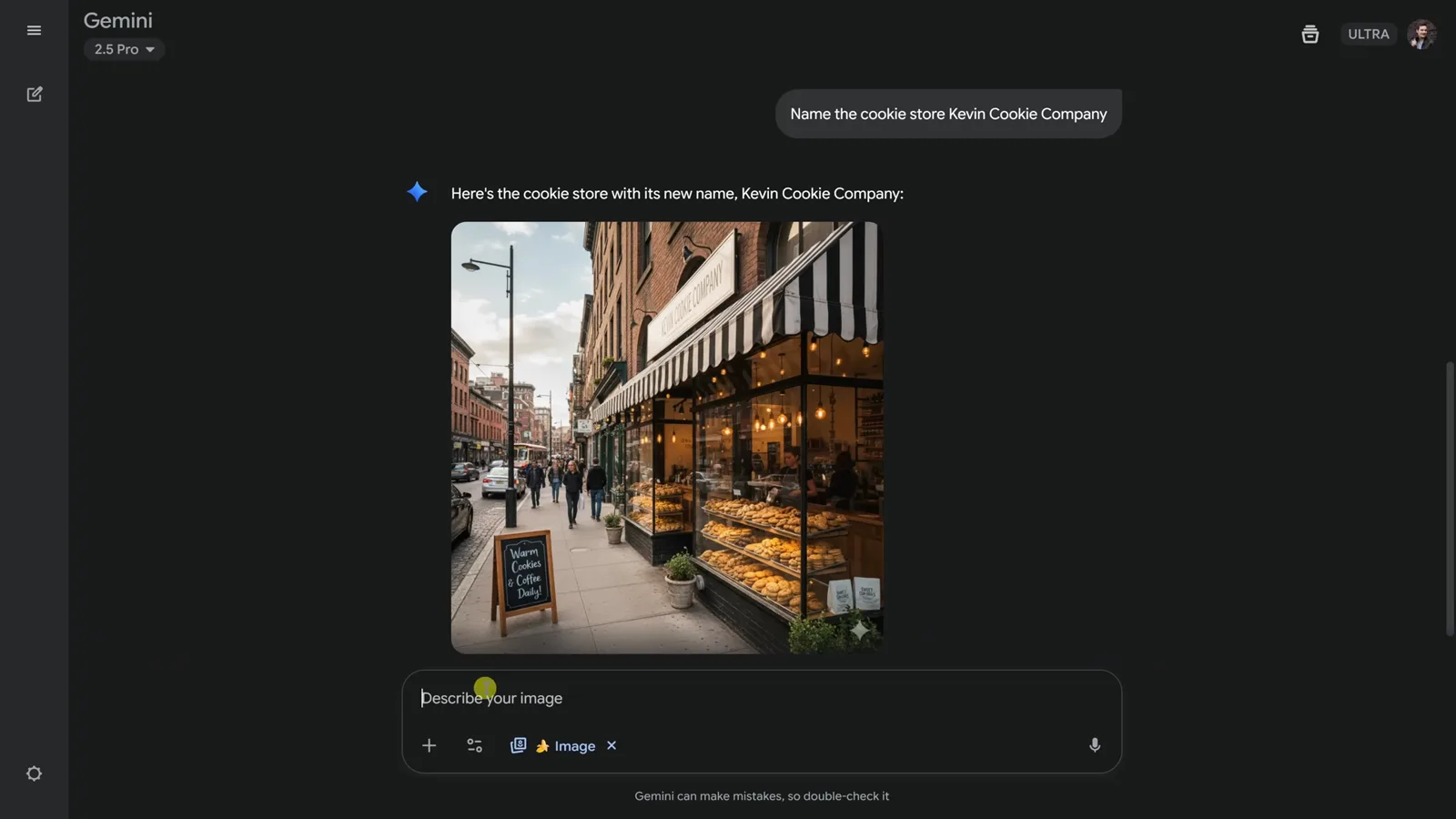
Scene-locked text edits are Nano Banana's party trick.Watch at 2:40
Consistency and Blending: Faces, Figurines, Outfits
- 12
Upload a photo and try the viral figurine prompt
Editing your own photos starts with the plus icon: upload or drag a picture in, then prompt. Kevin uses the prompt that went viral on social media: "Turn me into a 1/7 scale collectible figurine on a desk with toy packaging beside me."
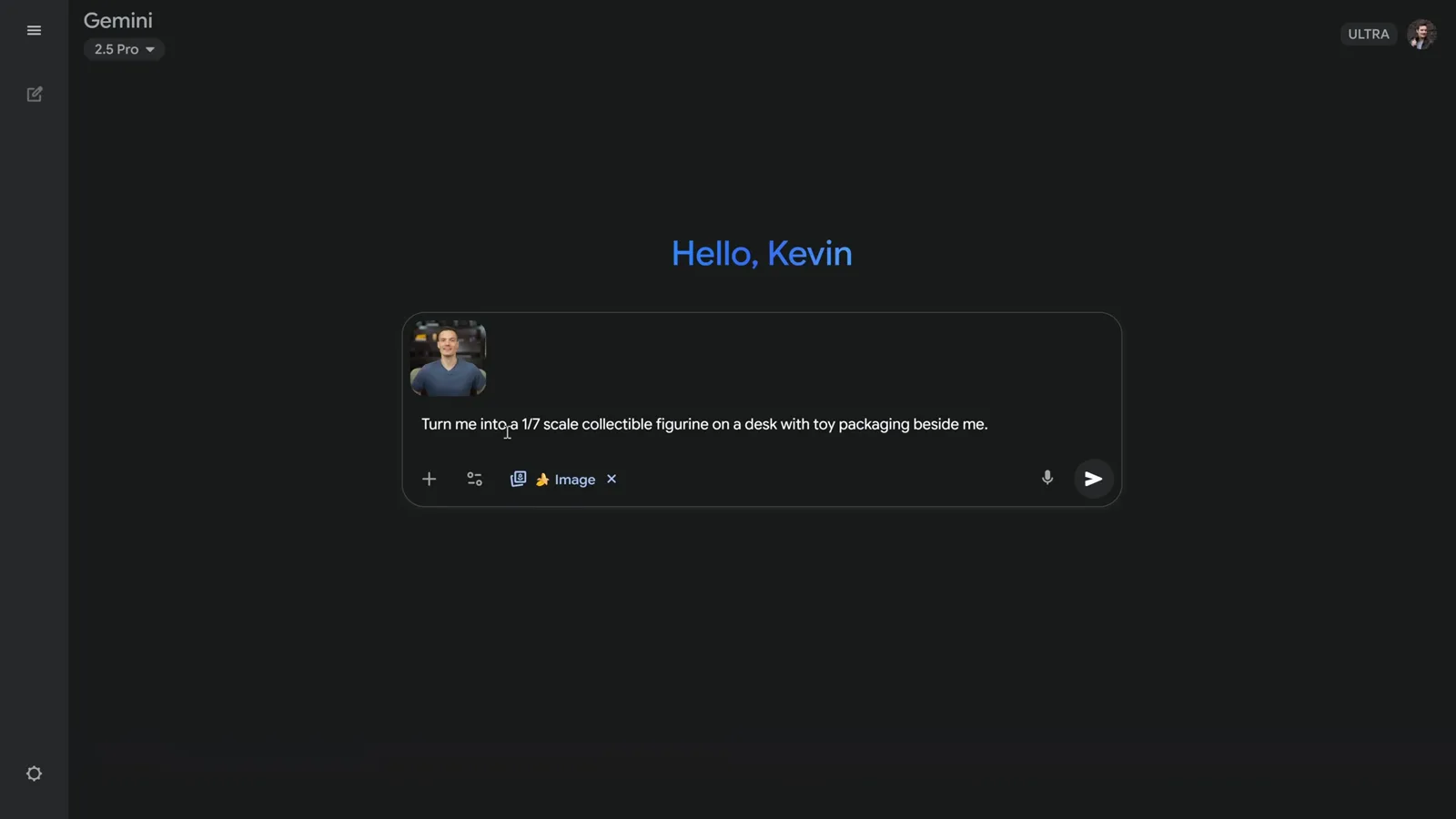
The figurine trend works because the model treats your face as a fixed reference.Watch at 3:20 - 13
Check the face — that is the consistency test
The render puts him on a desk as an action figure, complete with blister packaging that carries his face too. Scroll up and compare: the figurine's face is recognizably the same person as the uploaded photo. That identity preservation across renders is what Nano Banana is known for, and it is why the model works for character sets.
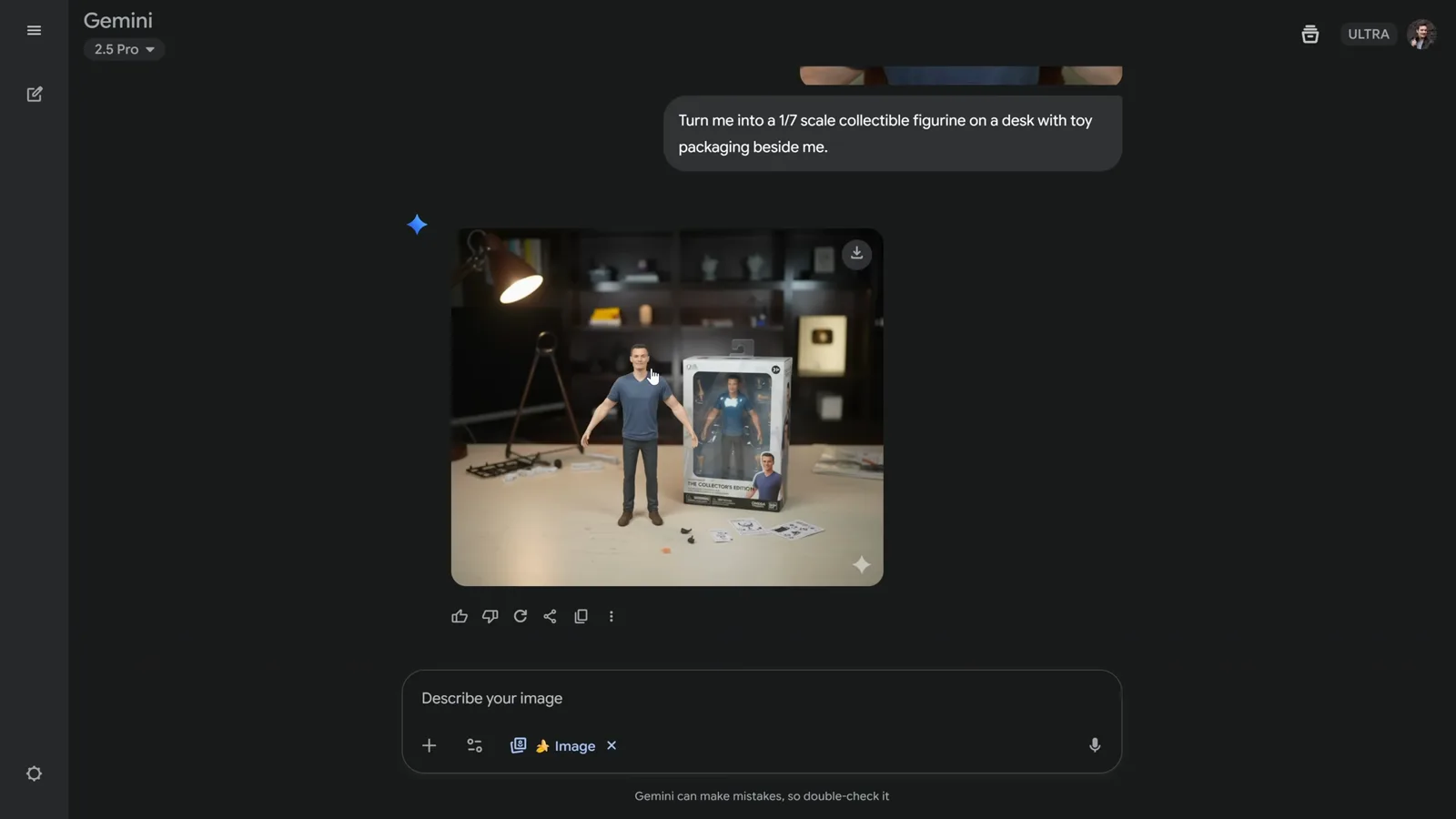
Same face in the photo, the figure, and the box art.Watch at 3:48 - 14
Blend two uploads with one instruction
Multi-image prompts take two attachments at once. Kevin uploads his portrait plus a leather jacket, then prompts: "Blend these two images. Put me into the jacket so it looks like I'm actually wearing it. Match the colors, shadows, and textures so it looks realistic." That matching clause is what sells the composite.
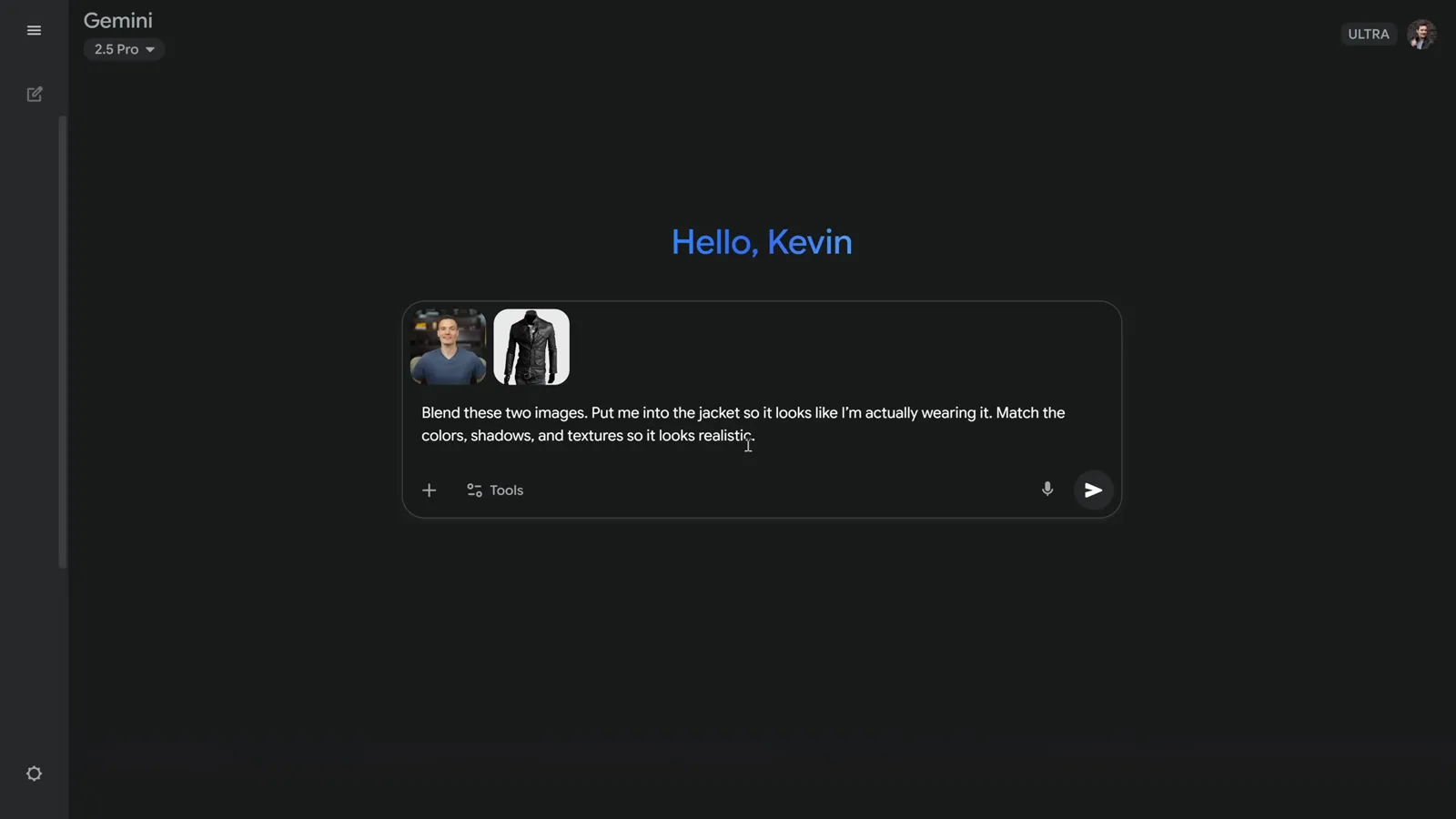
Tell the model how to fuse the images, not just that it should.Watch at 4:20 - 15
Swap clothes by naming the garment exactly
Taylor Bay's fix for the classic "the face changes too" problem is specificity. Attach the outfit reference and the person, then prompt: "replace the woman's white top with the black t-shirt in the image." Naming the person, the current garment and the replacement leaves the model nothing to invent.
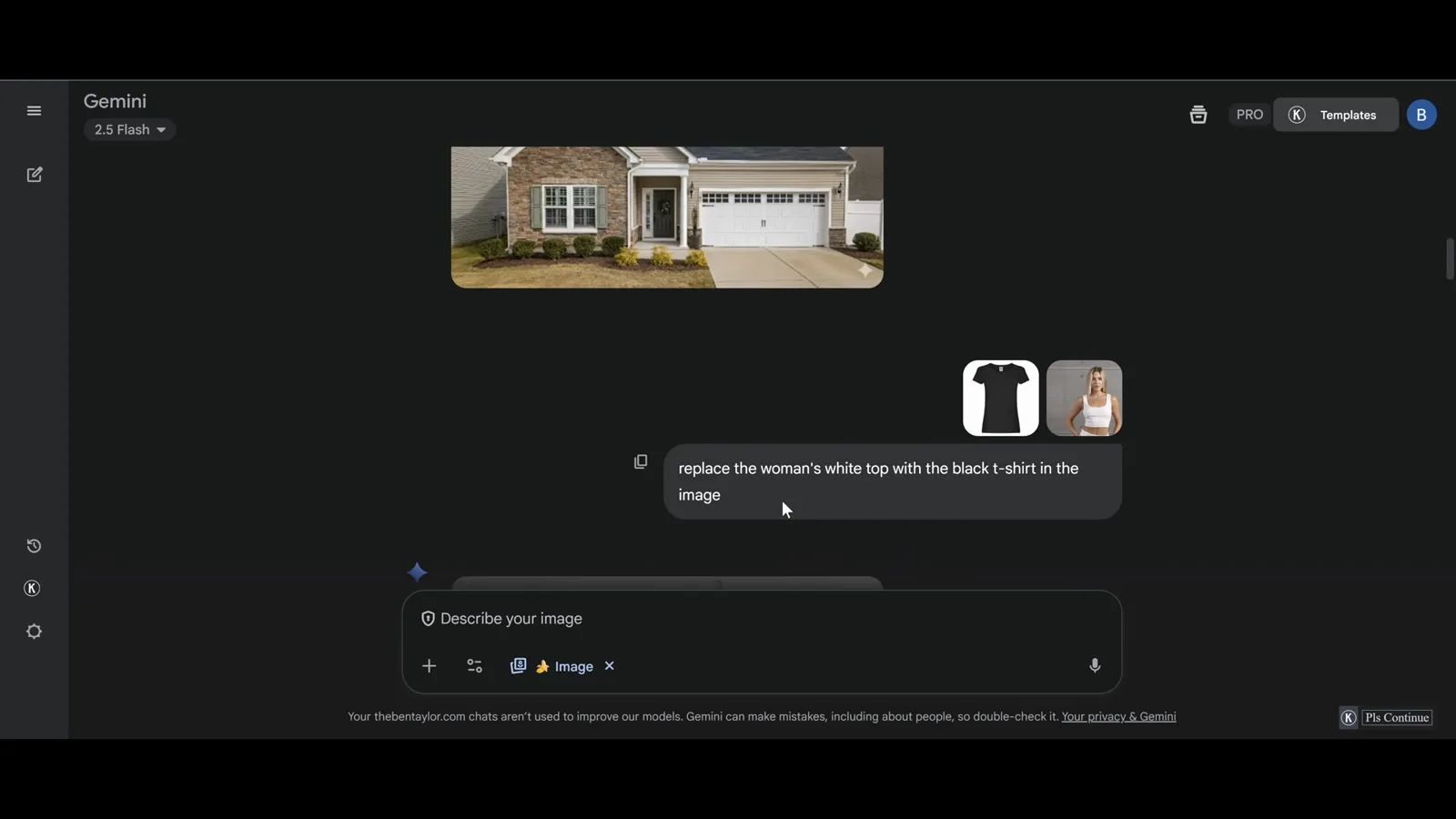
Vague swaps invent new people — name the exact top.Watch at 9:31 - 16
Hard mode: a two-person swap that keeps both faces
The stress test is a photo with two women: "replace the woman's pink top with the red dress." The model has to pick the right person, render a garment that was never worn, and keep both faces pinned. It lands — the red dress fits naturally and the second woman is untouched, which is exactly the consistency the action-word pattern buys you.
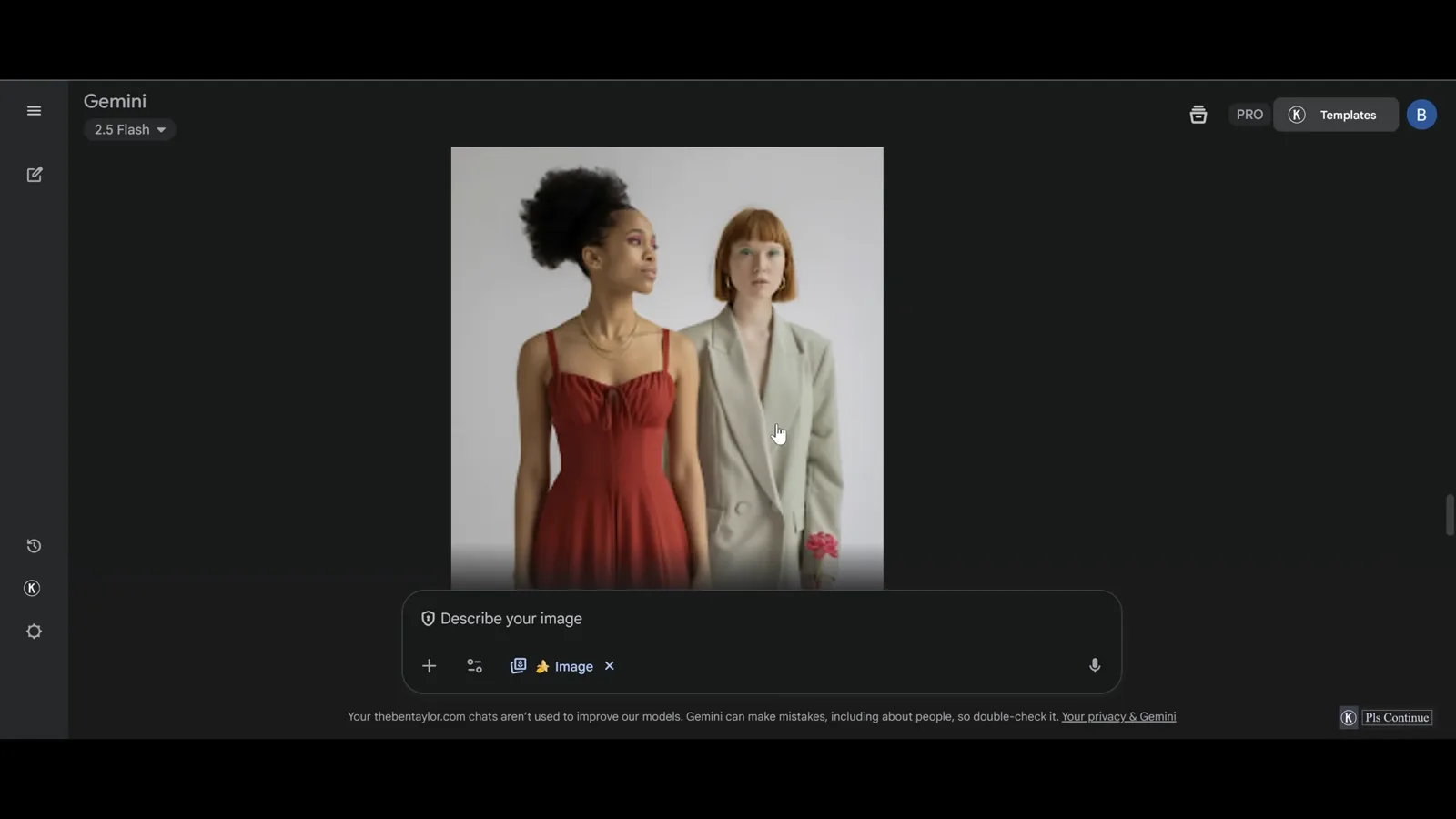
Right person, new outfit, same faces — the pattern holds under pressure.Watch at 11:26