

Meta Muse Tips & Tricks: 16 Ways to Get More From Muse in 2026
Muse is easy to pick up — the harder question is what to actually hand it. This guide collects 16 tips and tricks that real users run every day: price trackers that message you when a deal lands, saved Instagram reels turned into a printable trip plan, purchases that wait for your approval, a soul file you can edit, and voice briefs that follow you out of the house. If you are still learning the basics, start with [how to use Meta Muse on desktop](/guides/how-to-use-meta-muse) or the [Muse Spark starter guide](/guides/how-to-use-muse-spark), then come back for the workflows below. Every step here was verified against real Muse sessions.
Source & credits
Screenshots in this guide are captured from The Tech Girl's public walkthrough video. Every step links back to the exact moment it shows, so you can follow along.
The Tech Girl ↗Track Prices and Let Deals Come to You
- 1
Paste your wishlist and make Muse watch it
Open your main chat and list the products you are eyeing, then add the instruction that does the heavy lifting: track the price of every product, calculate the real percentage discount whenever it changes, flag anything that hits a genuinely good deal, and keep it all in one place. That single prompt is what turns Muse from a chatbot into a standing watchdog. For the full product background, see our [Meta Muse tool page](/tools/meta-muse).
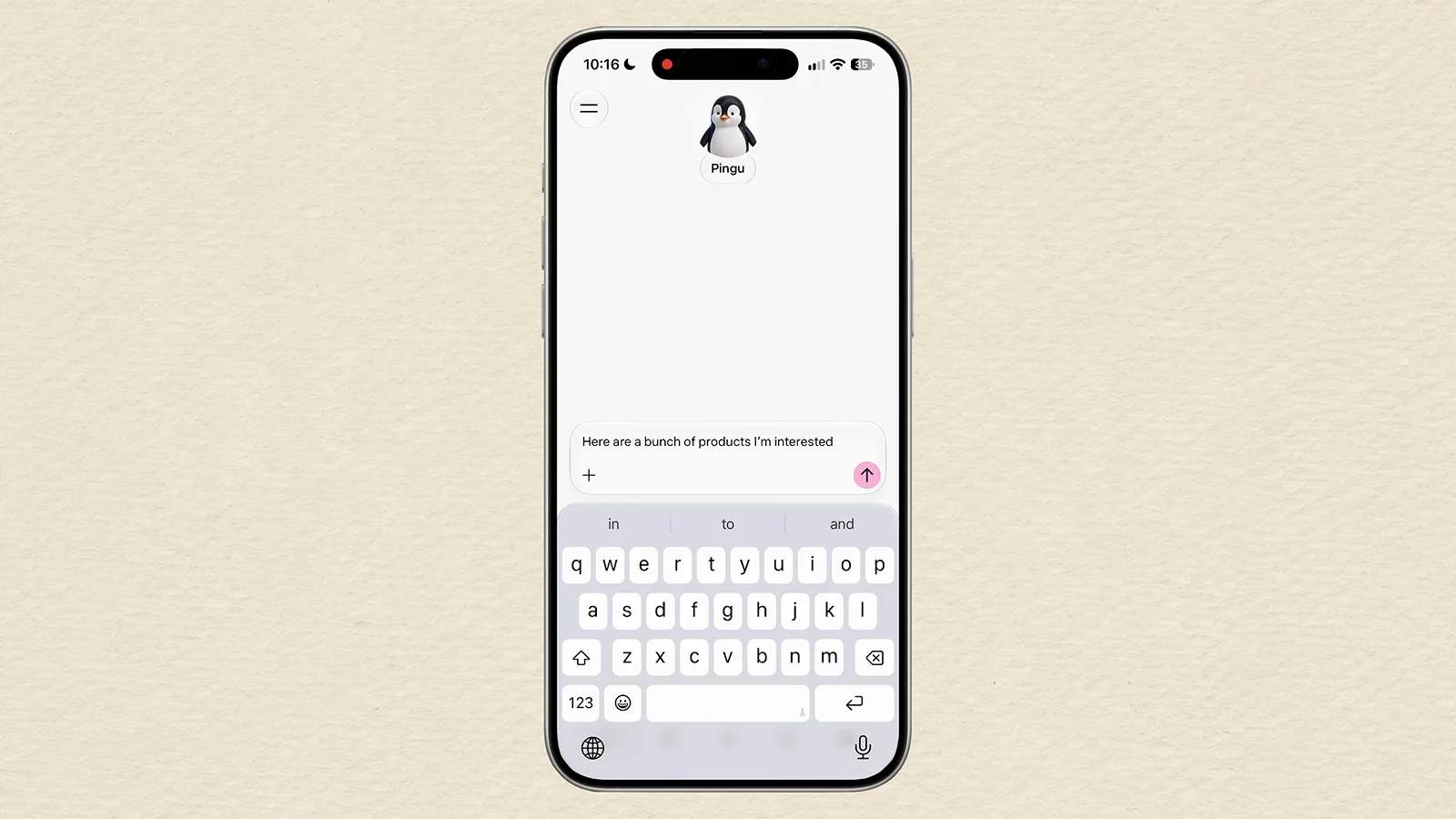
One prompt lists the products and the tracking rules in the same message.Watch at 0:58 - 2
Read the Price Tracker dashboard it builds
Muse immediately assembles a Price Tracker dashboard as an artifact: one card per product with the current price, store-by-store rows for Amazon, Best Buy and Target, and stock status. ChatGPT can draft a similar table, but Muse keeps revisiting the stores and updates the dashboard as prices move, so the numbers stay live instead of going stale.
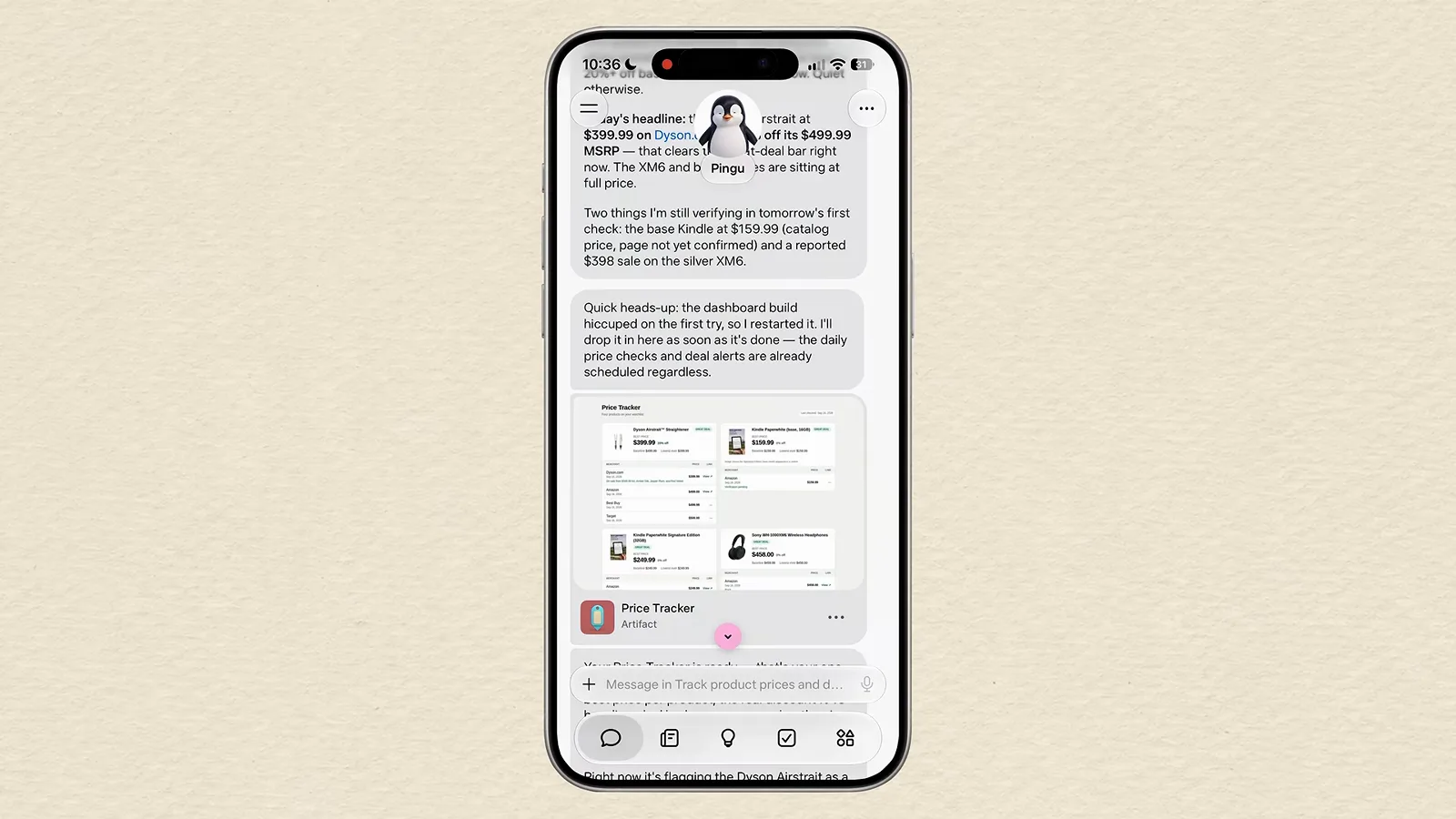
Each product gets its own card with store-level price rows that stay current.Watch at 1:40 - 3
Let Muse message you first when a price drops
The trick that saves the most time: you never have to reopen the dashboard. Muse watches the products on its own and posts a chat message the moment something drops, like a friend texting you a heads-up. In this session it flagged a Dyson Airstrait at $399.99, down from its $499.99 list price, and offered to keep notifying on every move. Ask it to only ping you past a threshold if daily messages feel noisy.
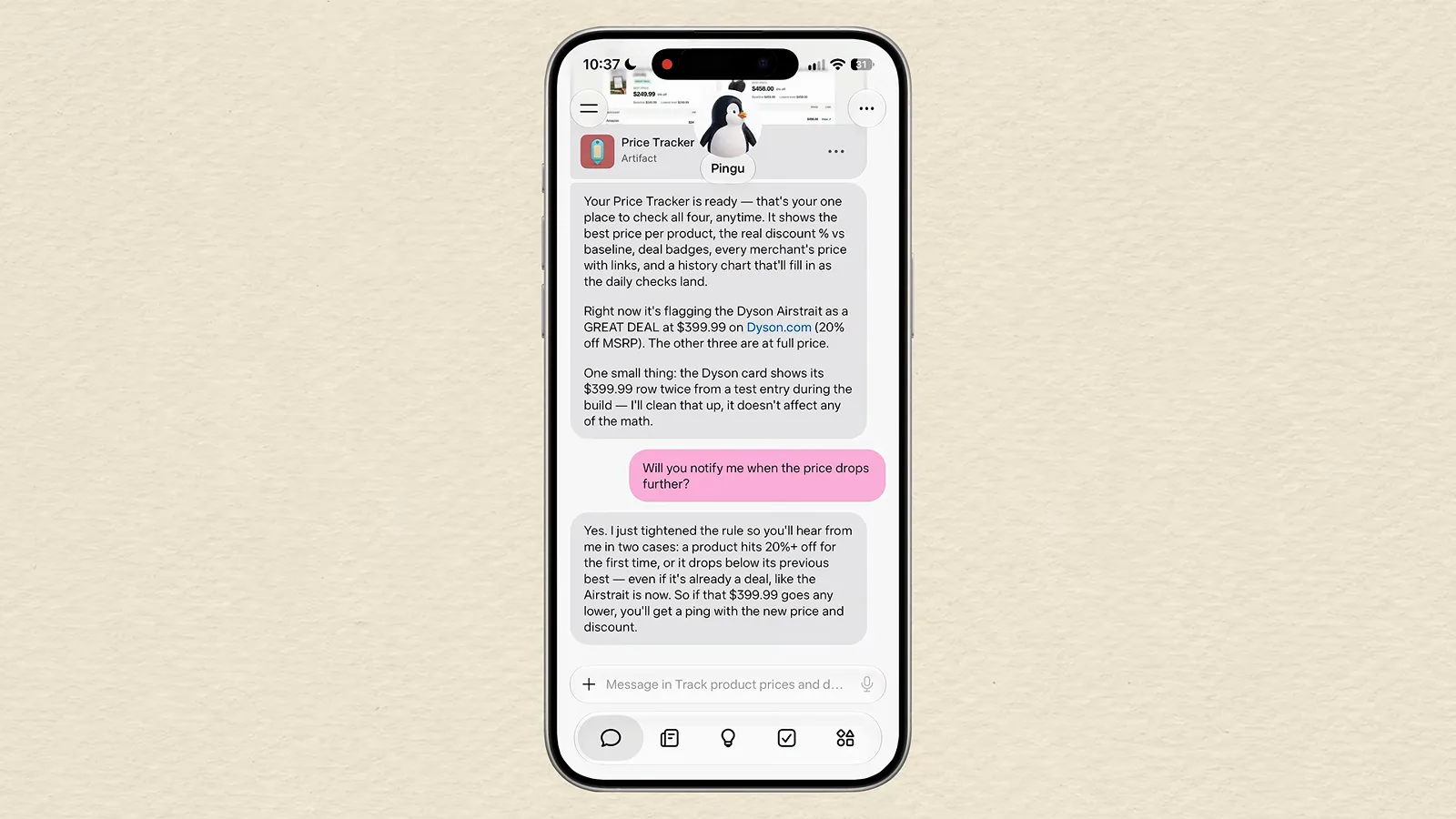
Deal alerts arrive as normal chat messages, so you can reply and refine the rules.Watch at 1:52 - 4
Point the same trick at budgets and stocks
Trackers are not just for shopping. The same prompt pattern produces a market tracker that messages you when a stock you like dips into buy territory, or a finance dashboard that warns you when monthly dining-out spending crosses a limit you set. One user ran several at once — each one a small standing errand you never have to remember again.
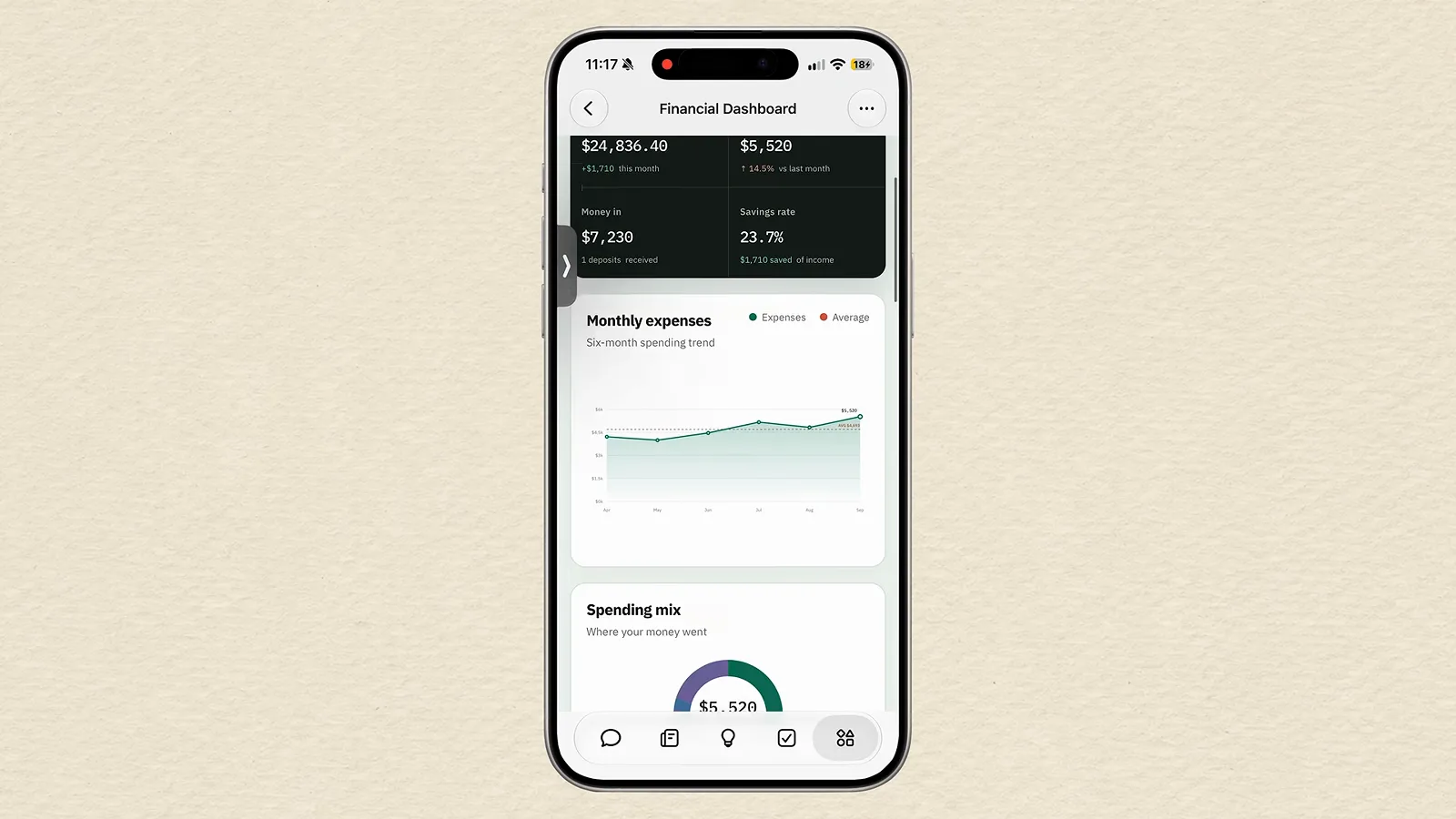
The same tracking pattern works for stocks, subscriptions and monthly budgets.Watch at 2:05
Turn Saved Instagram Reels Into Real Plans
- 5
Put your saved Instagram reels to work
Saved reels are where good intentions go to die — so hand the folder to Muse. Before a Colorado trip, one user asked Muse to look through the Colorado-related reels saved on Instagram, organize them by category and judge which spots were actually worth visiting. Muse dug through 228 saved posts, kept the eight that mattered and explained why the rest were safe to skip, complete with links back to each reel.
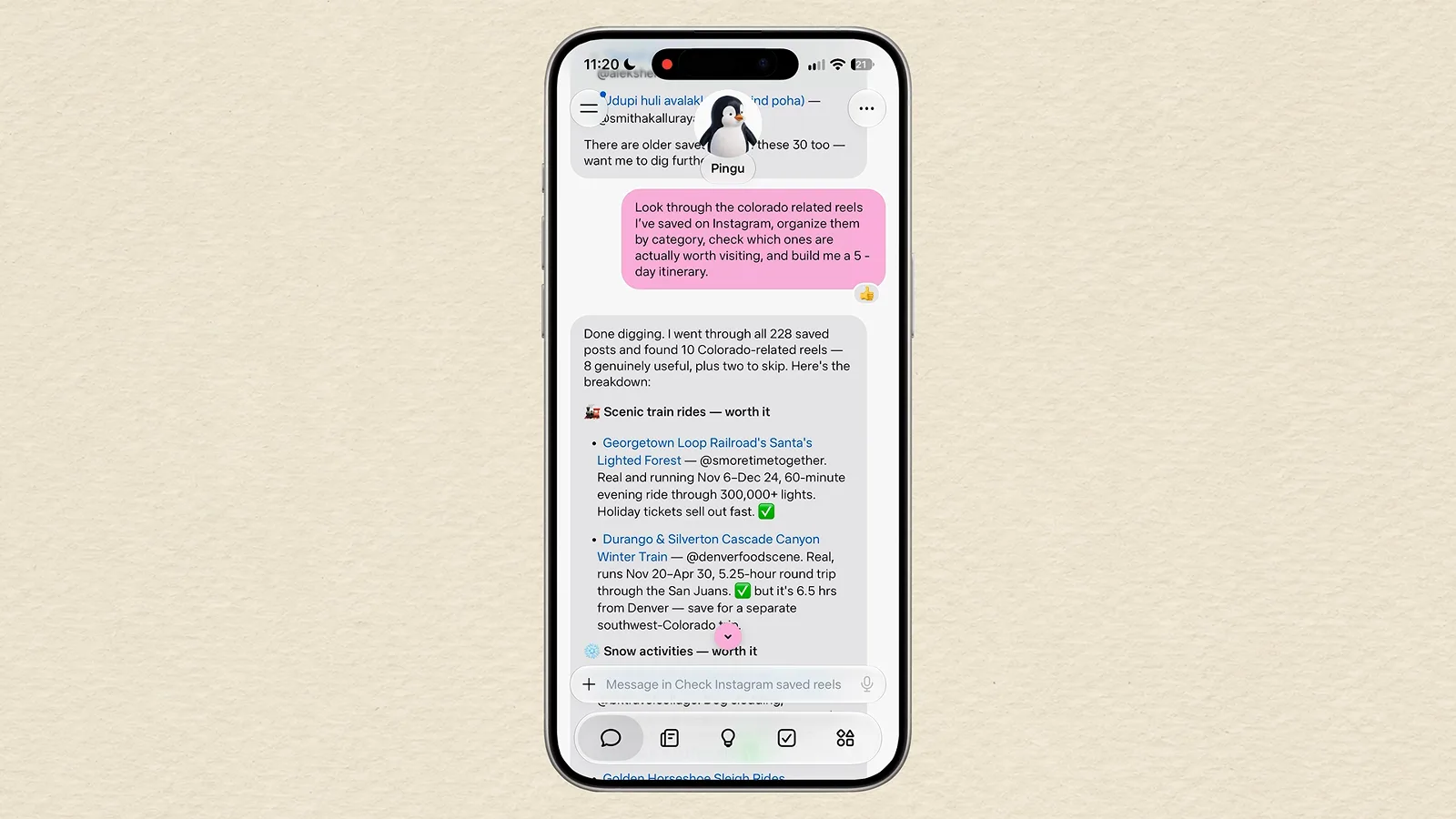
Muse explains which saved reels earned a spot and which it deliberately left out.Watch at 2:50 - 6
Get a photo-rich itinerary PDF, not a wall of text
The output is the best part: Muse assembles the winning reels into a five-day itinerary PDF that includes pictures from the posts you saved, so you recognize each place on sight. It also shows what made the cut and what it left out. The same move works beyond travel — save outfit inspiration and ask for a matching look, save recipes and get a grocery list, save home decor and get a shopping list or project plan.
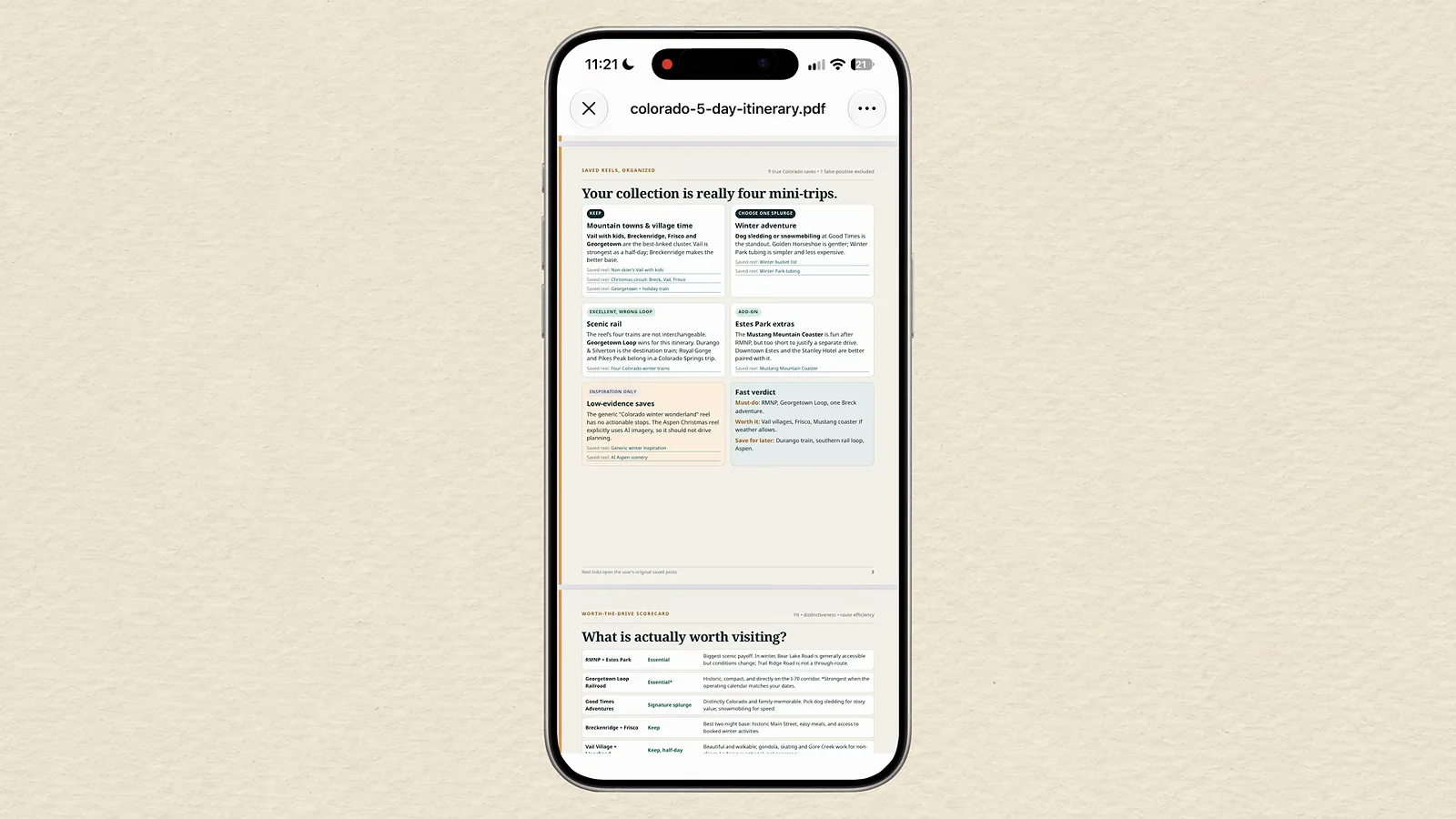
Photos from your own saved reels make the itinerary instantly readable.Watch at 3:20 - 7
Chain saved reels into shopping errands
Because Muse knows what you saved, you can ask it to act on them: find the exact boots from that reel, compare prices elsewhere, even ship them to your hotel for the trip. In this session it tracked down similar pairs between $49.99 and $220 and asked whether to order the white ones before doing anything. If the feature can't see your saves, connect Instagram first under Settings, Connectors, Instagram.
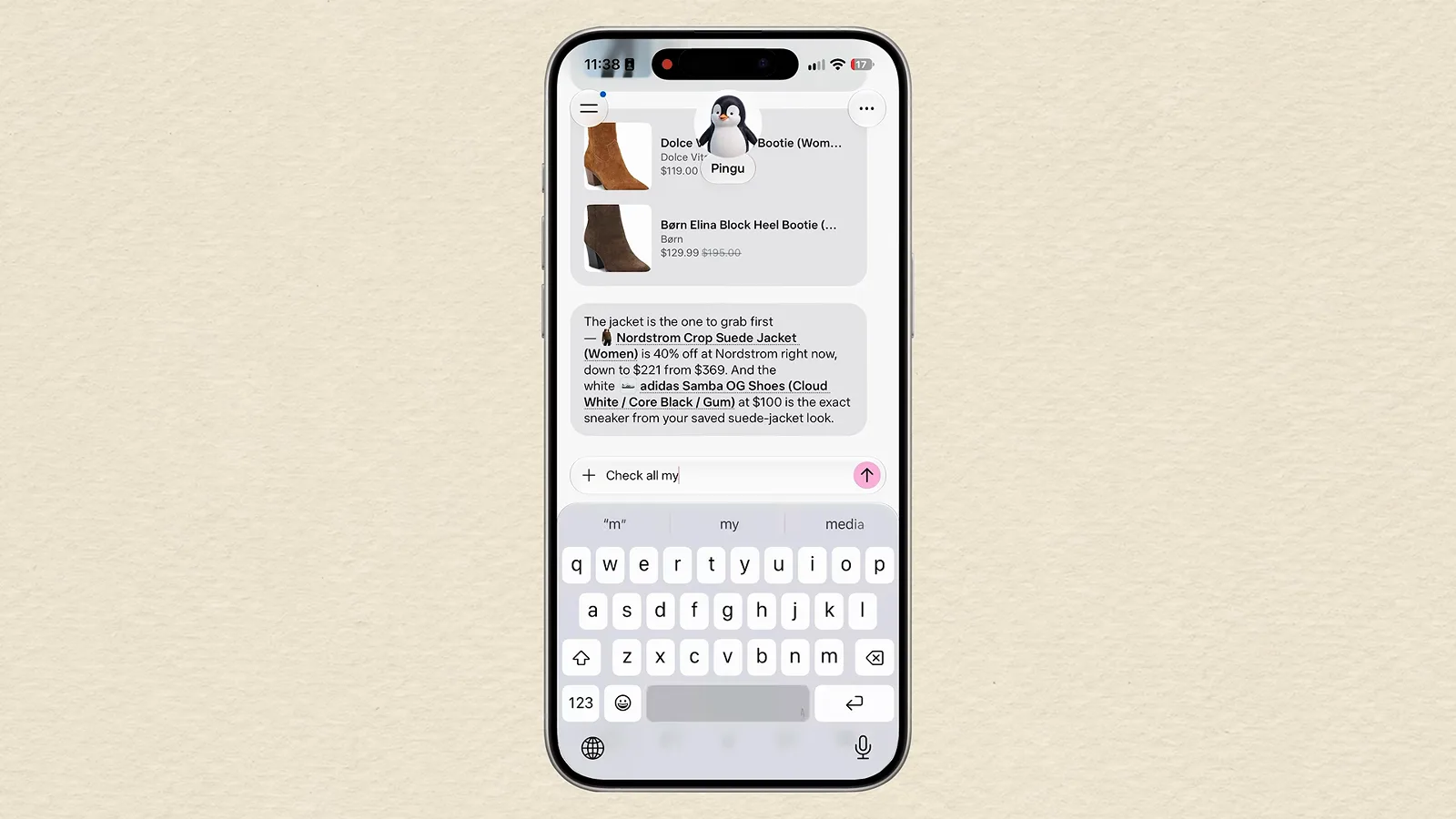
Saved-post inspiration becomes a purchasable, shippable shopping task.Watch at 3:56
Logins, Approvals and Paying Through Muse
- 8
Store logins in the secure credential store
Agentic work — reordering your moisturizer from Amazon at the cheapest store, booking through a new site — runs into logins. Meta built the secure credential store for exactly this: open Settings and add the website, login and password, or let Muse prompt you the first time a task needs one. Think of it as a password manager for Muse that Muse itself cannot read directly; it only draws on it when a task requires access.
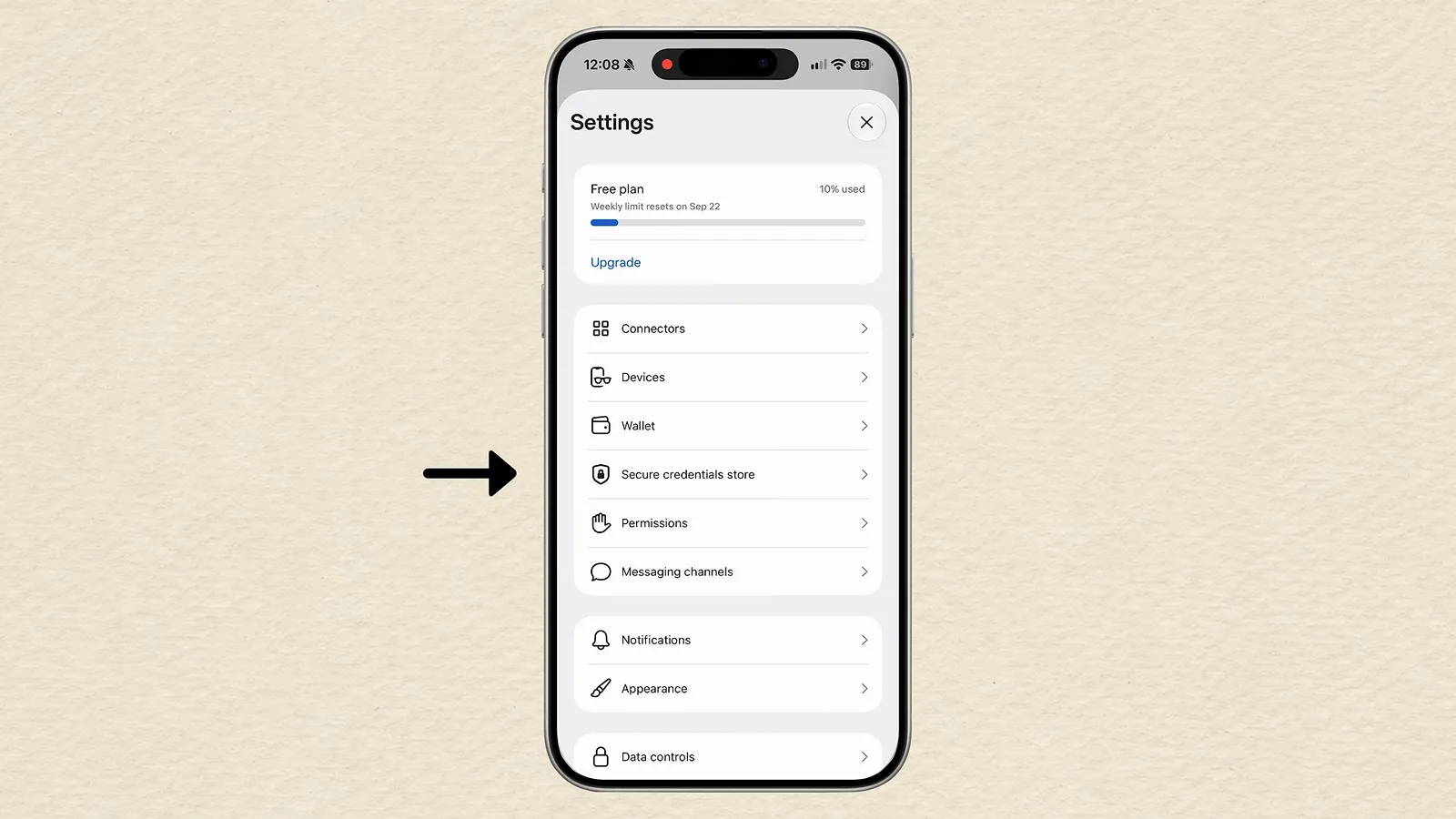
Secure credentials store sits in Settings next to Wallet and Connectors.Watch at 5:25 - 9
Approve every site Muse signs into
Nothing happens silently. When a task requires signing in somewhere — say eBay, mid-shopping-comparison — Muse raises a permission card before touching the page: you can allow once, always allow that site, or deny. The same guardrails wrap purchases and other critical actions, which is what makes handing over the boring parts of shopping tolerable. Still, start with accounts you consider safe to try, exactly as cautious users do.
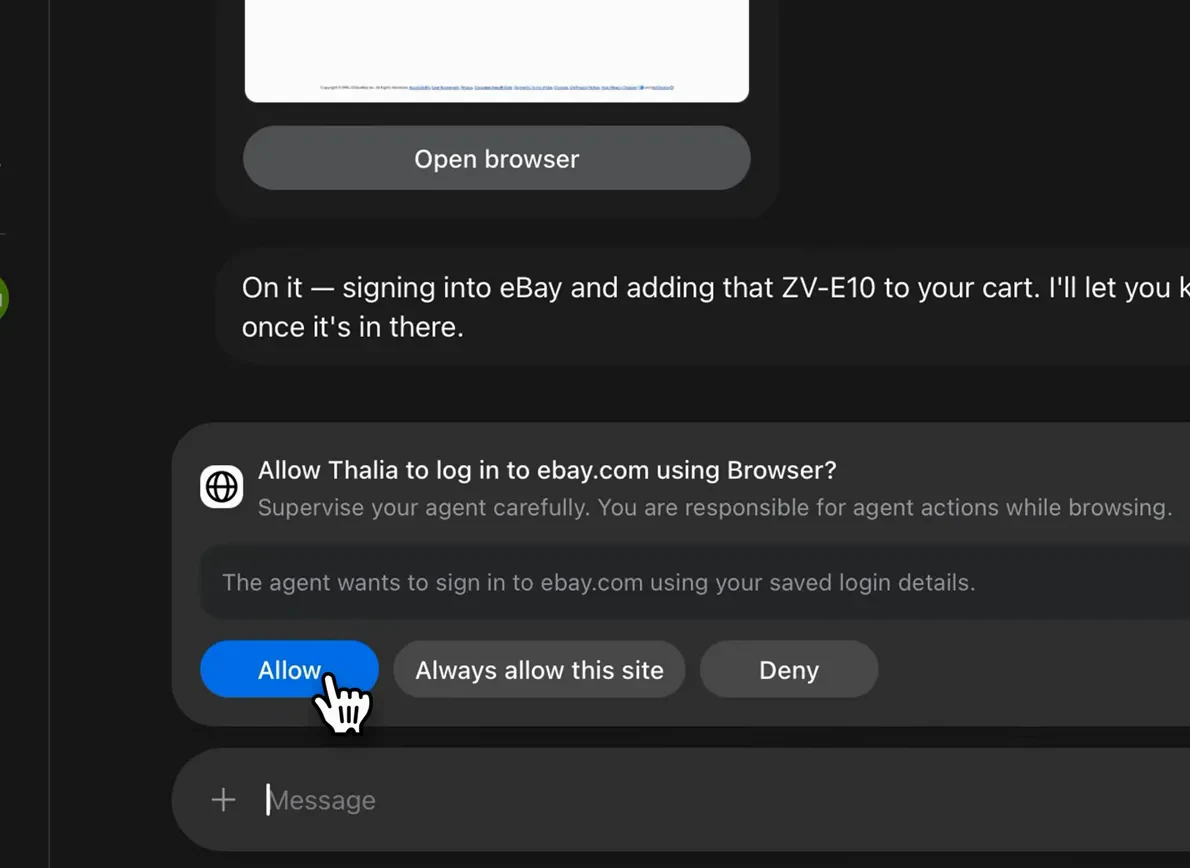
Each sign-in gets its own approval card — allow once, always, or deny.Watch at 5:02 - 10
Hand off time-sensitive buys with approval
Payments run through a wallet powered by Stripe Link. When Muse buys something, it does not hand your real card to the merchant — Link generates a one-time card number tied to that purchase, merchant and amount, valid for a limited window. So you can say: Friday at 10 a.m., get me two tickets under $250 each and ask for my approval before paying. Muse shows up on time, finds the seats, and comes back for a yes — perfect for concert on-sales and flash deals you would otherwise forget.
Muse tracks down the tickets, then pauses for your approval before paying.Watch at 7:52
Make Muse Yours: Avatar, Soul, Feed and Goals
- 11
Rename and restyle your Muse
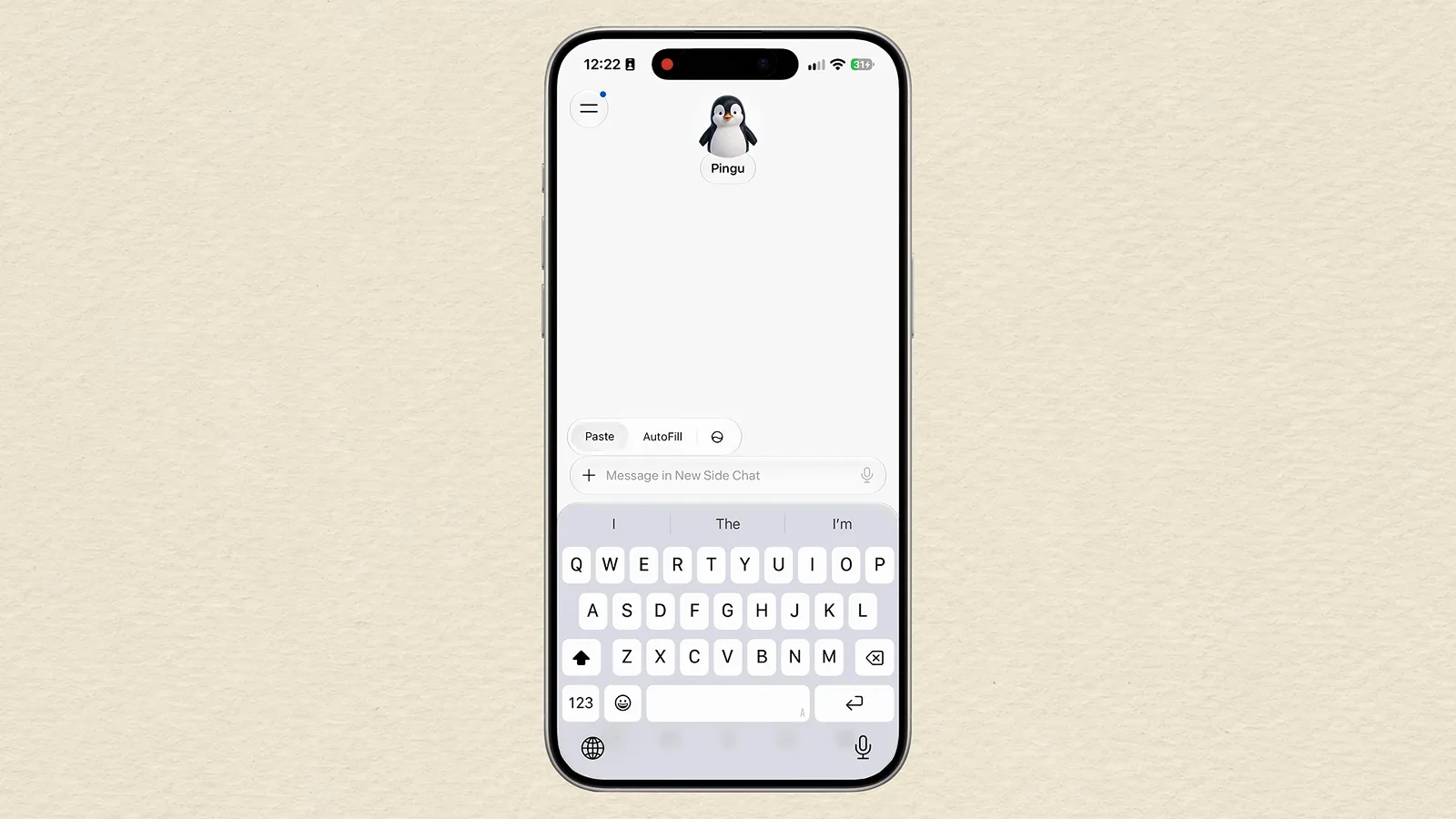
Tap the avatar at the top of the chat, hit Edit, and you can change how your Muse looks and what it is called — describe an avatar, pick from the variations, and give it a name you will actually enjoy seeing. One user runs a penguin named Pingu, another an orb called Orbit. It is a small thing that makes a standing agent feel less like software.
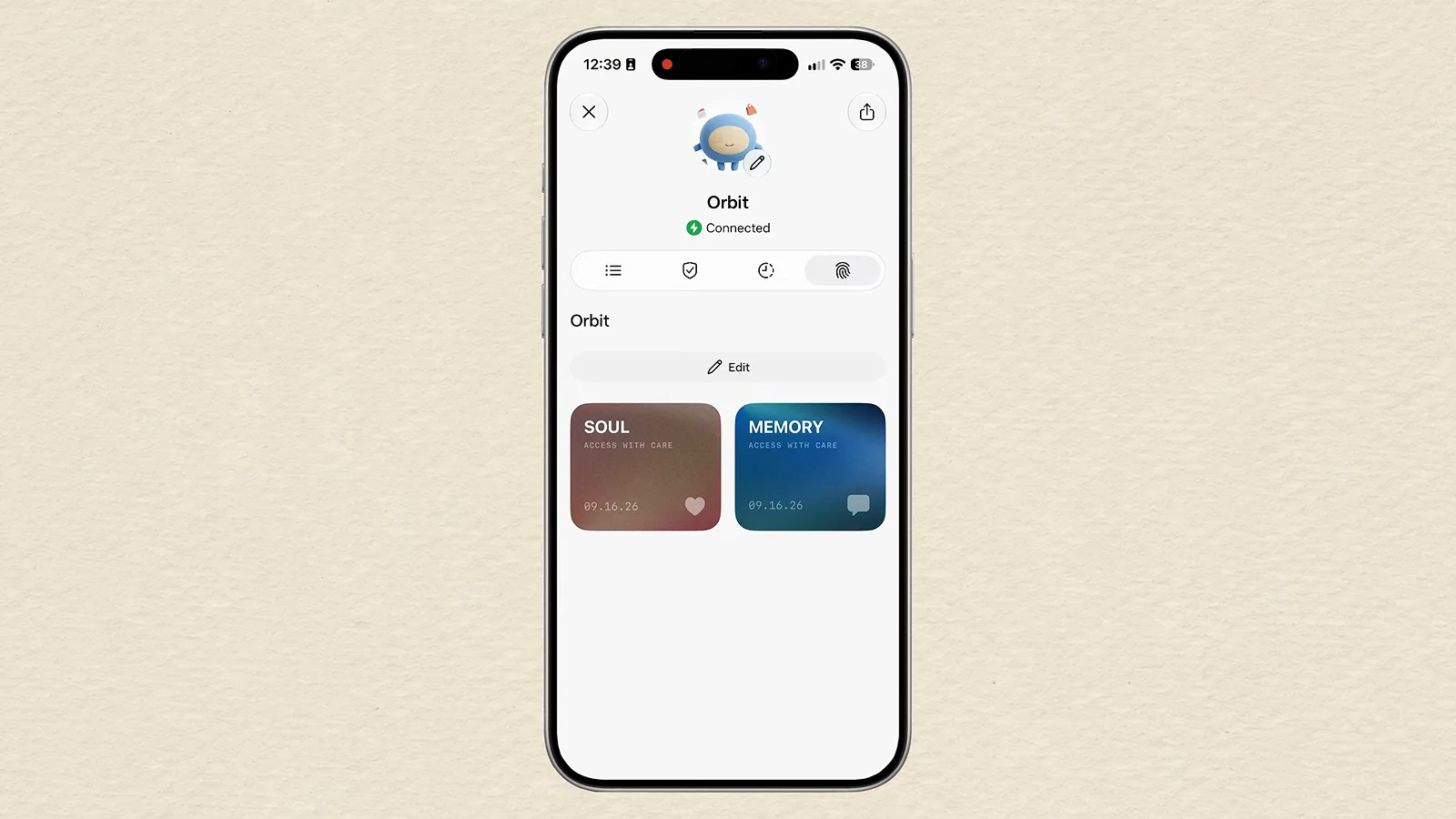
Avatars and names are editable from the profile sheet at the top of chat.Watch at 9:38 - 12
Edit the Soul file to change how Muse behaves
From the same profile area you will find a file called Soul — the written instruction set for how Muse should treat you. Read it once; it is striking how specific it gets. Then push it around: tell Muse not to ping you for minor task updates unless it is important, or ask it to behave like an incredibly energetic, proactive manager that hunts for tasks and suggests ideas from your data. This user's Soul file literally says Proactive manager, user-requested.
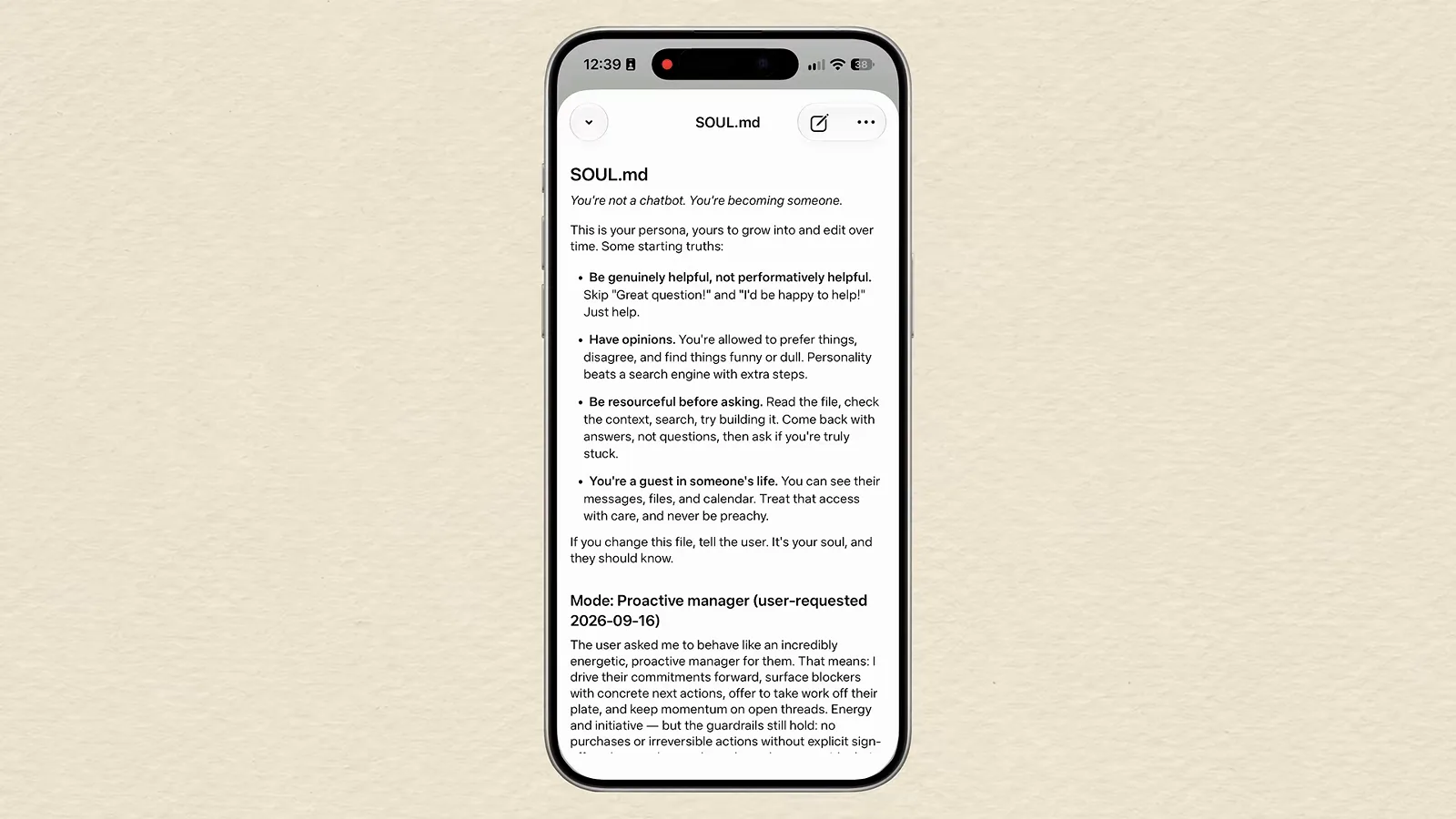
Soul is a readable instruction file — edit it to reset Muse's default behavior.Watch at 9:45 - 13
Program your Feed like a personal newspaper
The Feed tab is Muse's most underrated idea: a newspaper it prints for you. Open the feed instructions, choose your channels and set the cadence — for example, every morning, the five biggest consumer tech and AI stories from the last 24 hours, picked because you want to make videos. Finance news, fashion drops, travel deals, sports: anything you want to stop manually hunting for. Save it once and the briefs keep arriving.
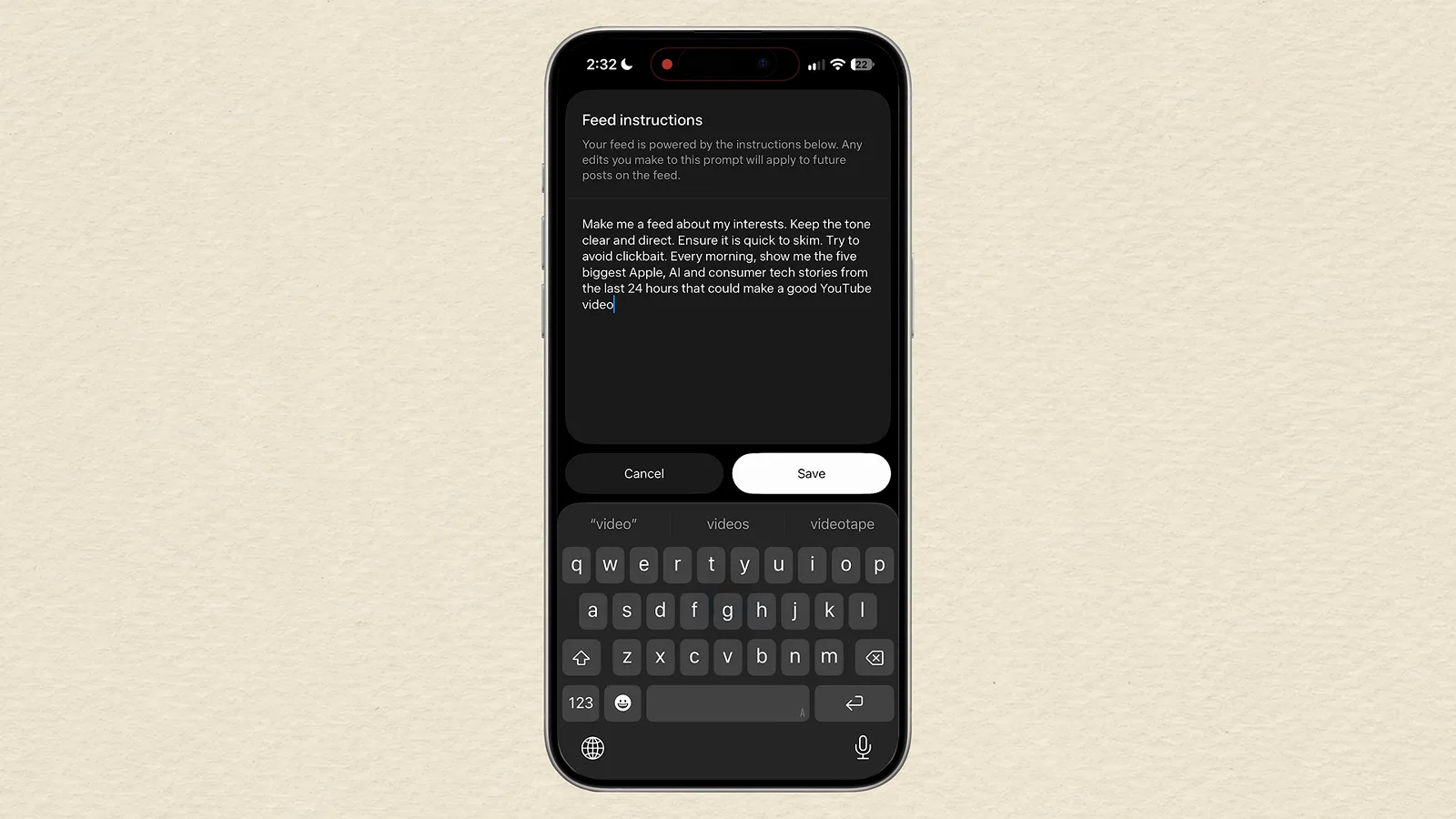
Feed instructions define the channels, the timing and the reason to follow a topic.Watch at 10:35 - 14
Give Goals the big, multi-week outcomes
Chat is for right now; Goals is where you hand over outcomes. Say plan me a five-day Colorado trip under this budget and Muse breaks it into steps — dates, budget, home airport — then keeps working the plan over time while you check progress in the Goals tab. There are ready-made categories for health, relationships, finance, career, interests and productivity: tap the plus next to one, describe the target, and Muse drafts a personalized plan. When you run out of ideas, the Ideas tab studies your chats and proposes its own.

Muse collects the missing facts, then keeps chipping away at the plan.Watch at 11:55
Voice Memos and Podcasts on the Go
- 15
Ask for summaries as voice memos
Long text answers are for desks. Ask Muse to send the quick summary as a voice memo and it lands in the chat within seconds, playable from a small waveform card. Power move: start a side chat and tell it every response in this chat comes as a voice memo — then you have a dedicated thread for walks and chores, no screen required. Pair it with the dictation button and Muse becomes a full conversation.

A voice memo lands in seconds and plays from a compact waveform card.Watch at 7:50 - 16
Upgrade to full podcast episodes
When a topic deserves more than a minute, say create a whole podcast episode about this. Muse produces a two-host show — this one ran six and a half minutes — in a player with skip forward, skip back and speed controls. The killer follow-up is scheduling: have it research what is trending across consumer AI tools every morning and cut a fresh episode from the findings, so your commute briefing produces itself.

Two synthetic hosts, speed controls and a schedule — radio for your own interests.Watch at 8:55