

How to Use Muse Spark: The 2026 Getting-Started Guide
Muse Spark is the new model family from Meta's Superintelligence Labs, and it reaches everyday users through two doors: meta.ai, where the model chats, generates images and video, and runs code for free, and the Muse app, where the same assistant becomes a personal agent with its own computer. This guide walks both doors in order, following two source videos: the official Muse channel's two-and-a-half-minute product tour for the app screens, and Data Science in your pocket's hands-on session for the meta.ai screens. Every step below matches a frame from those recordings, with a timestamped link back to the moment it happened.
Source & credits
Screenshots in this guide are captured from Muse's public walkthrough video. Every step links back to the exact moment it shows, so you can follow along.
Muse ↗Get to Muse Spark from the web or the app
- 1
Find the official Muse Spark announcement
Meta introduced Muse Spark on its AI blog under the banner "Scaling Towards Personal Superintelligence," dated April 8, 2026. The post is also the front door: the Try Meta AI button in the top-right corner of the page opens the chat with the new model. Everything in this guide starts from that free web page or from the mobile app it advertises.

The announcement that introduced the Muse family — Try Meta AI sits one click away.Watch at 0:10 - 2
Confirm you are talking to Muse Spark
Sign in at meta.ai with a free account and ask "which model are you?" Muse Spark answers in the first person: it belongs to Meta's new Muse model family, it is the model powering Meta AI right now, and it was built by Meta's Superintelligence Lab to chat, search, create images and videos, run code, and act as a curious conversation partner. If you get this reply, you are on the new model.
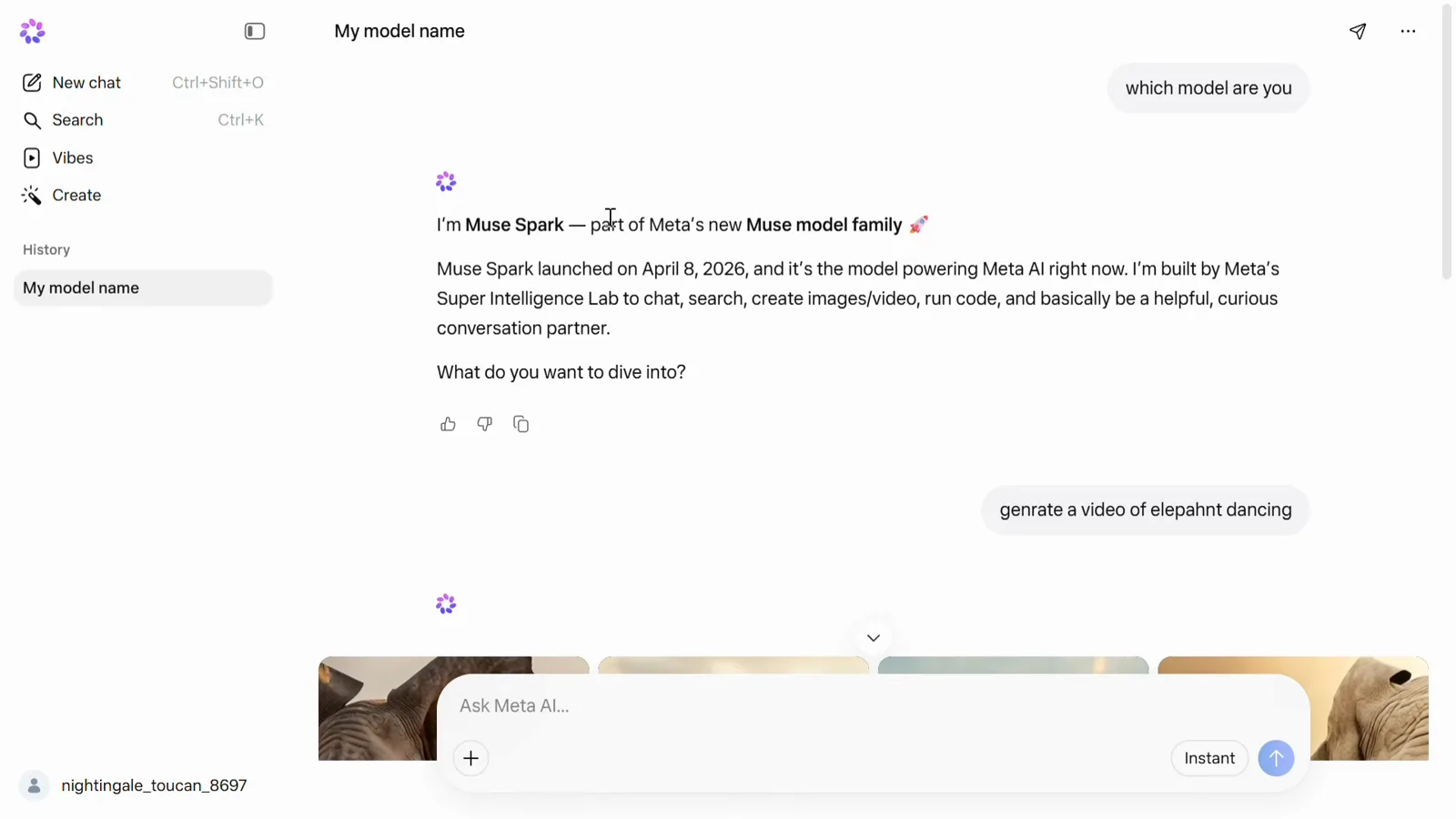
Ask the model what it is — the reply names the Muse family unprompted.Watch at 0:54 - 3
Install the Muse app on your phone
The agent half of Muse Spark lives in the Muse app for iPhone and Android. The official tour closes on its end card: the blue "m" logo over Google Play and App Store badges. Install it free, sign in, and the assistant you just met on the web gains its own computer that keeps working between your chats.
The tour's closing screen: Muse is free on both mobile stores.Watch at 2:33 - 4
Start in the chat tab — it behaves like messaging
Muse's chat tab is deliberately styled like a messaging app rather than a blank prompt box. You talk to "Muse," shown at the top of the screen, and it answers in bubbles. The demo thread mixes a 9:20 Saturday tee-time reminder at Pasatiempo with Hole 5 course-management advice based on months of your score data. Ask in plain sentences the way you would text a person.
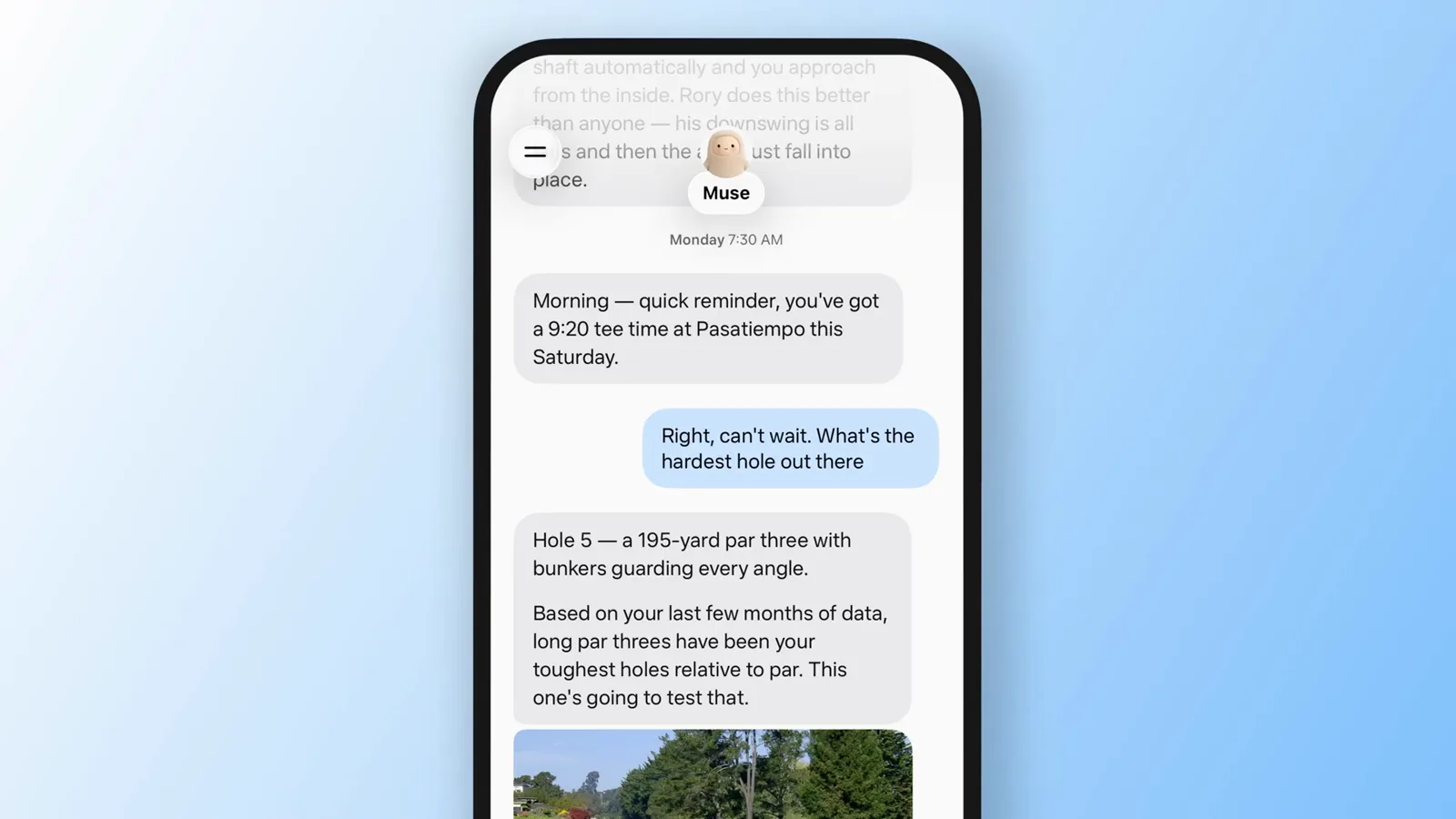
A conversation, not a command line: reminders and golf advice share one thread.Watch at 0:24
Generate images and code on meta.ai
- 5
Generate images and video from one line
On meta.ai, type "generate a video of elephant dancing" and Muse Spark fills the chat with a strip of dancing-elephant visuals. The tester in the source video called the quality amazing even where the motion looked less than real. Results slide in behind the Ask Meta AI composer, so you can keep typing while they render.
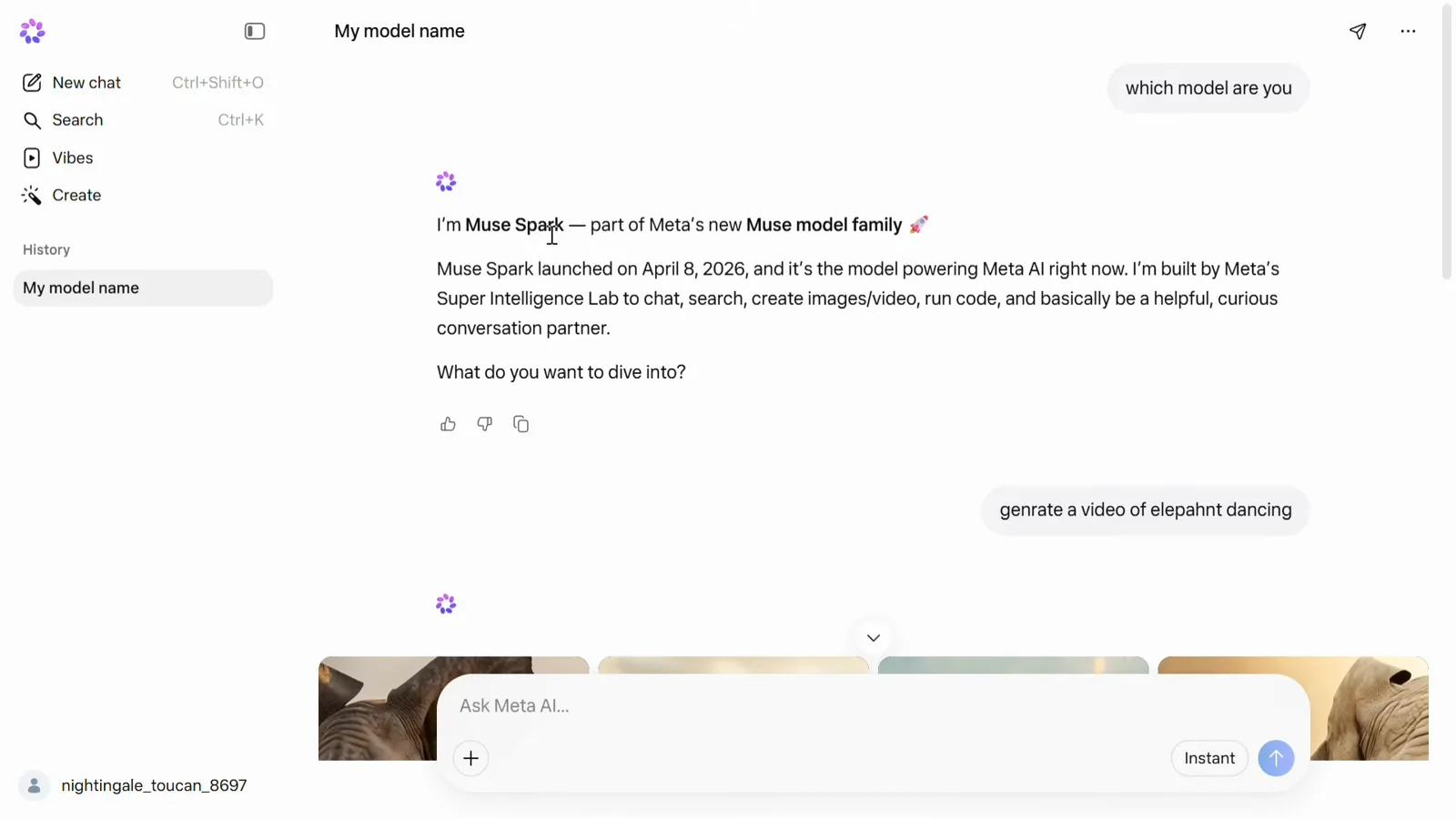
One prompt, a row of dancing elephants — generation happens inside the chat.Watch at 1:02 - 6
Run code and get the answer, not just the snippet
Ask for Python code that generates a Fibonacci series plus the answer for input 11, and Muse Spark returns three things: the code block, an "Output for input 11" section listing [0, 1, 1, 2, 3, 5, 8, 13, 21, 34, 55], and Notes that explain the indexing — the 11th number counting from 1 is 55, but counting from 0 makes it 89. It closes by offering to adapt the code to take user input instead.
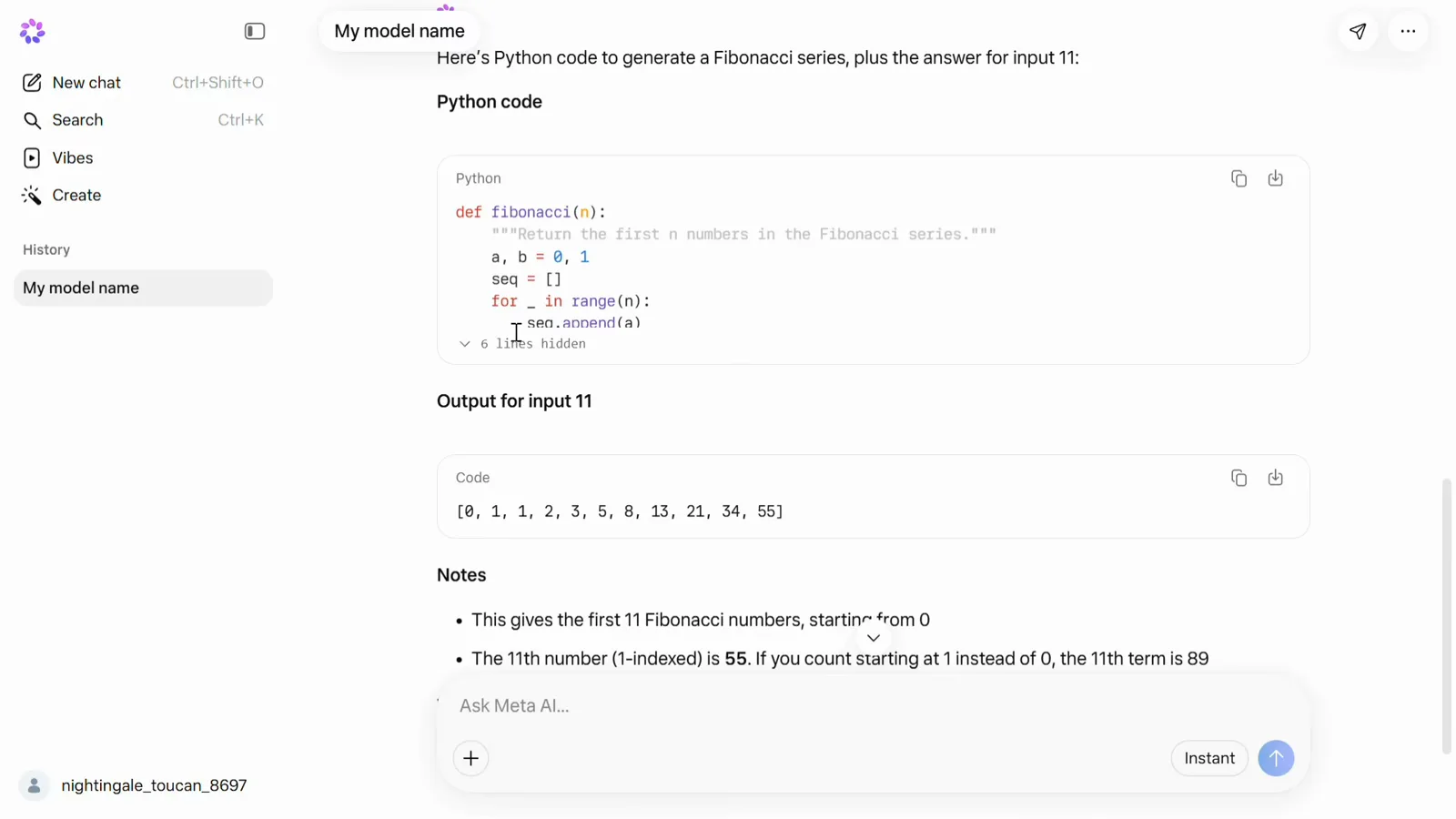
Code, executed output and an indexing footnote, all in one reply.Watch at 1:36
Delegate errands and watch the agent work
- 7
React, reply, copy or share any message
Select a bubble in the Muse chat and a menu pops up over it: an emoji reaction row plus Reply, Copy and Share. The demo uses it on a flight-tracking update — Muse has been watching Nikki's SFO to SAN fare, saw it drop $40 to $128, and only needs the word to book it. Anything worth keeping can move straight to another app from here.
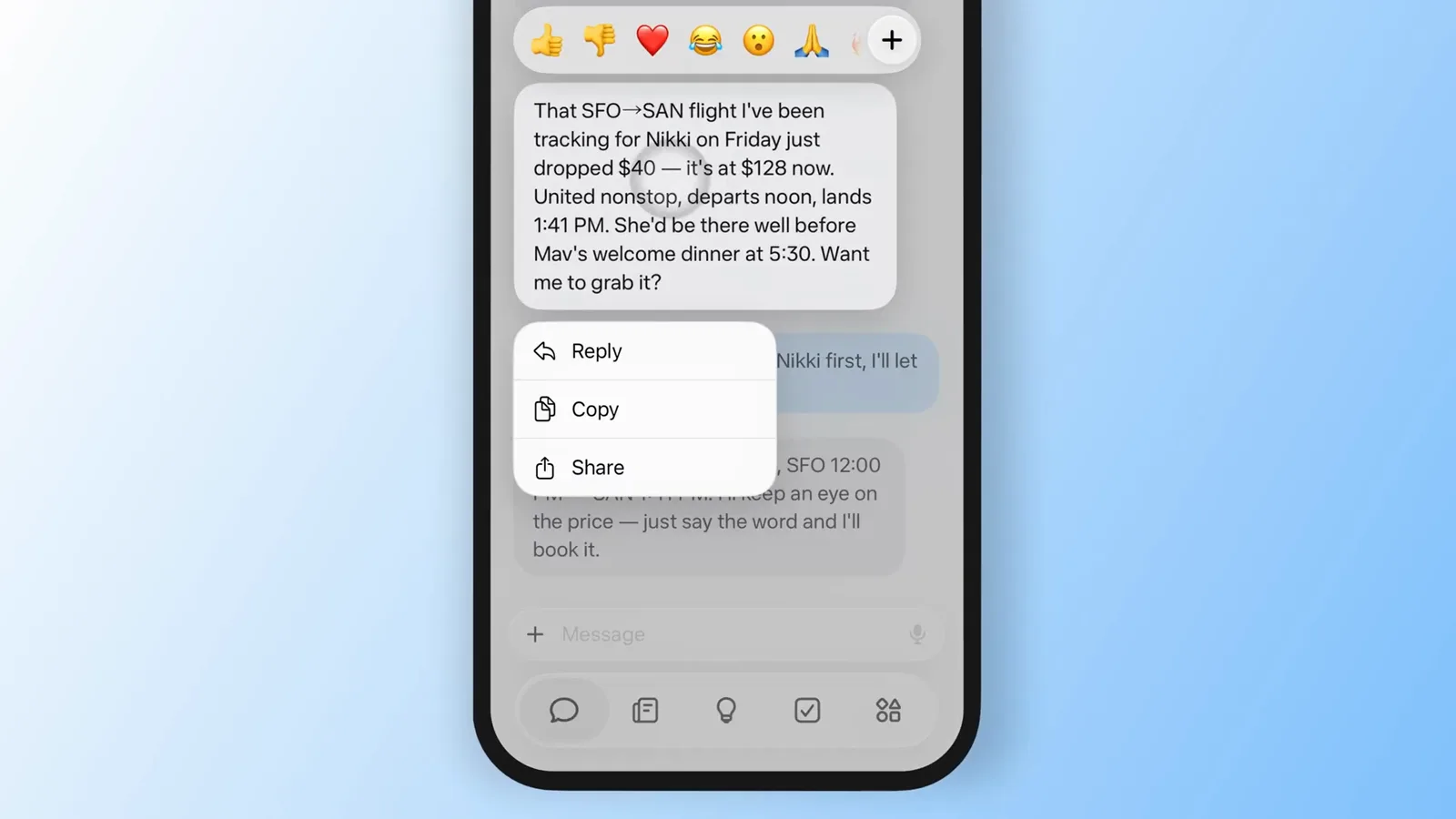
A flight-watchlist update with the reaction bar and message menu open.Watch at 0:11 - 8
Hand over a real purchase and get a receipt
Reply "Grab those" to a movie suggestion and Muse completes the purchase: "Done — 2 tickets confirmed. Sent the confirmation to your email," followed by the seat map for The Odyssey MAX at AMC Century City 15 at $24 each. That is the pattern for errands — the agent transacts, then files the receipt where you will actually see it.
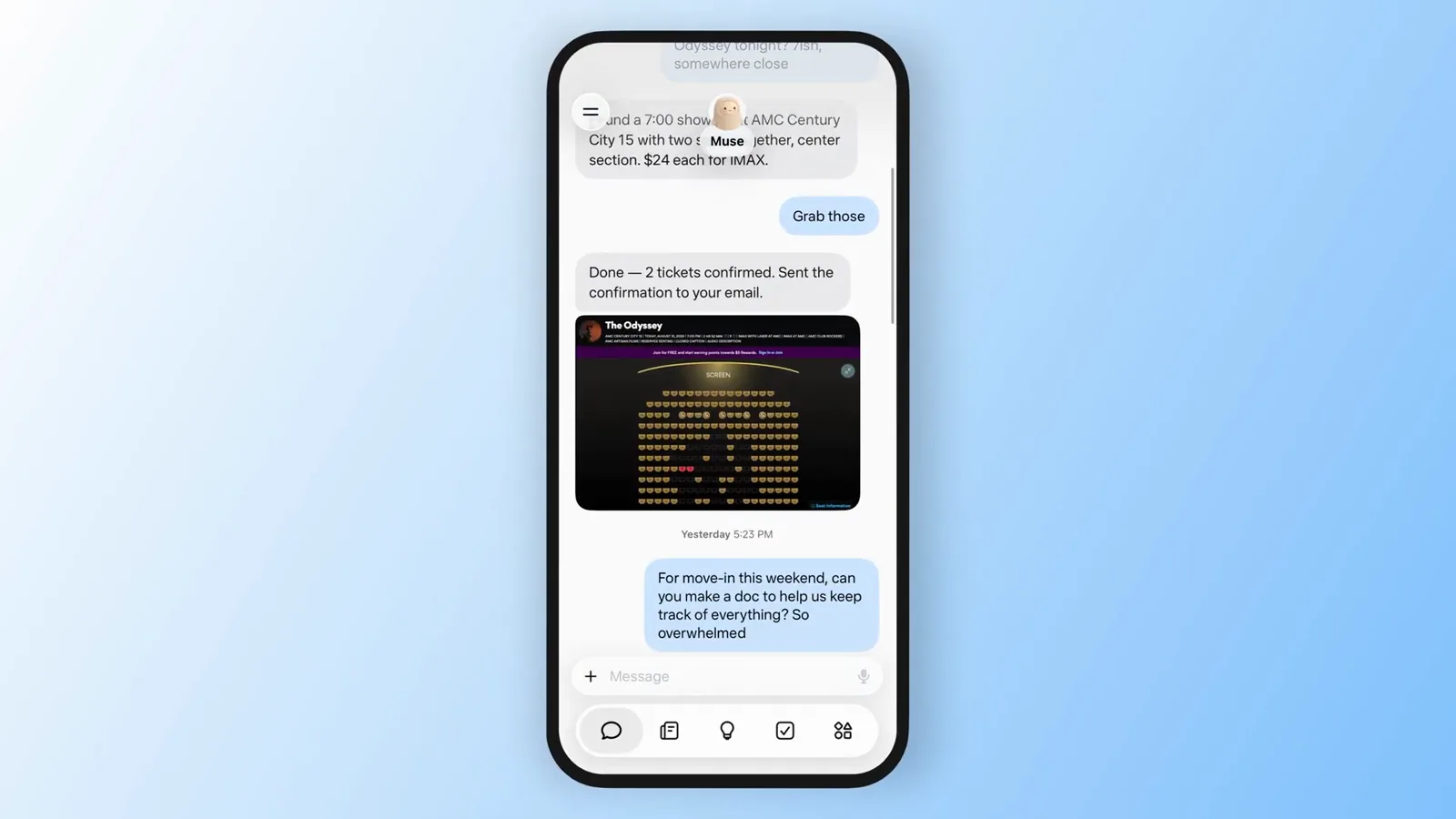
Two Odyssey MAX seats, confirmed and emailed, with the seat map inline.Watch at 0:32 - 9
Watch what Muse is doing on its own computer
Muse runs on its own machine in the background, and the status line at the top of the screen reports what it is doing right now — "viewing five files" or "working on emails." Tap it for the full log. The demo's Wednesday view lists emailing Carter about an espresso machine, organizing Max's move-in docs, buying a 50-foot bridge on Marketplace, and booking Saturday's movie tickets, each timestamped.
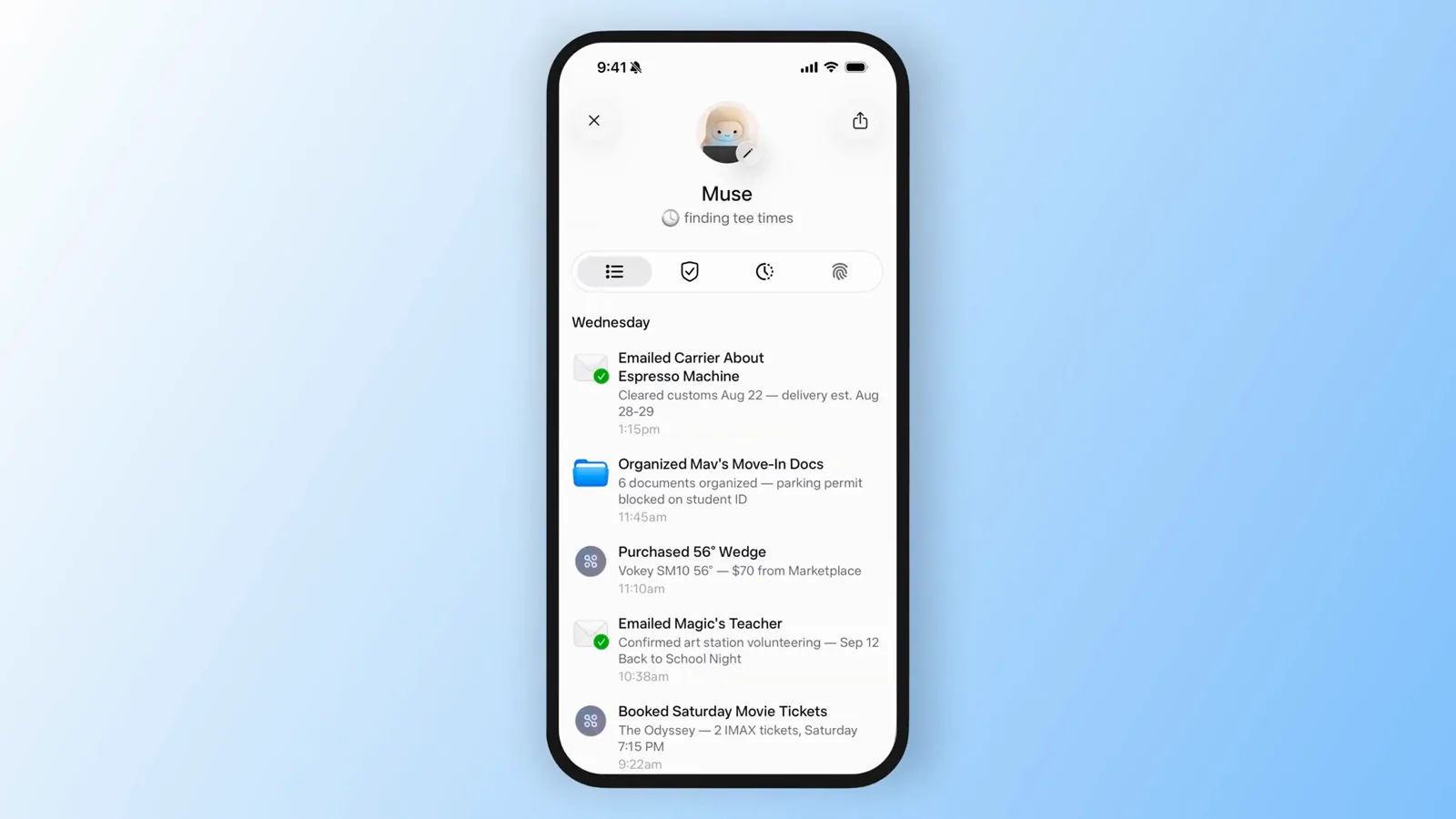
Wednesday, itemized: the emails, purchases and bookings Muse handled in the background.Watch at 1:00 - 10
Approve sensitive actions before they happen
Actions that touch your accounts stop at a Needs review card first. In the demo, Muse asks "Allow Muse to send emails in Gmail?" to send a follow-up to your golf group, and offers exactly three answers: Allow once, Allow for this task, and Deny. Below it, the Approvals history records past grants — a $66 headphone purchase, an Instagram post — so everything you have allowed stays auditable.
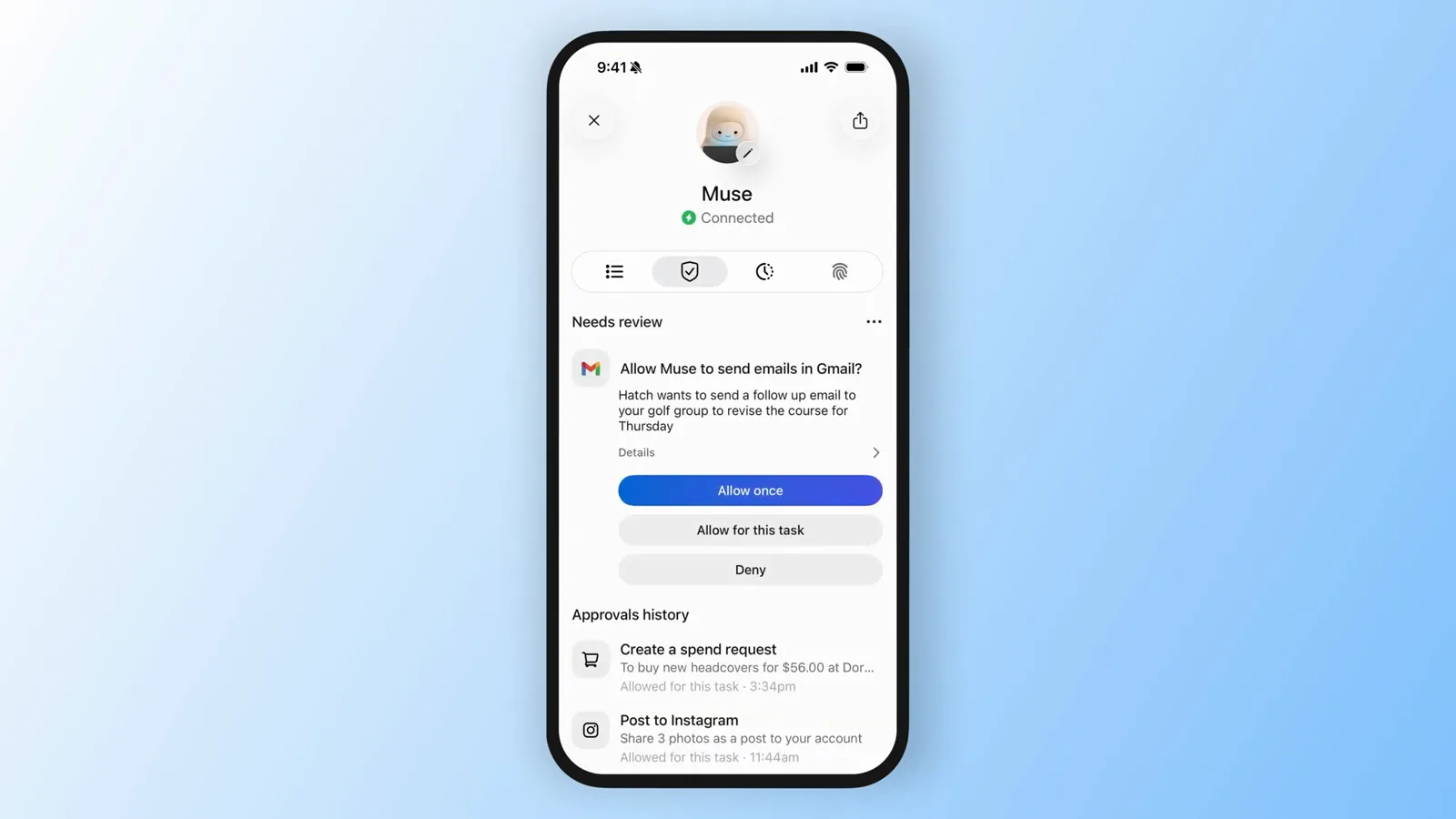
Three buttons stand between Muse and your Gmail — and every grant is logged below.Watch at 1:07
Tune the feed and harvest the Ideas tab
- 11
Let the feed find things for you
The feed tab holds content Muse finds because it thinks you will care. On the demo phone, a Wednesday-afternoon post walks through Seacliff's course with a photo and a Discuss button underneath, and the next card floats taking Max to Iceland over his first college break. Every post is written for one reader — you — not syndicated from anywhere.
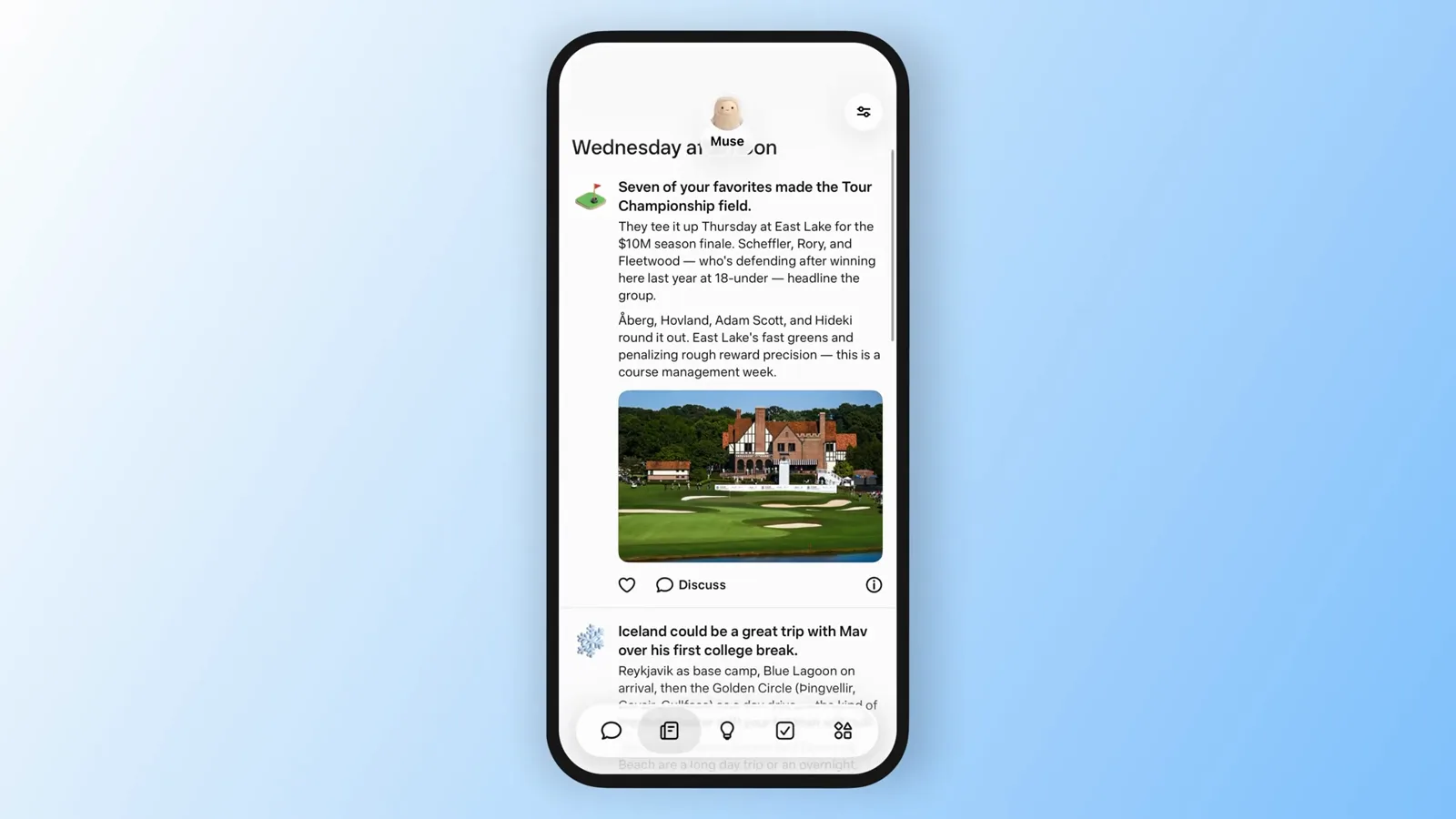
A hand-written Seacliff briefing in the feed, ready to discuss.Watch at 1:16 - 12
Program the feed with plain instructions
Tap the prompt at the top of the feed and an editor opens: "Your feed is powered by the instructions below. Any edits you make to the prompt will apply to future posts in the feed." The demo sets it to "I want finance news in the morning, golf updates in the afternoon, and nonfiction book reviews in the evening." Rewrite it whenever your routine changes.
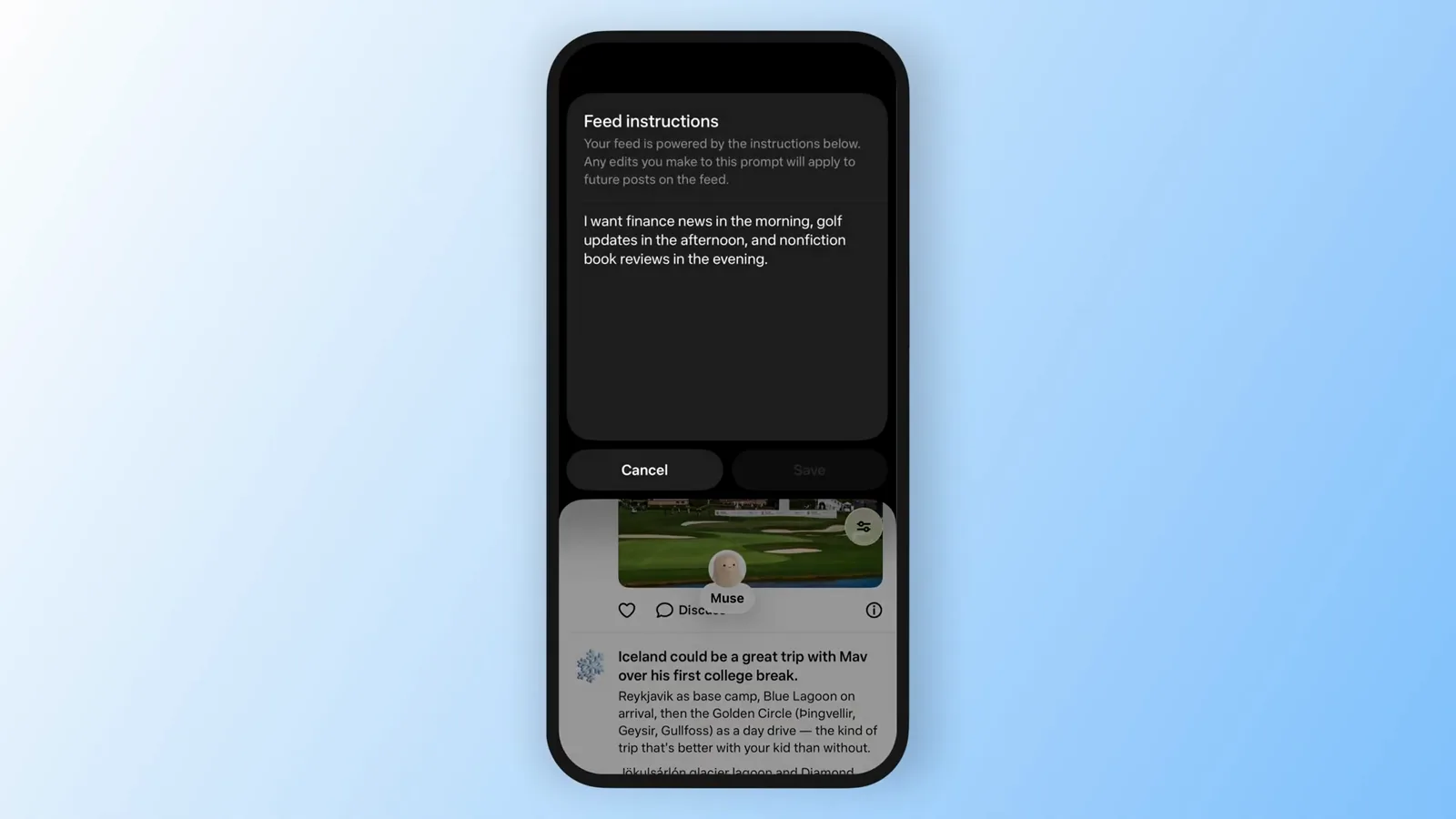
The feed's steering wheel: three lines of instructions, applied to every future post.Watch at 1:20 - 13
Harvest the Ideas tab for next steps
Ideas is where Muse proposes work you never asked for, drawn from your conversations: planning May's first visit home from college, consolidating sleep scores with round performance, building the Scottish golf trip itinerary across Kingsbarns, the Old Course and Royal Dornoch, or a kindergarten prep checklist for Magic. Ideas surface before you need them — tap one and it becomes a task.
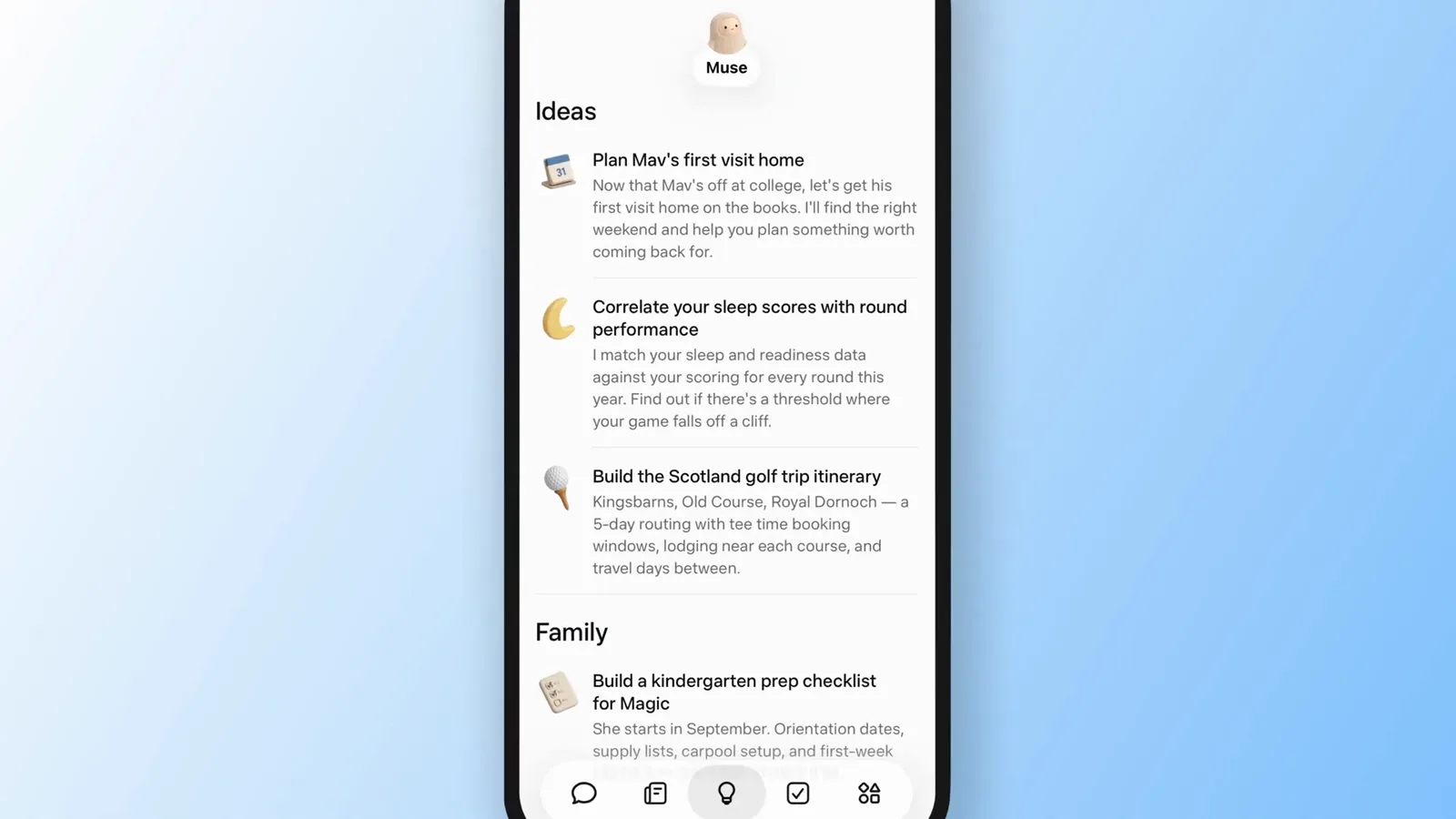
Unsolicited but on-target: the Ideas queue reading your week ahead.Watch at 1:34
Track goals and collect what Muse builds
- 14
Follow long-running goals step by step
Open a goal — May's College Move-In in the demo — and Muse shows the tracking brief plus an Activity timeline of what it has already done: flight booked for August 28, orientation schedule reviewed and tagged, supplies ordered, roommate coordination over the mini fridge, survival kit stocked. Goals appear on their own as Muse learns what you care about, with a Create-a-goal option for anything missing.
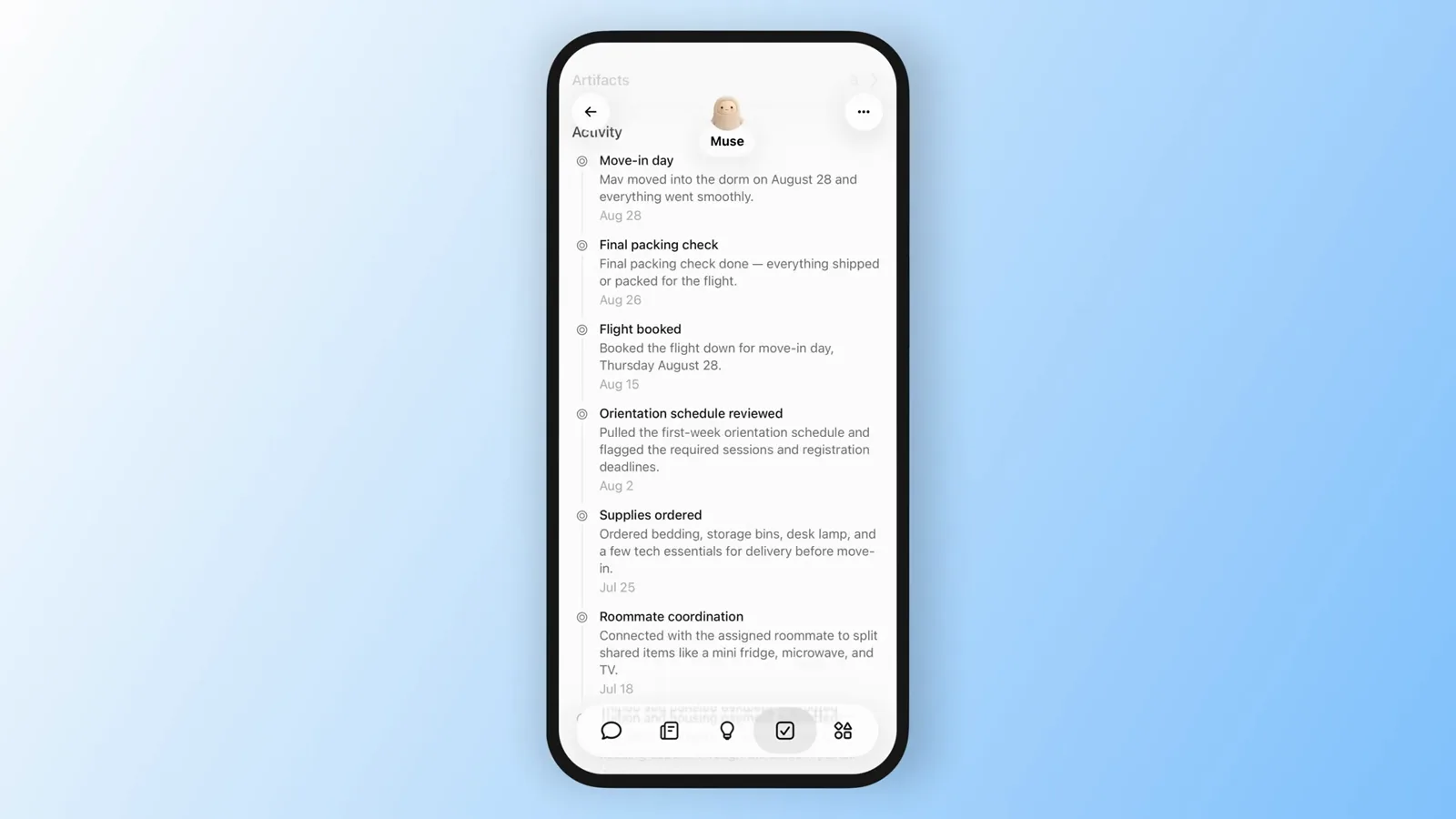
One goal, six done deeds: the move-in timeline Muse completed unprompted.Watch at 2:04 - 15
Find everything Muse has made in the library
The library tab archives anything you create with Muse: simple documents, PDFs, markdown files, and richer interactive artifacts. The demo archive runs from golf reports like Corona Round Analysis and Deep Cliff Postgame to a WWDC 2026 brief, a London coffee guide and an Autothread spec — each labeled by type so past work stays findable.
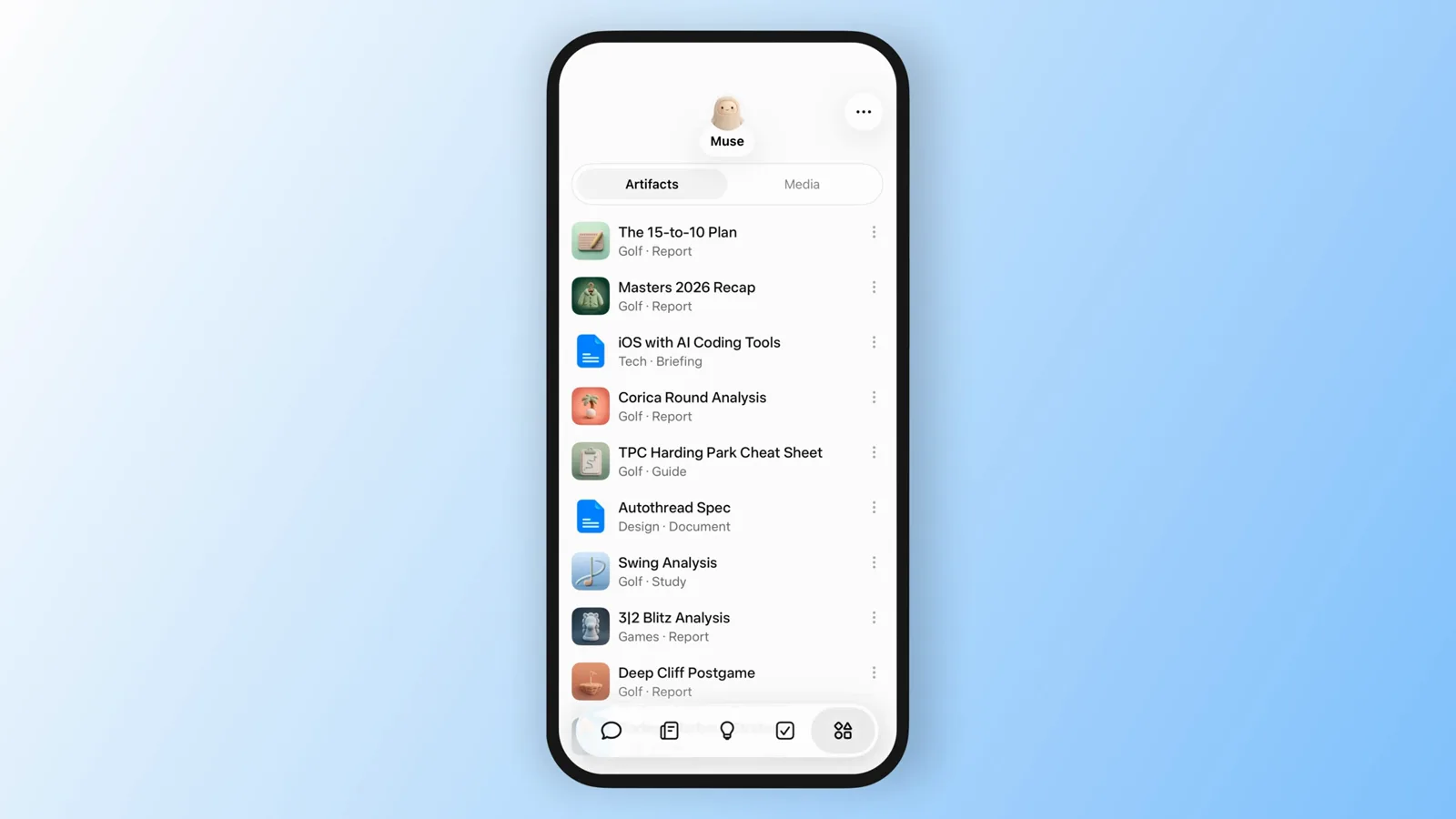
The archive shelf: reports, guides and specs, all labeled and retrievable.Watch at 2:16 - 16
Open a rich artifact and read your data
The tour's showpiece is a chess analysis dashboard Muse built from a connected chess account: a "3+2 Blitz" card with a 1718 rating, a 6-1-1 record, 73 percent accuracy, a rating timeline chart, and Key Moments calling out King Safety as the biggest rating leak. This is what "interactive artifact" means here — not a text file, but a small app generated on demand about your own data.
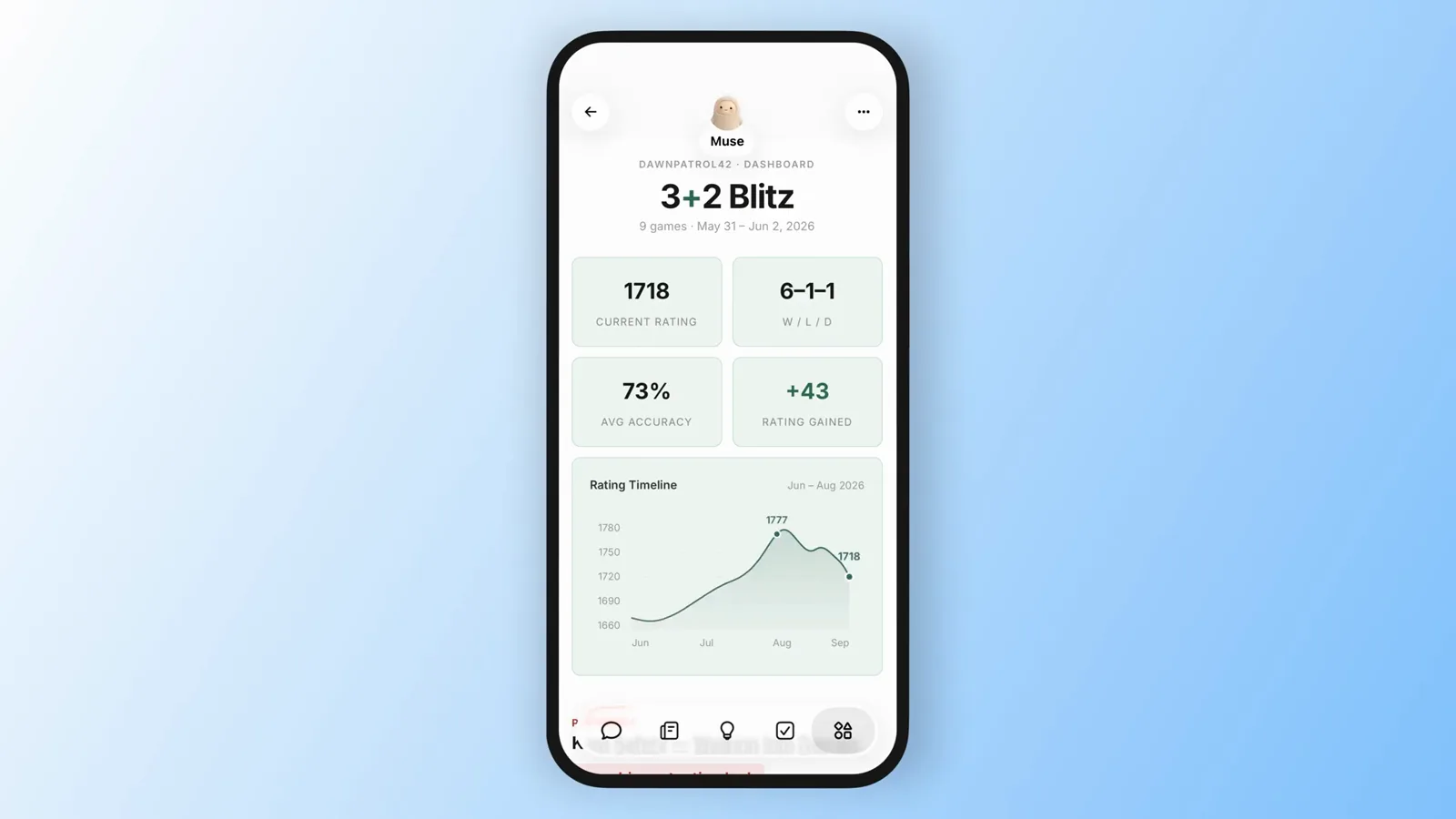
Your chess leak, charted: the King Safety breakdown inside a library-built dashboard.Watch at 2:22
Frequently asked questions
Keep exploring
- Browse every AI video tool in the directory
- More AI image generators, tested and ranked
- Prefer Muse on the desktop? Our Meta Muse Mac guide walks through the 9-18 desktop release, Connectors and permission controls.
- More picks: the best AI tools for content creators
- Meta Muse tips & tricks: 16 use cases worth setting up
- Meta Muse use cases: 16 real-world scenarios