

Jimeng AI Prompts Guide: Prompting Seedance 2.5 Step by Step
Jimeng is known internationally as Dreamina, and the model chip in its composer reads Dreamina Seedance 2.5. This guide distills JSFILMZ's long-video session — one minute of music video built from 30 references and a scene-by-scene prompt — into 8 steps, each backed by an original screenshot, plus the pitfalls his three-round A/B test exposed.
Source & credits
Screenshots in this guide are captured from JSFILMZ's public walkthrough video. Every step links back to the exact moment it shows, so you can follow along.
JSFILMZ ↗First, know Jimeng (Dreamina) and Seedance 2.5
- 1
Open the Dreamina composer and find Seedance 2.5
The international entry to Jimeng is dreamina.capcut.com. The composer sits at the bottom of the page, and its placeholder spells out the rules: "Upload up to 50 references, mixing images, videos, and audio, and use @ mentions to create interactions." Fifty reference slots, mixed media, @ mentions — that trio is the foundation of every Seedance 2.5 prompt. The model chip defaults to Dreamina Seedance 2.5, and the left rail shows your credit balance (7.2K in this session) plus top-up deals.
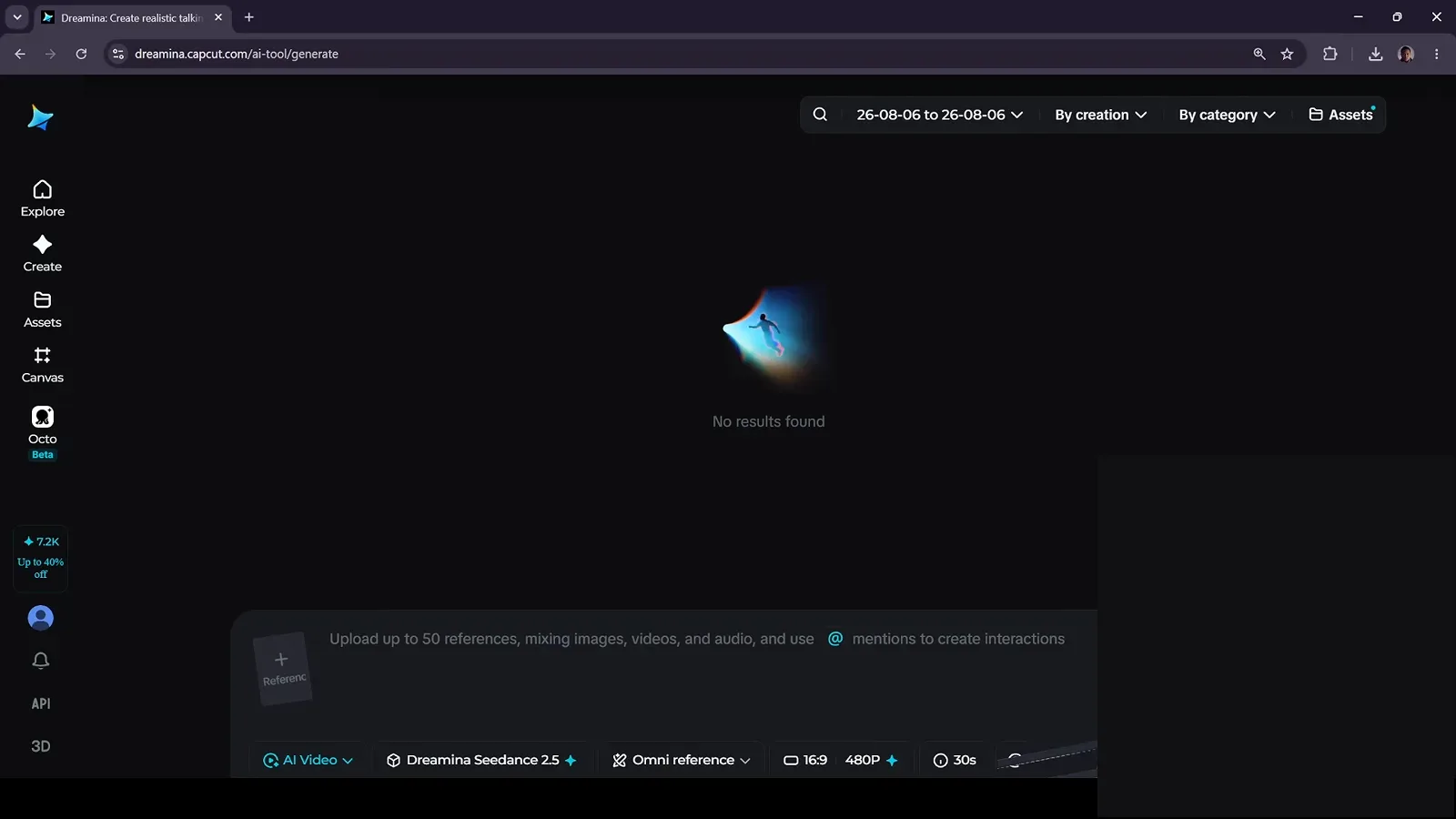
Three spots to know before writing: the prompt bar, the model chip, the credit rail.Watch at 0:28
The prompt formula: weave labels into the text
- 2
Draft the full prompt in a text editor and codename every asset
In practice the prompt is not typed into the web box cold. JSFILMZ writes the whole English prompt in a text editor first, weaving every character, location and prop into the sentences under consistent codenames — JESSICA, BANK_SECURITY_GUARD, CREDIT_MODULE — then attaches images back in the browser. His words: "I have woven all the resources directly into the query text." Weave first, attach second, so every image lands on its label.
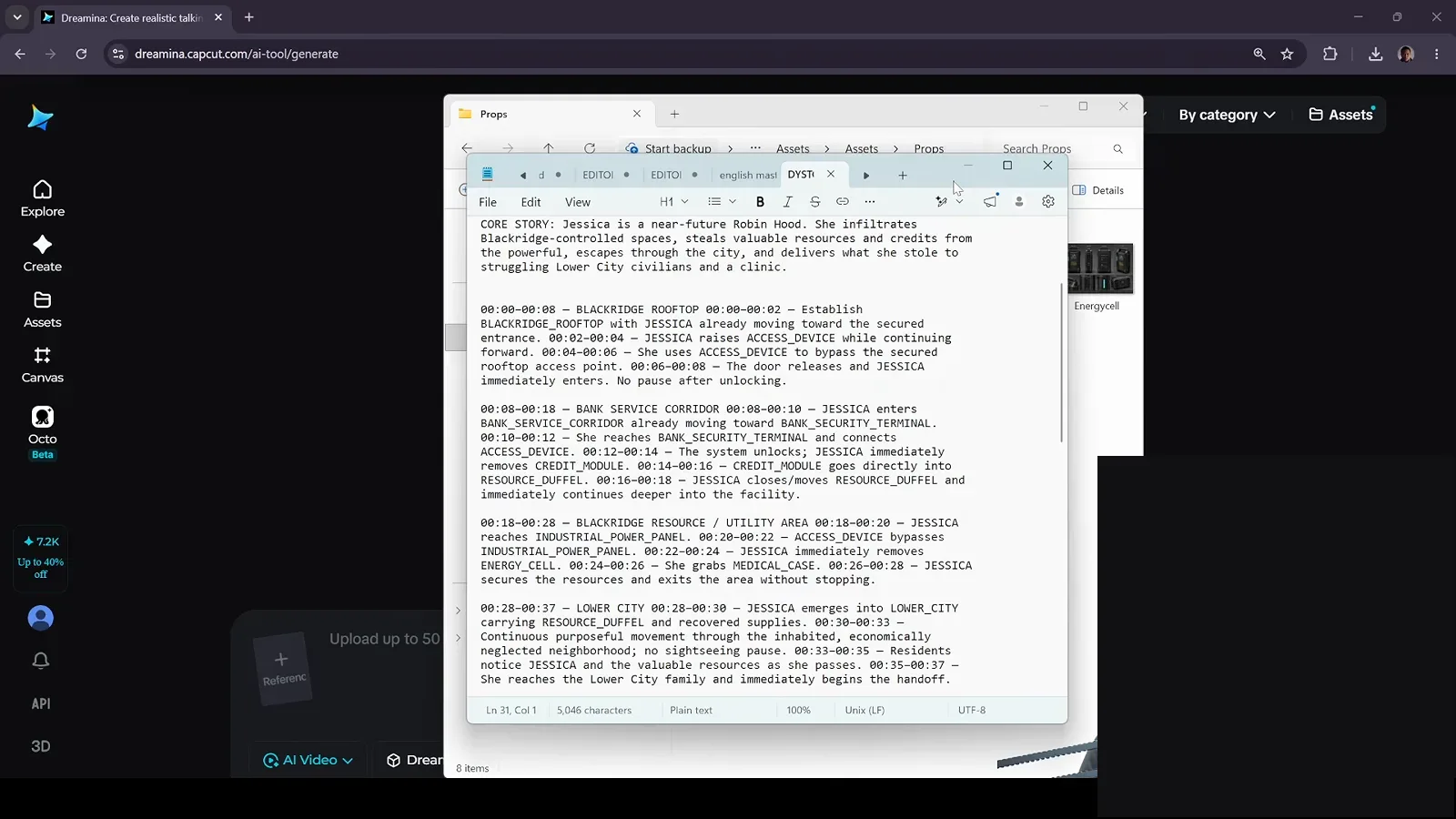
Write the prompt first, attach images second — matching codenames keep it clean.Watch at 1:20 - 3
Multi-scene plots: the timestamped scene list
Minute-long continuous video needs the plot moved forward second by second. This Chinese-language scene prompt cuts the action into two-second blocks (00:10-00:12, 00:12-00:14), names the asset codename in every block, and inlines chips like creditpack, Duffel and Powerpanel where props enter. That is the typical long-video format — but keep the final section's A/B lesson in mind: for montage-style content, timestamps can actively hurt.
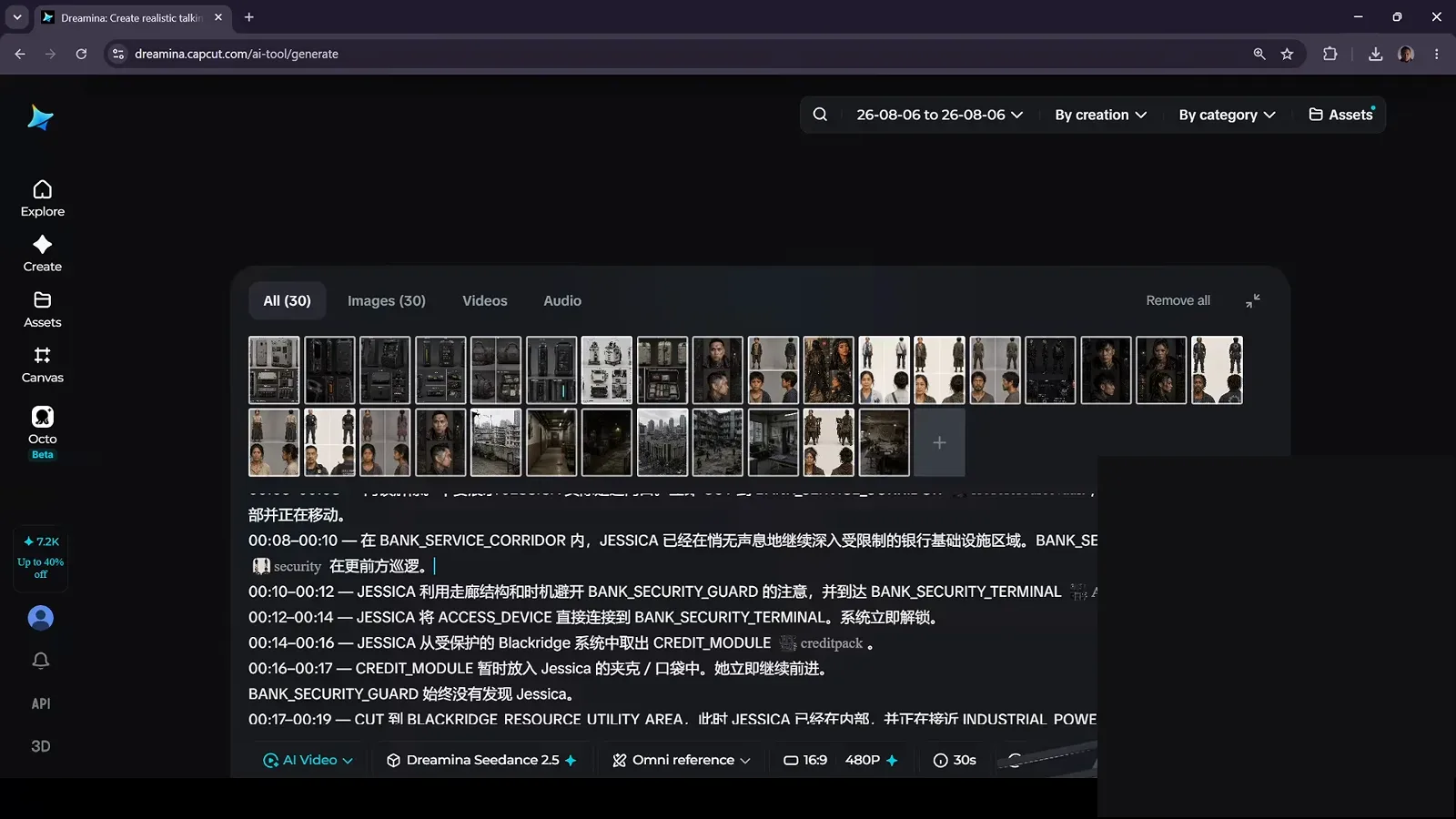
Two seconds per block, an asset named in each — that's a scene list.Watch at 3:10
References: 50 slots and @ mentions
- 4
Sort assets into folders whose names match the prompt labels
Characters, environments and props live in separate folders so uploads can be dragged in directory by directory. His advice: "make sure your labels are similar to the actual labels in your query." Attachment works by matching names to codenames — a mismatched label is a severed thread, and the model is left guessing.
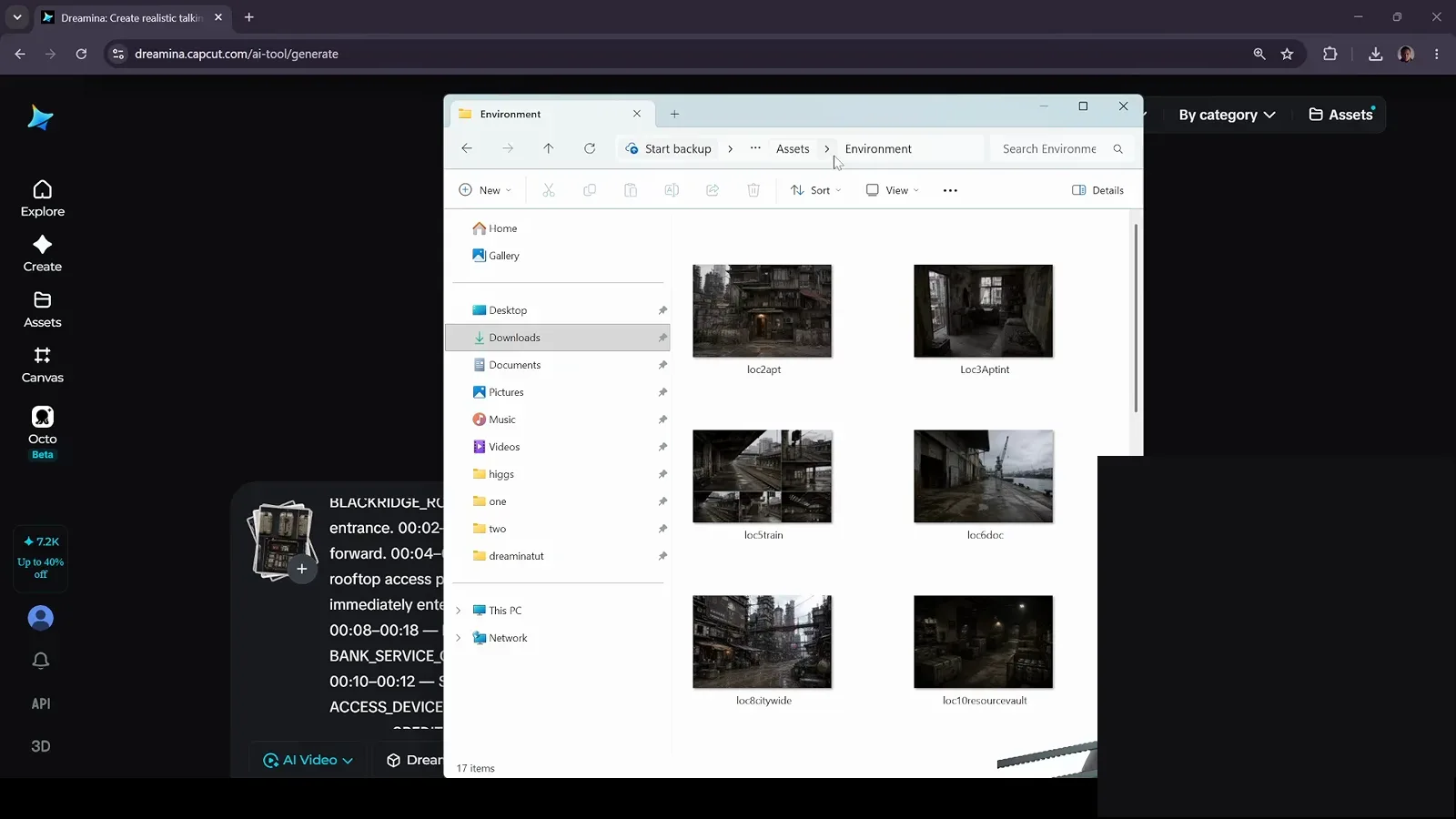
File name = prompt codename, and attachment becomes one-click.Watch at 2:07 - 5
The AI Edit panel splits assets into Images, Videos and Audio
Expanding the composer opens the AI Edit panel with three tabs — Images / Videos / Audio (this session reached 325 images and 55 videos) — with the full English scene prompt right below. Don't over-attach: for this one-minute video he used about half of the 50 slots, planning to add environment shots "when they're really needed".
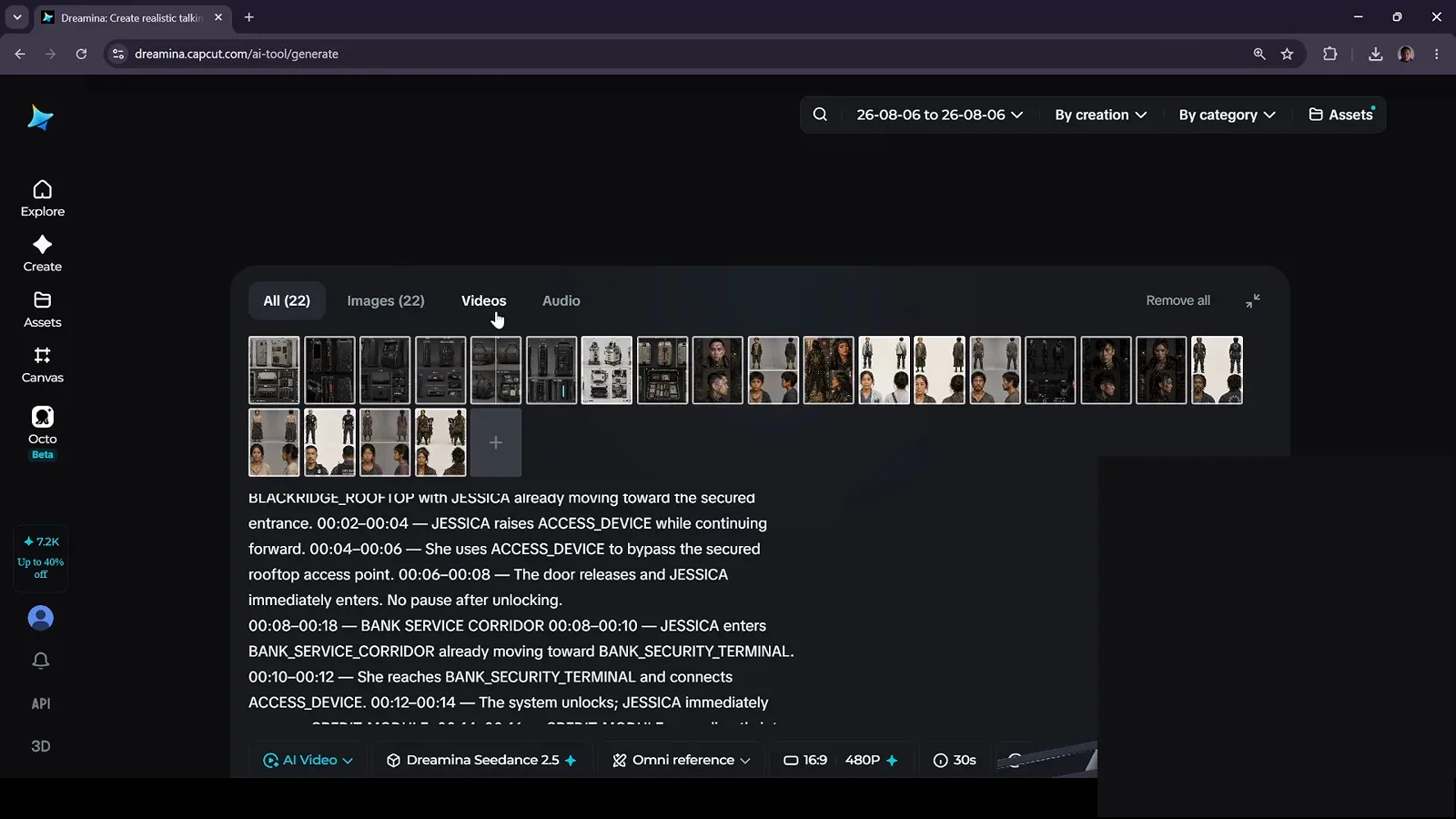
Images, videos, audio in separate tabs — attach what you use.Watch at 2:32 - 6
30 references on one screen: All / Images / Videos / Audio totals
The finished session carried 30 references — the panel header reads All (30) and Images (30) — with Remove all one click away in the corner. The key mechanic is "mention it once": in a multi-scene continuous video, a resource named once in the prompt is remembered throughout. He deliberately mentioned each only once to test whether the system remembers. It does.
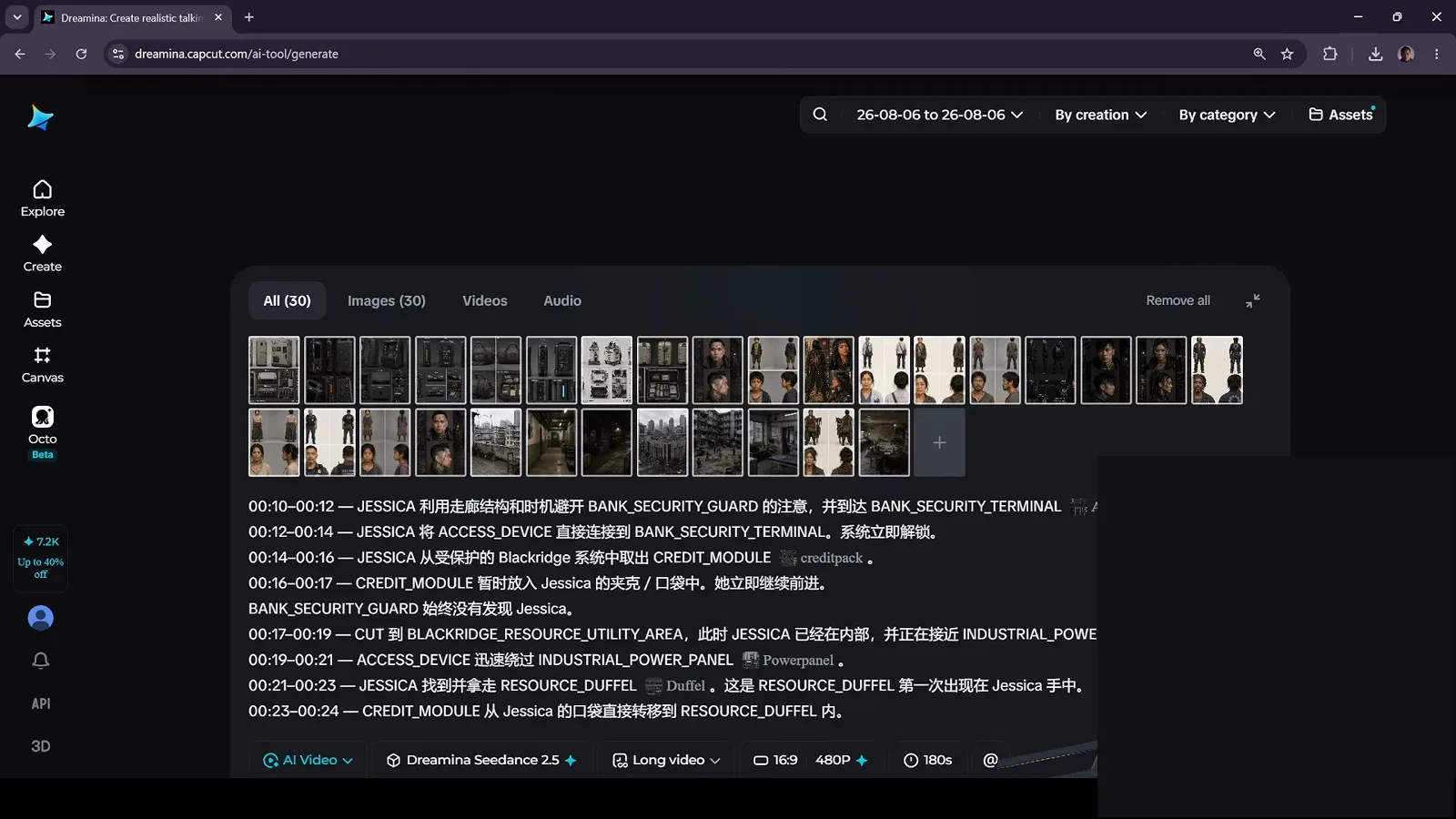
All (30) — half the 50 slots used, mentioned once, remembered throughout.Watch at 3:33
Long video mode: settings, credits, export
- 7
Switch to Long video, then set ratio, resolution and duration
The settings row gains a Long video mode: ratio to 21:9, resolution to 720P, and the Total duration slider pulled to 60 seconds (ticks at 0/30/60/90/120). Know the cost going in: at recording time this 60-second 720p clip listed around 4,000 credits before a 22% discount. Long video is a heavy-credit operation — validate your prompt at short durations before scaling up.
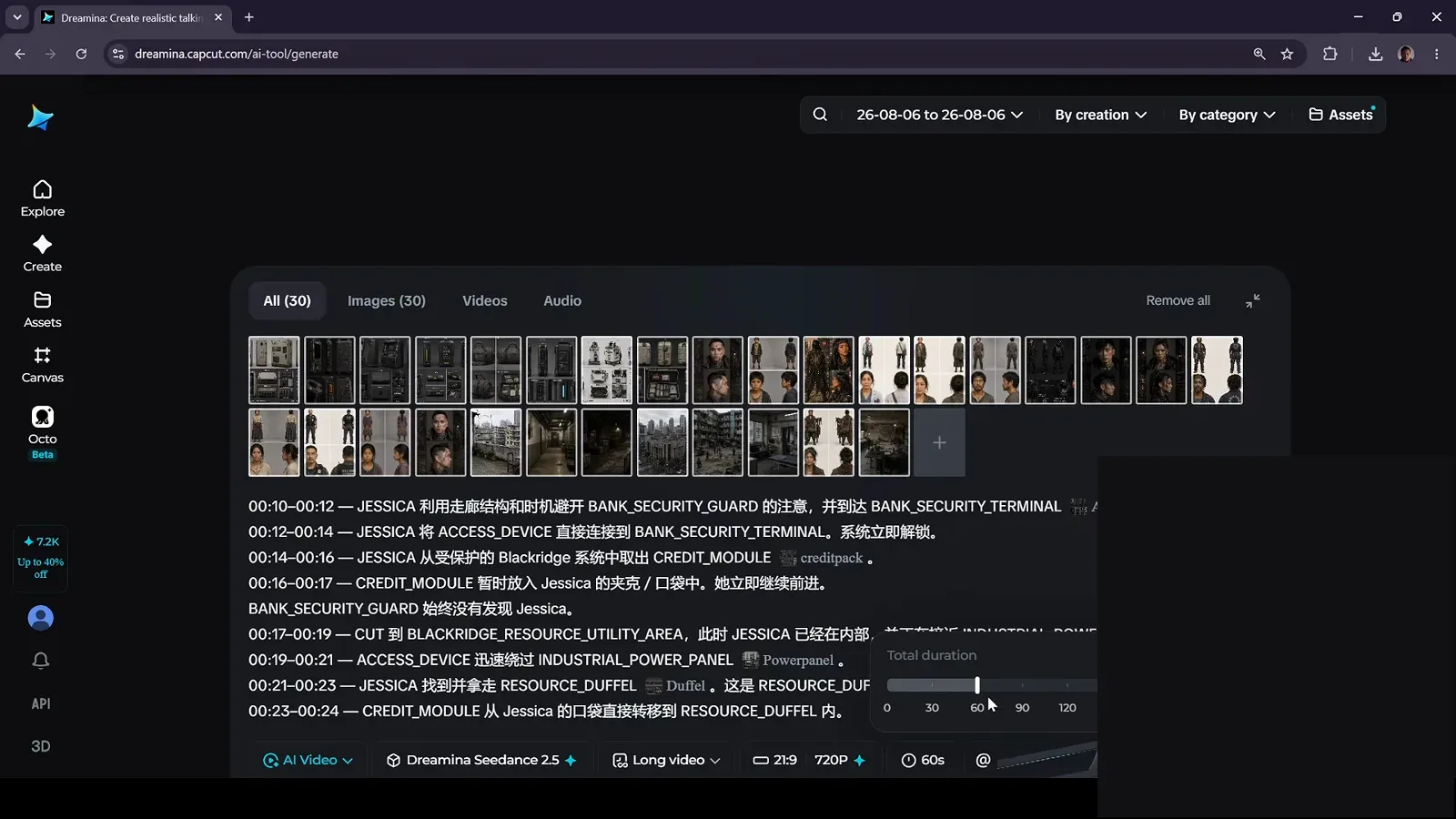
Long video + 21:9 + 720P + 60s — the full parameter set for a music-video sequence.Watch at 3:41 - 8
Render done: the Download panel and reference list
Finished clips replay in the player on the right; Download opens the export panel with the full reference list and a Save entry. His three-round A/B is worth copying: the fully timestamped version stayed usable for 18 seconds and fell apart after; the hybrid version produced time jumps; the third round with every timestamp stripped came out cleanest. For montage content, render the no-timestamp version first.
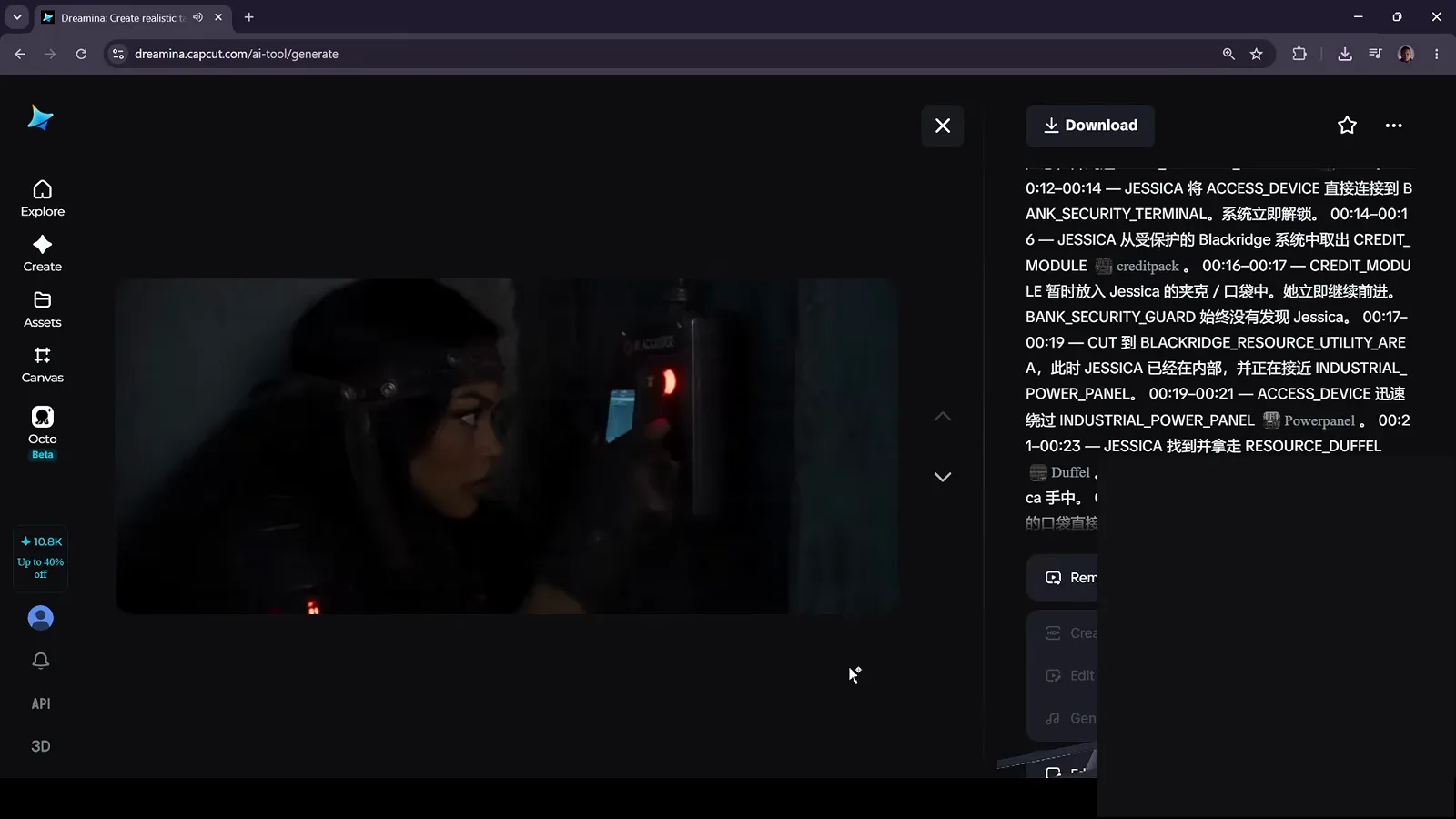
Clip, reference list, export — the last step checks every asset was used.Watch at 4:37