

15 Hidden Gemini 3 Features Most People Never Find
Most Gemini 3 walkthroughs stop at chatting, but the interesting parts are buried behind Gems, file uploads, AI Studio, and Google Search itself. This guide walks through 15 lesser-known features in the order you would actually meet them: what each one does, where the entry point hides, and what appears on screen when you use it. Every screenshot comes from a real screen-recorded walkthrough, so each step ties to the exact moment it was demonstrated. One heads-up before you start: as of October 2026 Google has trimmed the free tier back to Gemini 3.5 Flash-Lite, so a few of these steps assume a paid plan — the FAQ sorts out which are which.
Source & credits
Screenshots in this guide are captured from AI Master's public walkthrough video. Every step links back to the exact moment it shows, so you can follow along.
AI Master ↗Free-plan finds inside the Gemini app
- 1
Turn any YouTube link into structured notes
Gemini 3 reads YouTube natively, so a link is a source rather than something to summarize by hand. Paste the URL into the prompt box and ask it to extract every feature or topic by category, with timestamps. The demo breaks a product demo into automation, reporting, and integrations in a single pass — ideal for competitive research or long webinars.
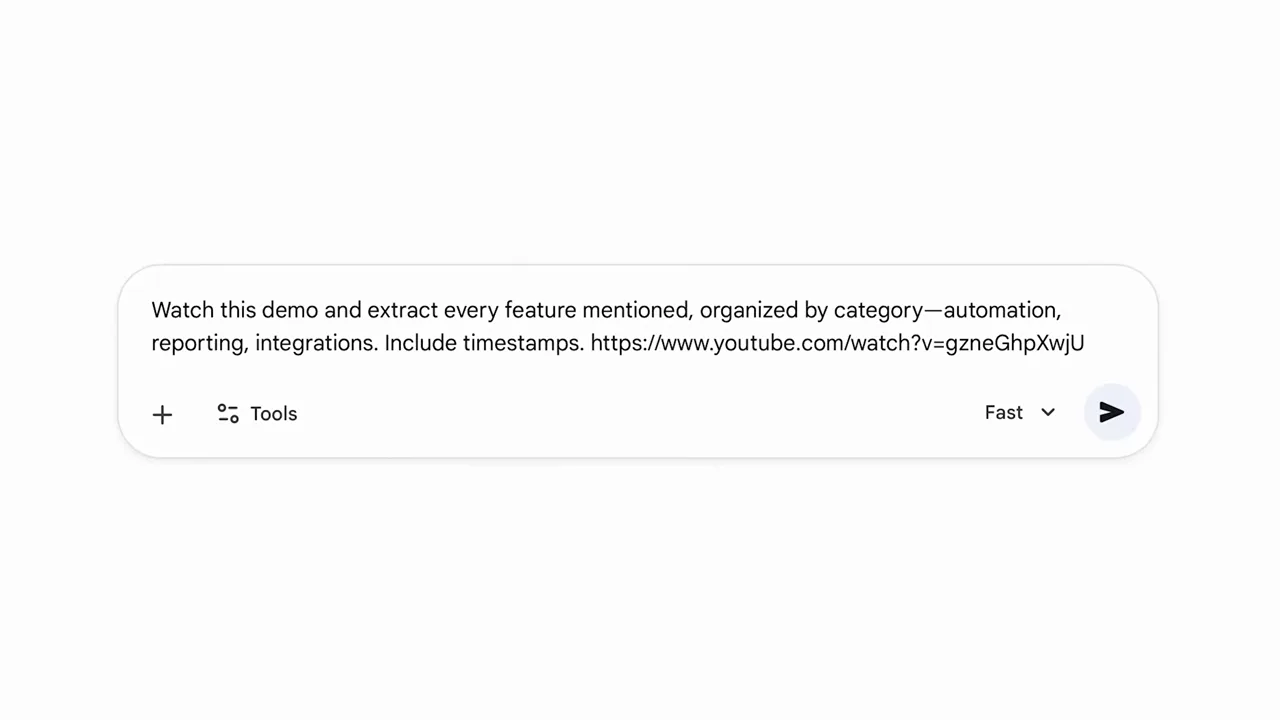
Paste a YouTube link and Gemini returns a categorized, timestamped breakdown — no transcript scrubbing.Watch at 0:48 - 2
Turn a dull PDF into an illustrated story
The Storybook Gem rewrites dry documents — policy PDFs, SOPs, manuals — as an illustrated story with named characters. Attach the file and ask for a story about a new employee learning the material, and Gemini answers with a storyboard like The Data Guardian's First Day. Export the finished story to Google Docs when it is ready to share.
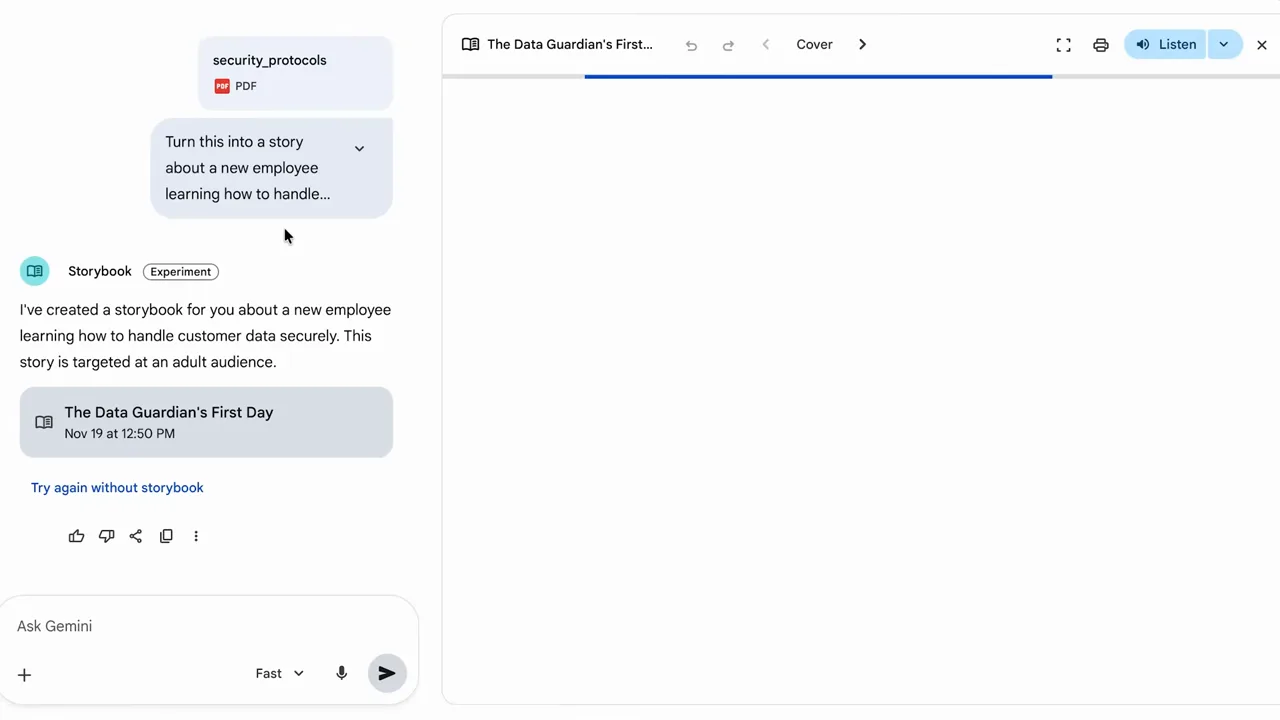
Security PDF in, illustrated story out — Storybook targets documents nobody wants to read twice.Watch at 1:30 - 3
Switch on Guided Learning for Socratic study
Guided Learning flips Gemini from answer machine to tutor: it asks you questions, hears your hypothesis, and corrects course as you go. Ask for a topic using guided learning mode plus Socratic mode, and the first reply comes back as Question 1 instead of a lecture. It paces itself to your answers and runs on the free plan.
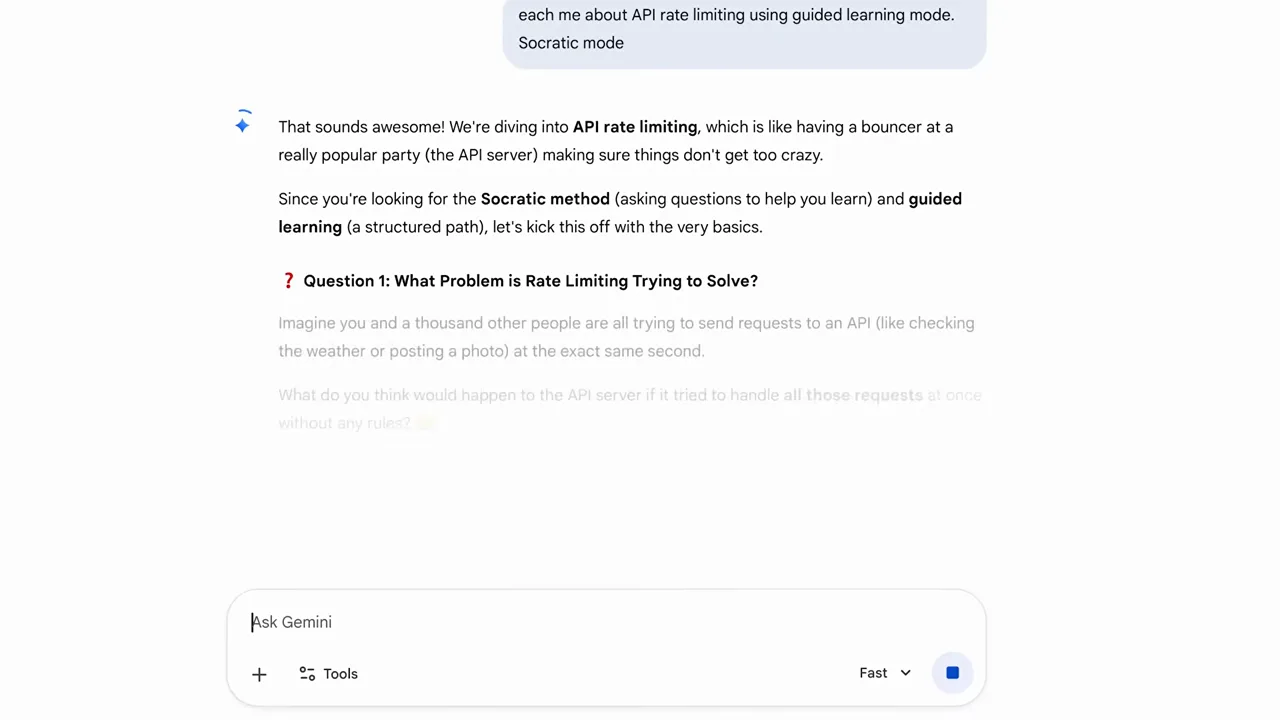
The first thing Gemini does is ask you a question — that is the whole point of Guided Learning.Watch at 2:10 - 4
Create a Gem that writes in your voice
Gems are reusable custom assistants, and the New Gem form only asks for a name, a description, and instructions. Spell out the tone rules — short sentences, active voice, banned jargon — and paste in examples of copy you like. Every draft dropped in afterwards comes back rewritten to your brand voice, for the whole team.
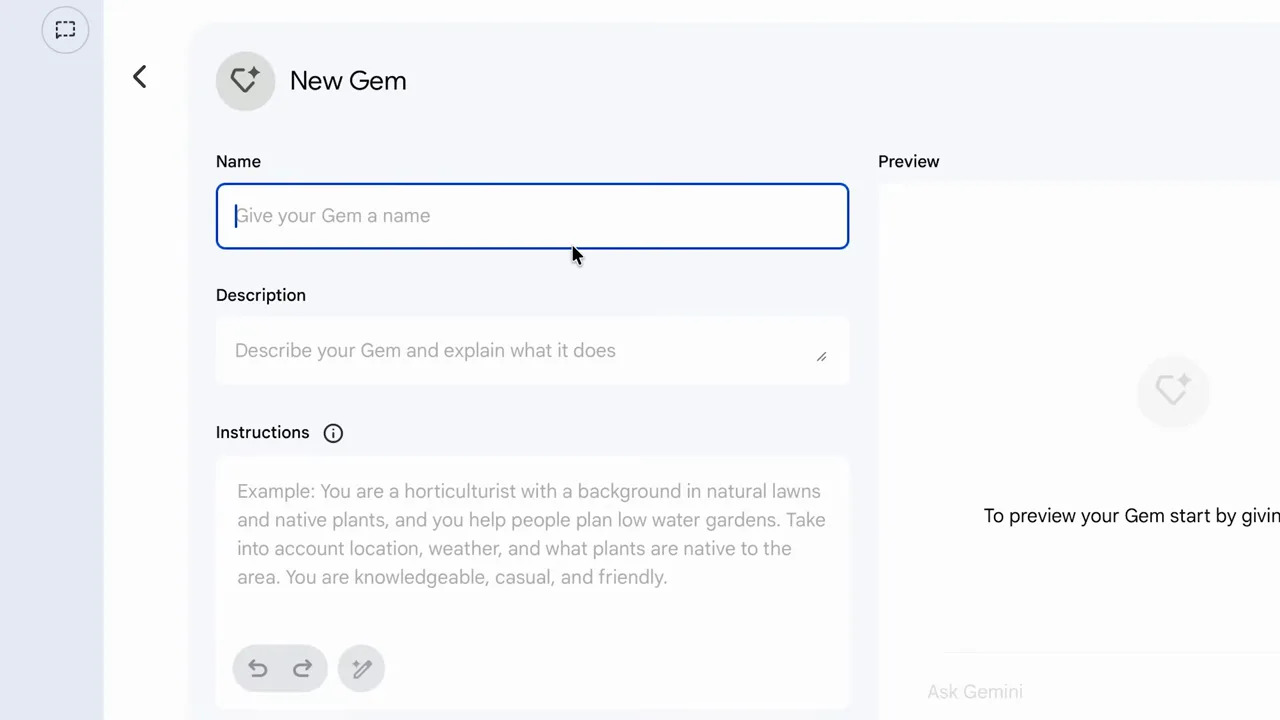
Name it, describe it, give it rules — a Gem keeps your brand voice enforced on every rewrite.Watch at 3:40
From raw input to finished deliverable
- 5
Turn a screen recording into an SOP
Record your screen once, upload the video, and ask for a step-by-step SOP with timestamps. Gemini reads the clicks, writes up each action with a timestamp and category, and returns a document you can hand to a new hire. A silent five-minute recording is enough — no narration required.
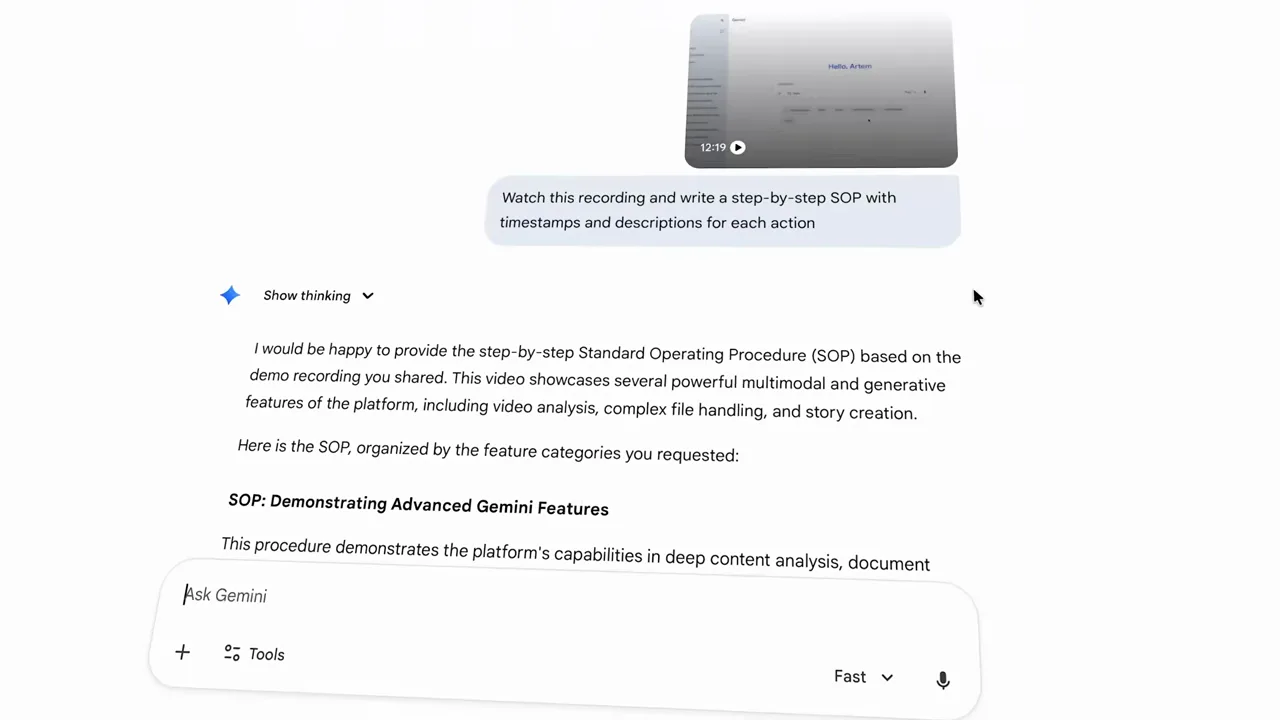
One silent screen recording becomes a timestamped SOP your team can follow without you.Watch at 3:16 - 6
Describe a dashboard, get real charts
Upload a CSV or connect Google Sheets, then describe the dashboard in plain language: revenue trends, top products, regional breakdown. Gemini reads the columns, runs the analysis, and renders interactive charts inside the conversation — no formulas, no pivot tables. The demo returns a bar chart of top products beside a monthly revenue line.
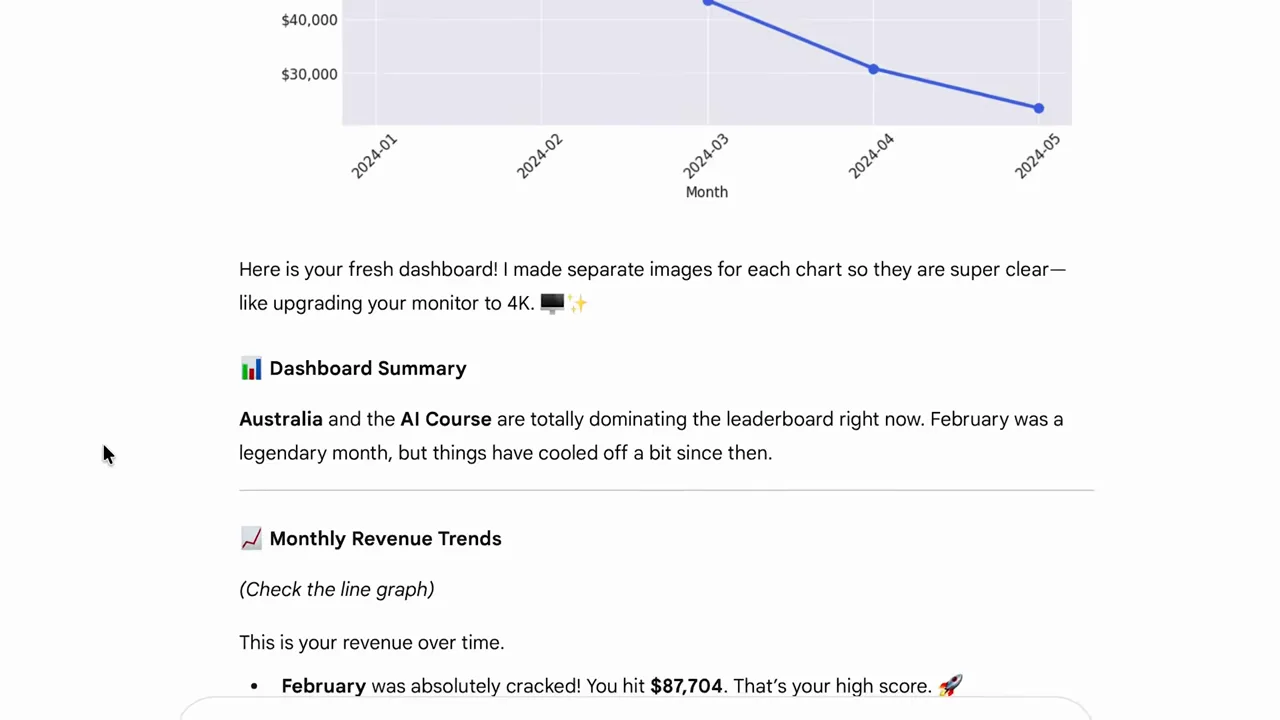
One sentence produces a working dashboard from your spreadsheet — charts render right in the chat.Watch at 10:07 - 7
Extract action items from meeting transcripts
Export a Zoom or Google Meet transcript, upload it, and ask Gemini to pull every action item into a table with owner and deadline columns. The demo returns a launch-task table with names and dates attached, plus an Export to Sheets button. Copy the table straight into your follow-up email and the meeting is closed out.
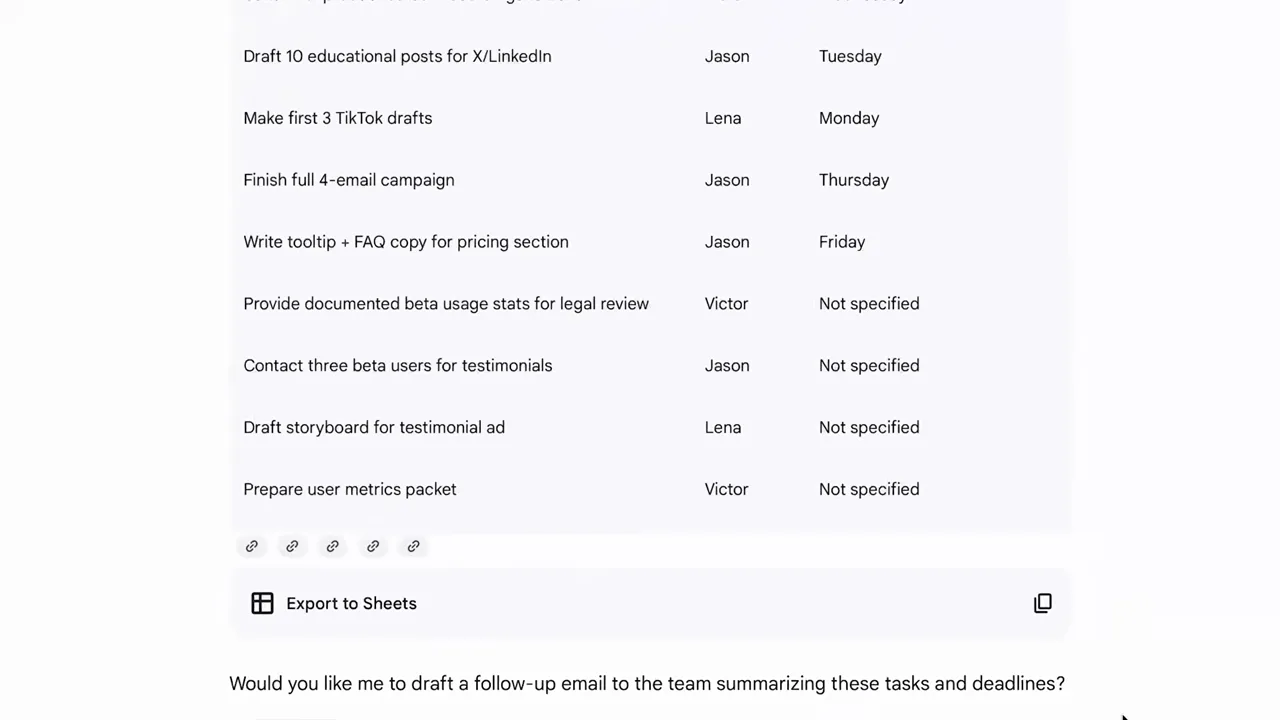
A one-hour transcript collapses into an owner-and-deadline table from a single prompt.Watch at 10:30 - 8
Schedule prompts that run every day
Paid plans can put prompts on a timer: ask for a summary of the top three trending tech stocks every morning at 11 AM Pacific, and Gemini confirms with a card showing Pause and Edit controls. It keeps running until you stop it — research digests, reminders, and drafted emails all work the same way.
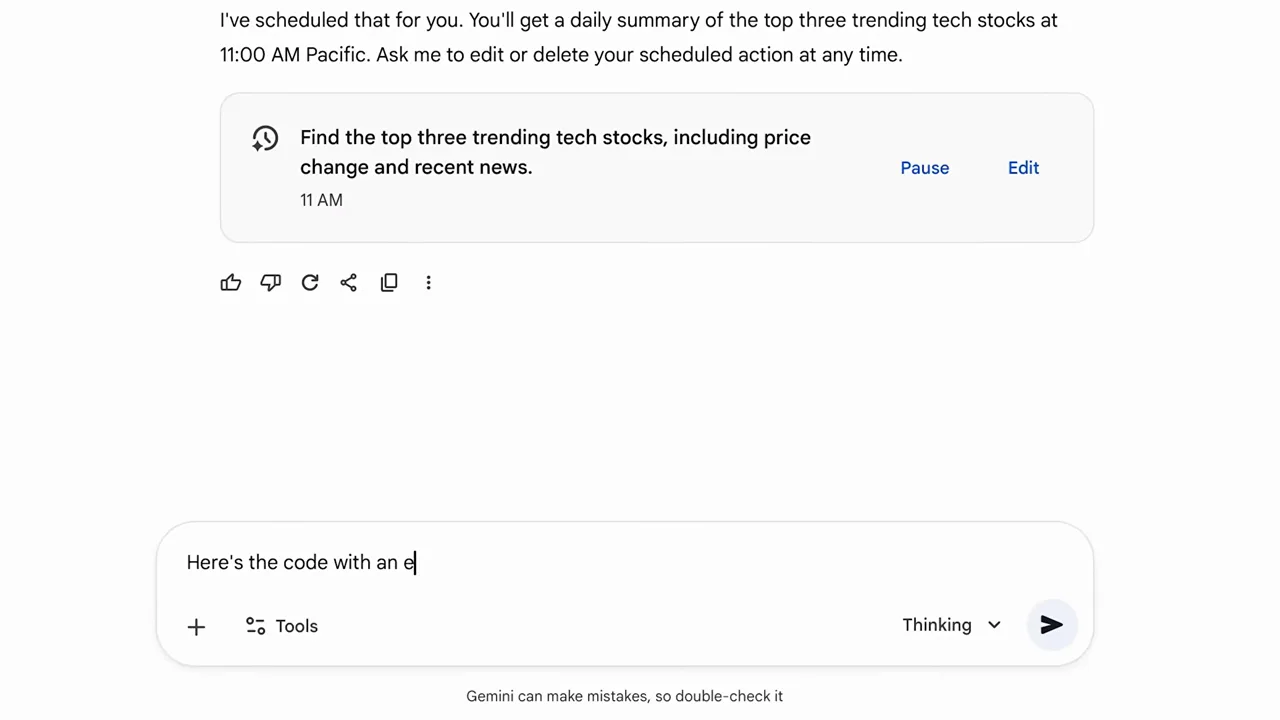
Set it once — the scheduled action card shows exactly what runs, when, and how to pause it.Watch at 11:36
AI Studio: the free creation playground
- 9
Generate two-voice FAQ audio in AI Studio
Google AI Studio at aistudio.google.com is free to use and hides the text-to-speech models the main app never mentions. Pick a TTS model, paste a script, and ask for an FAQ dialogue with two speakers — one asking, one answering. Broadcast-quality audio comes back in seconds, no microphone or editing required.
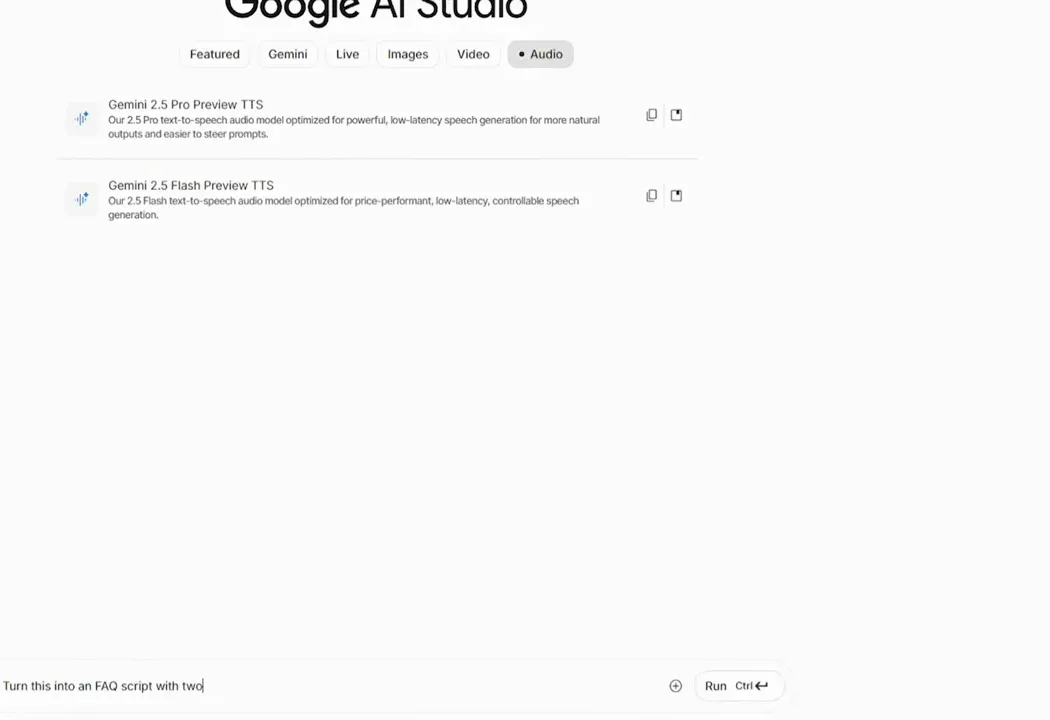
AI Studio's Audio tab turns one script into a two-speaker dialogue — voices included.Watch at 13:12 - 10
Clone an image style with a reverse prompt
Upload a reference image you like — a competitor's hero banner, a portrait style worth reusing — and ask Gemini to write a detailed prompt describing it. Paste that prompt into AI Studio's image model, choose an aspect ratio, and generate new images in the same style for social posts or decks.
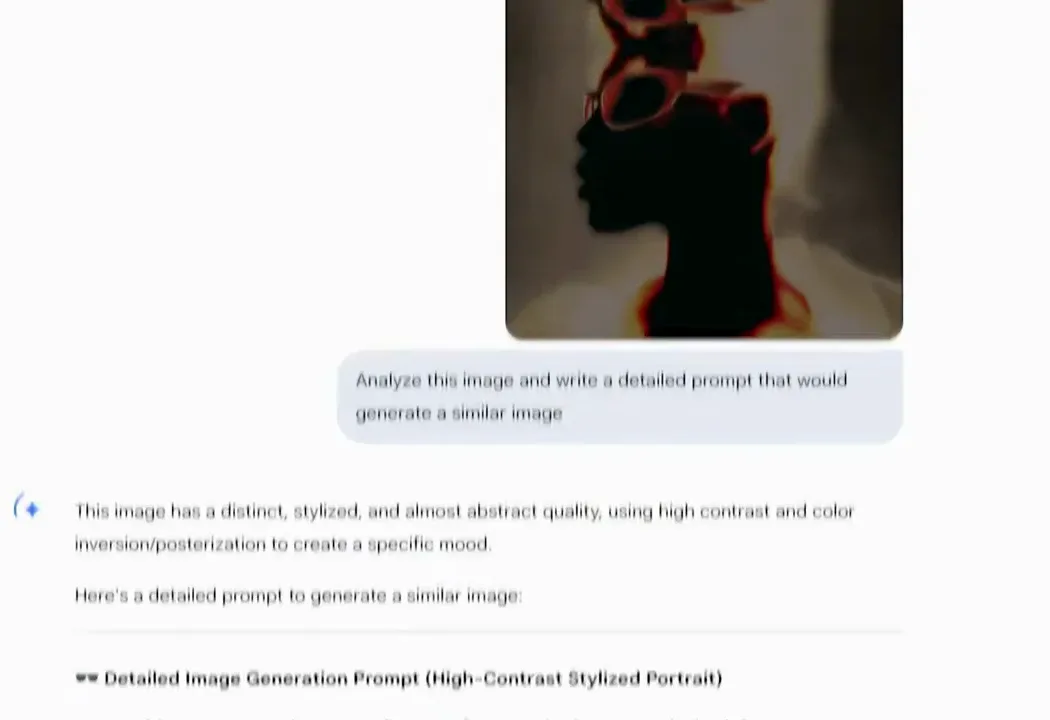
Reverse-engineer any image into a prompt, then generate fresh variations in the same style.Watch at 13:58 - 11
Animate a still image with Veo
In AI Studio's video model, upload the image you just generated and describe the motion you want: a slow camera zoom, shifting light, an eight-second loop. Veo returns a smooth animated clip that works as a website header or ad opener — and most people still do not know it is free to try.
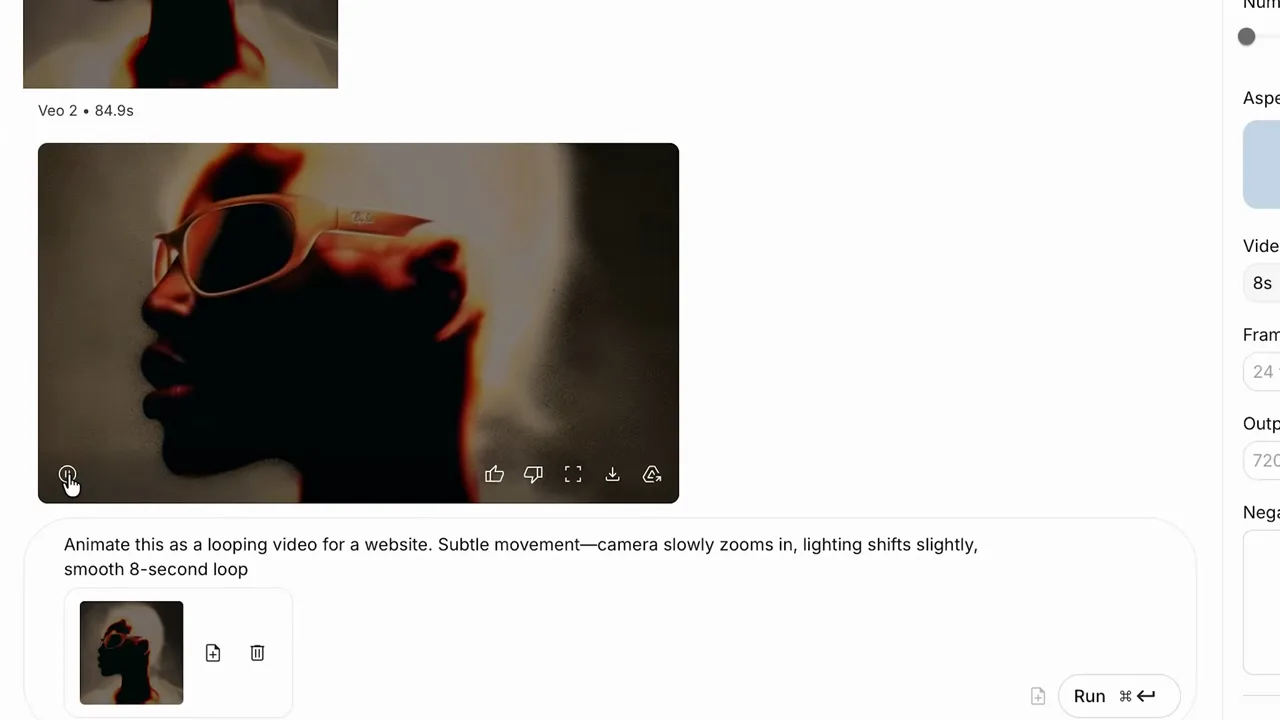
The prompt asked for a subtle zoom and light shift — Veo handled the animation end to end.Watch at 14:34 - 12
Build a mini-tool by describing it
AI Studio's Build tab turns a sentence into a small app. Type that the user enters a website URL and Gemini analyzes the site for SEO issues, press Build, and it assembles the input field, the Gemini analysis, and the report output. Publish the workflow and every future client audit takes one click.
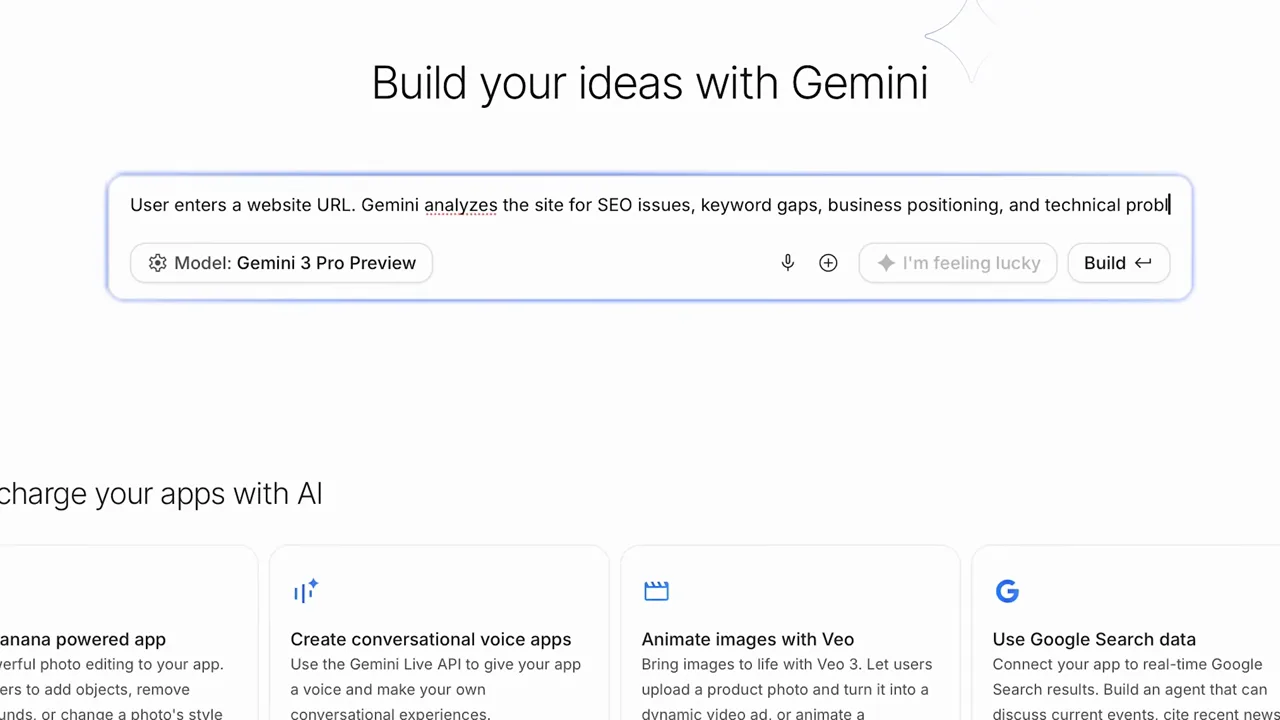
Describe the tool in one sentence — Build wires up the inputs, the model call, and the output.Watch at 15:10
Search superpowers and live screen help
- 13
Ask AI Overview for comparison tables
Google Search's AI Overview answers questions like the best no-code video editor with a structured response: options grouped by use case, trade-offs called out, and source links attached. Follow up in plain language to refine the shortlist — no search operators needed. It works like a research assistant bolted onto Search.
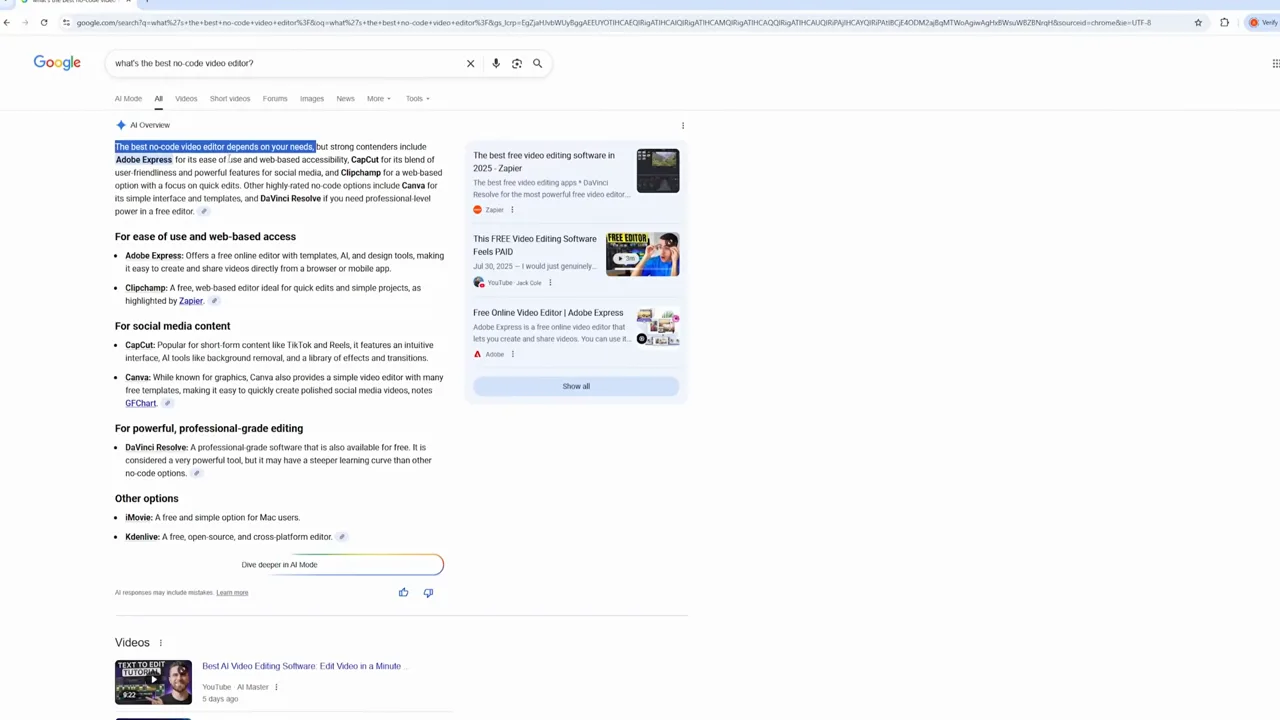
The answer arrives grouped by use case with sources attached — then you just keep asking.Watch at 17:07 - 14
Fact-check a chart with AI Mode
Screenshot any graph or claim — a market forecast, a viral statistic — and upload it to Google's AI Mode with the question of whether the data is still accurate. AI Mode identifies the data points, searches for newer reports, and answers with source links so you can verify before you repeat the number.
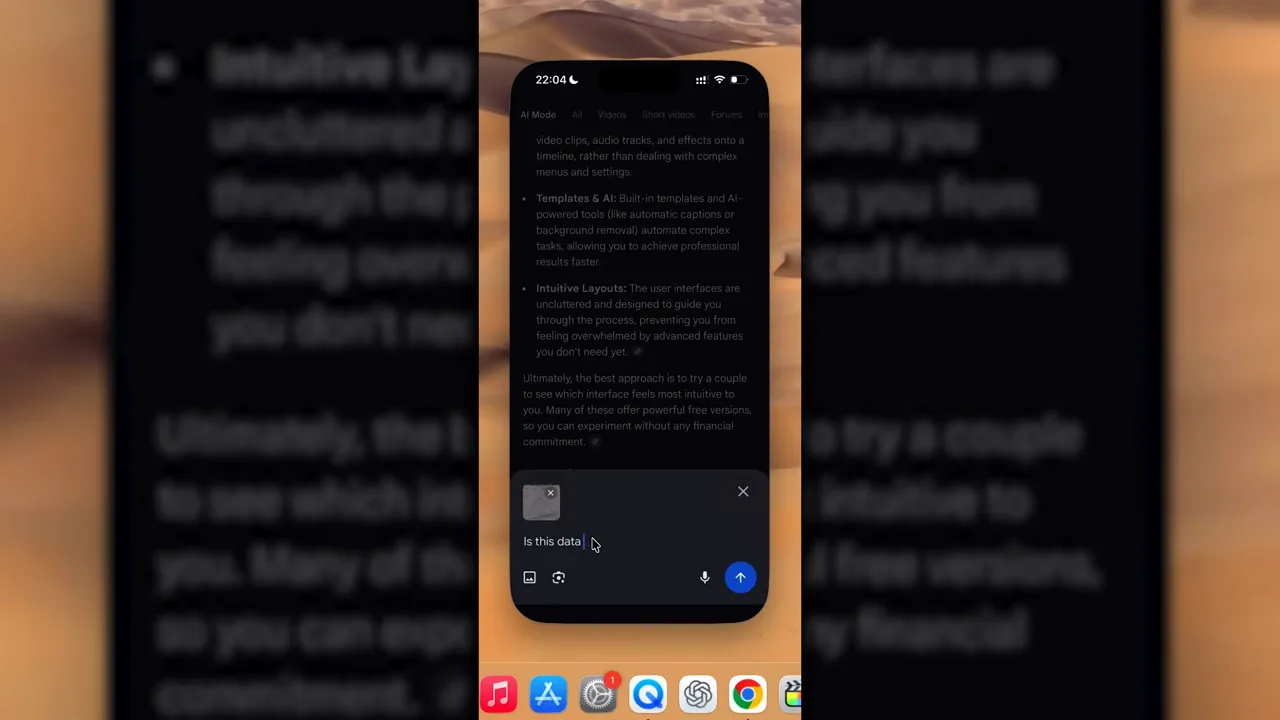
Upload the screenshot, ask if the numbers still hold — the answer comes back with source links.Watch at 17:41 - 15
Share your screen for live feedback
In AI Studio, open the camera panel and choose Allow to Share Window. Gemini then watches that window live: ask whether your email sounds too pushy while it is on screen and you get an instant read with a suggested fix. Design critiques, code reviews, and troubleshooting all work the same way.
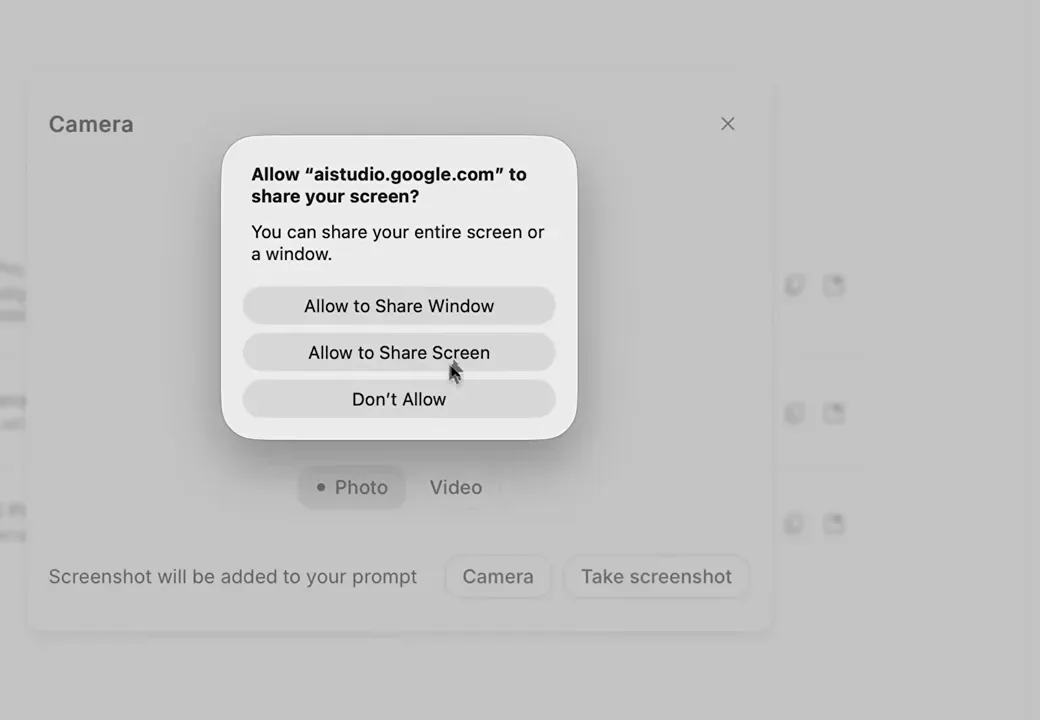
Grant the window once — Gemini reads your screen live and answers while you work.Watch at 18:28