

How to Use Claude Slides: a 16-Step Beginner Walkthrough
Claude Slides is Anthropic's presentation tool, launched in beta on September 16, 2026 alongside Claude Docs and Claude Design — the same day Cowork folded into the regular chat, so this walkthrough follows the current interface while older Cowork tutorials show the same tools under a different entry point. Every frame comes from Anthropic's own launch video, Cem Eygi Media's hands-on, and 9x's team walkthrough, so each button you see is a button you have. You will open the Output menu, prompt a five-slide deck, edit slides by comment, set up a design system, present with speaker notes, and export to PowerPoint or PDF.
Source & credits
Screenshots in this guide are captured from Claude's public walkthrough video. Every step links back to the exact moment it shows, so you can follow along.
Claude ↗Get Slides in your Claude window
- 1
Start from the chat box — Cowork is gone
On September 16, 2026 Anthropic merged Cowork into regular Claude chat, so the deck tools now live in every conversation. Open claude.ai and look at the composer: a Chat/Cowork toggle sits under the input box, with Project or folder, Auto and Output controls below it. If you follow an older Cowork tutorial, everything it demonstrates now happens right here.
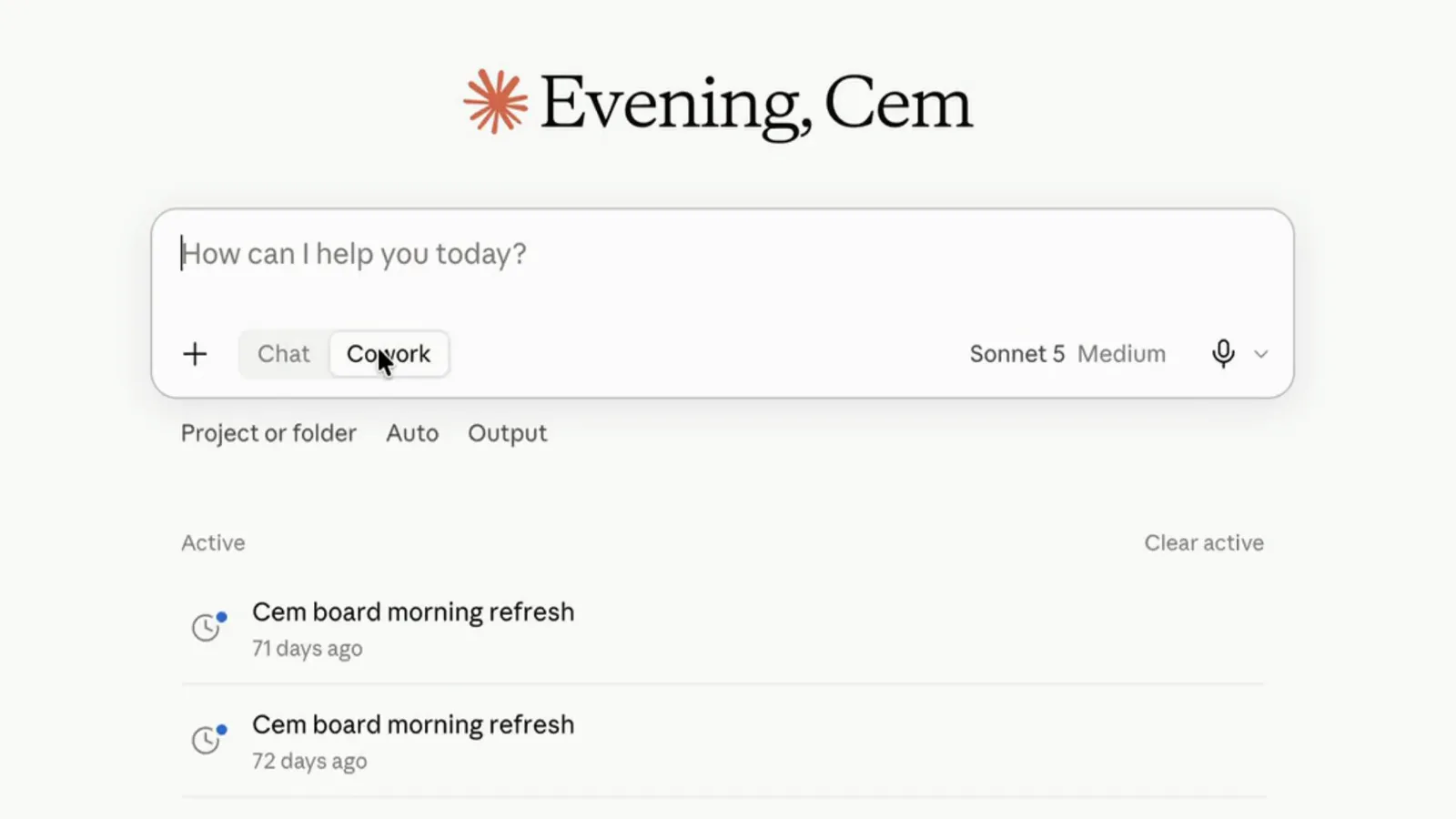
One composer now covers quick chats and agentic work alike.Watch at 0:38 - 2
Open the Output menu and pick Slides
Click Output under the composer and the trio appears: Docs, Slides and Design, each tagged Beta, plus Artifact if you want Claude to pick the format. Choose Slides and the chip sticks to the composer, so everything you send next builds decks. Claude Design joined the same menu on the same day — it moved in from its separate app.
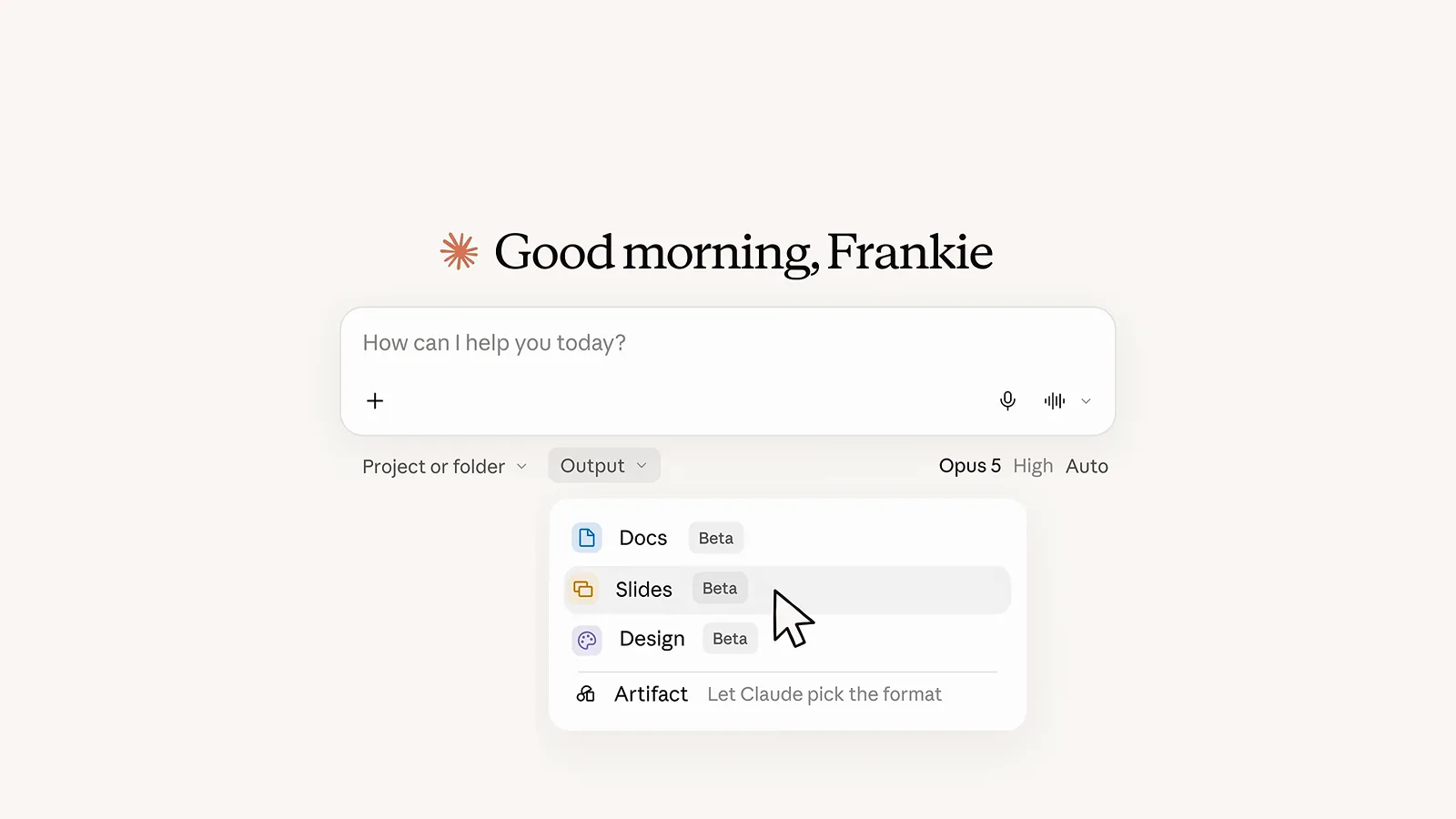
Docs, Slides, Design — one menu, added on launch day.Watch at 0:06 - 3
Check your plan before you prompt
Slides shipped in beta for paid plans, and the rollout was staged: Pro and Max accounts saw it first, Team and Free plans later, all inside the Claude app on web, desktop and mobile. If the Output menu has not appeared for you yet, that staging is the reason, not a setting. Expect deck generation to draw down your plan's usage limits faster than normal chat.
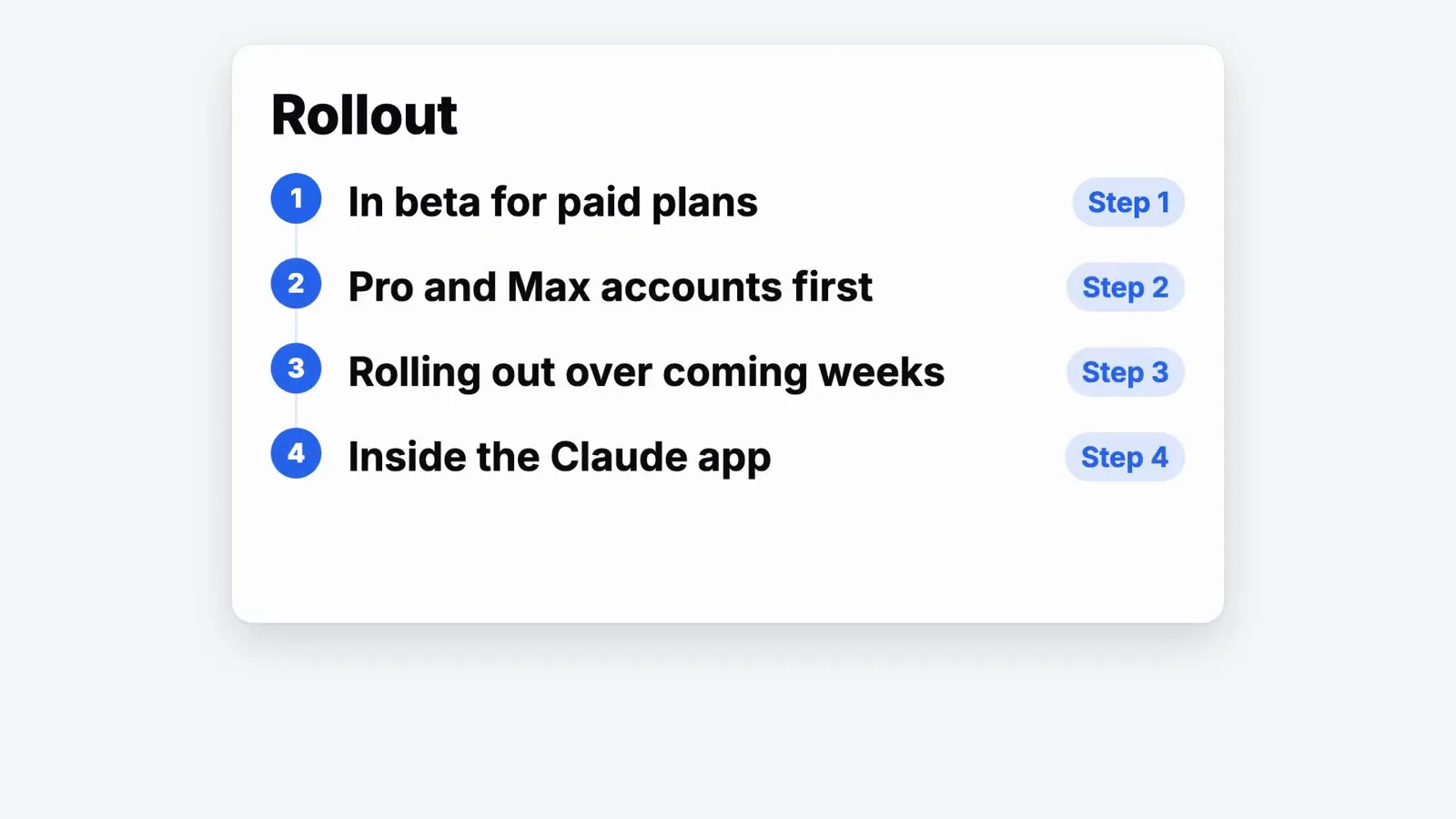
Beta on paid plans first; Pro and Max led the rollout.Watch at 6:10 - 4
See where decks live: the slides panel
Selecting Slides opens a workspace beside the chat: an Untitled slides panel with a Paste your ideas and turn them into slides card, a No design system dropdown, and an Add slide button on an empty canvas. You can build here by hand, but the faster path is to describe the deck in the composer and let the panel fill in. Everything you create later shows up in the Artifacts section of the sidebar too.
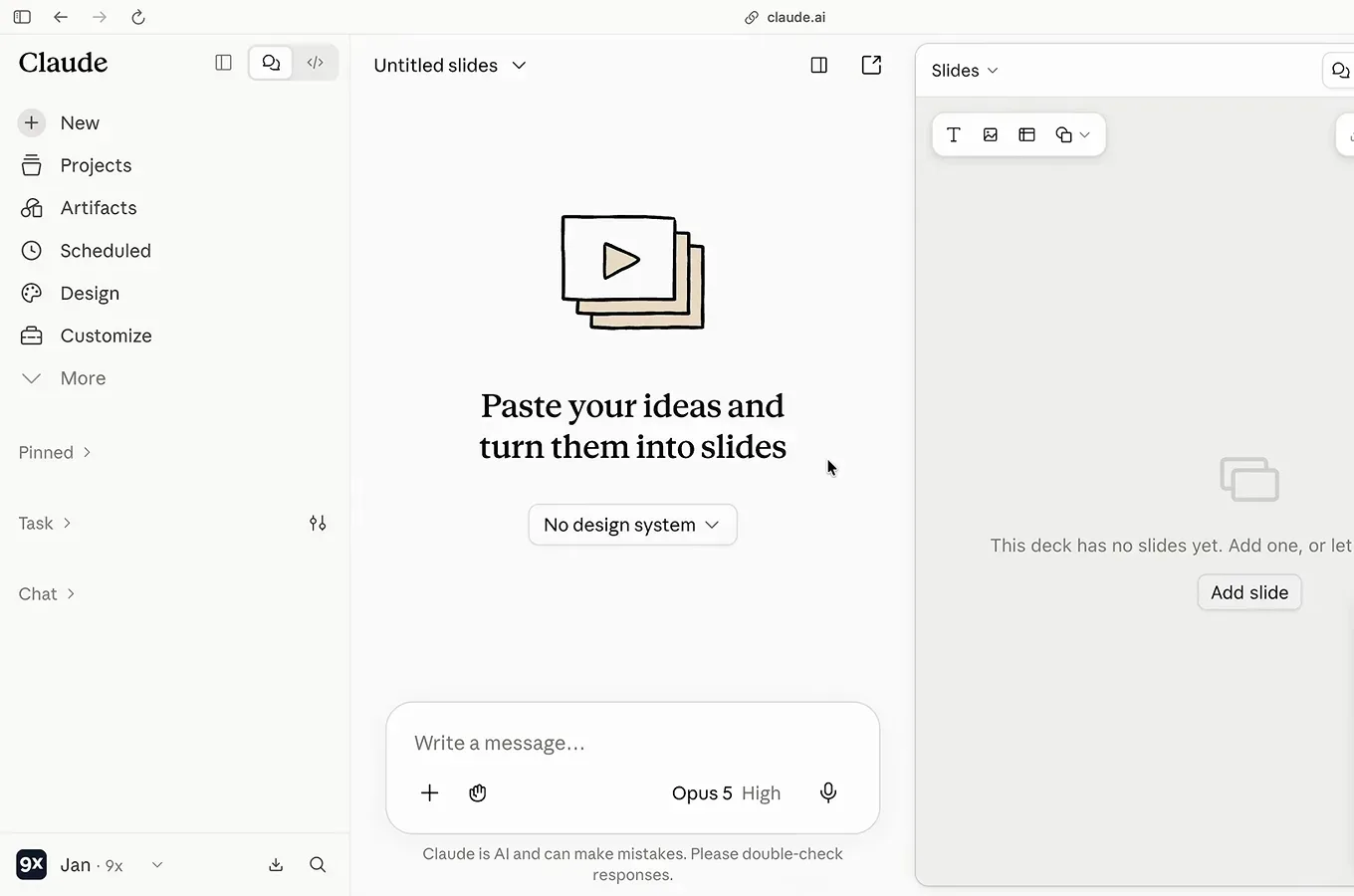
An empty deck panel waits beside the chat.Watch at 4:06
Prompt your first deck
- 5
Prompt the whole deck in one message
One clear brief is all it takes. Cem Eygi's demo types: create a five-slide presentation called 5 Simple Ways to Use AI at Work, use one practical example per slide, very little text, and a clean dark design — count, per-slide structure, tone and style in two sentences. Anthropic's launch video does the same, attaching a launch-kit zip and asking for the reveal deck for Friday's readiness review.
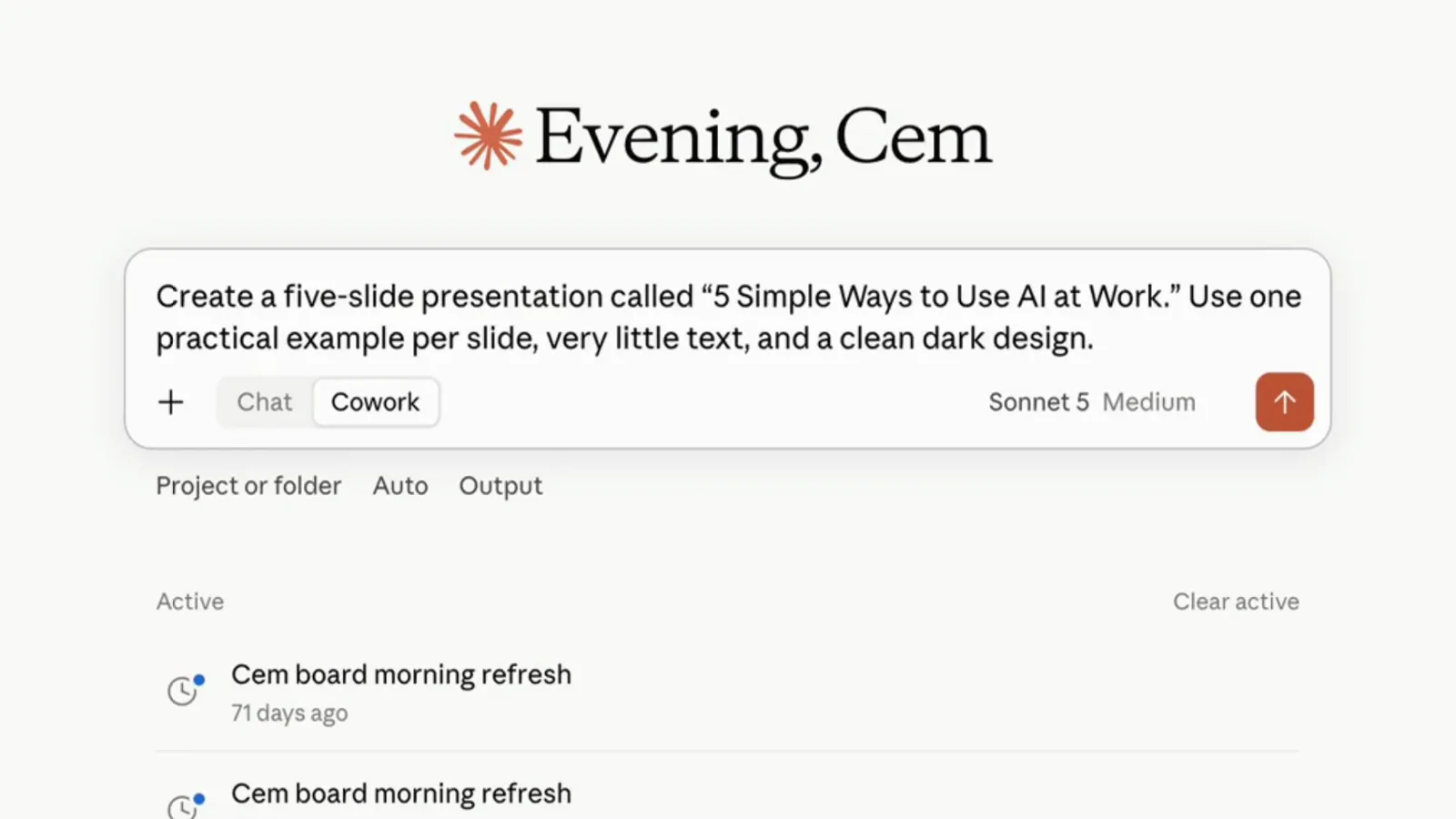
Name the deck, set the slide count, describe the style.Watch at 2:25 - 6
Watch it build the deck step by step
Claude builds in stages rather than dumping text: in the launch demo it reports building the launch deck, then setting the headline in Talvik's brand voice, working from the attached kit. The Slides chip on the prompt confirms the task is routed to Slides while progress lines update as files and slides are created. Short, complete briefs are exactly what this stage wants — the structure comes back already built.
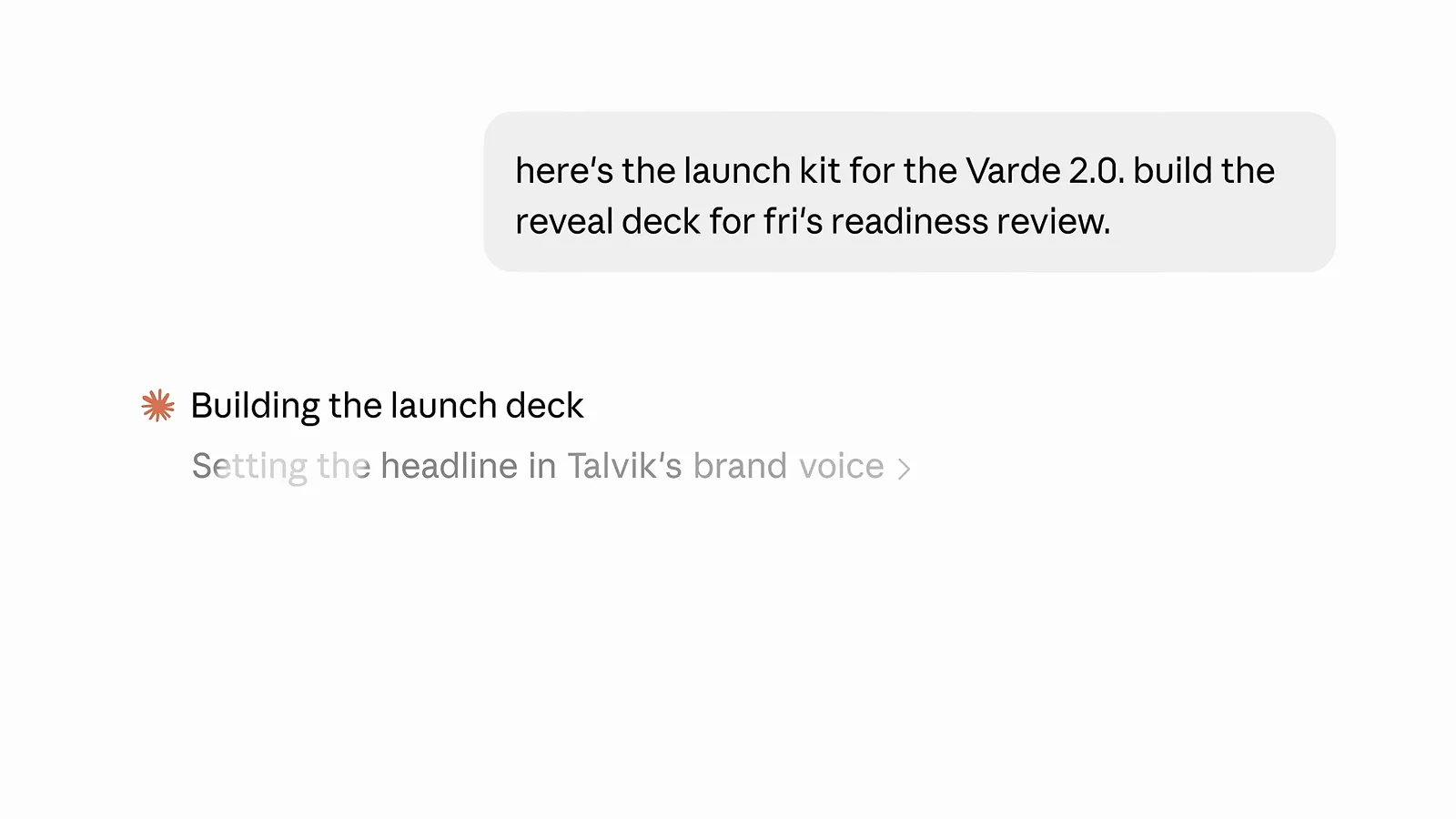
Structure first, then slides — progress updates as it works.Watch at 0:14 - 7
Open the finished deck in the side panel
When generation finishes, the chat sums up the result — your deck is ready, five slides on a dark near-black background, each with a single practical AI example — and the slides panel shows the deck with a slide counter and controls. Click any slide to open it larger without leaving the conversation. From here you review, tweak, present or export.
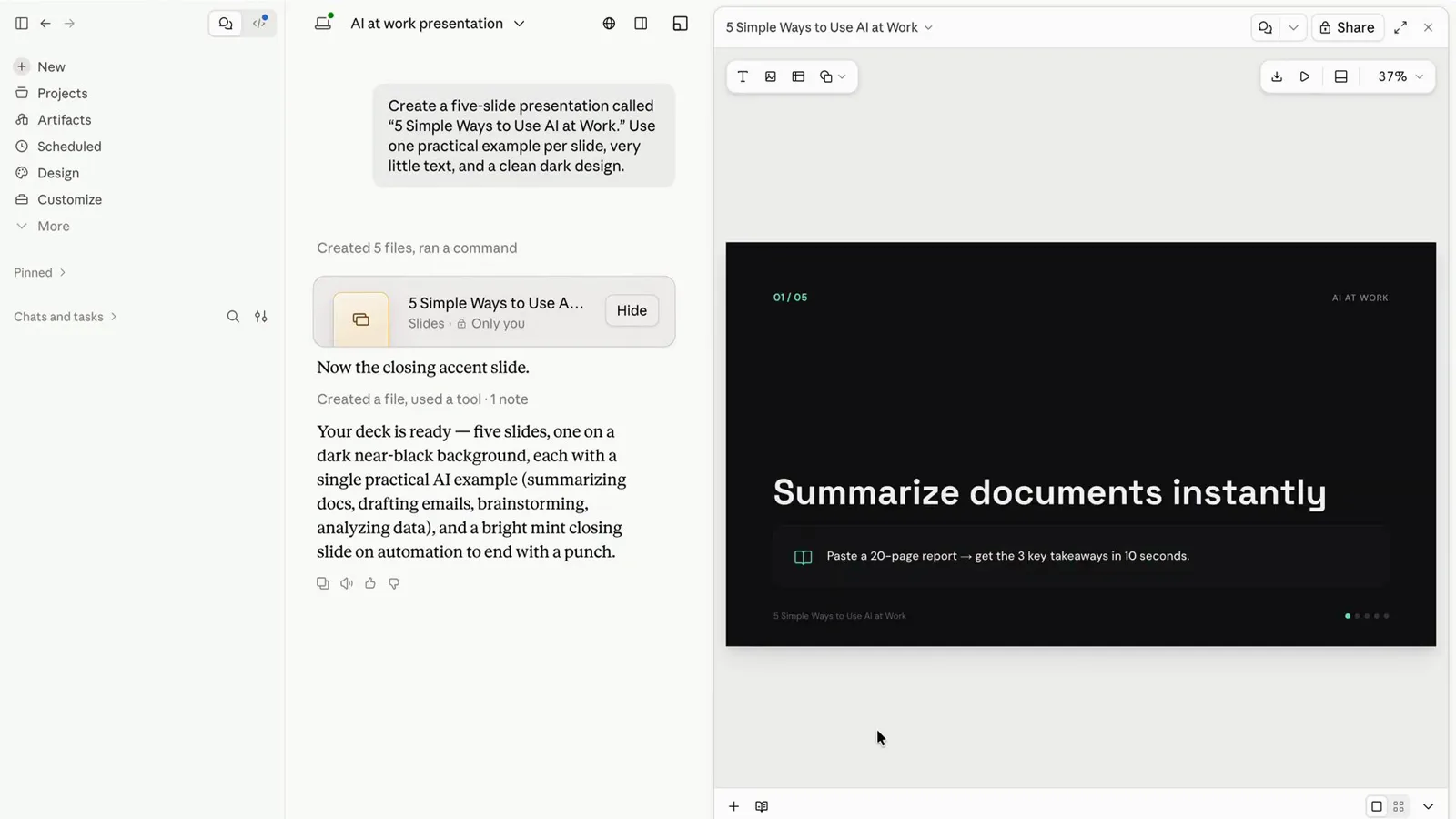
Five slides, one job each — review before you polish.Watch at 3:00
Refine slides without rebuilding
- 8
Edit text, fonts and colors right on the slide
Slides are directly editable. Click a headline and an inline toolbar appears — font family, size, weight, alignment — exactly as the launch video shows while retitling a slide to Rain is a given. Select any element to move or restyle it, or fix a single word without a prompt. Small corrections are faster by hand than by chat.
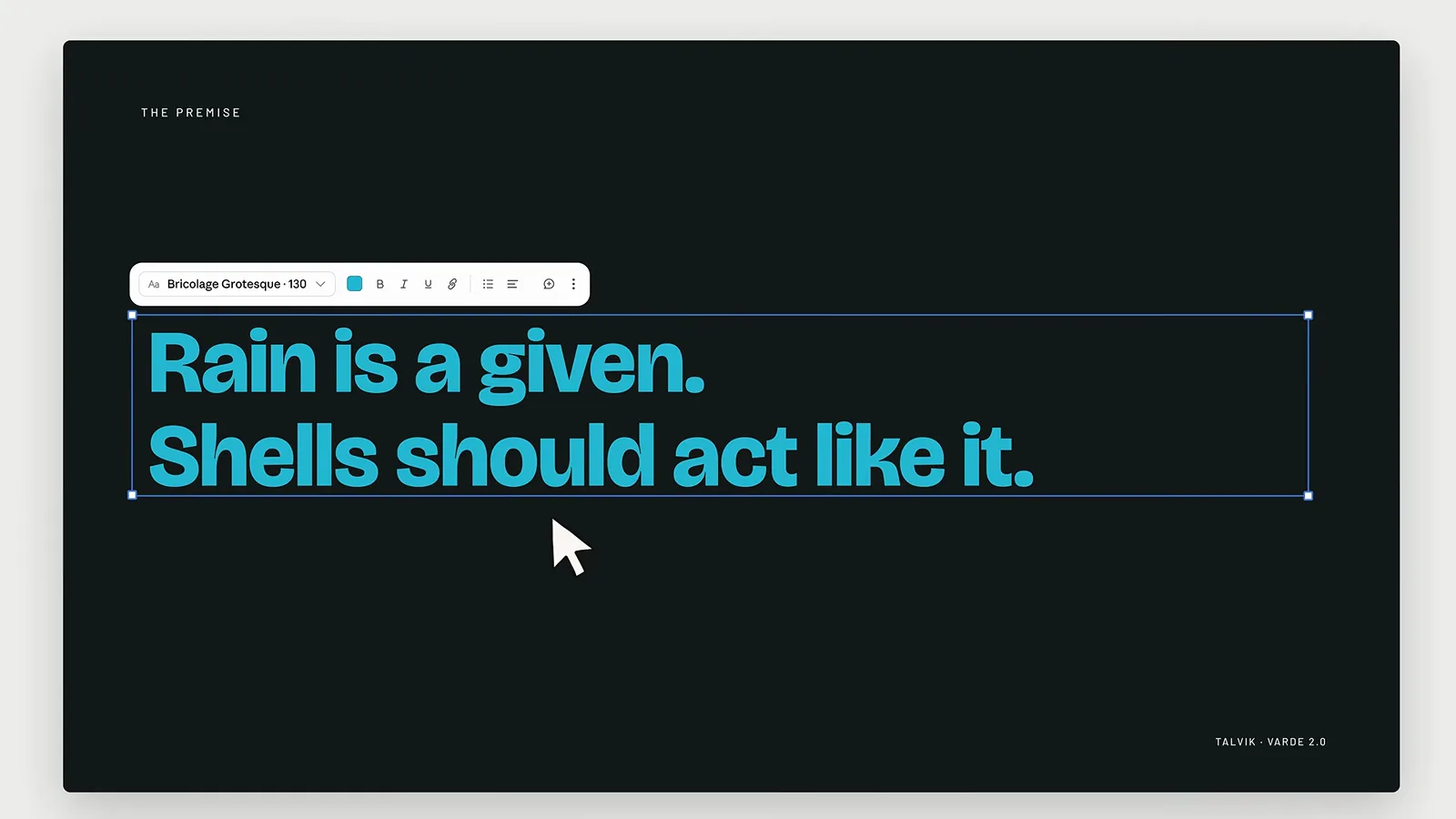
Click, select, retype — it behaves like a design tool.Watch at 0:24 - 9
Fix one slide with an @Claude comment
For changes you would rather describe, select text or an object on the slide and leave an @Claude comment — the demo increases the font on a slide body this way — then hit Send to Claude. Claude reads the slide reference together with your comment and applies the change in place. It is the middle ground between hand-editing and re-prompting the whole deck.
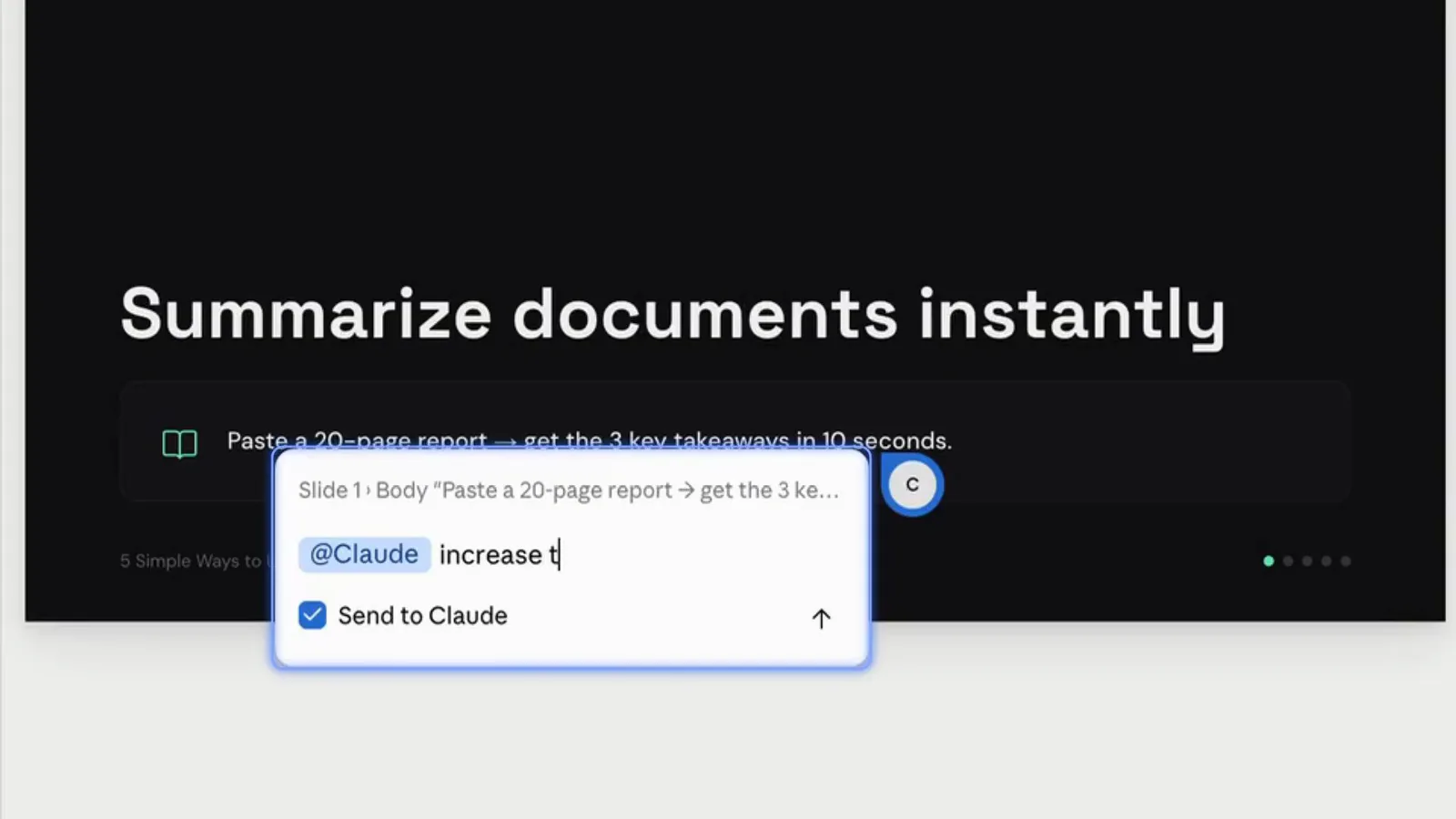
Comment on the exact spot; Claude edits just that.Watch at 3:12 - 10
Restyle every slide with one bulk comment
Comments also work deck-wide. In the launch video a single comment — update the accent color and image size plus placement across all versions — rethemes every social format of a slide in one pass. Reach for this whenever a change would otherwise mean a dozen near-identical edits, and keep the instruction as concrete as the demo's.
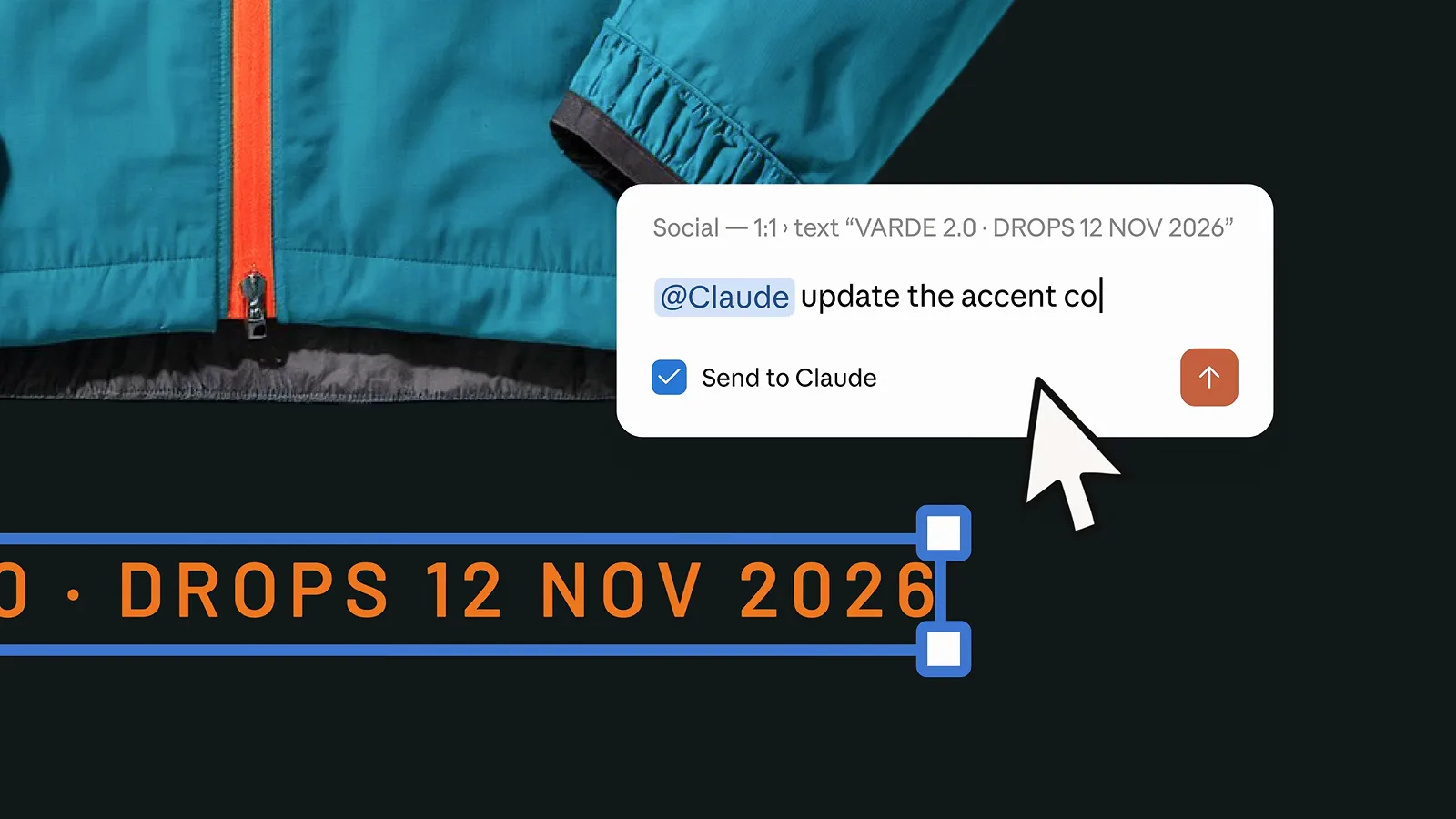
One comment, every version updated.Watch at 0:54
Make it on-brand, then hand it off
- 11
Set up a design system so decks match your brand
The No design system dropdown is where serious decks start. Build one from a GitHub repo, from connected tools, or from uploaded brand files — logos, fonts, guidelines and token files — and Claude drafts the tokens and components from them. The 9x team keeps a separate system just for slide decks, with named colors, a main and mono font, and custom components like comparison tables. Set it once and every new deck inherits it.
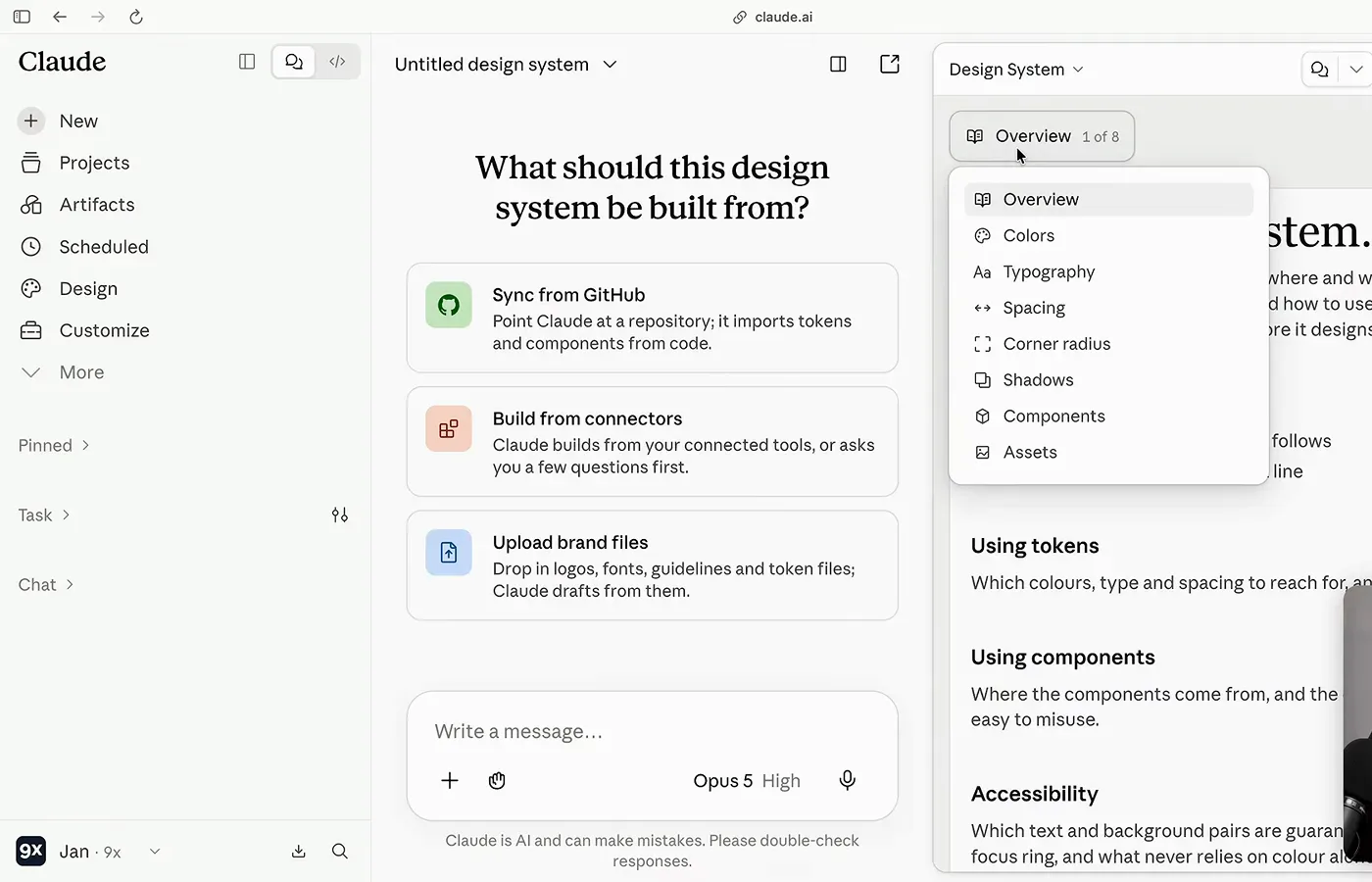
Feed it your brand once; every deck inherits it.Watch at 5:01 - 12
Hand the deck off to Docs in the same chat
The trio works as a pipeline. Ask Claude to turn the deck into a one-page guide and the same content reappears as a Claude Docs document — titled, dated, numbered — which you can edit directly or steer with @Claude comments just like slides. Docs export to Word, PDF or Markdown when the guide needs to travel. Design closes the loop, turning the same material into carousels and posts without re-explaining the topic.
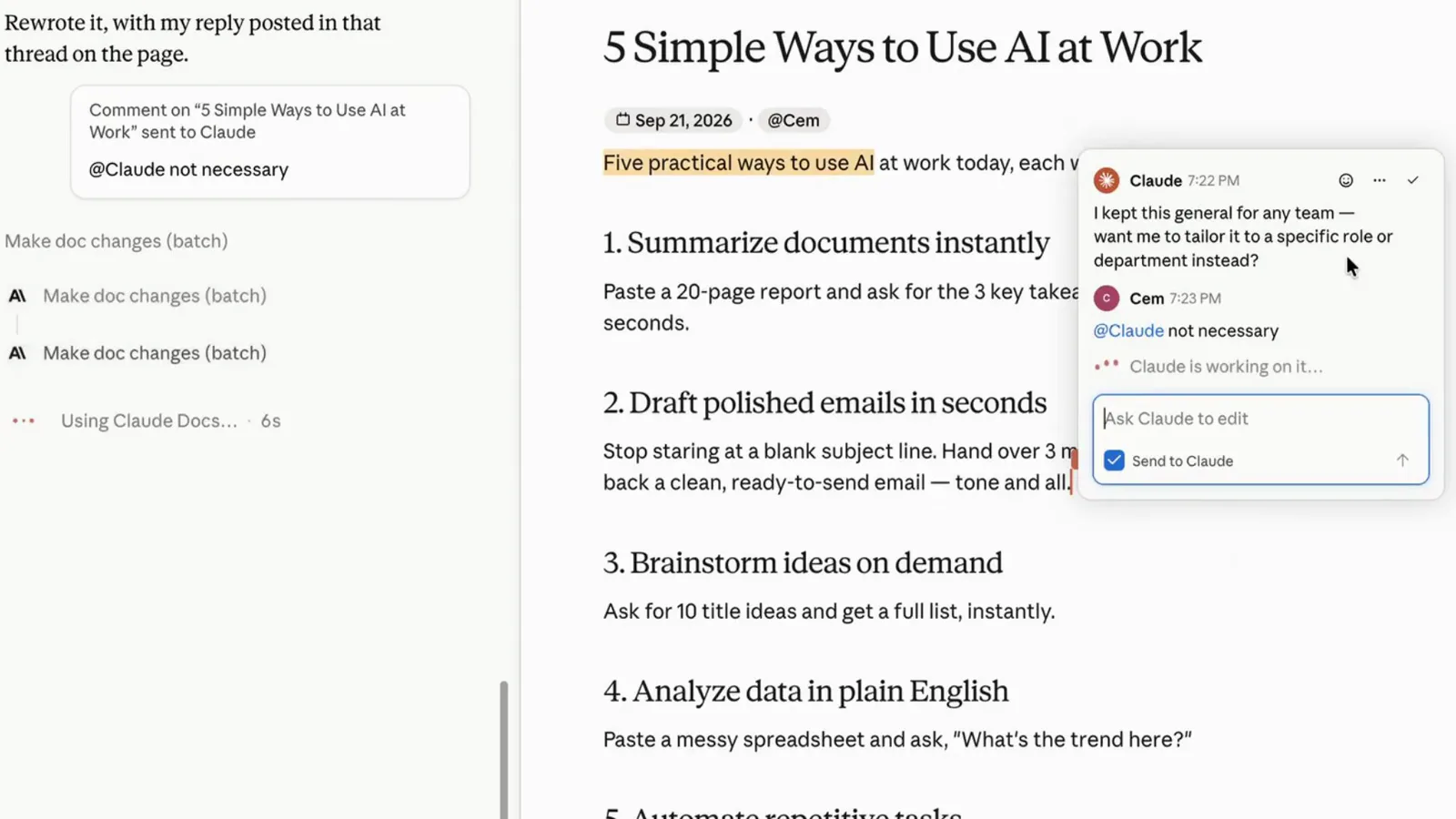
Deck to doc to design — the conversation keeps the context.Watch at 4:36
Present it, then take it with you
- 13
Present from Claude with speaker notes
The panel's Present menu offers two options: Present and Present with speaker notes. Pick the second and your notes open beside the deck — edit them yourself or ask Claude to draft a first version from the deck's content, as the 9x walkthrough demonstrates. No second tool, no export step: the deck presents straight out of the conversation.
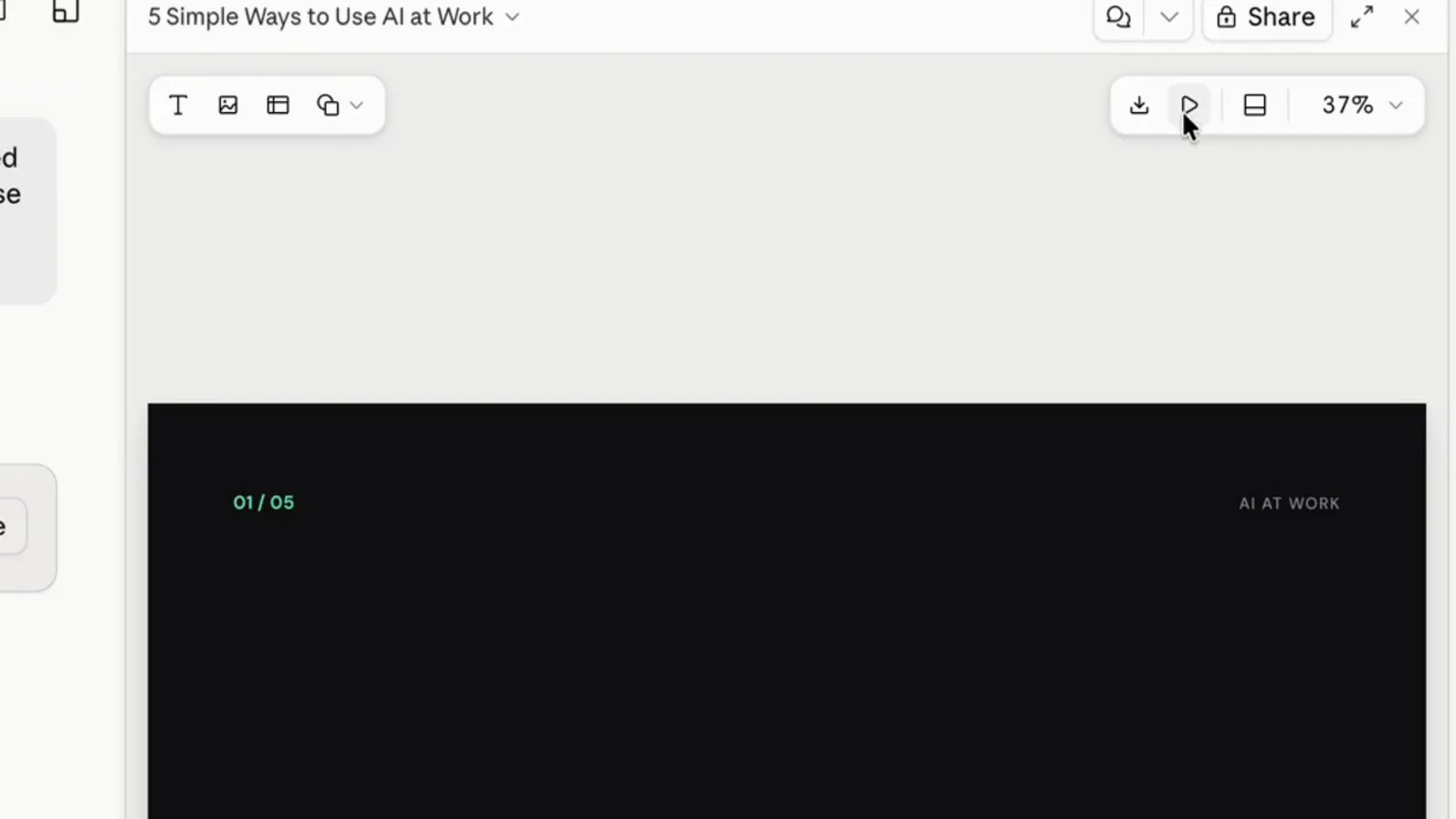
Notes ride along — present without leaving Claude.Watch at 3:14 - 14
Run the deck full screen
Presenting opens a dark full-screen stage with a timer, a Slide 2 of 5 counter and Pause and Reset controls, while speaker notes stay on the right for your eyes only. Arrow keys move between slides and the strip below shows what comes next. When a note needs sharpening mid-run, select the sentence and @Claude it — the walkthrough tunes its notes live exactly this way.
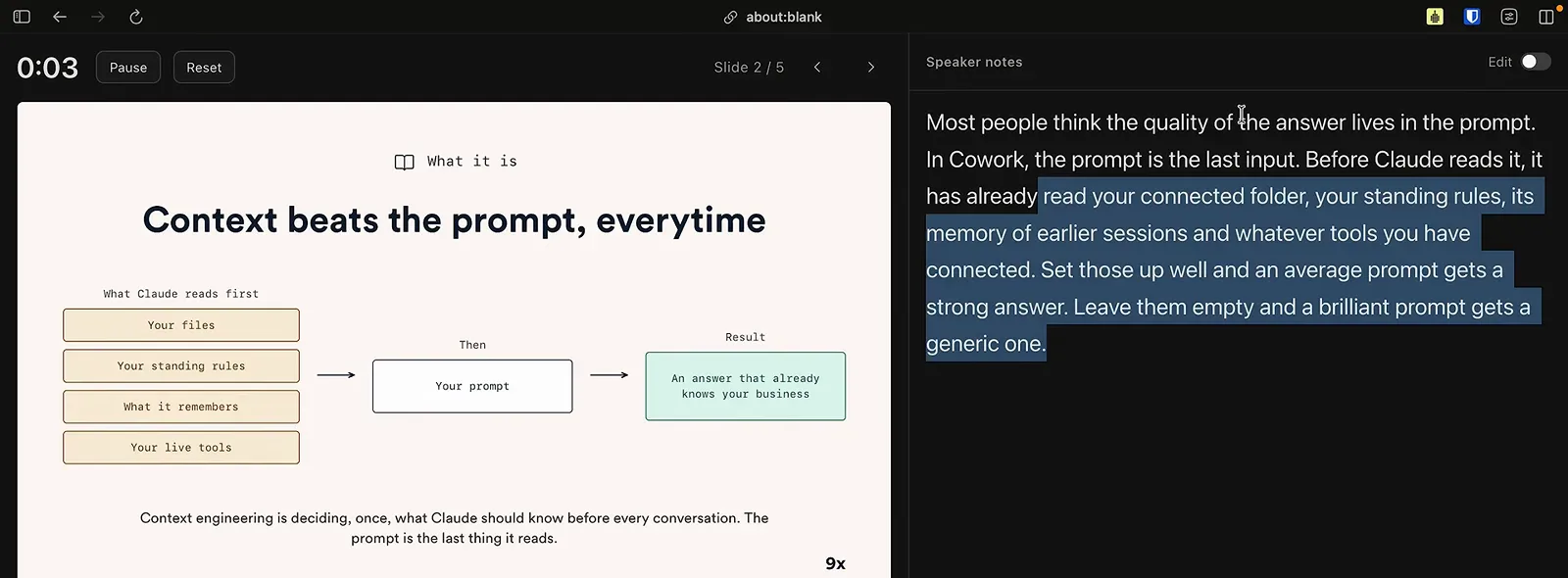
Timer, counter, notes — a real presenter view.Watch at 9:04 - 15
Export to PowerPoint, PDF or the web
The Export menu in the panel lists everything: HTML as a standalone web page, PDF for printing and sharing, and PowerPoint as an editable .pptx presentation, plus Send to Canva and more formats behind it. The .pptx is the bridge — start in Claude, keep editing in PowerPoint, or hand the file to whoever lives there. The panel's Share button issues a link when a download is more than you need.
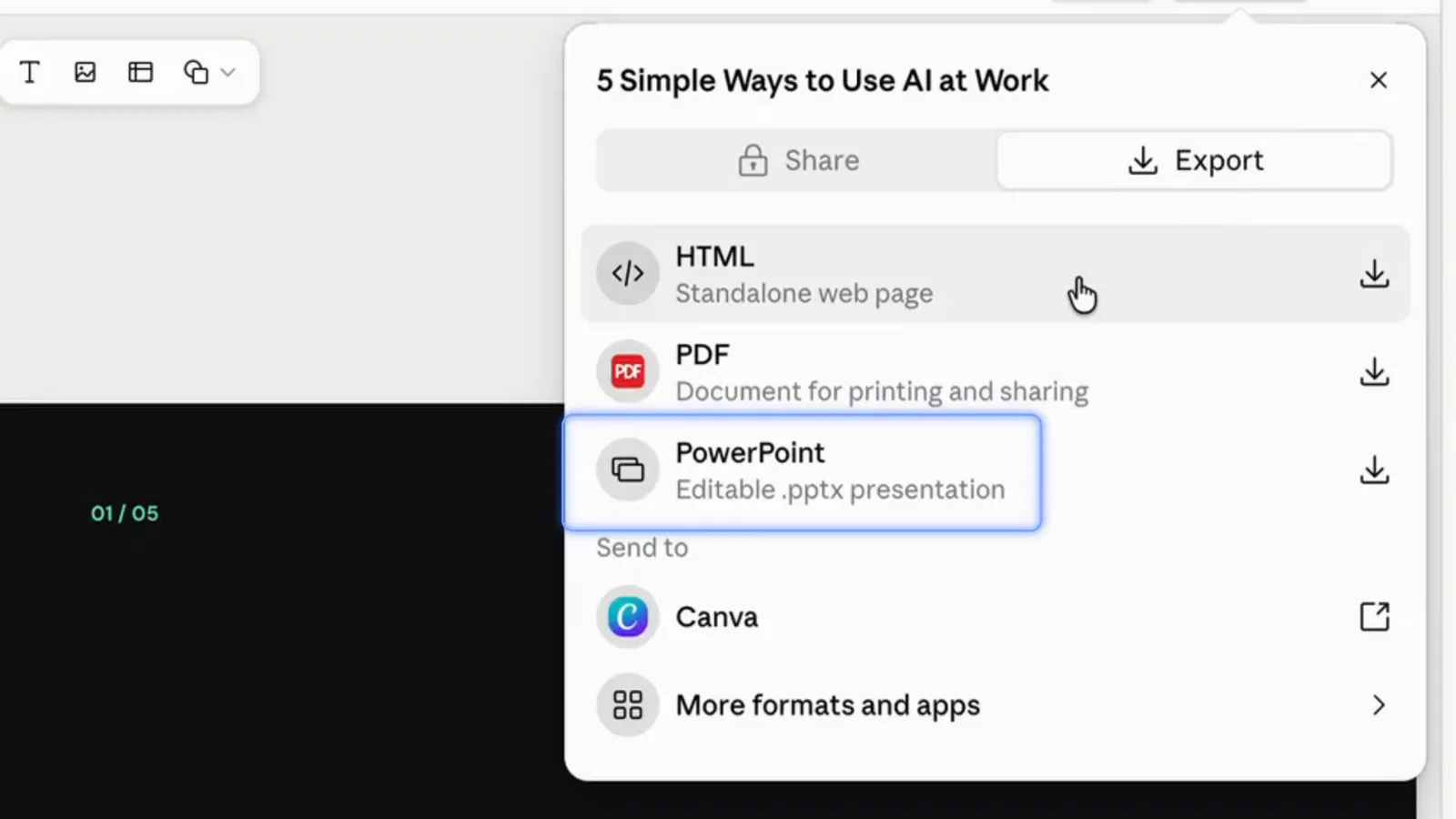
Editable .pptx, PDF, web page — pick the destination.Watch at 3:20 - 16
Keep editing in PowerPoint with Claude's add-in
If the deck must live in a corporate template, install Anthropic's official Claude for PowerPoint add-in from PowerPoint's Add-ins store and sign in. The panel docks in the ribbon, knows which slide you have selected, and generates or edits decks in place — the same ideas as in-chat Slides, applied natively. It is a separate surface from in-chat Slides and needs a paid Claude plan plus PowerPoint on desktop or web.
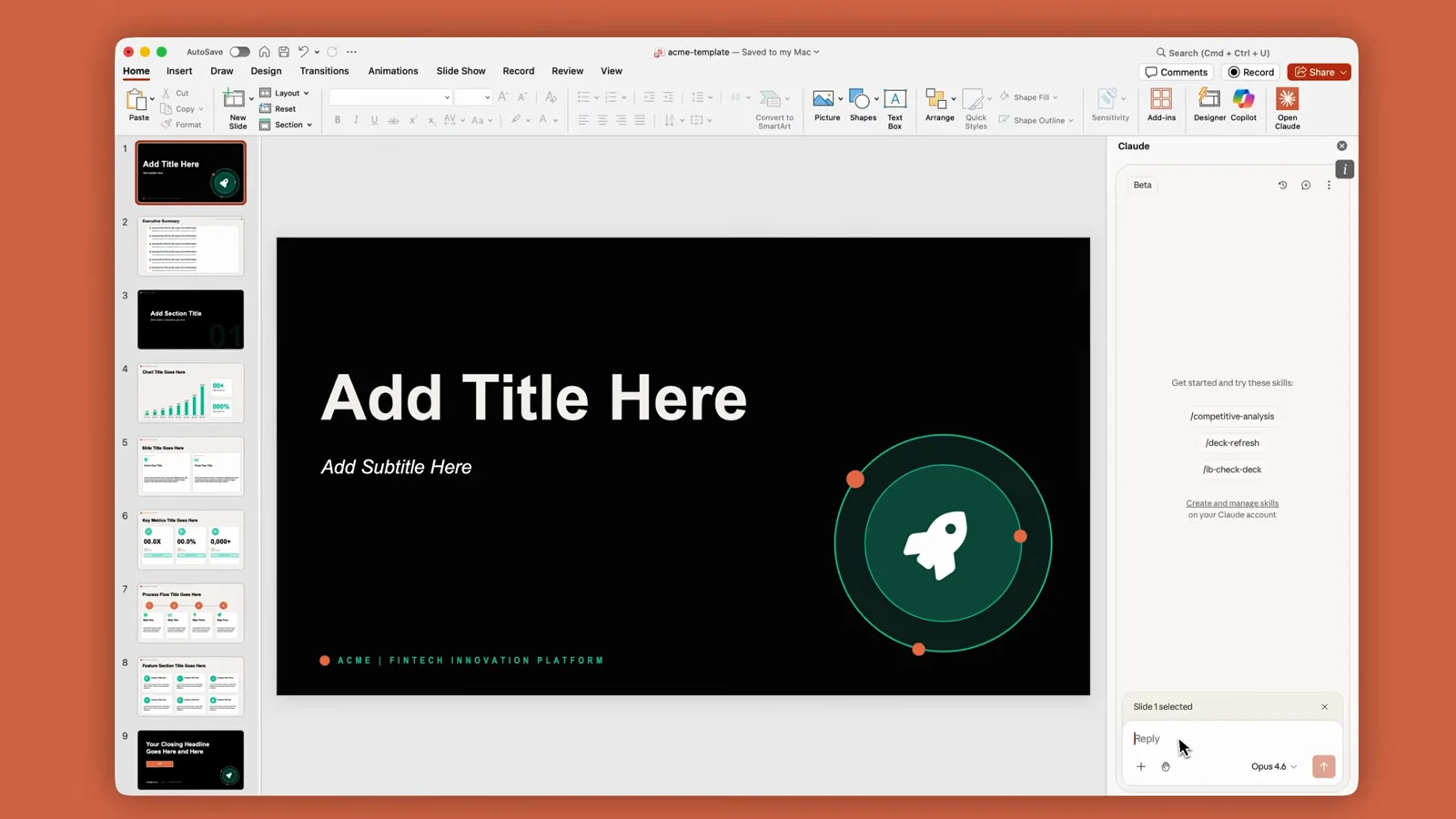
Same assistant, native PowerPoint surface.Watch at 0:09