

How to Use Claude Skills: A Step-by-Step Guide (2026)
Claude Skills are reusable instruction packs — usually a SKILL.md file plus supporting scripts — that Claude loads automatically whenever your task matches them, so you stop re-typing the same guidance in every chat. This guide turns Kevin Stratvert's hands-on walkthrough into 16 illustrated steps: you'll switch skills on in Settings, watch built-in skills design a PowerPoint deck, build and install your own with the Skill Creator interview, then connect Gmail so a custom skill can triage a real inbox. Every step links back to the exact moment in the source video.
Source & credits
Screenshots in this guide are captured from Kevin Stratvert's public walkthrough video. Every step links back to the exact moment it shows, so you can follow along.
Kevin Stratvert ↗Switch skills on and watch one work
- 1
Open Settings → Capabilities and confirm Skills are on
Click your profile icon and open Settings, then select Capabilities in the sidebar and scroll to the Skills section. Every line item here is a separate skill, and Claude ships with several built in — artifacts-builder, brand-guidelines, canvas-design and more. Make sure the toggles you need are on, including skill-creator for the second half of this guide.
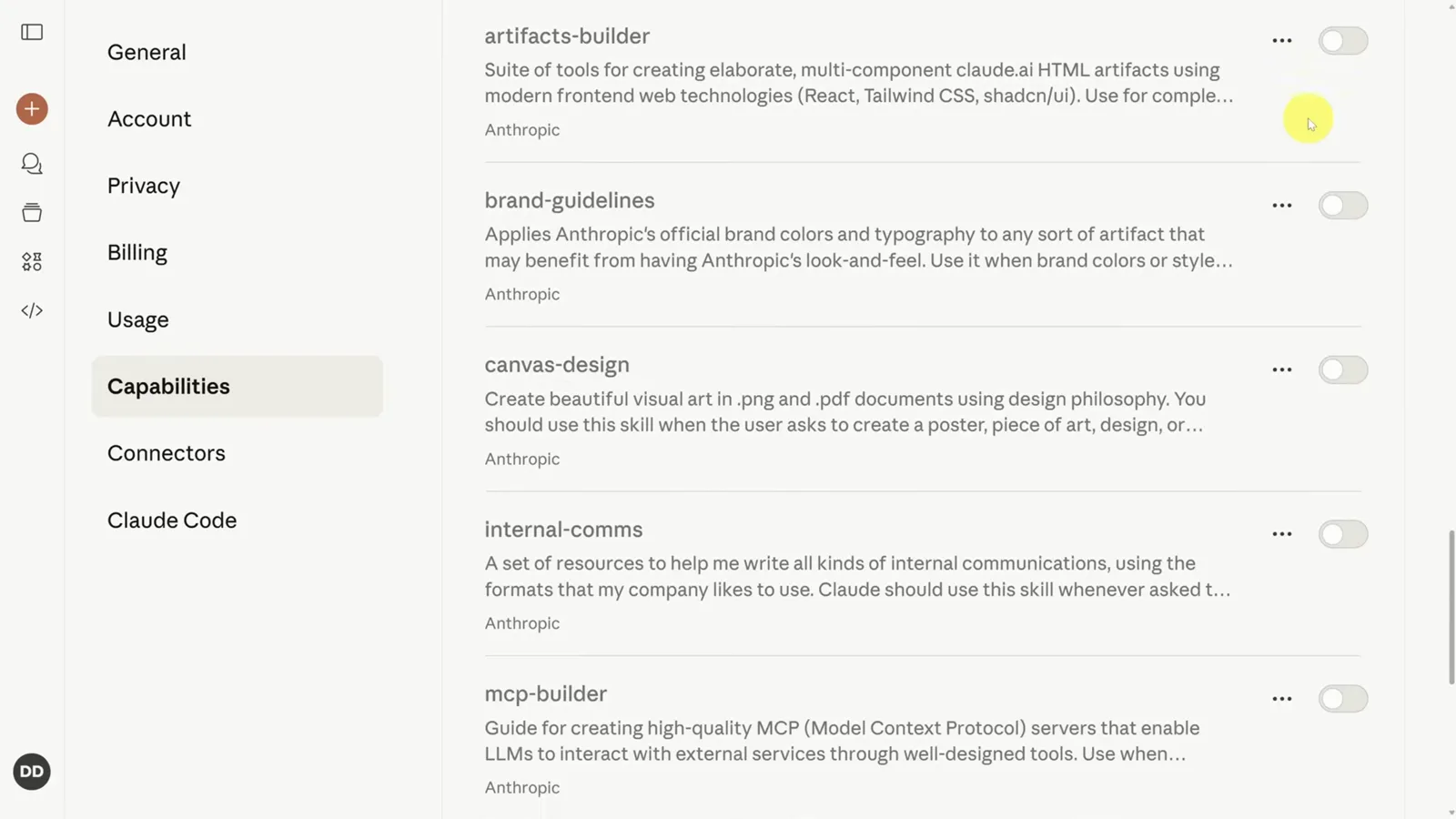
Every line item in the Skills section of Capabilities is a separate skill you can switch on or off.Watch at 1:20 - 2
Trigger a built-in skill from a normal chat prompt
Start a new chat and simply describe the task — here, pasting a PowerPoint outline and asking Claude to make the deck. There is no skill menu to pick from: Claude reads your prompt, recognizes that the PowerPoint creation skill matches, and loads it on its own. That's the core of how you use Claude Skills day to day — describe the work, and the matching skill rides along.
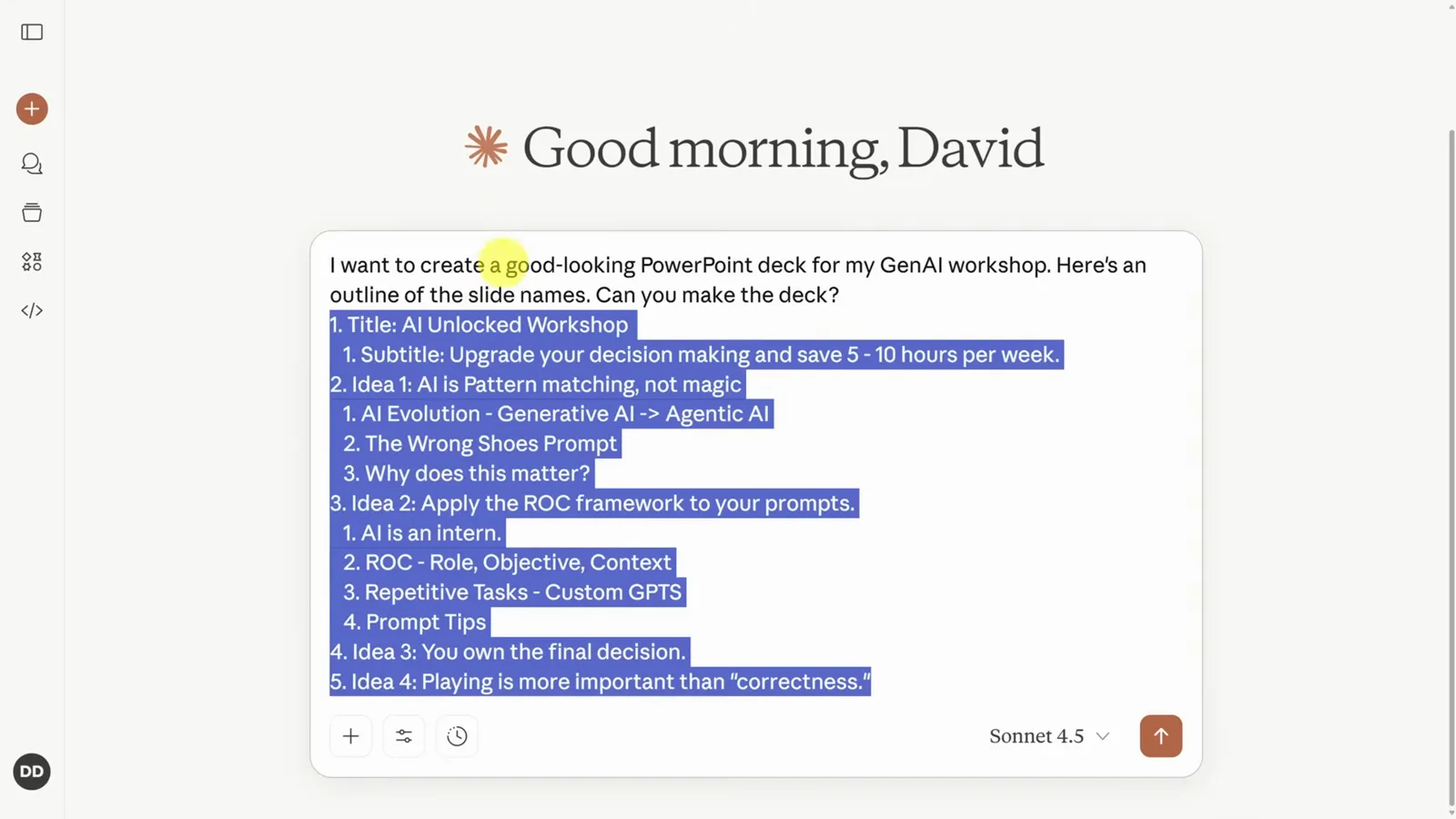
No menu to pick from — describe the task and Claude matches the skill by itself.Watch at 1:52 - 3
Watch Claude read the skill's instruction files
After you submit, Claude announces it is reading the PowerPoint skill for best practices, then works through the skill's files: the main SKILL.md, an html2pptx.md syntax guide and a CSS styling guide. This is the moment you can literally see what a skill is — a folder of markdown instructions Claude loads just before it does the work.
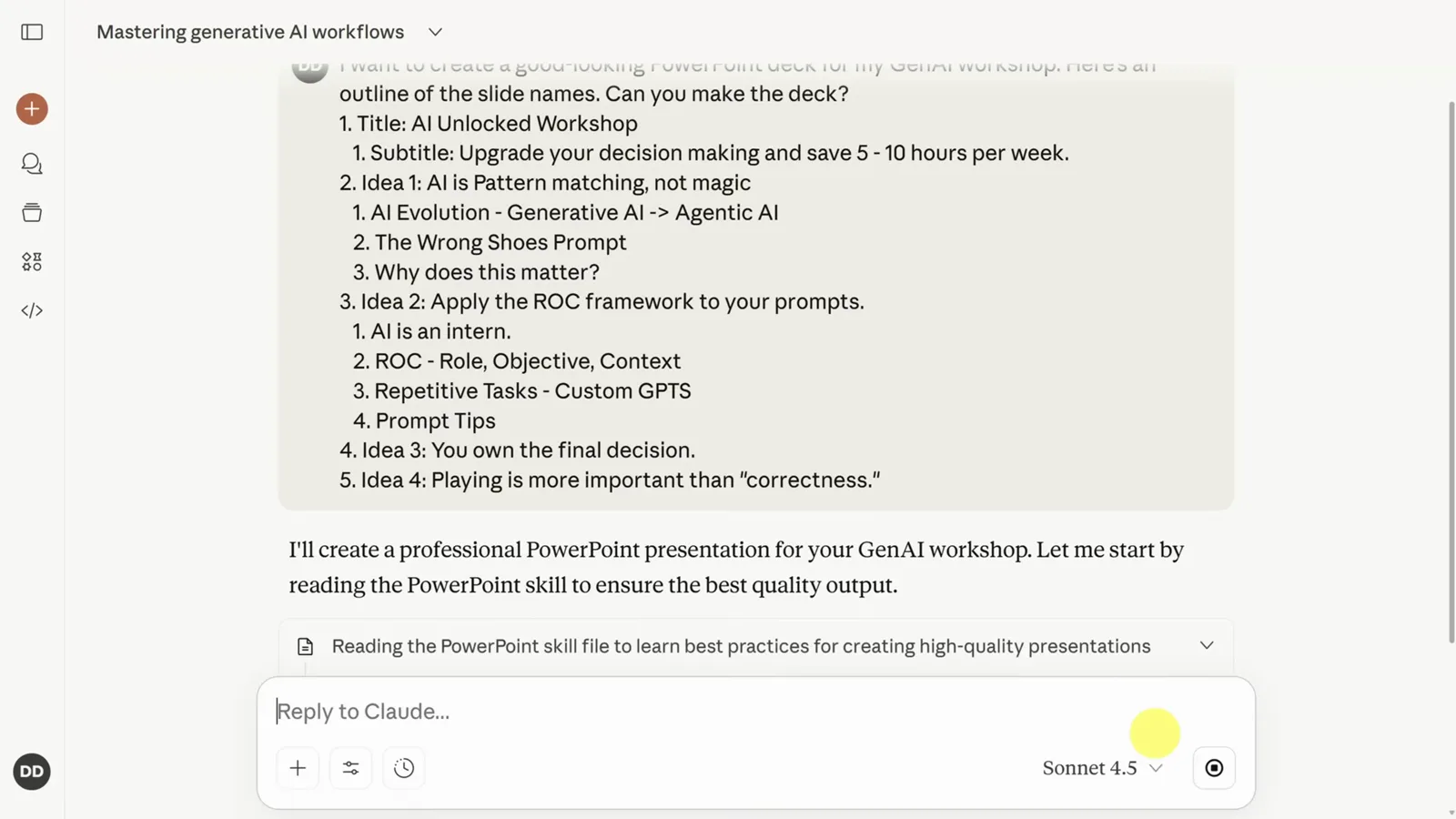
Skills are folders of markdown files — Claude reads them right before starting the task.Watch at 2:08 - 4
Get the finished deck as a downloadable artifact
Claude shares its design choices — a deep purple, electric blue and teal palette with bold headings — then builds the deck slide by slide in the artifact panel. You can download the .pptx, ask for edits in plain language, or request a restyle; asking for colored backgrounds and geometric patterns pulls in the separate theme-factory skill without any setup.
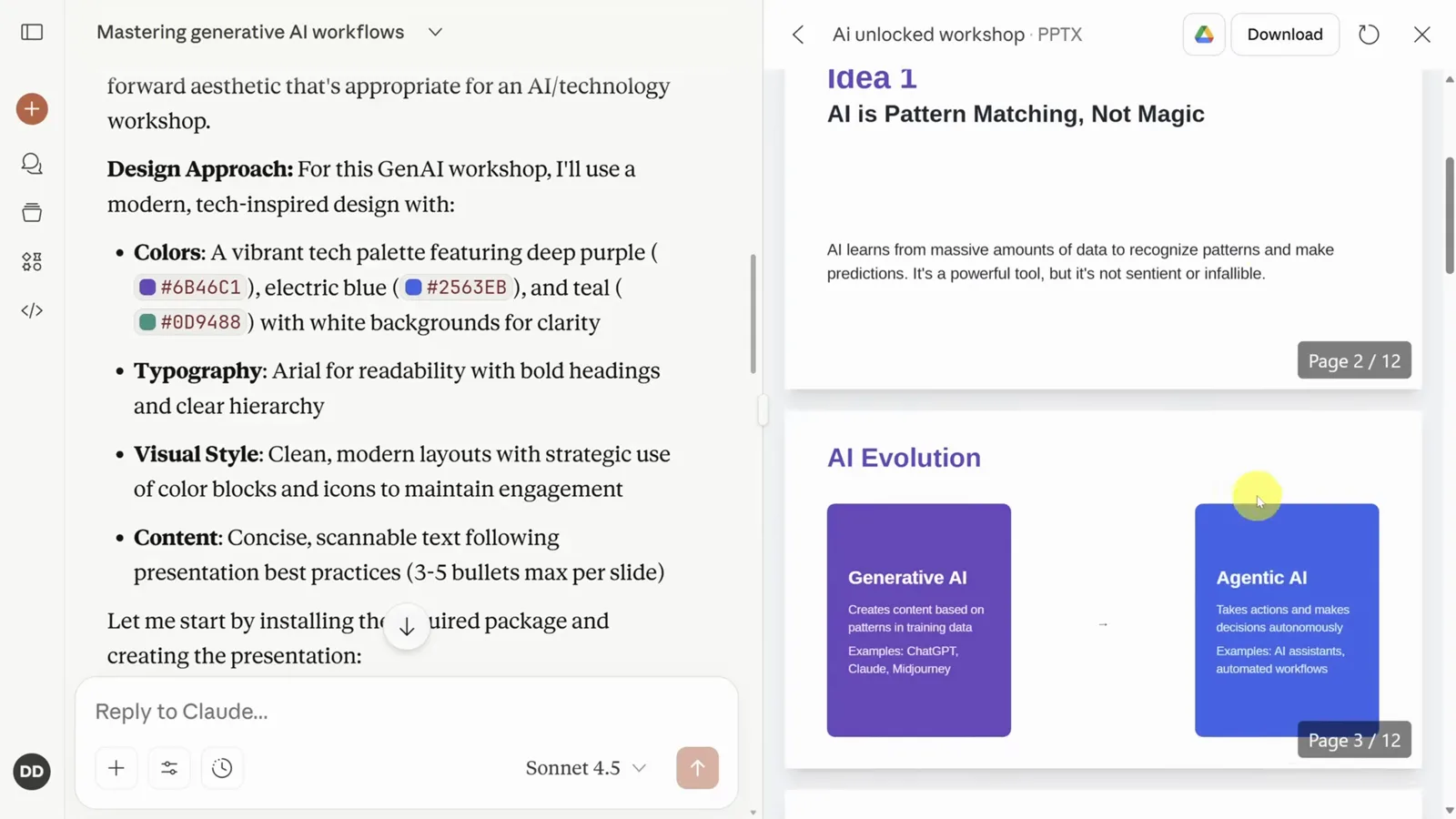
The deck lands as a PPTX artifact — download it or ask for a new theme in plain English.Watch at 2:30
Create your own skill with the Skill Creator
- 5
Type "Make a new skill" and meet the Skill Creator
With the built-in skill-creator skill enabled, open a new chat and type "Make a new skill". Claude reads its skill-creator guide and starts an interview: what tasks or workflows should this skill handle, can you give two or three concrete examples of how you'd use it, and what makes this skill unique or specialized.
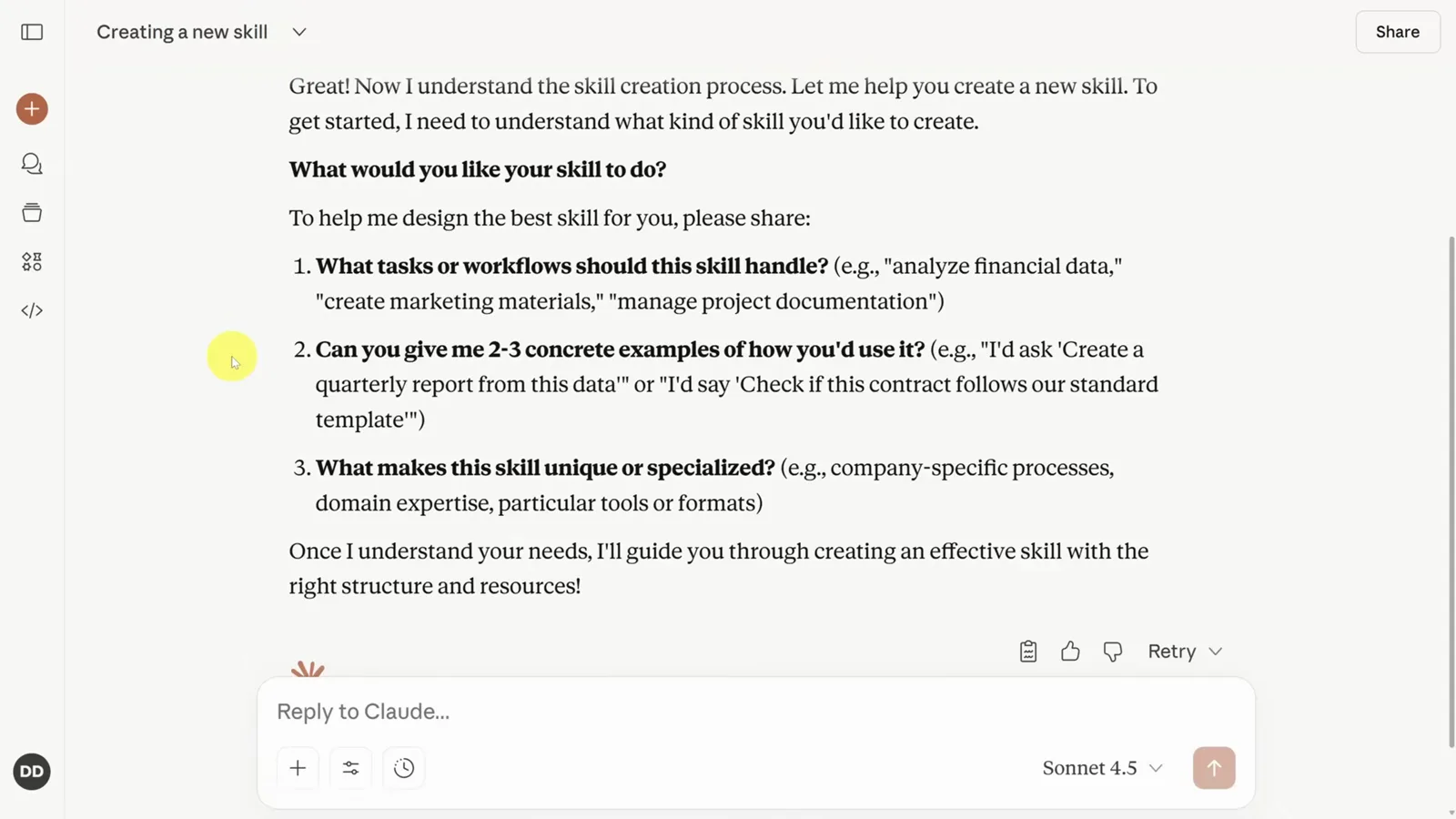
The Skill Creator runs as an interview — answer one question at a time in plain English.Watch at 4:24 - 6
Answer with specifics, then ask what else Claude needs
Describe the skill precisely: the video defines an AI FOMO Summarizer that scores AI announcements, with concrete trigger examples like a link to a press release. The key tip sits at the end — ask "What else should I clarify?" before submitting. Claude then comes back with follow-ups about scoring scale, research depth and output format, and those answers are what make the skill sharp.
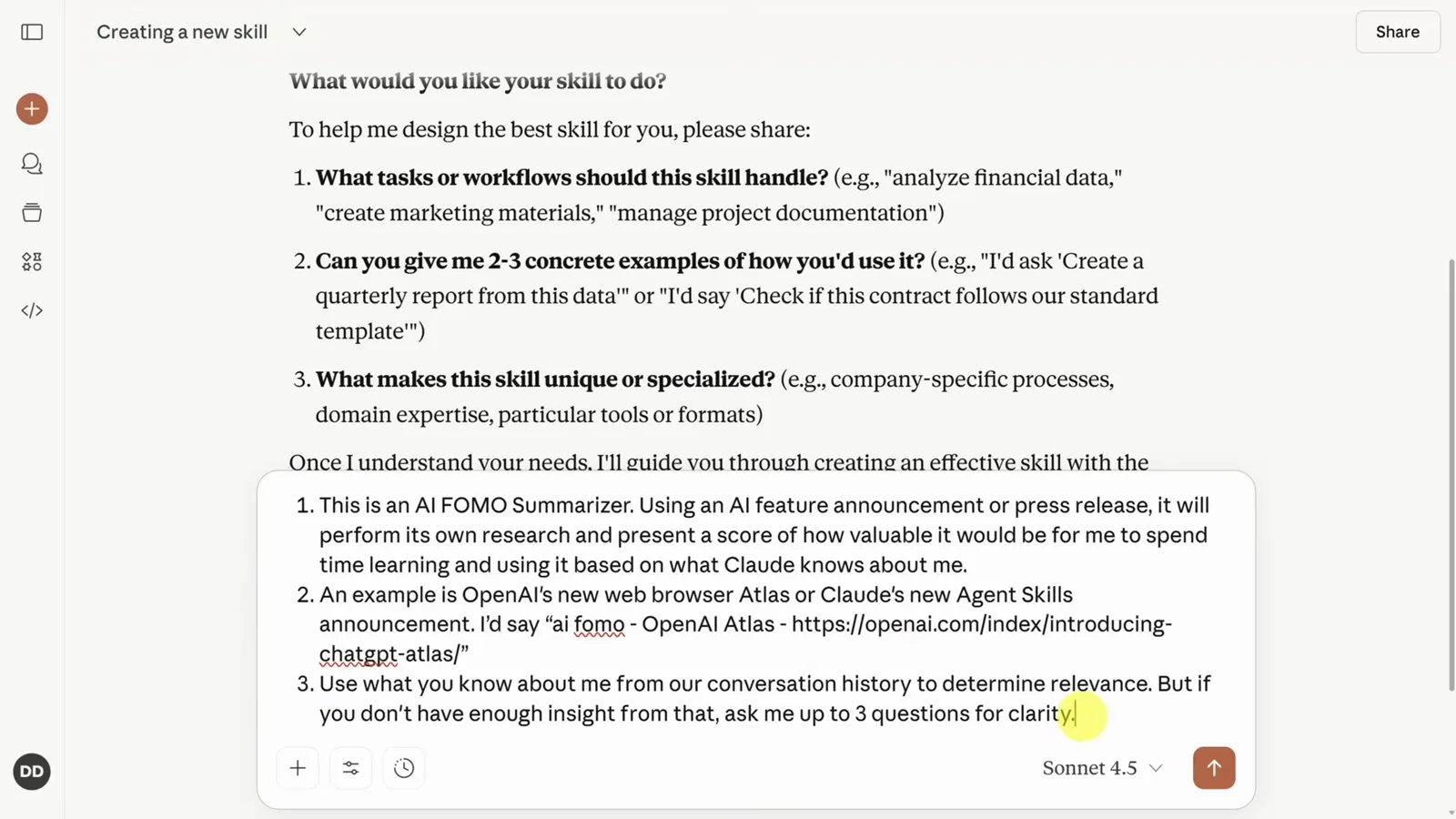
Asking "what else should I clarify?" before submitting is the cheapest way to make a skill good.Watch at 5:20 - 7
Let Claude build and package the skill
Once Claude has everything it needs, it plays back the final spec — a 1-10 score with a Skip it / Worth exploring / Must learn recommendation, extra research on Reddit and HackerNews, and a concise topic-by-topic summary — then installs the skill using the init_skill.py script and strips out the example files it doesn't need.
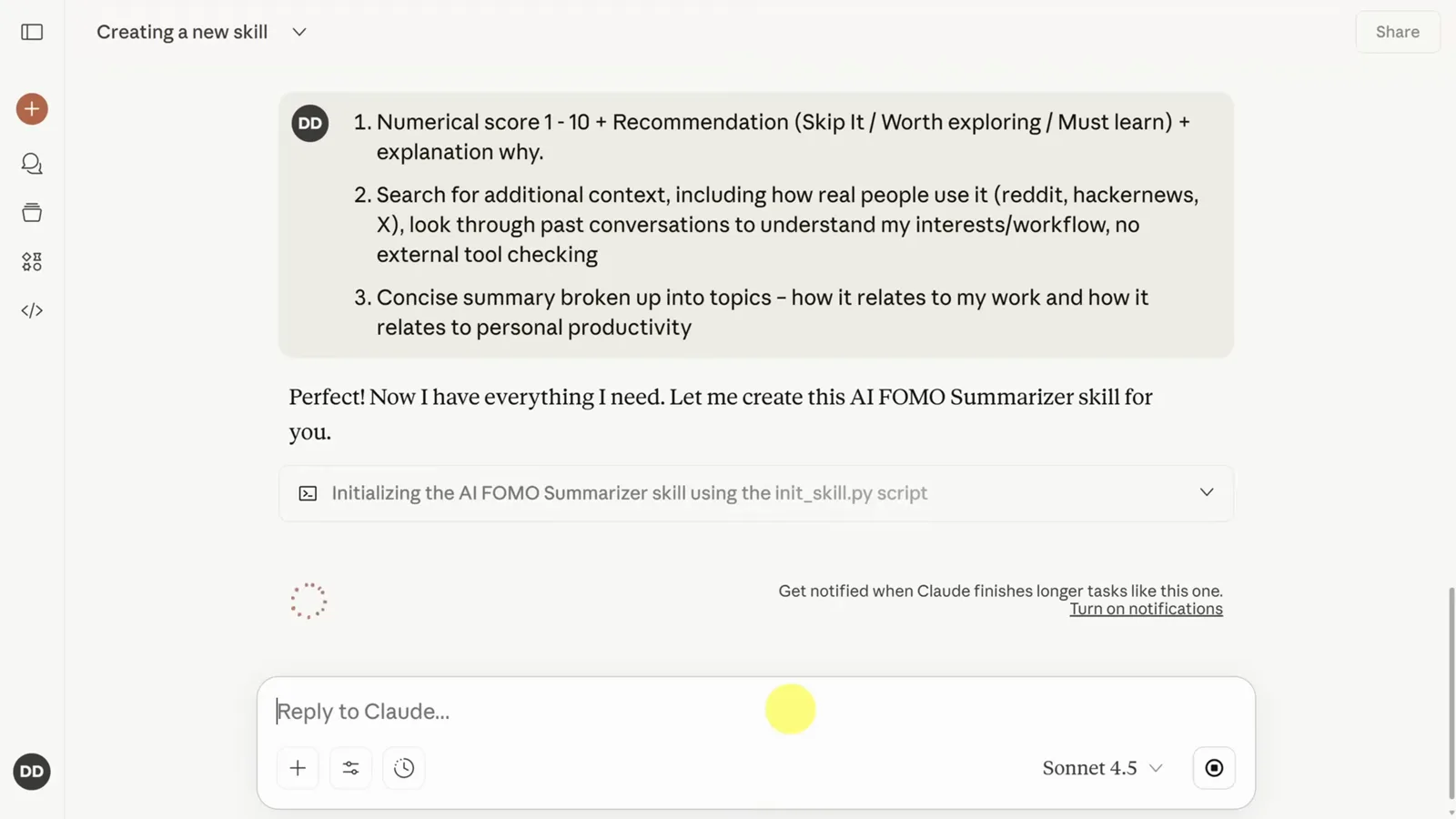
Behind the scenes the Skill Creator scaffolds the skill folder with an init script.Watch at 5:44 - 8
Download the finished .skill file
When the build finishes, Claude shows an "Easy to use it" card with the phrases that trigger the skill — "ai fomo" plus a link or a product name, for example — and a Download button. That download is the packaged skill file: the same artifact you would hand to a teammate or upload to another Claude account.
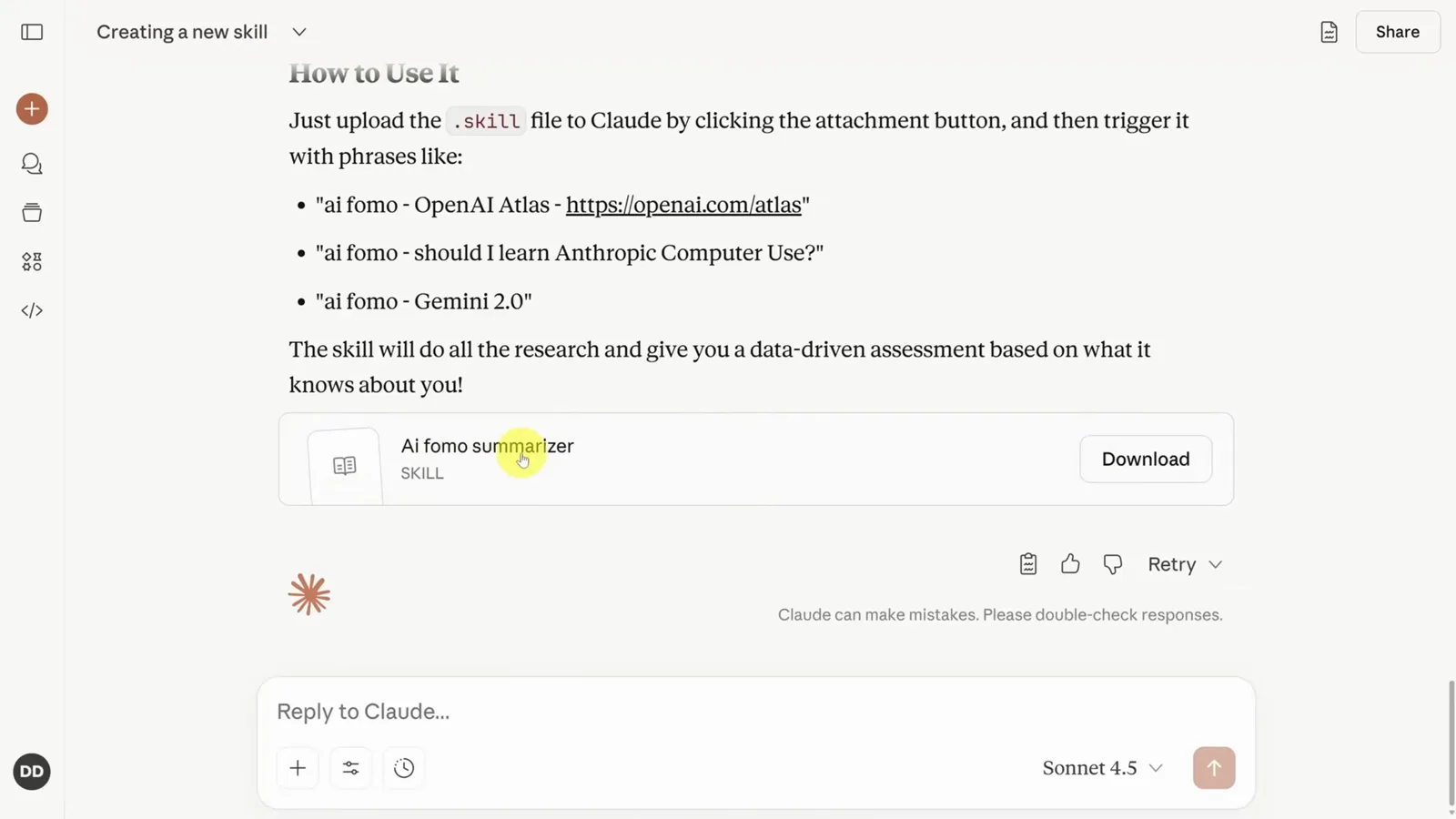
The Download button gives you the packaged skill file — share it or keep it as a backup.Watch at 5:56
Install, test and iterate on your skill
- 9
Upload the skill in Settings → Capabilities → Skills
Go back to your profile icon, open Settings, choose Capabilities and scroll to the Skills section, then click Upload skill. Drag the .skill file you just downloaded into the upload pane — or browse for it — and Claude unpacks it into your account within a few seconds.
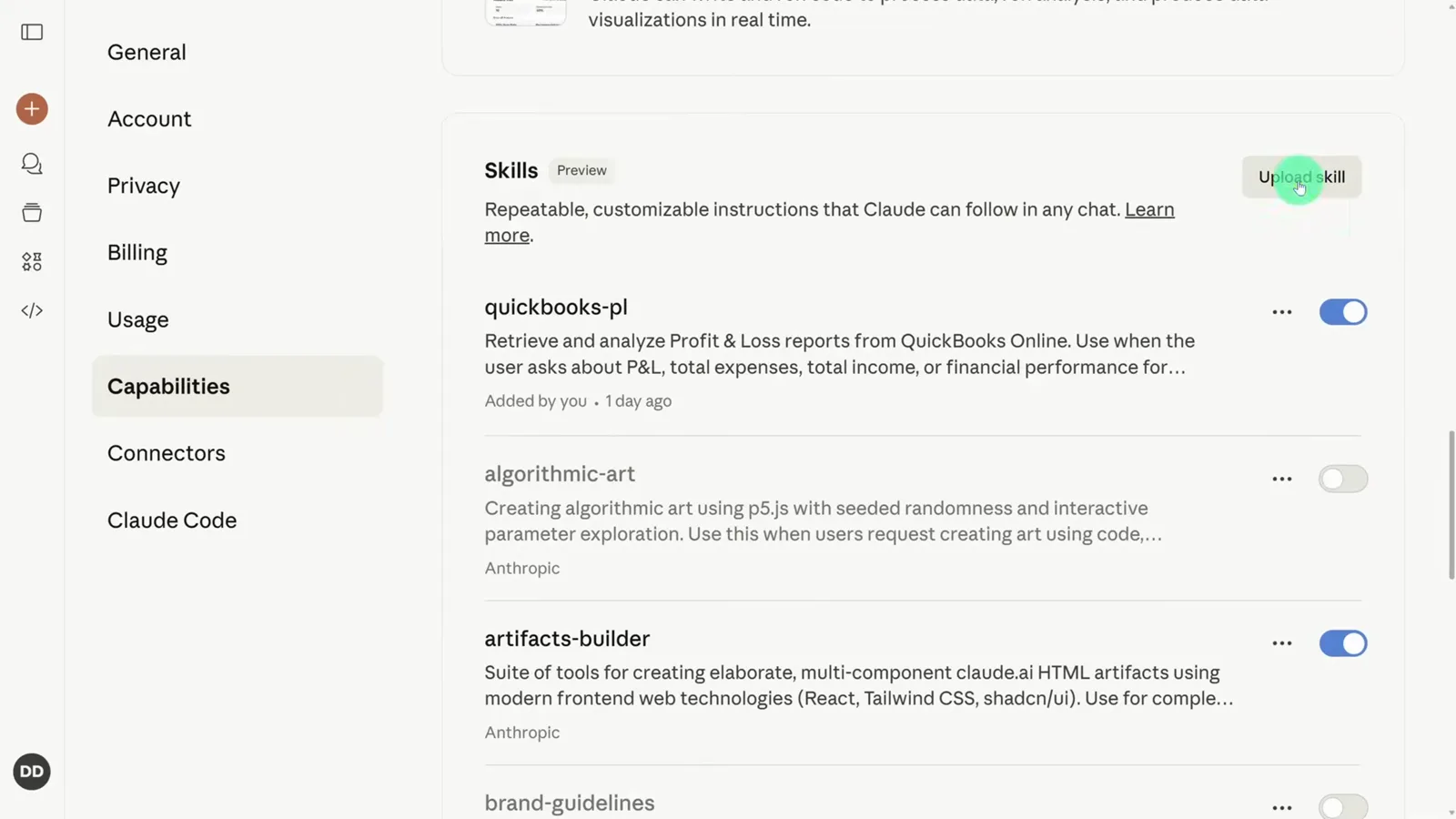
Installing is drag-and-drop: the file picker grabs the .skill file you downloaded a minute ago.Watch at 6:13 - 10
Confirm the skill is live and toggle it any time
After the "skill uploaded successfully" confirmation, your skill appears in the Skills list with its own toggle — here ai-fomo-summarizer sits alongside Anthropic's built-in skills. The toggle disables a skill without deleting it, so you can silence a noisy one without losing the file.
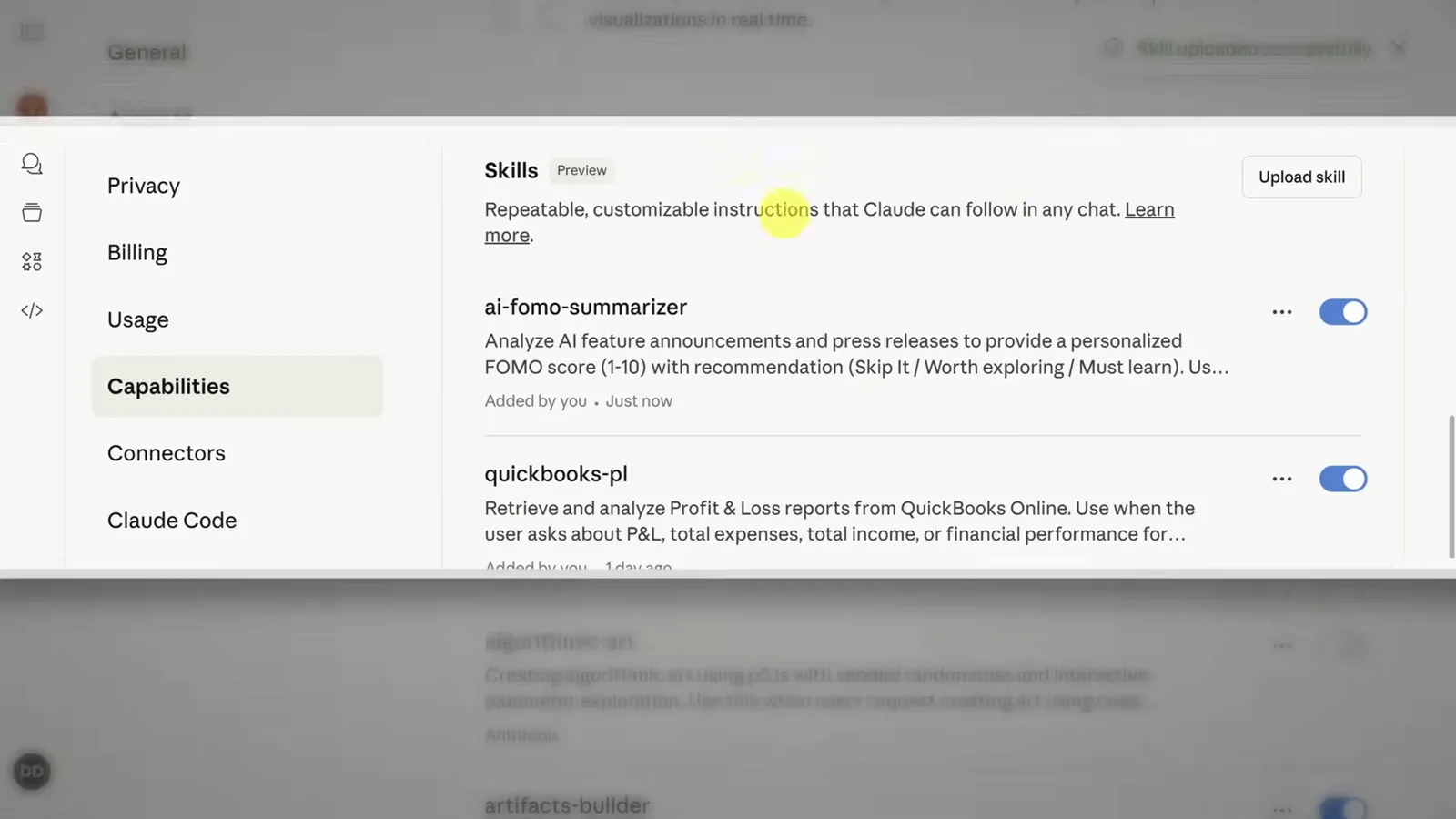
Your own skills live in the same list as Anthropic's — switch one off if it starts triggering too eagerly.Watch at 6:24 - 11
Test it in a new chat and check the structured output
Open a new chat and feed it a real trigger — the video pastes a link to OpenAI's Atlas announcement. Claude reads the AI FOMO Summarizer skill, searches for context and returns exactly the format the skill defined: a FOMO score of 6/10, a "worth exploring" recommendation, and sections for what it is, work relevance and community reception.
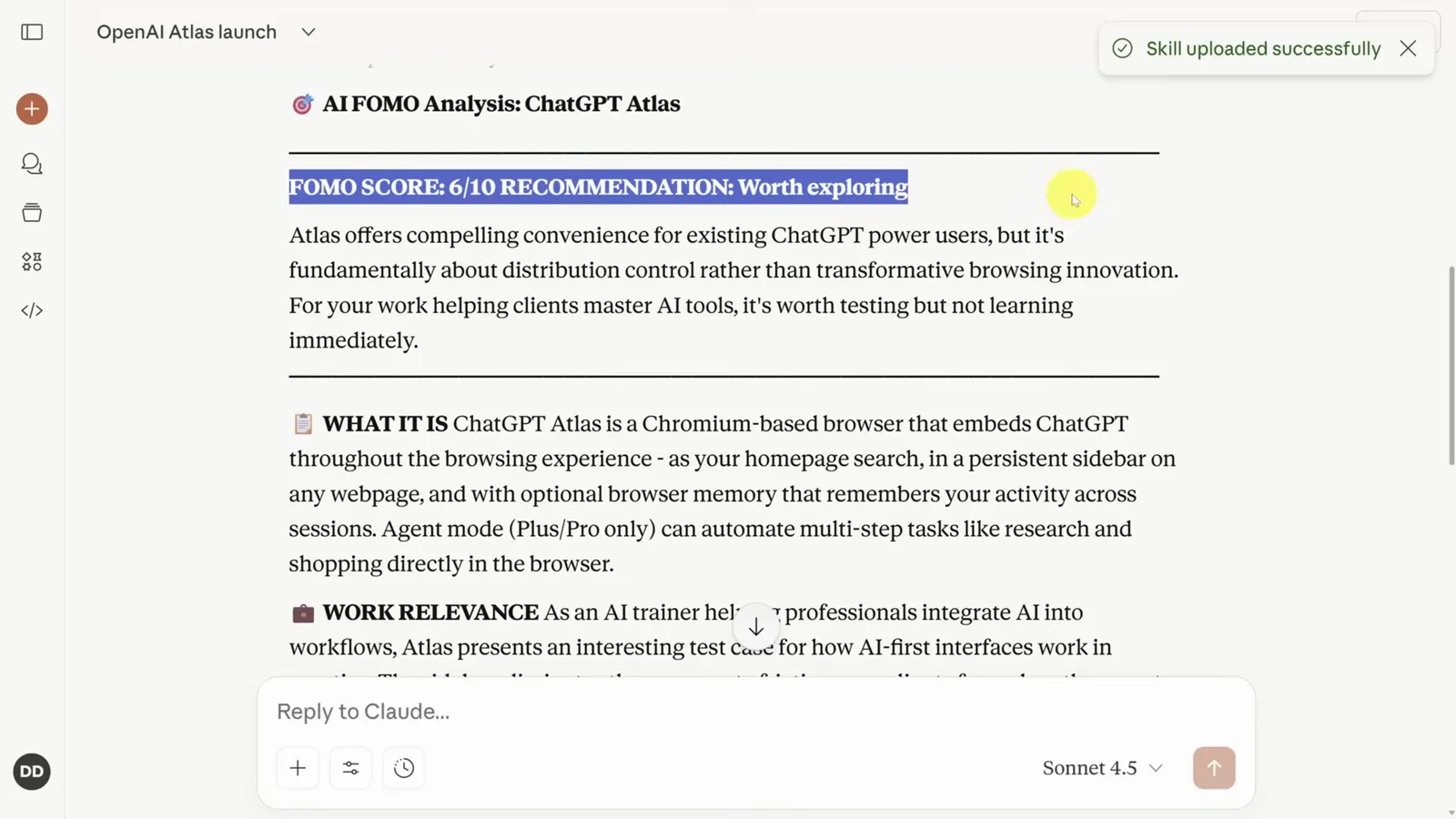
The report follows the format you specified — proof the skill, not a generic prompt, did the work.Watch at 6:56 - 12
Iterate: ask for changes, download, re-upload
Most skills need a second pass. Return to the chat where you built the skill and just ask — the video adds separate work-relevance and personal-productivity scores out of 10. Claude rewrites the skill, previews the new three-score output format, and you download the updated file and upload it again to replace the old version.
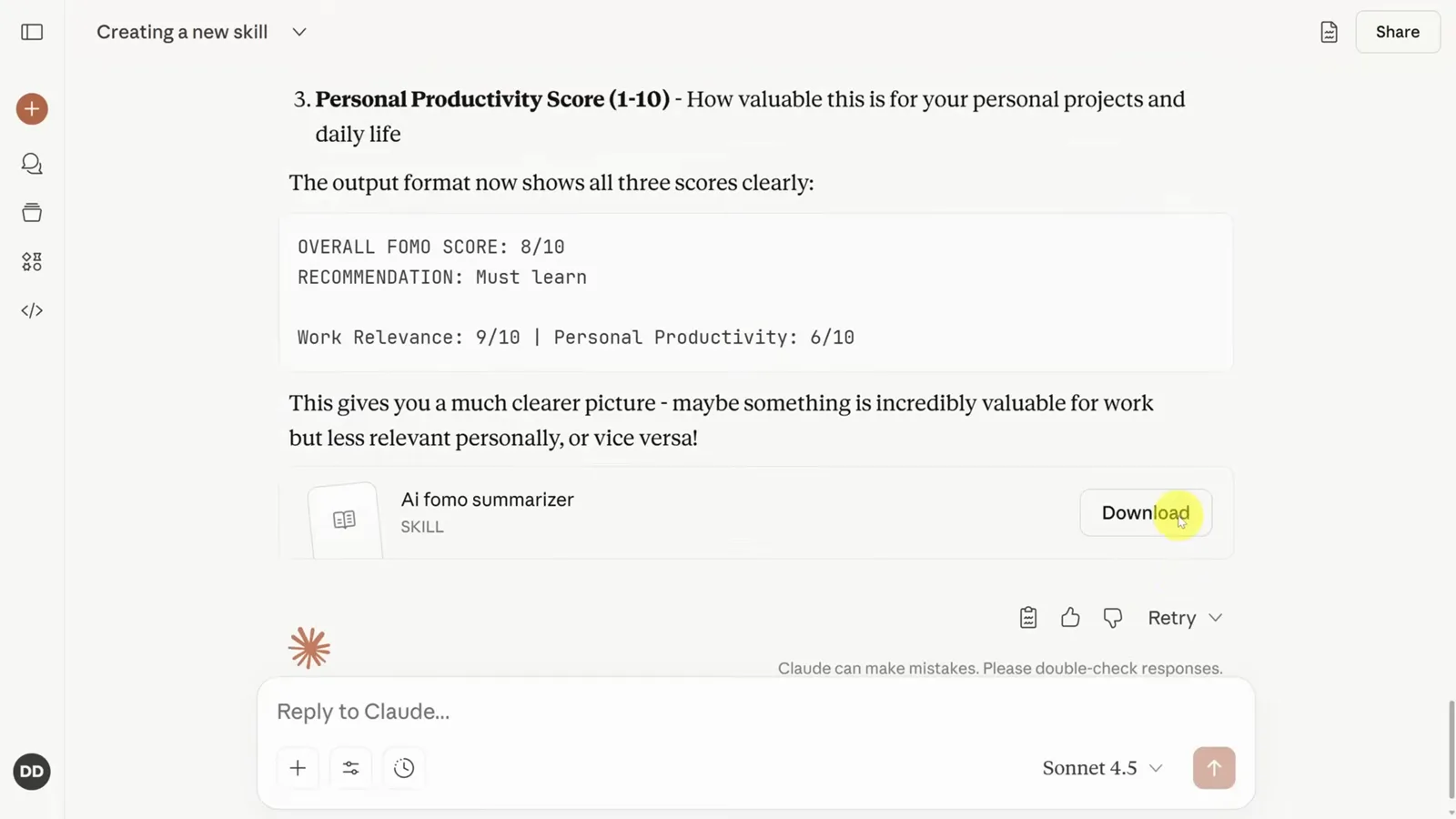
Editing a skill is a conversation, not a config file — then download and re-upload to ship it.Watch at 7:44
Connect Gmail and trigger skills reliably
- 13
Connect Gmail through Search and tools
Skills can lean on connectors, which let Claude act on your other apps. In a new chat, click the Search and tools icon in the prompt box, choose Gmail search and click Continue — Claude shows an authorization screen spelling out what it may access and reminding you that you can disconnect at any time.
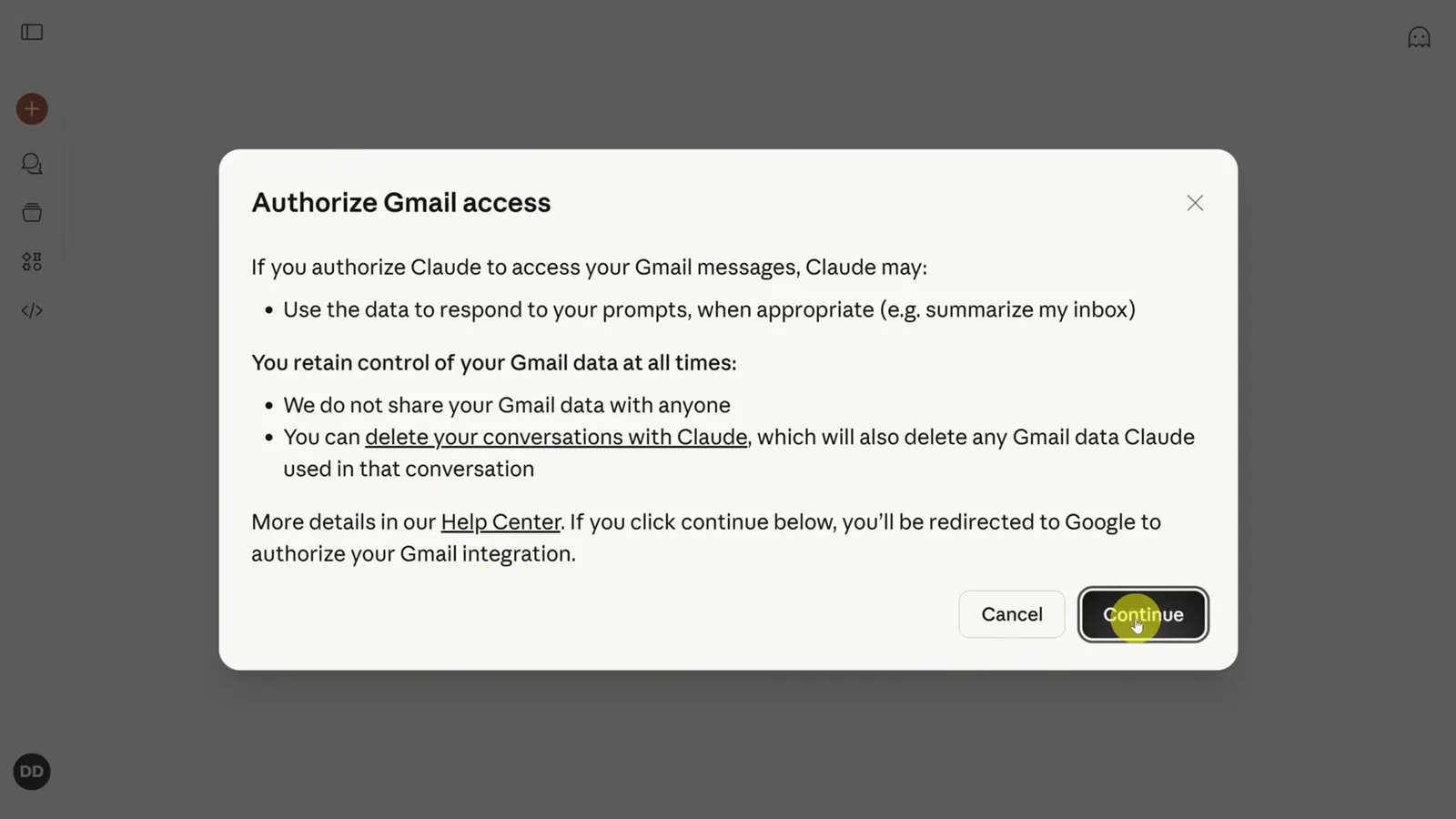
The consent screen spells out which Gmail data Claude may use — and that disconnecting deletes it.Watch at 9:16 - 14
Verify the connector with a From Gmail chip
Once authorized, a "Successfully connected to Gmail" toast confirms the link and a From Gmail chip appears in the prompt box toolbar. You can now ask Claude questions about your inbox directly — and, more importantly for this guide, your own skills can call Gmail search as a tool inside their instructions.
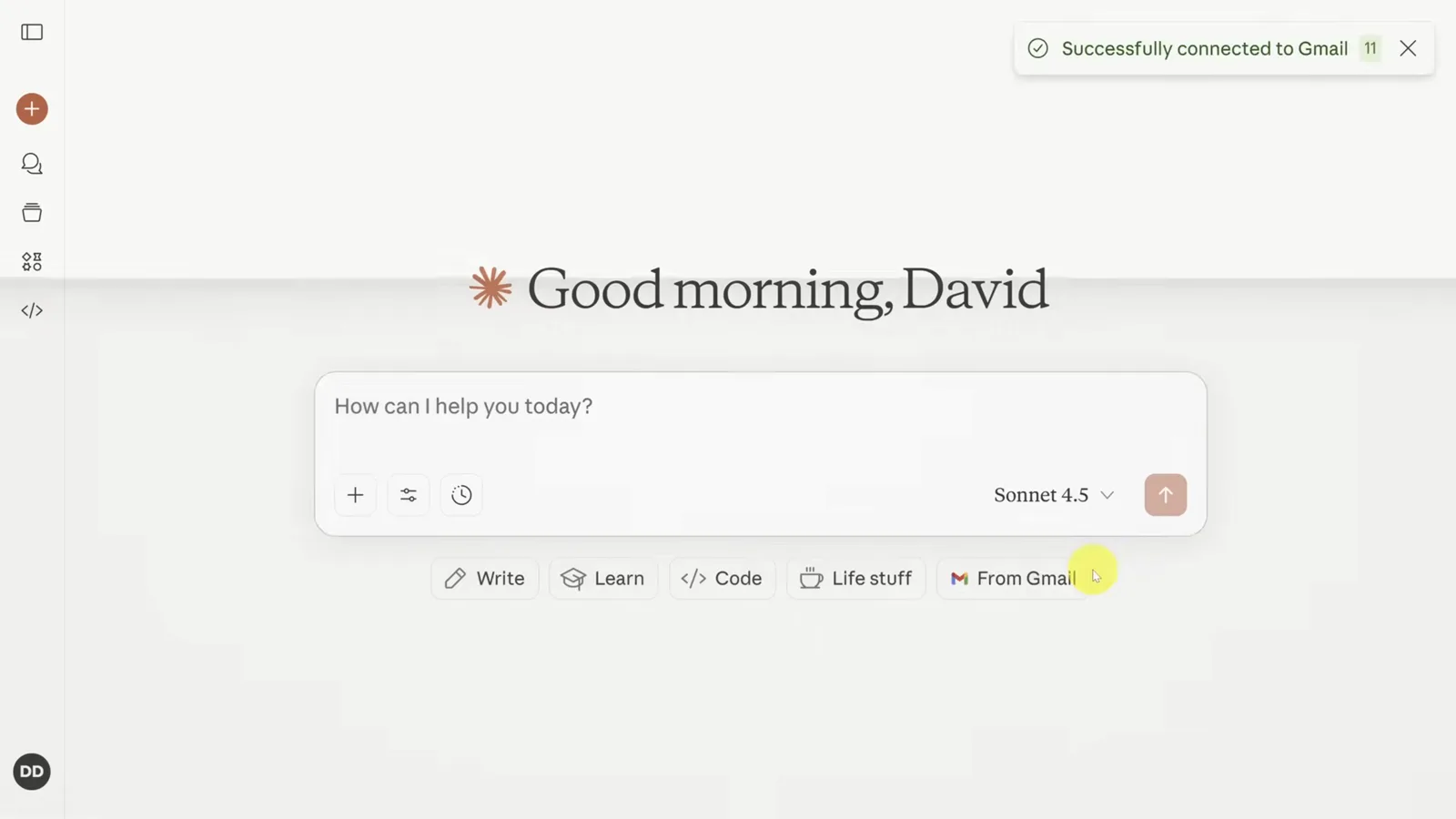
The From Gmail chip means the connector is live for every chat — including skills.Watch at 9:18 - 15
Build a Gmail skill that triages your inbox
Ask Claude to make a new skill again, this time describing an email triage workflow: find recent messages, mark the important ones and draft responses. After installing it, typing "gmail-summary yesterday" makes Claude search your mailbox and return a prioritized briefing — high-importance senders first, each with a why-it's-urgent note and a drafted reply underneath.
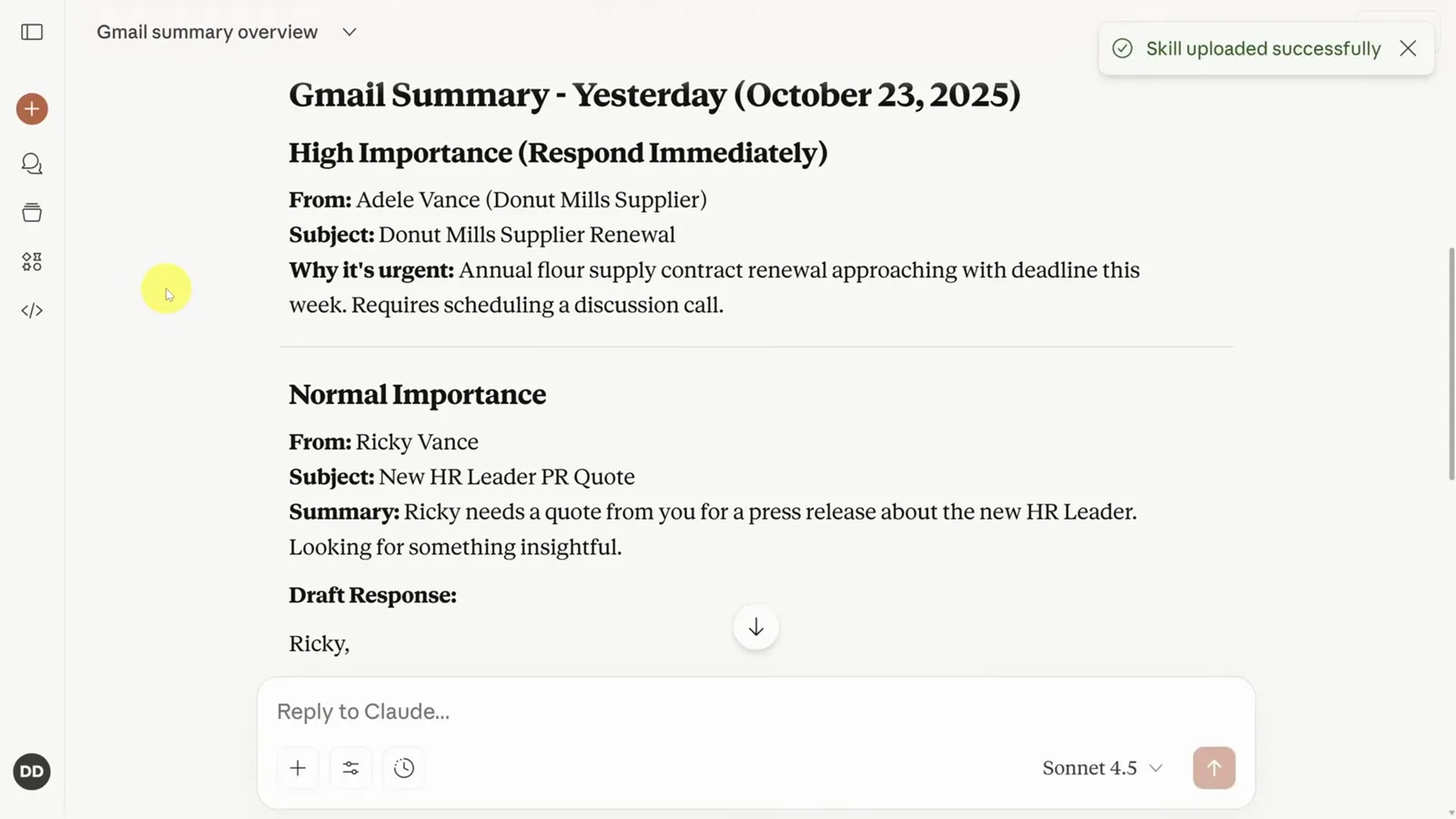
The skill returns a triaged briefing with replies drafted — the video runs it on a real inbox.Watch at 10:12 - 16
If Claude misses the skill, use its name in the prompt
The feature is still early, and a vague request sometimes sails past your skill. The video's closing tip: put the skill name directly in the prompt — "gmail-summary yesterday" — and Claude reliably reads the gmail-summary skill before analyzing. Watch for the "Reading the … skill" line; that's your confirmation it loaded.
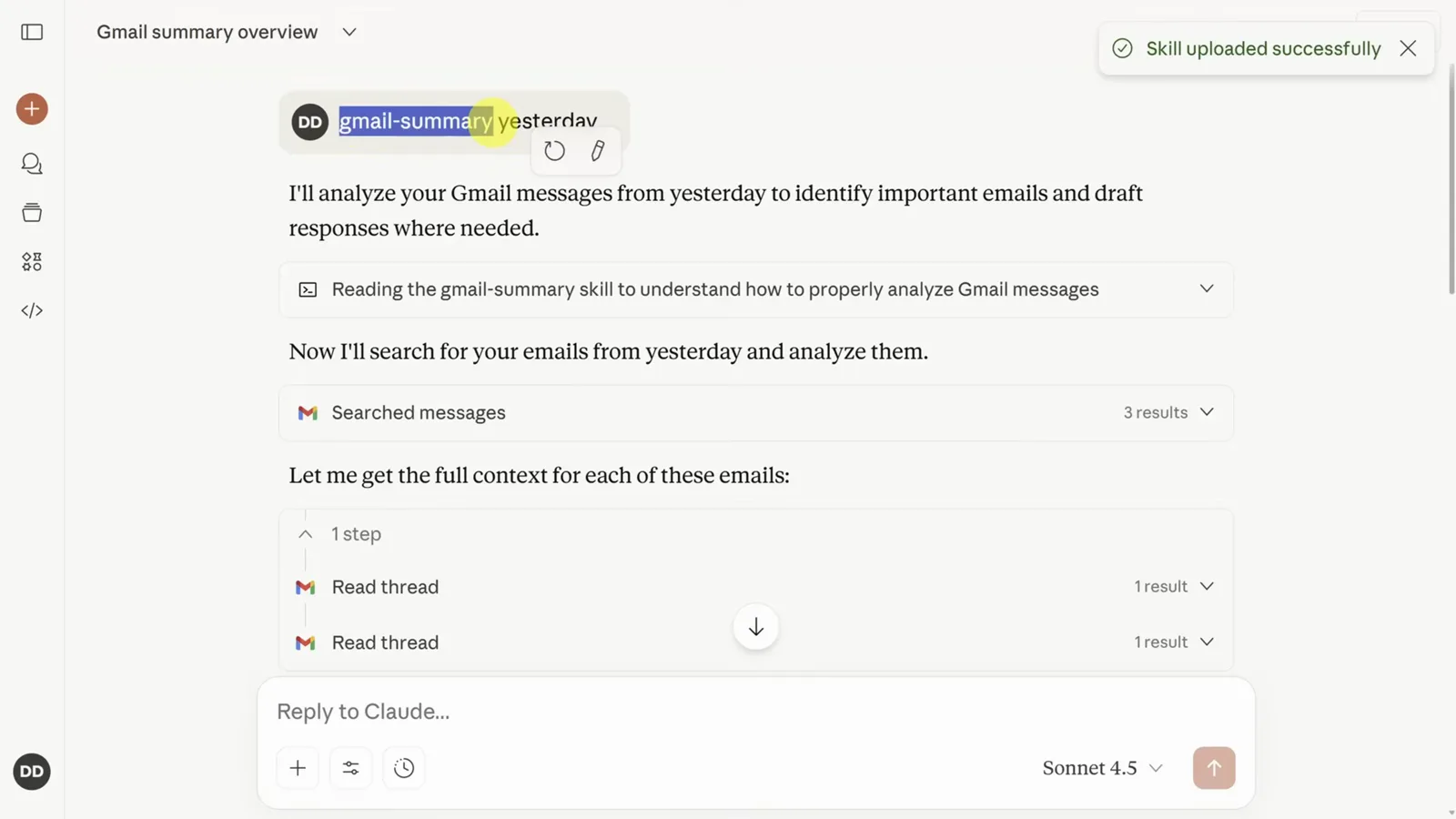
Naming the skill in your prompt is the reliability trick — the "Reading the…" line proves it loaded.Watch at 10:24