

Grok Bot vs OpenAI Dots: Which Always-On Agent Matches Your Work in 2026?
xAI and OpenAI now sell the same promise: an agent that keeps working on its own cloud computer after you close the laptop. Grok Bot approaches it as a team of named bots you assemble, connect and schedule; dots approaches it as one assistant living inside your ChatGPT account that volunteers help before you ask. This guide walks both setups step by step - the Grok Bot walkthrough comes from Charlie Chang's full beginner tutorial, the dots screens from Paul J. Lipsky's deep dive with Edwin Chen's setup and Grace Leung's Slack walkthrough filling the gaps - then lines up prices, automation style and where each one fits. Both sides are shown doing what they demonstrably do; the verdict stays yours.
Source & credits
Screenshots in this guide are captured from Charlie Chang's public walkthrough video. Every step links back to the exact moment it shows, so you can follow along.
Charlie Chang ↗Getting started with Grok Bot
- 1
Create your first bot in Grok Bot
Grok Bot ships as a desktop app you download from x.ai/bot. Click the plus button, choose New Bot, and the new teammate appears in the left sidebar next to your existing bots - each one keeps its own chat history. Give it a name like Executive Assistant, add a short description, and leave notifications on so it pings you when it finishes a job or needs input.

One plus click stands between you and a new teammate.Watch at 1:46 - 2
Connect your email by asking in chat
There is no settings hunt: you type "connect my email accounts - let's start with gmail" and the bot answers that it is checking what is already connected. Charlie adds another Gmail by naming it and logging in straight from the conversation. He also points out that every bot shares the same cloud computer, so one login becomes usable across the whole team.
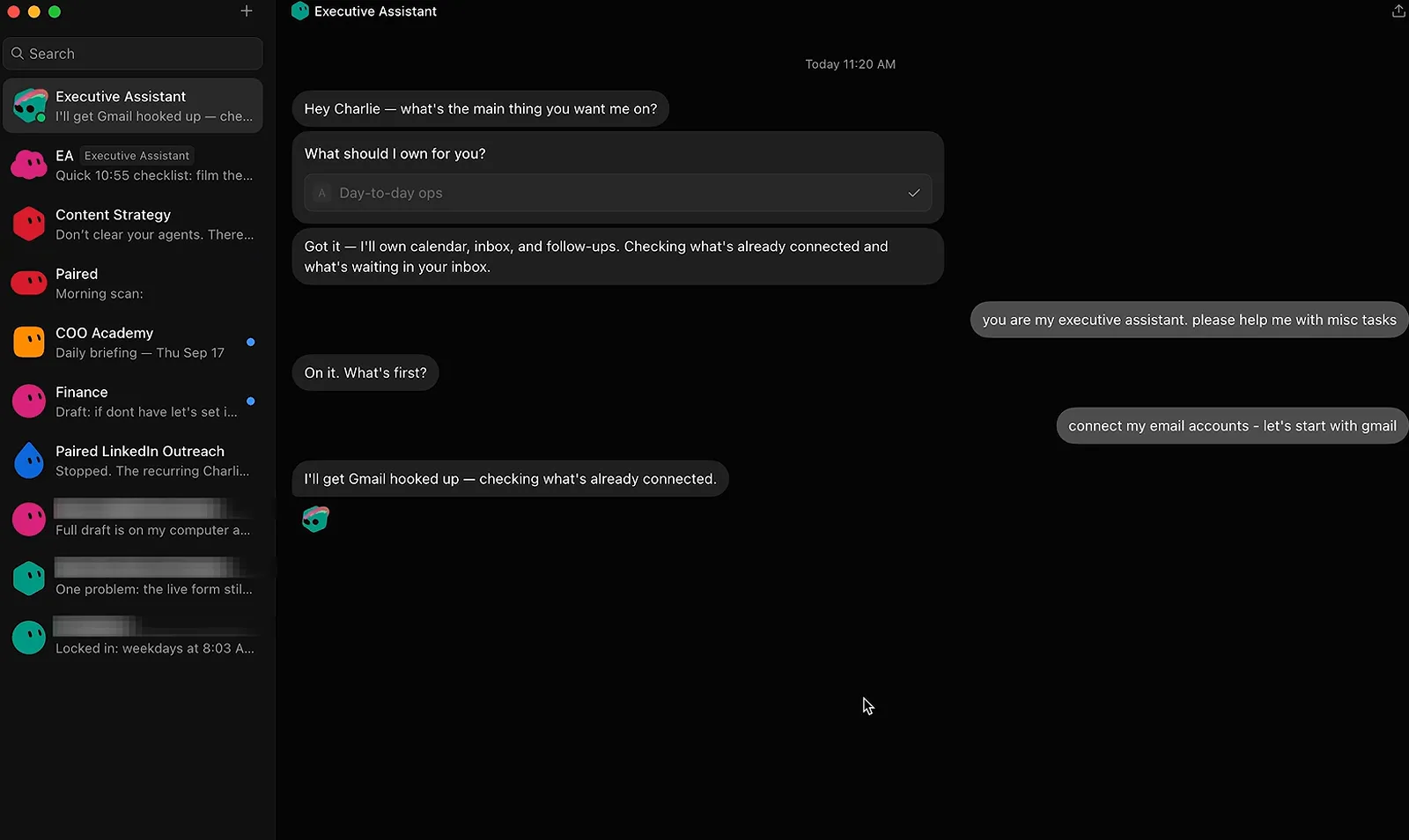
You hand out logins by chatting, not by digging through menus.Watch at 3:20 - 3
Watch each bot work on its own screen
Every bot gets its own desktop with its own browser, and you can open that screen to watch it drive Chrome - here the assistant has landed on Gmail's homepage by itself. You can also take control and perform actions on the bot's computer, which is how Charlie teaches it new flows step by step.
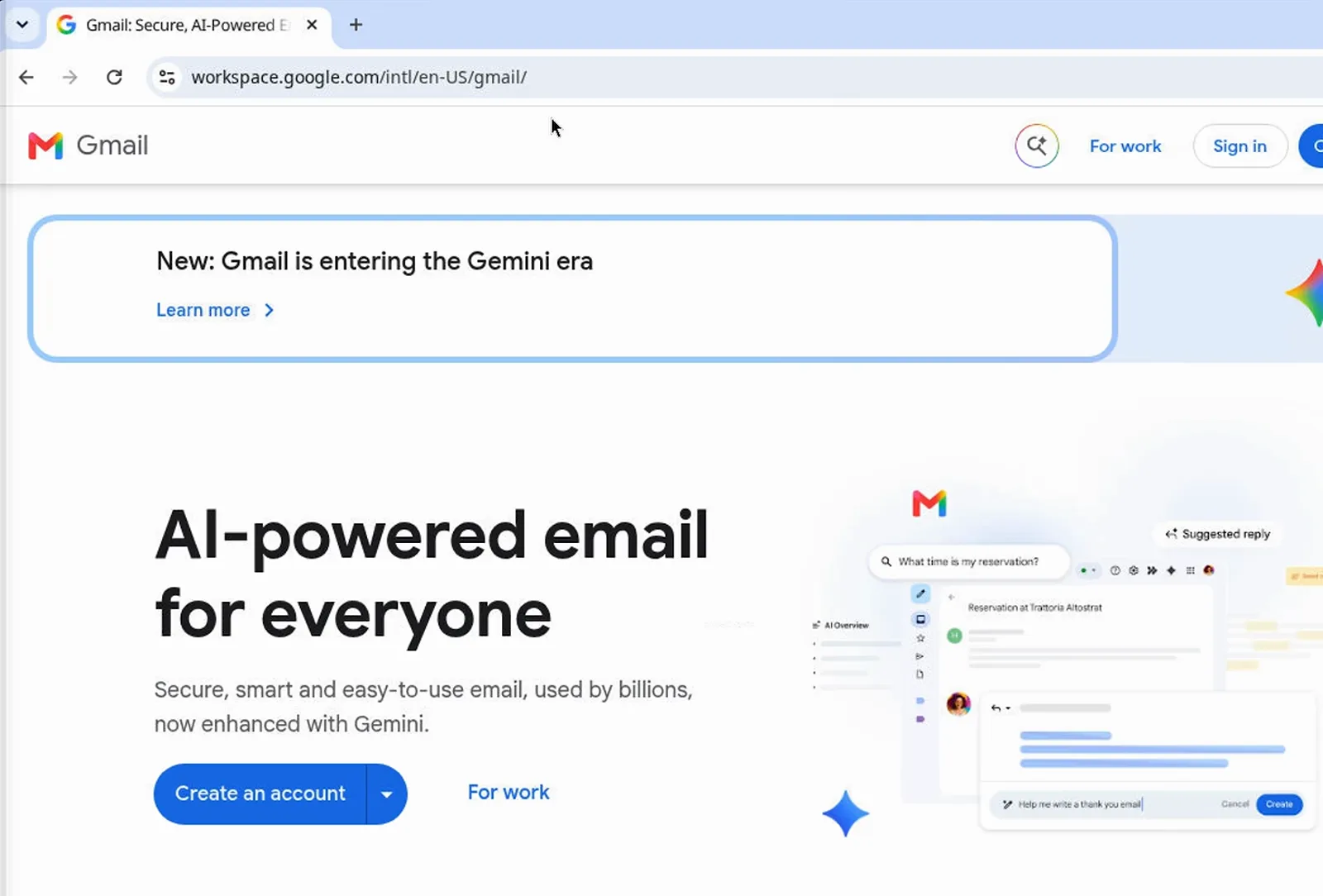
The bot browses with its own Chrome on its own machine.Watch at 5:00
Getting started with OpenAI dots
- 4
Create your dot at chatgpt.com/dots
dots lives inside ChatGPT, so setup starts from a web page rather than an installer. The onboarding screen introduces it as a "remarkably capable always-on agent" powered by GPT-6 Astra, warns that it will proactively suggest help based on your connected apps, and hands you a single Continue button. Naming your dot comes right after.
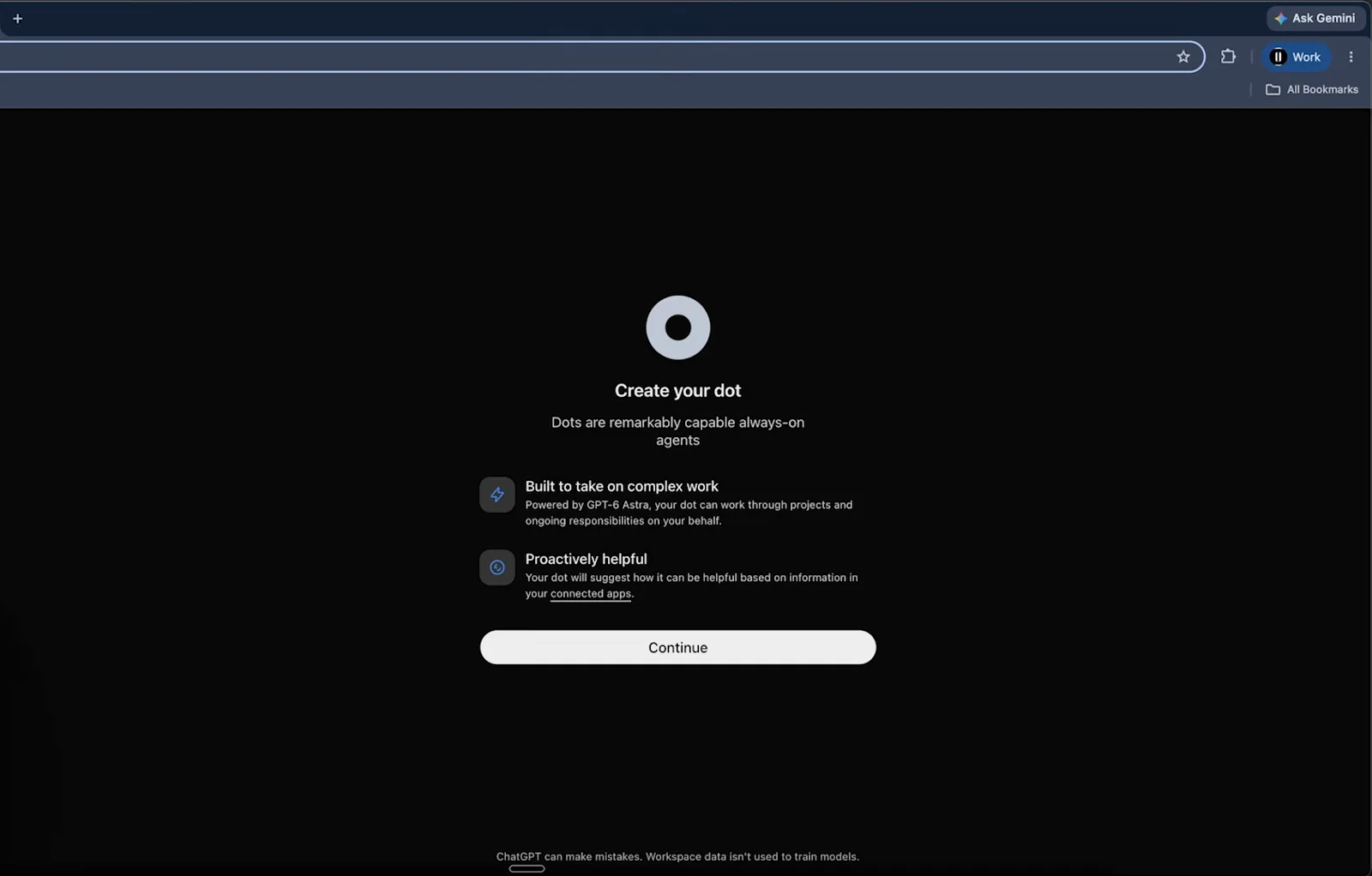
Setup begins with a Continue click, not an installer.Watch at 1:12 - 5
Wire up Google in one sign-in
The "Make your dot more helpful" screen offers Email, Calendar, Contacts and Drive behind one Continue with Google button. Edwin grants it once and the dot can then draft emails, read events and work with Drive documents. He calls a dot without connected data sources almost useless - the proactive behavior later depends on this step.
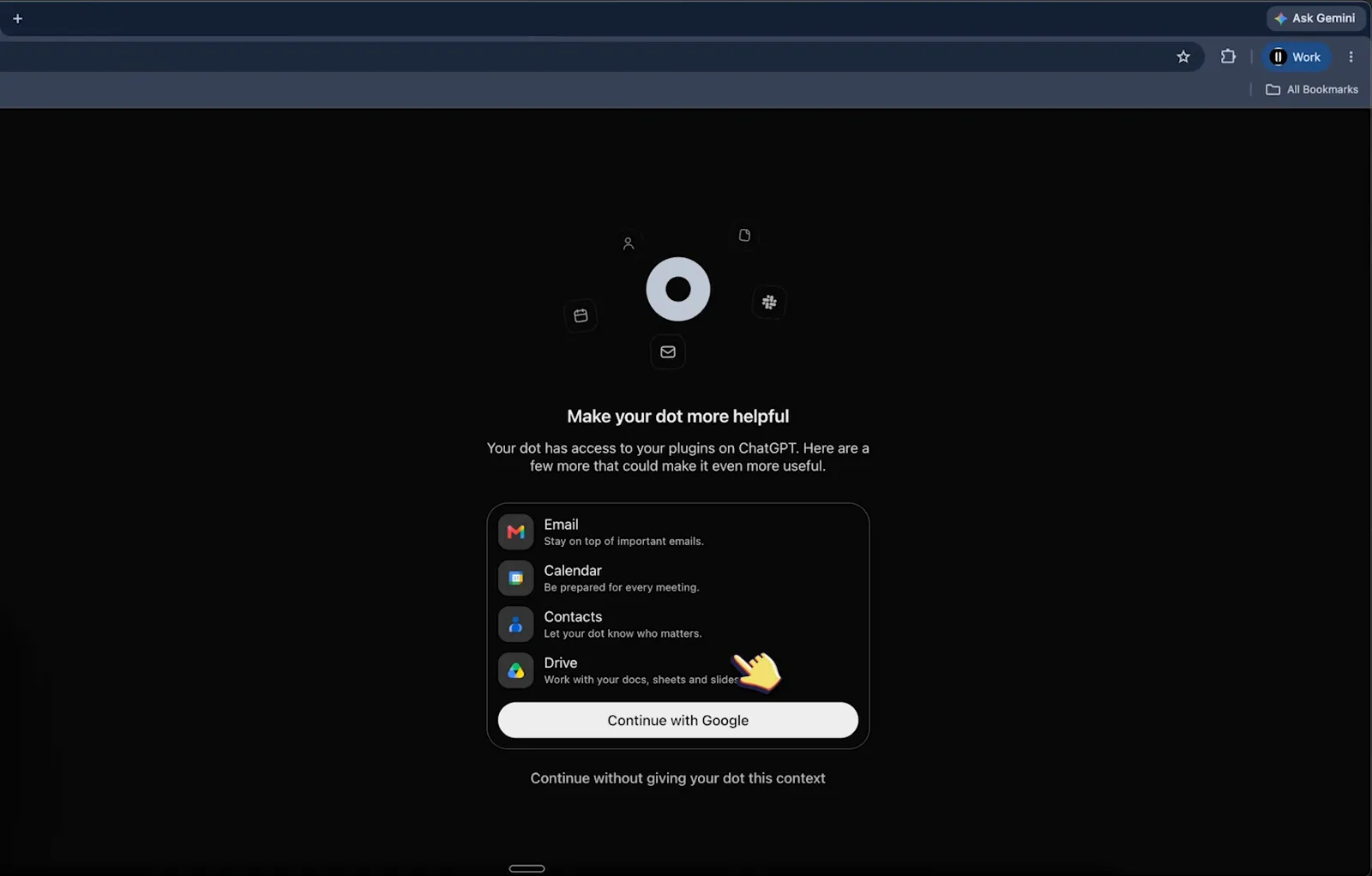
One Google sign-in wires up the usual workspace apps.Watch at 1:25 - 6
Meet your dot's dashboard
Your dot appears as its own entry in the ChatGPT sidebar. The panel shows it as Active, with Call and Slack buttons, your dot's computer marked Connected, and a recent-activity list of what it has been chipping away at - migrating notes to Notion, rebuilding a YouTube schedule, copying video notes in batches.
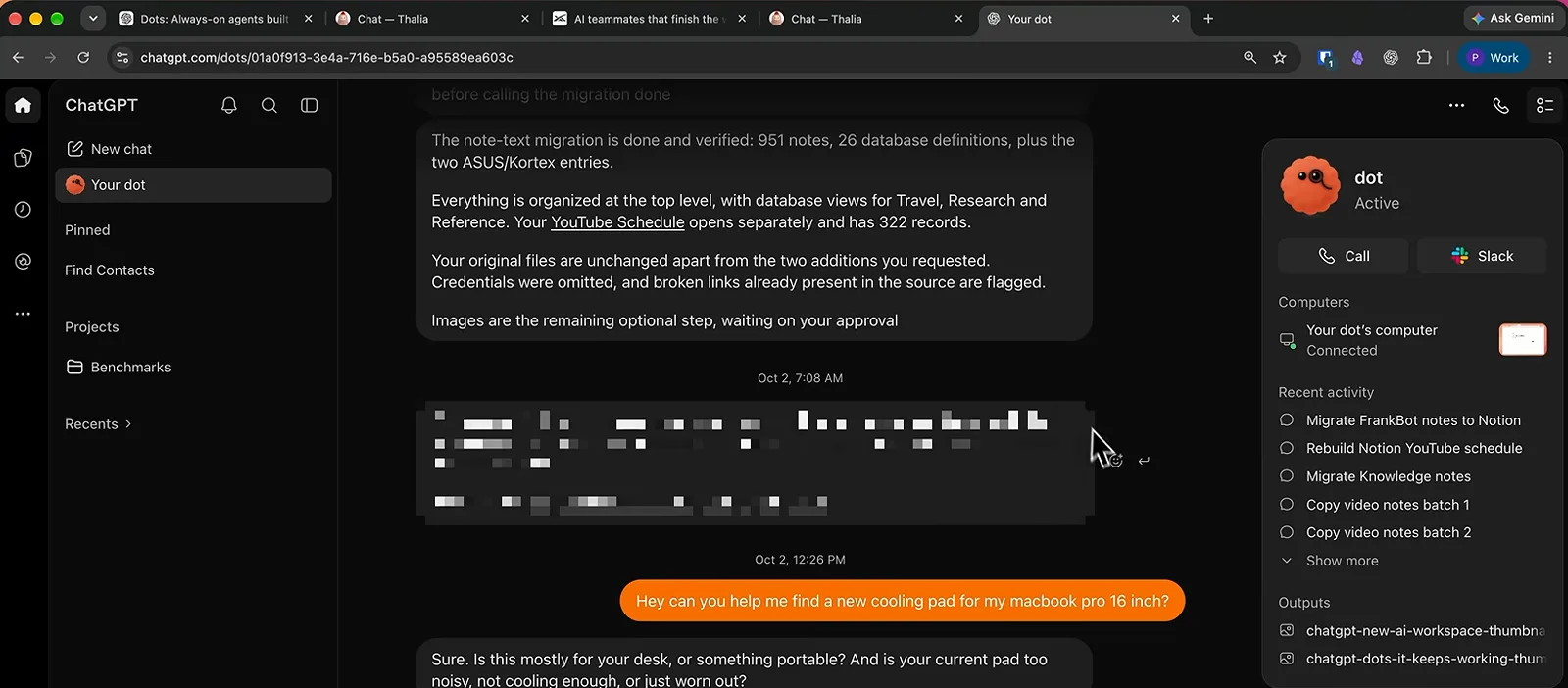
The dot panel keeps score even while you are away.Watch at 2:00
Scheduled routines vs proactive nudges
- 7
Schedule a morning report routine
Ask in chat - "every morning at 9:00 AM, check my Slack and email and send me a report" - and a routine appears in the right-hand panel. The frame shows the assistant bot's Routines list: a weekday morning brief at 8:48 AM plus two more recurring jobs. Once routines exist, the bot behaves like a scheduled employee instead of an assistant that waits for every prompt.
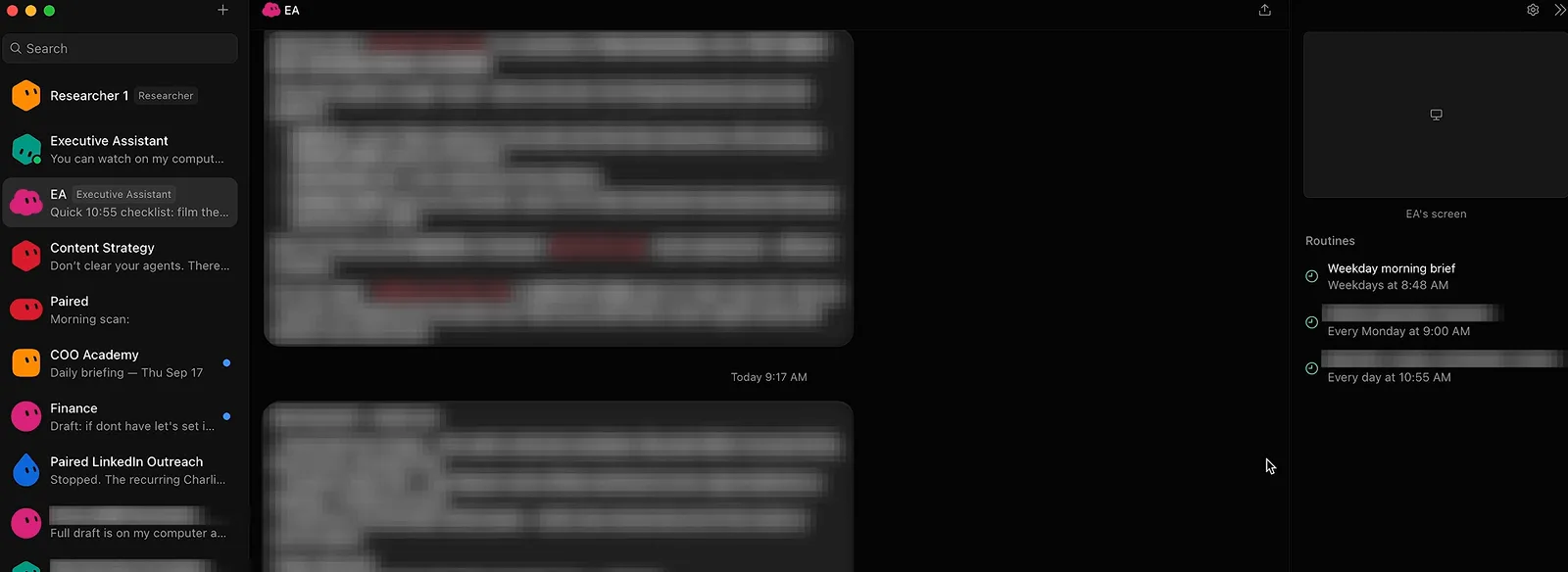
Set it once and the morning report runs without you.Watch at 7:32 - 8
Let it open with suggestions, not prompts
Seconds after setup, Paul's dot said hello and listed three things it could take off his plate: chase an unresolved hotel checkout bill, untangle a sponsor filming schedule, and tighten a half-written deadline reply - each with a link to the relevant thread. That list arrived before he typed a single prompt, which is the proactive half of dots.
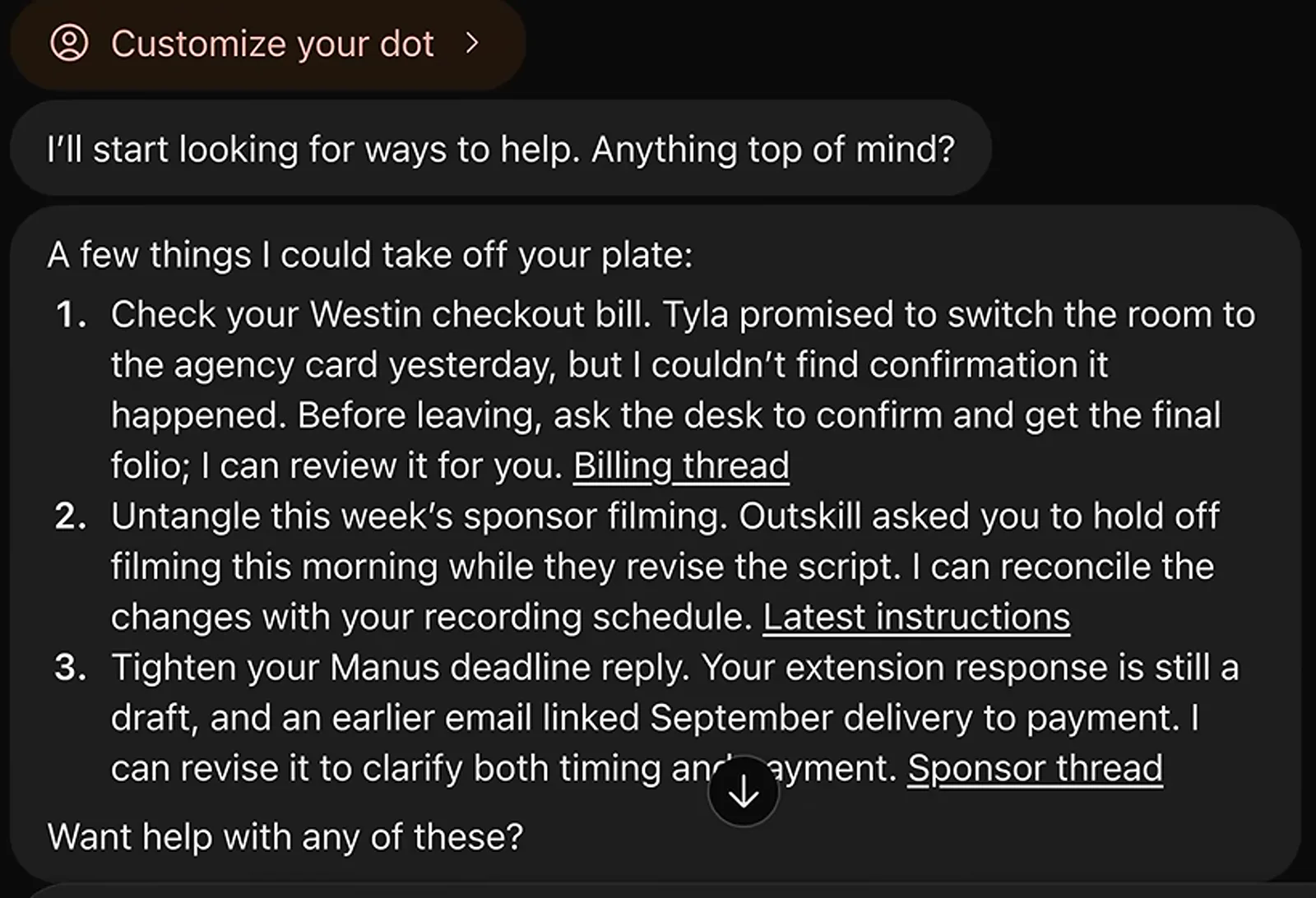
Dots opens with suggestions instead of an empty prompt box.Watch at 2:30 - 9
Send a task and let it follow up
Paul asked his dot to email a sponsor about a missing payment; the frame shows the drafted "I haven't received payment for the first video yet" message with a Send this version confirmation. About half an hour after the send, the dot woke itself up, dug through the records, realized the payment had actually landed, and flagged it so a correction could go out.
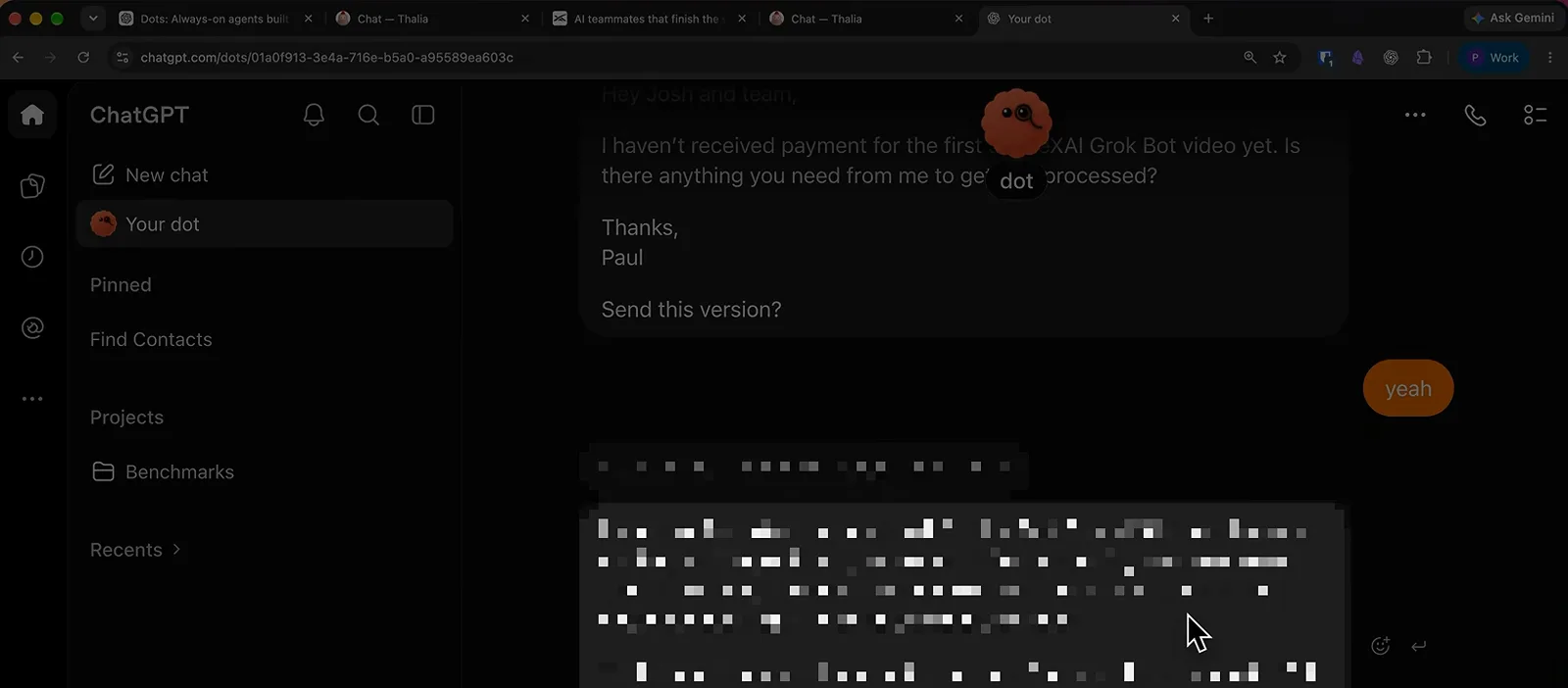
It closes the loop and tells you when reality disagrees.Watch at 3:25
Price and plans
- 10
Check the plans on x.ai/bot
Grok Bot is not a free app. The pricing page shown in the video lists Cursor Pro at $20/month, SuperGrok at $30/month and Cursor Teams Standard at $40/seat, and every card includes Grok Bot with its own computer and routines on a schedule. A banner underneath confirms that an existing eligible Cursor, SuperGrok or Teams plan already covers it.
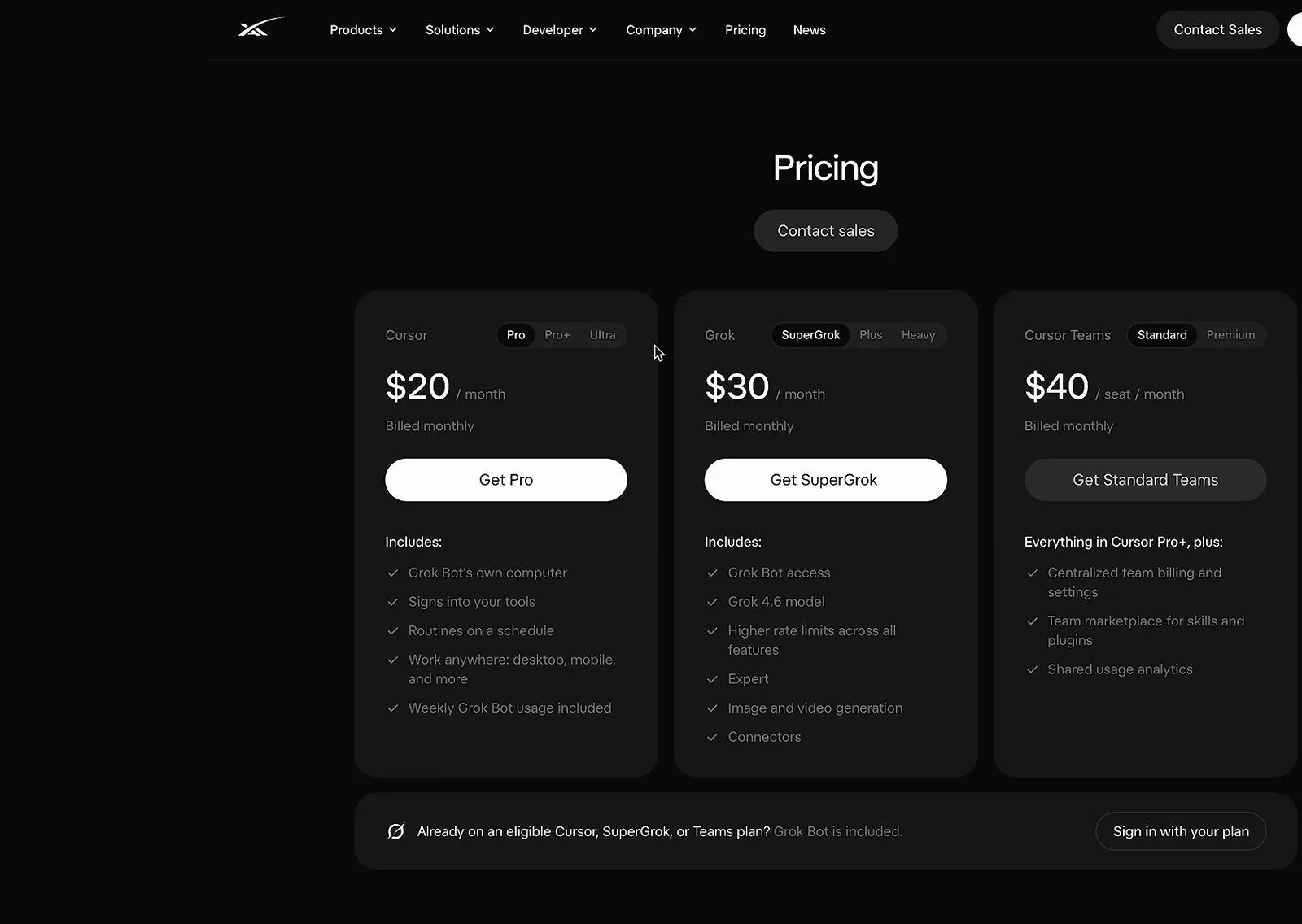
Grok Bot rides along with Cursor or SuperGrok subscriptions.Watch at 1:10 - 11
See what a plan unlocks
OpenAI's announcement includes the first dot with ChatGPT Pro or Business Premium at no extra cost, and the entry Pro tier starts at $100/month - the same figure Paul's video quotes, adding that dots was not yet available in the EU, UK or Switzerland when he recorded. The frame shows the payoff once you are in: the first hello beside a stack of live notifications about sponsor emails, all unprompted.
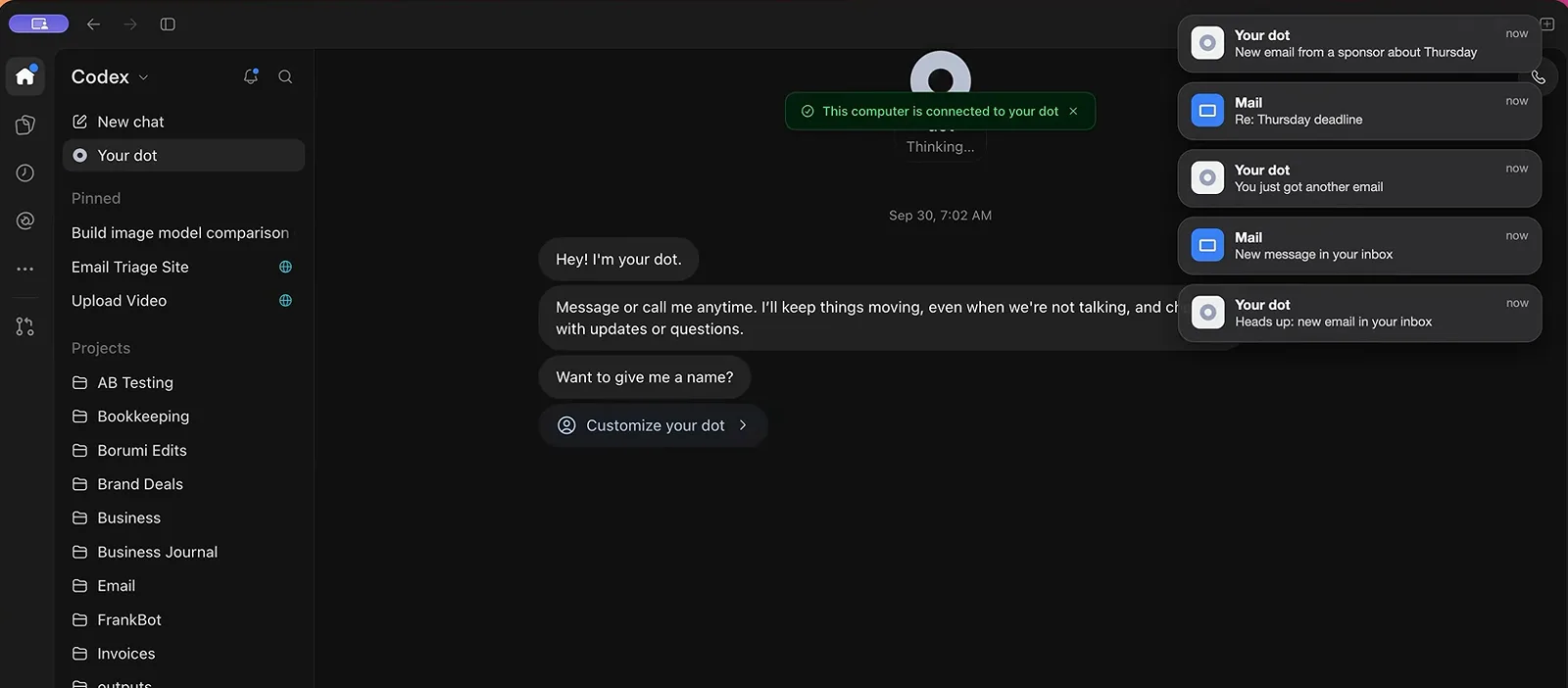
Pay once and the updates start arriving on their own.Watch at 11:26
Teamwork and channels
- 12
Pull several bots into one group chat
From the composer you can address a thread to several bots at once - the picker here shows the Finance bot being added next to the Executive Assistant. Charlie runs a group chat where his assistant and finance bot discuss unpaid bills, and he values it for transparency: every message the bots exchange stays visible in one place.
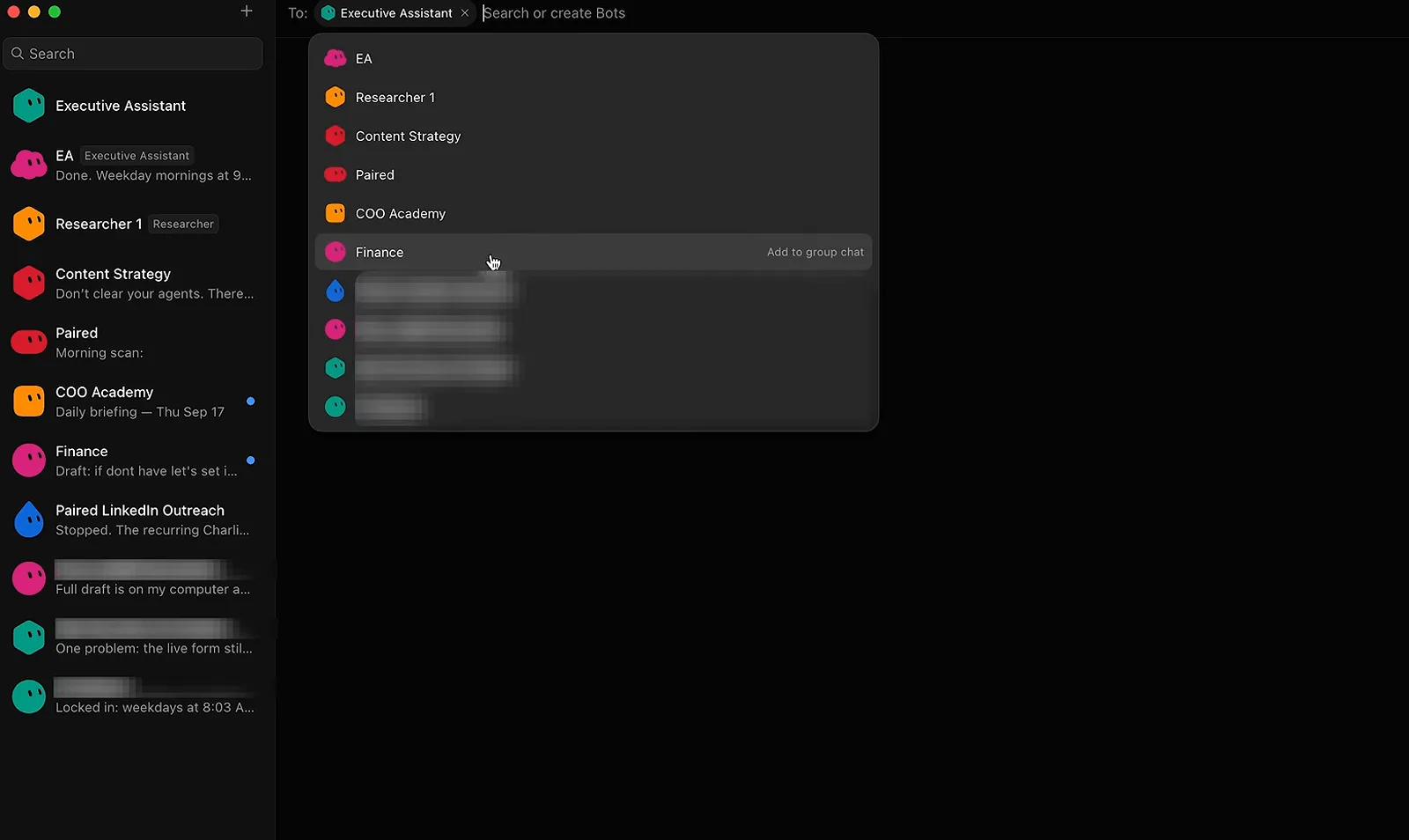
Group chats keep multi-bot work in one visible thread.Watch at 10:50 - 13
Add your dot to Slack
Beyond the ChatGPT window, a dot can join Slack as a teammate - Grace's dot Emily appears with its own profile and an AGENT badge in the DM list, introducing itself and promising to answer mentions in shared channels. From there she hands it campaign coordination, and it texts back status updates while the team works.
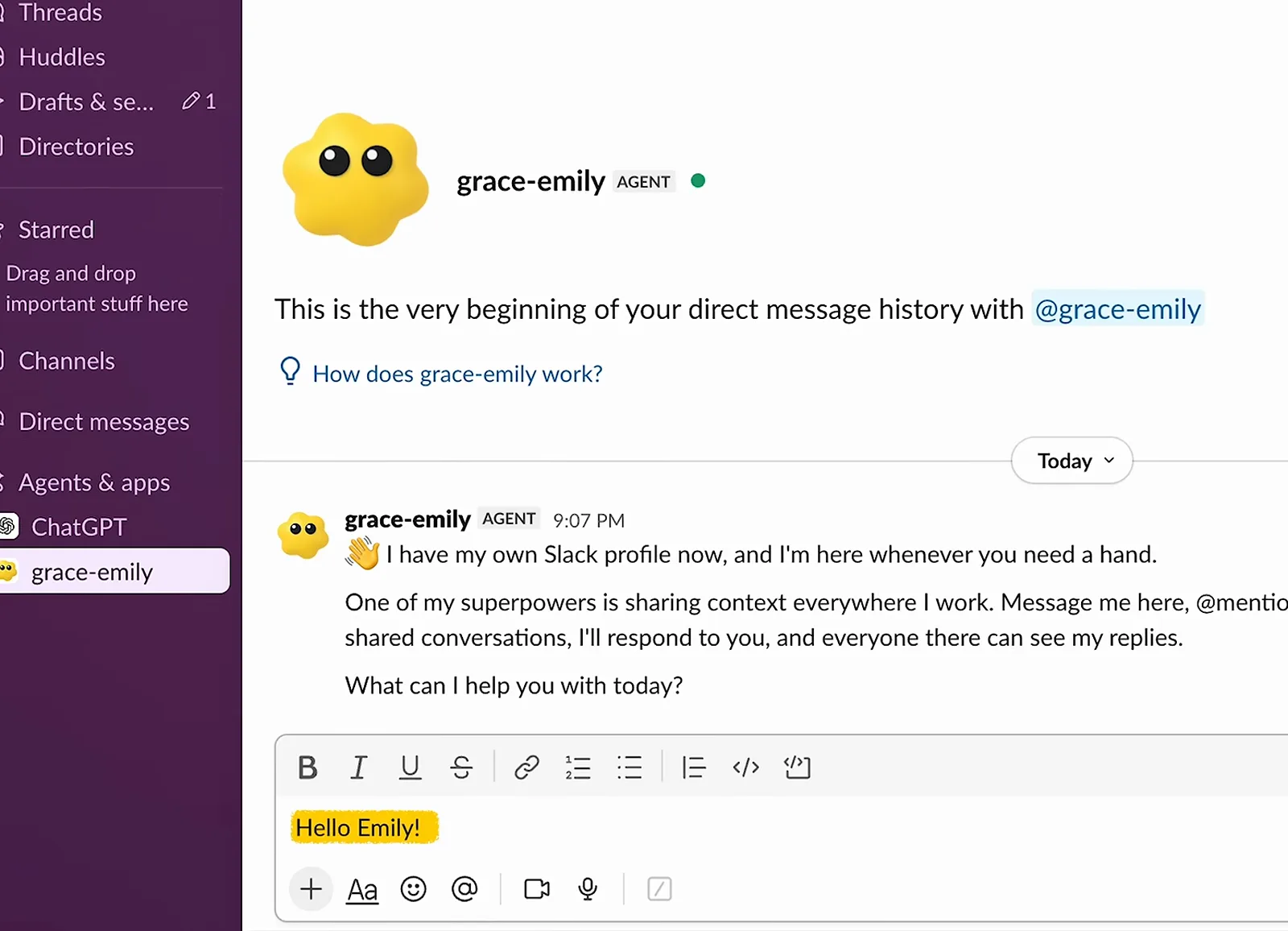
Slack becomes another chat window your dot answers in.Watch at 1:50 - 14
Call your dot when typing is too slow
The Call button rings your dot like a phone, complete with mute and a red hang-up button - Paul admits the conceit looks gimmicky. It earns its keep, though: in one call he dictates three tasks, from researching a video topic to fixing game bugs, and the dot queues each one as its own tracked task.
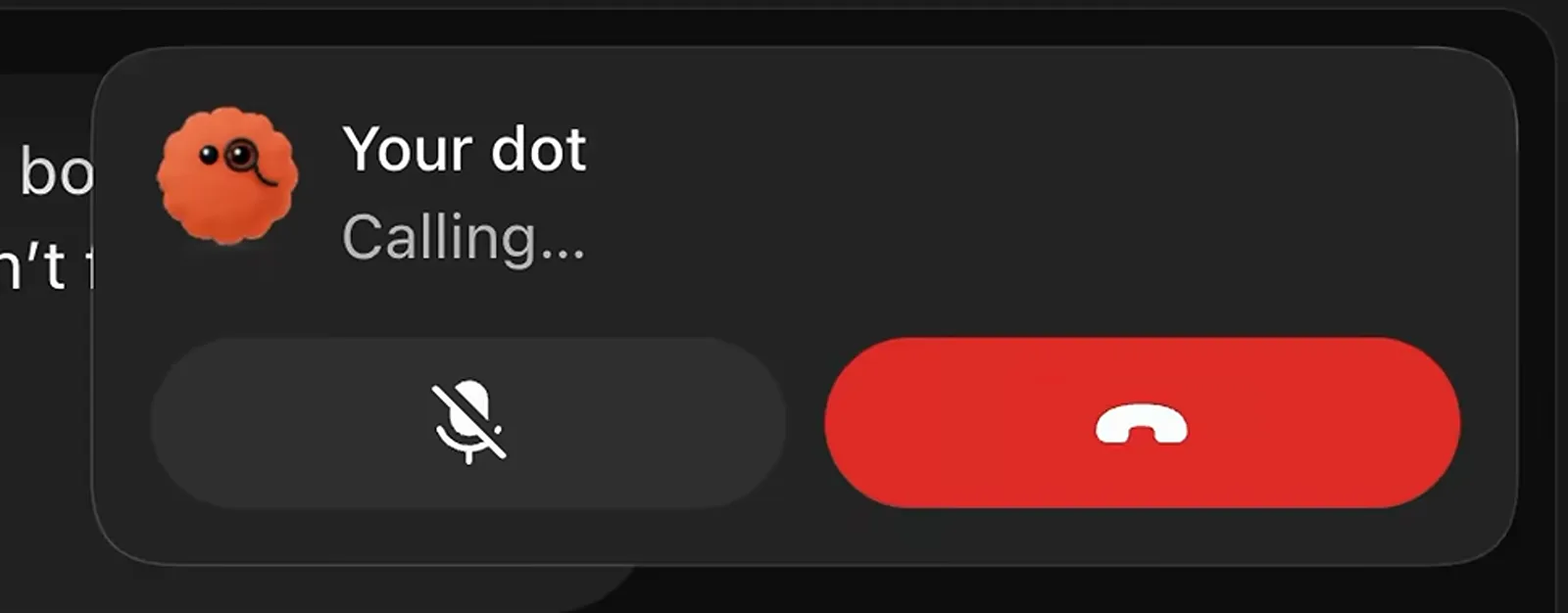
Calls look silly and handle multi-task briefs well.Watch at 7:05
Where each one fits
- 15
Import ready-made bots from the Marketplace
The Marketplace lists featured bots such as dr eggbot and Projects Manager, plus suggestions driven by tools you already connect - the frame shows Composio-based recommendations like AWS Agents and Atlan. One click imports a proven bot with its role and routines, which is how Charlie suggests beginners skip the blank-page problem.
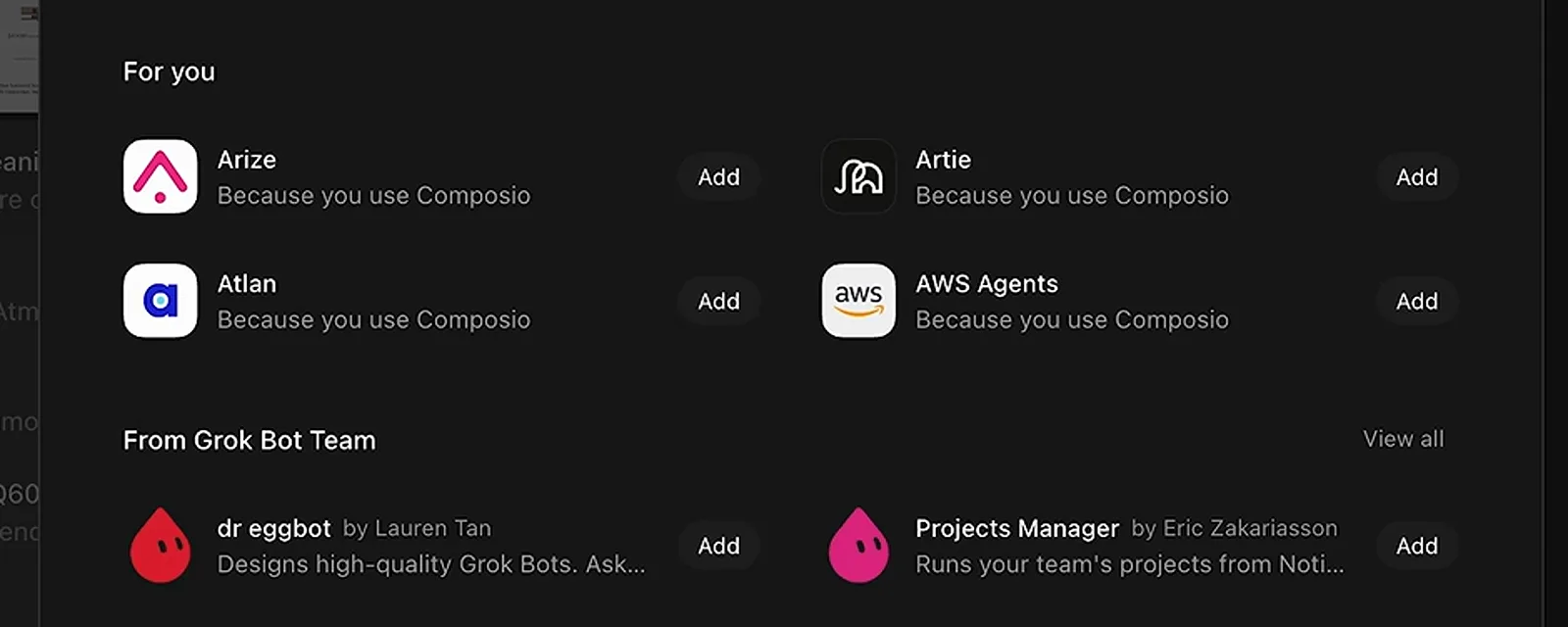
Import a proven bot instead of building one from zero.Watch at 9:40 - 16
One dot, many ChatGPT threads
Because dots is built into ChatGPT, the same conversation reaches Codex projects - the frame shows the dot inside the Codex app with "Research ChatGPT Spaces video" and "Fix Shmelda traversal" queued as tracked tasks. Paul's summary: Muse and Grok Bot stand as separate apps, while dots coordinates inside the ecosystem where your other work already lives.
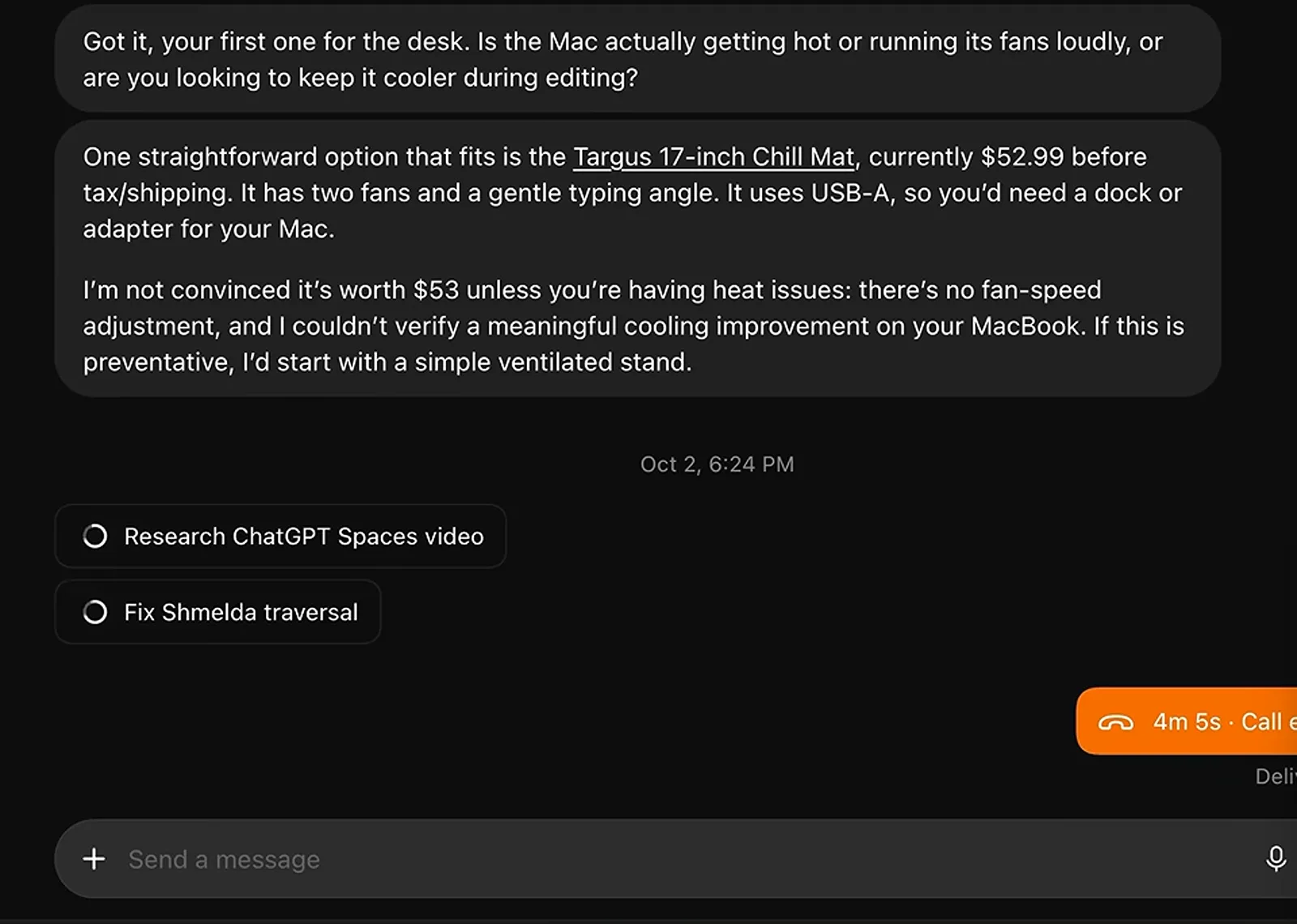
One dot can steer several Codex threads toward the goal.Watch at 9:50