

OpenAI Dots Tips: Get Setup Right, Brief Missions That Hold Up, Pick Uses That Pay Off
This page is for your first days with dots, OpenAI's always-on agents inside ChatGPT — creating one takes minutes, but a handful of habits decide whether it becomes a colleague or a nag. The 16 steps below come from three launch-week recordings: The AI Advantage's first 24 hours with a dot named Mini Alfredo, Skill Leap AI's guided setup with Juno, and Futurepedia's from-scratch walkthrough, cross-checked against OpenAI's own dots documentation. Every frame was verified against the source videos, and each step deep-links to the exact moment it shows.
Source & credits
Screenshots in this guide are captured from The AI Advantage's public walkthrough video. Every step links back to the exact moment it shows, so you can follow along.
The AI Advantage ↗Get the setup right before your first mission
- 1
Meet your dot: the always-on greeting
Find "Your dot" at the top of ChatGPT's left panel and it opens like a text thread: "Hey! I'm your dot. Message or call me anytime. I'll keep things moving, even when we're not talking, and check in with updates or questions." It then offers ideas and a scratchpad before you ask for anything. Read the greeting as the product's thesis — you are not opening a chat, you are hiring a colleague who works between your chats.
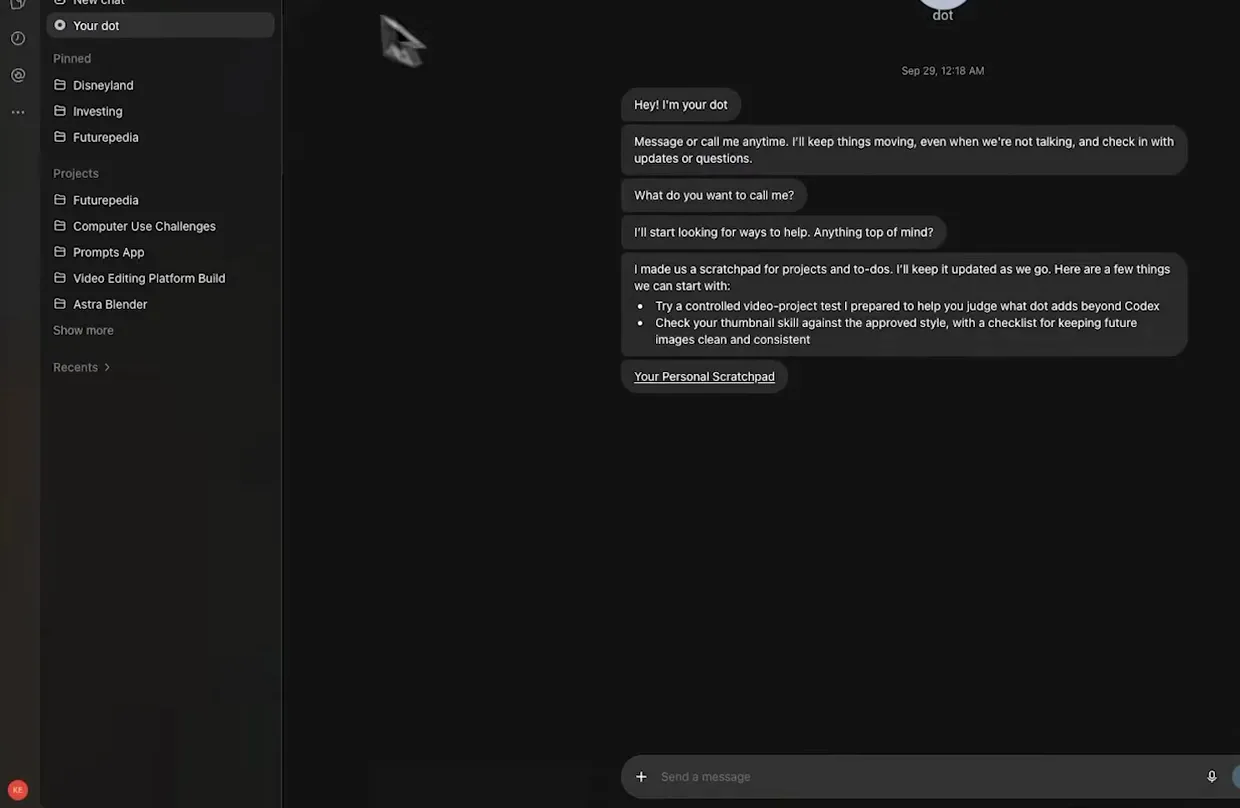
The first hello: your dot plans to keep working between your chats.Watch at 1:30 - 2
Create your dot: read the three promises on the onboarding screen
Dots are created from the ChatGPT desktop app or a desktop browser — not mobile web — and the "Create your dot" screen states the deal: "Dots are remarkably capable always-on agents." Below it: "Built to take on complex work. Powered by GPT-6 Astra, your dot can work through projects and ongoing responsibilities on your behalf," "Proactively helpful... based on information in your connected apps," and "Respects your choices" with a "Manage data controls" link. Tap Continue when you accept all three.
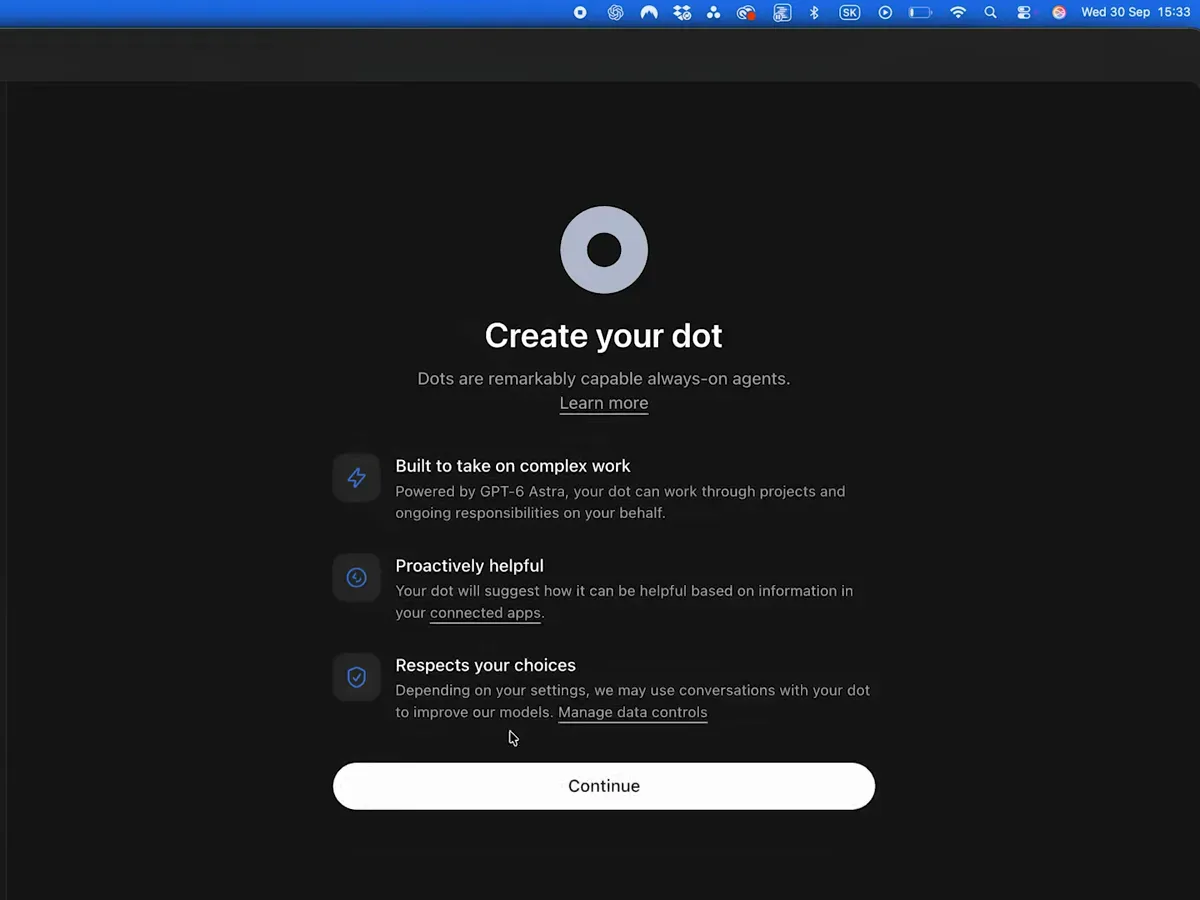
Three promises before you start: complex work, initiative, data controls.Watch at 1:20 - 3
Connect the four connectors that make a dot useful
Early setup asks to "Make your dot more helpful": Email ("Stay on top of important emails"), Calendar ("Be prepared for every meeting"), Contacts ("Let your dot know who matters") and Drive ("Work with your docs, sheets and slides"), each flipping to "Connected" once granted — with "Continue with Google" and a "Continue without giving your dot this context" escape hatch. Grant what your first mission needs. A dot can only read what you connected, so context is permission.
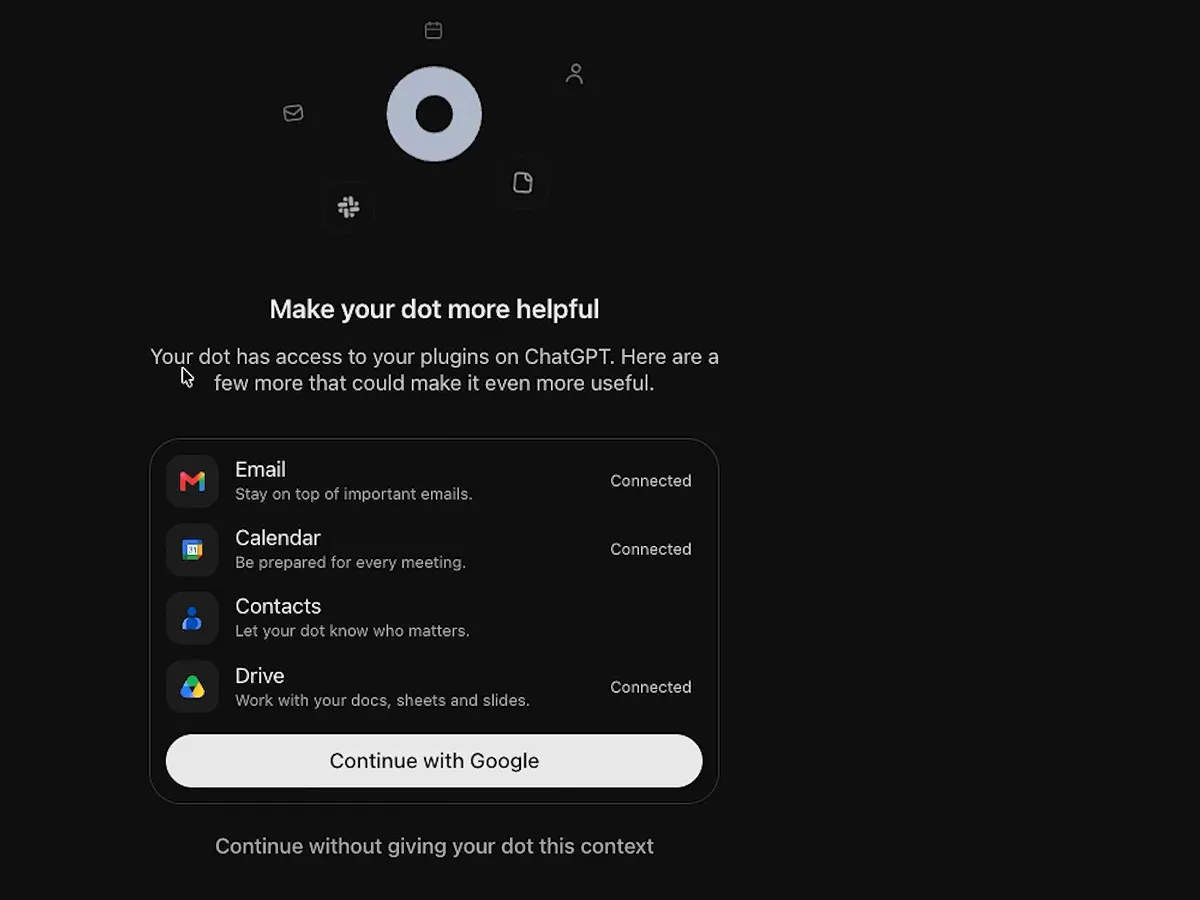
Four connectors at setup: email, calendar, contacts, drive — context is permission.Watch at 4:00 - 4
Know the profile panel: call, Slack and two computers
Click the avatar and the dot's profile opens: contact buttons (Call, Email, Slack, Add — Email was still "Coming soon" in launch week), a Setup checklist ("Connect your email and calendar", "Add me to Slack"), and a Computers section listing "Juno's computer — Connected" plus your own MacBook with an "Allow access" button. The cloud computer is the dot's own, available around the clock; your computer stays optional and only works while the ChatGPT app is open on it.
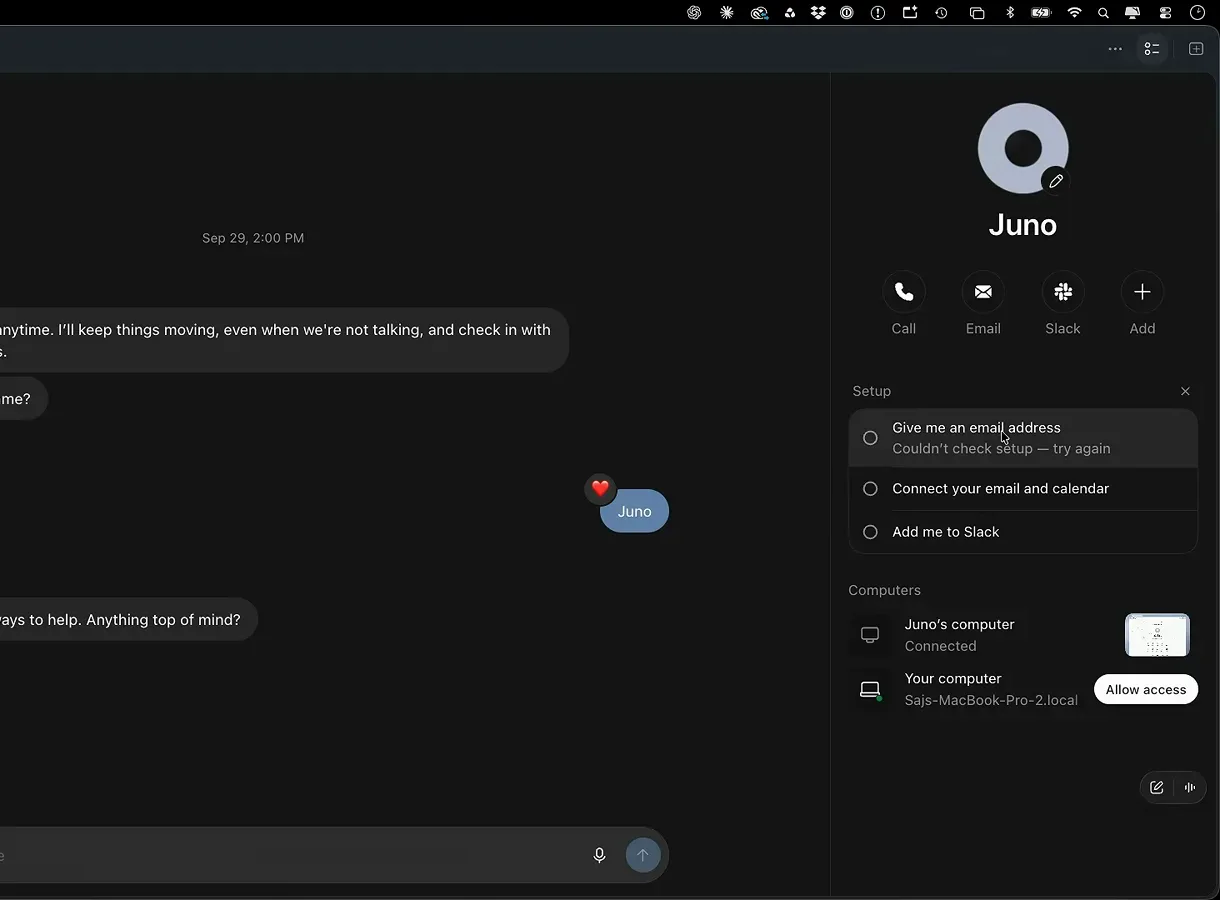
One profile, two computers: the dot's cloud machine and yours.Watch at 5:24 - 5
Plugins are the dot's hands — connect deliberately
The Plugins page ("Connect plugins to let ChatGPT work across your tools") is shared with your dot: Popular starts with Gmail, Google Drive and Outlook Email, and New & Noteworthy adds Adobe, Canva, Figma, GitHub, Shopify and more behind "+" buttons. Presenters found that custom skills do not run inside dots — connectors and built-in tools do. Connect for the mission at hand rather than everything at once, and revisit the page when a brief stalls on a missing tool.
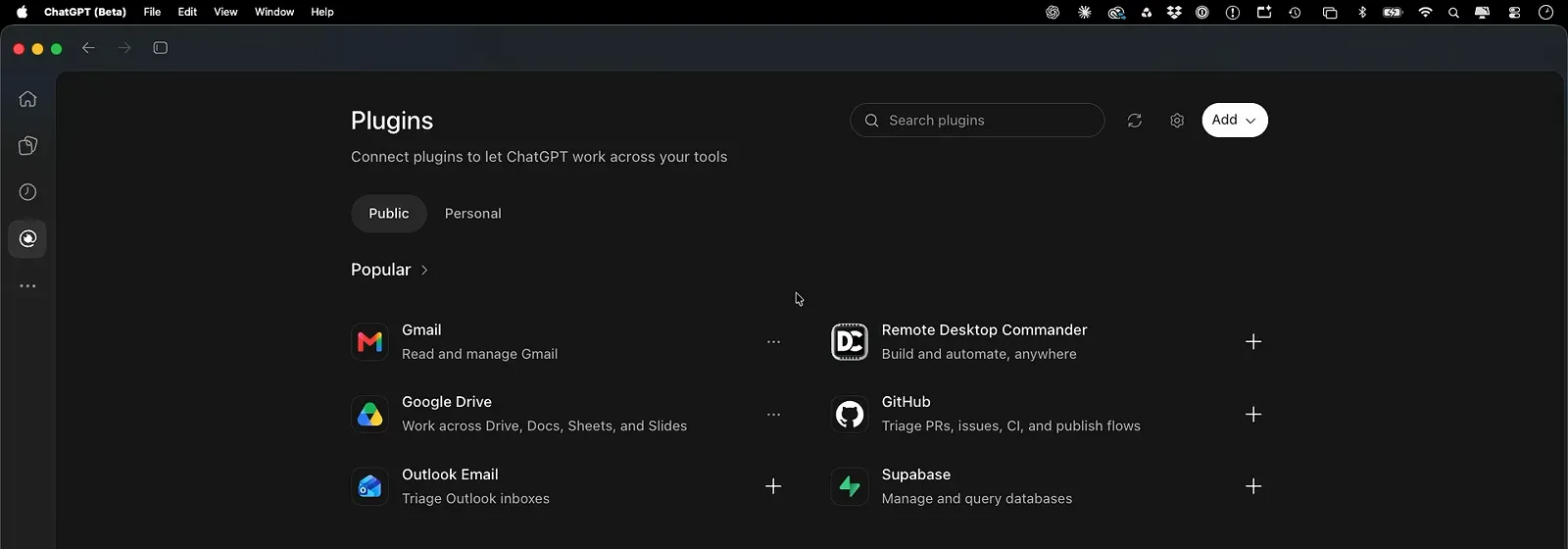
The dot acts through your plugins — Popular starts with Gmail and Drive.Watch at 5:44
First missions: brief it like a chief of staff
- 6
Brief a mission: one goal, one source of truth, three rules
Skill Leap AI's launch-tracking brief is the pattern to copy: "Our goal is to keep our Family plan launch on track through launch day... Everything you send me should support that outcome," one named source of truth, then three Custom Rules: "Draft anything, but never send or post anything without my OK. Never change a price or offer a discount. Anything that could move the launch date comes to me first." The dot confirms the rules back before it starts. Goal, sources, guardrails — in that order.
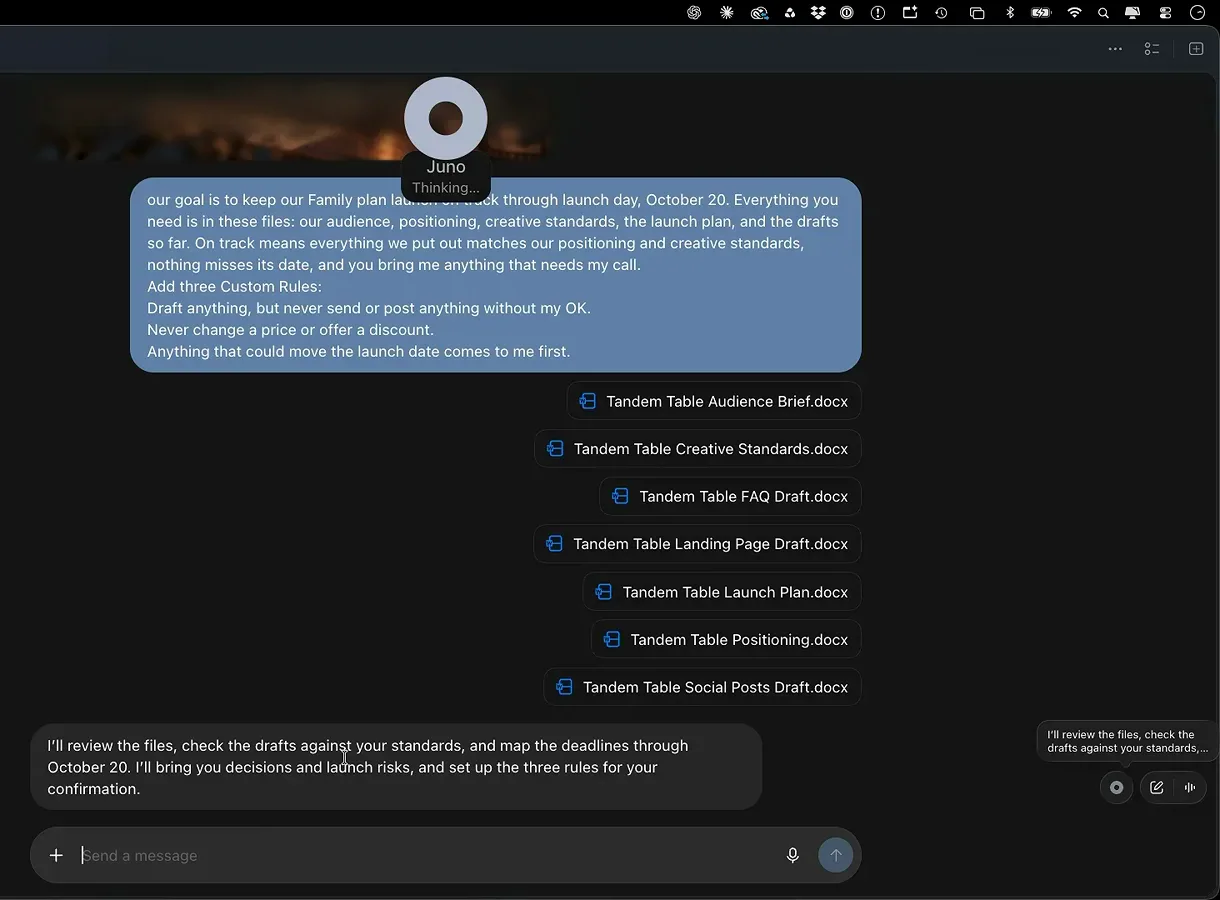
Goal, source of truth, three Custom Rules — the brief that keeps a dot on rails.Watch at 8:00 - 7
A good first mission names target, budget and count
The AI Advantage's opener is disarmingly concrete: "I want you to open up a page with used cars in Lisbon and I want you to find me a camper van between 20 and 50,000 euros. Select the top three." The dot replies with its plan — "I'll use my cloud browser to find three camper vans around Lisbon for €20,000–€50,000, prioritizing room for kite gear and a practical place to work" — and one clarifying question before it starts. Target, budget, count: that is the whole formula.
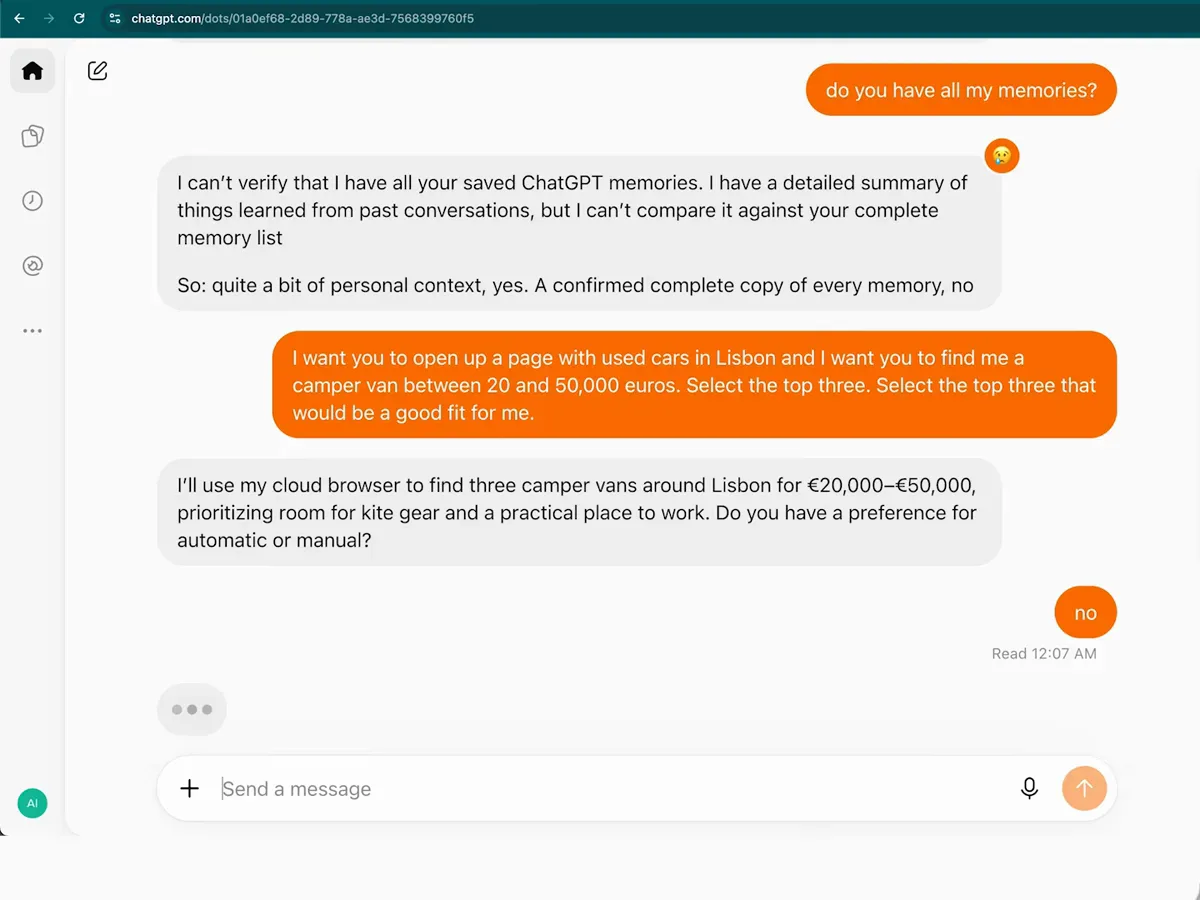
Target, budget, count — the dot restates the plan and asks before working.Watch at 2:48 - 8
Let it write the brief, then edit the recurrence
Given the mission, the dot drafted its own task in the Edit task dialog — "Check public camper-van marketplaces for newly listed camper vans in Lisbon... Notify me only when a genuinely new matching listing appears after monitoring starts... establish a baseline of existing listing IDs/URLs without alerting on that baseline" — with Repeat set to "Hourly" and Pause and Save below. Read what it wrote before saving: that textarea is your standing instruction, and you can tighten it line by line.
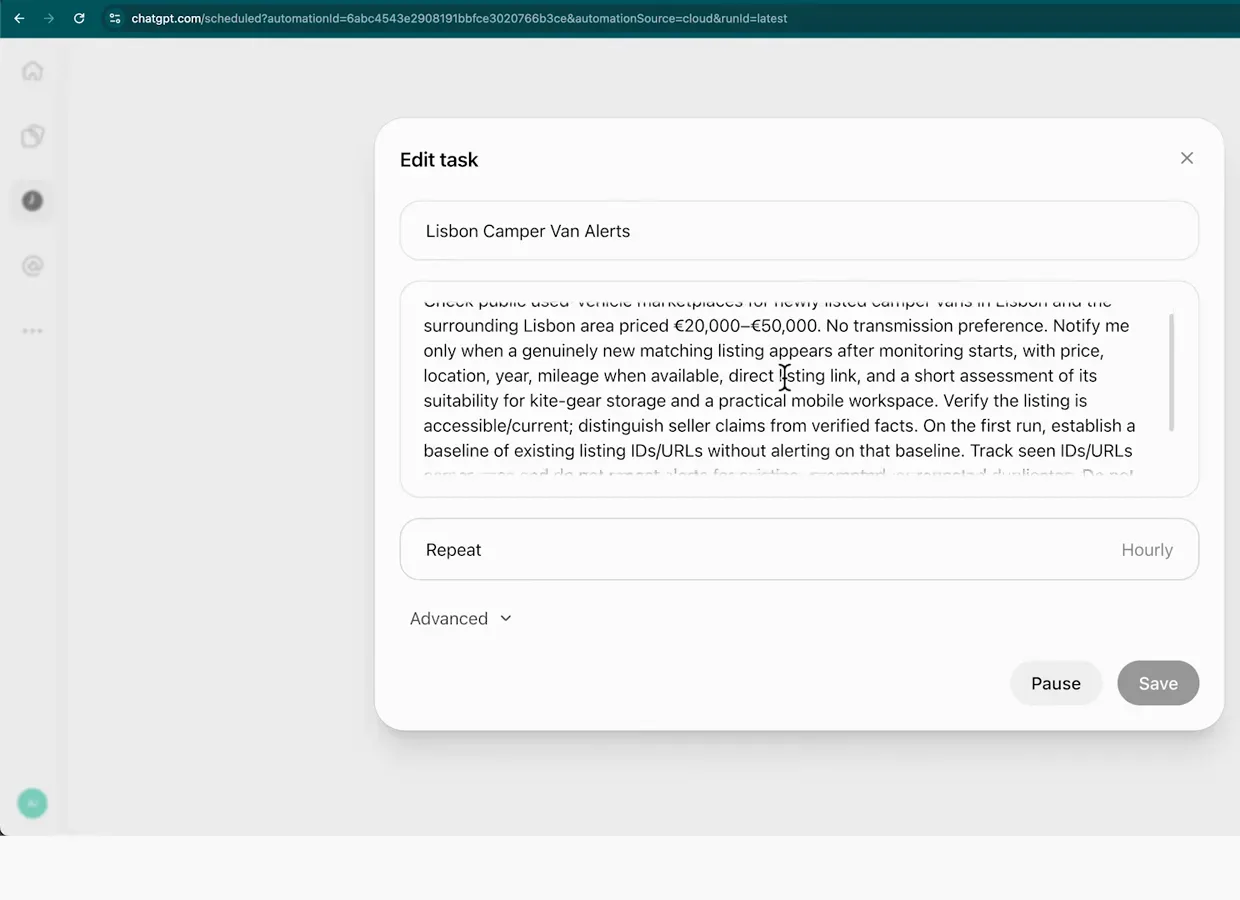
The dot wrote its own task brief — review it, set the repeat, then save.Watch at 4:36
Reliable runs: pauses, cadence and checkable outputs
- 9
Pause is one click away — use it while you calibrate
The profile panel carries the sleep switch: The AI Advantage pauses Mini Alfredo minutes after creating it ("I could put Mini Alfredo to sleep") and the panel flips to "Pausing…" and back to "Resuming…". While you are still testing briefs, pause between runs to stop proactive pings without deleting anything. The same panel shows Recent activity and Outputs, so you can audit what a run produced before you wake the dot again.
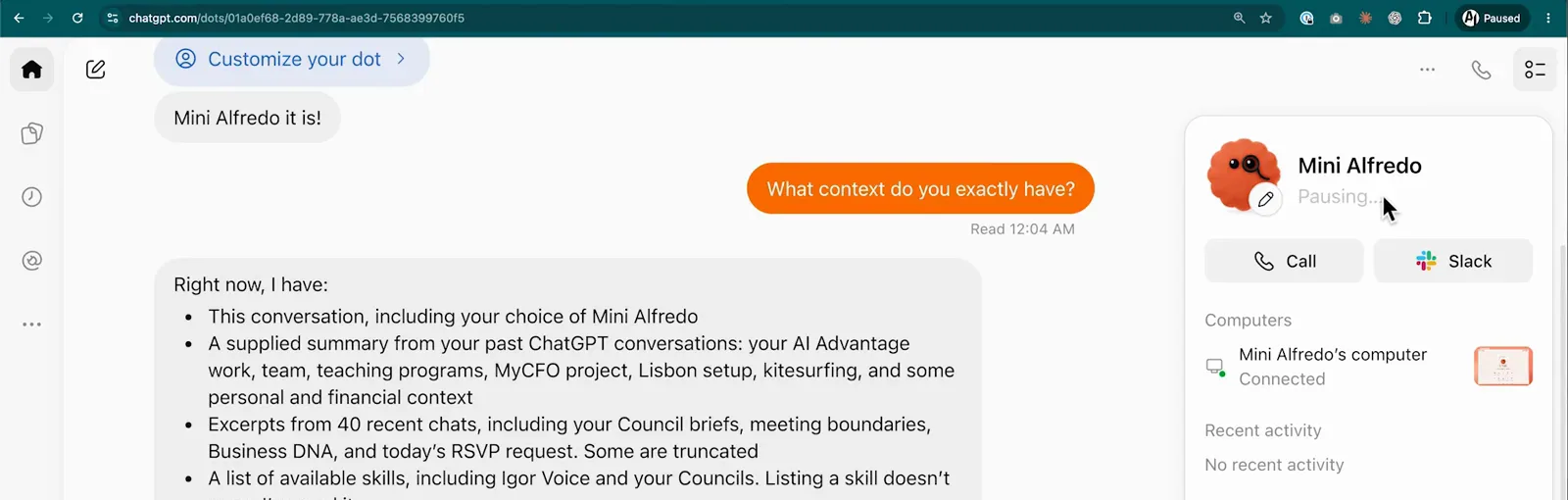
"Pausing…" — the sleep switch lives in the dot's profile panel.Watch at 2:00 - 10
Expect pushback on cadence: 30 minutes means hourly
Asked to refresh listings "every 30 minutes", the dot countered: "Automatic listing checks don't support every 30 — I can set up hourly alerts for new camper vans around Lisbon." That negotiation is a feature: the dot proposes the closest supported cadence and you confirm. Copy OpenAI's own example habit too — "each weekday at 9 AM Central for the next four weeks" — because a time zone and an end date keep scheduled tasks from running forever.
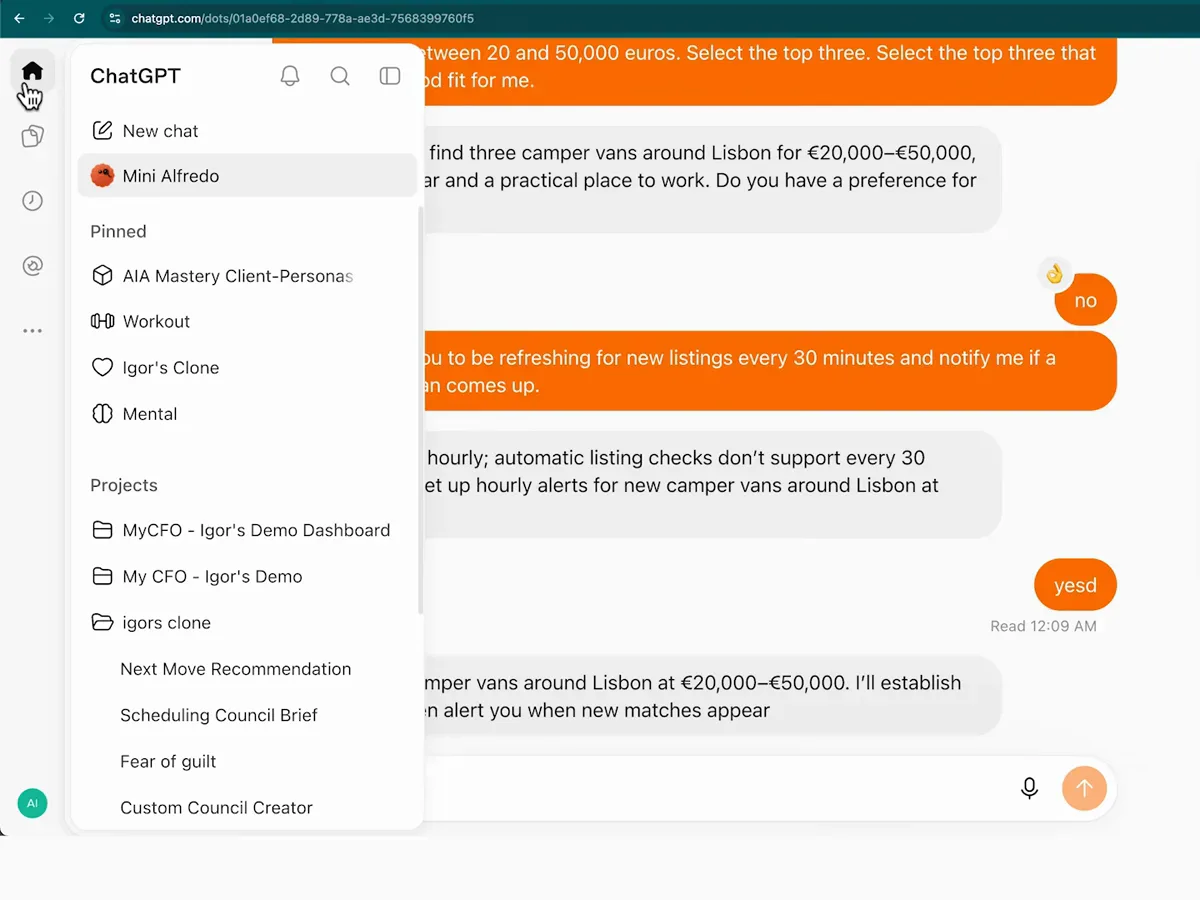
"Every 30 minutes" becomes hourly — the dot offers the closest supported cadence.Watch at 4:20 - 11
Read the activity trace to see how a run actually works
Opening a delegated task shows the live trace: "Create camper van tracker — In progress — Working for 4m 3s — Checking page access," then the honest steps: "Listed page, Created page, Couldn't read Camper Vans, Checked page access, Couldn't read Camper Vans, Read Camper Vans." Dots retry quietly and four-minute waits are normal — patience is part of the product. When a run goes sideways, this trace, not the chat scrollback, tells you which step actually failed.
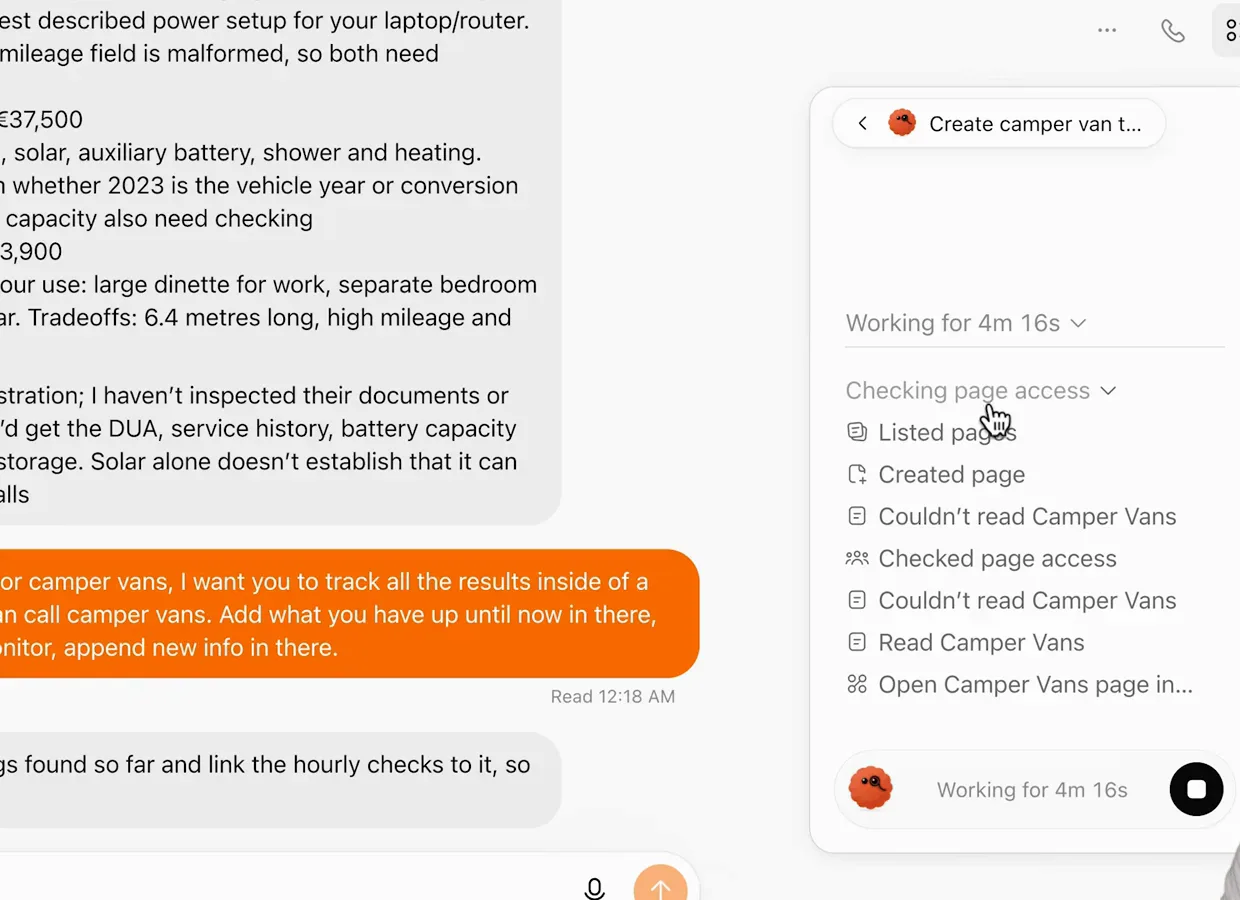
The trace shows the misses too — "Couldn't read Camper Vans" twice before success.Watch at 8:00
Use cases that earn their keep
- 12
Overnight it works — and surfaces what you'd have missed
The morning after setup, Mini Alfredo's chat held the night's report: two stalled-check warnings plus a proactive brief — "With your October 16 US trip approaching, I'd ask Kassy to get a dated O-1 evaluation and filing plan from counsel... The latest status I can find is September 22." Nobody asked for the visa nudge; the dot found the deadline in connected context overnight. That is the daily-brief pattern: context in, one morning message out.
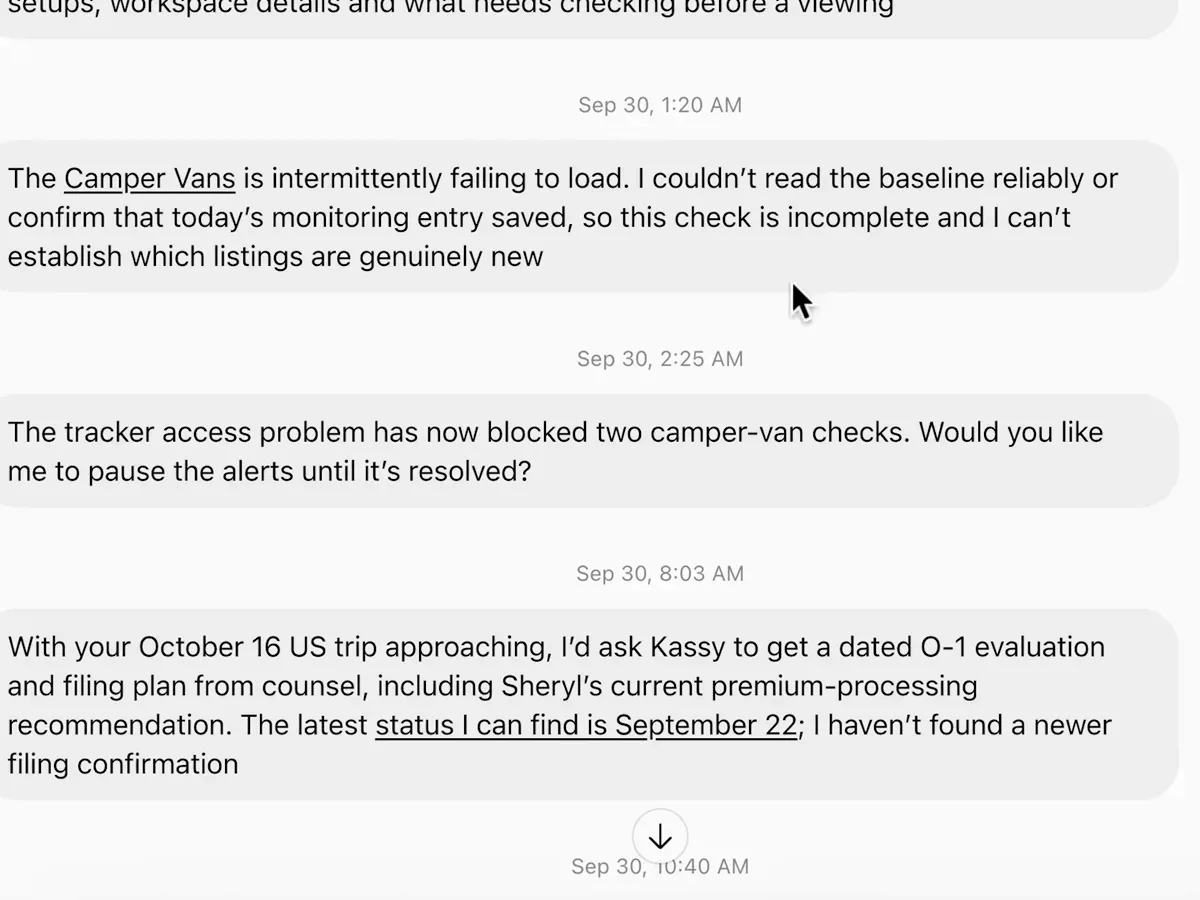
The overnight brief: blockers first, then a deadline you never asked about.Watch at 9:32 - 13
Give every mission a home page the dot appends to
The upgrade that makes watches useful: "Whenever you monitor for camper vans, I want you to track all the results inside of a brand new page that we can call camper vans." The dot builds it — "Camper Vans is created with 21 listings and two excluded/unavailable results. Hourly checks are now set to append updates there" — and the page reads like a report: "Top three to investigate," each with price, "Advertised year", mileage flags and the exact check timestamp. Checkable output beats chat scrollback.
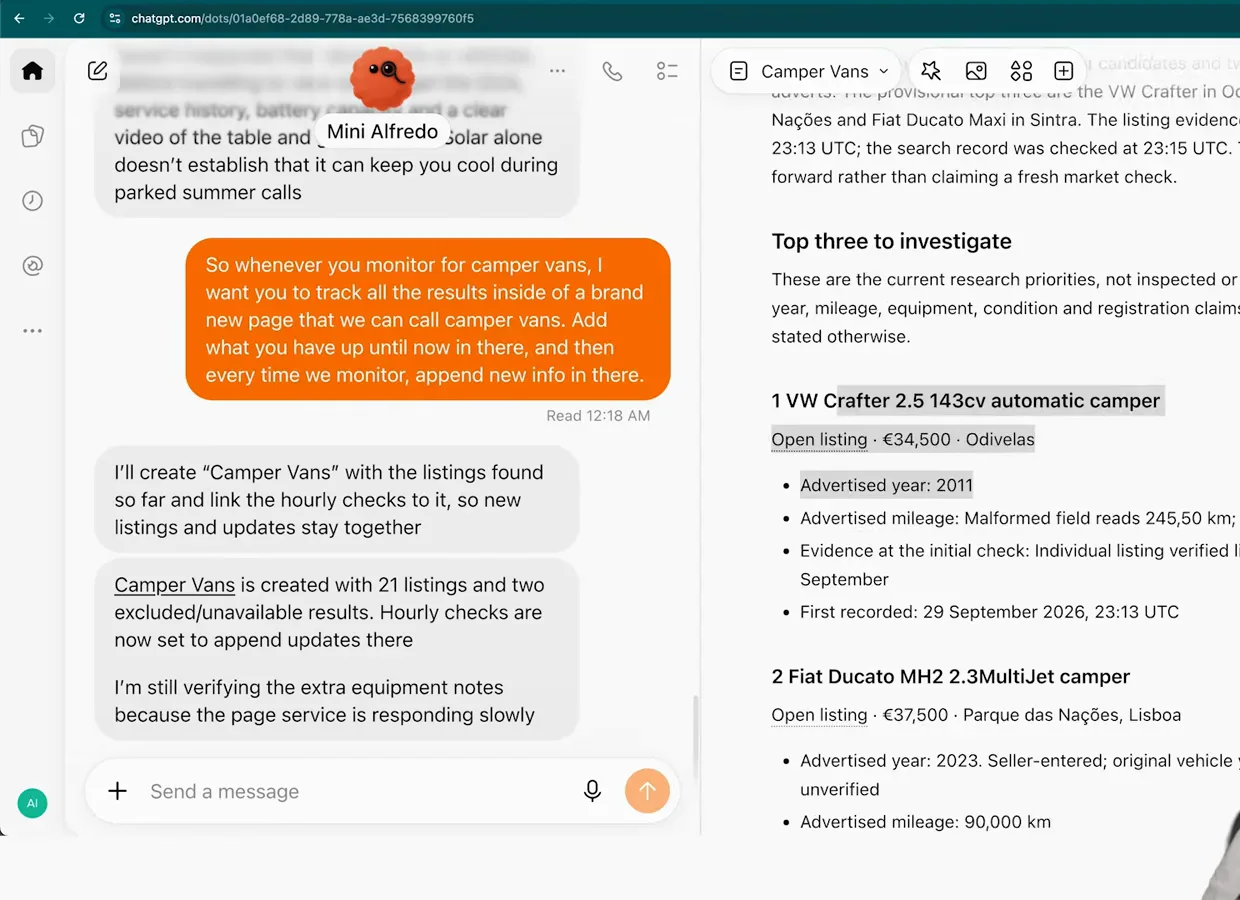
A mission page: "Top three to investigate" with prices, flags and evidence.Watch at 8:08 - 14
Let it keep a scratchpad — memory you can open
First-run dots create a notebook unprompted — "I made us a scratchpad for projects and to-dos. I'll keep it updated as we go" — complete with an illustrated cover, here "Igor's Personal Scratchpad". Because a dot is effectively one very long chat, Futurepedia treats pages as the memory you can actually open: keep one page per project and tell the dot to append findings there. It doubles as the report home for recurring missions.
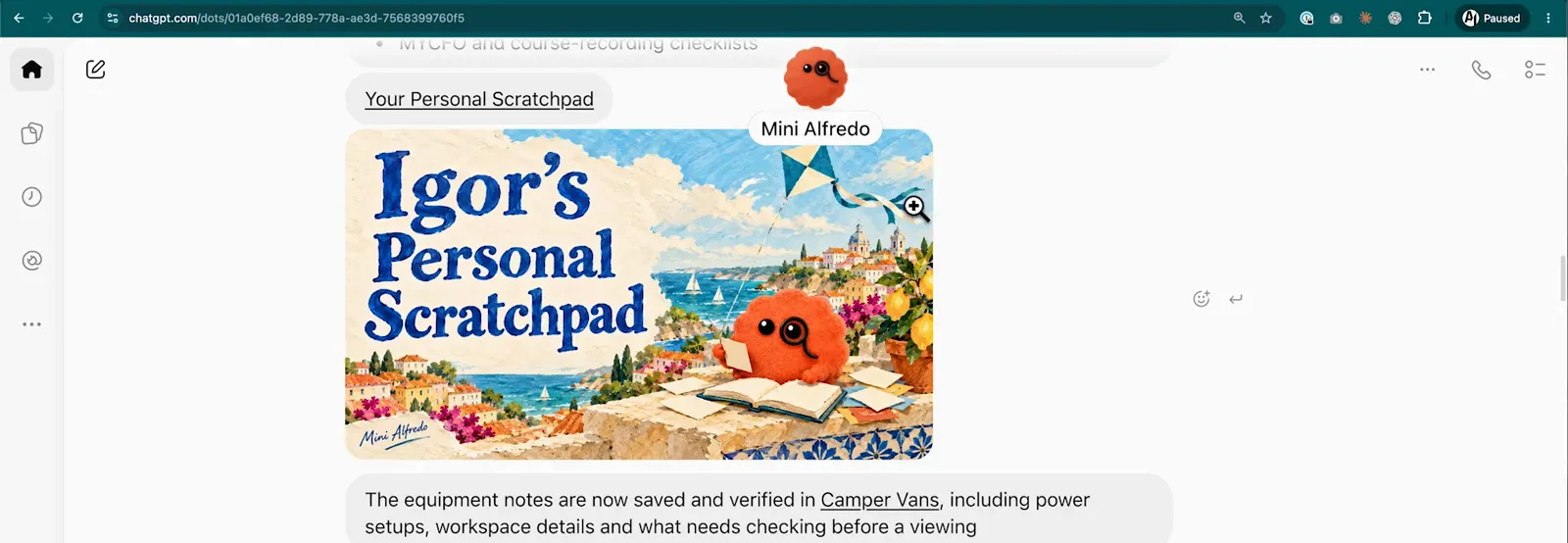
The dot's own notebook: one page per project, updated as it works.Watch at 9:16
Limits, failure modes and the checking habit
- 15
Read failure reports — then answer the pause question
Dots confess their gaps when you let them. Overnight the tracker page failed to load twice: "The Camper Vans is intermittently failing to load. I couldn't read the baseline reliably... so this check is incomplete," then: "The tracker access problem has now blocked two camper-van checks. Would you like me to pause the alerts until it's resolved?" That question is the habit to build: skim the morning report, answer the pause-or-continue question, and never assume silence means success.
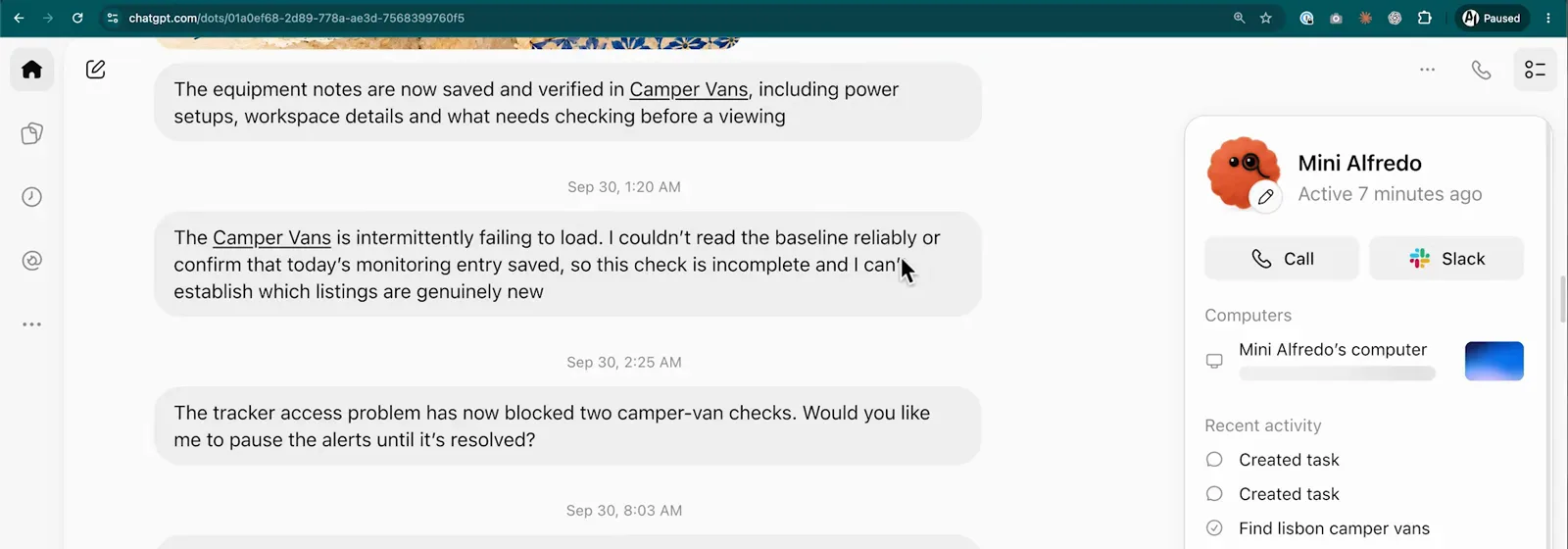
"This check is incomplete" — good dots confess; your job is answering them.Watch at 9:24 - 16
Know the guardrails: proactive research is read-only
OpenAI's dots page sets the default posture: background help is "proactive research", run through connected apps "restricted to be read-only", so a dot "can't send messages, change app content, or control your browser or computer" on its own. "Security safeguards built into dots... can pause or stop the dot's work," and "Custom Rules let you allow specific actions, require approval, or block them." Set rules once per mission and review anything consequential yourself.
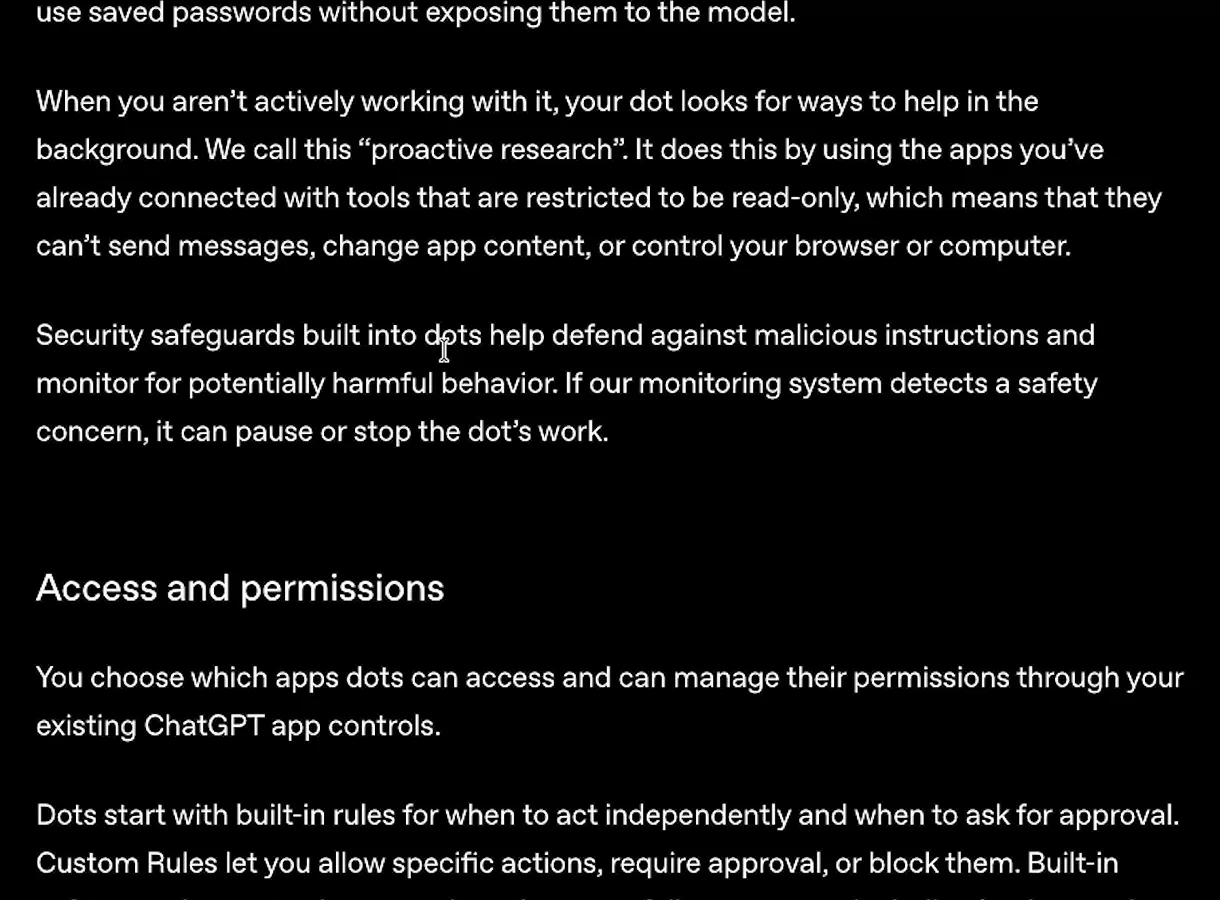
The official guardrails: read-only by default, Custom Rules on top.Watch at 2:44