

Claude Code Tutorial: From Install to Your First App (2026)
Claude Code is Anthropic's terminal-first coding agent: you describe what you want in plain language, and it plans, writes and debugs real code inside your project. This Claude Code tutorial for beginners turns Kevin Stratvert's 15-minute walkthrough into 16 illustrated steps you can follow at your own pace — and every step links back to the exact moment in the source video. You'll learn the workflow the video demonstrates end to end. First, install Claude Code with npm (or the native installer), launch it inside VS Code's terminal, and write a bullet-point requirements brief instead of a vague wish. Then switch on plan mode with Shift+Tab so Claude asks clarifying questions — tech stack, storage, authentication — before it writes a line. Watch it build a complete Office Chore Manager app from those answers: review the implementation plan, approve npm installs, test the calendar UI with real data, and commit early so a bad prompt never costs you more than one revert. The second half covers the habits that separate serious users from pure vibe coders. Give Claude a memory with CLAUDE.md — and see why a structured prompt beats /init — then prove that memory works with a one-line bug report. Finally, flip on YOLO mode (--dangerously-skip-permissions) for a real-time sync feature, and verify it with two browsers updating side by side. Sixteen steps, one screenshot each, every claim straight from the video.
Source & credits
Screenshots in this guide are captured from Kevin Stratvert's public walkthrough video. Every step links back to the exact moment it shows, so you can follow along.
Kevin Stratvert ↗Get Claude Code installed and running
- 1
Open the Claude Code homepage and copy an install command
Claude Code lives at claude.com/claude-code, and the homepage hands you a copy-ready command: a bash one-liner for Mac and a PowerShell one (irm https://claude.ai/install.ps1 | iex) for Windows. Kevin actually hit problems with the script, so the next step shows the npm route he recommends instead — either path works, you only need one.
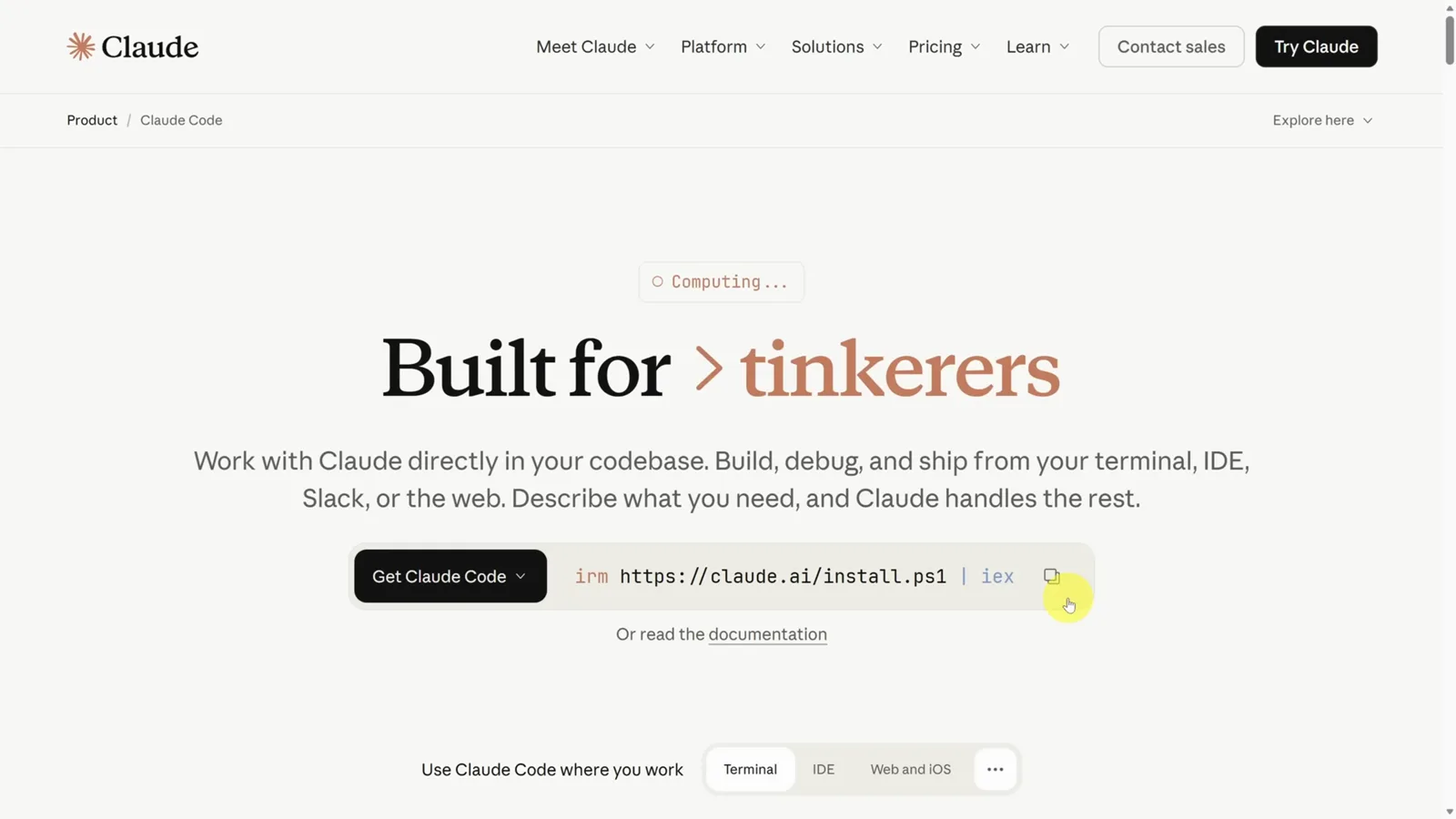
The official Claude Code page with the native installer one-liner ready to copy.Watch at 0:40 - 2
Install Node.js, then install Claude Code with npm
If the native script misbehaves, grab Node.js from nodejs.org first and confirm it with node -v. Then run npm install -g @anthropic-ai/claude-code — "added 1 package in 1s" means the claude command is now available in any terminal.
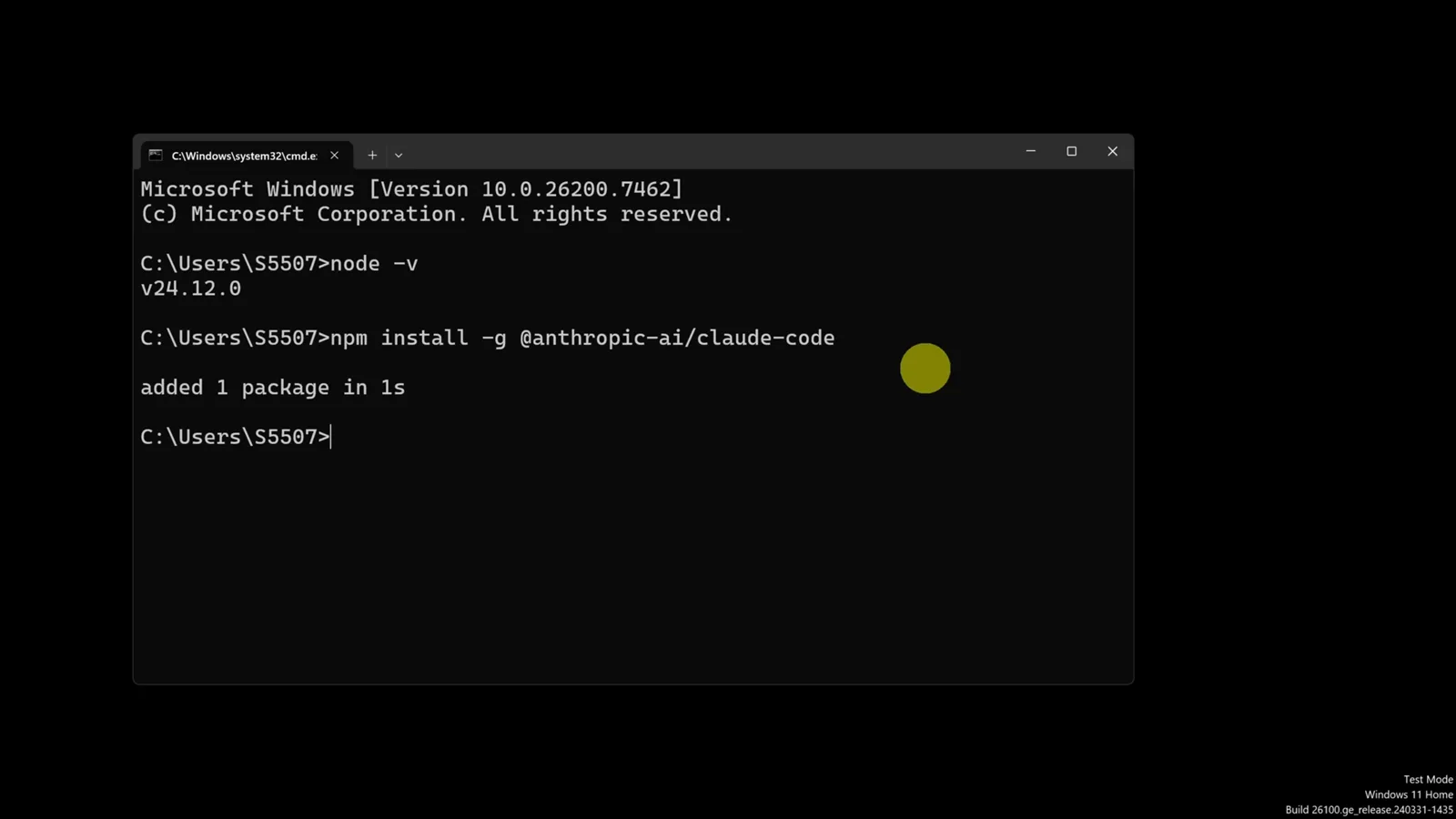
The npm fallback: verify Node, then add the claude-code package globally.Watch at 1:12 - 3
Launch Claude Code inside VS Code's terminal
Type claude anywhere to start, but Kevin runs it inside Visual Studio Code: open the integrated terminal, pick Command Prompt from the dropdown, run claude and press 1 to trust the folder. The welcome box greets you with tips like "Run /init to create a CLAUDE.md file with instructions".
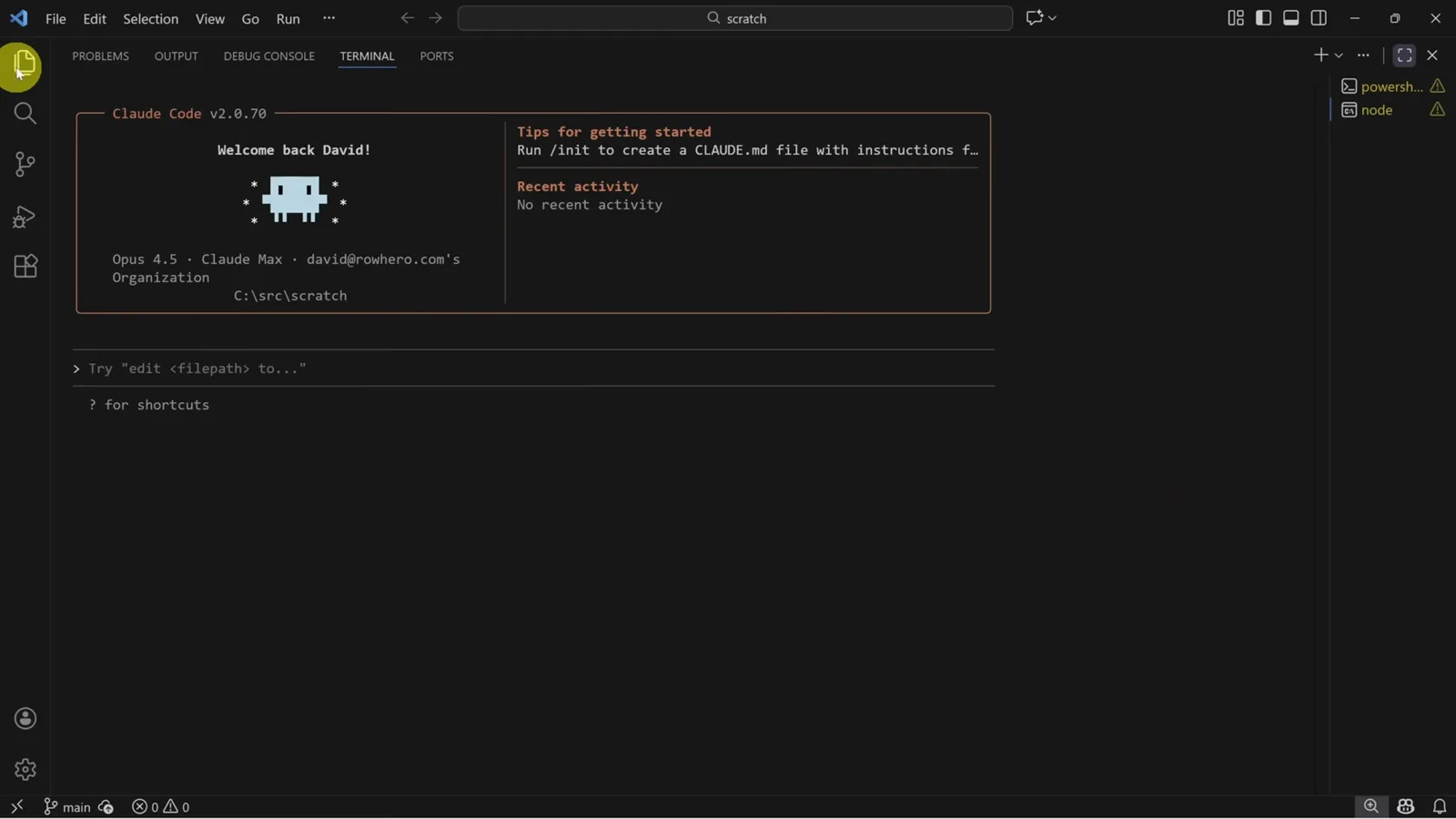
Claude Code running in the VS Code terminal, waiting for its first prompt.Watch at 2:30
Brief Claude like an engineer, in plan mode
- 4
Write a bullet-point brief instead of a vague wish
Instead of one vague sentence, list hard requirements as bullets — calendar view like Outlook, adding and removing chores, recurring schedules, team assignments — then end with "Ask me questions to clarify the product requirements, technical requirements, engineering principles, and hard constraints." Press Alt+Enter (Option+Enter on Mac) for new lines without submitting.
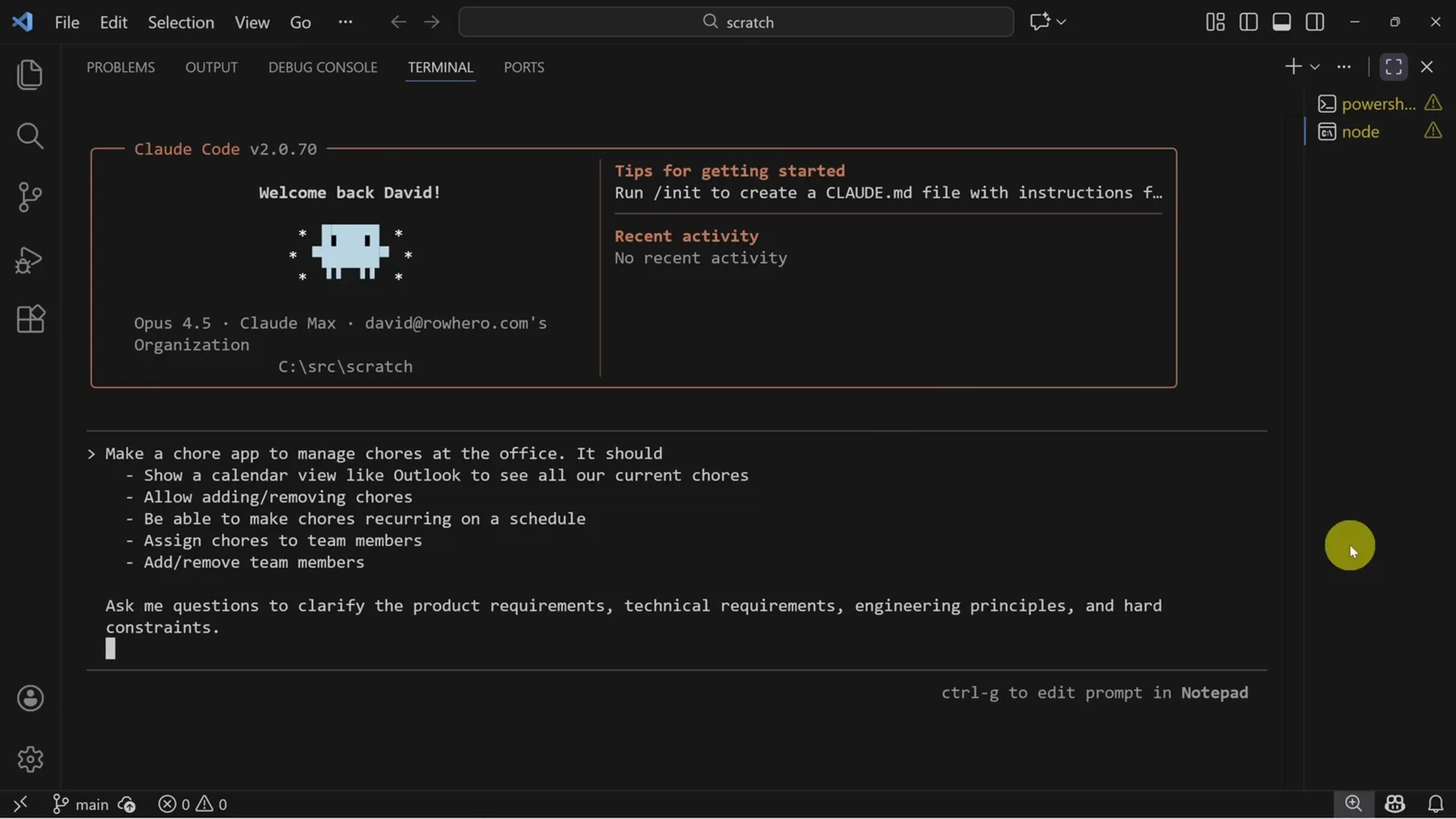
The full brief Kevin types: five requirement bullets plus an invitation to ask questions.Watch at 2:56 - 5
Switch into plan mode before Claude writes anything
Hold Shift and tap Tab until the composer shows "plan mode on (shift+tab to cycle)". In plan mode Claude never writes code automatically — it reasons about the project and confers with you first, which keeps a first build on the rails.
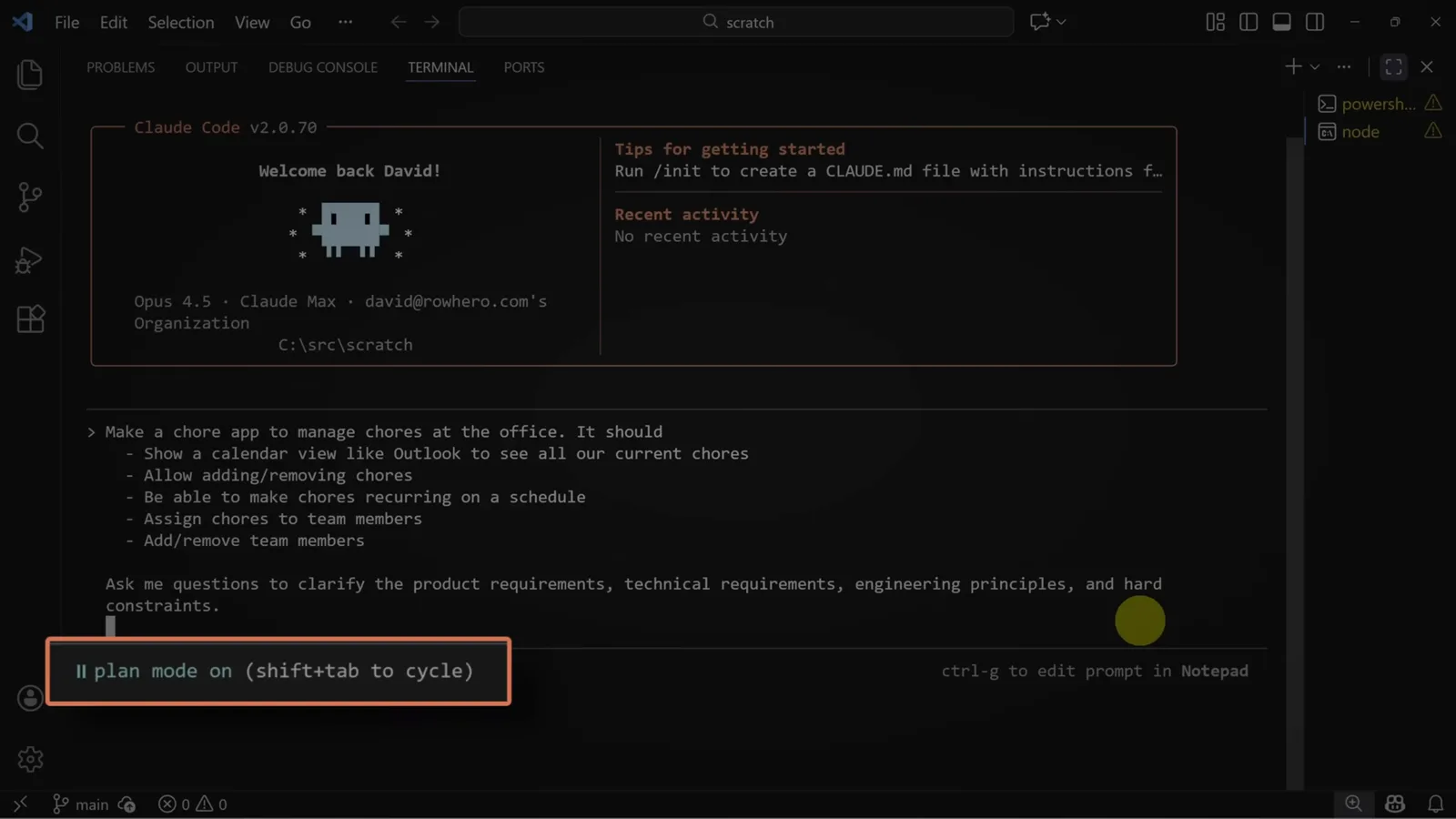
The plan-mode indicator in the composer: Claude will plan and consult, not code.Watch at 3:16 - 6
Answer Claude's clarifying questions
Claude replies with a questionnaire — tabs for Tech Stack, Data Storage, Authentication and Extra Features. Answer with the number keys (a React web app, no auth needed), move between questions with Tab or the arrow keys, and choose Submit when you're done. The video's lesson: richer answers here produce a richer plan.
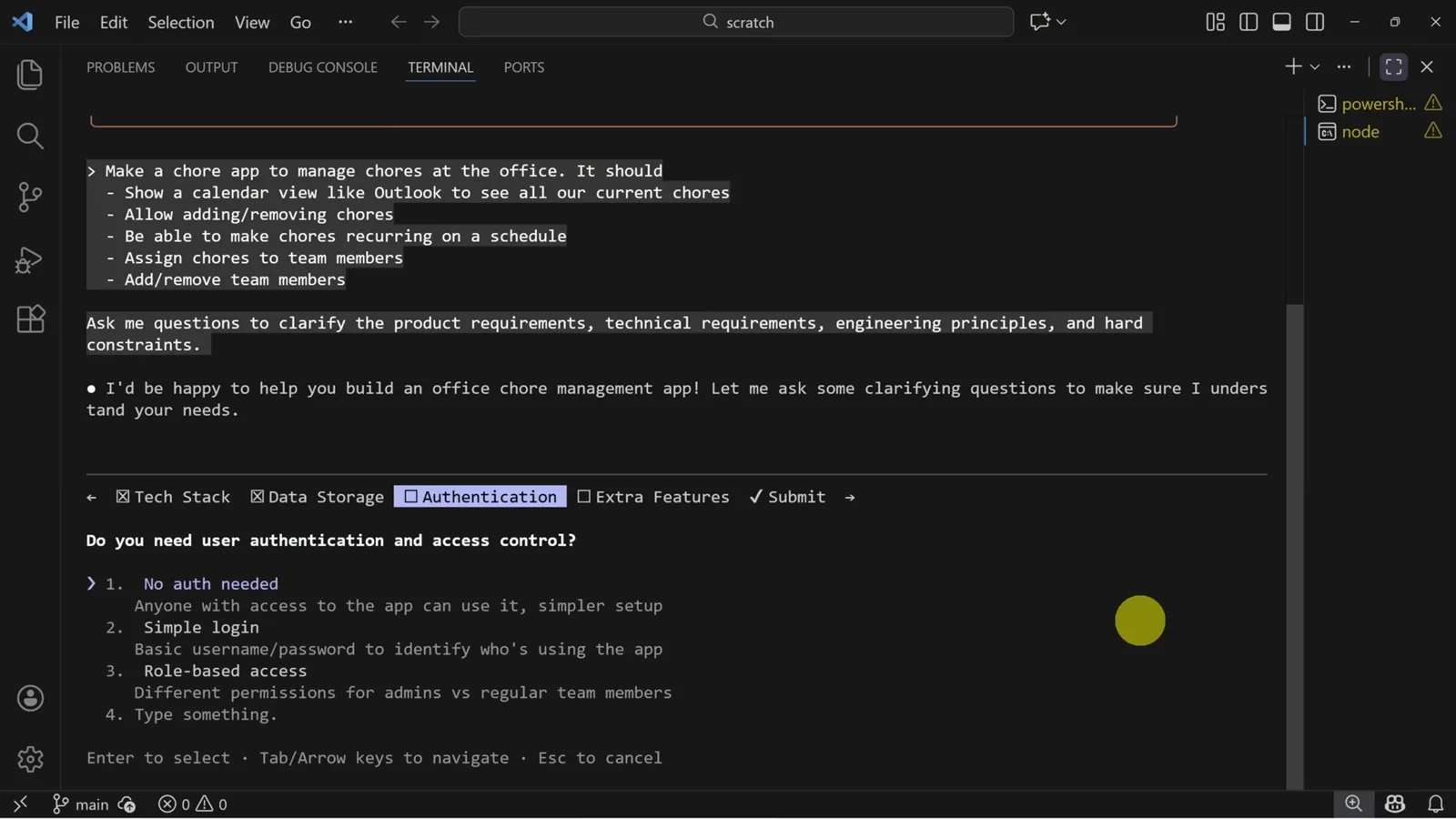
Plan mode's question wizard: pick numbered options, switch tabs, submit.Watch at 3:48
Generate, test and commit your first app
- 7
Review the implementation plan it hands back
Claude returns a full plan for the Office Chore Management app — tech stack (React 18 + Vite, TypeScript, state management, date-fns), data models and an annotated file tree of every component it intends to create. Read for decisions you never asked for: Kevin spots Vite, Tailwind and plain JavaScript in his and objects.
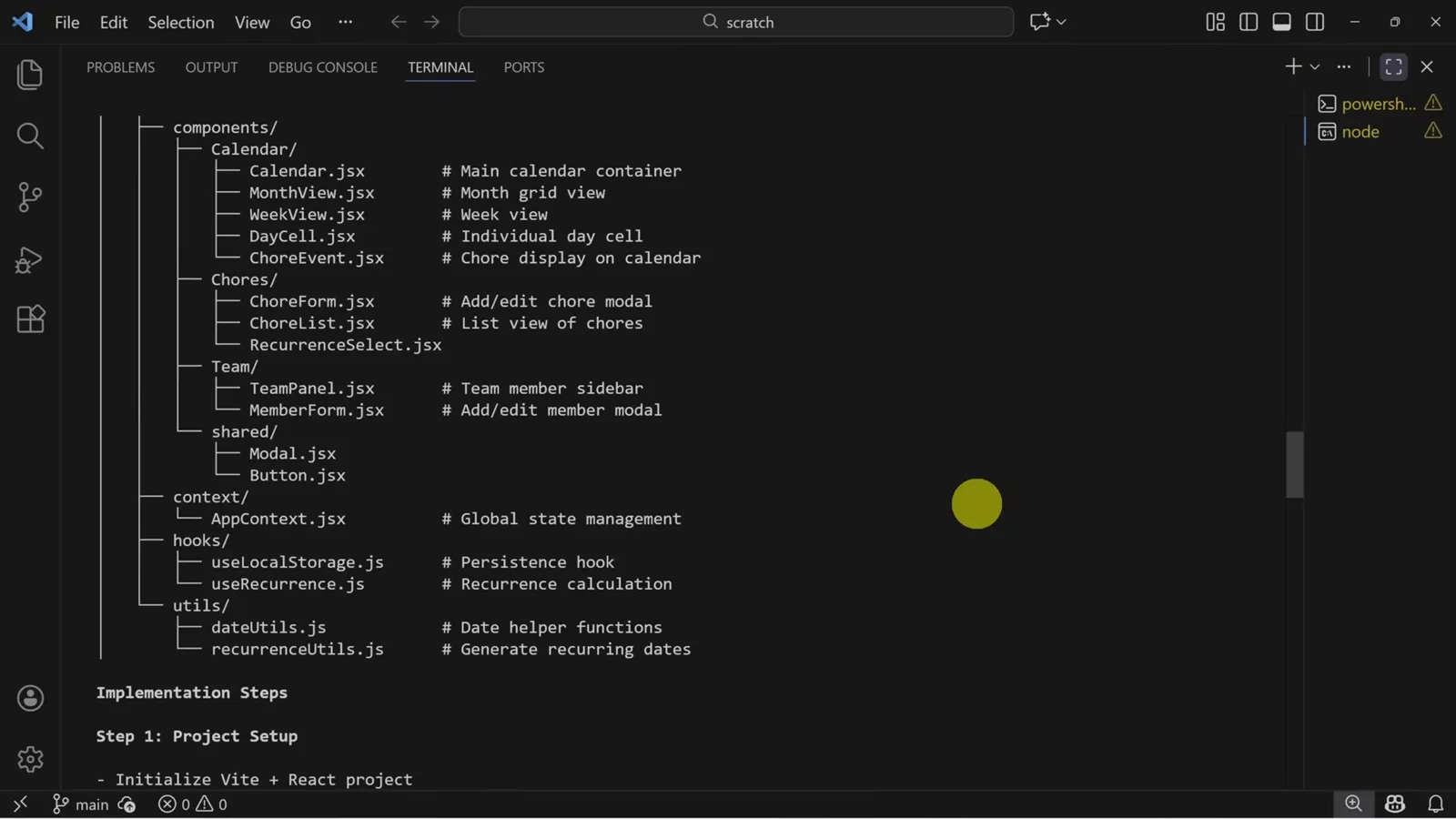
The plan's project-structure section: every file Claude intends to create, annotated.Watch at 4:44 - 8
Approve the tool calls, or set a don't-ask-again rule
Before running commands like npm install, Claude asks "Do you want to proceed?" with three options: yes; yes and don't ask again for npm install commands; or no, and tell Claude what to do differently. Kevin picks option 2 for safe, routine tools so the build keeps moving.
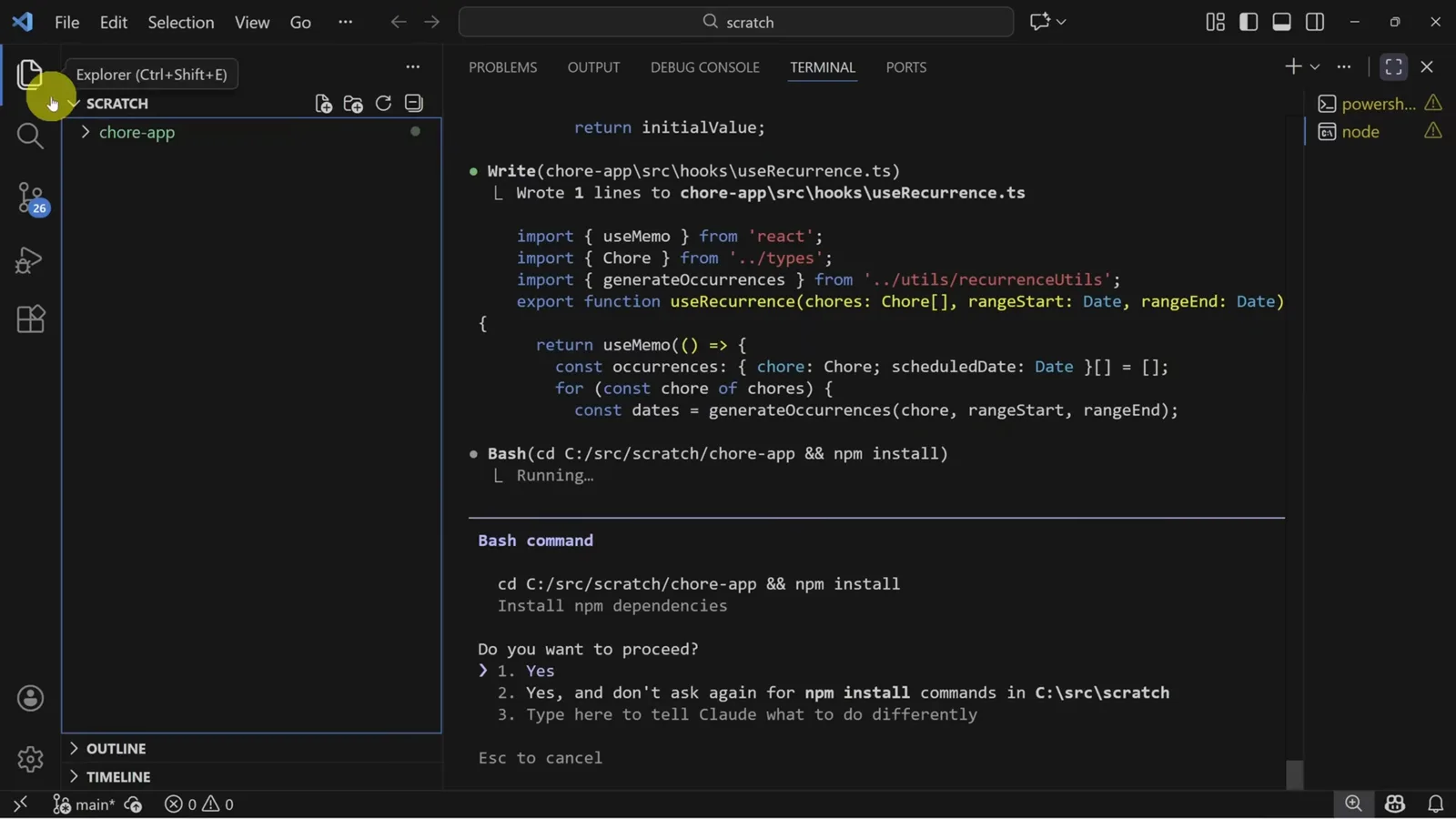
The npm install approval: option 2 whitelists future npm install calls.Watch at 6:04 - 9
Test the app it built with real data
With edits auto-accepted, Claude scaffolds the whole chore app. Kevin prefers to start the dev server himself (npm run dev in a separate terminal), then exercise the UI: add team members, then create a recurring "Bake Cookies" chore in the Kitchen category assigned to Kevin, repeating weekly.
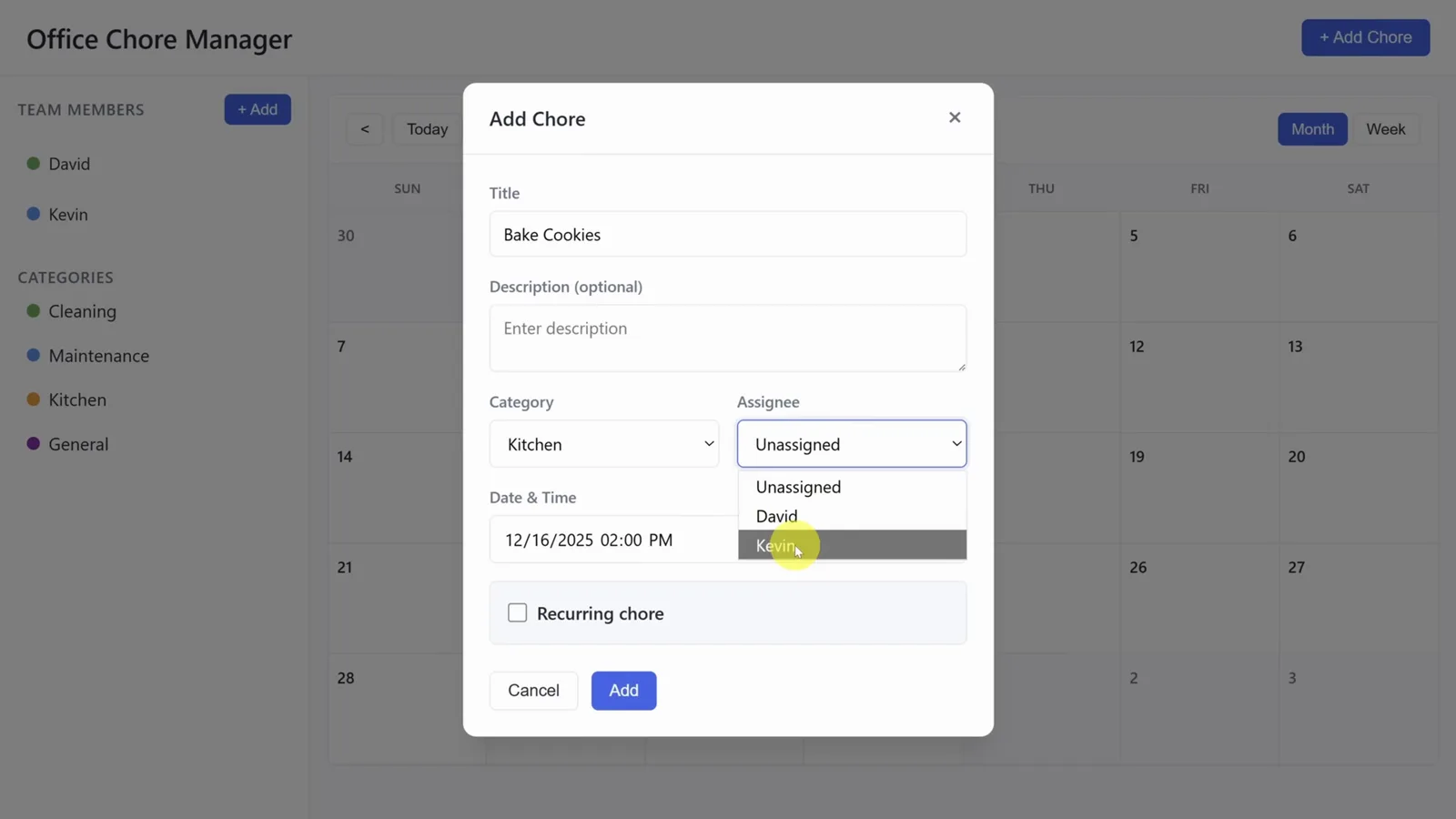
Testing the generated app: a recurring chore assigned to a team member.Watch at 6:56 - 10
Commit early and often so you can roll back
Every extra prompt is a chance to introduce regressions, so commit each working state. In VS Code's Source Control panel, stage the files, write a message and hit Commit or Publish Branch — and stay on a branch, which keeps reverting to the last known good state one command away.
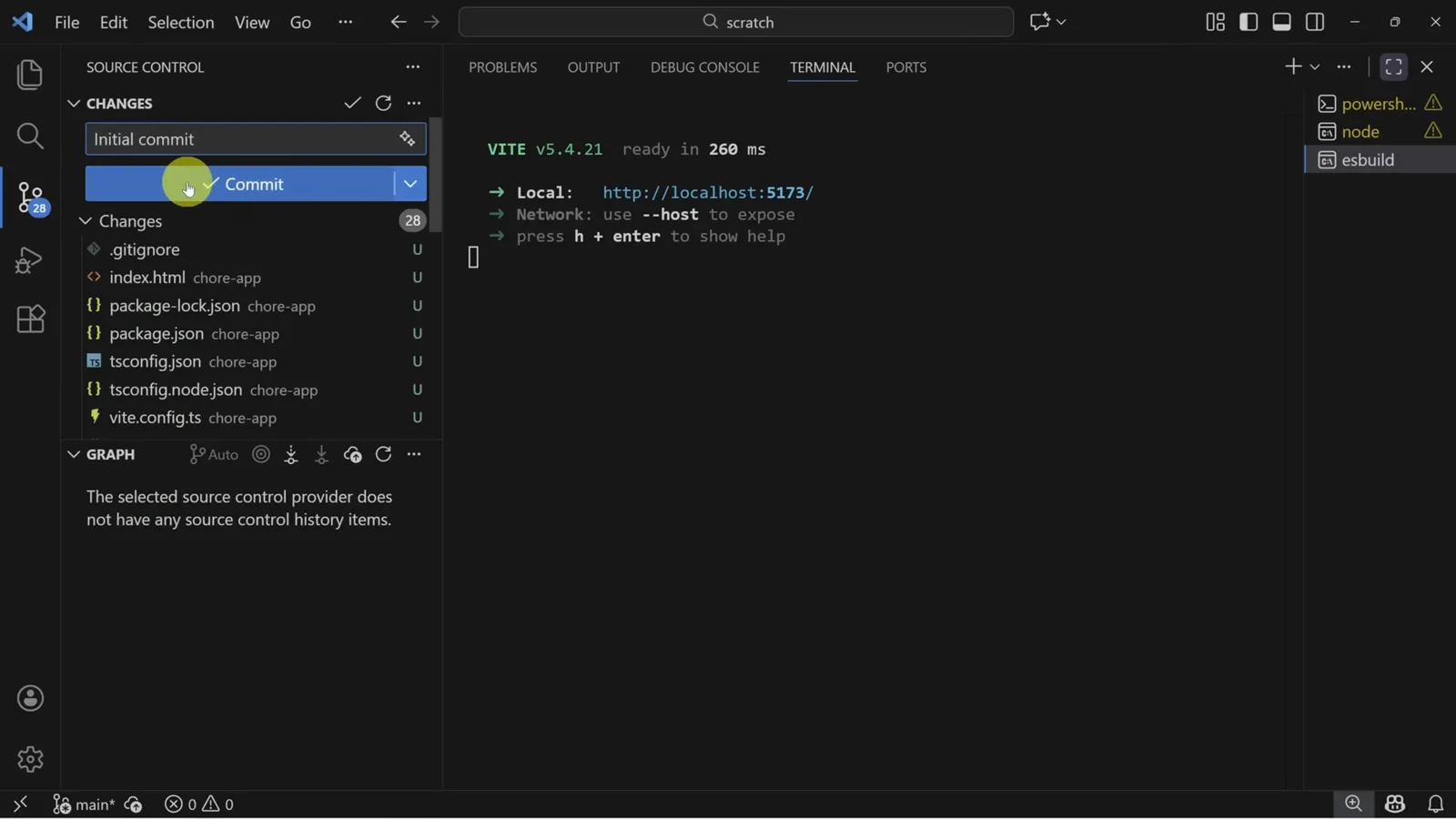
The safety net: a commit of the working app before iterating further.Watch at 7:44
Give Claude a memory with CLAUDE.md
- 11
Understand why CLAUDE.md matters
CLAUDE.md is the file whose contents get injected into every Claude Code session: your tech stack, the purpose of each component, and how you want Claude to work — run tests, typecheck, branch first. The Humanlayer article Kevin quotes breaks the file into WHAT, WHY and HOW layers.
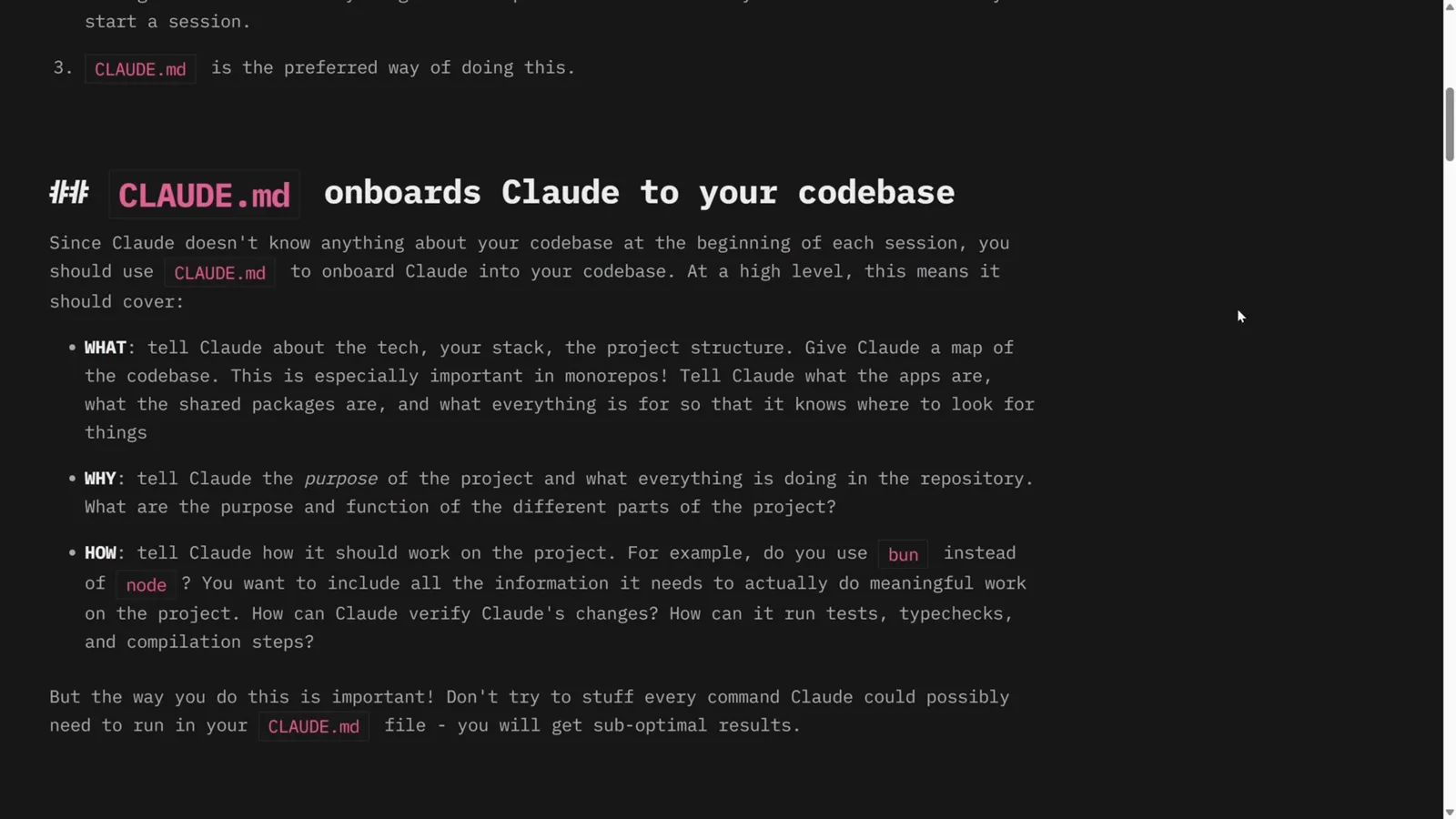
The article behind the practice: three layers of context for every session.Watch at 8:44 - 12
Generate CLAUDE.md with /init or a structured prompt
The quick way is typing /init — "Initialize a new CLAUDE.md file with codebase documentation", offered right in the slash-command menu. Kevin finds /init output too thin, so he pastes a richer prompt covering the what/why/how layers plus progressive disclosure: an index that points to extra markdown files.
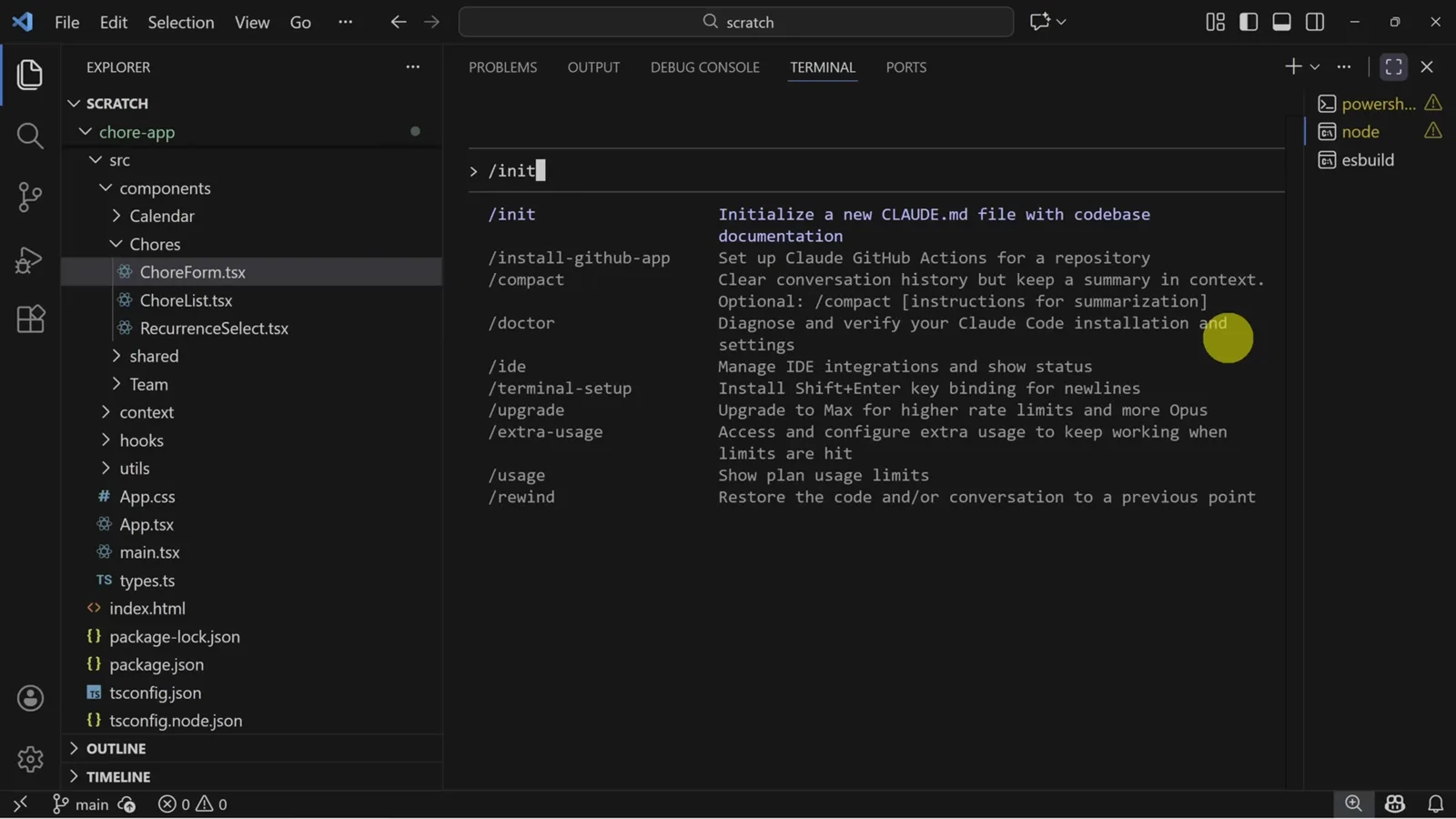
Typing / in the composer surfaces /init and the rest of the slash commands.Watch at 9:26 - 13
Prove the memory works with a one-line bug report
Restart Claude and describe only the symptom: clicking the calendar adds the chore at the wrong time. Thanks to CLAUDE.md it already knows the conventions, creates a fix branch before touching code, then explains the root cause — toISOString converts to UTC while the input expects local time — and lists the files changed.
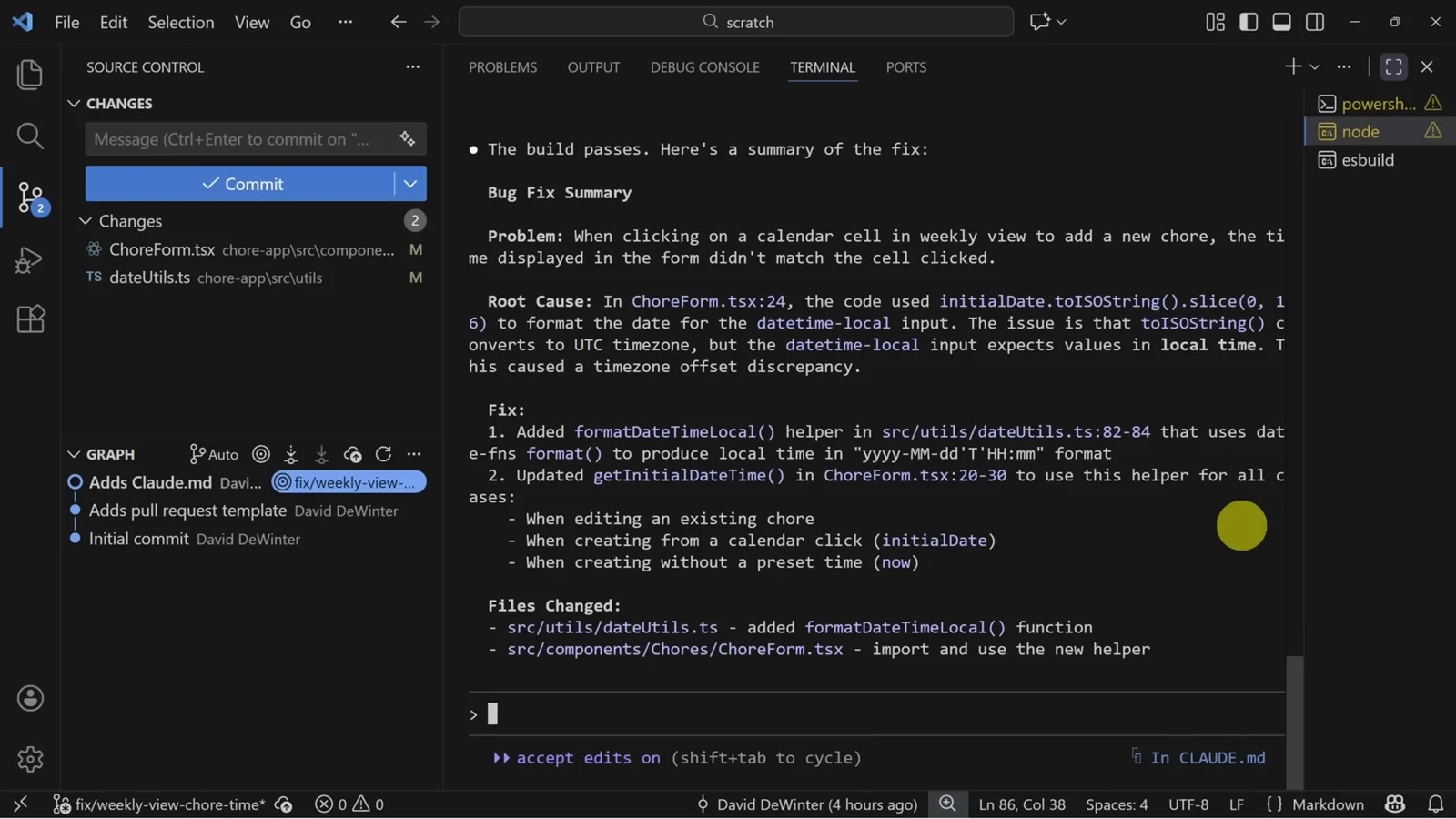
The fix summary Claude posts after updating ChoreForm.tsx and dateUtils.ts.Watch at 11:16
Speed up with YOLO mode and ship real-time sync
- 14
Know what YOLO mode really does
Launching claude with --dangerously-skip-permissions — YOLO mode — removes every approval prompt: Claude just runs commands. Claude Code answers with a red warning and makes you accept responsibility before continuing. Kevin's take: the speed is real and so is the risk, so toggle it per session with Shift+Tab when you actually need it.
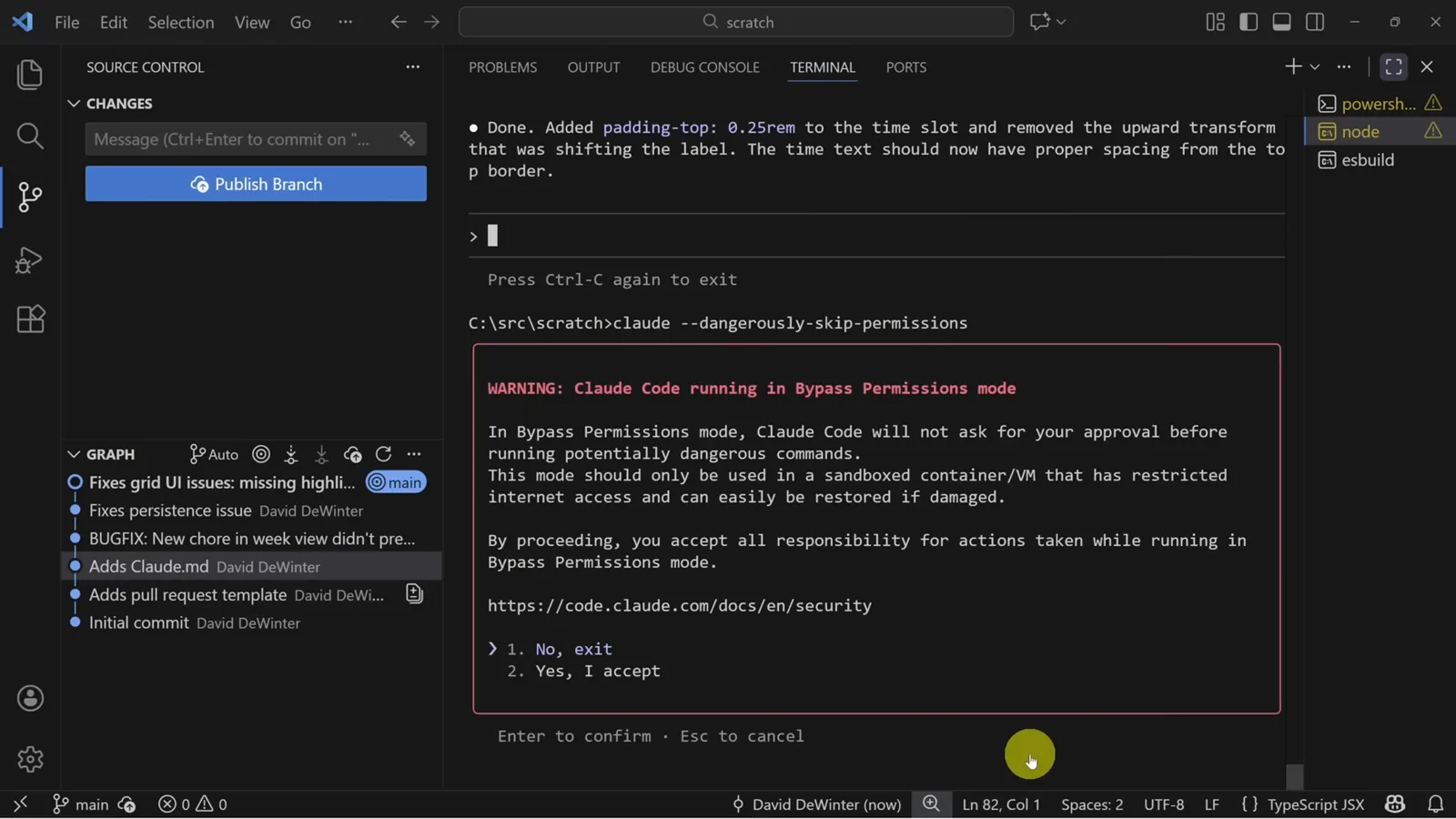
The bypass-permissions warning you must accept before YOLO mode starts.Watch at 12:24 - 15
Ask for three options on a big architecture change
For the big one — chores syncing across tabs in real time — Kevin returns to plan mode and asks Claude to explore the relevant files and propose three options. Claude answers with LocalStorage events, the BroadcastChannel API or a WebSocket backend, each with a one-line trade-off. Asking for options is classic prompt engineering applied to code.
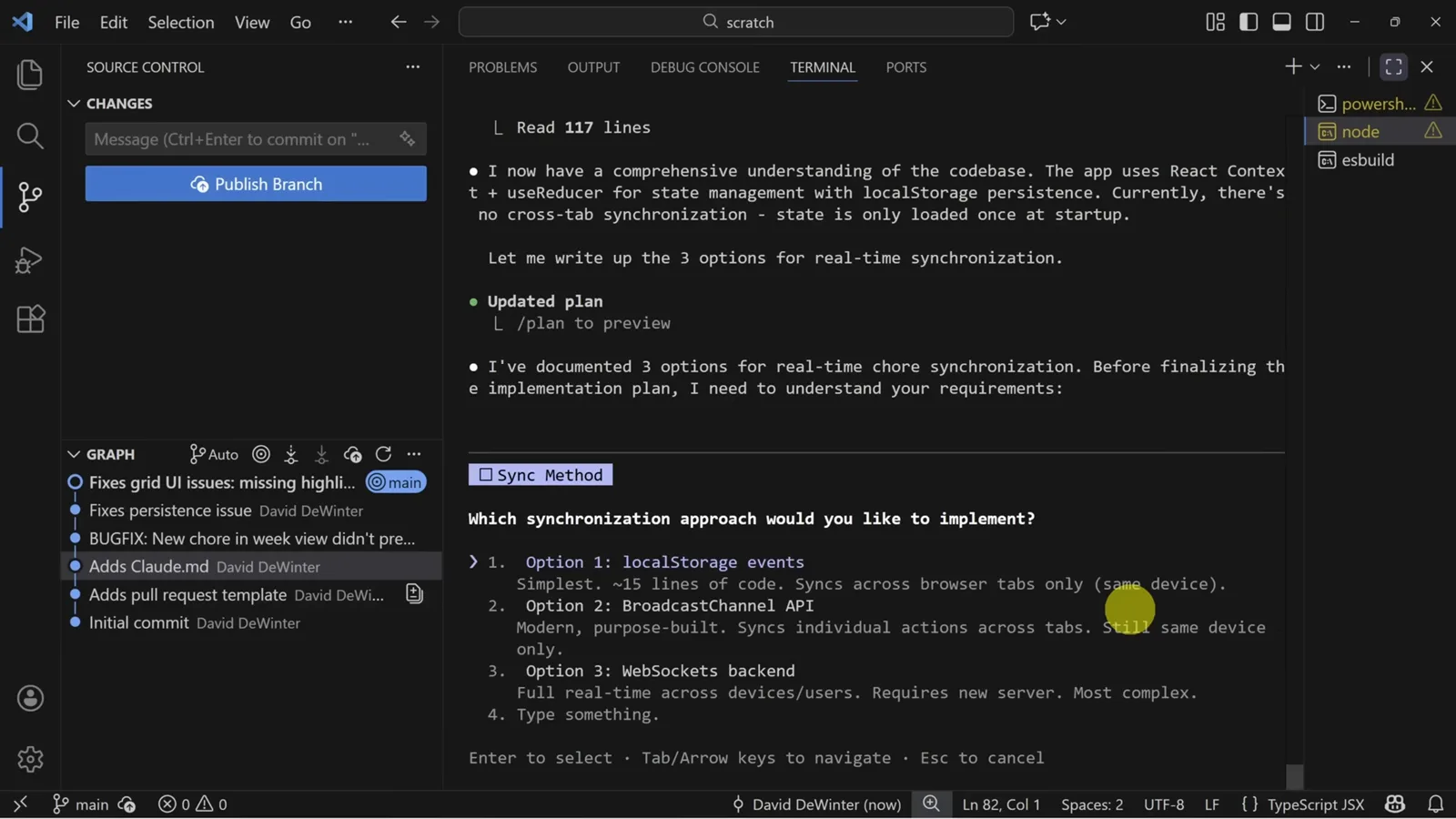
Three sync options with trade-offs; Kevin picks the WebSocket backend.Watch at 13:08 - 16
Verify the result in two browsers side by side
Five minutes later Claude has written a WebSocket server. The proof is visual: two browser windows side by side — add Elizabeth as a team member or drop a "Feed the fish" chore in one and it appears instantly in the other. All that's left is reviewing the code like you would any teammate's.
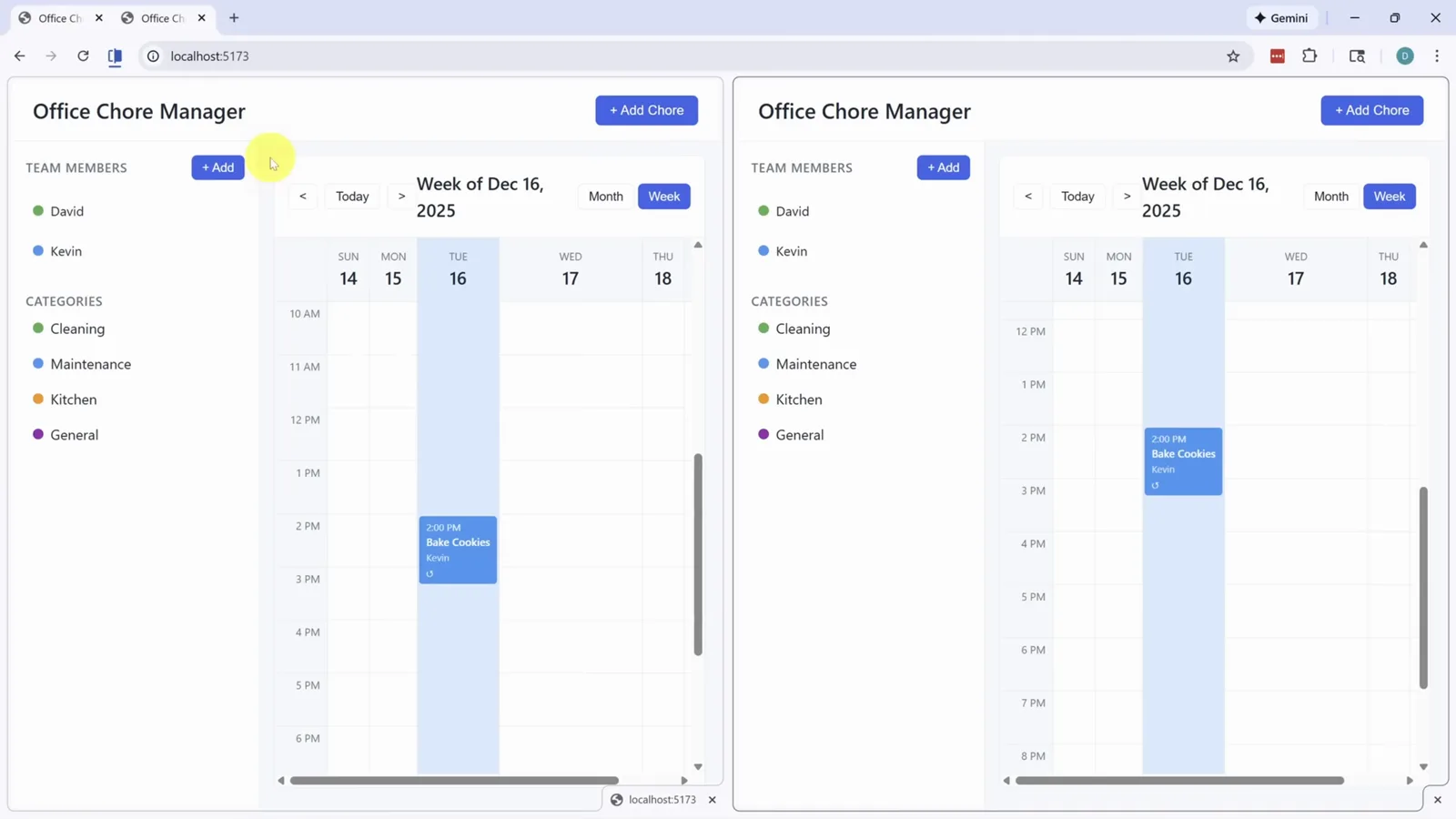
The payoff: one change, instantly mirrored in the second browser.Watch at 14:08
Frequently asked questions
Keep exploring
- Claude Code tool profile: features, pricing and alternatives
- How to use GPT-6 in ChatGPT: our agent-model walkthrough
- Go deeper: our step-by-step Claude Skills walkthrough
- Microsoft Copilot Autopilot walkthrough (Home, Code, Autopilot)
- Browse every AI coding tool in the directory
- More picks: the best AI productivity tools for work