

How to Use Microsoft Copilot Autopilot: The 2026 Walkthrough
On September 25, 2026 Microsoft reorganized the Copilot app around three entries — Home, Code and Autopilot — and framed the result as your “new OS for work.” The one everyone wants is Autopilot: the persistent agent that used to be called Scout and now works for you inside your own tenant. This guide walks the new layout step by step: what each tab does, how Home merges Chat and Cowork, what the Code tab builds, how to brief an Autopilot agent and read its sessions, what the license-plus-credits pricing means, and when Autopilot actually reaches your account. Every screenshot comes from a Wave 4 walkthrough, and every step links back to the exact minute of the source video.
Source & credits
Screenshots in this guide are captured from M365 Copilot Connection's public walkthrough video. Every step links back to the exact moment it shows, so you can follow along.
M365 Copilot Connection ↗What changed on September 25
- 1
Three new capabilities: Home, Code and Autopilot
The redesign gives the Copilot app three entries. **Home** is “your new starting point, where Chat and Cowork come together.” **Code** builds “your own solutions, with the tools to run them safely.” **Autopilot** is “a persistent, proactive agent that keeps working even when you’re not.” The rollout badges on the same slide tell you how fresh each one is: Home is Frontier, coming weeks; Code is Frontier, end of month; Autopilot is private preview, end of month.
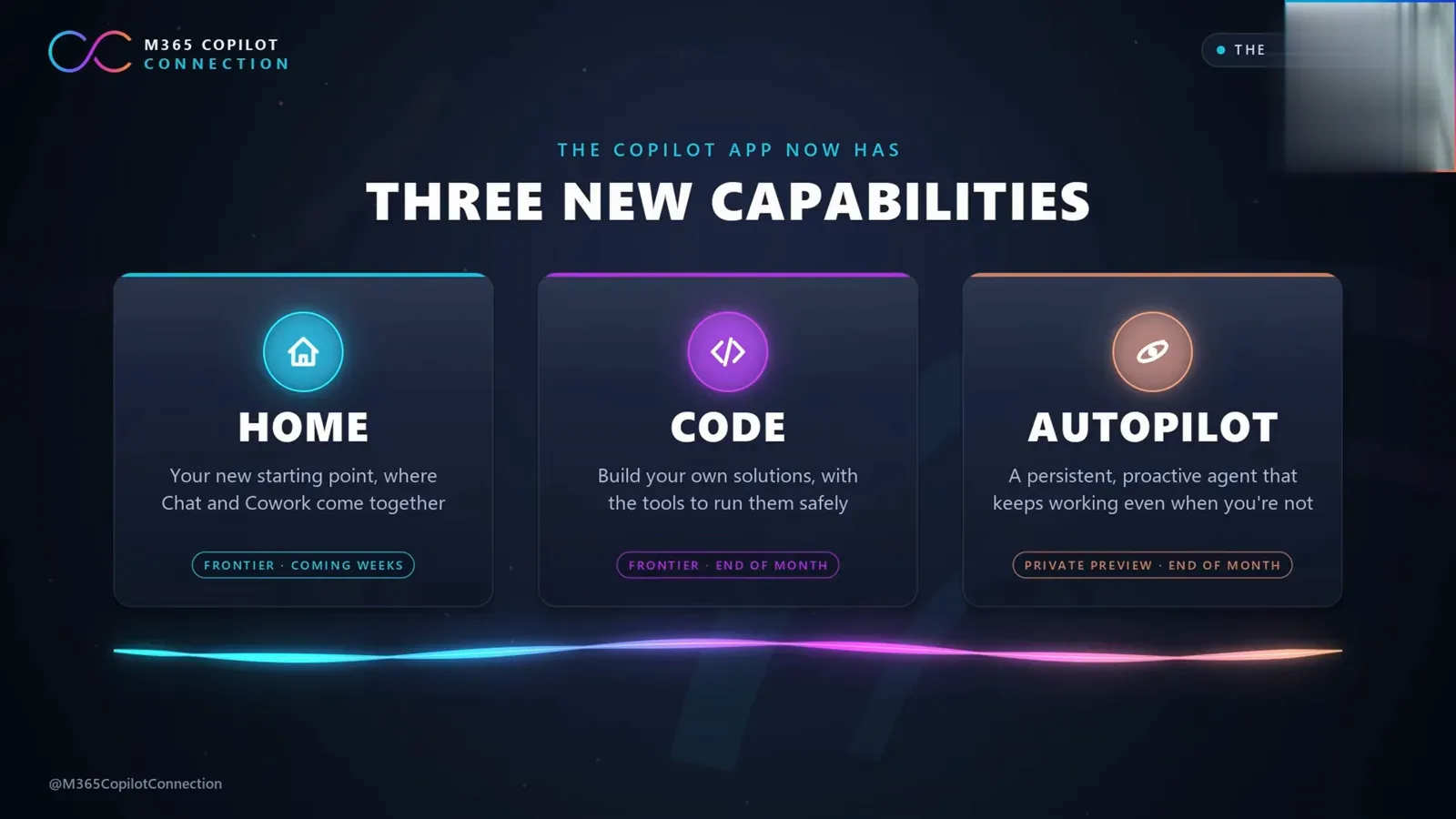
The Sept 25 reorganization gives Copilot three front doors: Home, Code and Autopilot.Watch at 1:30 - 2
The announcement: “your new OS for work”
Microsoft’s own blog post calls the release “your new OS for work.” Home is described as the answer to work that “moves constantly between meetings, chats, documents, emails, apps and agents”: one starting point where you get your bearings, pick up right where you left off, and let Copilot route the request to Chat, Cowork or Code. That routing idea is the glue between the three new tabs.
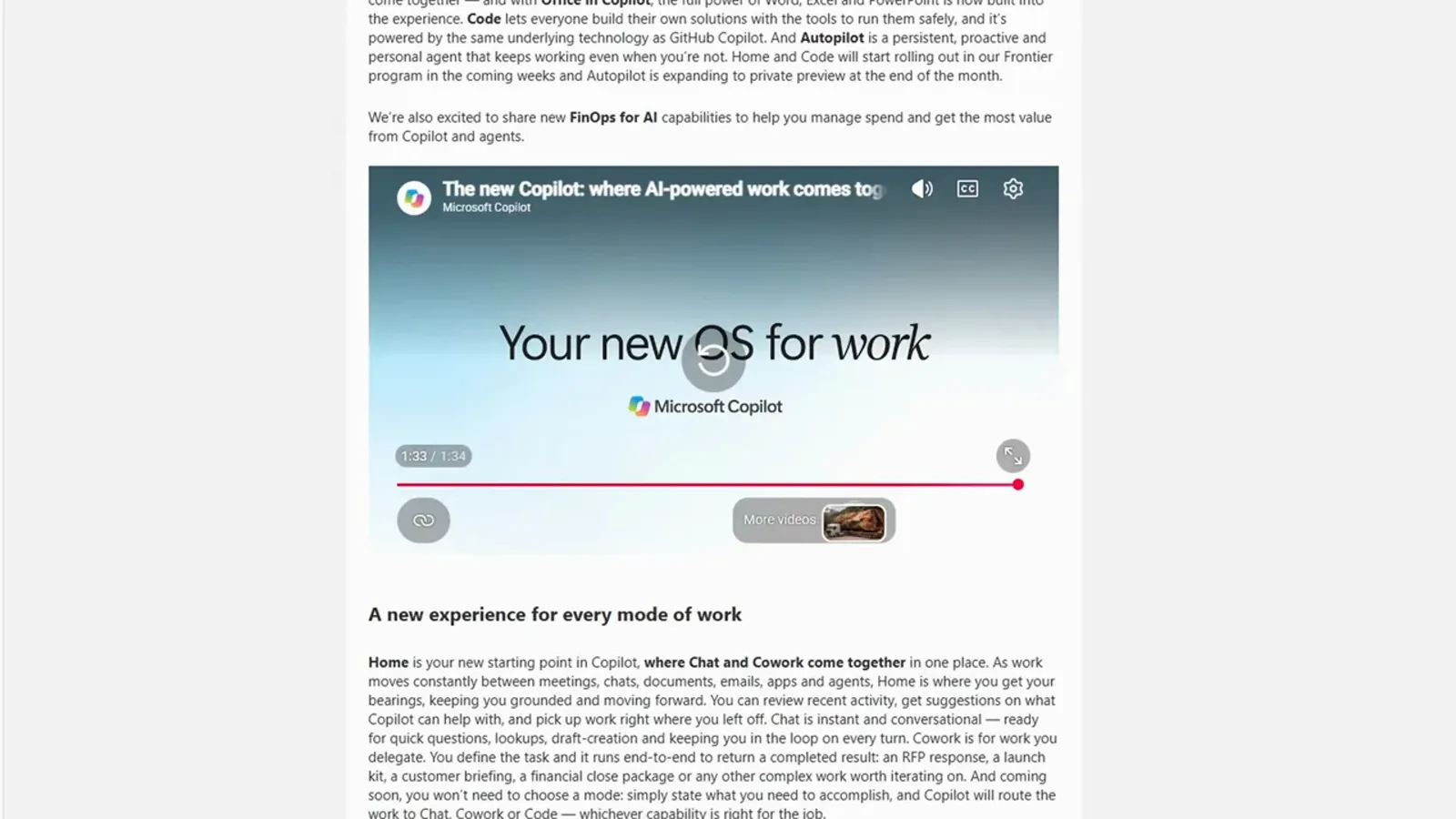
Microsoft’s own framing for the release: a new OS for work.Watch at 8:10
The Home tab: Chat and Cowork in one place
- 3
Home merges Chat and Cowork
The old split between quick chat and a separate collaboration surface is gone. In the new Home tab, Chat (“instant and conversational”) sits beside Cowork (“work you delegate, end to end”). Ask in natural language and intelligent routing sends the task to whichever mode fits — with a manual toggle if you would rather choose yourself. If you are mapping this to other tools, it is the same pattern as any [modern AI productivity stack](/topics/best-ai-tools-for-productivity): one inbox, many modes.
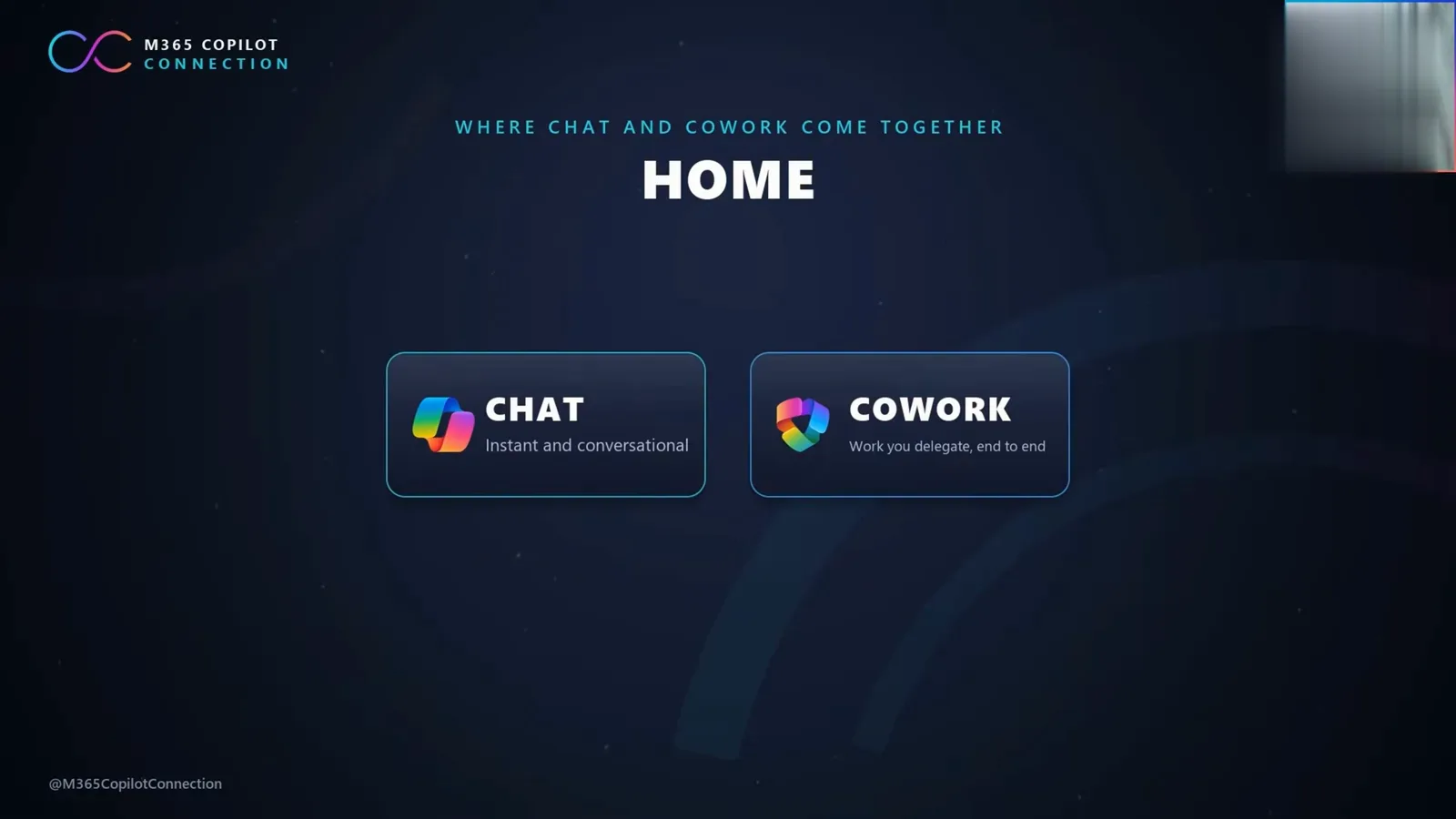
Chat for quick answers, Cowork for delegated work — both live inside Home now.Watch at 1:32 - 4
Ask once, and Copilot routes the work
The Home slide spells out the promise with one example: a request like “Build the Q3 launch kit” gets routed across Chat, Cowork and Code. You no longer pick the surface first. Describe the outcome, and Home hands it to instant chat, delegated Cowork work, or the Code tab — whichever capability is right for the job. Office files stay in the loop too: Word, Excel and PowerPoint work flows directly from the same box.
One prompt in, three possible routes: Chat, Cowork or Code.Watch at 1:36 - 5
Inside the new Home tab
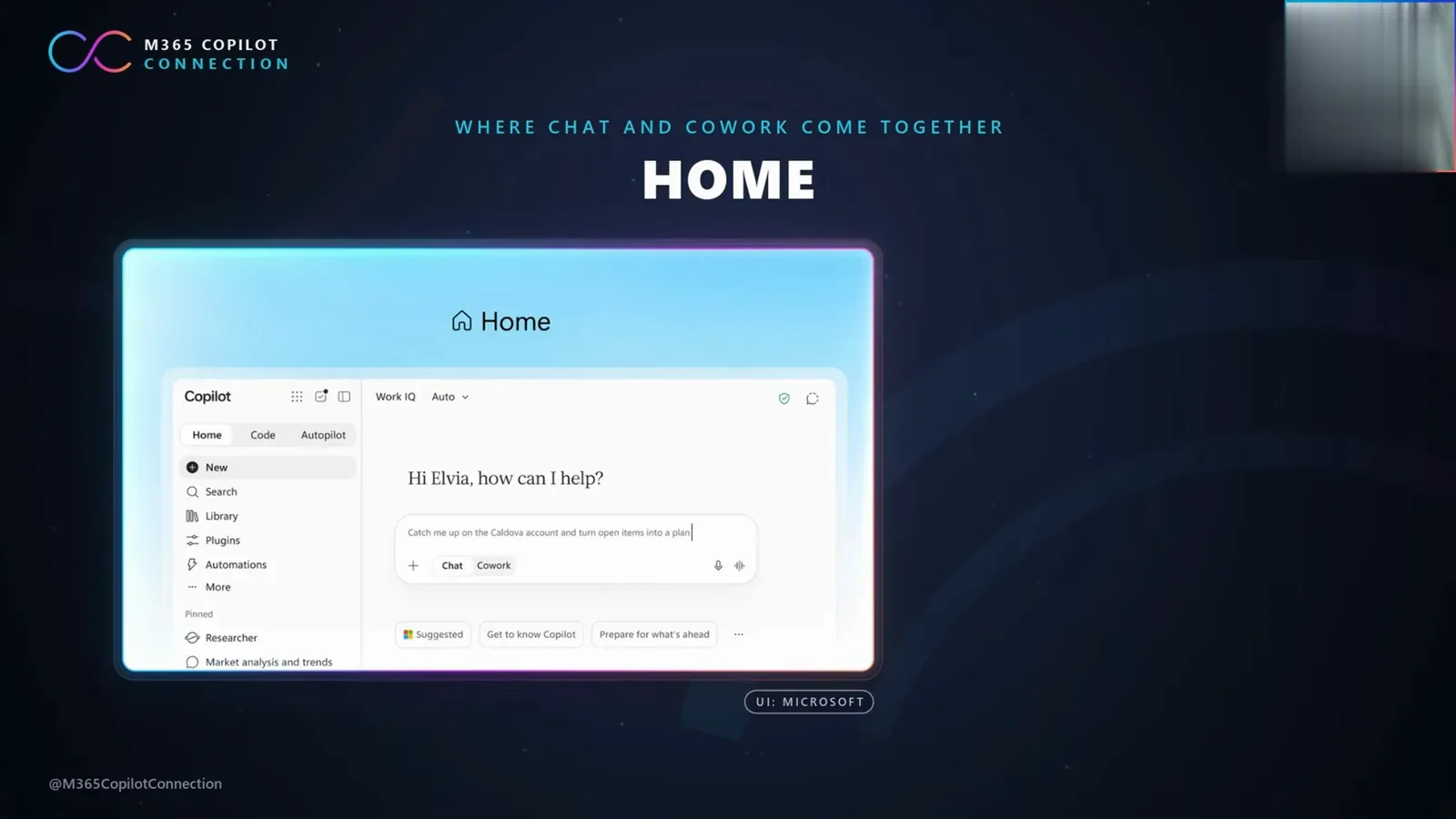
The published Home UI keeps the familiar left rail — Search, Library, Plugins, Automations, Agents and more — under the new Home / Code / Autopilot tab bar. The prompt box defaults to Work IQ’s Auto mode and offers Chat and Cowork buttons, with suggestion chips like “Get to know Copilot” and “Prepare for what’s ahead” below. The sample prompt shows the intent: “Catch me up on the account and turn open items into a plan.”
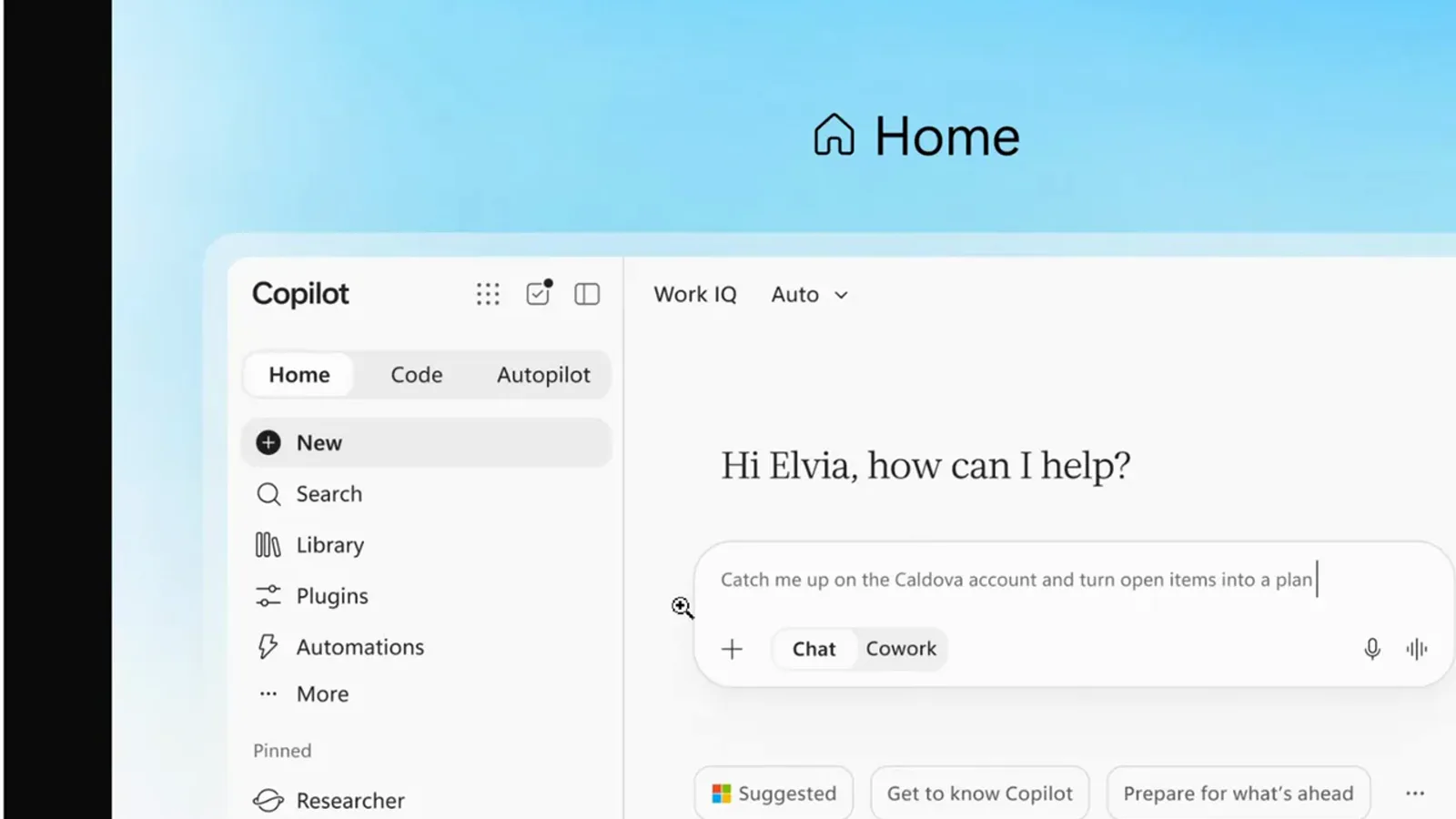
The Home tab: sidebar on the left, Auto-mode prompt box, starter suggestions below.Watch at 8:26
The Code tab: describe it, Copilot builds it
- 6
Code: describe it, and Copilot builds it
The Code tab turns a plain-language brief into working software — “apps, dashboards, automations.” The slide stresses two assurances: it runs on the same tech as GitHub Copilot, and everything you build is “sandboxed, hosted in your tenant.” If you have tried terminal agents before, this is Microsoft’s tenant-safe answer to the same idea — our [Claude Code tutorial](/guides/claude-code-tutorial) covers the coding-agent workflow from the other side.
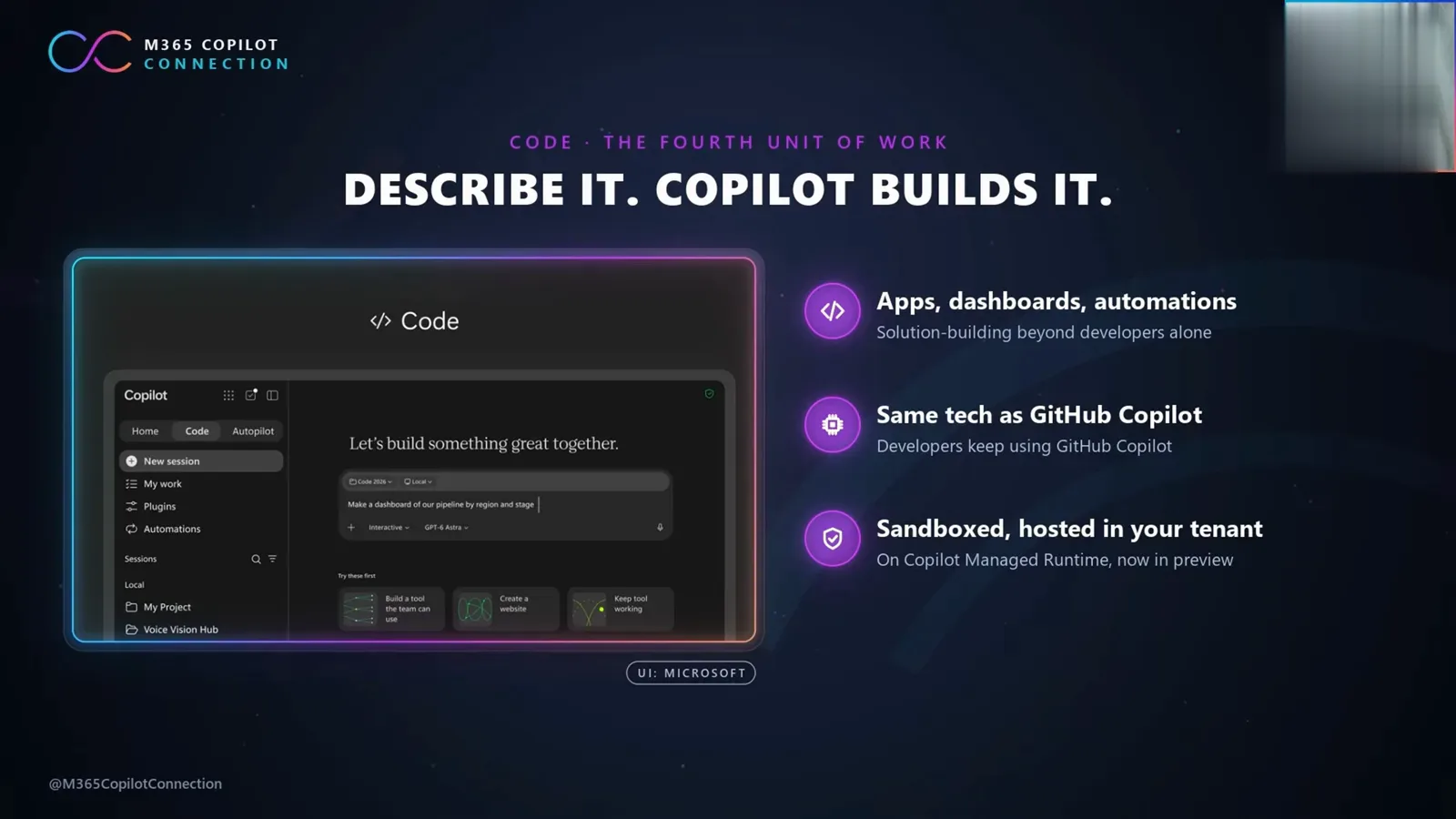
Code builds apps, dashboards and automations from a plain-language brief.Watch at 3:00 - 7
Managed Runtime keeps the code in your tenant
Under the hood, Code runs on Microsoft Copilot Managed Runtime — hosting infrastructure that lets code run “safely right inside your company’s Microsoft 365 tenant.” The same foundation also enables apps built in Cowork, Code and Copilot Studio, and it entered public preview on announcement day. The blog text here also settles the naming: “Autopilot (previously called Scout) is your digital teammate.”
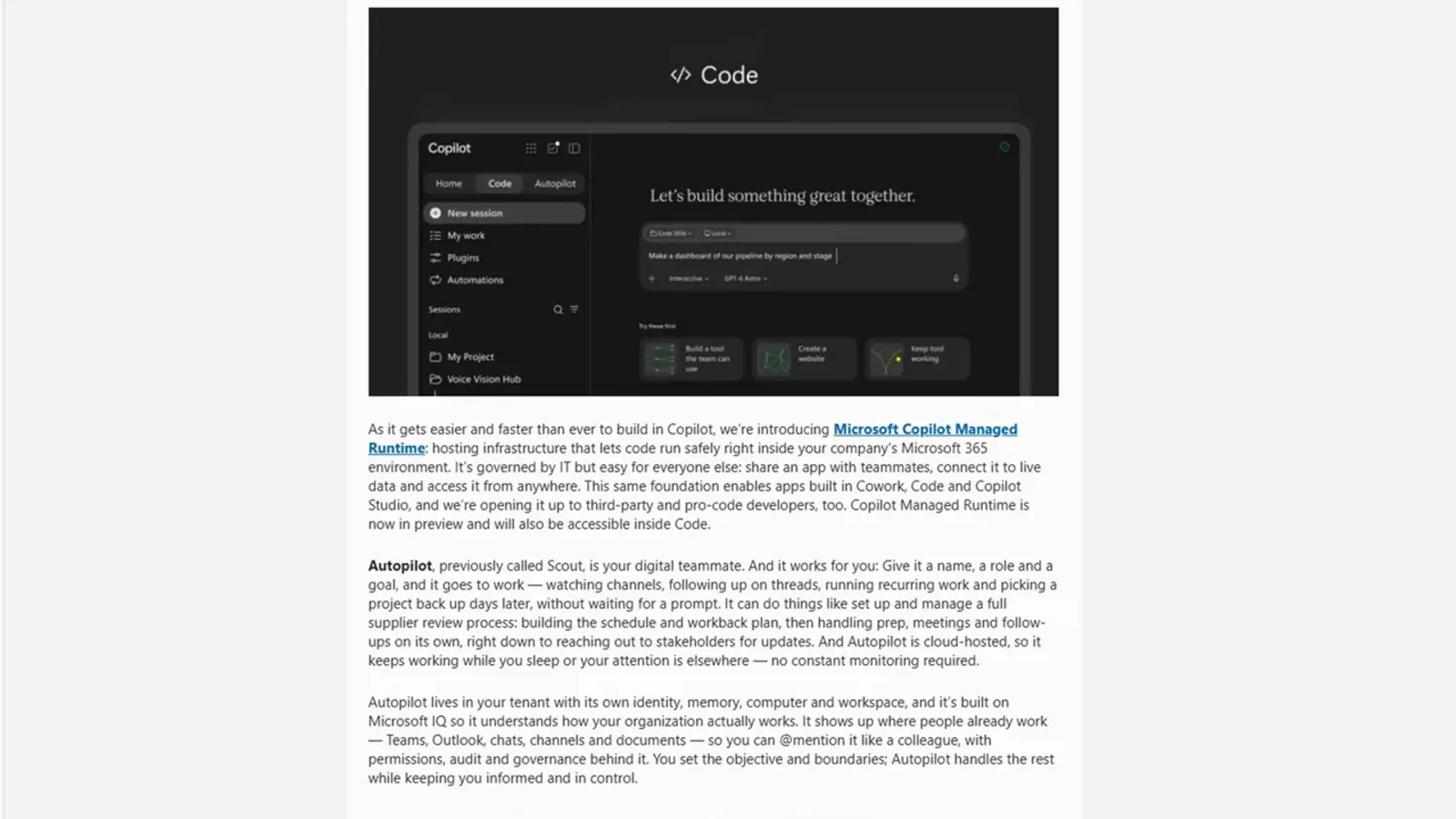
Managed Runtime: your Code projects execute inside the tenant, not on outside infrastructure.Watch at 9:08
The Autopilot tab: your always-on agent
- 8
Autopilot, formerly Scout
Autopilot is the agent surface that spent the summer in the Frontier program under the Scout name — the slide says so outright: “Autopilot, formerly Scout.” Its while-you’re-away list shows the flavor: watched the supplier channel, followed up on open threads, built the review workback plan, chased stakeholder updates. The tagline is the pitch: keeps working while you sleep.
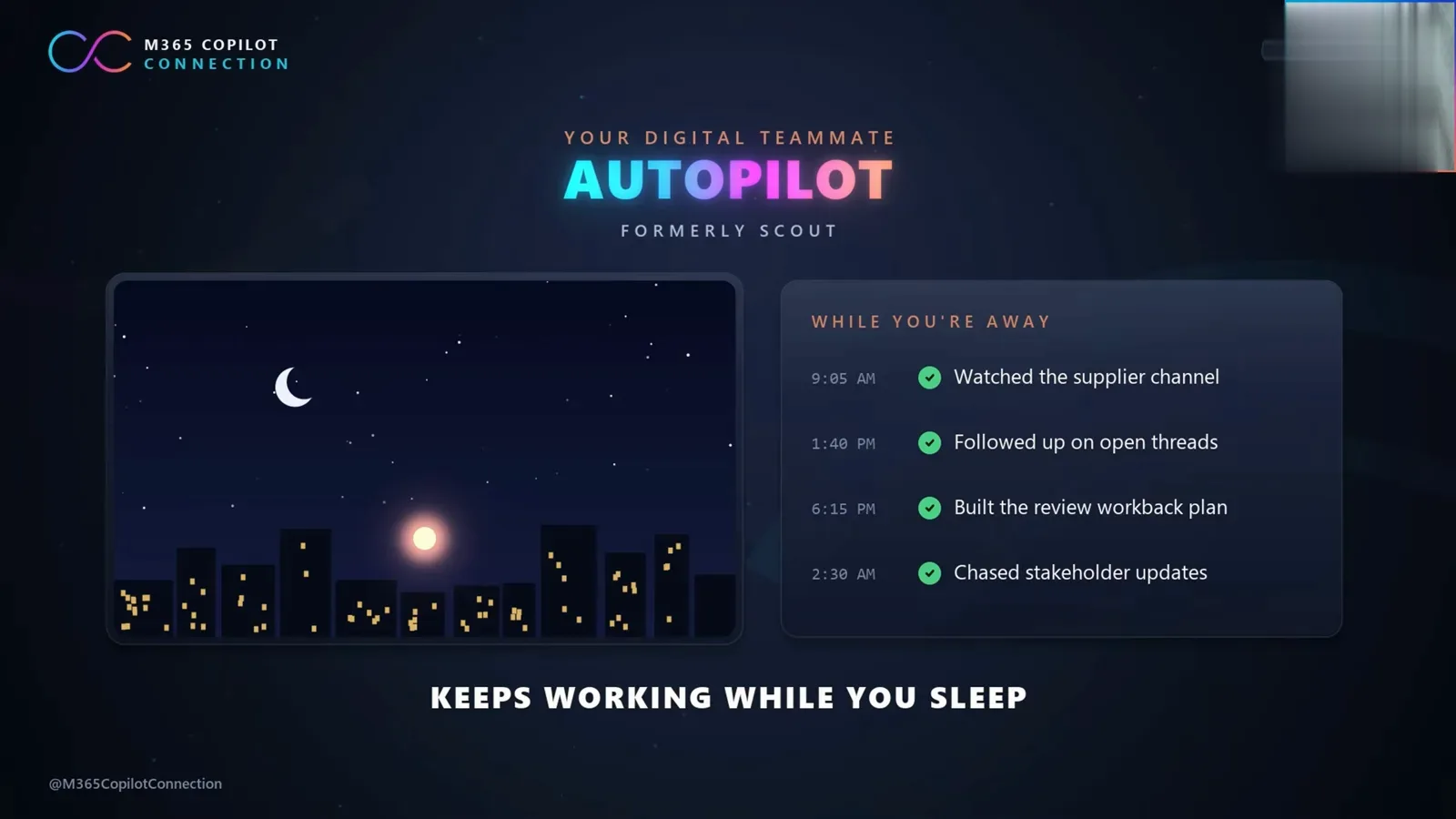
Autopilot is Scout’s in-app successor: delegated work that keeps moving overnight.Watch at 4:12 - 9
Its own identity, memory, computer and workspace
The capability slide lists what an Autopilot gets: “its own identity, memory, computer, workspace,” and it “lives in your tenant, built on Microsoft IQ.” You work with it by @mention — the example reads “@Autopilot prep next week’s supplier review” in Teams, and the slide notes you can “@mention it in Teams and Outlook, like a colleague.” That matches the on-stage description of Autopilots as autonomous, long-running agents with full enterprise compliance that run in your tenant.
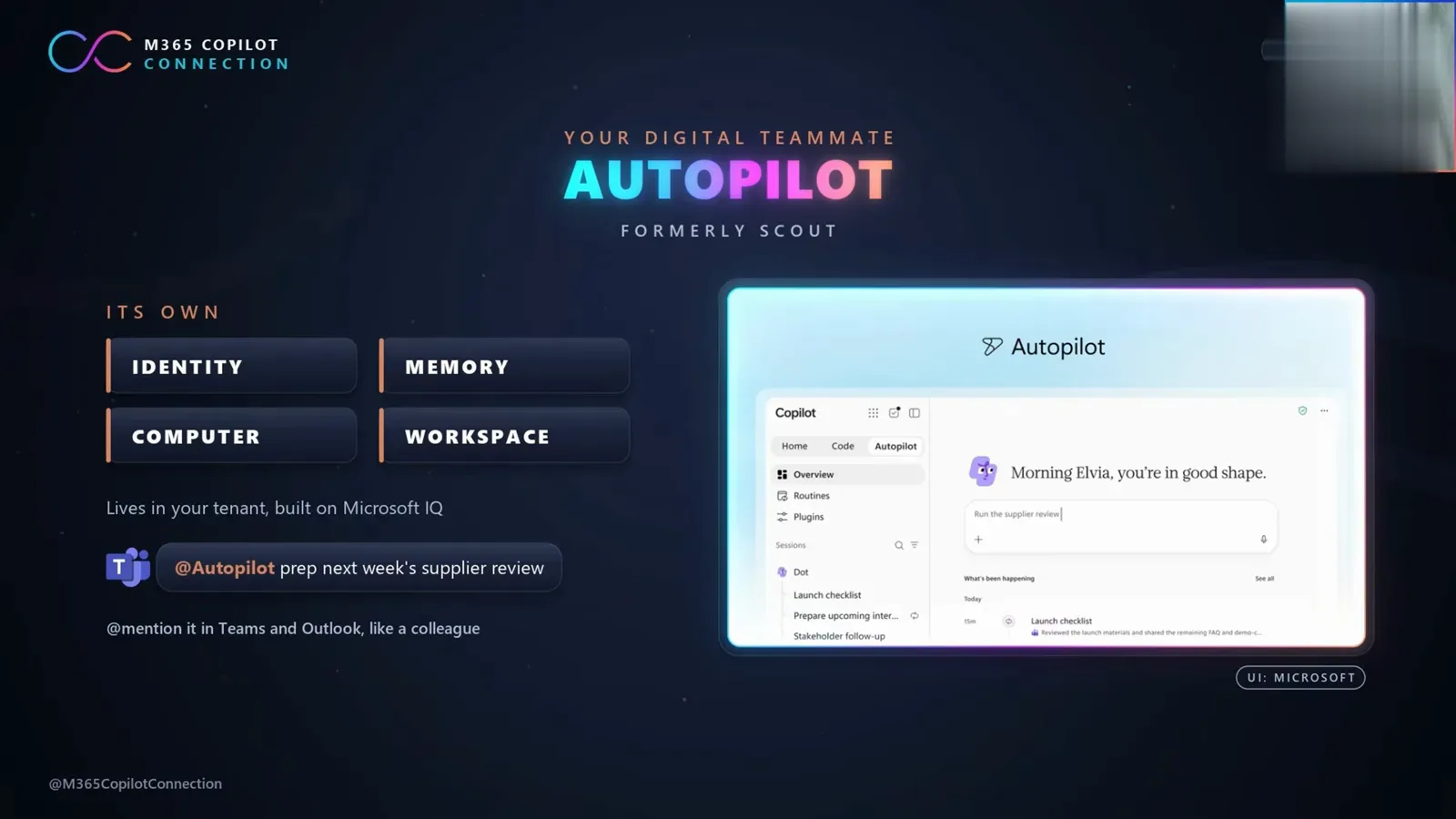
@mention Autopilot in Teams or Outlook and it picks up the task like a colleague.Watch at 4:56 - 10
Inside the Autopilot tab: sessions and routines
The published Autopilot UI opens with a status greeting — “Morning Elvia, you’re in good shape.” — above a prompt box (the demo shows “Run the supplier review”). The left rail holds Overview, Routines and Plugins, plus a Sessions list (Dot, Launch checklist, Prepare upcoming interview, Stakeholder follow-up), and a “What’s been happening” feed tracks today’s progress. The workflow: give it a name, a role and a goal, then follow along from Sessions.
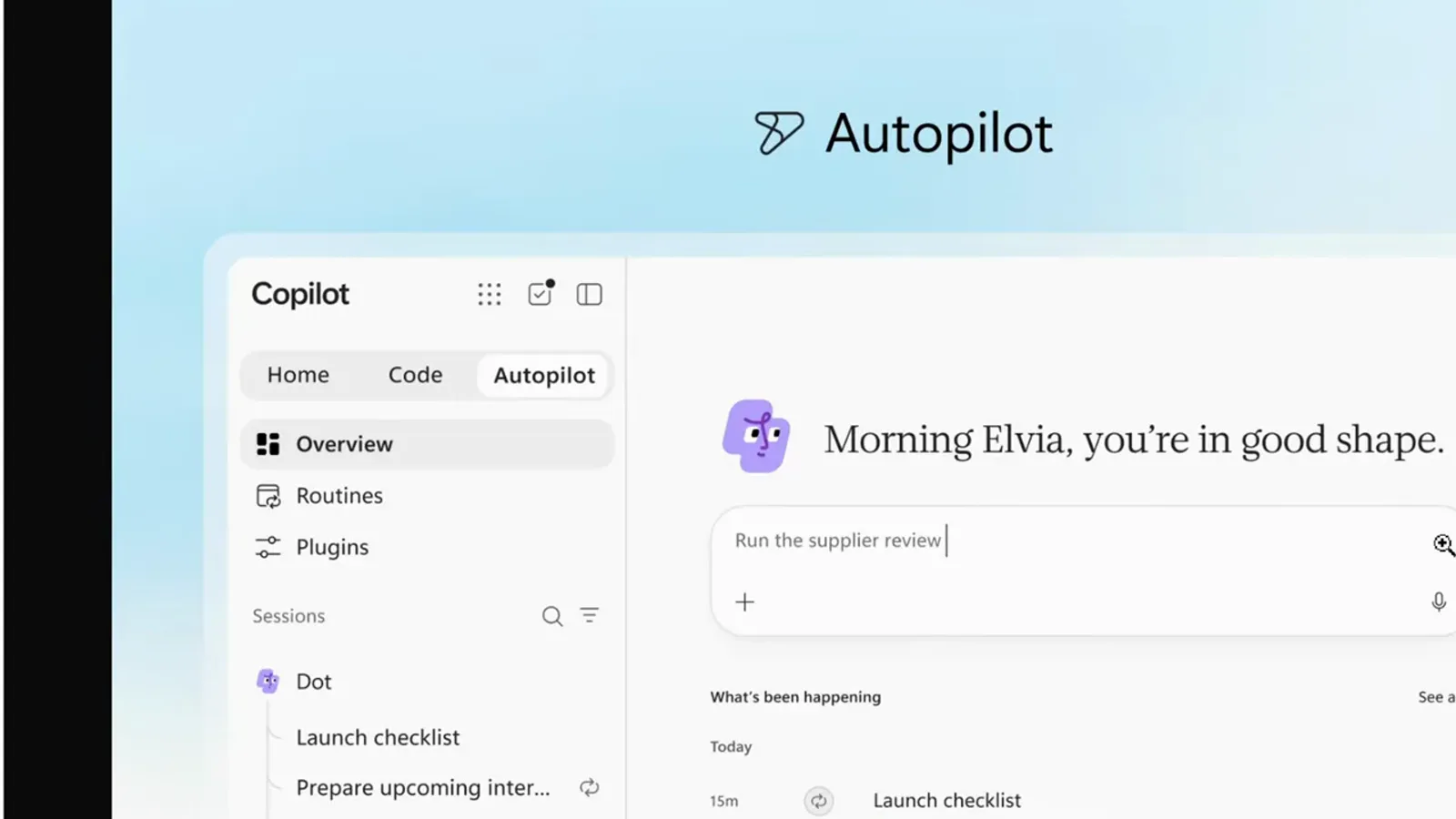
Brief the agent once, then track its sessions, routines and daily updates here.Watch at 10:28
Access, credits and rollout dates
- 11
User license plus credits: the cost model
The walkthrough splits pricing into “everyday AI” and “agentic AI.” The user license is the battery: fixed price per user per month, auto-picks the best model per task, with GPT-5.6 and Sonnet 5 included and Opus 5 coming with limits. Copilot credits are the gas tank: usage-based billing, metered across Cowork, Code and Autopilot, with frontier models (Astra + Fable) drawing from it — and credits require the user license.
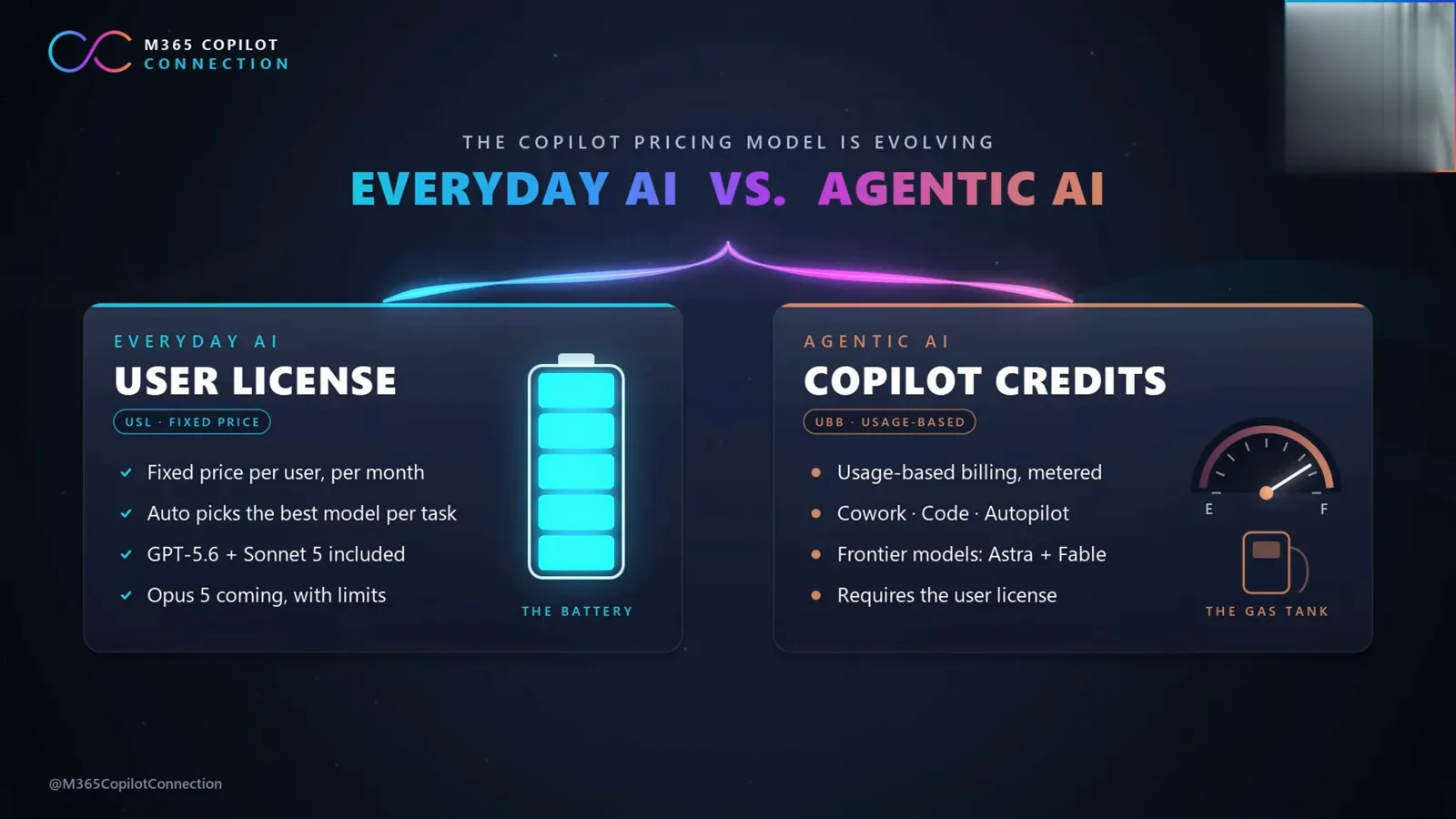
The license is the battery; credits are the gas tank. Autopilot runs on both.Watch at 6:00 - 12
When you will actually see it
The rollout slide is the calendar to watch. Today (Sept 25): Fabric IQ goes GA in Chat + Cowork, Managed Runtime enters public preview, the plugin registry rolls out. Coming weeks: Home reaches Frontier, Code broad availability. End of September: Code to Frontier, **Autopilot to private preview**, @Copilot in Teams private preview, Dynamics 365 grounding preview. October: Today in private preview, Studio agents cost management. Then Microsoft Ignite, Nov 17–20 in San Francisco and online. No date yet for general availability — admins should watch the Frontier program.
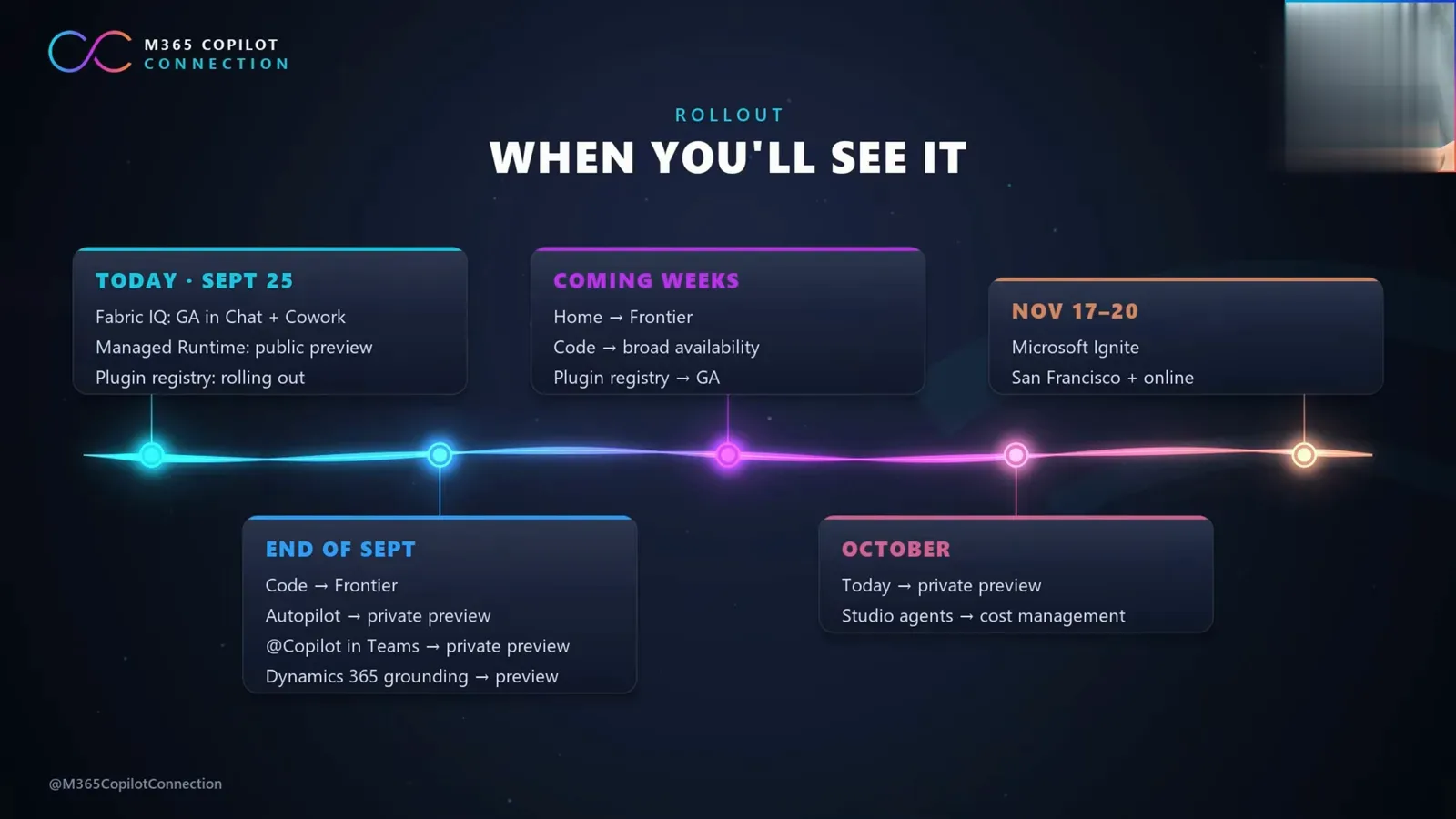
Autopilot lands in private preview at the end of September; wider access follows.Watch at 7:24