

How to Use Grok Imagine: The 2026 Beginner Walkthrough
Grok Imagine is xAI's image-and-video generator inside grok.com: one prompt bar that returns sixteen variations in about ten seconds, edits images by instruction, renders poster-quality text, and animates any frame into a short clip with generated sound. This walkthrough follows a real session from an empty prompt bar to a downloaded, upscaled clip — batching, prompted edits, text rendering, the image-first video workflow, uploads, and the remix trick that reuses any clip on the explore wall. Every screenshot comes from that live session, and every step links back to the exact minute of the source video.
Source & credits
Screenshots in this guide are captured from TheAIGRID's public walkthrough video. Every step links back to the exact moment it shows, so you can follow along.
TheAIGRID ↗Start at grok.com/imagine
- 1
Open Imagine from the Grok sidebar
Grok Imagine lives at grok.com/imagine and in the Grok sidebar. You land on an explore wall of community generations — browse it for style ideas, then type in the prompt bar at the bottom to start your own.
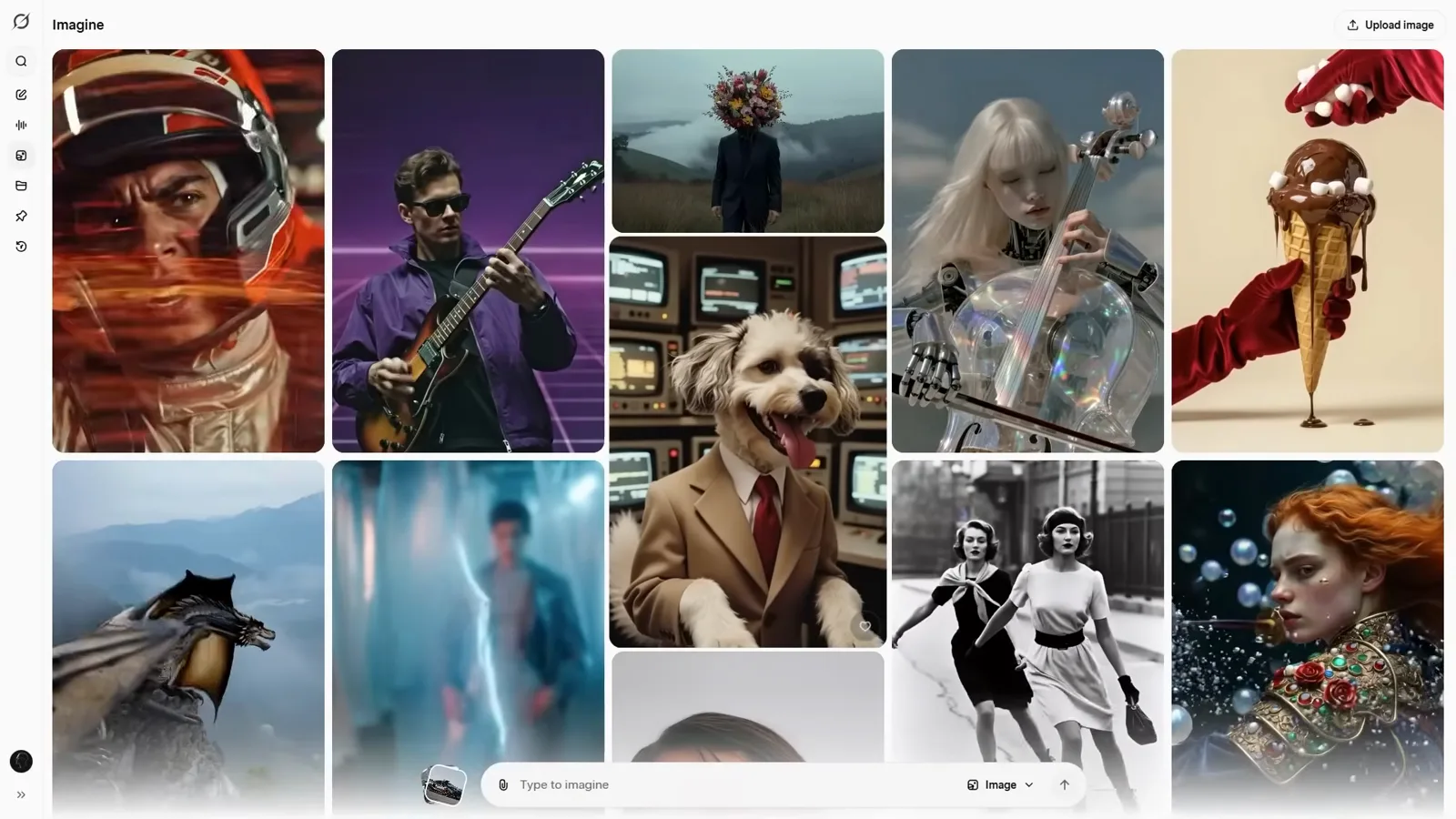
The explore wall doubles as a style library for your first prompt.Watch at 0:22 - 2
Browse the wall for style ideas
Scroll the explore grid to calibrate taste: fashion editorial, anime, product photography. There is no keyword search for the wall — search lives on X — so treat it as a mood board, find a look you like, and describe that look in your own words.
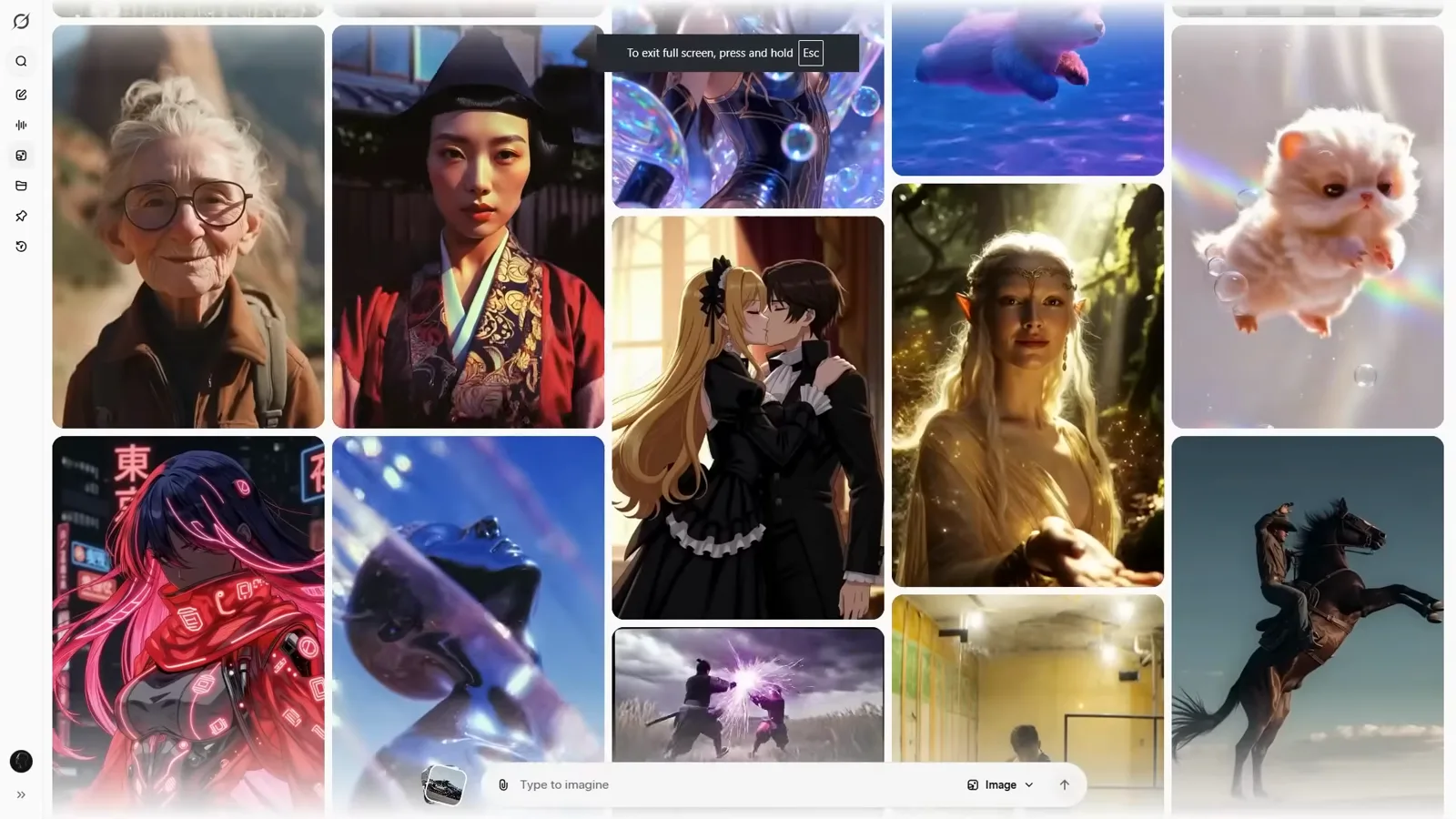
No keyword search here — the wall is scroll-only.Watch at 0:30 - 3
Borrow any tile with the action menu
Open a tile's action menu to download the image, make a video from it, or jump back into Imagine and remix it. Remixing a community frame is the fastest way to reverse-engineer how a style was prompted.
Every community tile can be downloaded, animated, or remixed.Watch at 1:20
Your First Batch: 16 Images in One Prompt
- 4
Type one prompt, keep it concrete
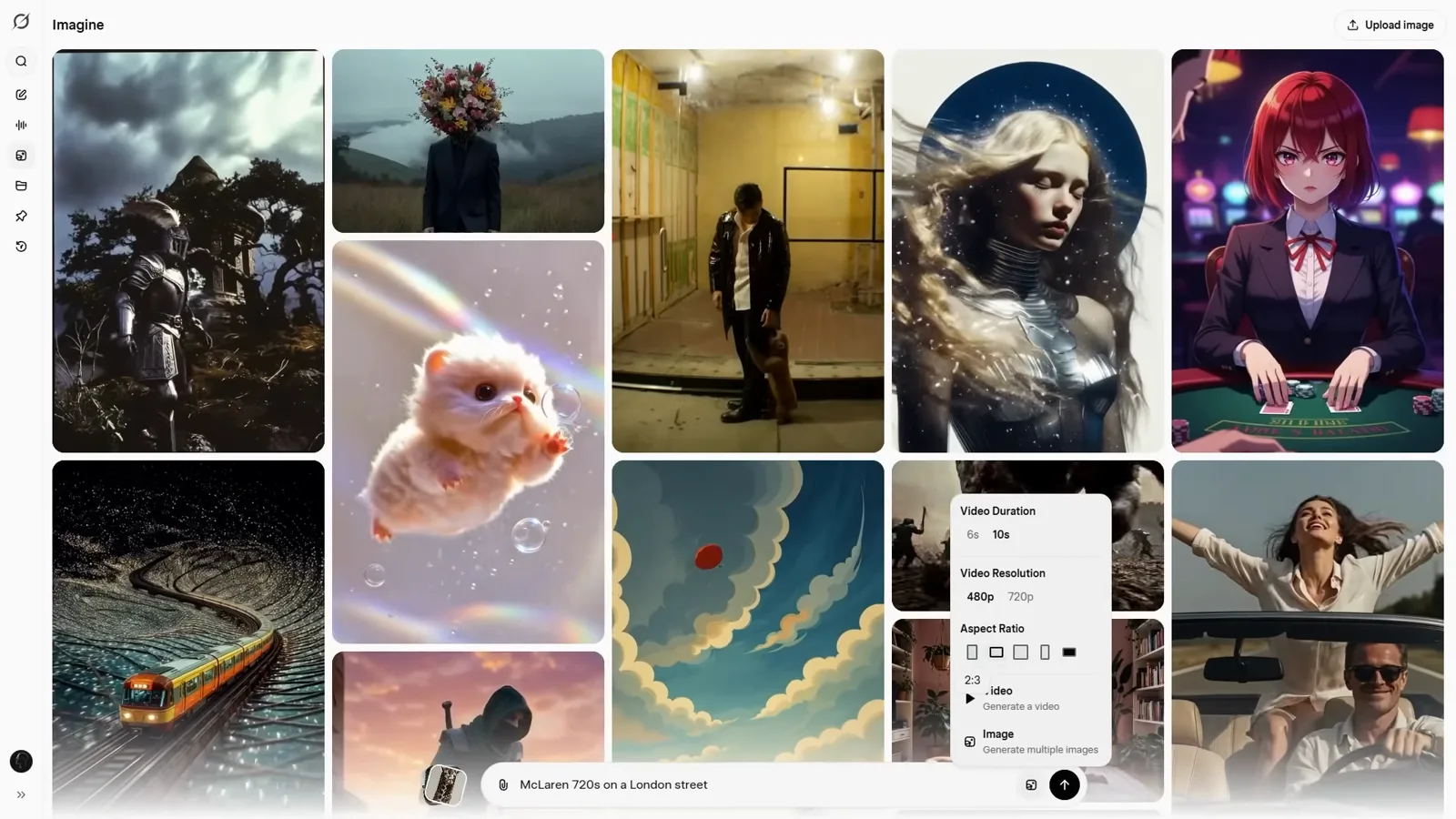
The walkthrough's example is “McLaren 720S on a London street” — subject plus place is enough for a first batch, and Imagine fills in lighting and angles on its own. Set the aspect ratio before you hit Go: 16:9 for landscape, 1:1 for feed posts, 9:16 for stories.
A two-part prompt — subject plus place — is all a first batch needs.Watch at 1:35 - 5
Watch the batch stream in
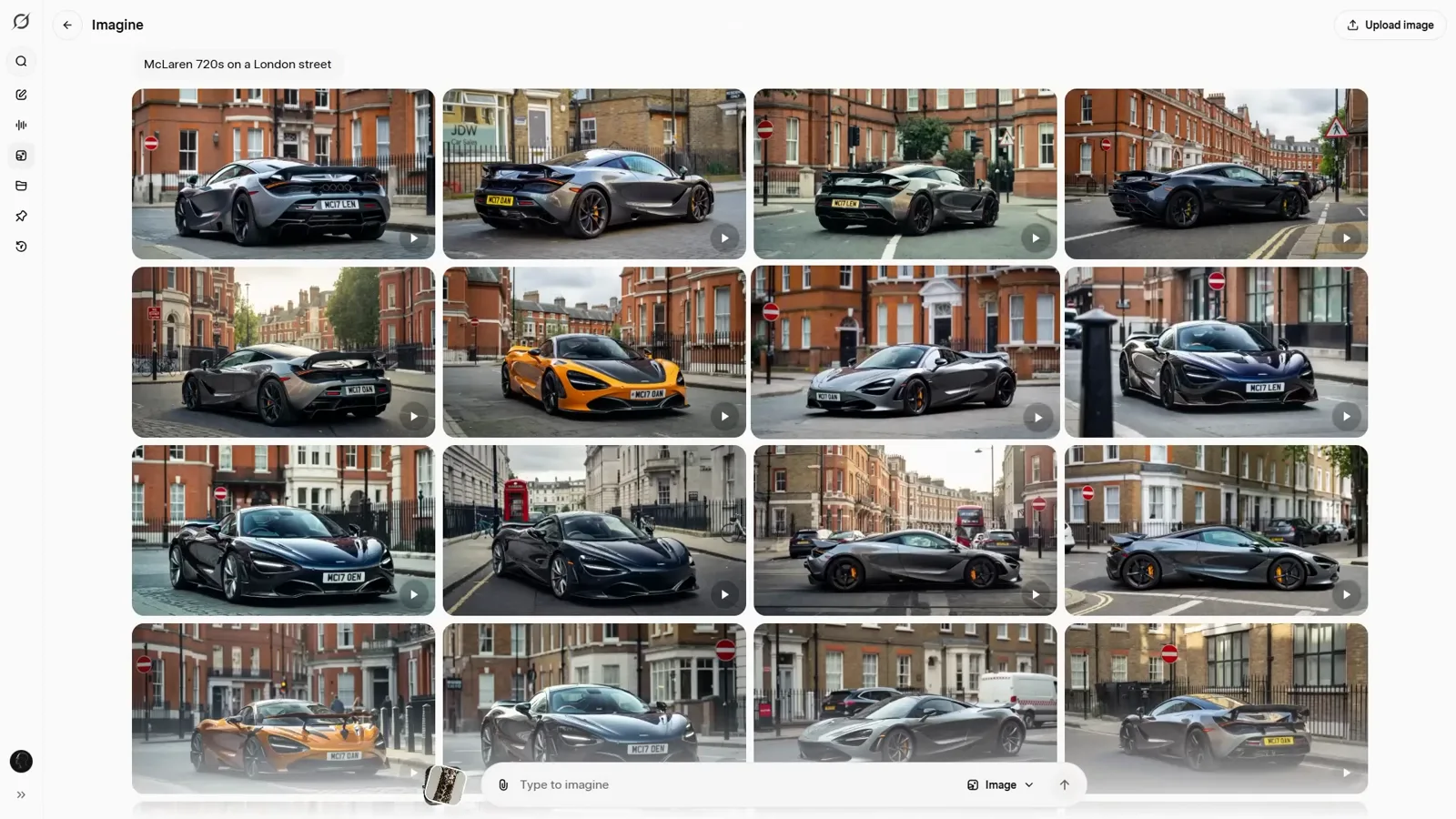
Results arrive progressively: the first tiles sharpen while the rest are still blurred placeholders, and the whole sixteen-image batch resolves in roughly ten seconds. Imagine always generates a full batch rather than a single image, so you compare variations instead of re-rolling one slot.
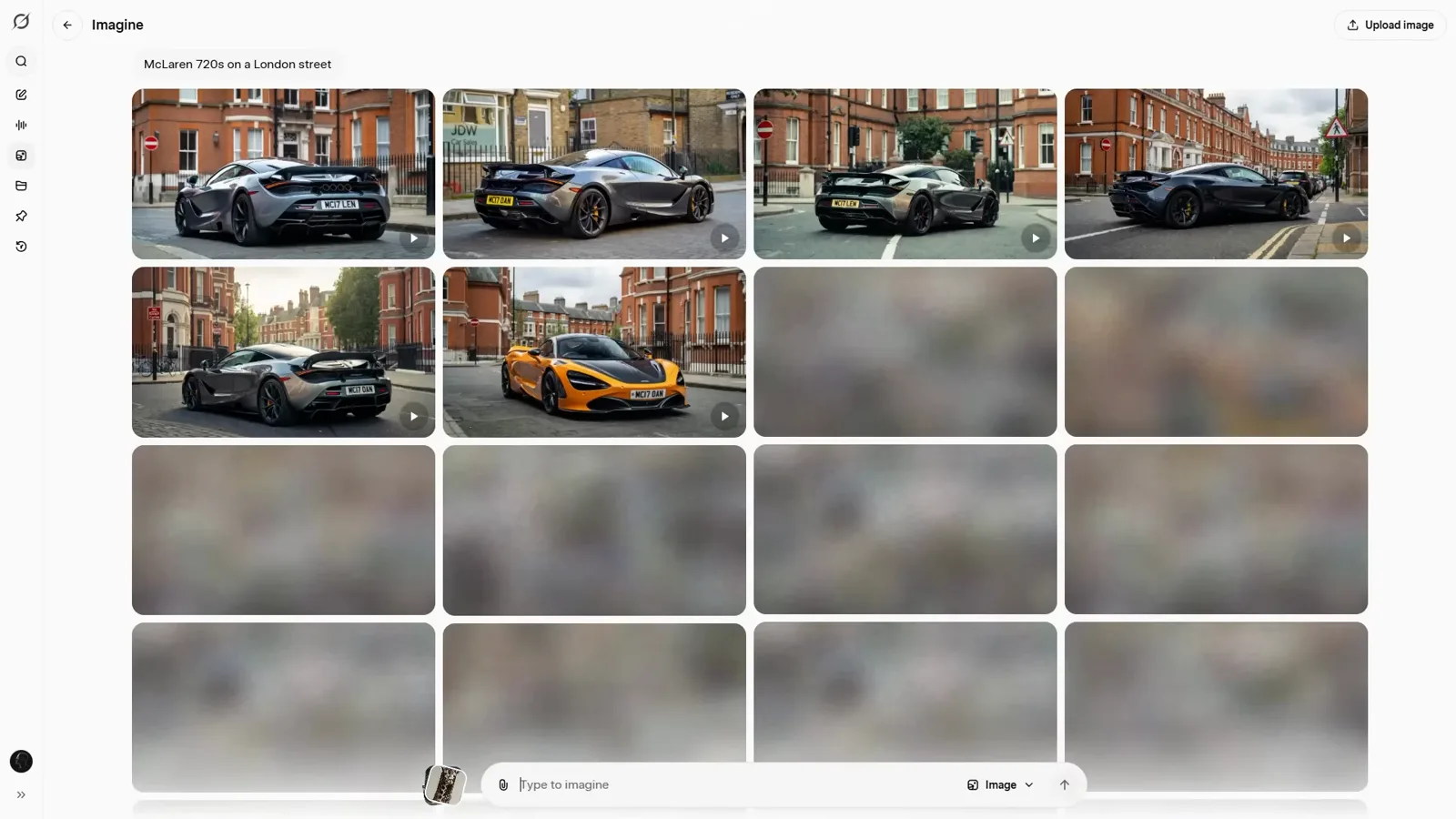
The batch resolves top to bottom in about ten seconds.Watch at 1:30 - 6
Compare the sixteen variations
Every batch ships sixteen takes on your prompt — different angles, paint colors, and passing traffic. That volume is the tool's core advantage: ChatGPT and Gemini give you about four variants per prompt, Imagine gives you sixteen, and scrolling the wall loads even more.
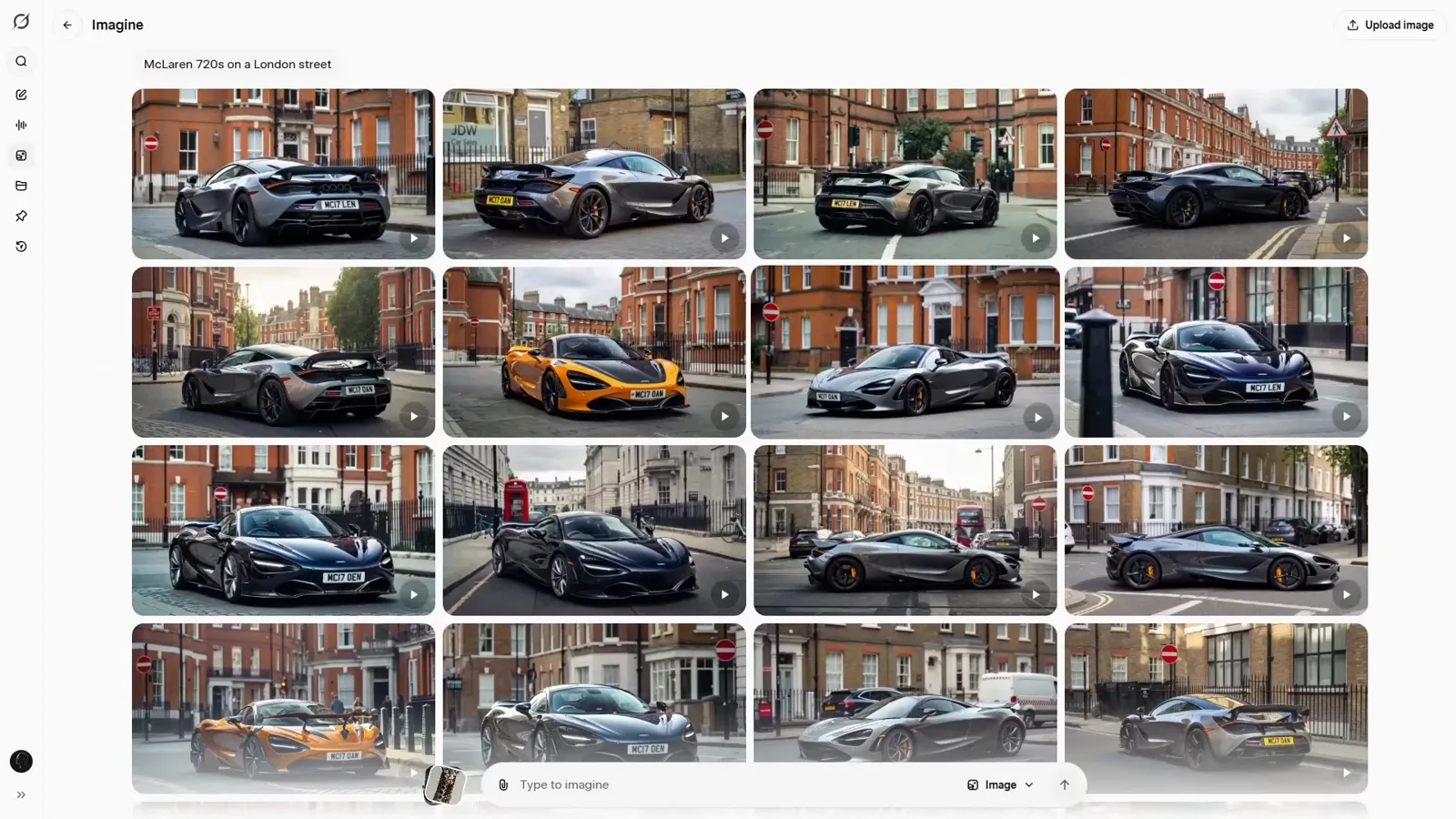
Sixteen takes on one prompt — pick, don't re-roll.Watch at 2:05 - 7
Know what your plan allows
This session runs on SuperGrok at $30 a month — heavy batch generation is not a Heavy-tier exclusive. Imagine is available on the free tier too, with tighter limits; if you hit a wall mid-project, wait for the quota reset before upgrading.
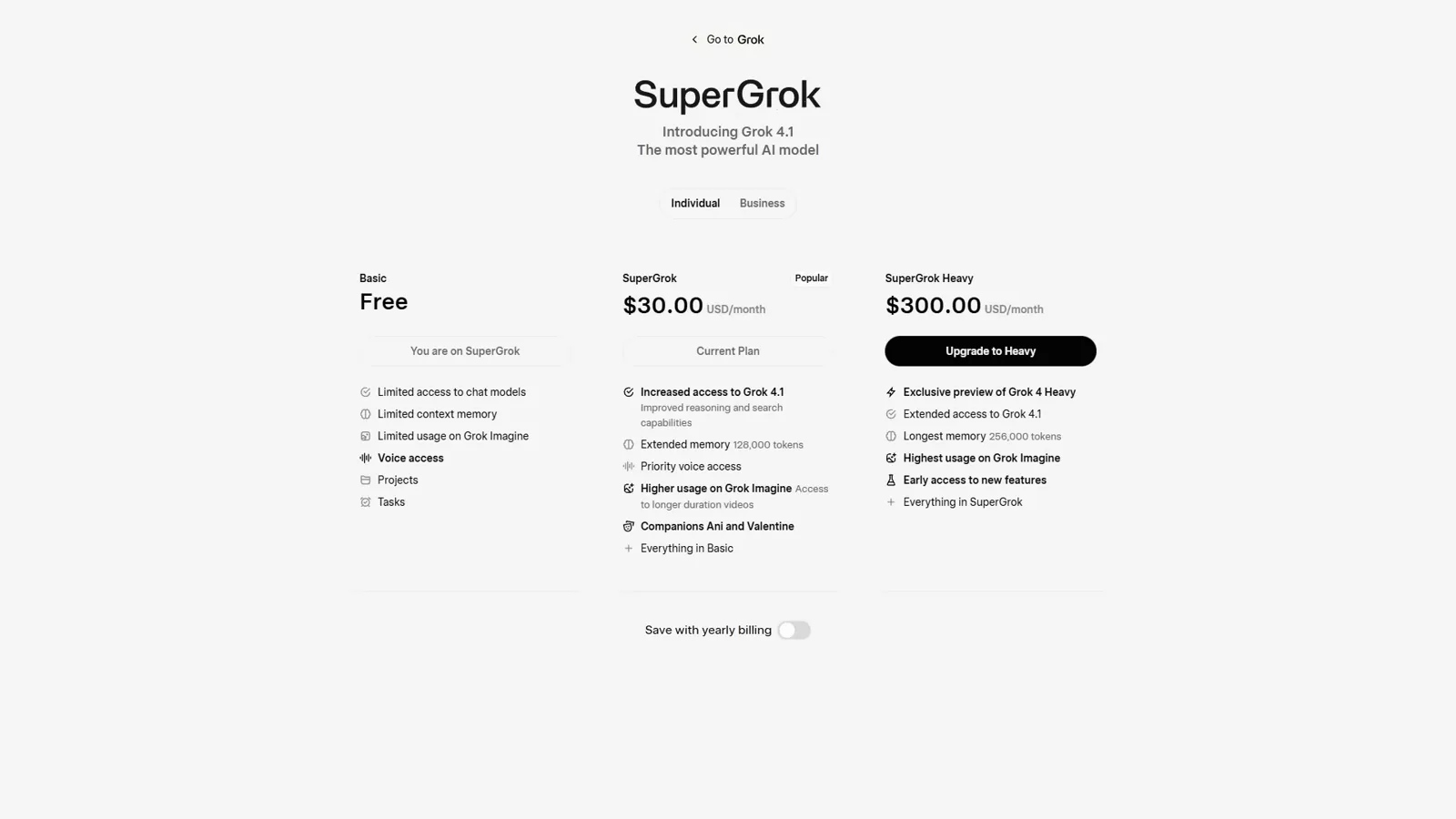
Imagine is not paywalled behind the $300 Heavy tier.Watch at 1:50
Refine With Prompted Edits
- 8
Edit by instruction, not by mask
Open a keeper, click Edit image, clear the field, and type an instruction — “Change the car colour to yellow.” Imagine is a prompt editor: no brushes and no selections, you just say the change you want.
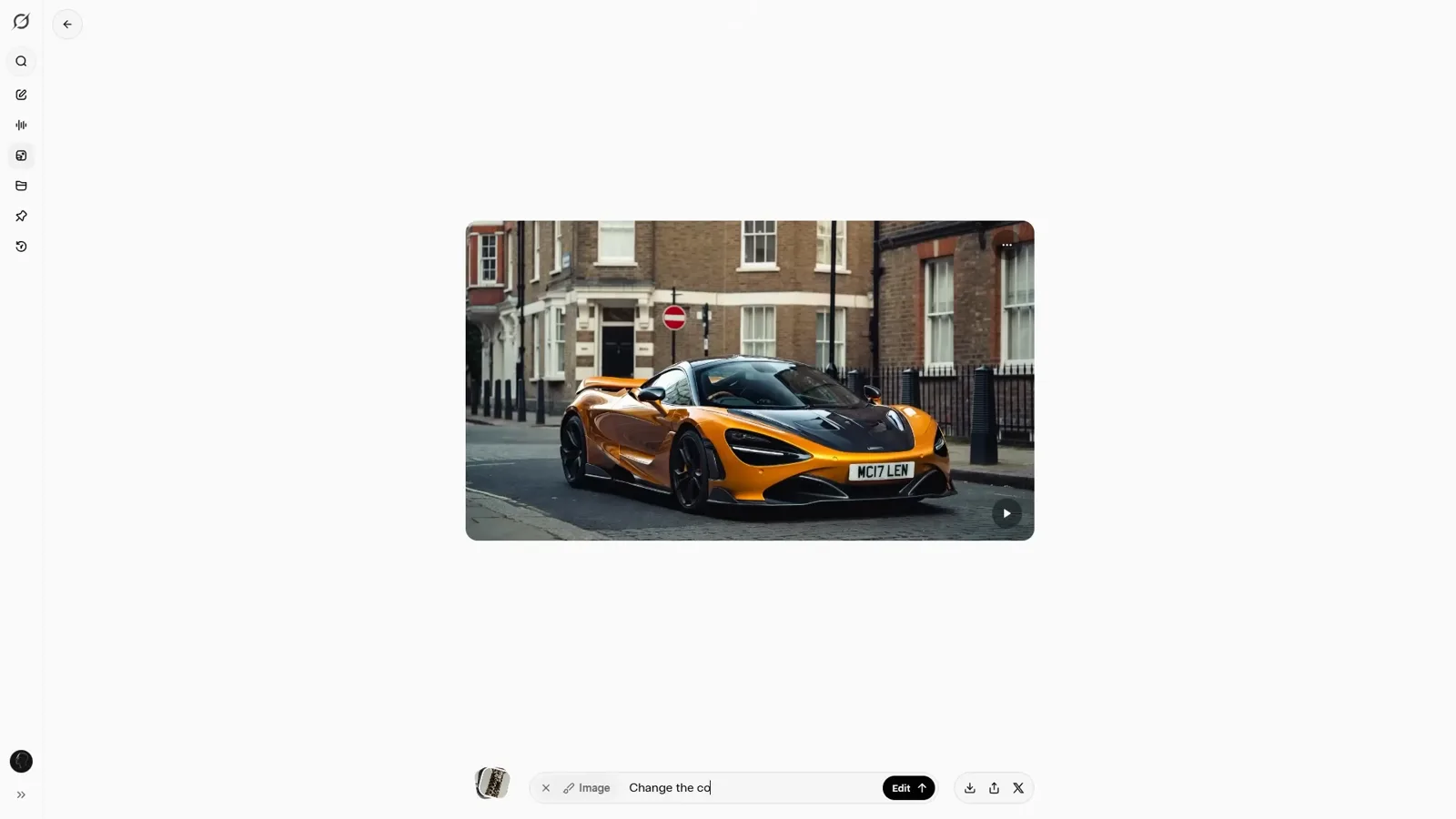
Edits are instructions, same as generation.Watch at 3:20 - 9
Check the diff, not just the result
The yellow repaint lands in about ten seconds. Compare before and after at the edges: instruction edits usually respect everything except the target, but busy scenes can drift — and if they do, the original batch frame is often a better base than the edited one.
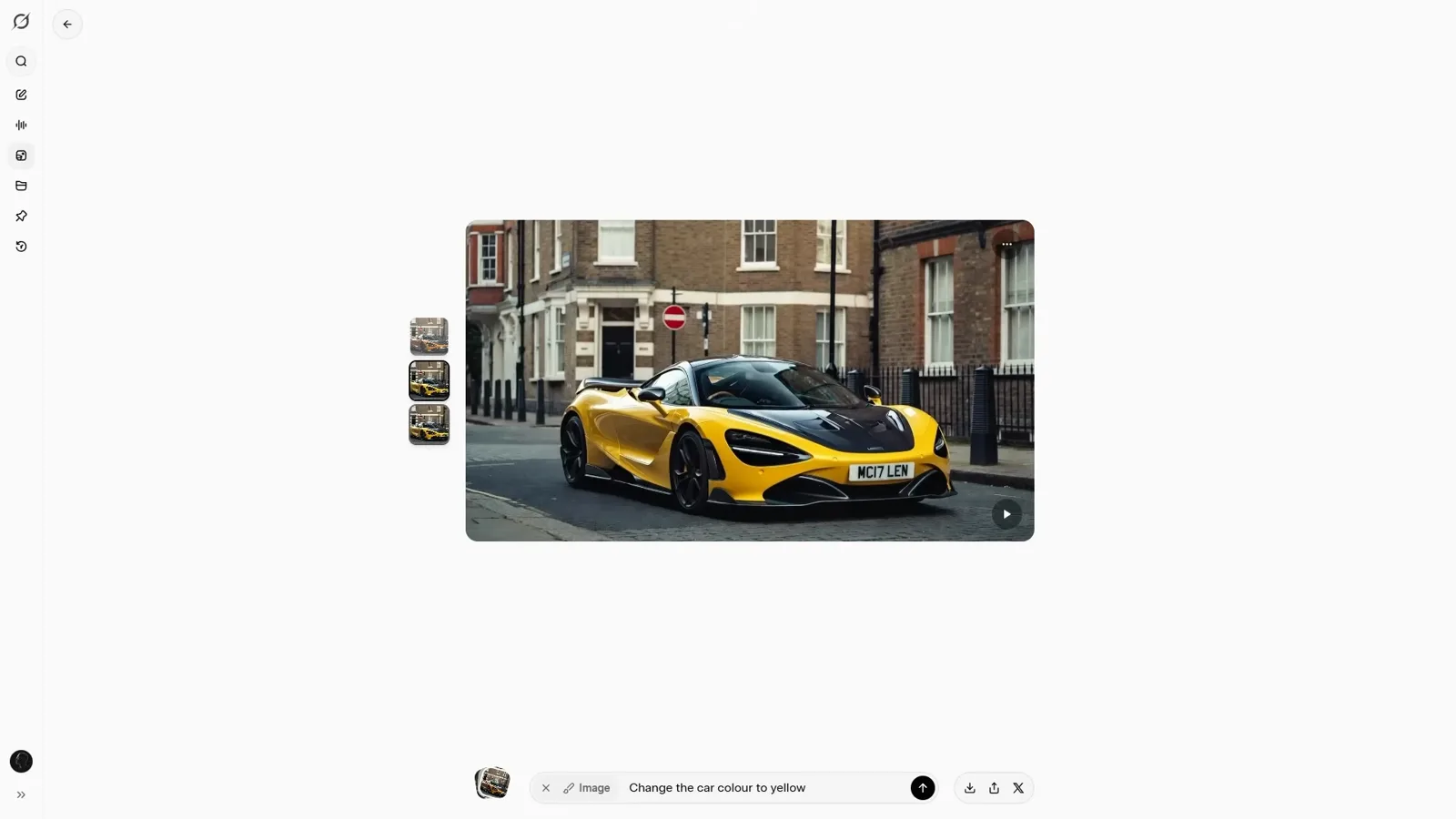
Same street, new paint — check the surroundings for drift.Watch at 3:42
Text Rendering for Social Posts
- 10
Prompt the whole poster, words included
Describe the graphic and put the copy in quotes: “a viral AI news Instagram graphic in a bold and purple Art Deco metal style” plus the headline itself. Imagine renders the lettering inside the batch — one prompt, sixteen legible posters.
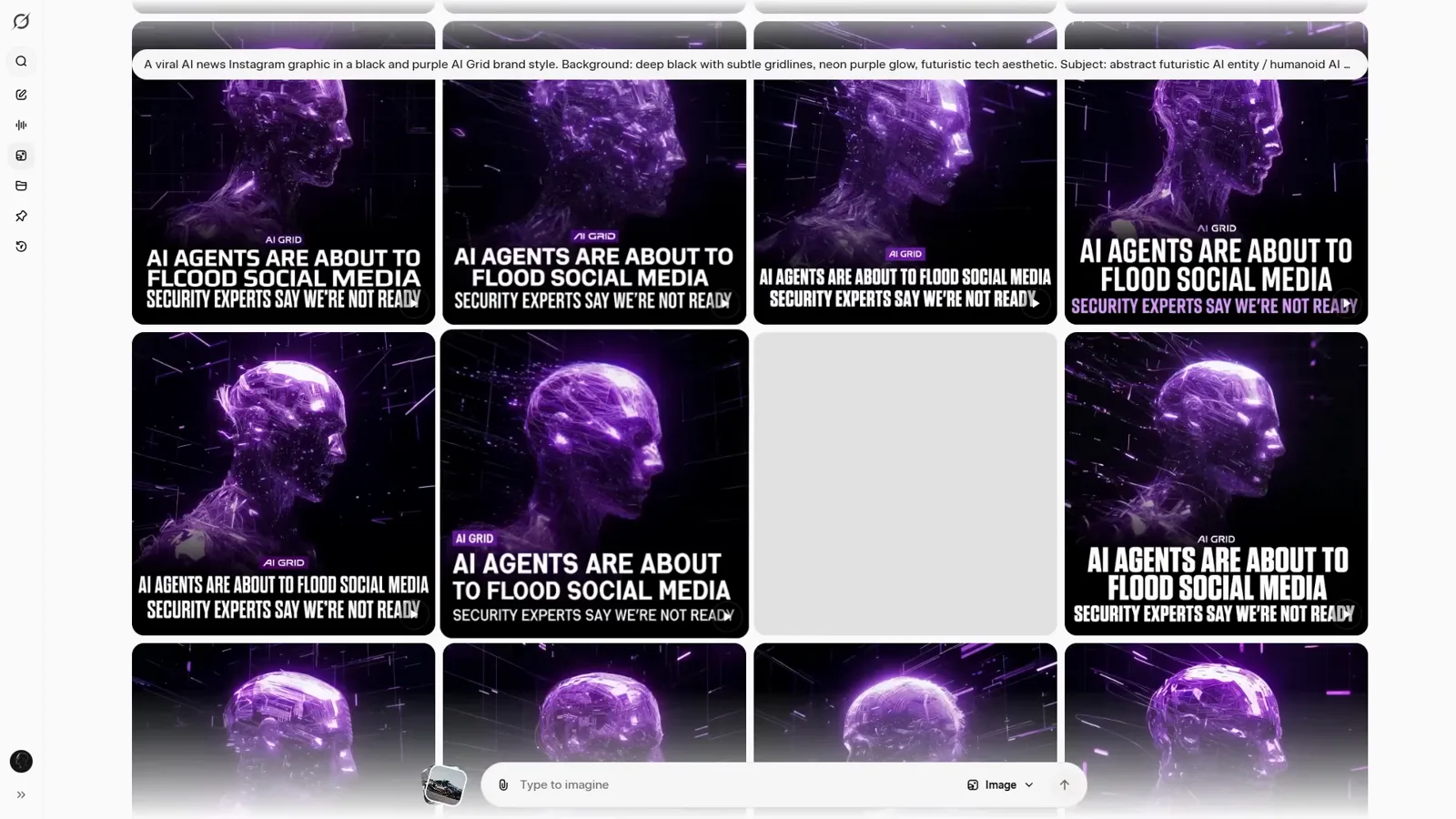
The headline renders inside the image when it sits in quotes.Watch at 5:22 - 11
Expect slower renders on text batches
Lettered images take roughly 20 to 25 seconds against 10 to 12 for plain ones. The payoff is accuracy: short headlines survive intact, long paragraphs fall apart — so ship the poster straight from the detail view while the lettering is clean.
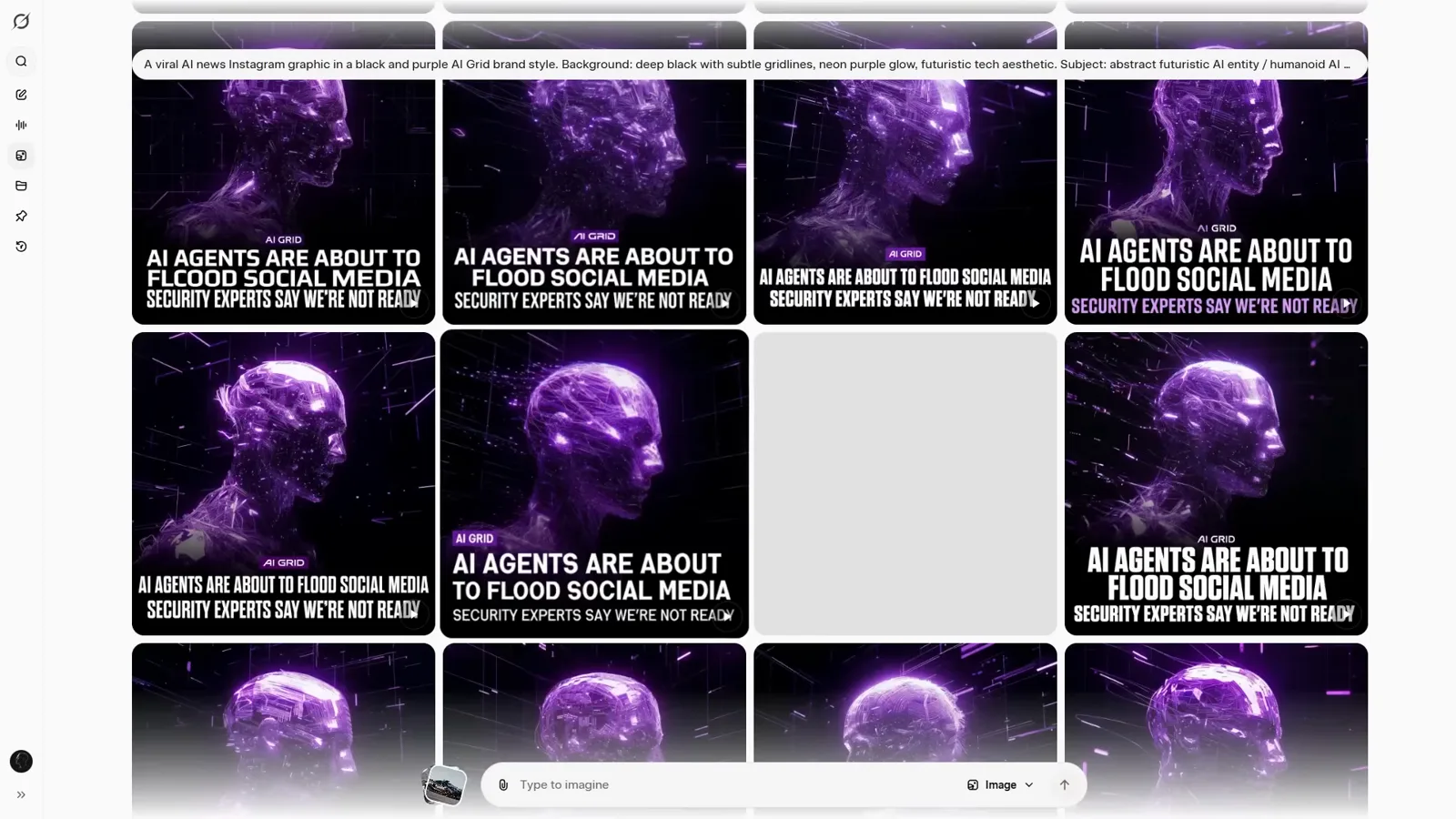
Short headlines render clean; long copy breaks.Watch at 5:00
From Still to Video, With Sound
- 12
Open the video menu on any image
The action menu's Make a video entry exposes the settings before you commit: 480p preserves quota, 6-second clips render fastest, and the aspect ratio follows the image. Audio is on by default — Grok Imagine generates speech and ambience with the clip.
480p at 6 seconds is the quota-friendly default.Watch at 8:20 - 13
Generate the frame first, then animate it
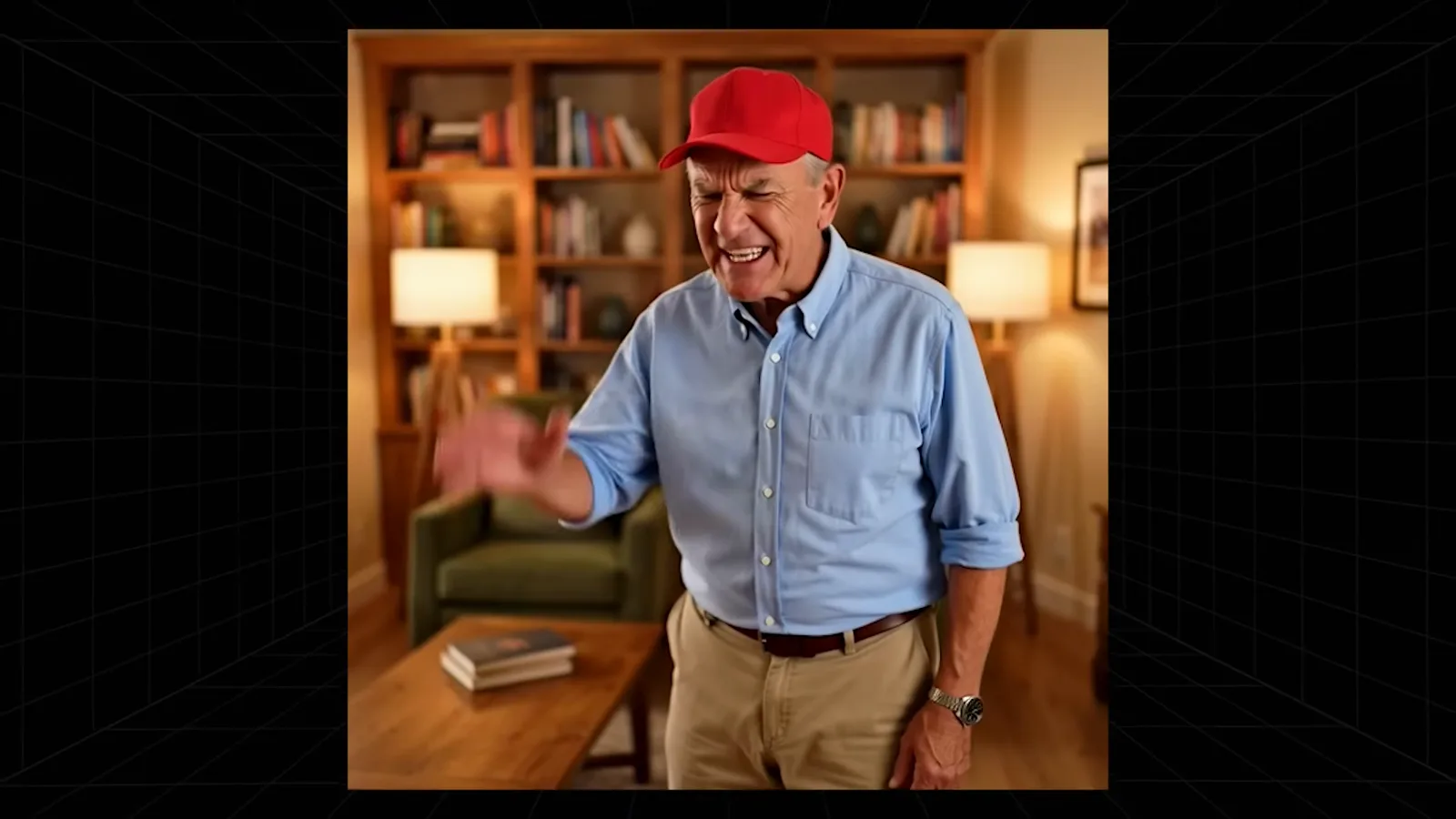
The demo prompt “an old man complaining about taxes, he's wearing a red hat” produces a sixteen-frame batch of stills first. Picking the face you like before animating beats prompting the video blind — the image batch is your casting call.
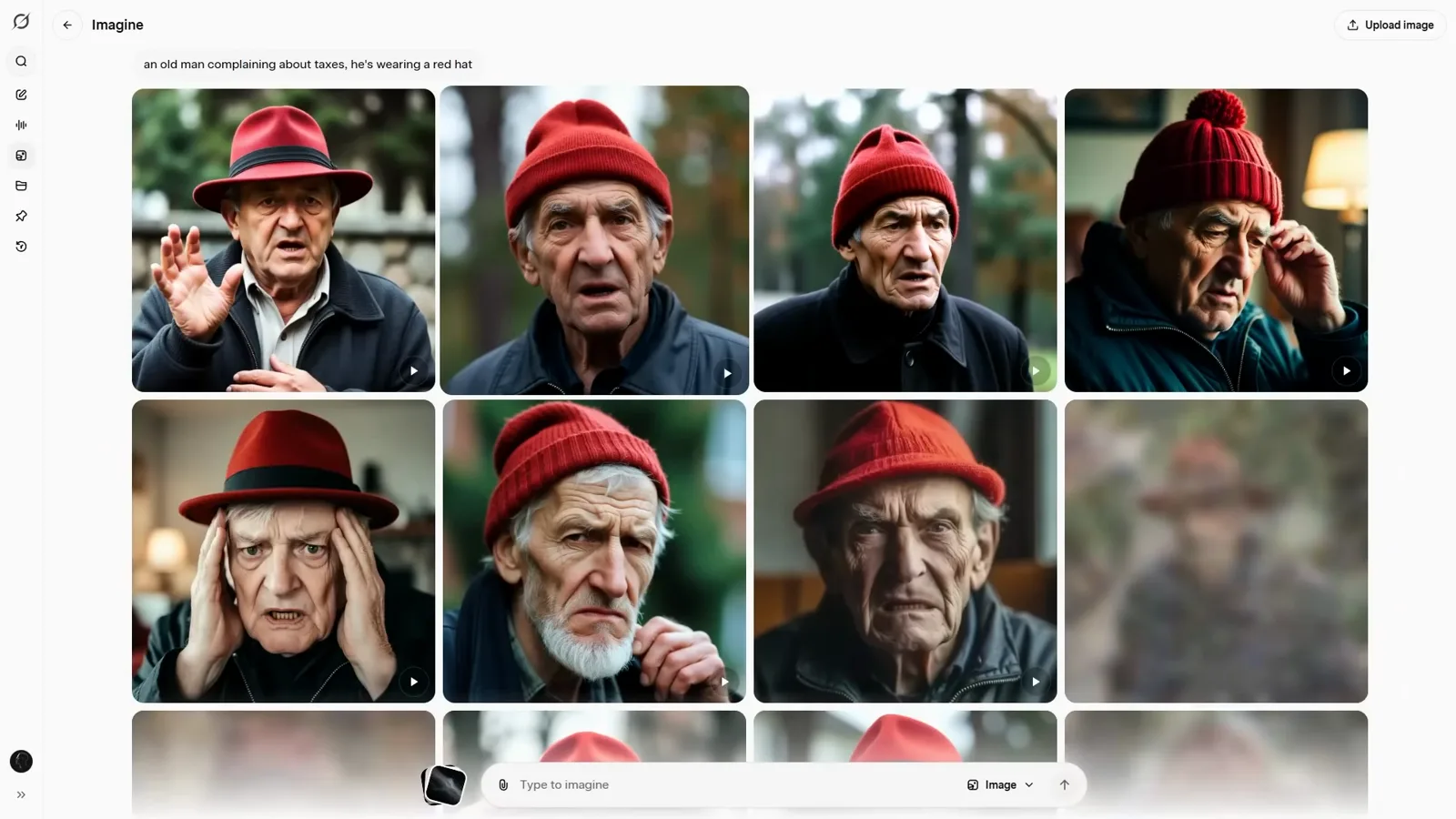
The image batch is the casting call; animate the winner.Watch at 9:00
Uploads, Remixes, and Upscaling
- 14
Untick auto-video before uploading
Drop in your own photo and Imagine immediately starts animating it — the Auto-generate videos on upload toggle is on by default. Switch it off first if you only want to edit the still; either way, the upload converts to a six-second clip in seconds.
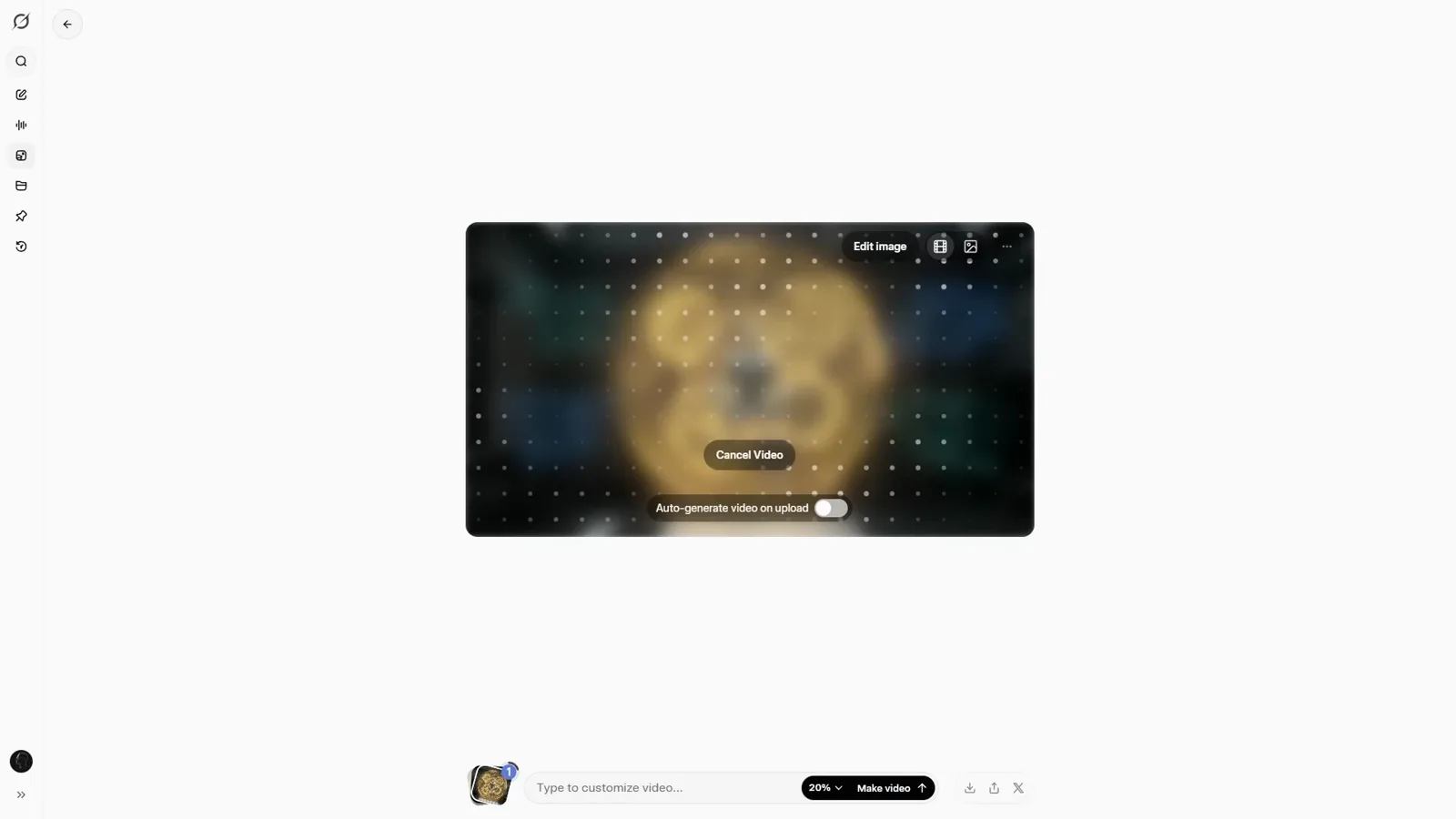
The upload toggle fires before you are asked.Watch at 9:42 - 15
Remix a clip from the explore wall
Find a video you like on the explore wall and open its starting frame. You keep the composition and swap the action — that is the remix path, and it doubles as a masterclass in how motion prompts are written.
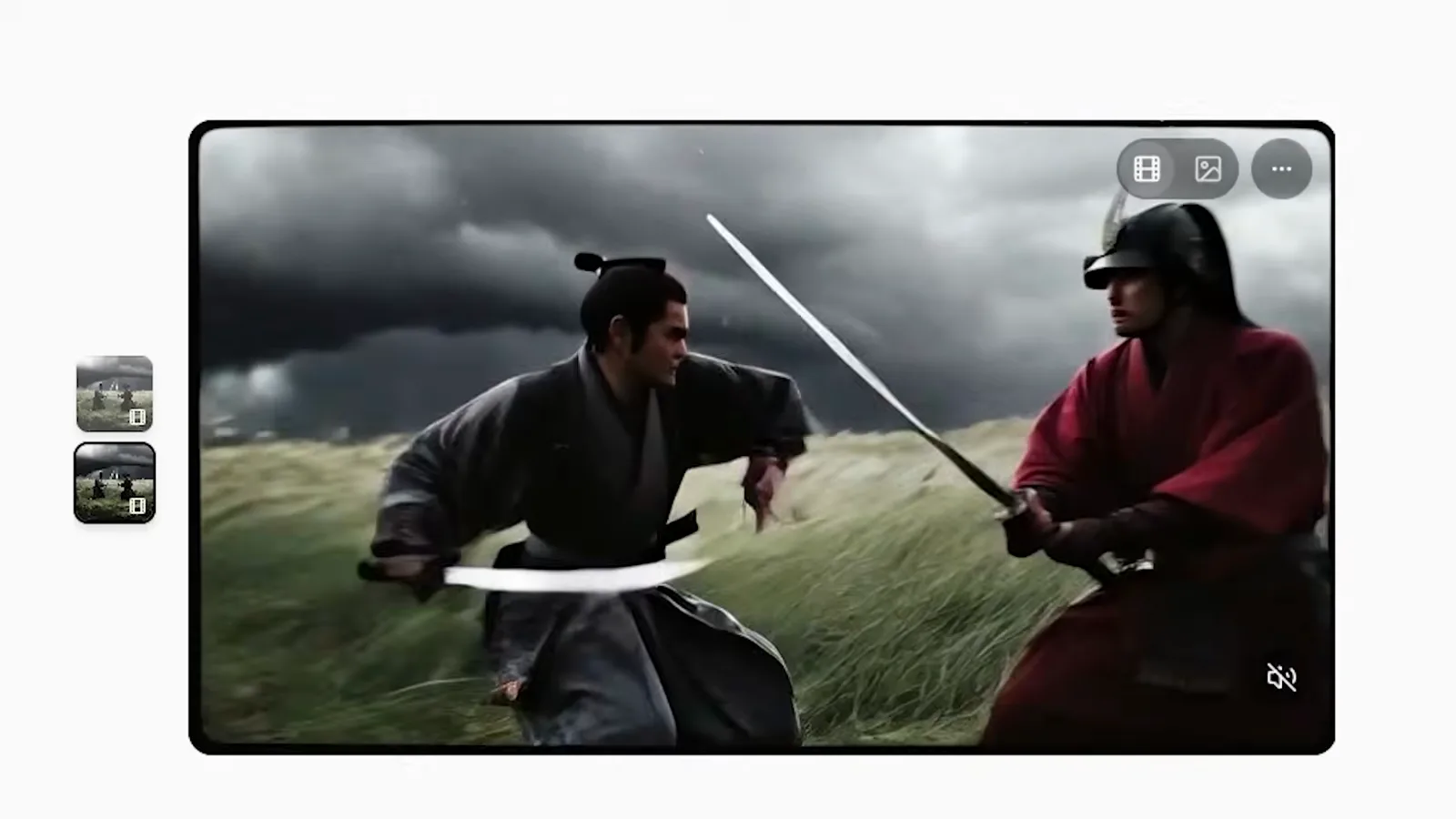
Keep the frame, rewrite the action.Watch at 10:48 - 16
Rewrite the action, keep the look
The demo takes the samurai duel's first frame and prompts “samurai pulls out a gun and starts firing.” The result keeps the storm-lit field and costumes while the action changes — generative, imperfect, and usually one re-roll away from usable.
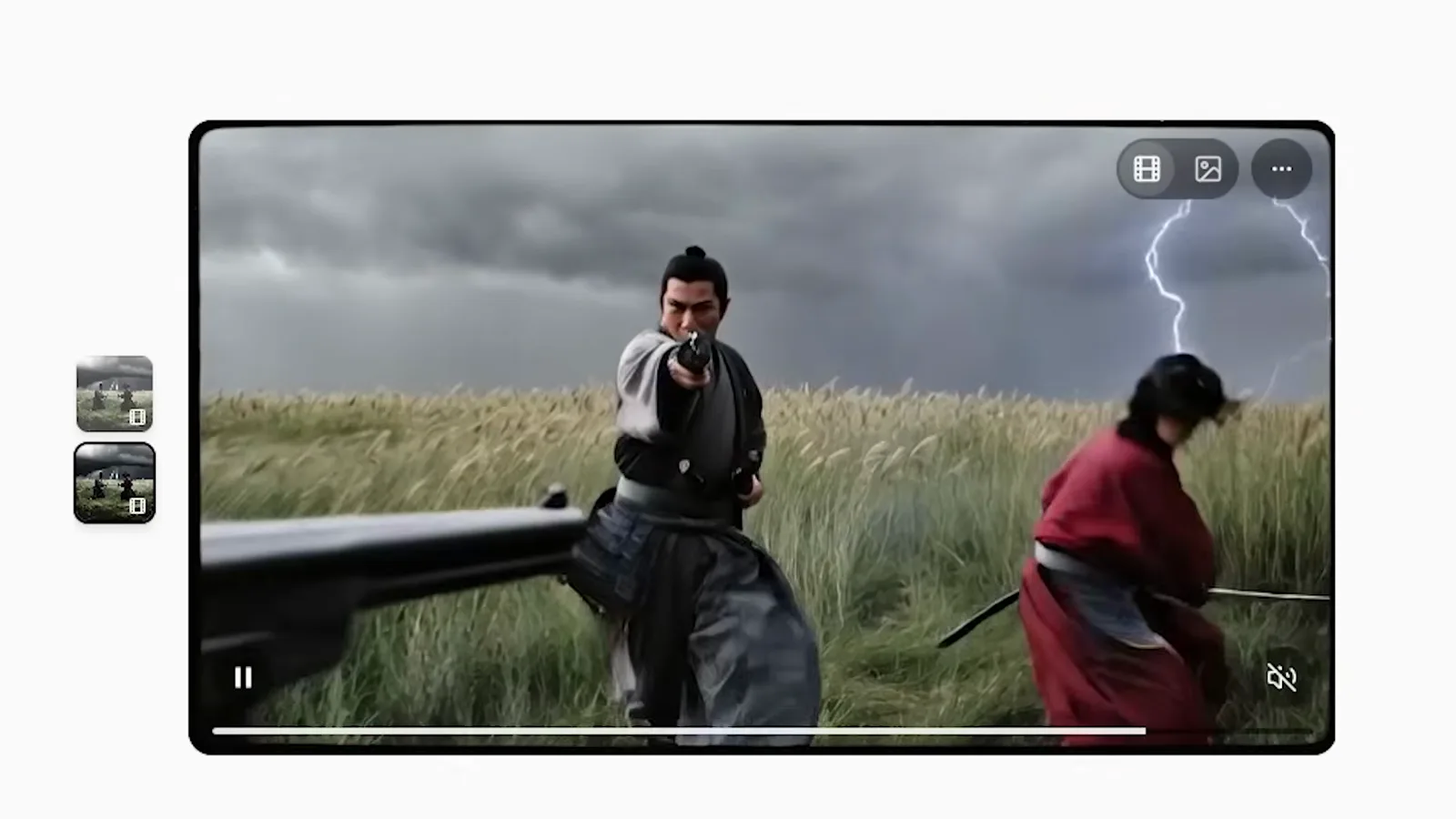
Same storm, same costume — new action.Watch at 10:52 - 17
Upscale before you download
Open the clip's menu and hit Upscale video — about ten seconds for a sharper master. Downloading is a browser right-click, Save video as. Upscale anything destined for a bigger screen; the 480p original is fine for drafts.
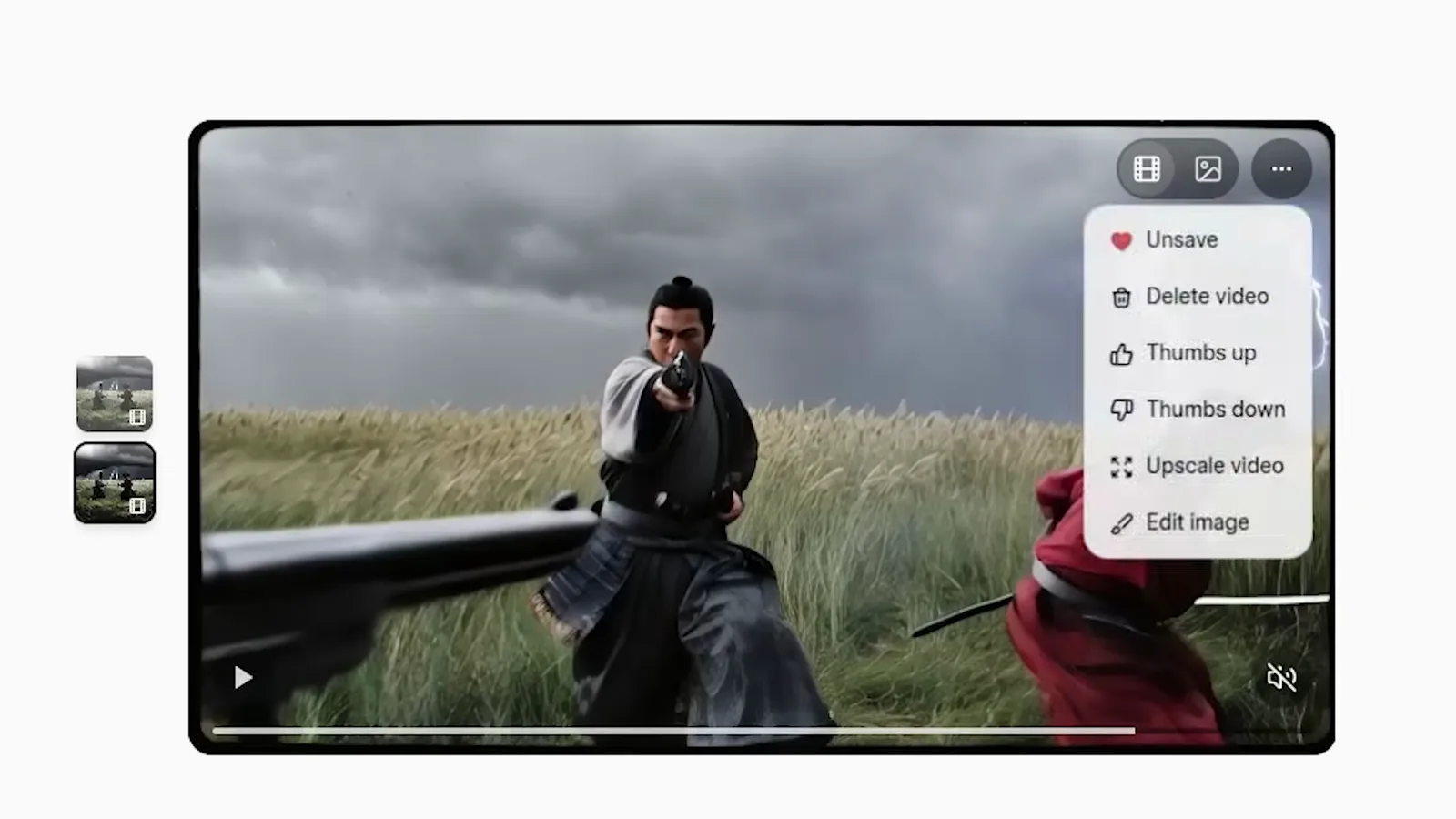
Ten seconds to a sharper master.Watch at 11:02