

Grok Imagine Prompts: The 2026 Copy-Ready Playbook
Anyone can write “a dragon in a forest.” The people getting magazine-grade results from Grok Imagine are running a loop: draft a plain prompt, hand it to Grok's chat for a rewrite, compare the variants, and steal the structure of the best one. This playbook walks that loop step by step with real screens — plus the video-action prompt formula and five camera moves from a 38-move cinematography library. Every prompt shown is copy-ready, and every step links back to the exact minute of its source video.
Source & credits
Screenshots in this guide are captured from Skillcraft AI's public walkthrough video. Every step links back to the exact moment it shows, so you can follow along.
Skillcraft AI ↗The Prompt Loop: Write, Improve, Regenerate
- 1
Start with a plain, concrete prompt
Open Imagine and describe the scene the way a camera would see it — “a heroic warrior battles a shadowy eldritch monster in a misty fantasy forest.” Subject, action, setting. Skip the style words for now; the loop that follows adds the polish for you.
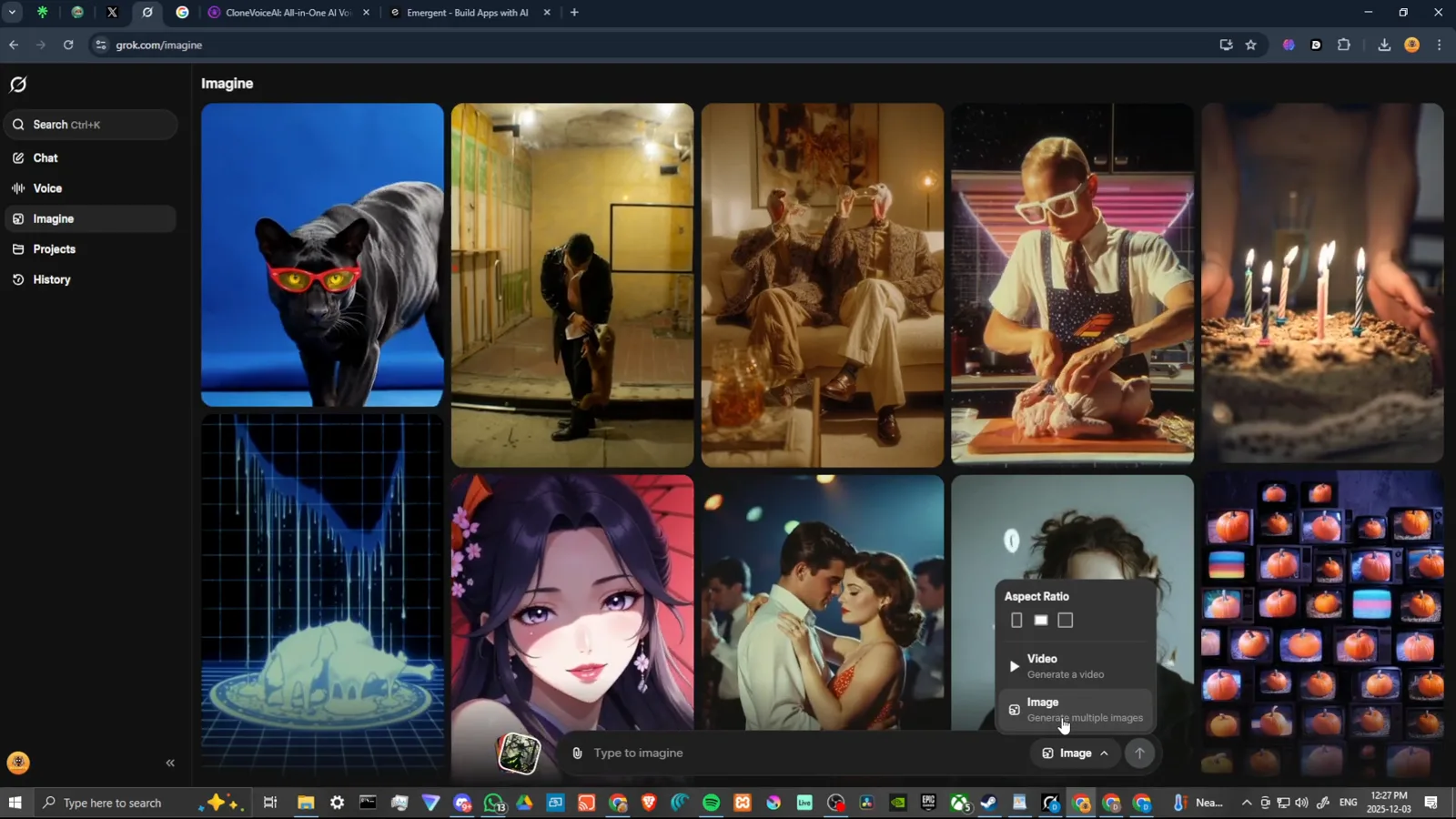
Plain and concrete first — polish comes from the loop.Watch at 0:30 - 2
Hand the prompt to Grok chat
The technique this whole guide rides on: take your draft to Grok's chat and ask it to improve the prompt. The reply comes back with complete rewrites — an enhanced version, a darker variant, a shorter punchier one — each one copy-ready, not writing tips.
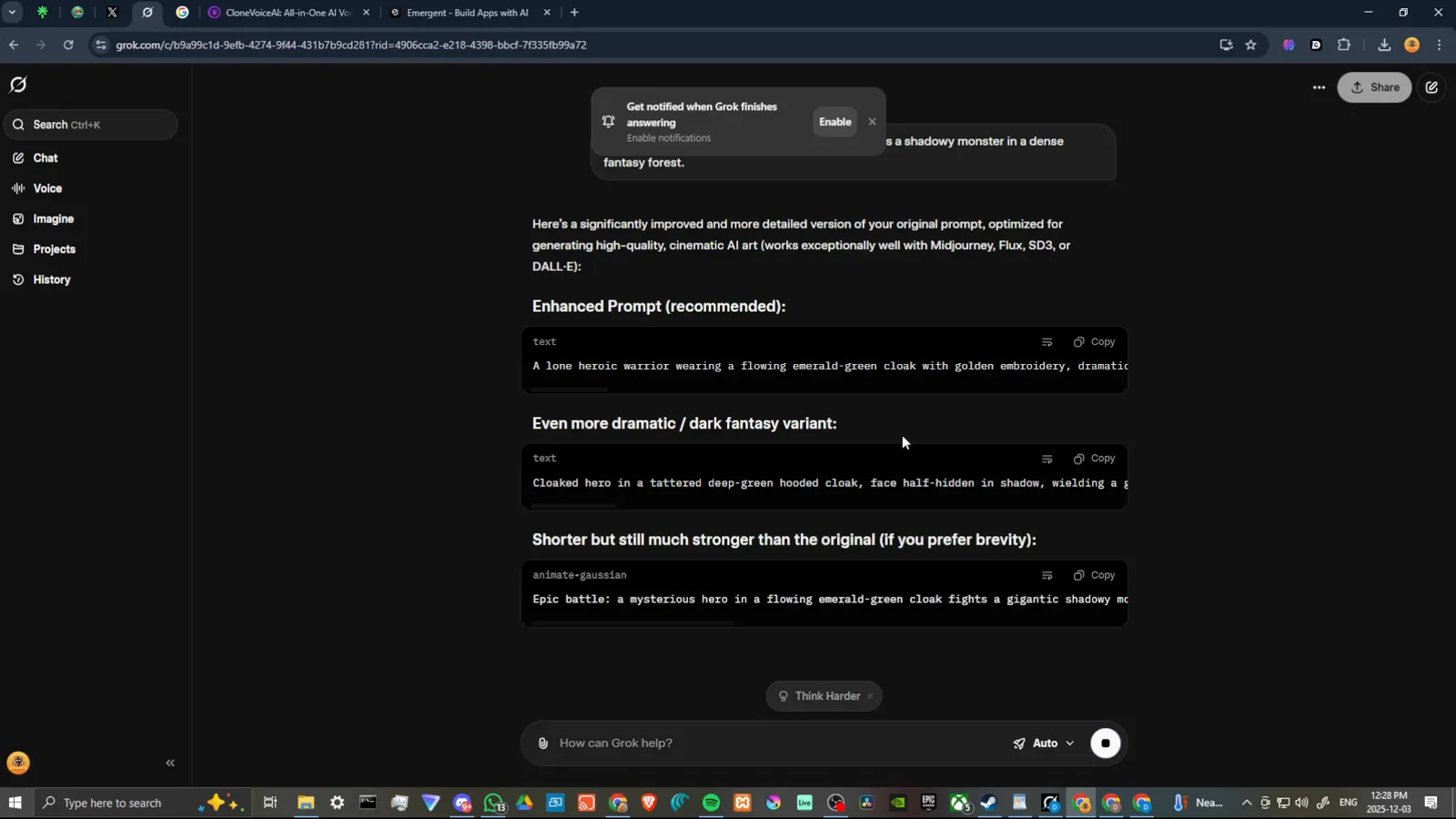
Ask for improvements — get whole prompts back, not tips.Watch at 1:45 - 3
Compare the rewrite options
The chat lays its variants out side by side: “Enhanced Prompt (recommended)” adds lens, lighting, and atmosphere; “Even more intensity / dark fantasy variant” pushes shadows and scale; the short version strips everything down to one vivid line. Read them as a lesson in what each phrase does.
Three rewrites, three lessons in phrasing.Watch at 4:45 - 4
Steal the structure, not just the words
The enhanced prompt is a template in disguise: a scene line for the establishing frame, a shot list for the action, lens and lighting notes at the end. Change the subject and keep the skeleton — this is how prompt libraries get built.
Scene, shots, lens — a reusable skeleton.Watch at 5:30 - 5
Run the enhanced prompt in Imagine
Paste the rewrite back into Imagine and generate. The misty-forest batch that comes back is the same subject at a different craft level — depth, mood, and lighting the plain prompt never reached. Like the best frame before iterating further.
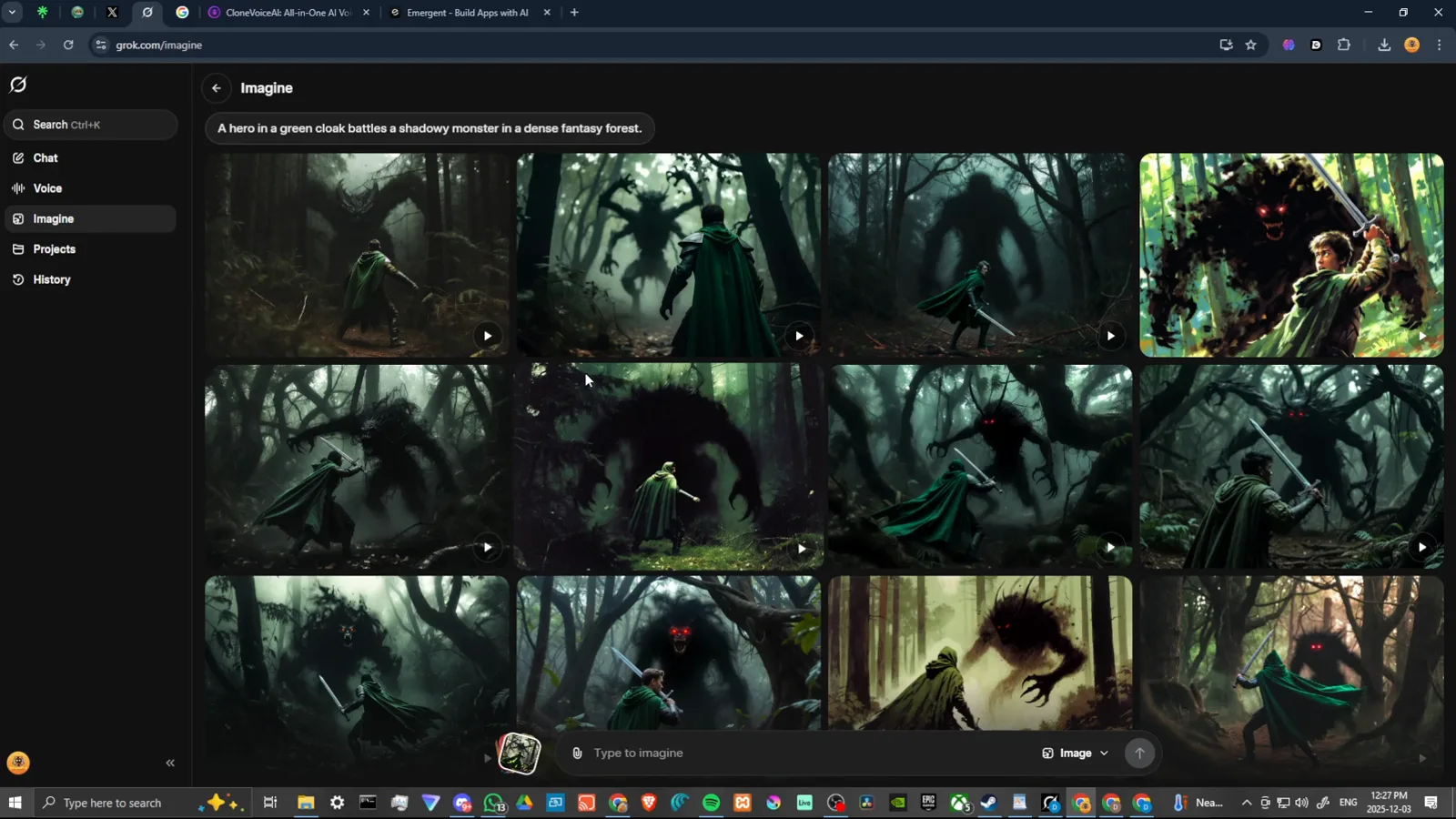
Same subject, different craft — the loop paying off.Watch at 1:15 - 6
For video, prompt the action only
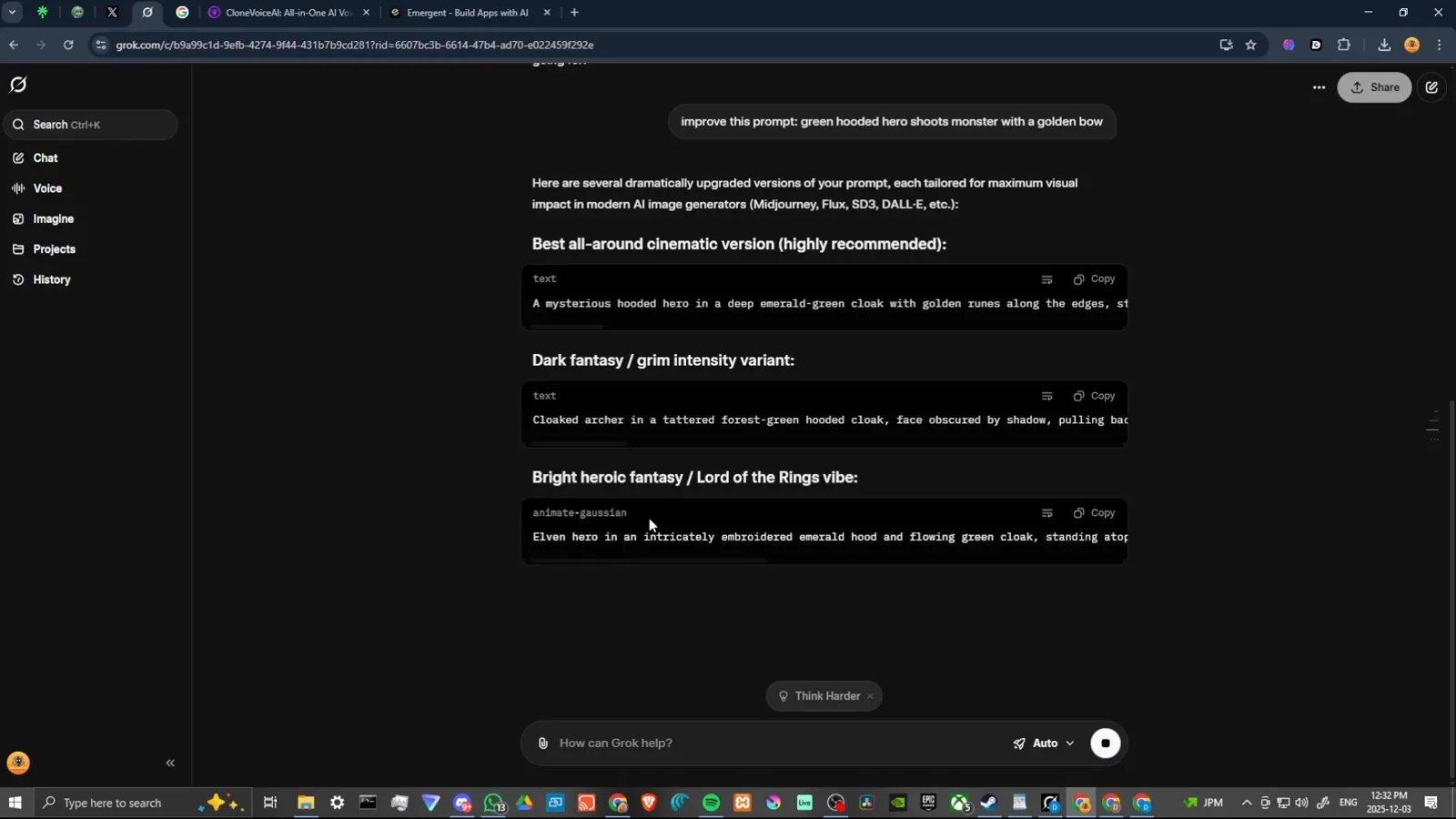
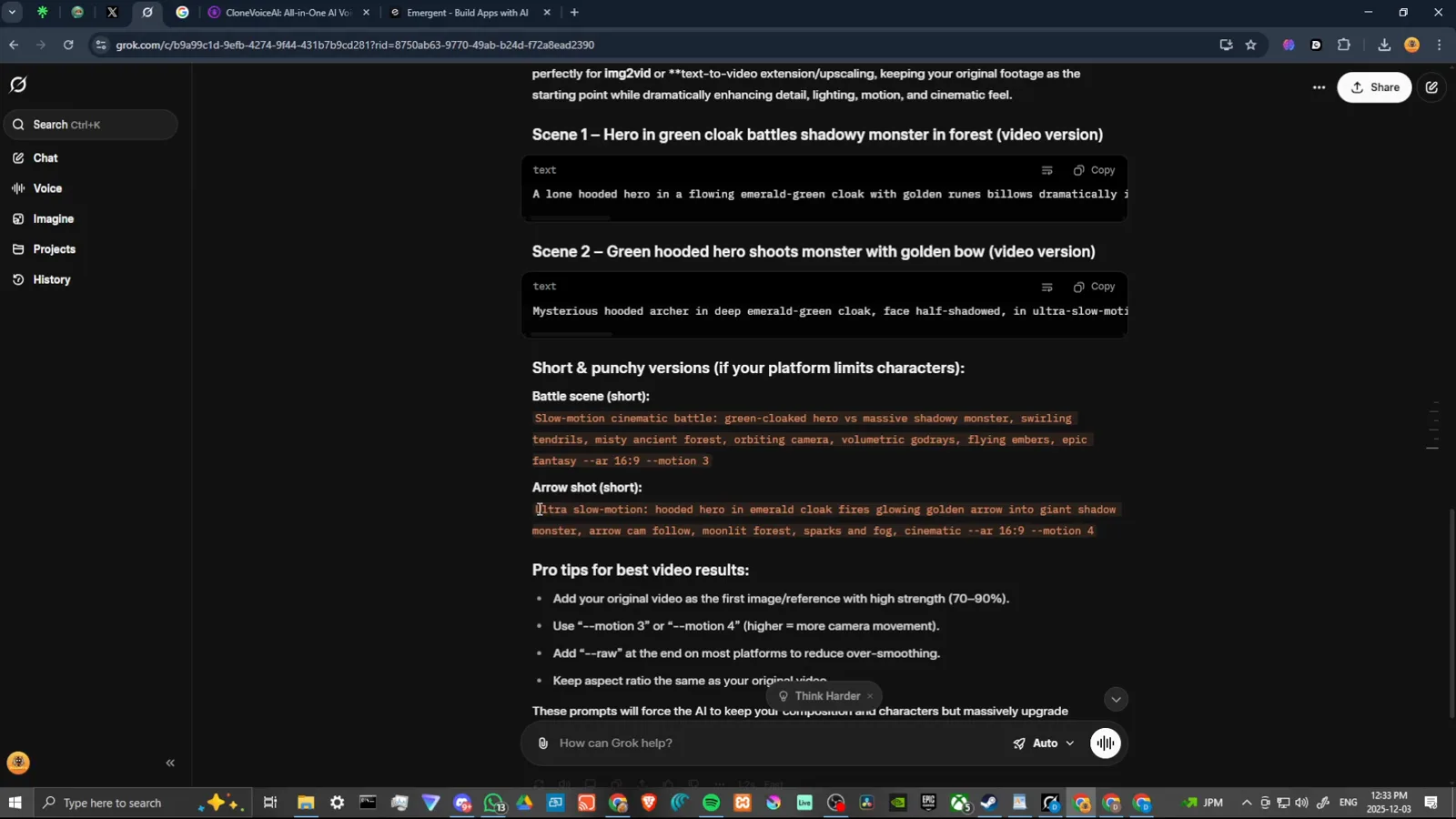
With a still selected, the video prompt box only needs motion: “green hooded hero shoots monster with a golden bow.” The image carries composition and style; the video prompt carries verbs. Select the text and reword it until the action reads like a shot direction.
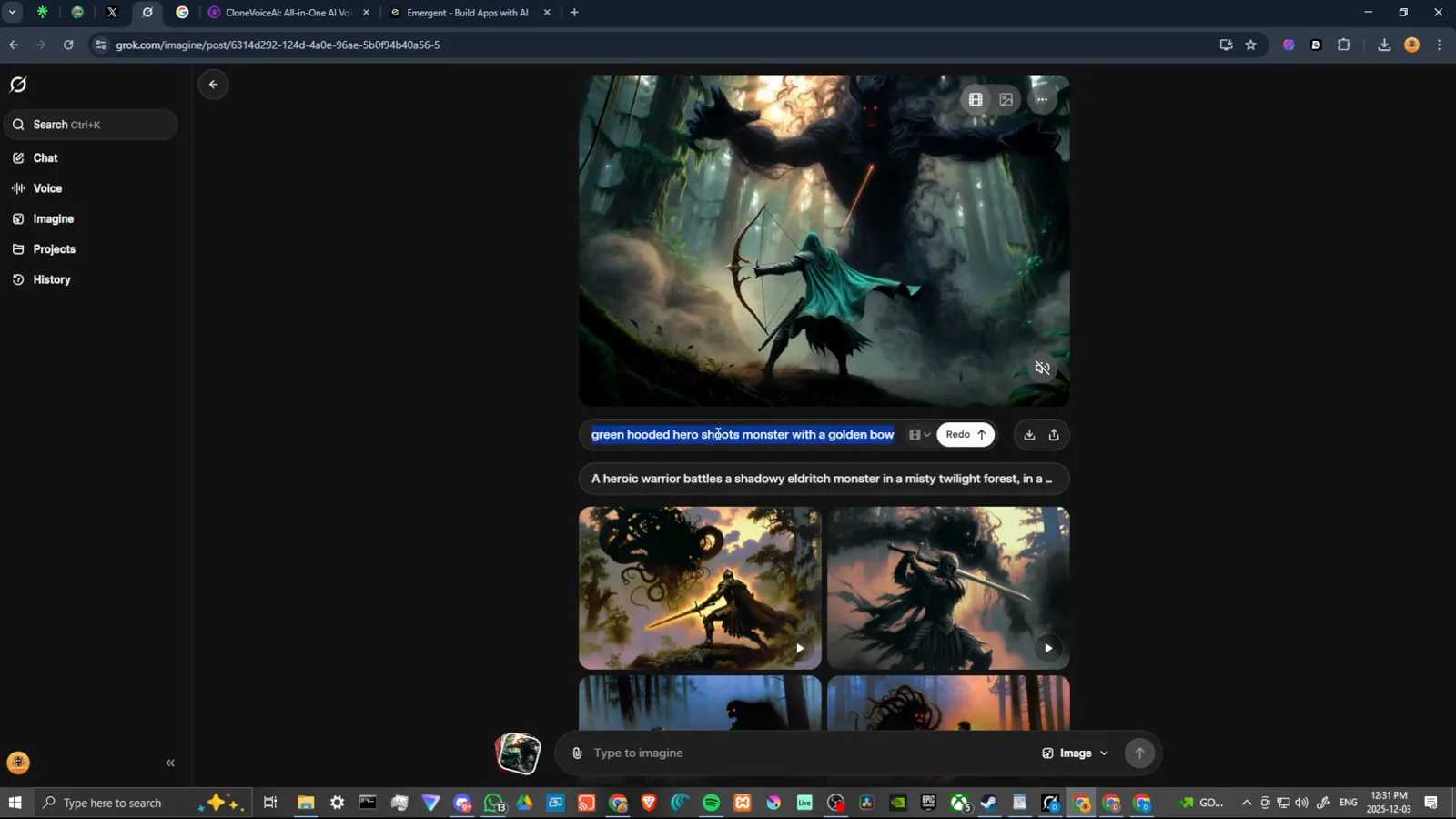
The still owns the look; the prompt owns the verbs.Watch at 4:20 - 7
Iterate — every re-roll teaches phrasing
The demo re-rolls the same scene as a fire-wreathed variant and compares takes side by side. Note what changed in the prompt each round and what it did to the frame; that habit — not any magic word — is what makes people good at Imagine.
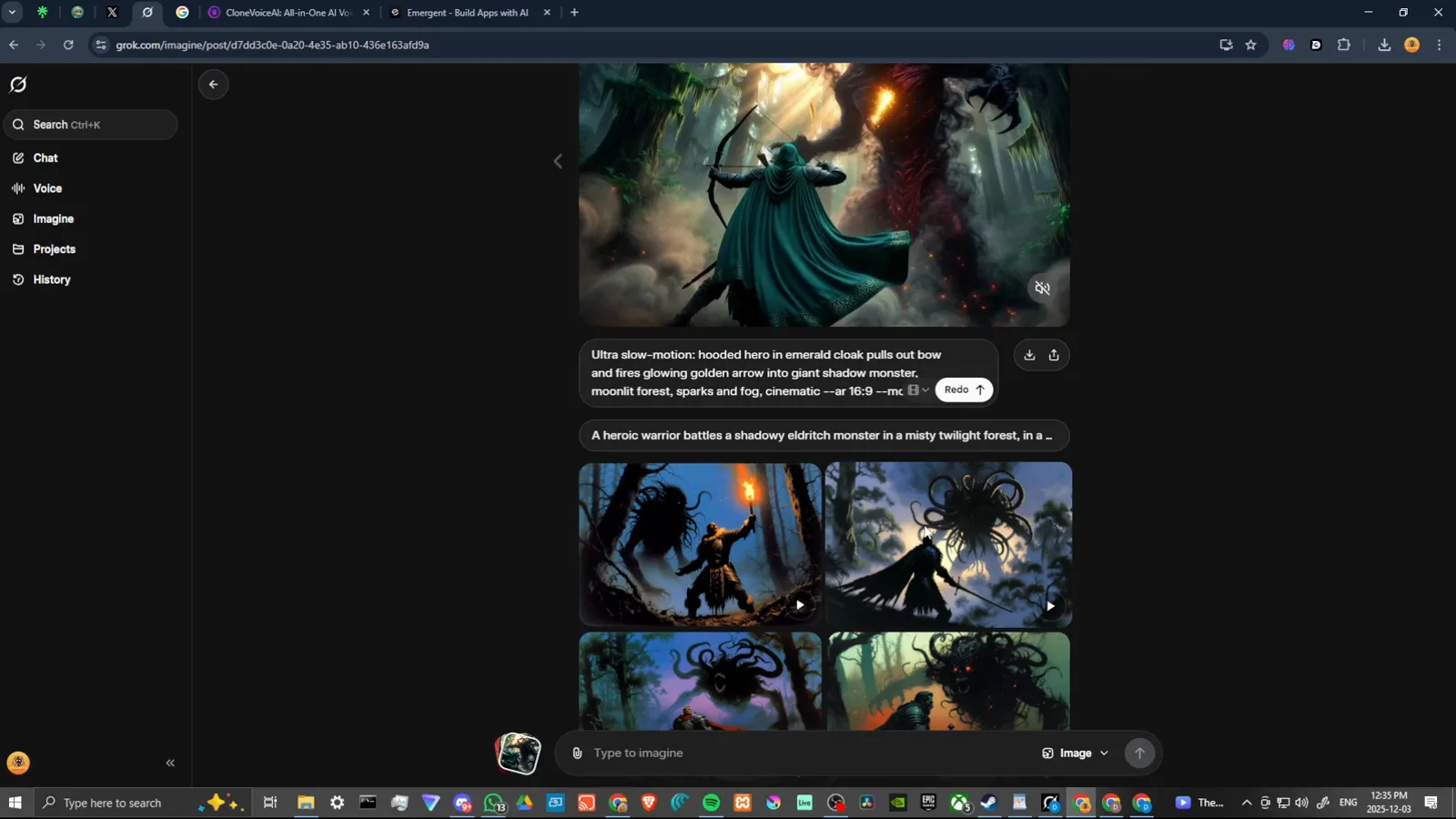
Change one phrase, learn one lesson.Watch at 7:30
Camera Moves That Read as Professional
- 8
Fast dolly in (rush) for urgency
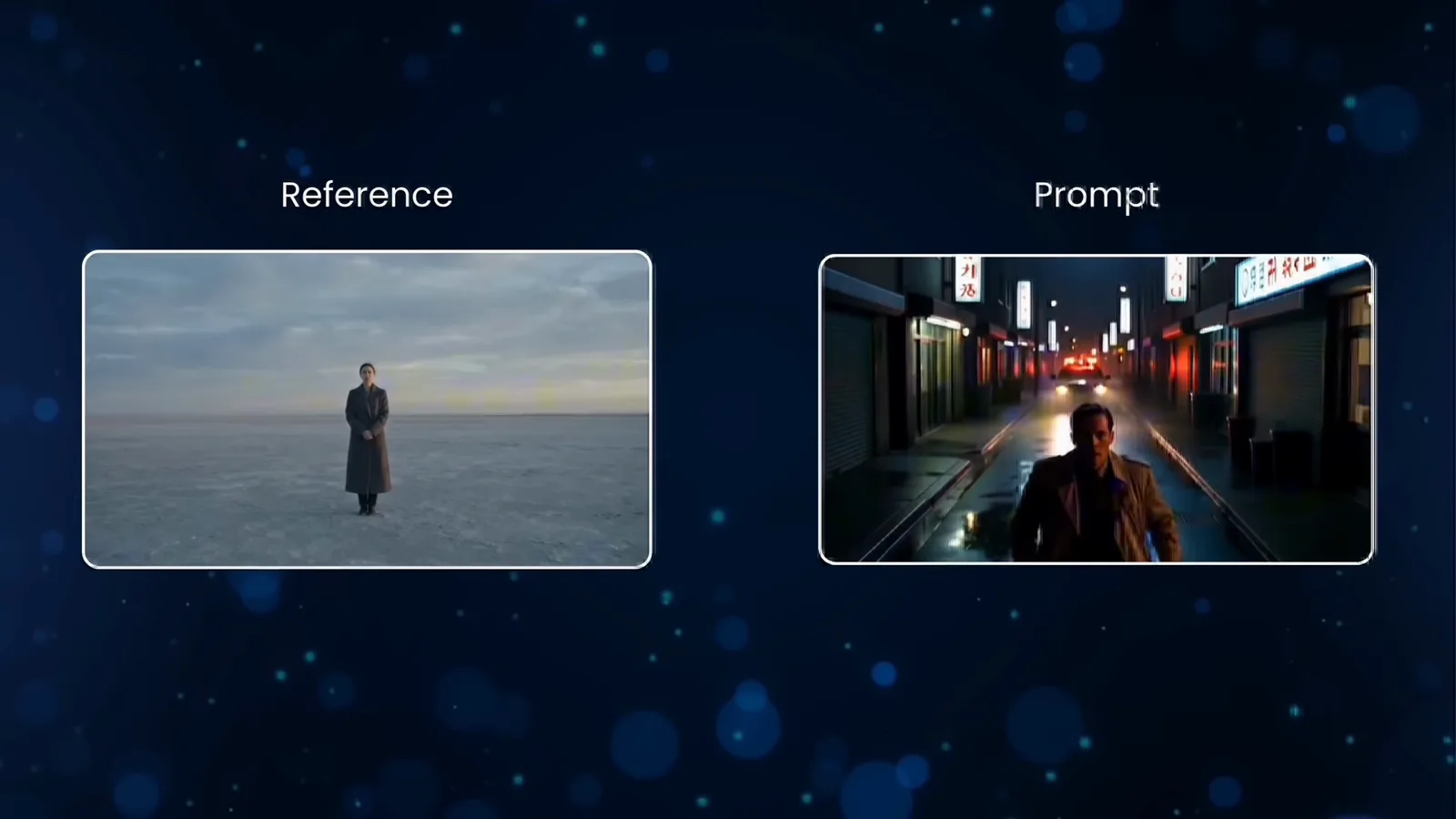
The camera surges toward the subject and compresses space — use it at moments of realization or danger. Worked example from the library: “Fast dolly in on a determined detective as sirens echo in a narrow, rain-soaked alley at night, neon reflections flickering across wet pavement.”
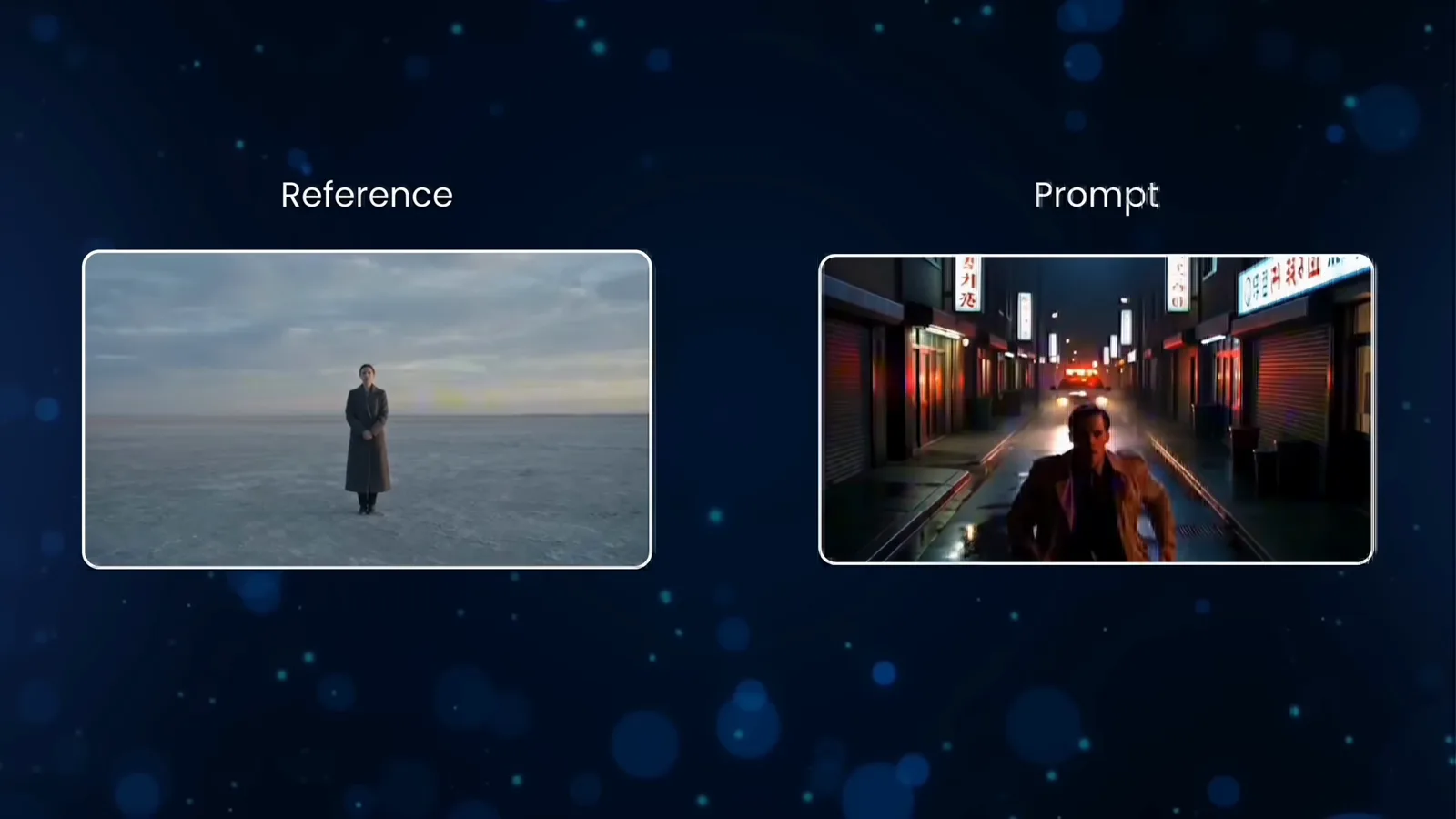
Name the move, then the scene — the model knows the grammar.Watch at 2:18 - 9
Dolly zoom (vertigo) for dread
The camera pulls back while the lens pushes in, warping perspective while the subject stays fixed — the classic vertigo effect. Spell out the contradiction (“subject stays the same size despite extreme perspective distortion”); it works because the words tell the model which impossible thing to render.
Describe the impossible precisely and it renders.Watch at 2:30 - 10
Top-down god's eye for scale and fate
The straight-down angle abstracts everything into graphic geometry — crowds become patterns, streets become circuit boards. Use it for isolation, destiny, or symbolism at pivotal moments; it is the cheapest way to make a generated scene feel composed.
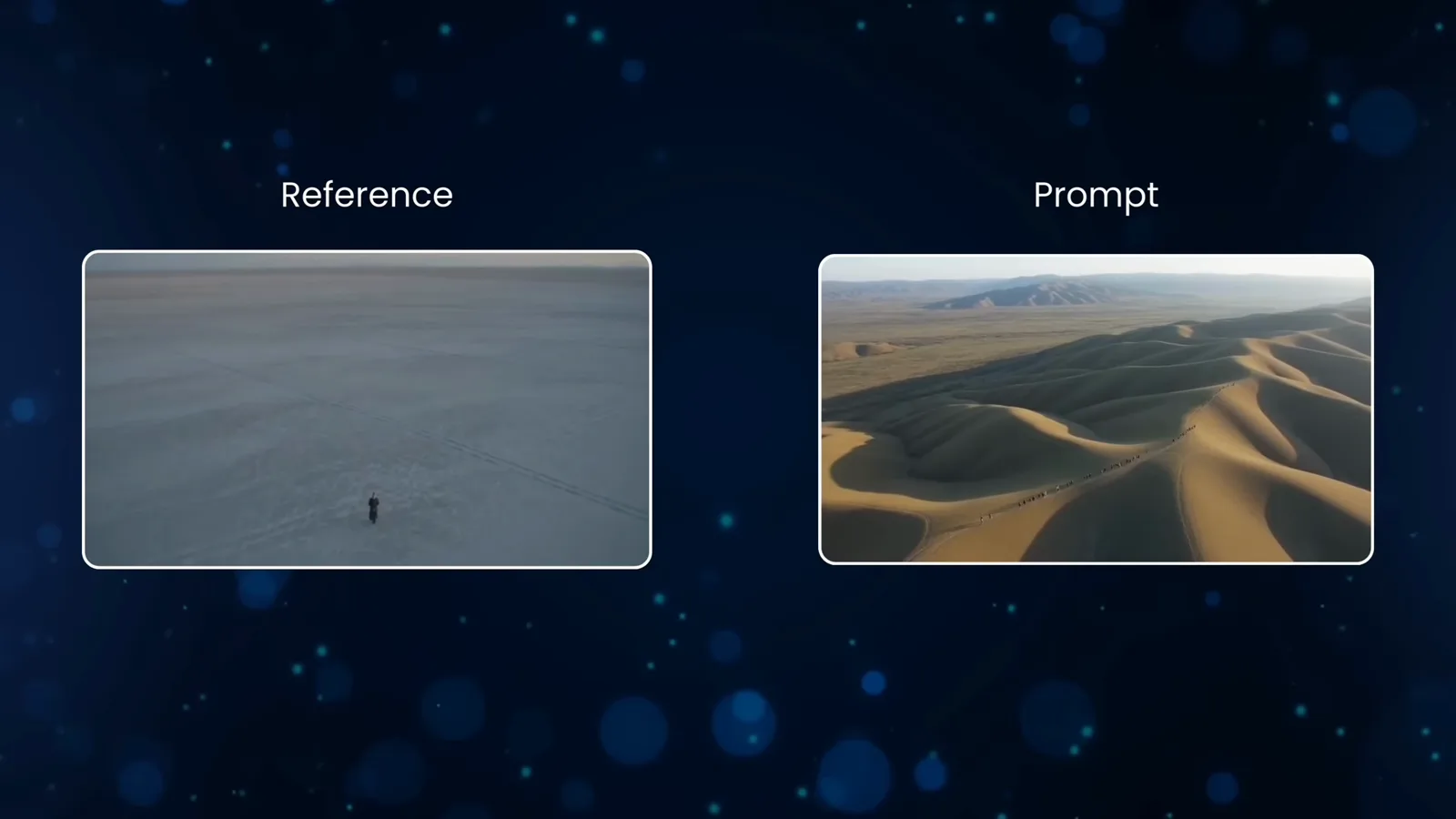
Straight down turns a scene into a graphic.Watch at 10:55 - 11
Whip pan to bridge spaces
A fast lateral sweep that blurs one space into another — a cut without cutting. Prompt it as motion between two named spaces (“whip pan from the corridor into the control room”) and use it to hide the seams of a six-second clip.
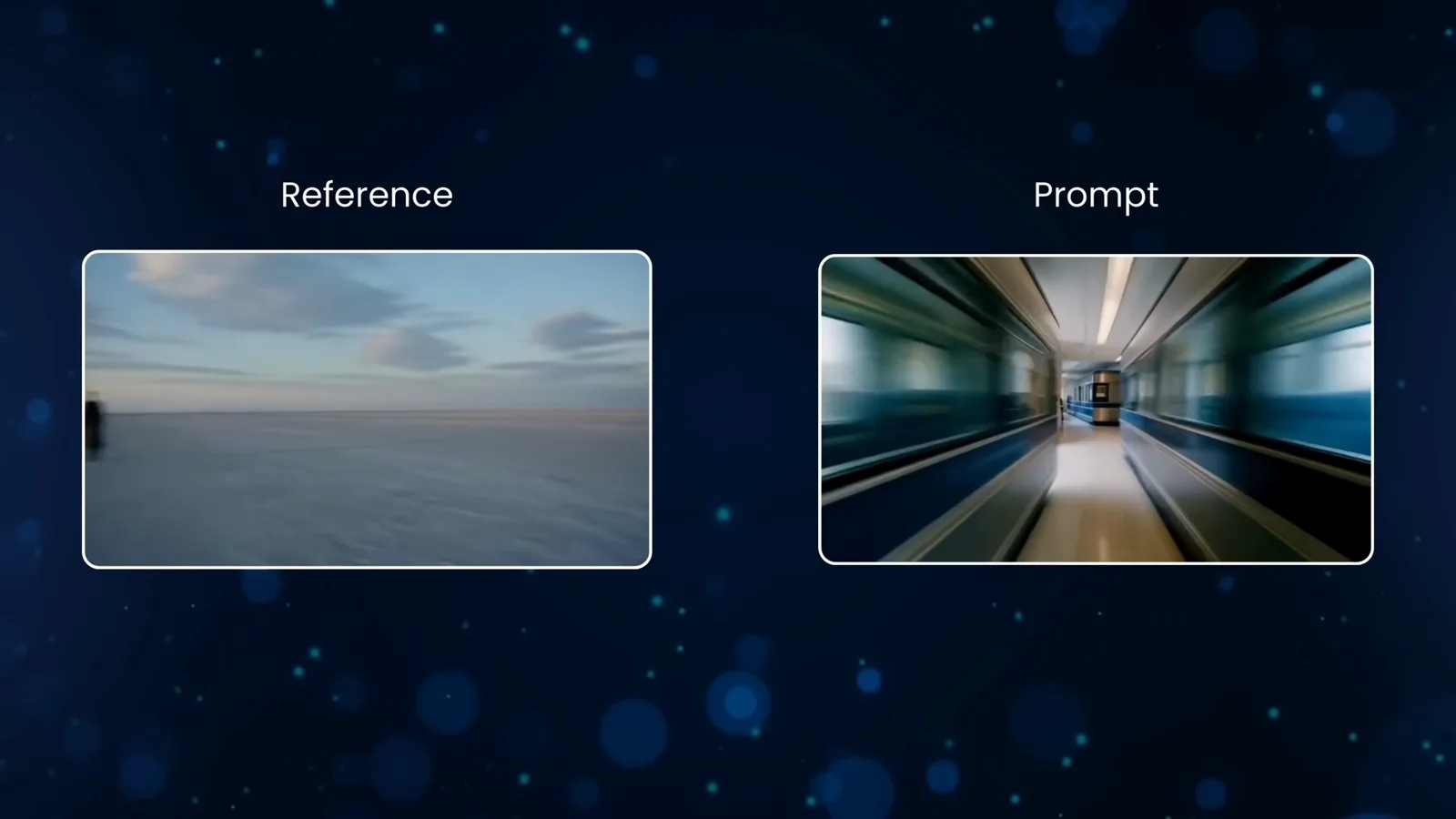
Blur the transition, sell the continuity.Watch at 12:25 - 12
POV walk for immersion
The camera becomes a person: eye level, walking pace, one continuous path. It is the most immersive move in the library and the most fragile — keep the prompt to a single route (“POV walk down the night market alley toward the food stalls”) or the walk stutters.
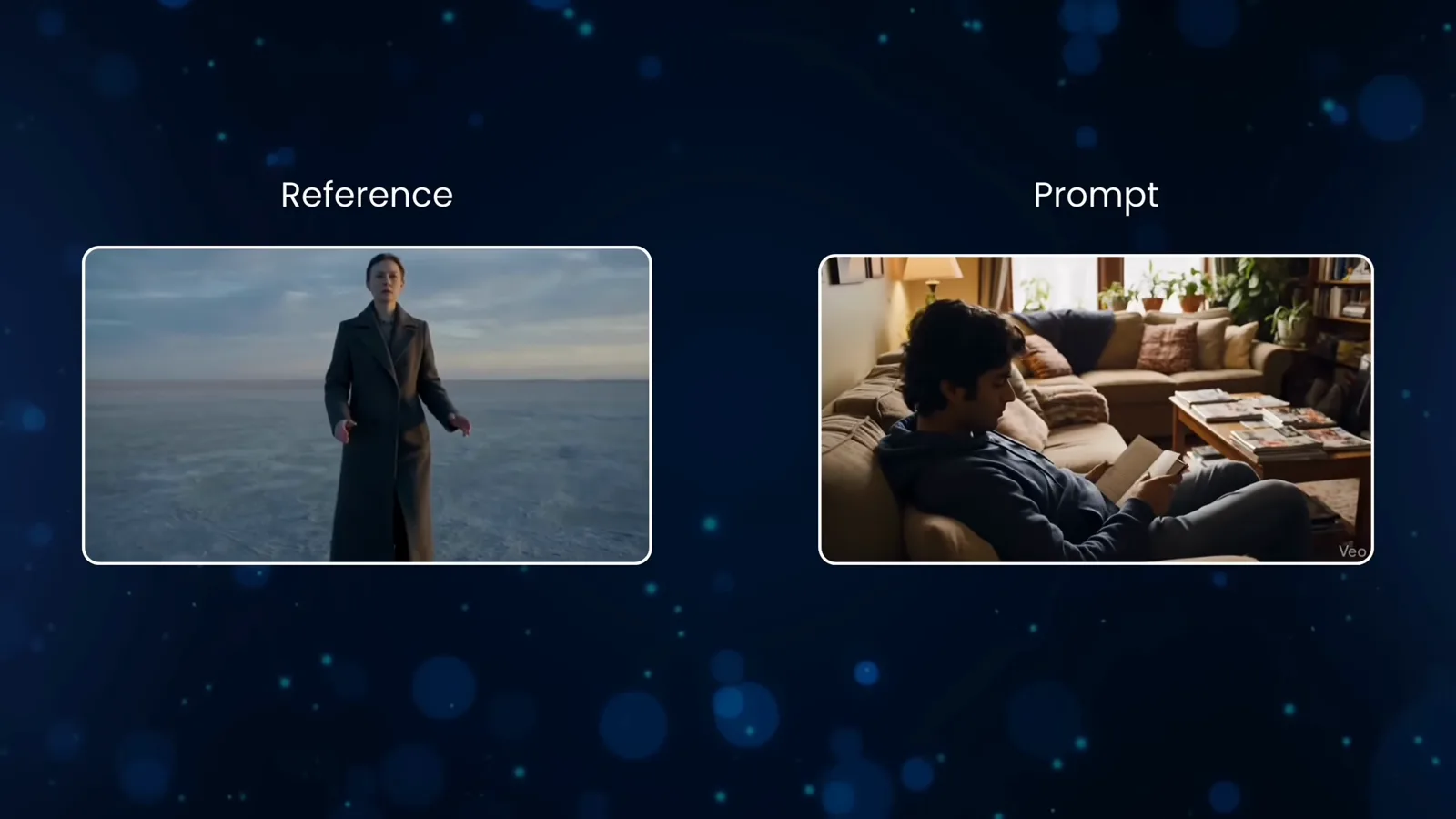
One path, walking pace, no cuts.Watch at 13:35