

Claude Code Limits in 2026: Where to Check Them, How They Work, and How to Plan Ahead
The way Claude counts usage trips up almost everyone: a 5-hour session window and a weekly cap run at the same time, and Claude Code draws from the same plan-level pool as claude.ai. This guide turns two of the clearest video walkthroughs out there — The AI Productivity Coach's tour of the limit screens and Greg's breakdown of how sessions really work — into a step-by-step reference with the interface states that matter. One timing note first: the temporary 50% weekly-limit boost for Claude Code expired on September 14, undefined, and what stays is the permanent +25% weekly boost, so any numbers you saw during the promo period are not the new normal.
Source & credits
Screenshots in this guide are captured from The AI Productivity Coach's public walkthrough video. Every step links back to the exact moment it shows, so you can follow along.
The AI Productivity Coach ↗How the Two Clocks Work
- 1
Recognize the wall when you hit it
When a 5-hour window runs dry, Claude stops the conversation with a banner: “You're now past your plan's included usage. Your session limit resets at 9:50 PM.” The reset time in that banner is the most useful piece of information on screen — it tells you whether to wait it out or switch tools. Claude Code surfaces the same plan-level standing in the terminal with the /usage command, so you can check without leaving your editor.
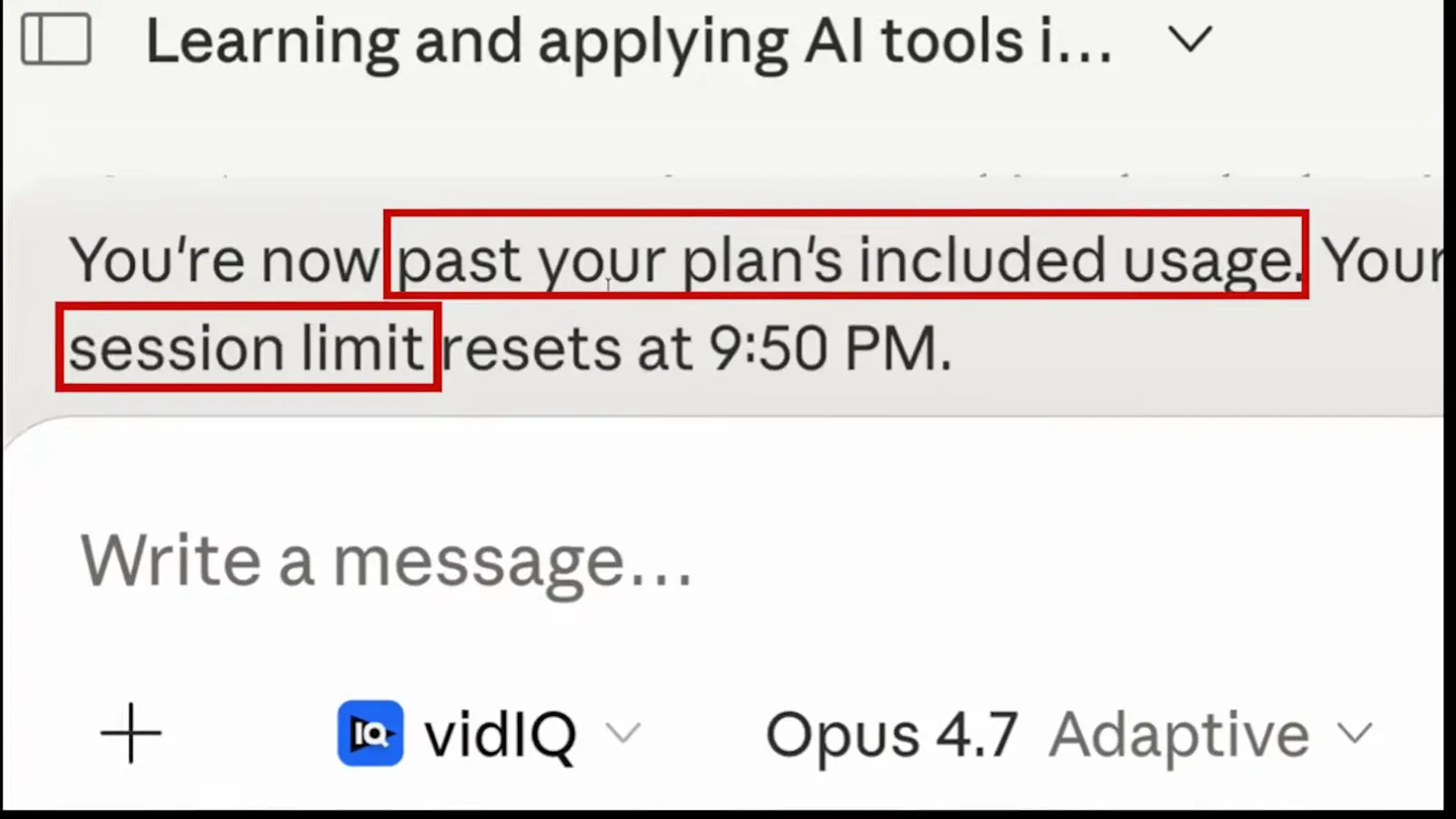
The moment a 5-hour session window runs out — note the reset time in the banner.Watch at 0:03 - 2
One session = five hours from your first message
Anthropic's own help text defines a session precisely: it starts with your first message and lasts 5 hours, and everything you send inside that window — same chat or a different one — counts toward the same session. The handwritten timeline shows the classic trap: a 9:00 AM login starts session one, which ends at 2:00 PM, and a single “hi” at 2:01 PM opens session two, running until 7:01 PM.
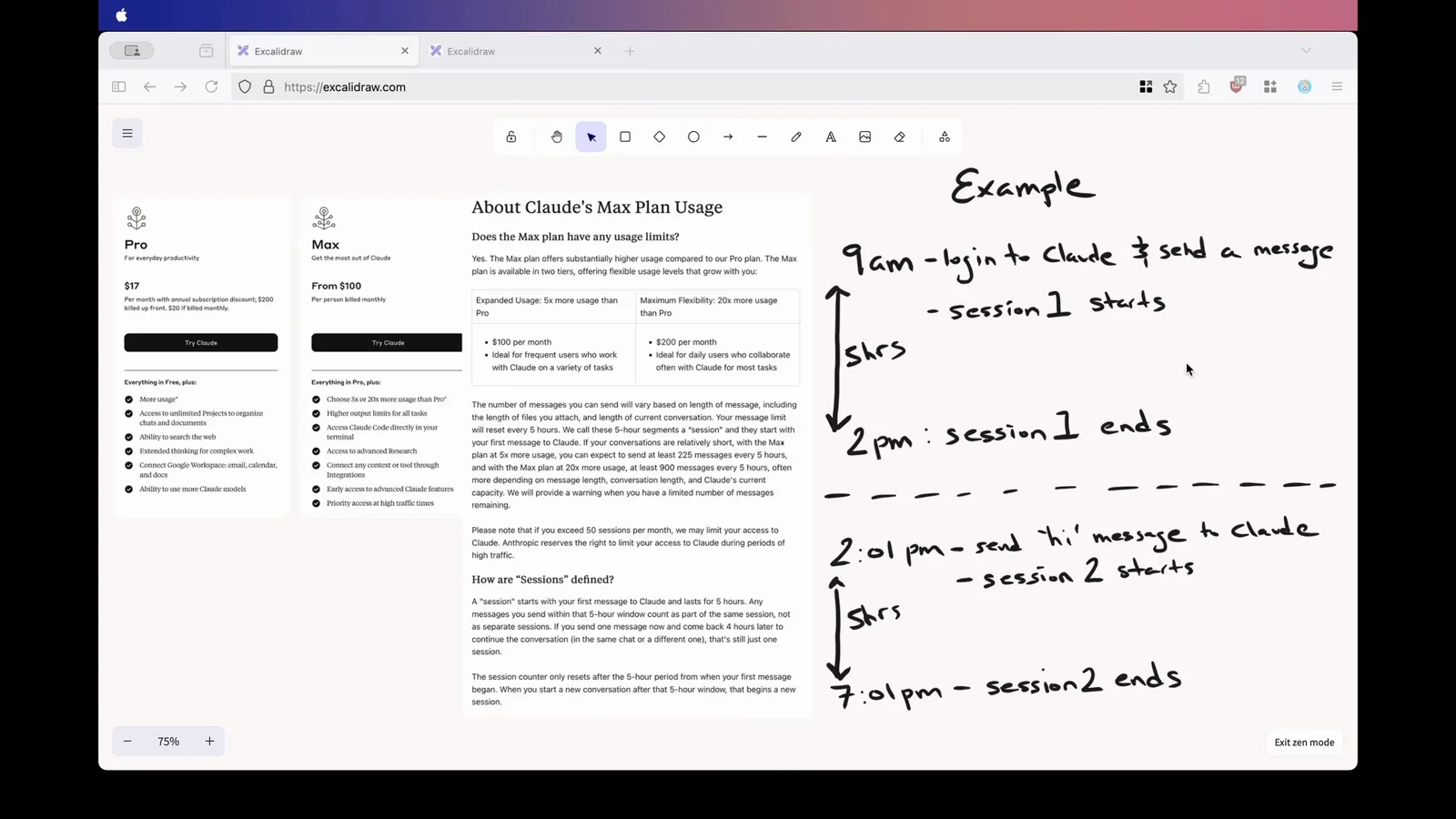
One message at 2:01 PM opens a brand-new 5-hour session.Watch at 1:00 - 3
Why caps exist: run the numbers
The back-of-the-envelope math explains Anthropic's caution. A $100 Max plan carries roughly 225 messages per 5-hour session; five back-to-back sessions a day compounds to about 150 sessions and 33,750 messages a month — thousands of dollars of inference against a $100 subscription. Caps are how the plan stays affordable for everyone. Run the same math on your own cadence and you will know which tier actually fits.
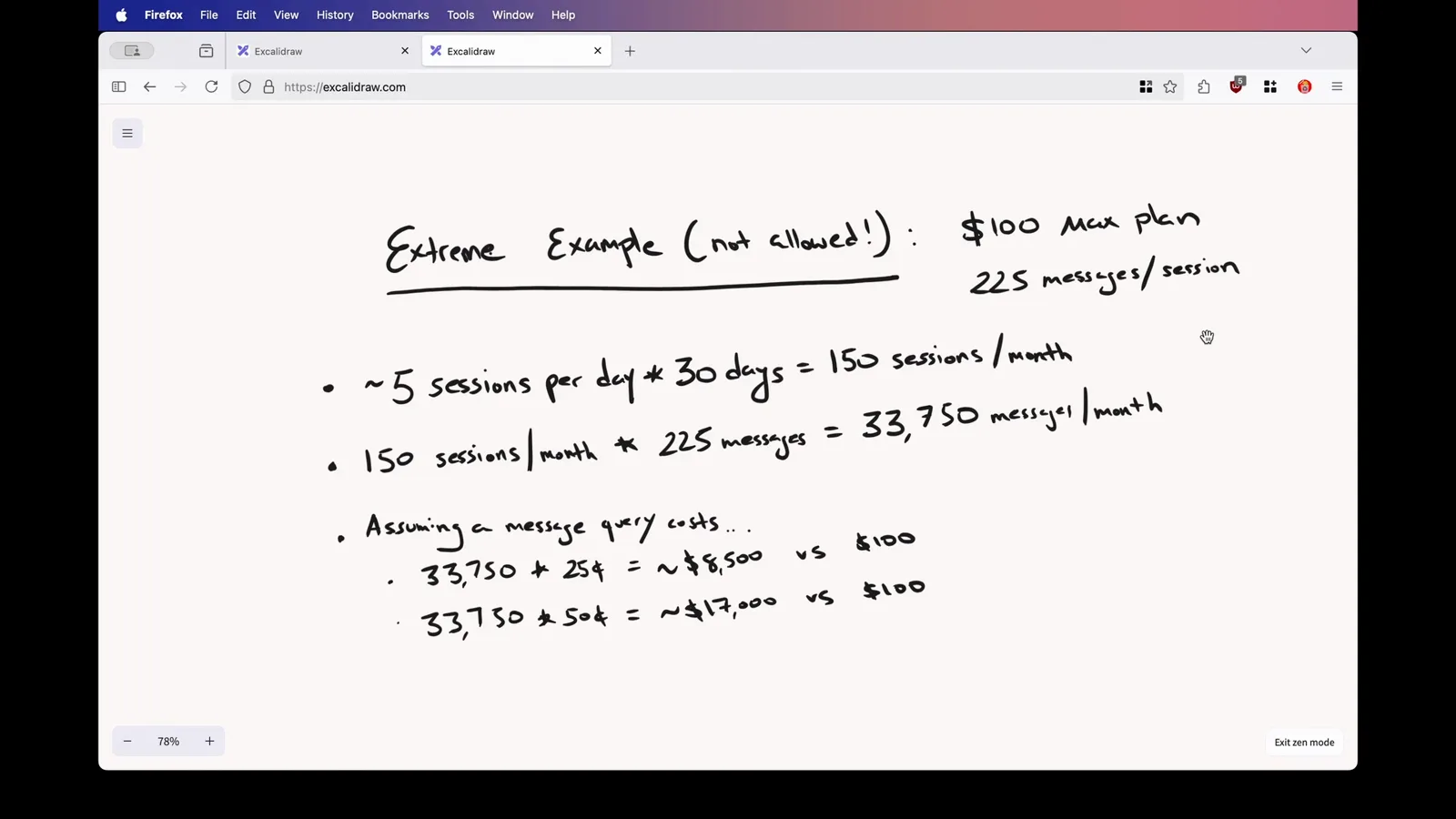
Back-to-back sessions add up fast — this is why the weekly cap exists.Watch at 4:00
Where to Check Your Limits
- 4
Open Settings, then Usage
Everything you need lives on one screen: claude.ai → Settings → Usage. In the sidebar it sits between Billing and Capabilities — and note the separate “Claude Code” entry below, where Claude Code-specific options live. Plan usage limits head the page: the current session bar first, then the weekly limits underneath.
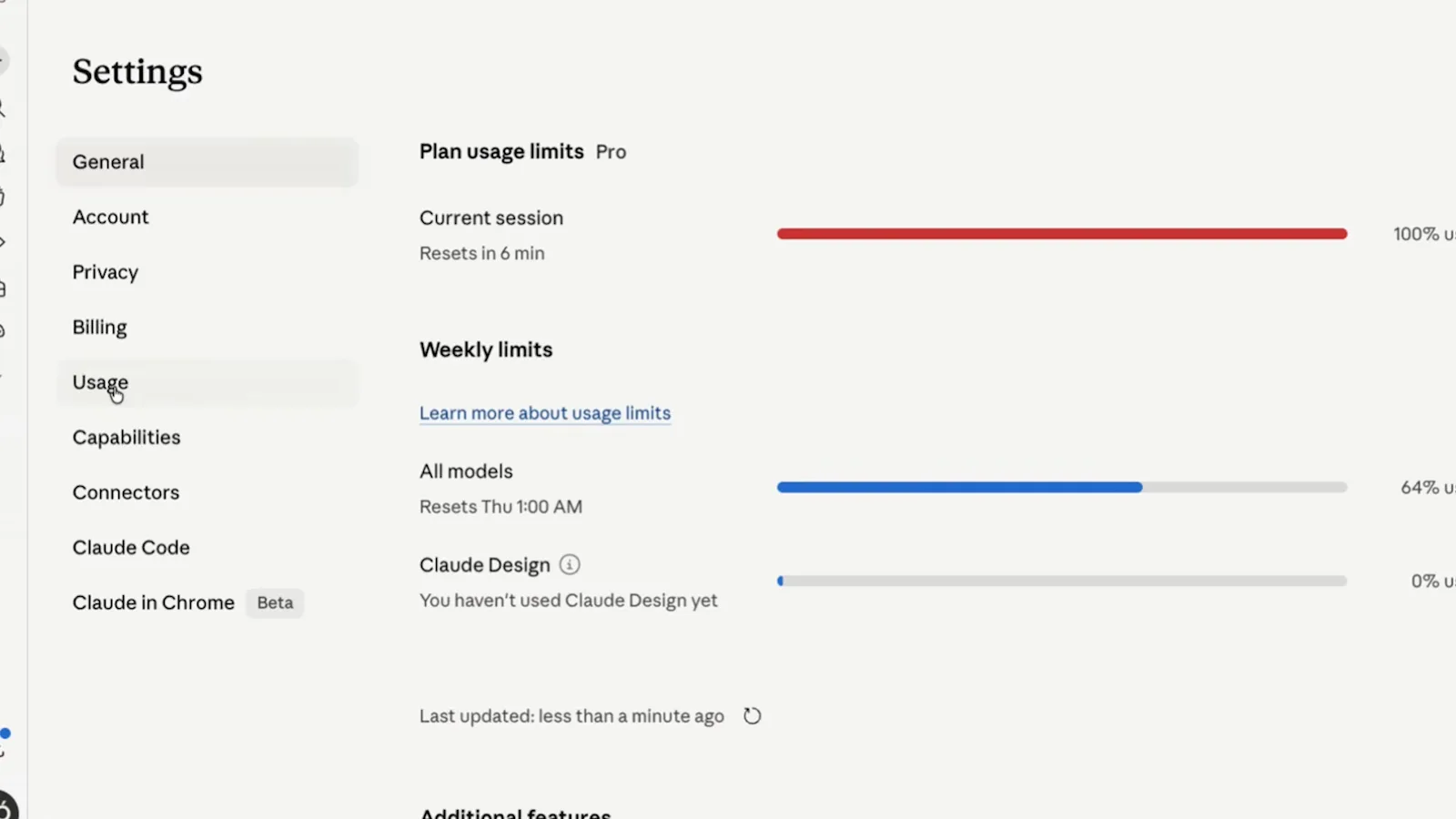
Settings → Usage is the dashboard for both limit clocks.Watch at 10:44 - 5
Read the two bars, not just the percentage
The red current session bar (100% used) rides the rolling 5-hour clock, while the blue weekly “All models” bar (64% used) resets on a fixed weekday and time — Thursday at 1:00 AM here. Per-product rows such as Claude Design get their own weekly bars. A full session bar is a minor inconvenience; a full weekly bar stops everything, so watch the blue one when you plan a big build.
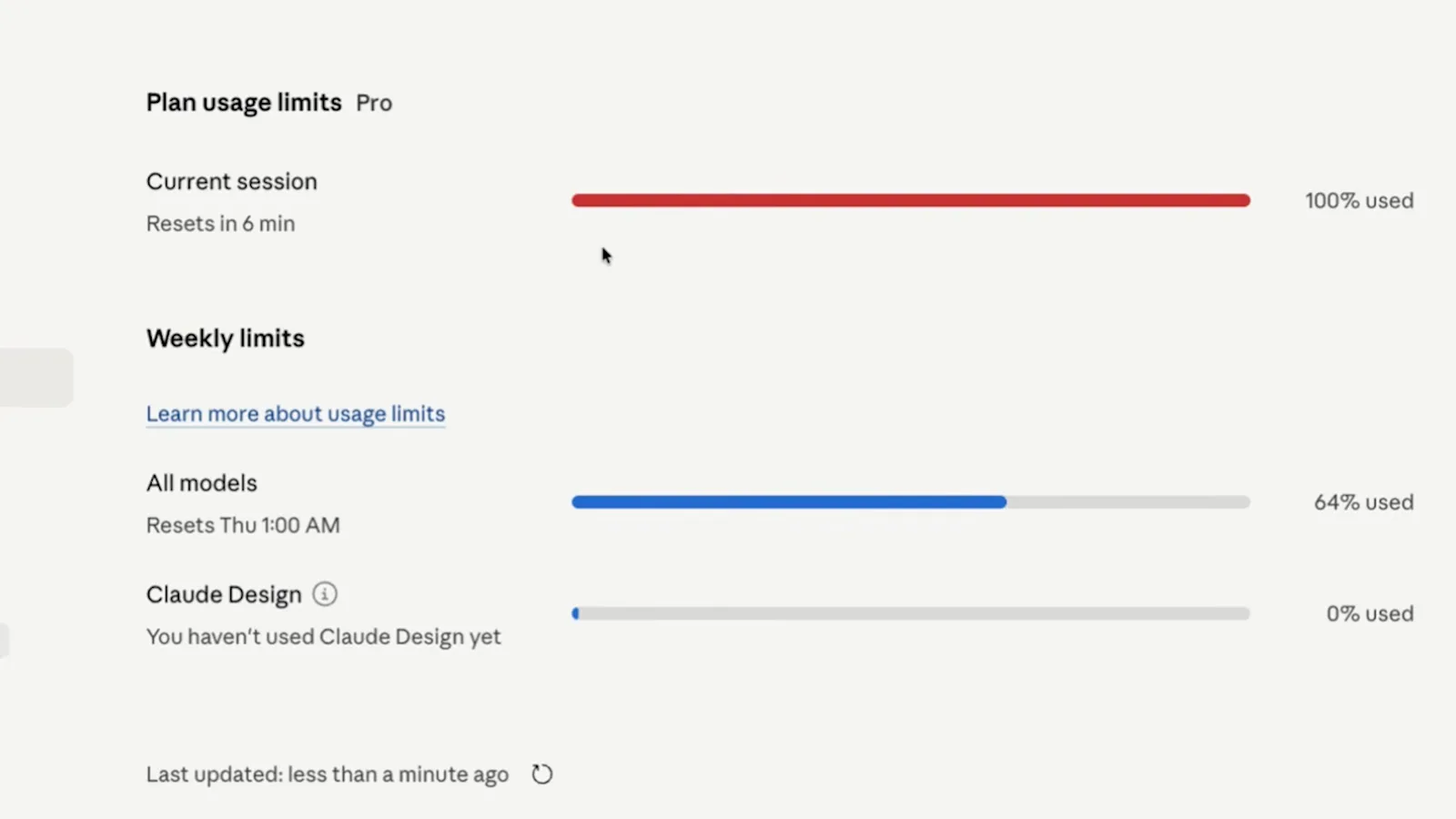
Red bar = this 5-hour session. Blue bar = the whole week. Watch the blue one.Watch at 10:48 - 6
Check the session bar before big tasks
Before kicking off a long refactor or a marathon Claude Code run, glance at the current session row: 100% used with a reset minutes away means waiting is free, while 20% used with hours left means you have room. The row also shows which plan the limits belong to — Pro here — because Max tiers carry proportionally larger bars.
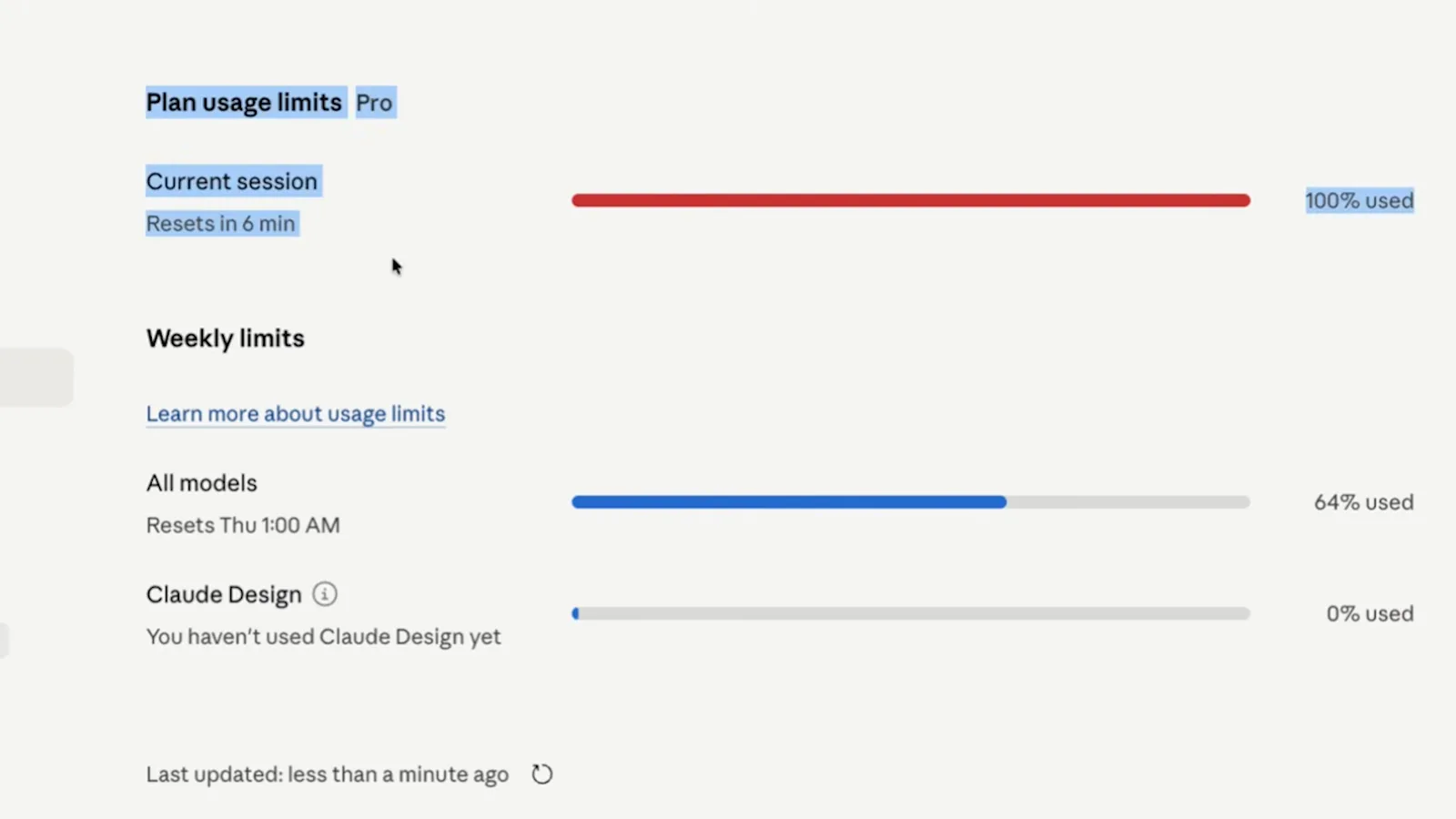
Six minutes to reset? Grab a coffee before spending tokens you don't need to.Watch at 10:54 - 7
Plan around the reset countdown
“Resets in 6 min” is a live countdown to when your 5-hour window refreshes. Work that can wait a few minutes costs you nothing extra, and queuing a task right before a reset wastes nothing. Claude Code users can pull the same numbers with /usage, and browser extensions can keep them visible all day if you check often.
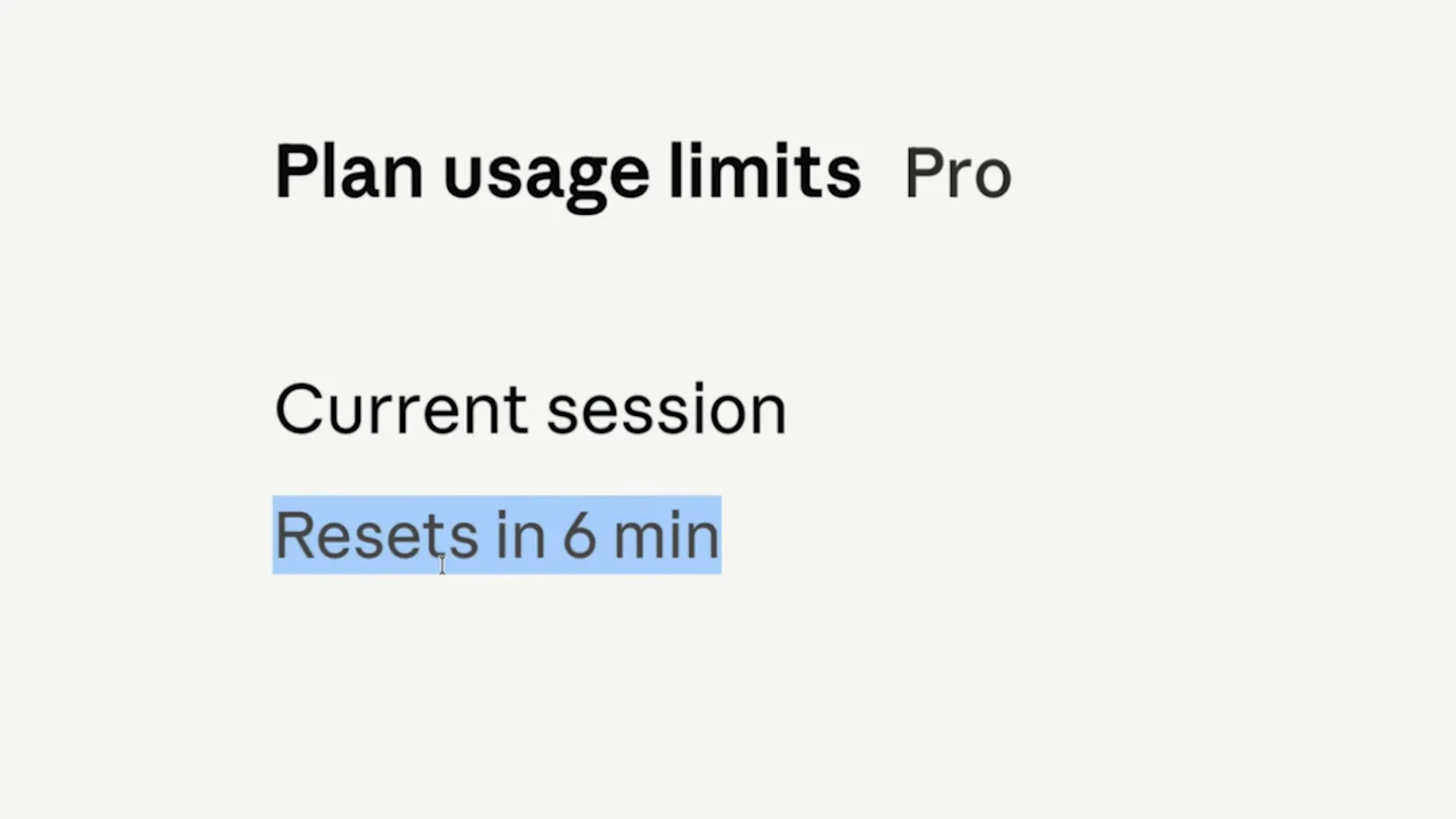
A countdown, not a clock time — it drifts with your first message.Watch at 10:58
Habits That Stretch Your Quota
- 8
Start fresh chats instead of long threads
Every new message makes Claude re-read the whole conversation, so a 50-message thread burns far more of your window than five short ones. Open a fresh chat for each unrelated task, and when you need continuity, ask Claude to summarize the old thread first and carry the summary over. The composer is also where you right-size the model before you send.
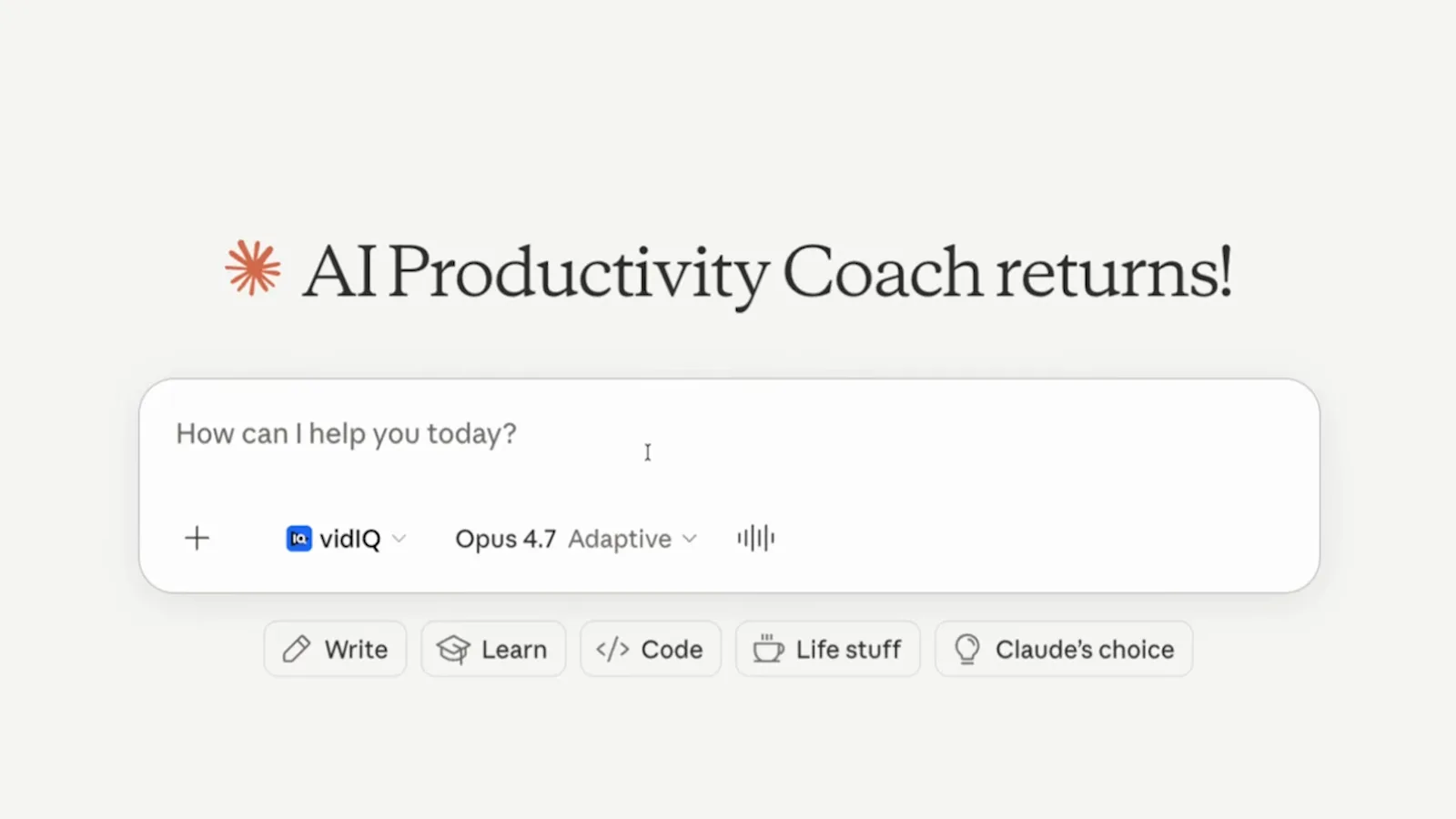
Fresh chat, fresh context — long threads quietly tax every follow-up.Watch at 6:00 - 9
Match the model — and the thinking — to the task
The picker spells out the trade-offs: Opus for ambitious work, Sonnet for responsive everyday work, Haiku when you want the fastest, most efficient answer. Routine coding on Sonnet instead of Opus stretches the same session dramatically, and switching Adaptive thinking off for simple prompts stops invisible reasoning tokens from draining your window. Turn the expensive options on deliberately, not by default.
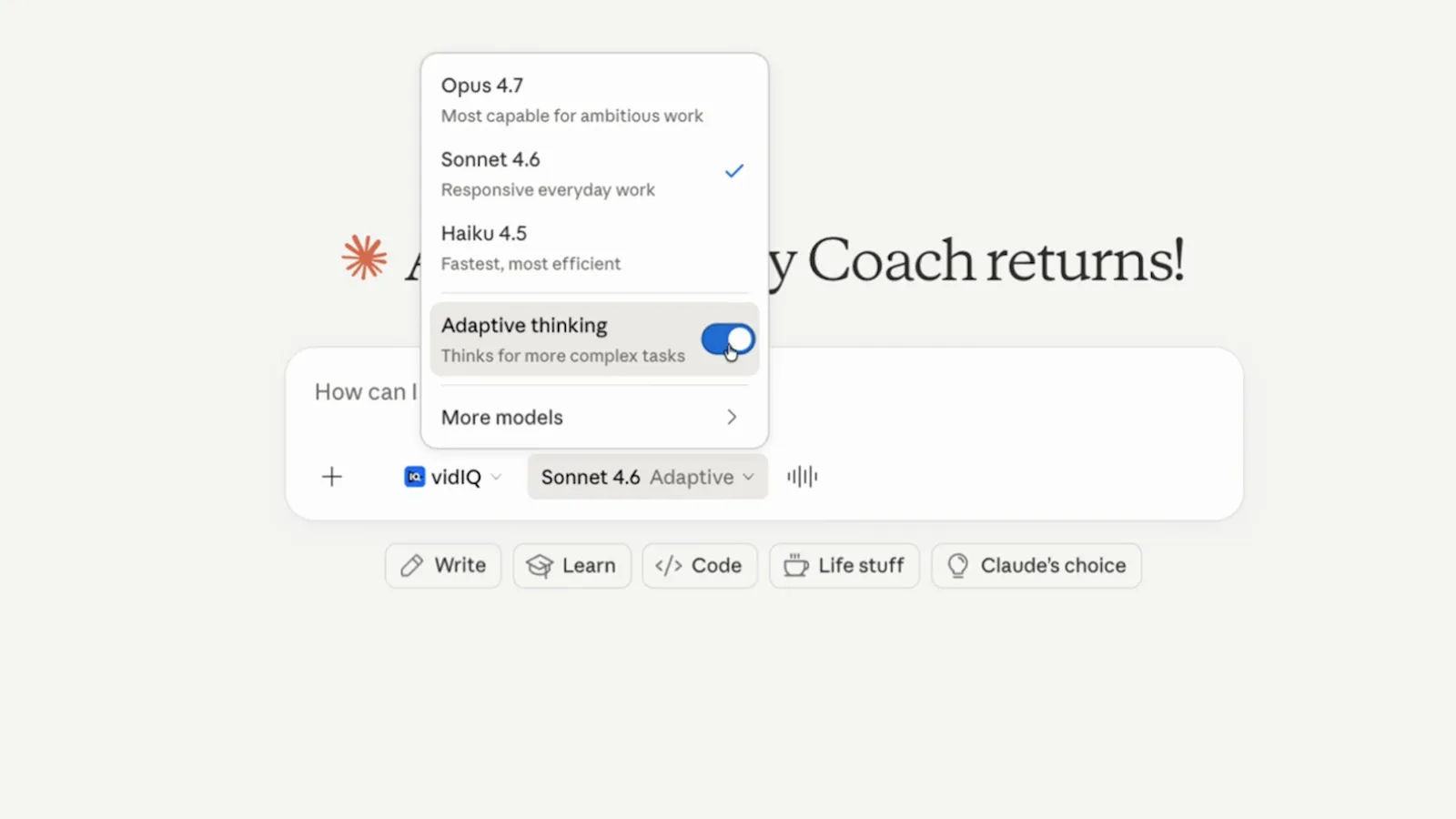
Sonnet plus Haiku covers most coding; save Opus for the hard problems.Watch at 7:04
When You Hit the Wall Anyway
- 10
Enable extra usage before you upgrade
Scroll to the Extra usage section of Settings → Usage and you'll find the overflow valve: “Turn on extra usage to keep using Claude if you hit a limit.” It bills only when you actually run dry, which makes it a cheap bridge for finishing one more task — far cheaper than jumping from Pro to Max for a single afternoon.
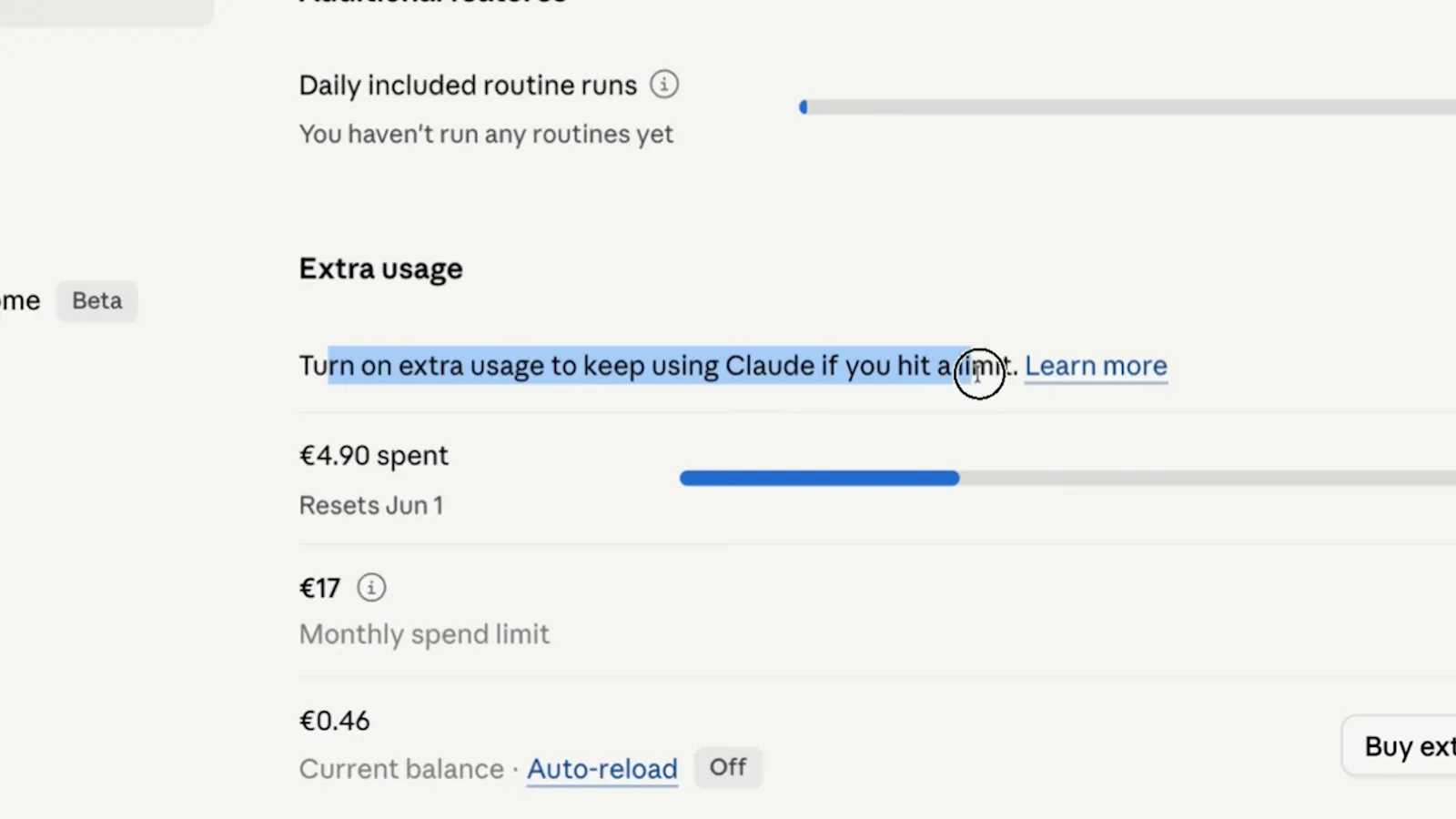
Pay for the overflow, not for a whole bigger plan.Watch at 11:54 - 11
Set a monthly spend limit you can forget
Extra usage comes with guardrails: a monthly spend limit (€17 here), a running balance (€0.46), and an Auto-reload toggle you can leave off. Set the cap once and extra usage becomes a safety net instead of a surprise bill — the spent bar shows exactly where you stand against it, resetting at the start of the month (June 1 in this account).
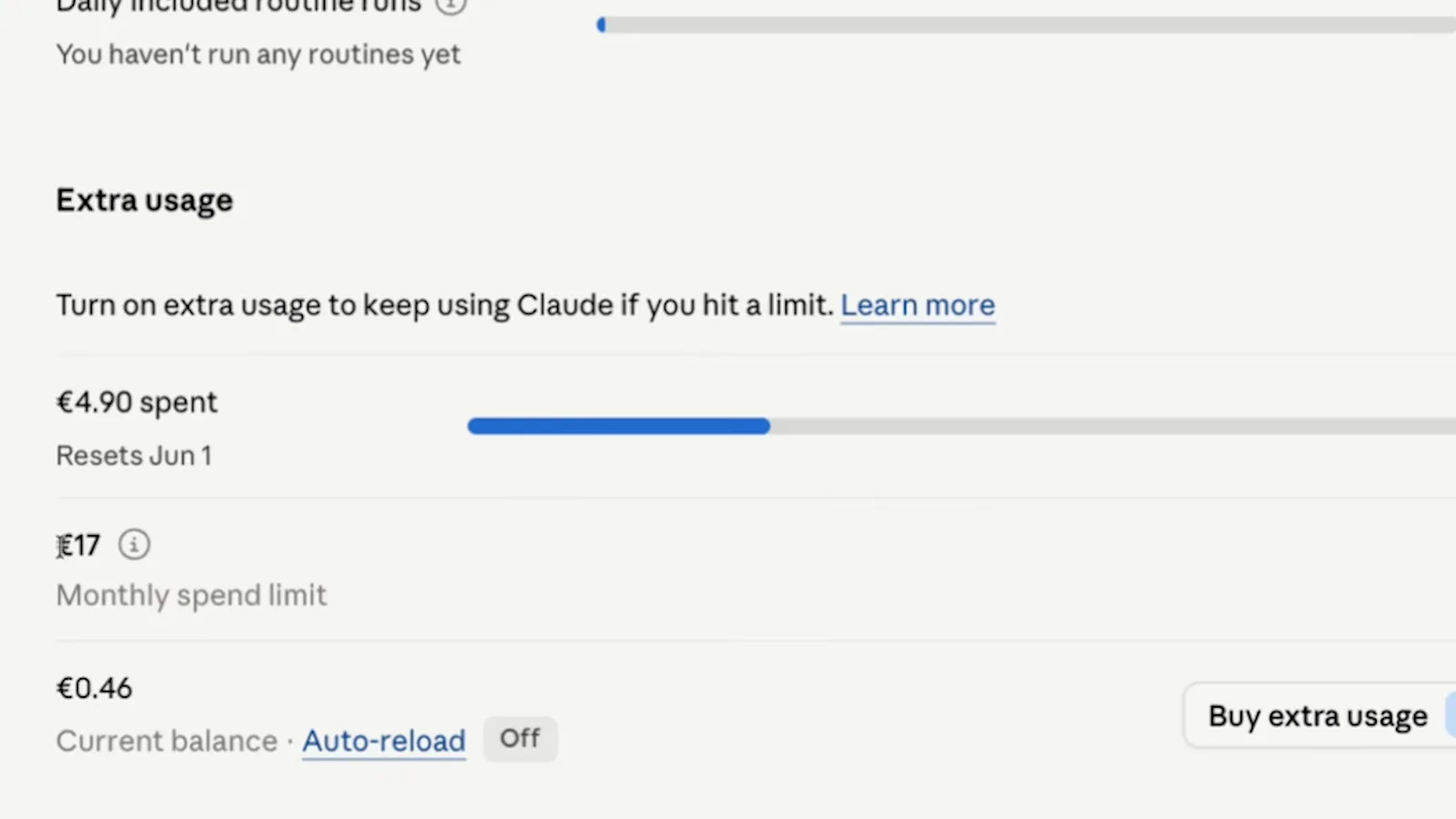
A hard cap turns pay-as-you-go from scary to boring.Watch at 12:02 - 12
Top up in bulk when you use it steadily
The Buy extra usage dialog sells credit in $50, $250 and $1,000 blocks with 10, 20 and 30 percent discounts, and the order summary shows the discount and VAT before you confirm. Steady users can prebuy a discounted block and let it drain through the month; occasional users should stick to pay-per-use with a spend limit.
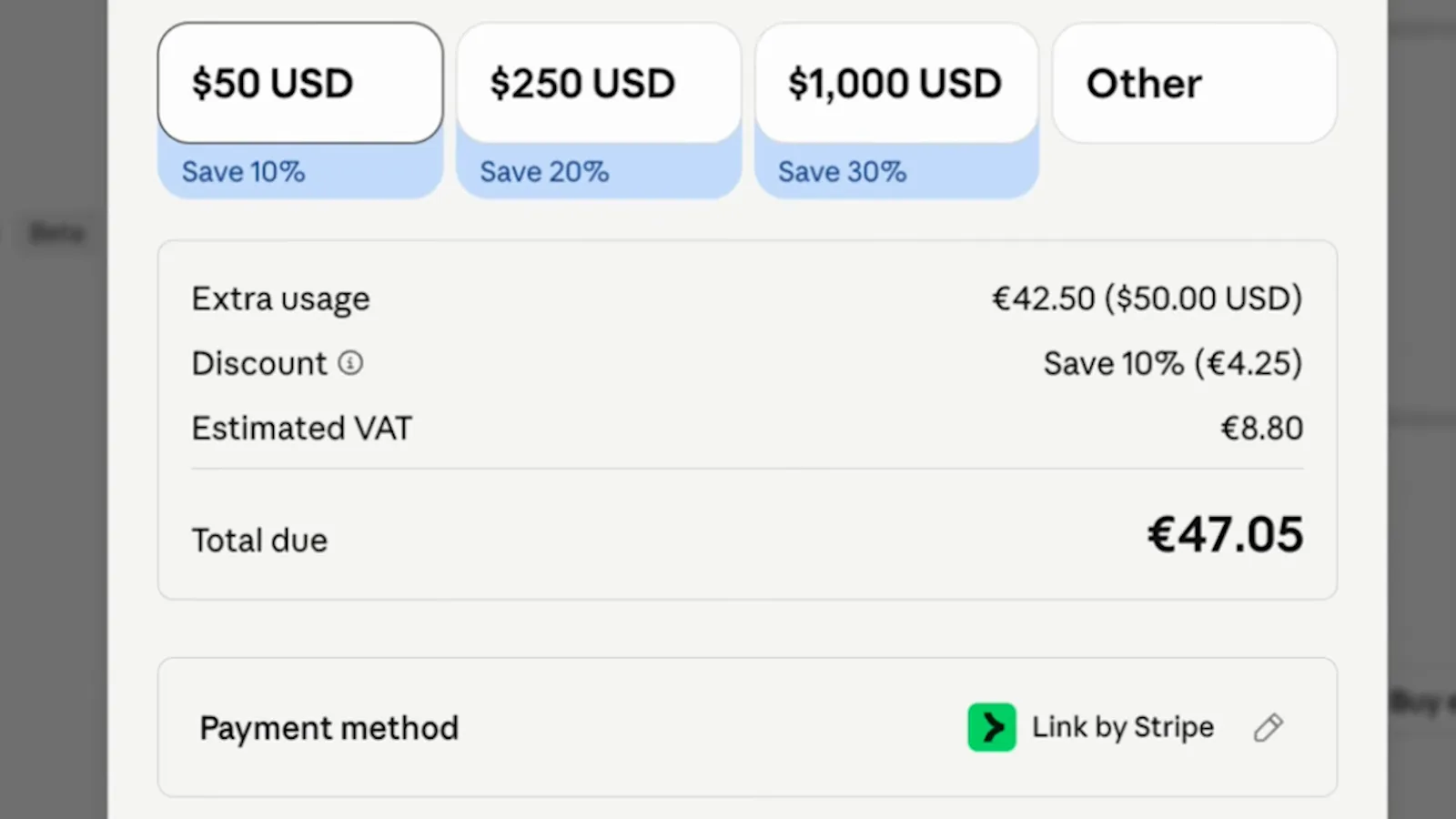
Bulk credit discounts reward steady usage — the summary shows savings before you pay.Watch at 12:10