

How to Use the New Siri in iOS 27: Set Up and Master Siri AI
iOS 27 turns Siri into a real AI assistant — the new Siri AI holds natural conversations, reads what is on your screen, searches your photos, and takes action inside your apps. It is powered by Google's Gemini and needs an iPhone 15 Pro or newer. This walkthrough follows DHTV's complete hands-on video, with extra setup screenshots from Trevor Nace's tutorial, and every step links back to the exact moment in the source video.
Source & credits
Screenshots in this guide are captured from DHTV's public walkthrough video. Every step links back to the exact moment it shows, so you can follow along.
DHTV ↗Get iOS 27 and turn on the new Siri
- 1
Update your iPhone to iOS 27
The new Siri ships with iOS 27, which Apple started pushing on September 14, 2026. Open Settings, tap General, then Software Update, and install iOS 27. If you enrolled in Apple's beta program earlier, pick iOS 27 Public Beta under Beta Updates — both tutorials recommend avoiding the developer beta and its extra bugs.
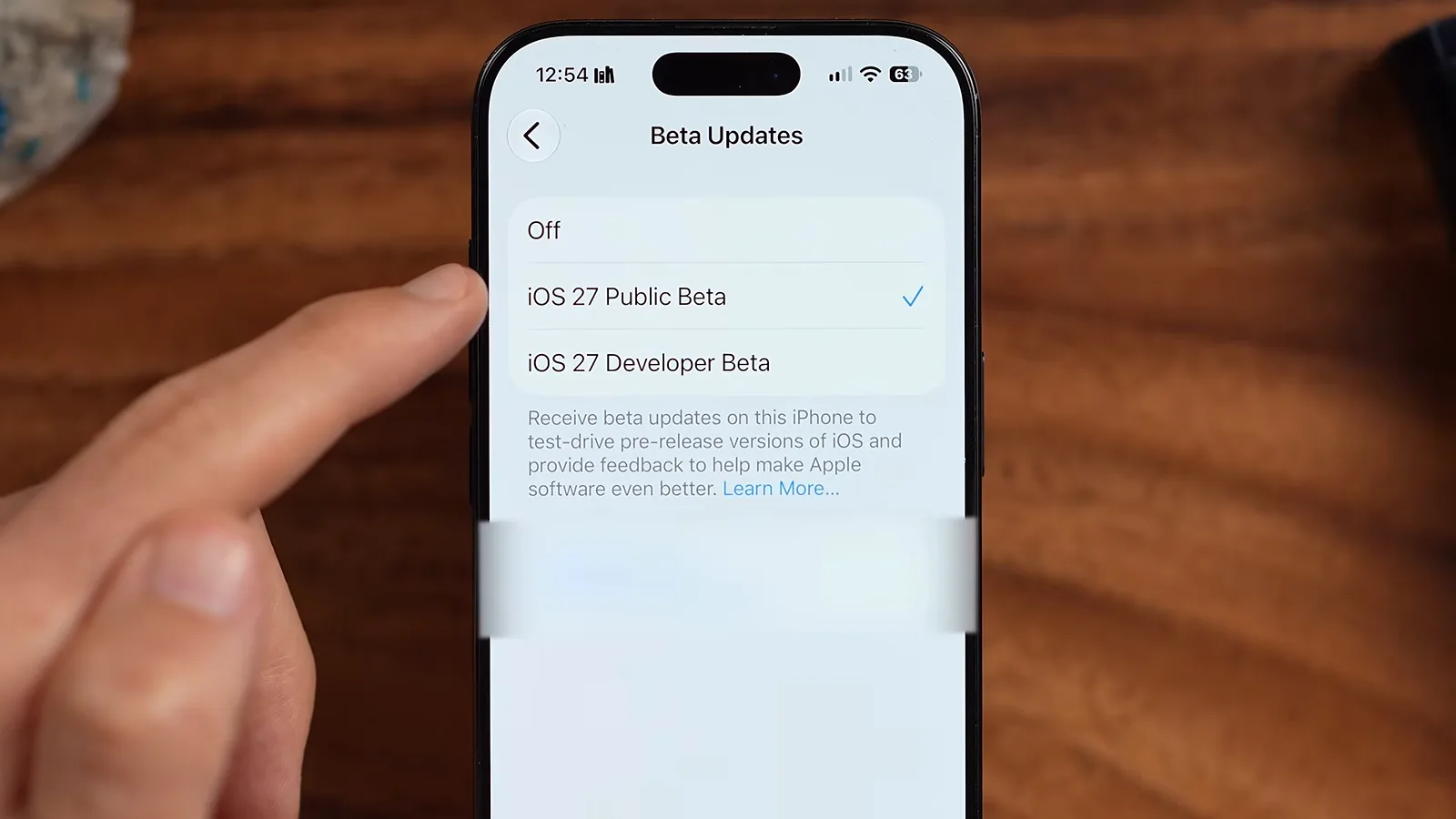
Stay on the public track — the developer beta carries the most bugs.Watch at 1:12 - 2
Open Settings and turn on the new Siri
In iOS 27 the old Apple Intelligence & Siri entry in Settings is now simply called Siri. Tap it, then tap Turn On Siri. If you see a request or waitlist option instead, join the list — DHTV got approved in about five minutes, and Trevor Nace's wait cleared in three to five.
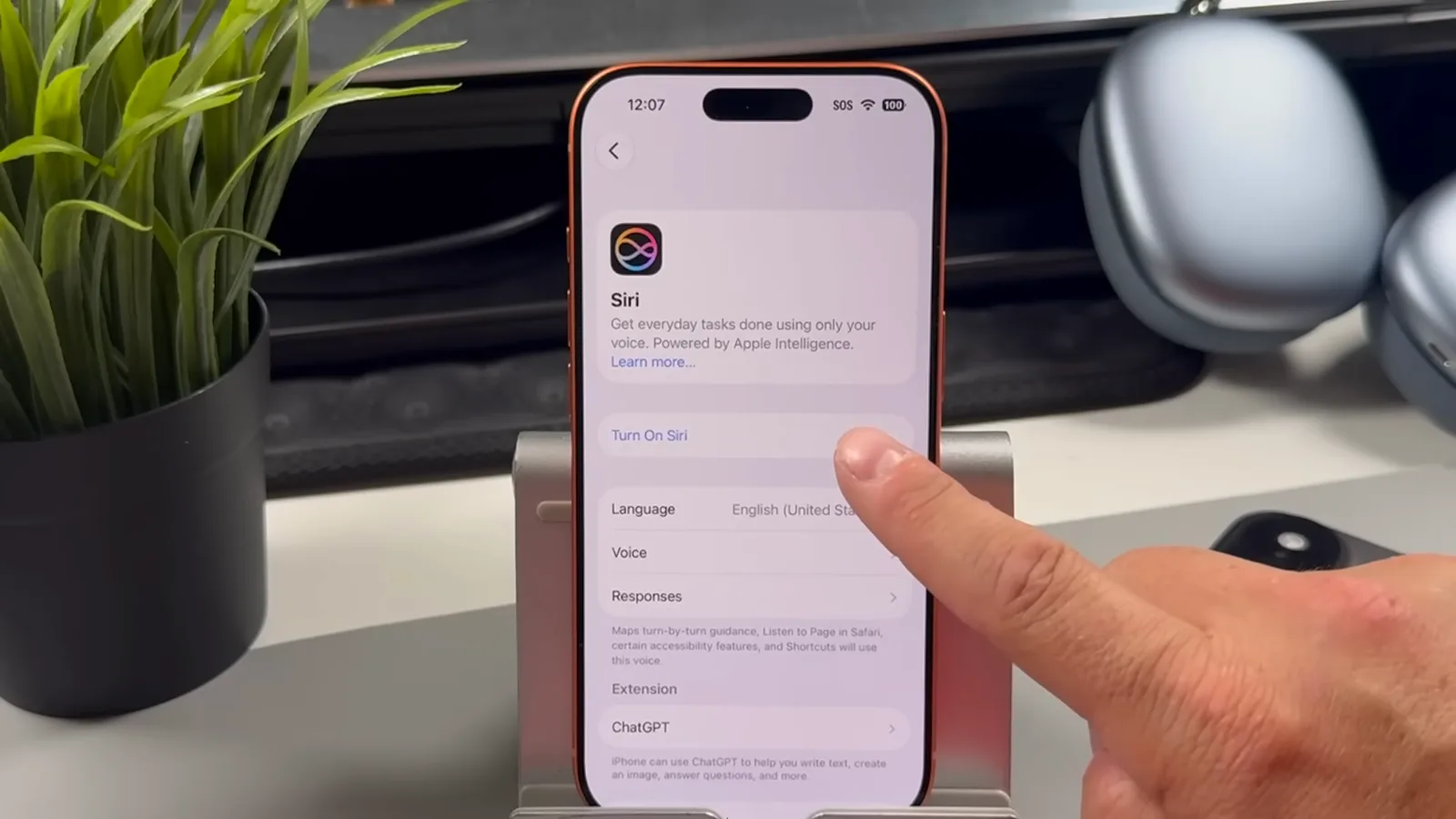
The Siri entry replaced Apple Intelligence & Siri — tap Turn On Siri to switch on the new assistant.Watch at 1:30 - 3
Meet the new Siri settings page
Once enabled, the Siri page becomes mission control: Requests, Language, Voice, and Responses, plus a Siri App section at the bottom. The page carries a Beta badge and the line Powered by Apple Intelligence — every customization in the next four steps lives right here.
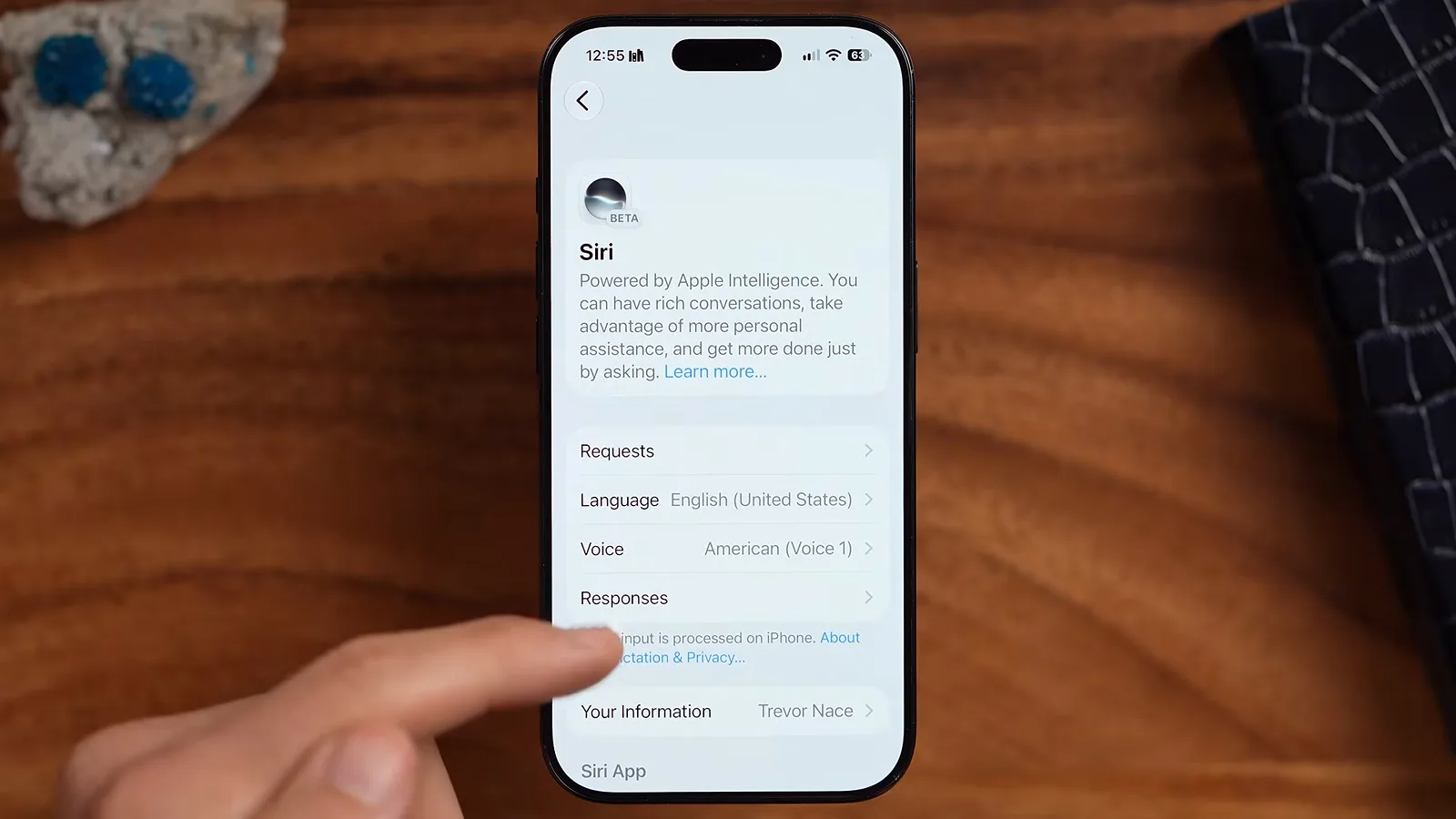
Four settings decide how the new Siri behaves — Requests, Language, Voice, and Responses.Watch at 2:00 - 4
Opt in to Siri AI
While enabling the new Siri, iOS shows a Try Siri AI (Beta)? card promising rich conversations and a dedicated app. Tap the blue Try Siri AI Beta button to switch over. Not sold yet? Use Previous Version keeps the classic assistant a tap away.
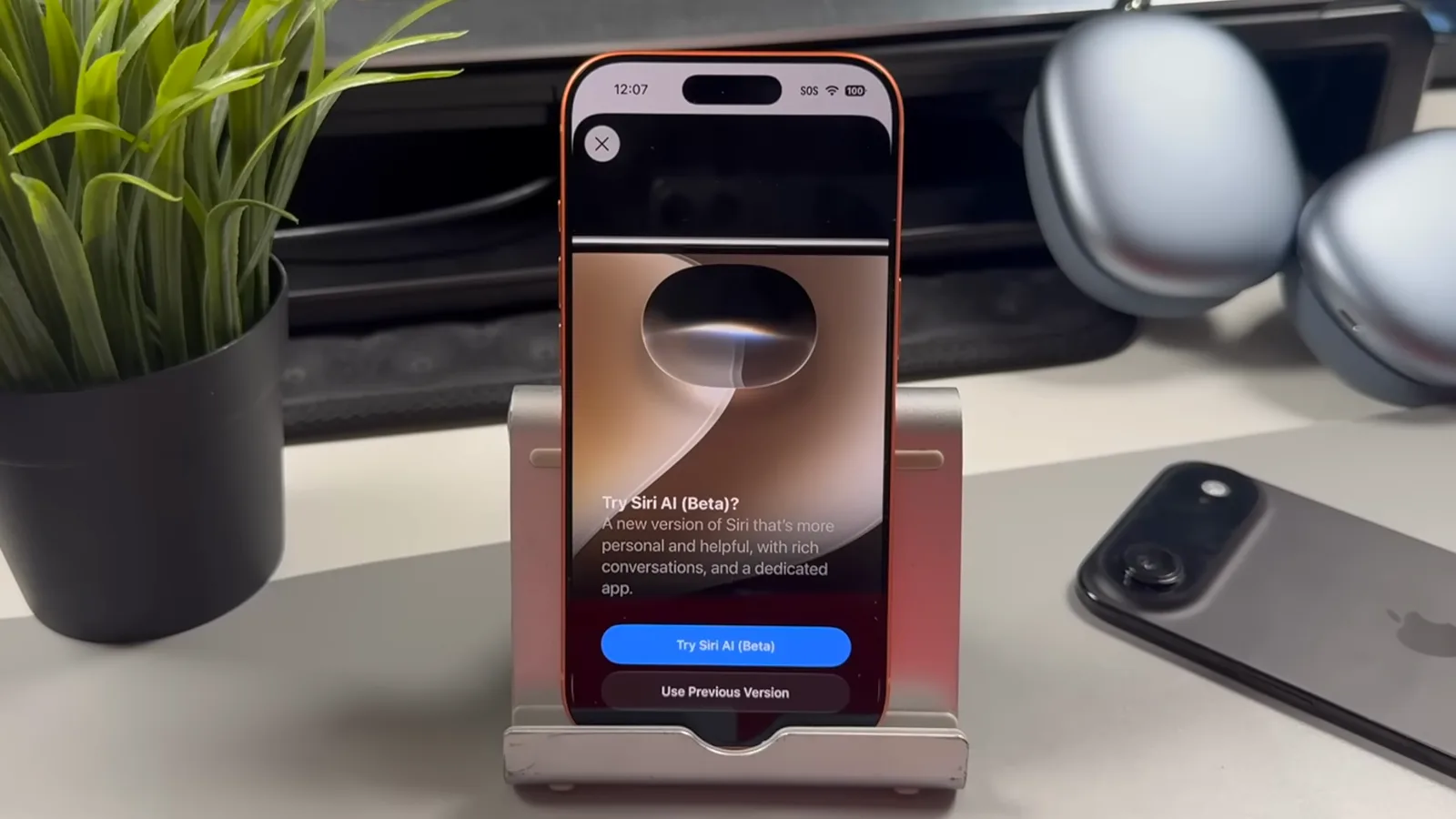
The opt-in card for Siri AI — one tap and the new brain takes over.Watch at 15:40
Dial in the four key settings
- 5
Choose how you invoke Siri
Under Requests you decide what triggers Siri: keep the Siri or Hey Siri voice phrase on, pick just one, or turn both off. The side button works regardless — press and hold it like a power button. Trevor Nace switched the voice phrase off and drove Siri entirely from the button.
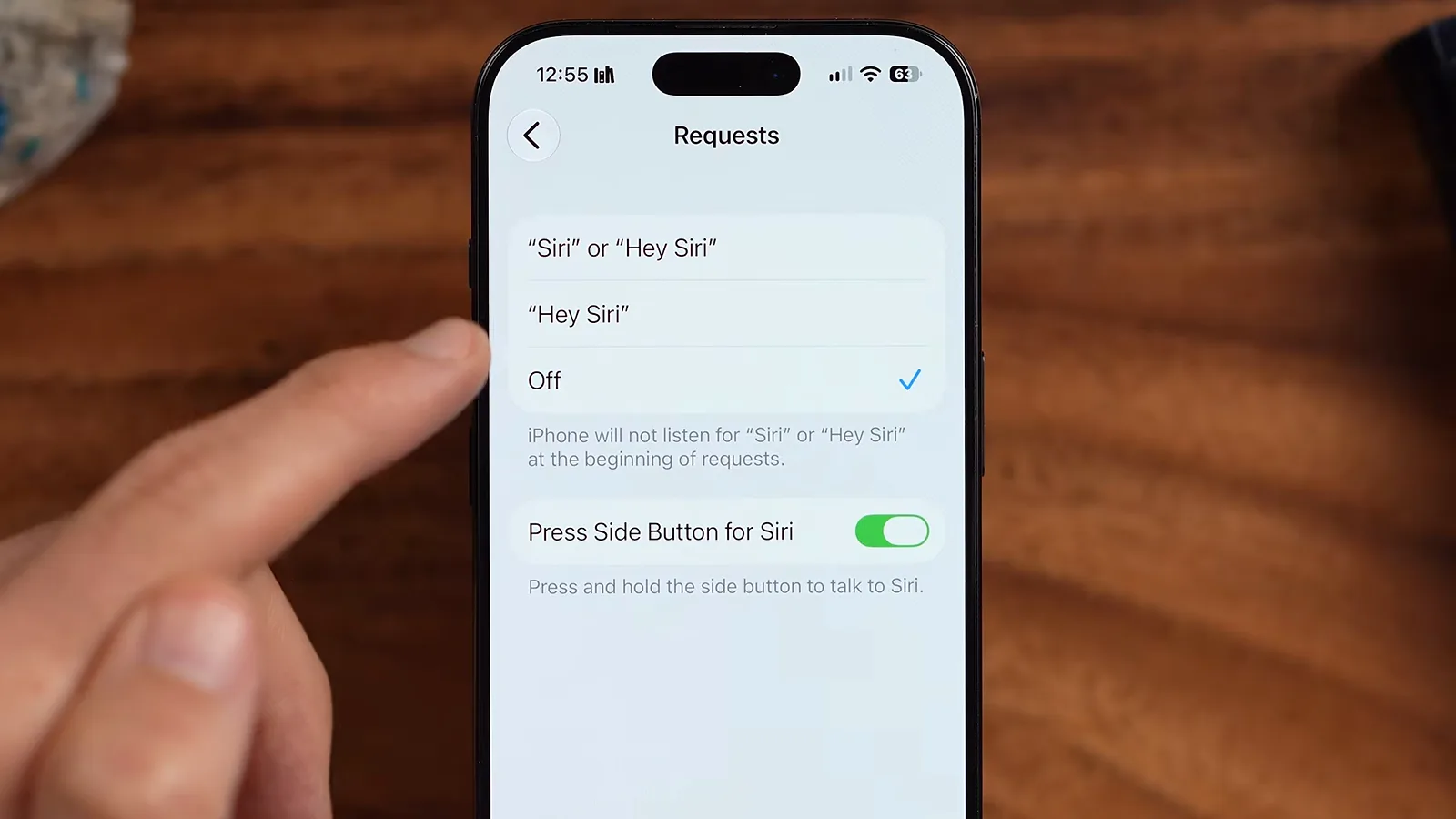
Voice activation is optional — the side button always wakes Siri.Watch at 2:12 - 6
Set language to English (United States)
Both tutorials flag the same gotcha: the new Siri features currently require English (United States). Trevor Nace found that even English (Canada) could come up empty, so leave Language on English (United States) until Apple widens the rollout to more locales.
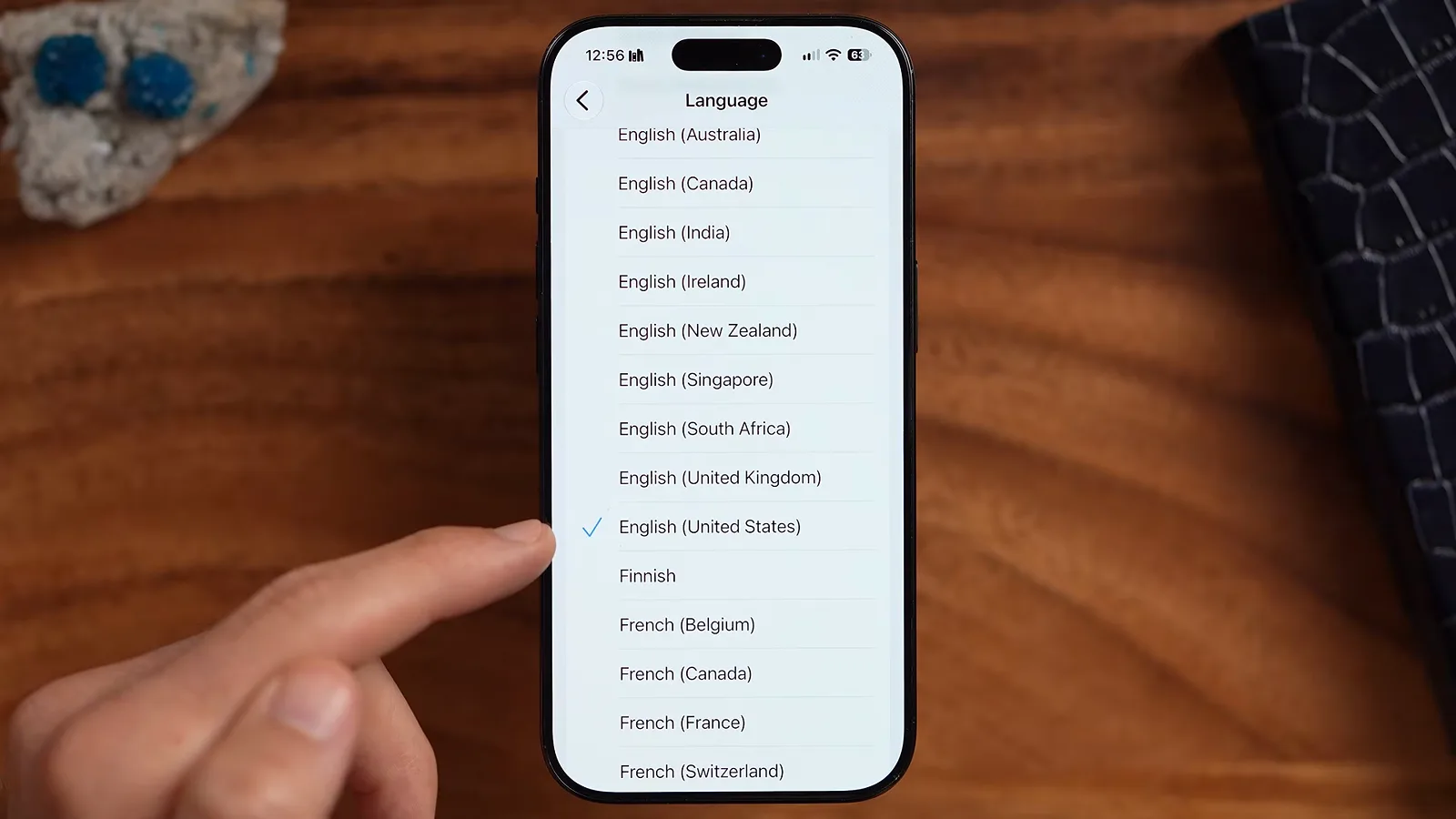
Pick English (United States) — other locales may not unlock the new features yet.Watch at 2:42 - 7
Pick a voice and tune the delivery
In Voice you choose between colored voices, and the purple and blue ones unlock two new sliders: Pace and Expressivity. DHTV kept both near the middle for a natural read. Choose a regional accent like Australian and those sliders disappear, so test before you commit.
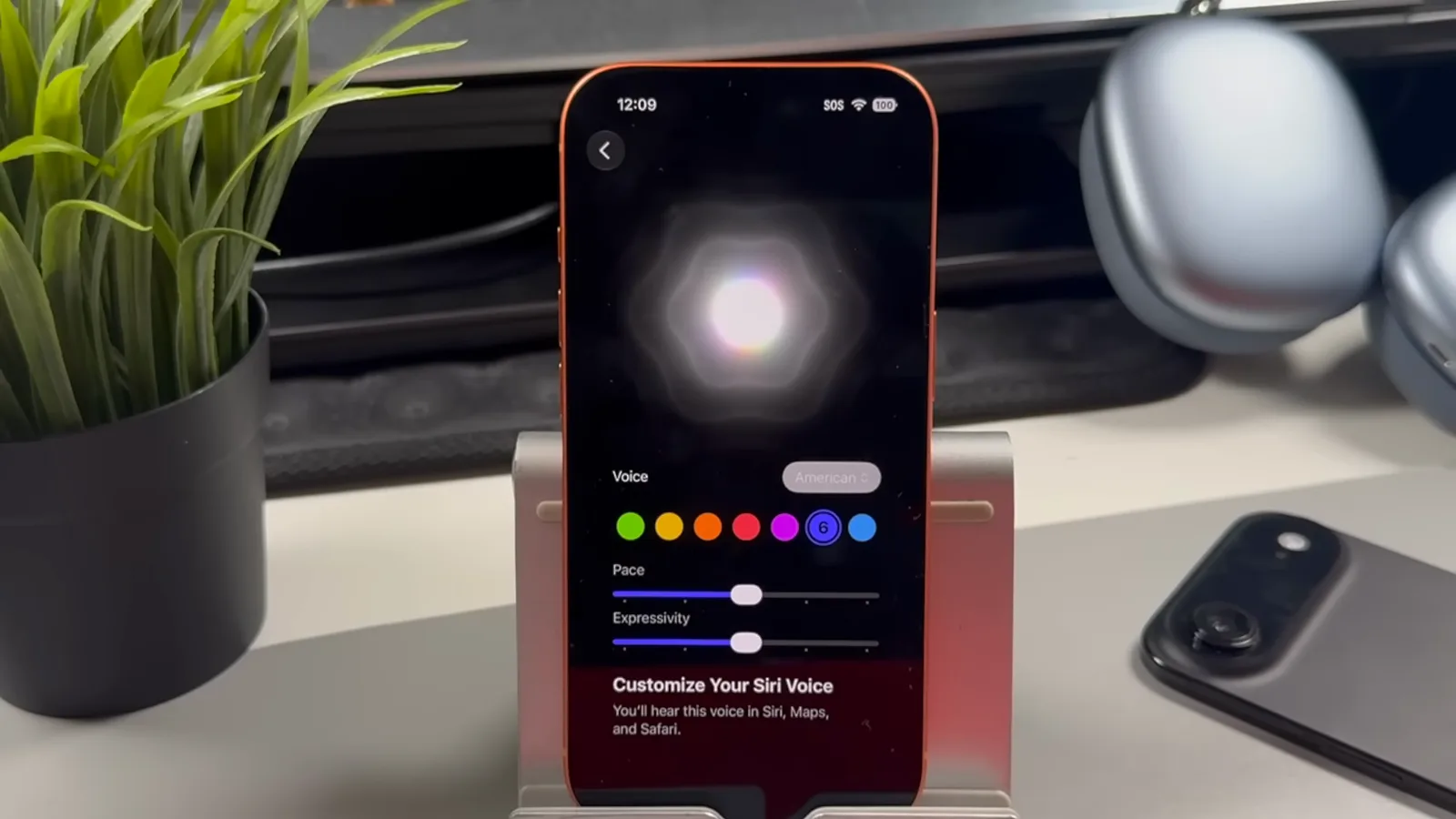
Purple and blue voices are the only ones with Pace and Expressivity sliders.Watch at 3:00 - 8
Decide whether Siri talks back
Under Responses, choose Spoken Response or Silent Response — silent shows answers as text only. Messaging options like Automatically Send Messages live here too. DHTV muted his phone mid-demo to keep talking, which is exactly when Silent Response earns its keep.
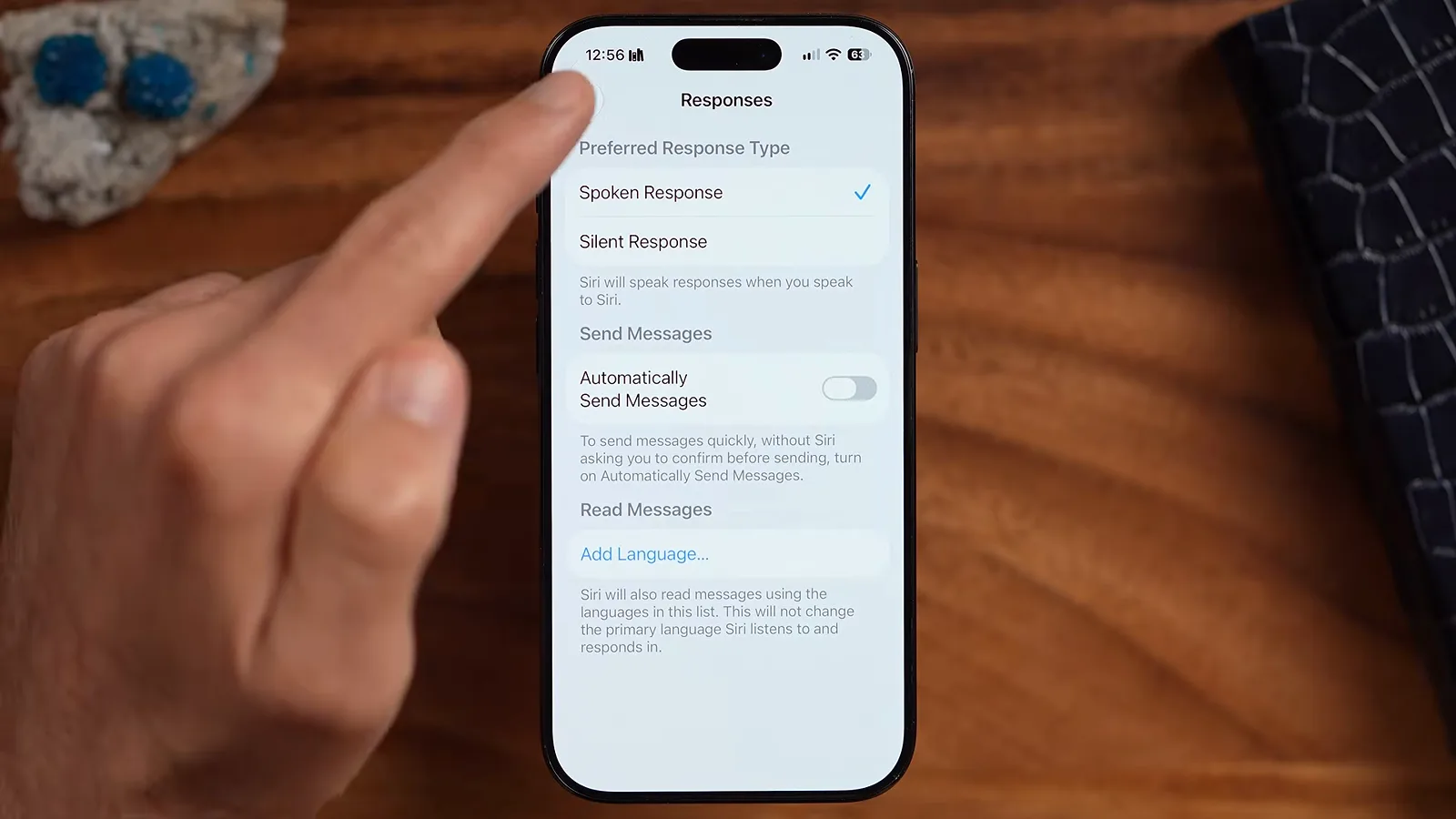
Silent Response keeps Siri useful in meetings — answers arrive as text.Watch at 3:15
Everyday asks that feel like magic
- 9
Have a real conversation
Ask something natural like give me three easy dinners I can make with chicken, and Siri answers in a bubble you can pull down for detail. Follow-ups flow mid-thought — DHTV said only show me ones that take less than 30 minutes, and Siri refined the list without starting over.
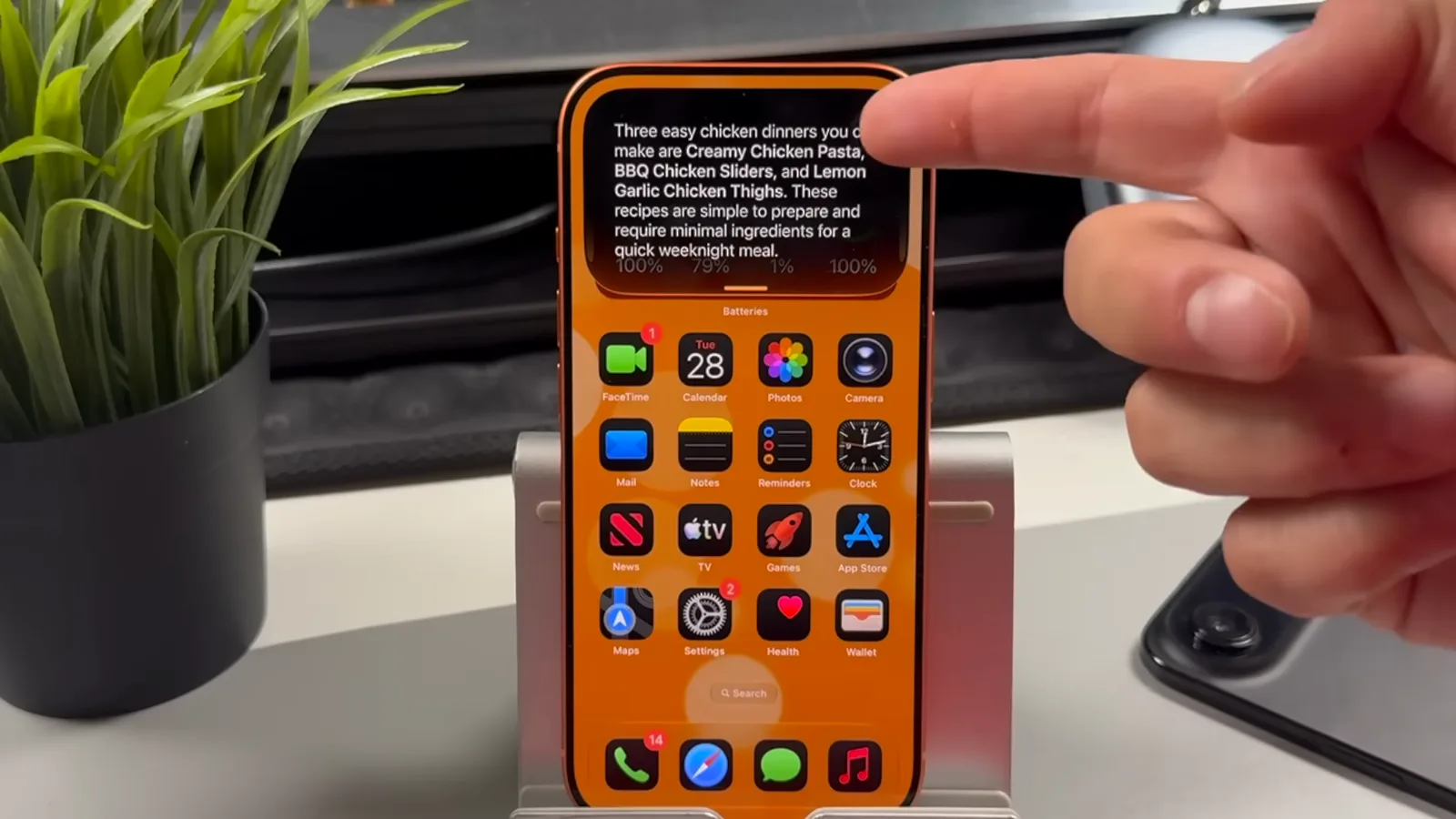
Follow-up questions refine the answer — no need to repeat yourself.Watch at 4:05 - 10
Search inside your apps
Ask Siri to show all the holidays coming up in 2026 in the calendar app, and it pulls the list straight from Calendar — Rosh Hashanah, Yom Kippur, Halloween, and more, with a Show All button that opens the full events inside the app. Birthdays from your contacts work the same way.
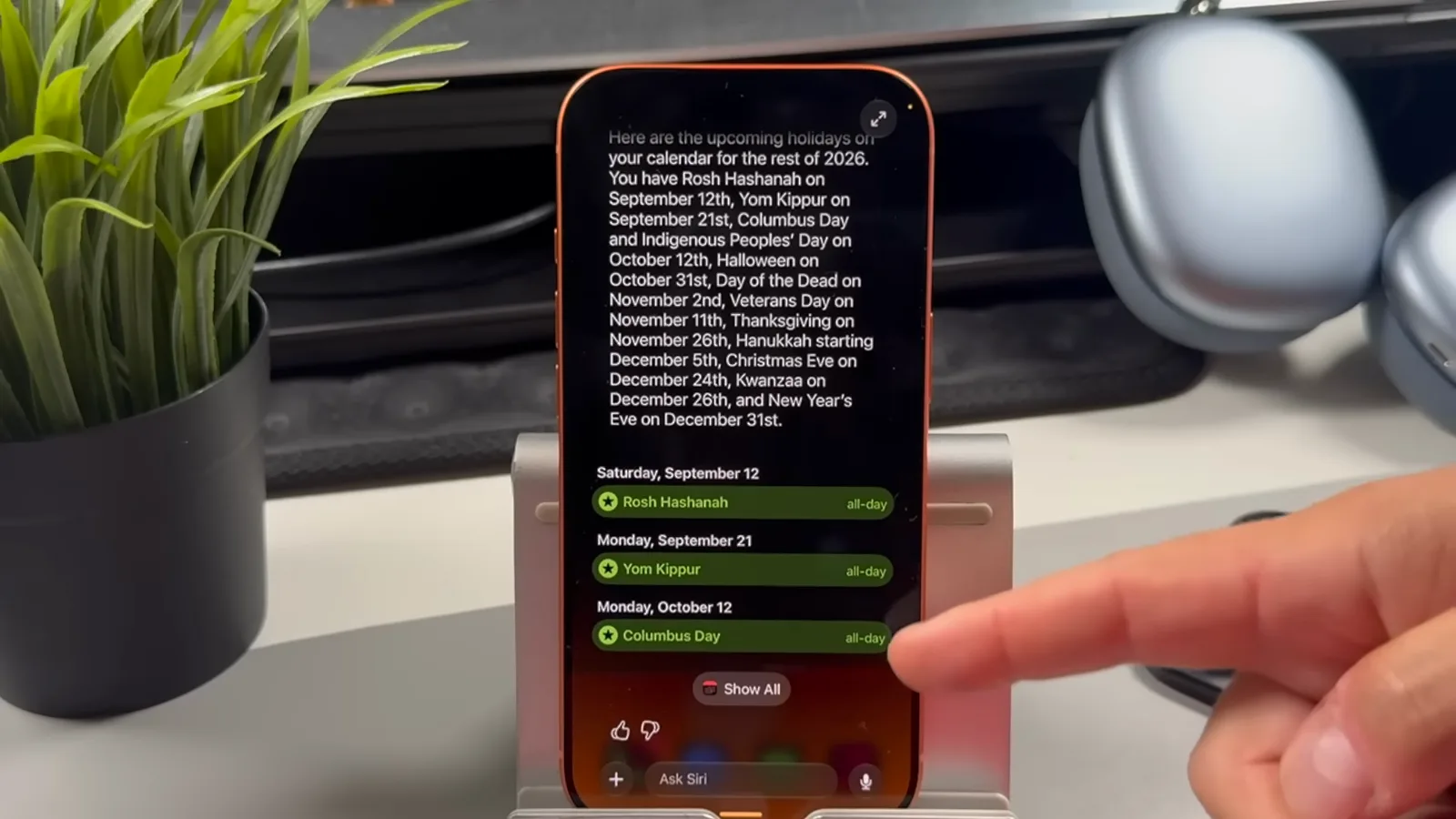
Siri reads your calendar and keeps a Show All shortcut into the app.Watch at 5:12 - 11
Find photos and build albums by voice
Ask to see every photo with scooters in it — Siri surfaced 36 of them in DHTV's library without the Photos app ever opening. Then say create an album with all of these and call it scooter, and the finished album appears in Photos a second later.

One conversation found 36 scooter photos and assembled the album.Watch at 6:05 - 12
Draft emails by voice
Tell Siri to write an email about e-scooters and mention your past reviews, answer its question about the recipient, and Mail opens with a finished draft — subject line included. Apple's writing tools such as Proofread and Rewrite still work on the text before you send.
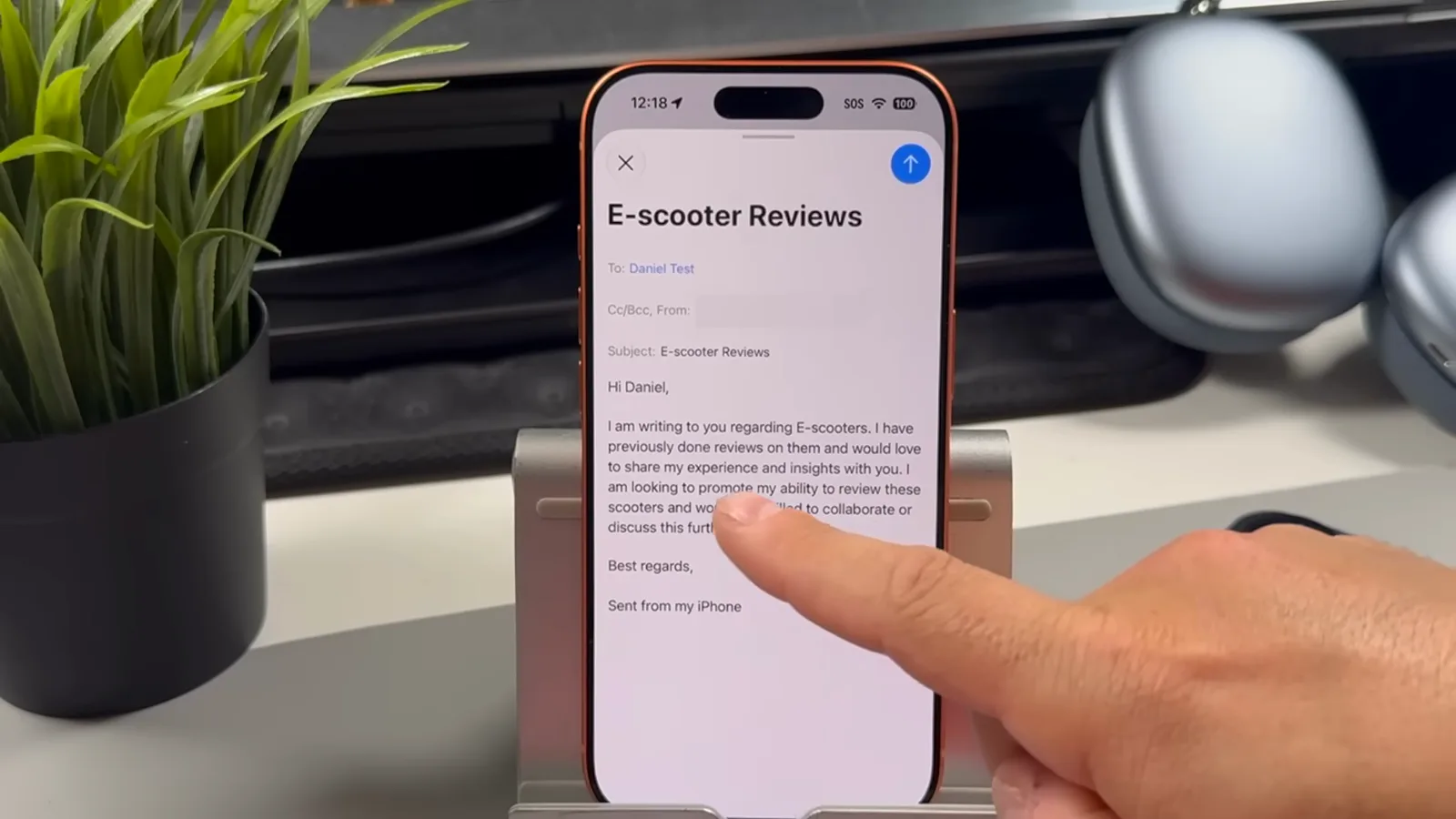
Siri writes the whole draft — you pick the recipient and hit send.Watch at 7:52
Screen awareness, camera, and the Siri app
- 13
Ask about what is on your screen
On-screen awareness lets Siri see your display. Trevor Nace opened Photos and asked what do you see on my screen — Siri described the grid, the date range, and the subjects, then kept answering follow-ups about the same view. It works in Safari, YouTube, and beyond.
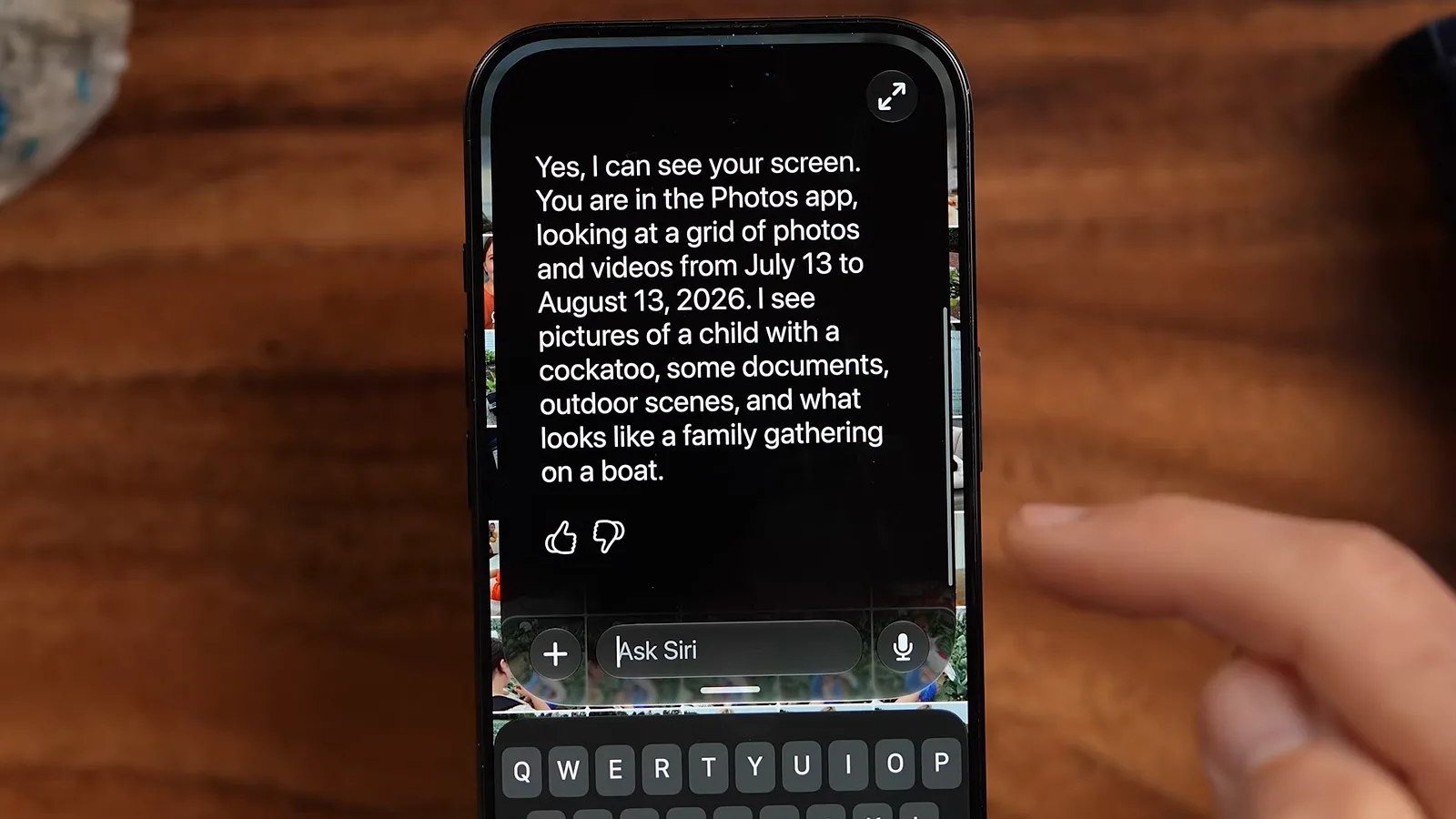
Siri reads the screen — app, content, dates, and all.Watch at 4:45 - 14
Pick up old threads in the Siri app
iOS 27 gives Siri its own app for the first time. Every exchange lands here — the chicken dinners, the 2026 holidays, the scooter album — and you can search threads, delete in bulk, swipe to remove one, or type new requests with the keyboard instead of talking.
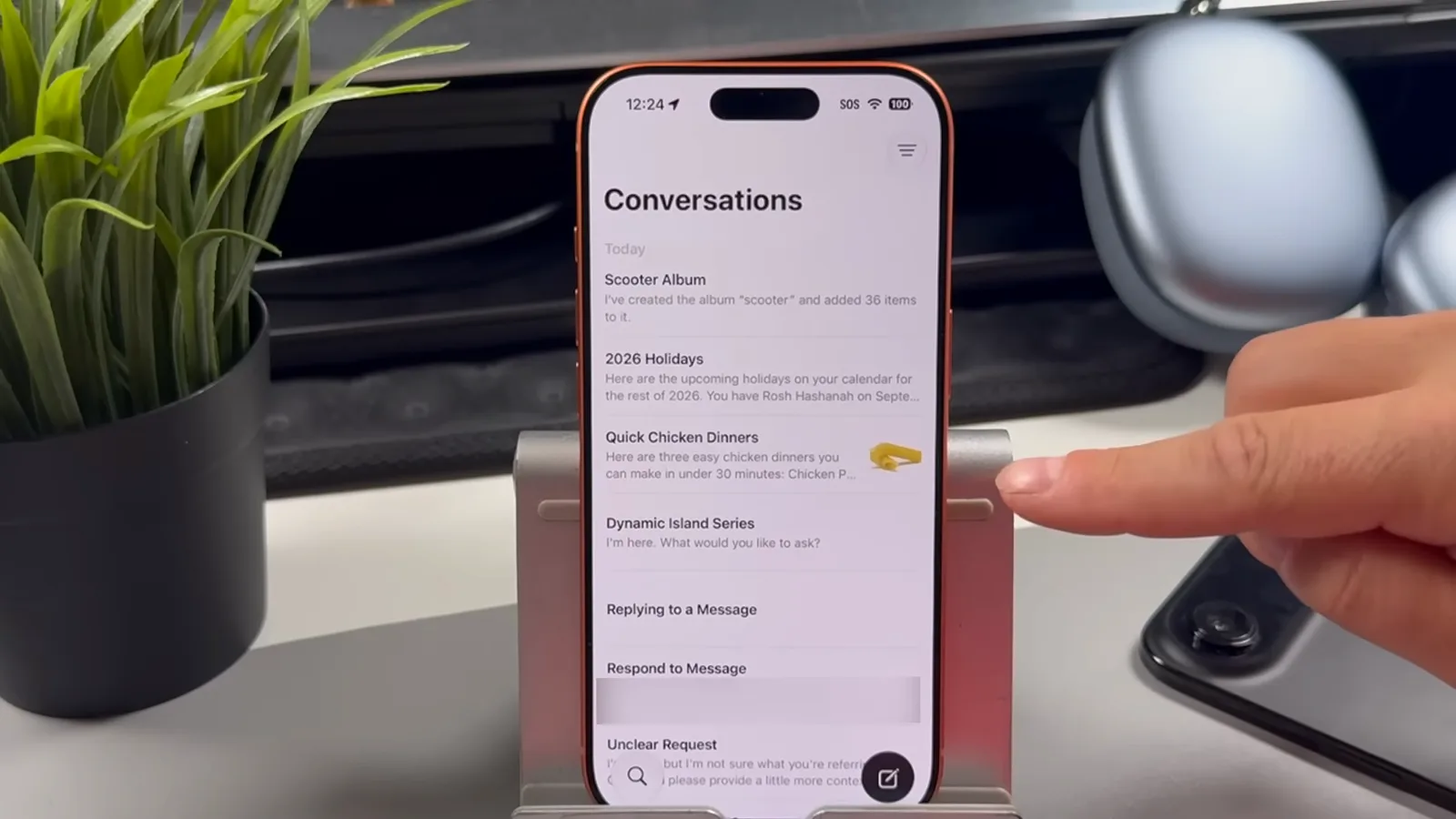
Siri history finally works like a chat app's history.Watch at 9:45 - 15
Identify objects with camera mode
In the Camera app, swipe the mode selector over to Siri, point at anything, and shoot. Siri identified DHTV's AirPods Max on the spot, then served up a quick review, key highlights, price ranges, and Google Images and Pinterest lookups from the same bubble.
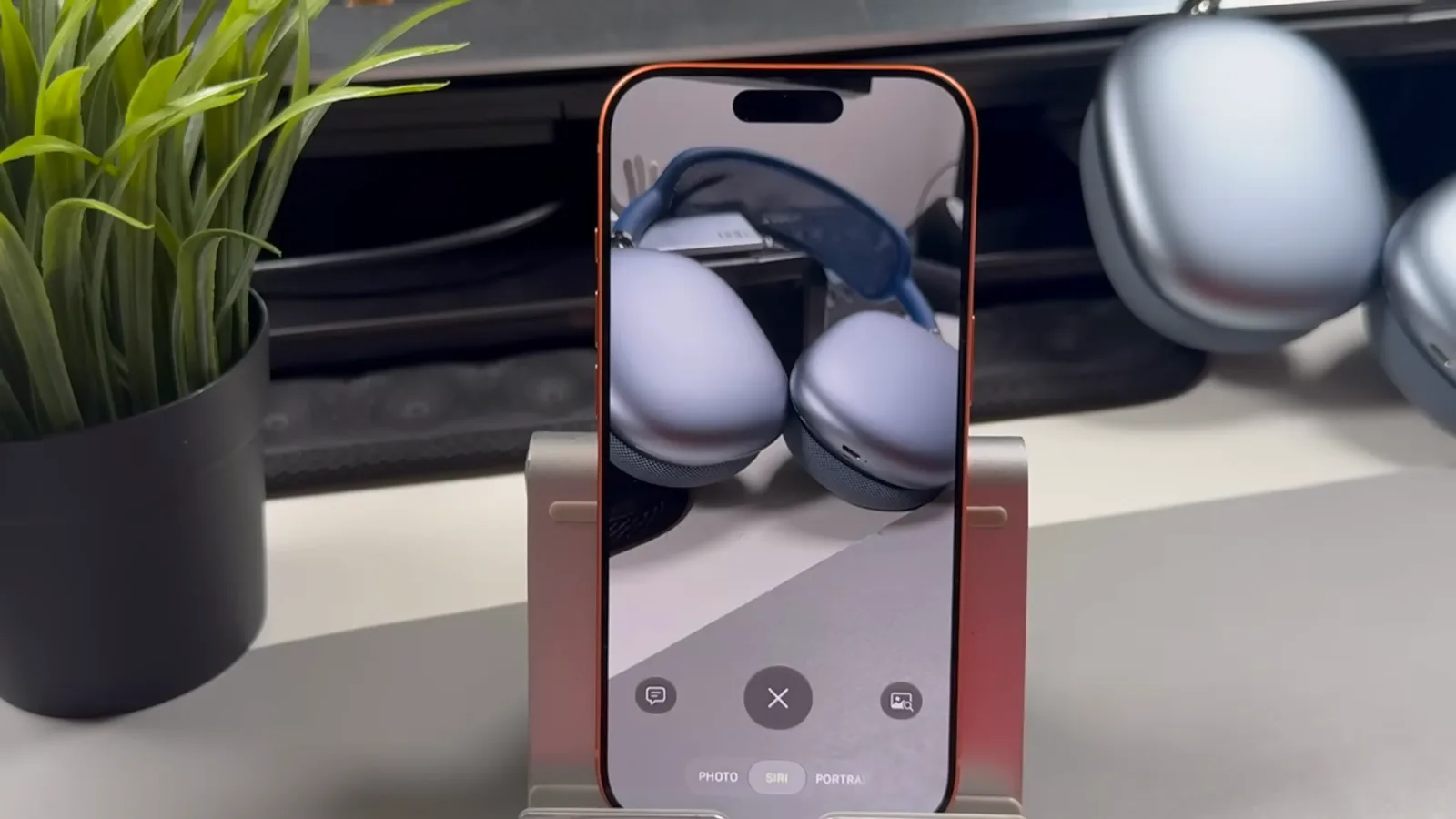
Visual intelligence lives in the camera now — no separate app needed.Watch at 13:15 - 16
Plan real life, then refine
Ask Siri to plan a two-day family trip to Niagara Falls, USA, and it returns a day-by-day itinerary — waterfalls on day one, the aquarium on day two — that you can keep steering. DHTV asked for indoor rainy-day options suitable for five-year-olds and got a revised plan on the spot.
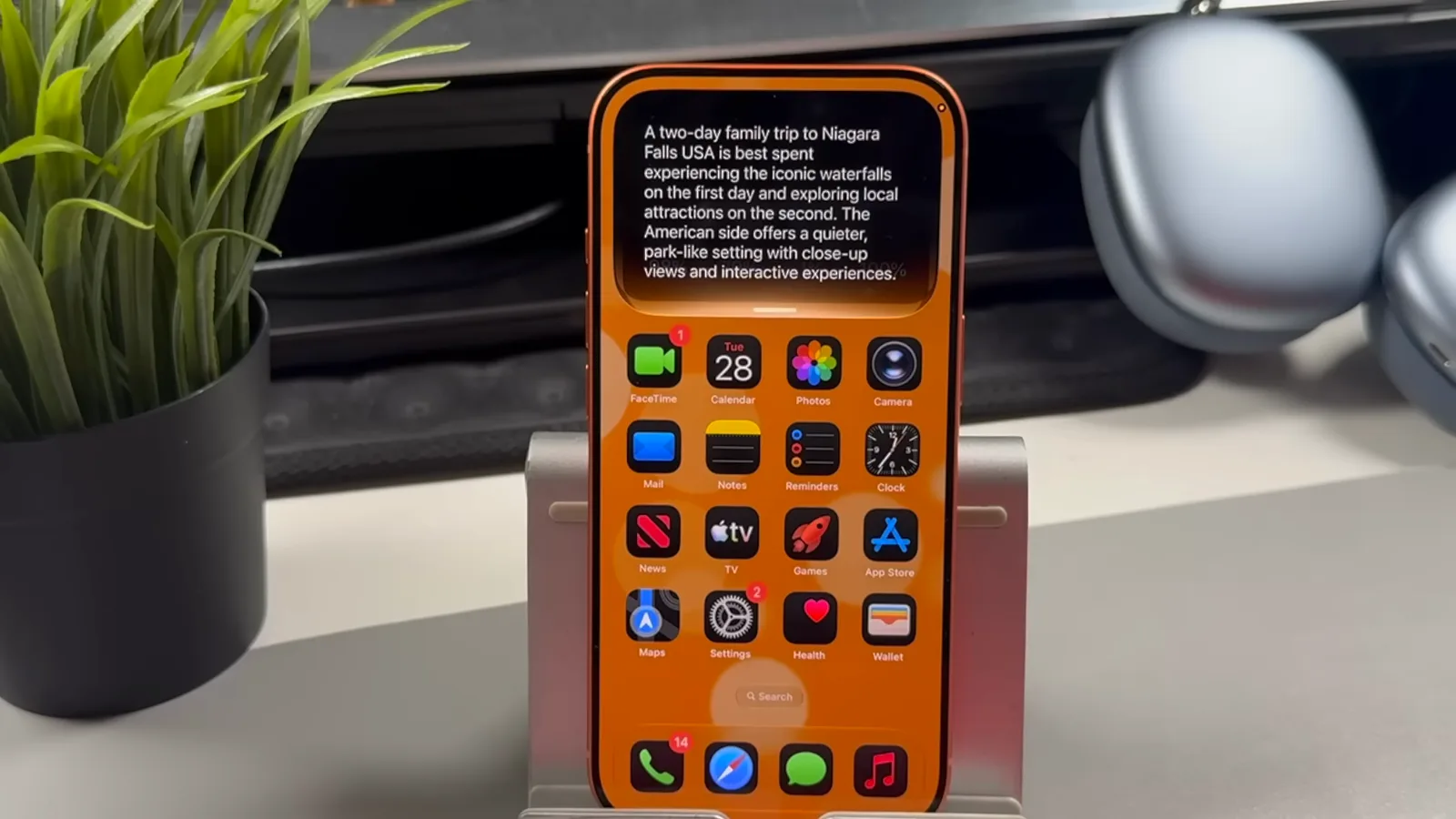
Big planning questions get structured answers you can iterate on.Watch at 14:00