

How to Use NotebookLM in 2026 (Step-by-Step, With Screenshots)
NotebookLM is Google's source-grounded AI research assistant: you feed it PDFs, Docs, websites, and videos, and every answer, summary, and generated artifact stays tied to that material with citations you can check. This guide walks through the full workflow in 16 screenshot steps, following a real notebook built from scratch. You will create a notebook, load it with sources from uploads, Google Drive, websites, and YouTube, and let Source Discovery find extra material on the web. From there you will ask questions across sources, verify claims through inline citations, save answers as notes, and promote your own notes back into sources. Finally, you will use the Studio panel to generate a mind map and a podcast-style Audio Overview, then share the finished notebook with teammates through viewer or editor roles. Every screenshot links to the exact moment in the source walkthrough, so you can watch any step performed live. By the end you will have a working notebook of your own — and a repeatable pattern for turning any pile of documents into a research assistant.
Source & credits
Screenshots in this guide are captured from Kevin Stratvert's public walkthrough video. Every step links back to the exact moment it shows, so you can follow along.
Kevin Stratvert ↗Set up your first notebook
- 1
Open NotebookLM and create a new notebook
Go to notebooklm.google.com and sign in with your Google account. Click "Create new" in the top-right corner of the home screen and NotebookLM opens a fresh, untitled notebook. Think of a notebook as a workspace for one project — meeting notes, a research topic, a course you are studying, or, in the demo, a product launch. Give it a name at the top so you can find it later.

The NotebookLM home screen — one click on Create new starts a blank notebook.Watch at 0:35 - 2
Open the Add sources panel
Sources are whatever NotebookLM should read: PDFs, Google Docs, websites, YouTube videos, copied text, even audio. Click "Add sources" at the top of the left panel. The dialog that opens combines every entry point: drag files into the drop zone, or use the Upload files, Websites, Drive, and Copied text buttons. A "Search the web for new sources" bar sits on top for when you do not have the material yet.
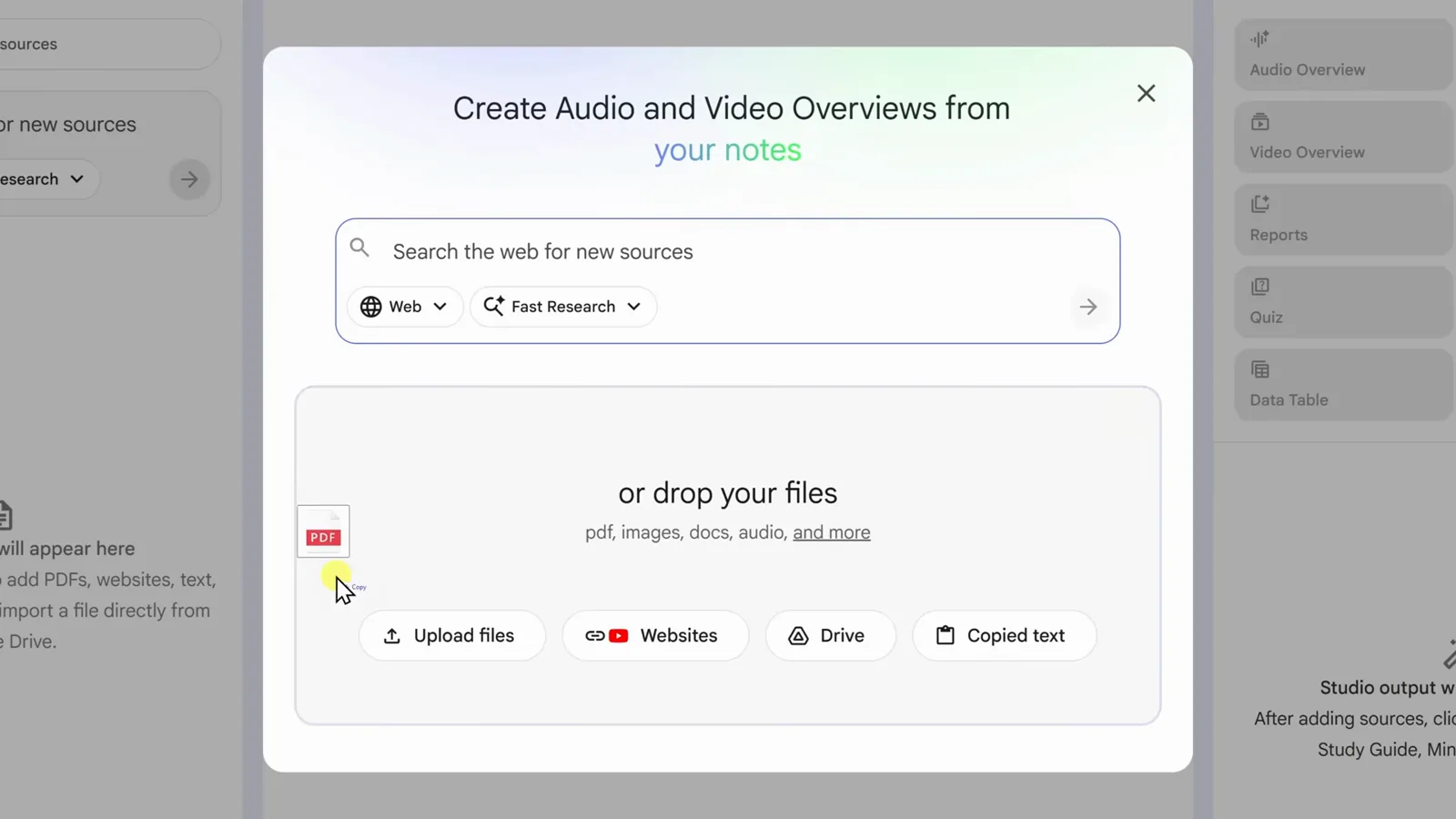
One dialog handles every source type — drag a PDF straight in, or pick Websites, Drive, or Copied text.Watch at 1:36 - 3
Add your first source by dragging in a PDF
Drag a PDF into the drop zone and NotebookLM ingests it within seconds. The file appears in the Sources panel with a checkbox, and NotebookLM immediately writes an overview of the document in the chat panel. In the demo, a launch-plan PDF becomes the first source of the "Galactic Marshmallow Explosion Launch" notebook. Keep clicking Add sources to stack more files at any time.
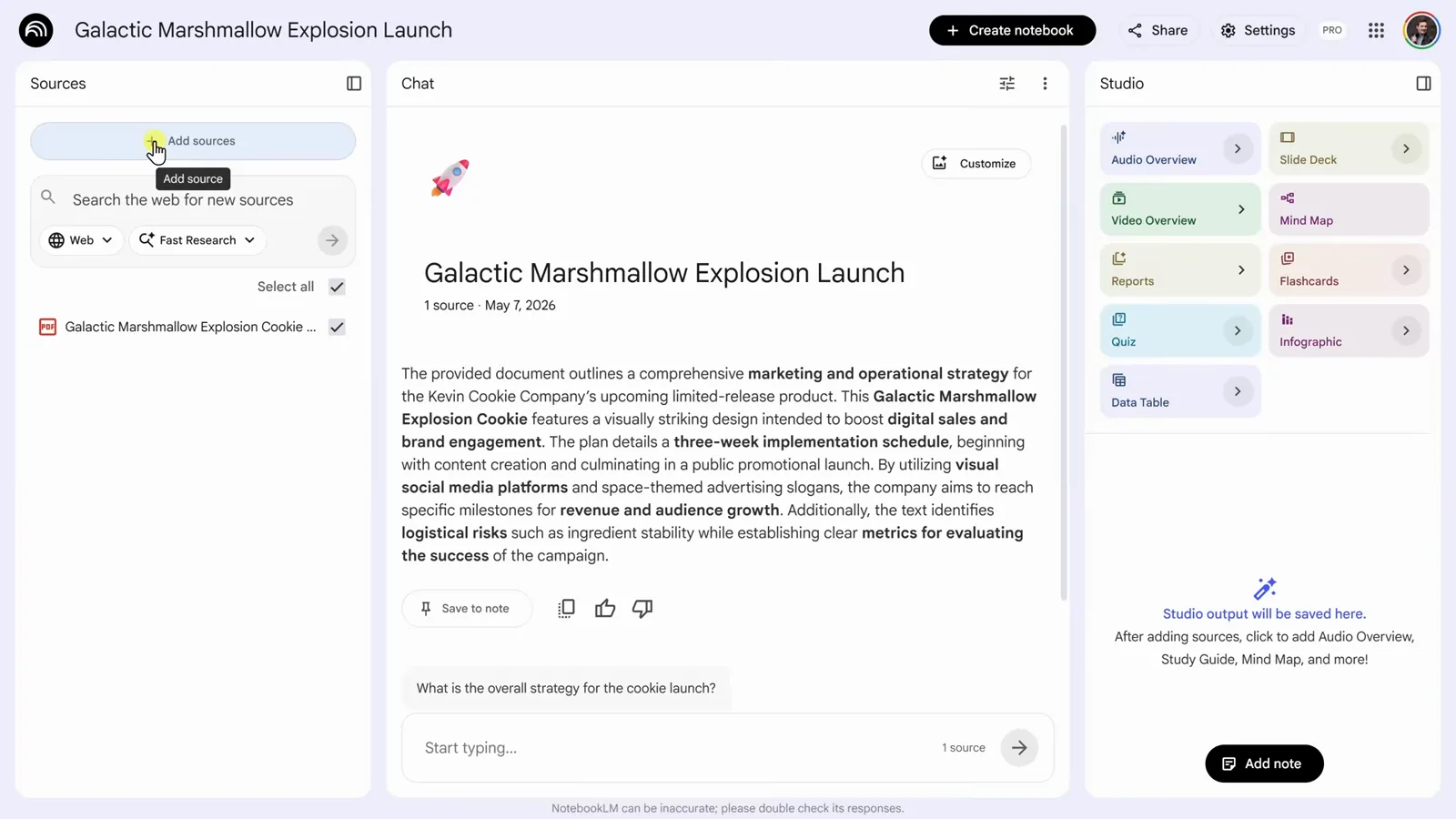
The PDF lands in the Sources panel, and NotebookLM summarizes it in chat without being asked.Watch at 1:44 - 4
Pull meeting notes straight from Google Drive
Click Add sources again and choose Drive. A file picker opens with Recent, My Drive, Shared with me, and Starred tabs — search or browse, select the document, and confirm with Insert. Docs, Slides, and Sheets added this way behave as living documents, so you can fetch the latest version after teammates make changes. PDFs, by contrast, are static snapshots once uploaded.
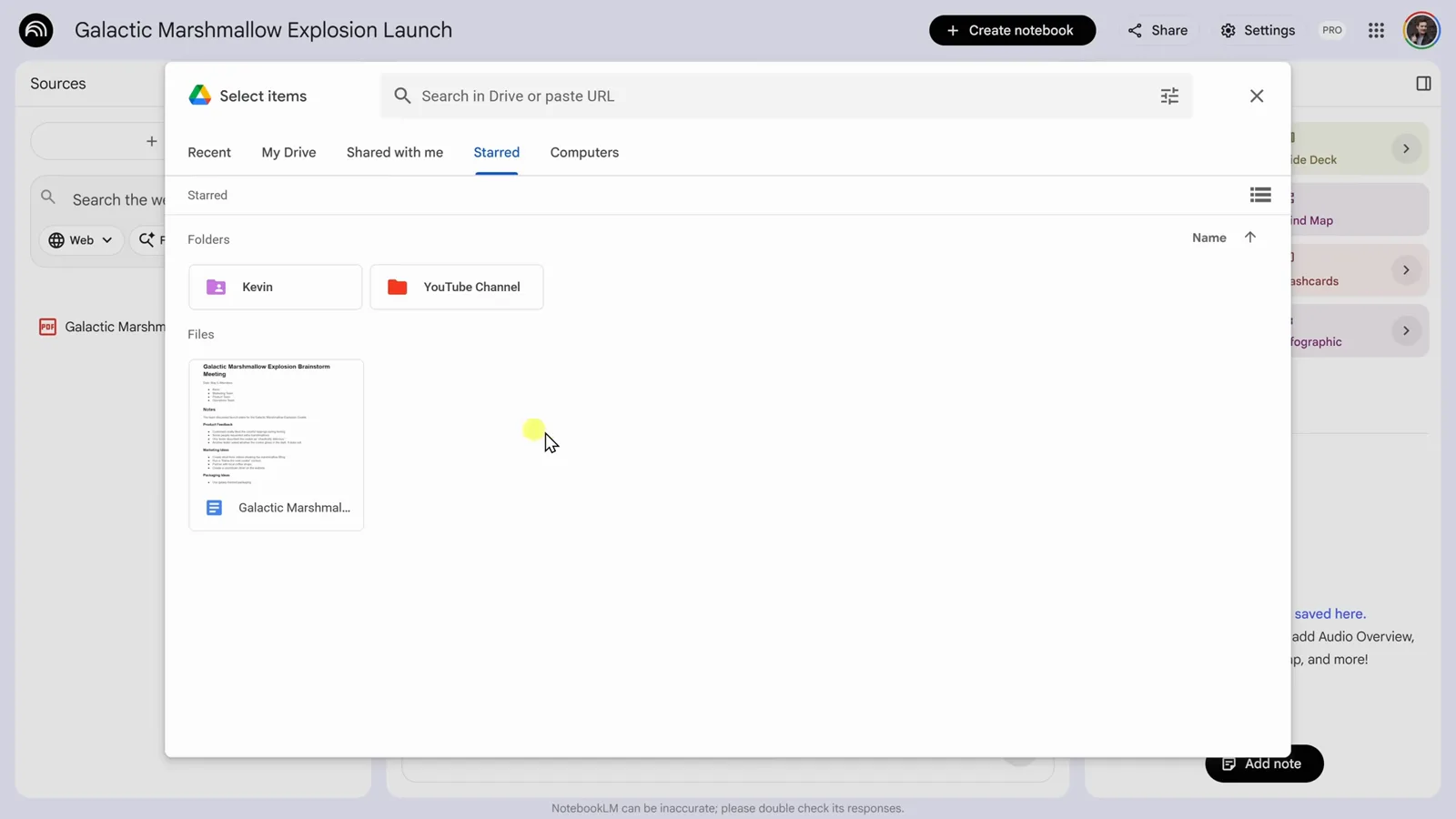
Drive files insert in a couple of clicks — and Docs stay synced with the original.Watch at 1:48 - 5
Add a website or YouTube video by URL
In the Add sources dialog, open Websites and paste any URL — a blog post, a documentation page, or a YouTube link. NotebookLM imports the page's visible text, or the transcript of public YouTube videos, and treats it as another source. The dialog lists the limits up front: paid articles are not supported, and recently uploaded videos may not import yet. Click Insert and both URLs become sources.
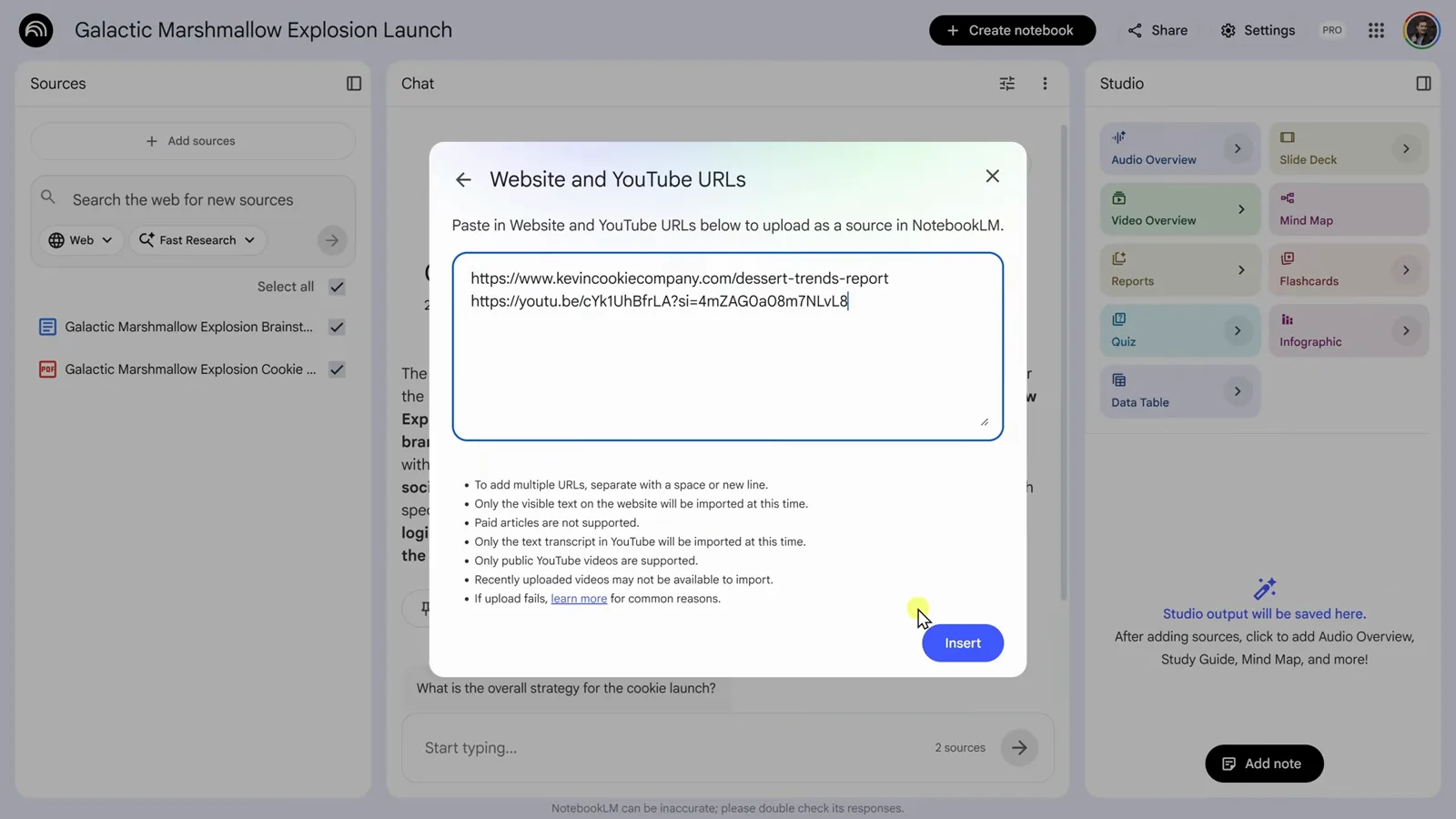
Paste one or more URLs — NotebookLM imports the page text or the video transcript as a source.Watch at 1:58 - 6
Let Source Discovery find sources for you
Short on material? Type a topic into "Search the web for new sources" — the demo searches "dessert trends 2026". NotebookLM returns a list of web results with a one-line note on each. Preview them, untick "Select all sources" if you only want one or two, tick the keepers, and hit Import. Imported pages join your other sources in the left panel.
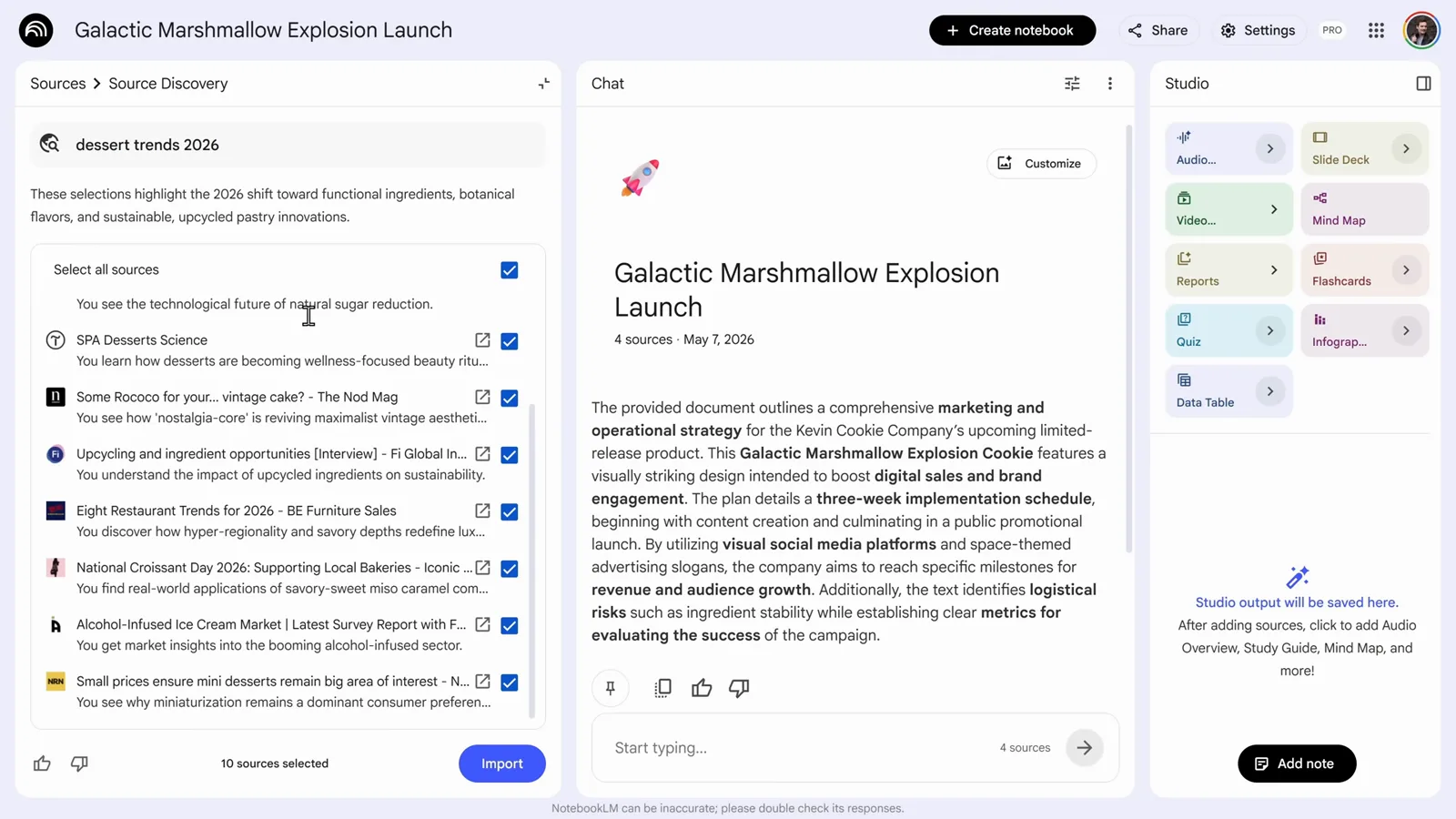
Source Discovery works like a search bar built into the notebook — tick what looks good and Import.Watch at 2:18 - 7
Open a source to read its AI summary
Click any source in the left panel and NotebookLM opens it with a "Source guide" on top: what the document is, the goals it describes, key facts, and section-by-section highlights. This is the fastest way to judge whether a long PDF deserves your time — the guide surfaces the structure before you read a single page. Click the back arrow to return to the full source list.
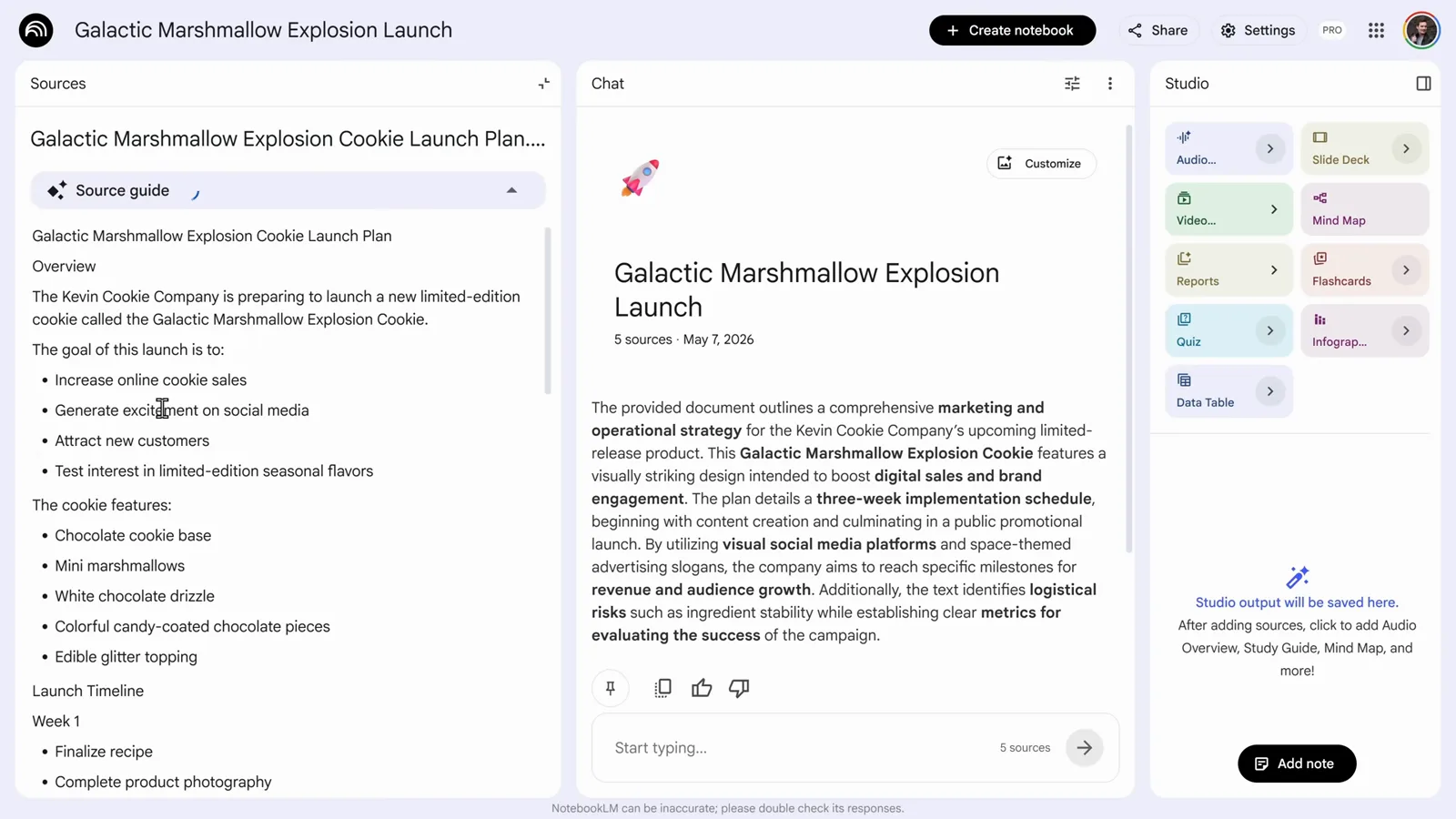
Every source opens with an AI-written guide — overview, goals, and highlights before you read the full text.Watch at 2:42 - 8
Group sources automatically with auto-labelling
Once several sources pile up, hover over the icon next to Select all and click "Auto-label sources by topic". NotebookLM reads every source and sorts them into groups it names itself — in the demo, Corporate Policy, Industry Trends, and Product Launch. Each group can be expanded, checked, or unchecked as a whole, which matters later when an output should use only part of the library.
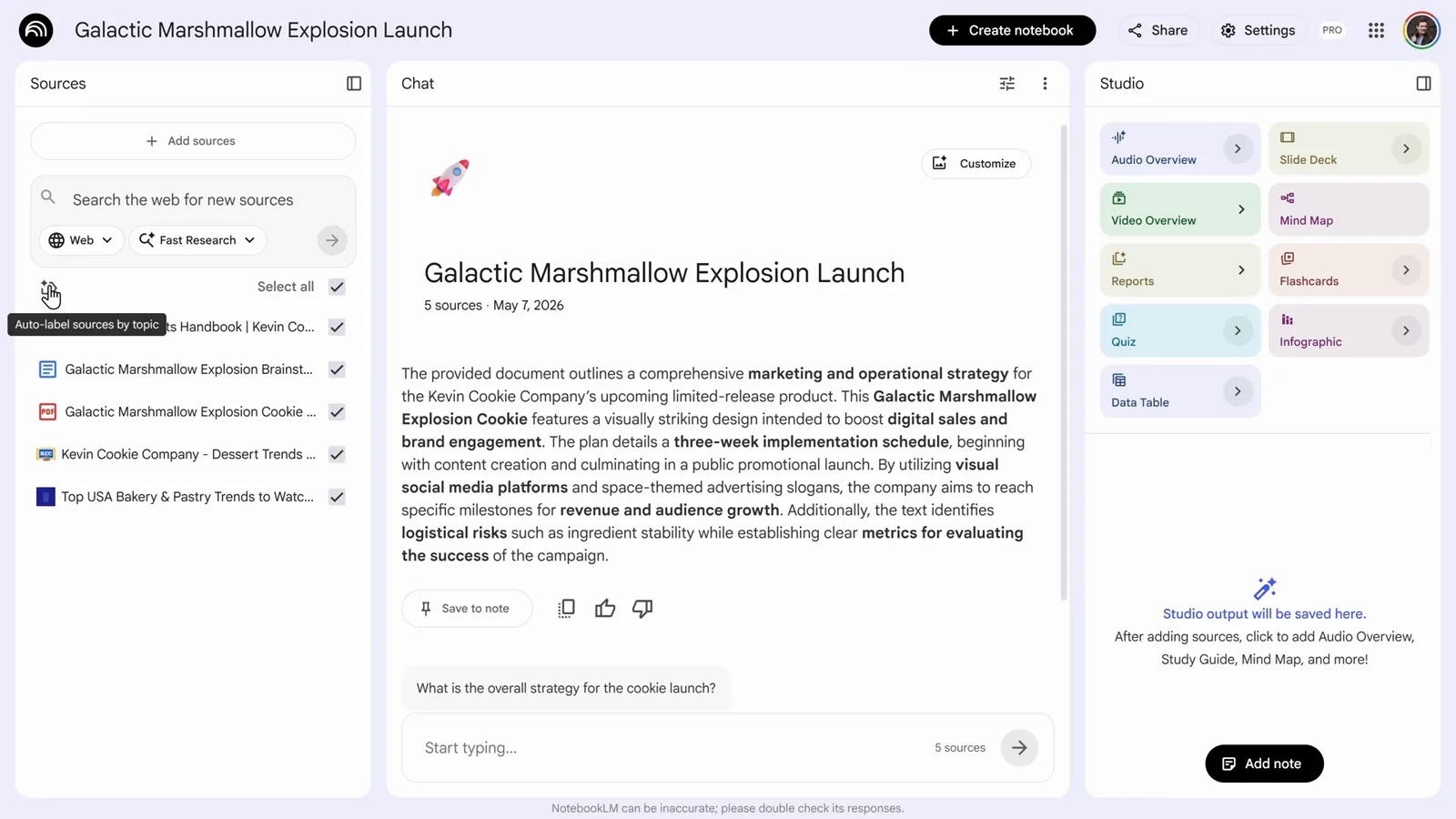
One click on Auto-label and NotebookLM sorts the whole library into named groups.Watch at 2:58
Ask questions and keep the good answers
- 9
Ask a question across all your sources
The center panel is a chat grounded in your sources. Ask in plain language — the demo types "Summarize our cookie launch strategy." — and NotebookLM reads every checked source and answers with a structured reply: a launch timeline broken into weeks, marketing notes, and follow-up questions. Change the checkboxes in the Sources panel to control which sources the answer draws from.
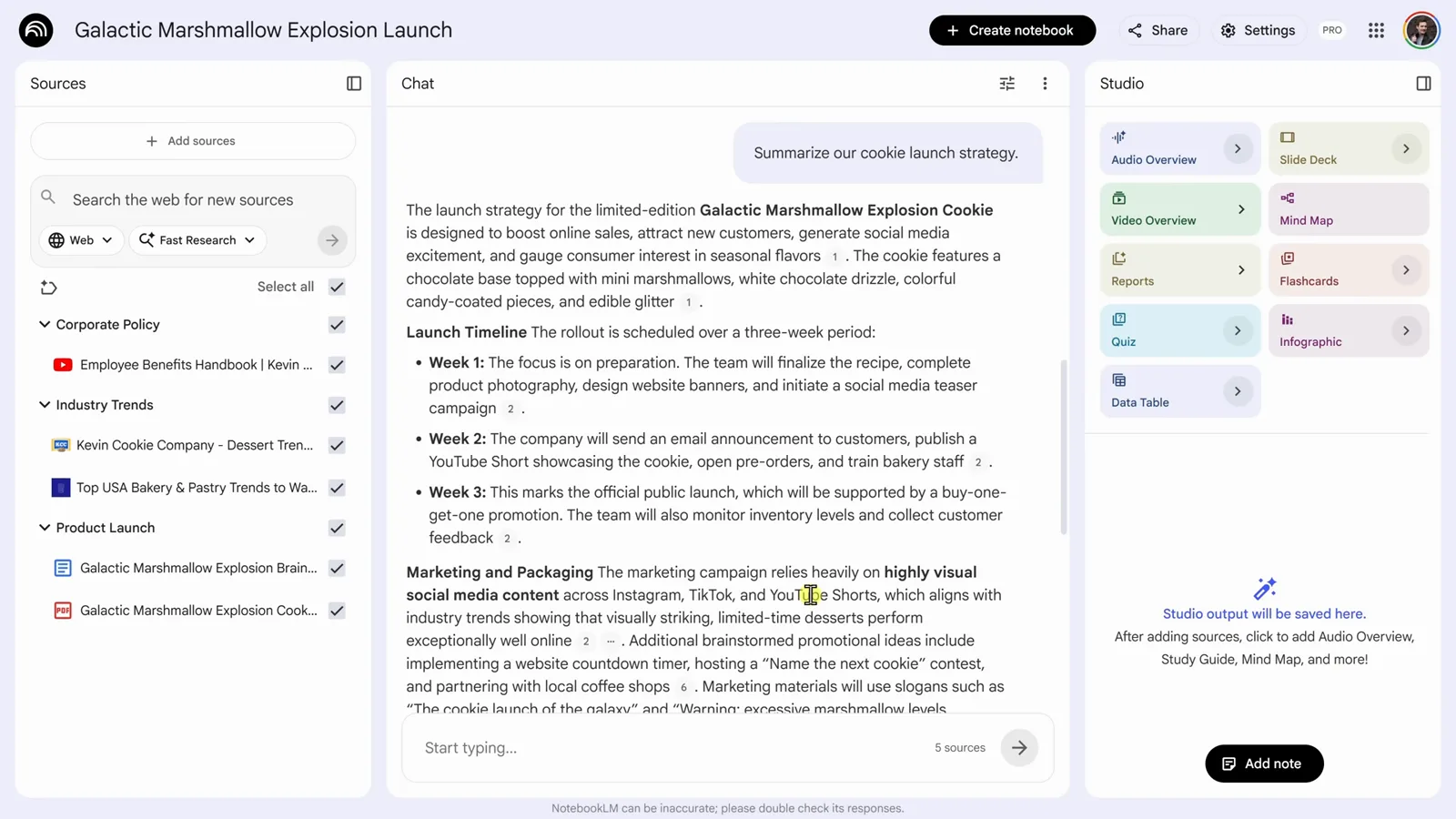
Ask like you would ask a colleague — the answer synthesizes every selected source, not just one document.Watch at 3:28 - 10
Check any claim with inline citations
Every statement in a reply carries a numbered citation. Hover one and NotebookLM previews the exact passage from the source document; click through and the source opens with the supporting text highlighted. Nothing in the answer floats free of the material — which is what makes NotebookLM usable where a wrong detail costs something. The walkthrough ends with the same advice: verify anything critical.
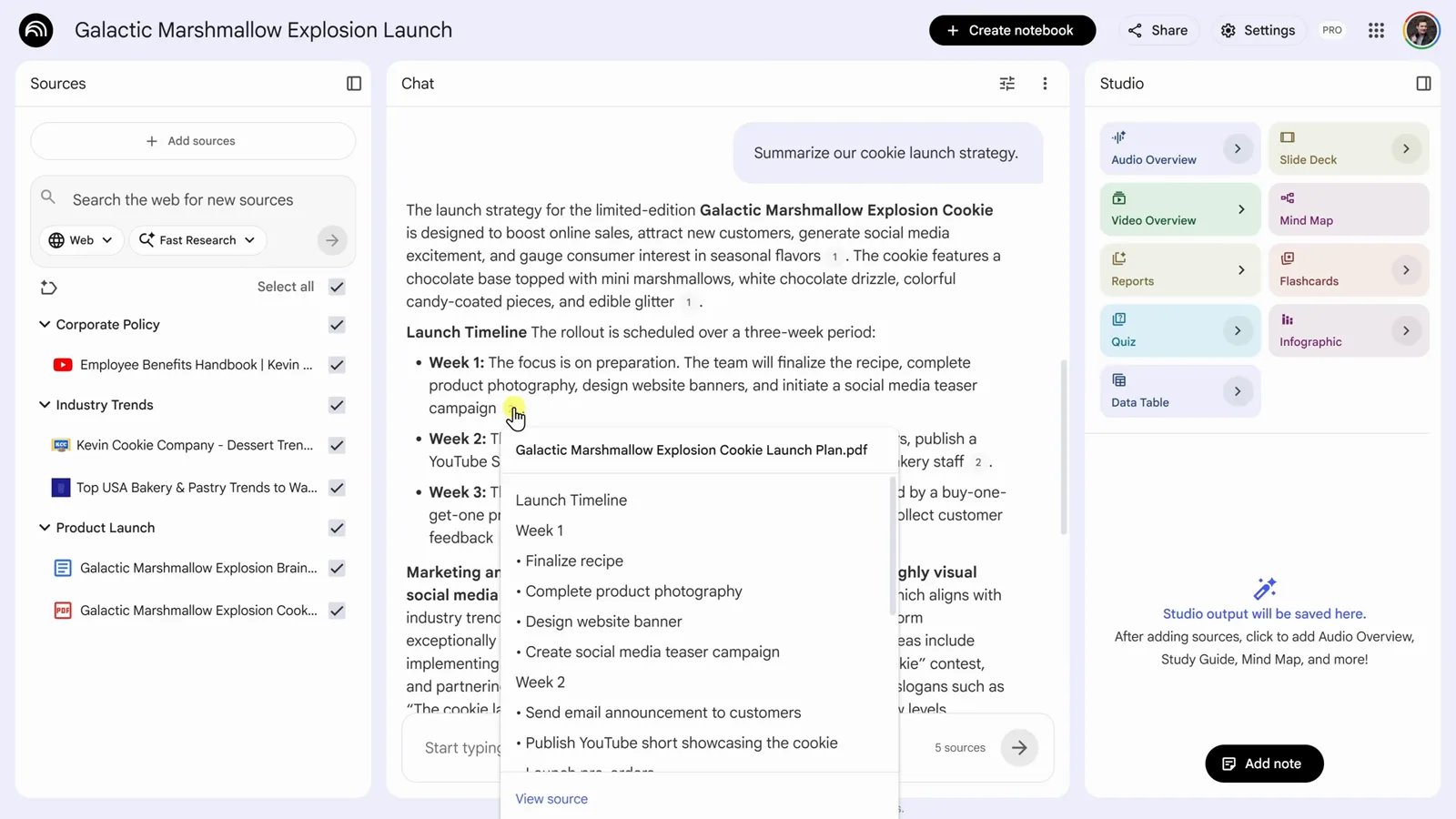
Hover a citation number to preview the source passage before you commit to it.Watch at 3:36 - 11
Save the best answers as notes
When a response is worth keeping — a risk list, a synthesis you will reference again — click "Save to note" under the reply. It is stored in the Studio panel on the right as a note you can rename and edit, so good answers stop scrolling away with the chat. You can also write notes from scratch with the Add note button and collect your own thoughts alongside the AI's.
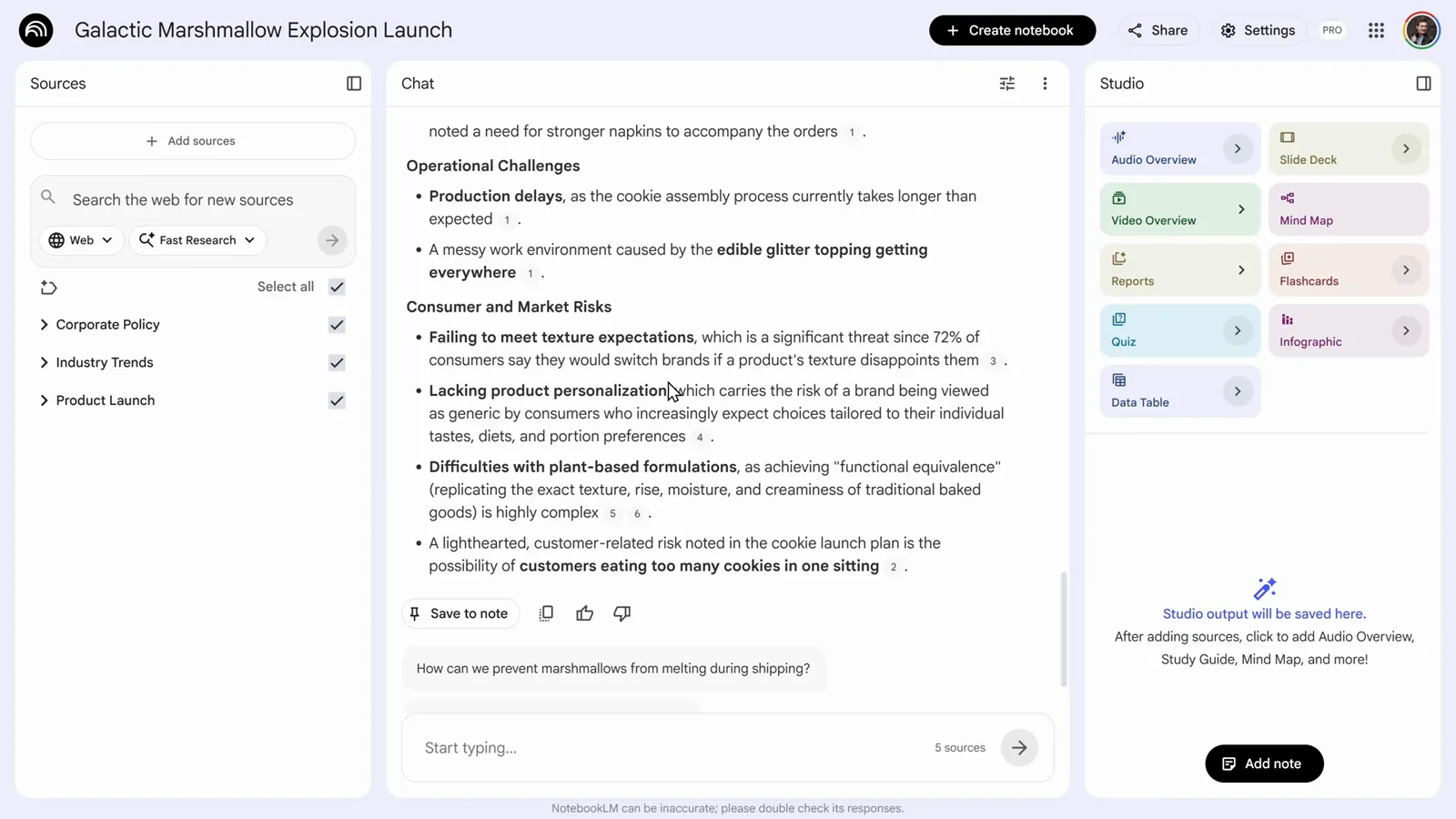
Save to note pins the response into the Studio panel, where it stays put.Watch at 4:10 - 12
Turn a note into a source
Notes can re-enter the research loop. Open the Customer Feedback note — a list one customer gave about the cookie — and click "Convert to source" at the bottom. The note appears in the Sources panel like any uploaded file, which means every future chat answer and Studio output now factors it in. It is the simplest way to fold your own observations into the corpus without exporting anything.
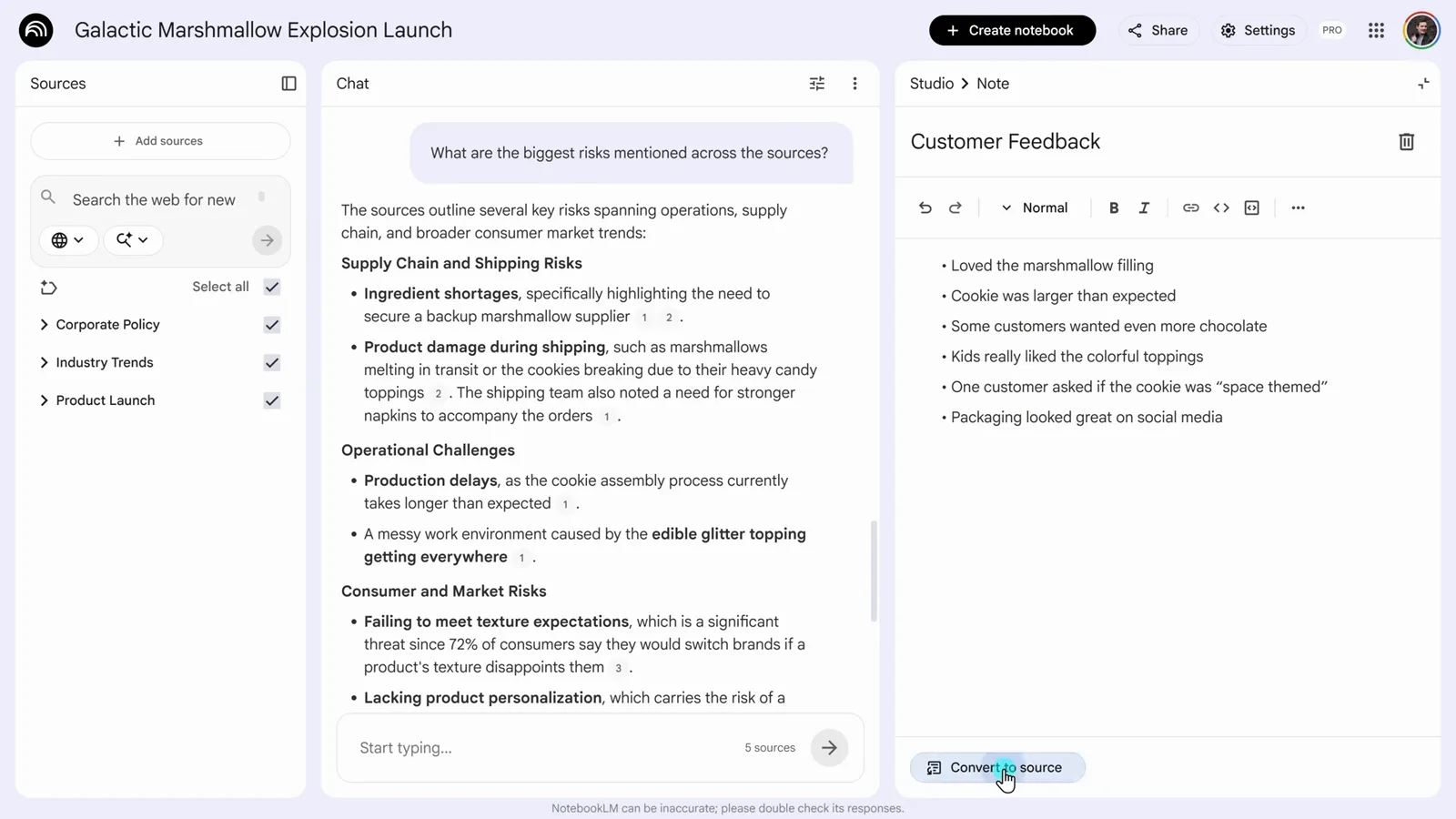
Convert to source promotes a note into the Sources panel — your feedback becomes raw material.Watch at 4:50
Generate outputs and share the notebook
- 13
Meet the Studio panel
The right-hand Studio panel is where NotebookLM turns sources into finished artifacts. One click generates an Audio Overview, Slide Deck, Video Overview, Report, Flashcard set, Quiz, Infographic, or Data Table — Mind Map lives here too. Each output is saved in the panel as it is created, next to your notes, so a notebook ends up holding both the research and the deliverables built from it.
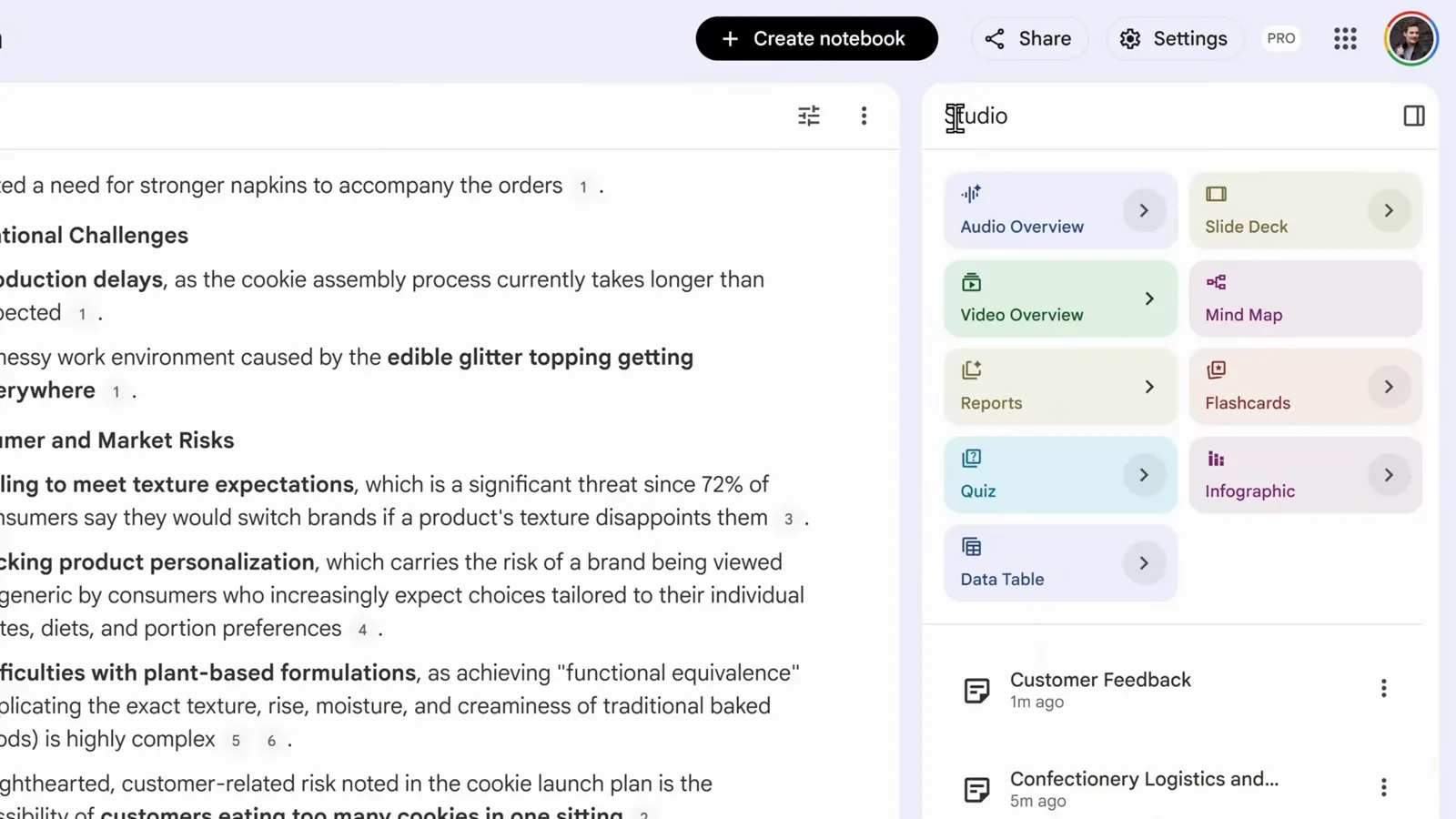
Nine generators, one panel — everything NotebookLM builds from your sources is saved here.Watch at 5:02 - 14
Map a topic with a mind map
Pick your sources first — the demo deselects all and checks only the two Industry Trends sources — then click Mind Map. NotebookLM builds an interactive diagram, here titled "The Confectionery Landscape: 2026 Dessert and Bakery Trends", with expandable branches for social media appeal, texture innovation, health, flavor profiles, and more. Zoom, drag to explore, and click a node to go deeper.
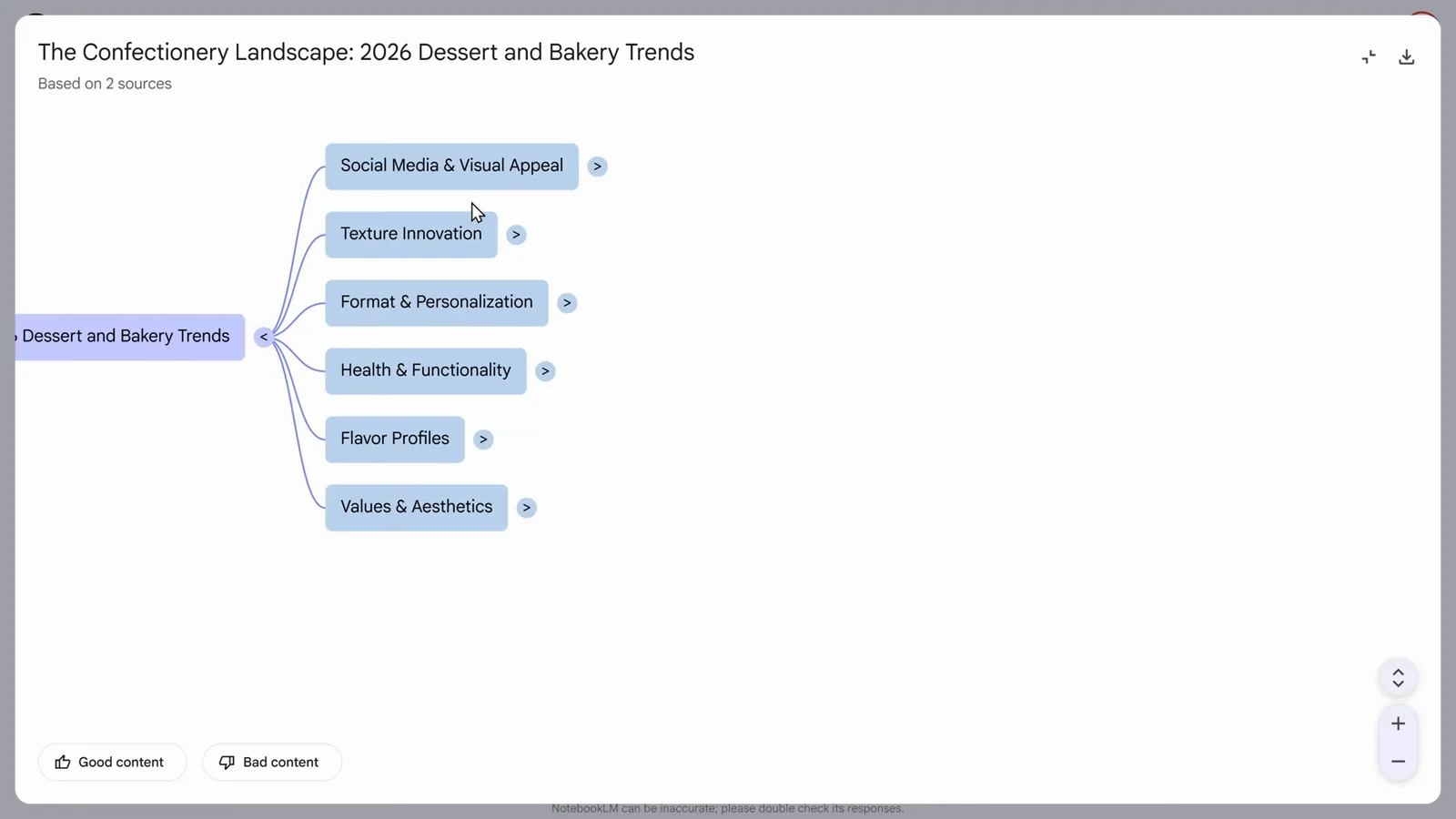
Limiting the mind map to two trend sources keeps the whole map on-topic.Watch at 5:48 - 15
Customize an Audio Overview before generating
Audio Overview generates a podcast-style discussion of your sources — and it is customizable. The settings dialog offers four formats (Deep Dive, Brief, Critique, Debate), a language picker, three lengths, and a focus box: tell the hosts what to prioritize, or add a suggested chip like Marketing Strategy. Keep the defaults if they look right, click Generate, and the episode is ready in a few minutes.
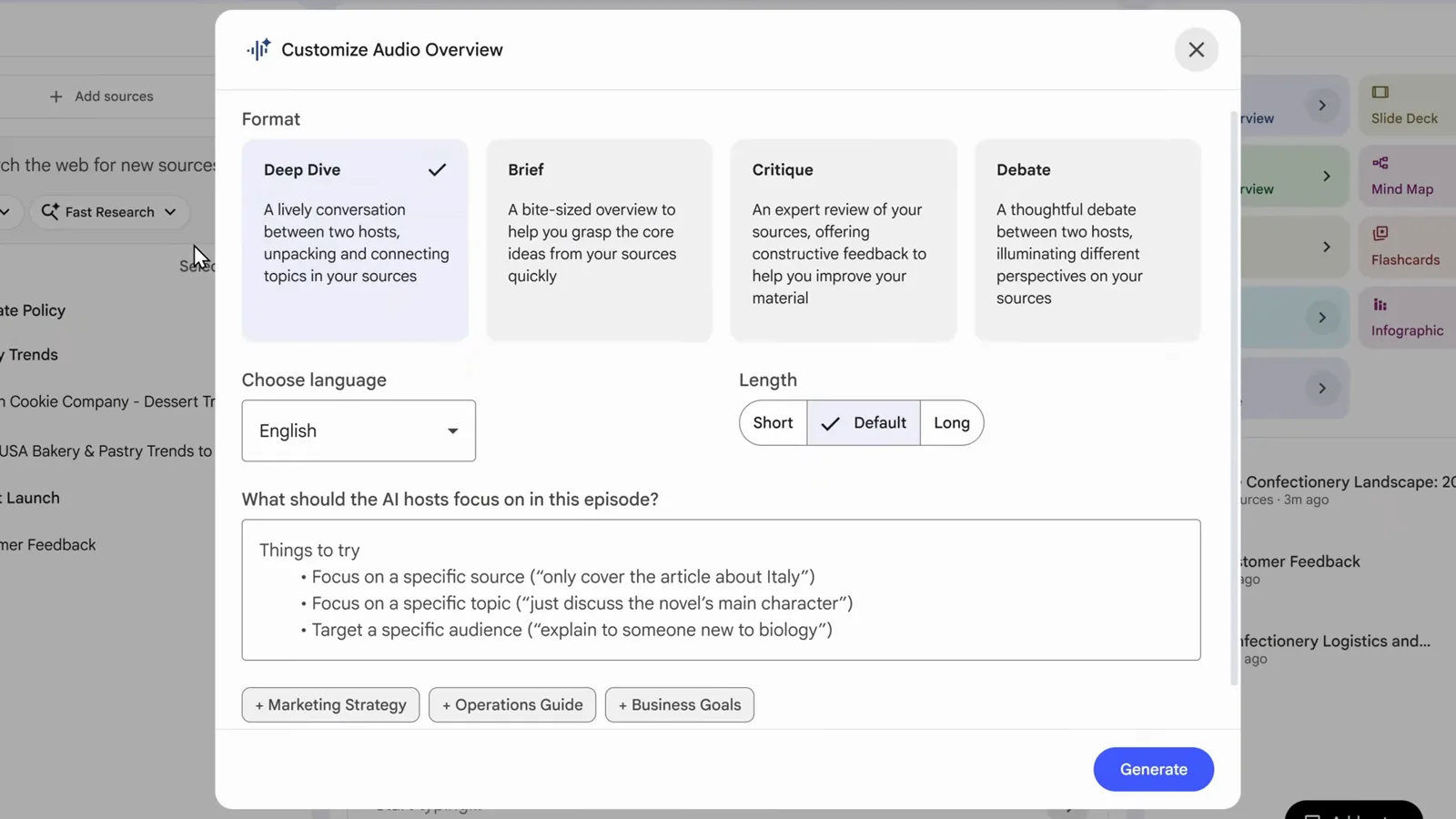
Format, language, length, and focus — set them before the two AI hosts record your episode.Watch at 6:26 - 16
Share the notebook with your team
Click Share in the top bar to invite people by email. Each collaborator gets a role: Viewer for read-only access, Editor if they should add sources and generate outputs — and you can remove access later from the same menu. The notebook stays Restricted by default, meaning only explicitly added people can open it. Everyone with access sees the same sources, notes, and generated content.
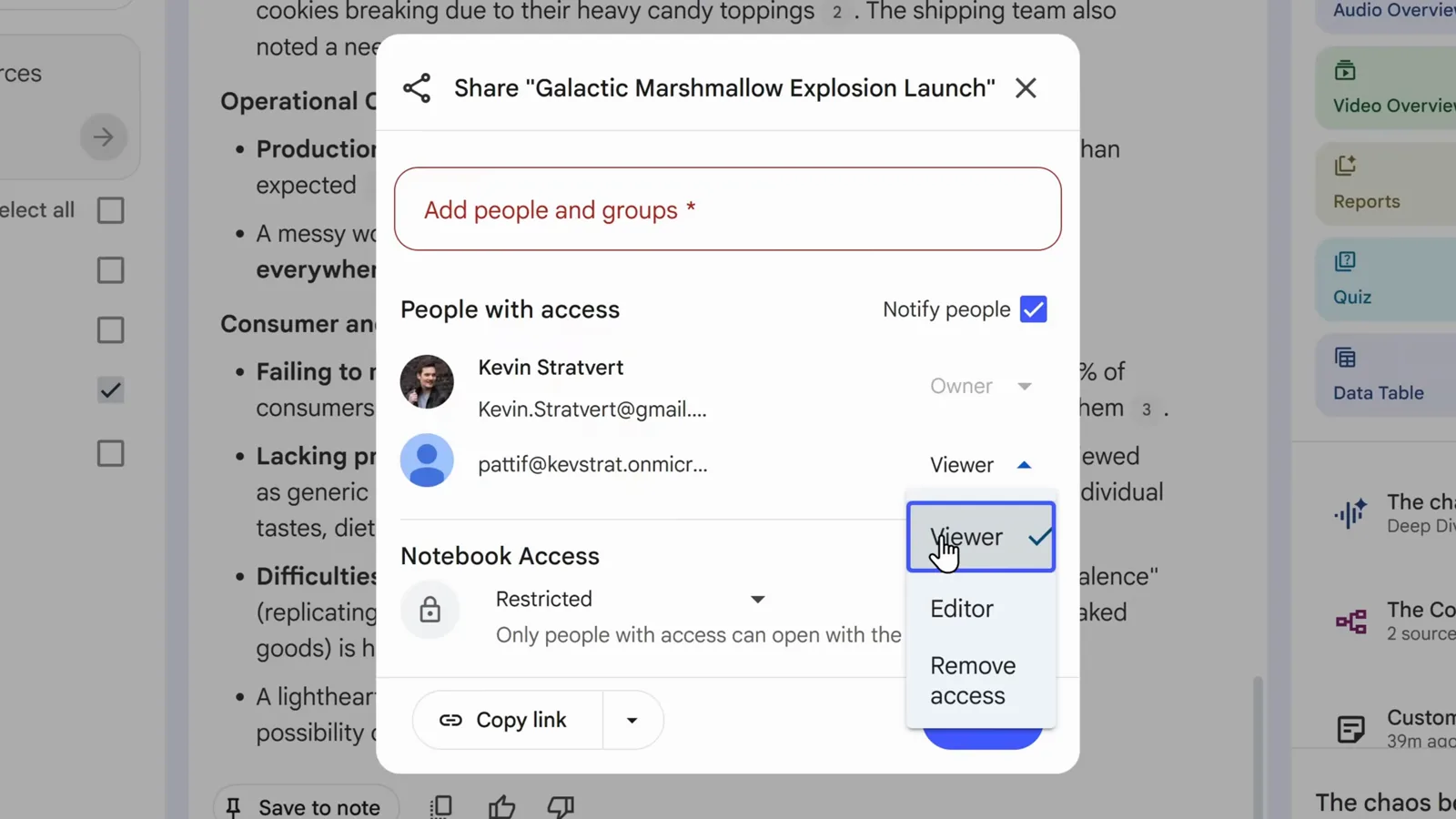
Restricted by default — invite specific people and set each one to Viewer or Editor.Watch at 7:20